MCP Connectors in Harness AI Chat
Harness AI chat can use third-party Model Context Protocol (MCP) connectors to reach tools and data outside of Harness. When you connect an MCP connector to your chat settings, Harness AI can call that server's tools during a conversation, such as listing GitHub repositories, reading Jira issues, querying GitLab, or calling a custom internal service. MCP connectors are additive: they extend what Harness AI can do without changing your existing chat workflows.
Currently, this feature is behind the feature flag ML_ENABLE_CHAT_MCP_SETTINGS. Contact Harness Support to enable it.
What you will learn in this topic
By the end of this topic, you will be able to:
- Understand how MCP connectors add tools to Harness AI chat.
- Connect a connector from any scope you can access.
- Add, pin, edit, and remove connectors in chat settings.
- Control which MCP tools Harness AI can call, and when it needs approval.
- Use MCP tools during a chat conversation.
Before you begin
Before you connect an MCP connector to Harness AI chat, ensure you have the following:
- Harness AI access: Harness AI active for your account. For more information, see Overview of Harness AI.
- Feature flag: The
ML_ENABLE_CHAT_MCP_SETTINGSflag enabled for your account. Contact Harness Support to enable it. - An MCP Server connector: An MCP Server connector, or permission to create one, at Account, Organization, or Project scope. For more information, see Configure MCP connectors and Add an MCP connector.
- Server credential: The credential the MCP server expects, such as a custom header or API key, stored as a Harness secret. For more information, see Add and reference text secrets.
How MCP connectors work in chat
Harness AI chat sends your prompt to the model along with the tools exposed by each connector that you connect. When a request needs one of those tools, Harness AI calls the MCP server, uses the result, and continues the conversation.
- Extra tools: Each connector adds the tools its MCP server exposes, such as repository, issue, or ticket operations.
- Live data: Harness AI reads current data from the server at request time, not a cached copy.
- Session scope: Connected connectors apply to your chat sessions. Other users do not inherit your selection.
- Governance still applies: Harness AI Rules continue to shape and constrain responses. When a rule limits an action, Harness AI reports the constraint in its answer.
Harness AI Rules and Memories still apply when connectors are active. For more information, see Harness AI Rules and Harness AI Memories.
Connector scopes
MCP connectors follow the Harness hierarchy, so you can share one server across every team or restrict it to a single project. The Select MCP Connector panel lists connectors under Project, Organization, and Account tabs so you can use connectors from any scope that you can access.
| Scope | Typical owner | Common use |
|---|---|---|
| Account | Account admin | Shared servers for every team, such as an account-wide GitHub or Jira MCP server. |
| Organization | Organization admin | Servers shared across the projects in one organization. |
| Project | Project admin or user | Servers specific to one project, such as a project GitLab or Jira integration. |
Connector status and management
The connector list shows the state of each connector so you can tell which servers are reachable before you connect them.
- Connection status: A status icon precedes every connector name: a green check mark for a successful connection, and a red cross for a failed one.
- Pin: Pin a connector to keep it at the top of the list for quick reuse.
- Edit: Click the Edit icon to open the connector and update its URL, authentication, or other settings.
- Search: Use the search box to filter connectors by name within the selected scope.
If the status icon for a connector is red, open it with the Edit icon and confirm the server URL and API key. For more information, see Add an MCP connector.
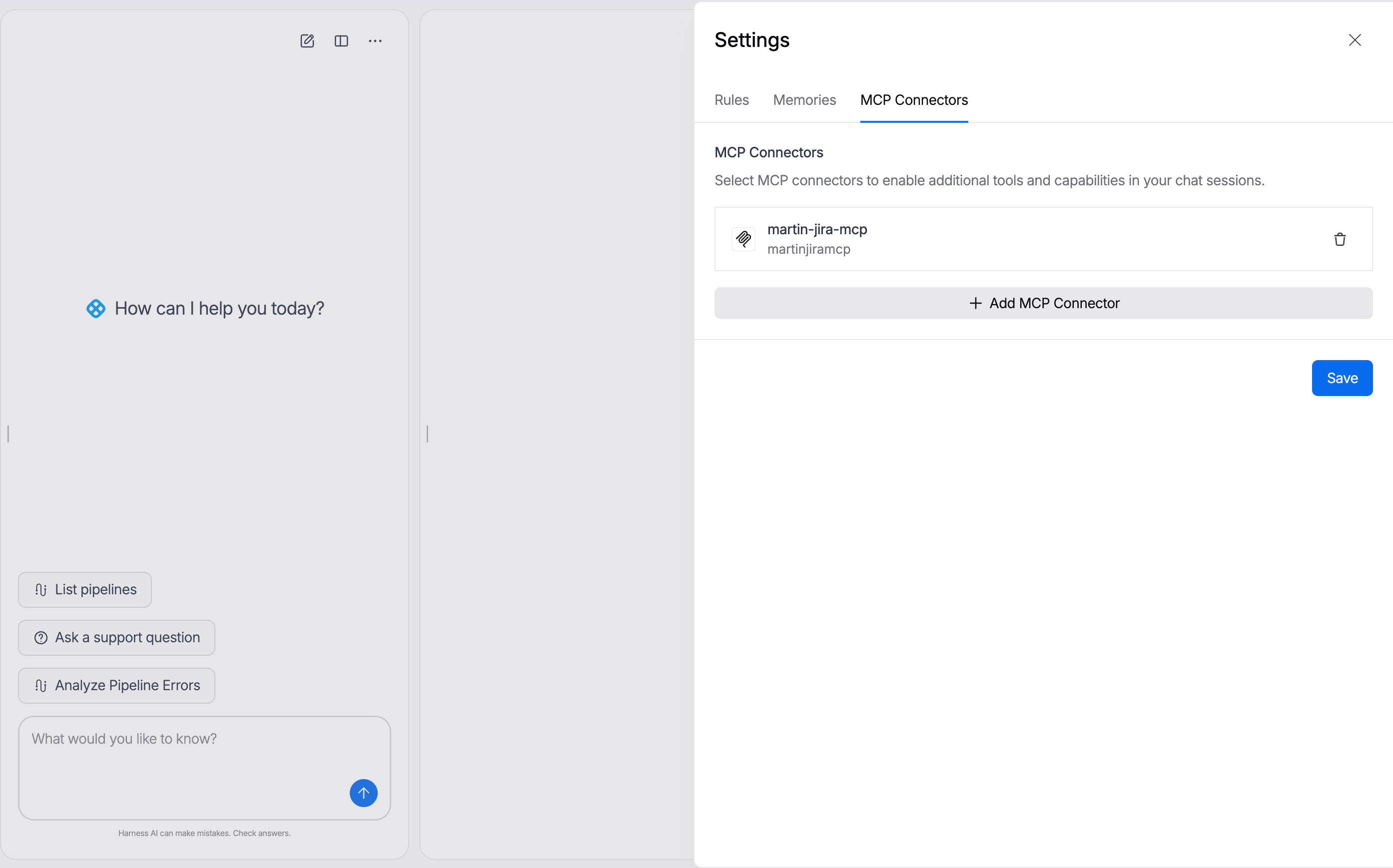
The MCP Connectors tab lists connected connectors and lets you add or remove them before you click Save.
Add an MCP connector
You can use an existing connector or create a new one. To connect a connector from Harness AI chat settings, follow the steps below:
- Navigate to Harness AI.
- Select the More Options menu, then select Settings.
- Select the MCP Connectors tab.
- Click Add MCP Connector.
- In the Select MCP Connector panel, select Existing or New.

Open Settings from the Harness AI More menu to reach the MCP Connectors tab.
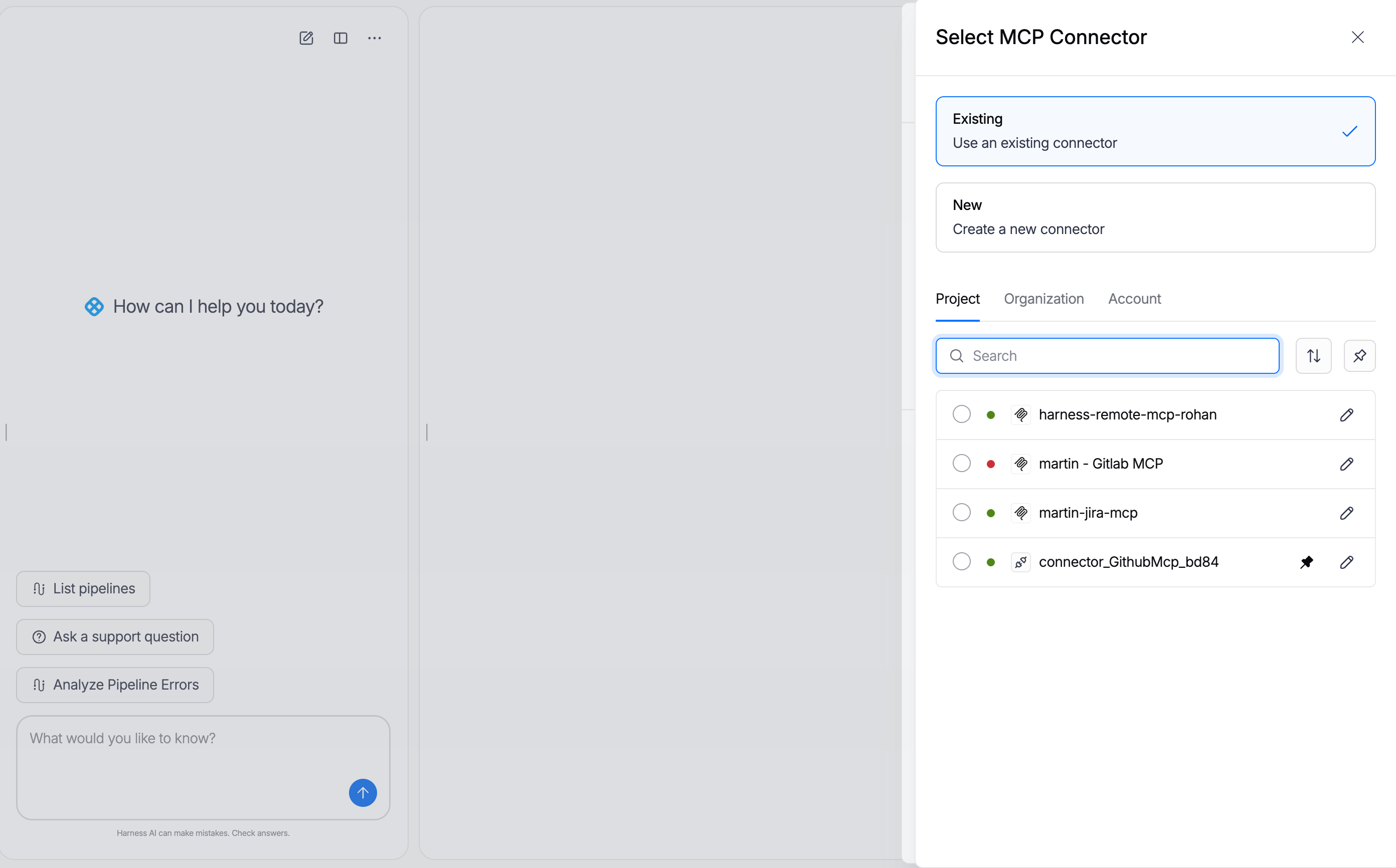
The Select MCP Connector panel lists connectors by scope and lets you use an existing connector or create a new one.
- Use an existing connector
- Create a new connector
- Select Existing.
- Select the Project, Organization, or Account tab for the scope that holds the connector.
- Search for the connector by name, then select it.
- Optionally pin the connector to keep it at the top of the list.
- Close the panel to return to MCP Connectors, then click Save.
- Select New to create an MCP Server connector.
- Enter the Server URL for the third-party MCP server, such as your GitHub, GitLab, or Jira MCP endpoint.
- Under Authentication, provide the credential the server expects, such as a custom header or API key, stored as a Harness secret.
- Save the connector, then connect it and click Save.
Connector requirements
MCP Server connectors require both a valid server URL and a valid credential. A connector name alone is not sufficient. If either value is wrong, the status icon for a connector shows red and its tools will not load.
To create a connector outside of chat, or to review the full connector YAML, see Configure MCP connectors.
Manage tool permissions
An MCP server exposes a set of tools, and each tool can read or change data in the connected system. The Tools step of the MCP Server Connector controls how Harness AI can invoke each tool. This way, you can allow read operations safely but monitor write operations.
You can set these permissions when you create the connector, or open an existing connector and navigate to the Tools step to modify them.
Each tool supports three permission levels:
- Always allow: Harness AI can call the tool without confirmation. Use this for low-risk, read-only tools, such as listing repositories or reading issues.
- Blocked: Harness AI cannot call the tool. Use this to hide tools you do not want available in chat.
- Needs approval: Harness AI must request your confirmation before it calls the tool. Use this for tools that create, update, or delete data, such as opening a pull request or commenting on an issue.
Use the Set all tools to selector at the top of the step to apply one permission level to every tool at once, then adjust individual tools as needed. The per-tool rows in the image below show the tool name and description so you can decide the right level for each one.
Click Save to apply the tool permissions. Harness AI enforces these permissions in every chat that uses the connector.
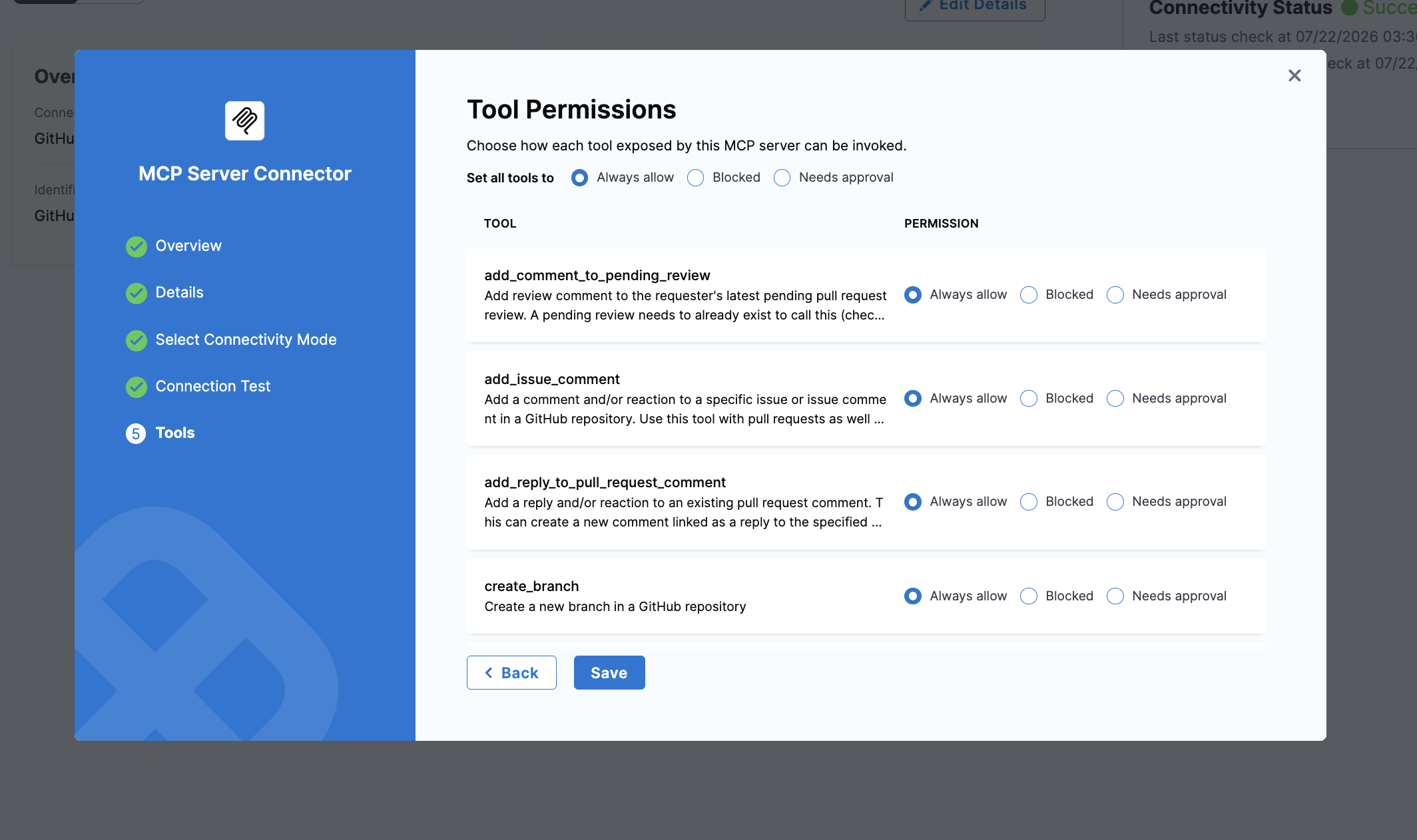
The Tools step sets a permission level for each tool the MCP server exposes, with a bulk selector to set all tools at once.
Harness recommends you set the write tools to Needs approval or Blocked until you trust a connector in the chat. You can modify the permissions later without recreating the connector.
Remove an MCP connector
When you remove a connector, the connector is detached from your chat sessions. It does not delete the underlying connector, so you can connect it again later.
To remove a connector, follow the steps below:
- Open the MCP Connectors tab in Harness AI settings.
- Click Delete next to the connector you want to remove.
- Click Save.
Use MCP tools in chat
After you connect a connector and save it, ask Harness AI a question that needs one of its tools. Harness AI decides when to call the tool, runs it, and uses the result in its answer.
For example, with a GitHub MCP connector connected, you can ask:
List the GitHub repositories in my GitHub account.
Harness AI calls the GitHub MCP server, retrieves your repositories, and returns them in the chat, along with a short note about any governance rules it applied to the request.
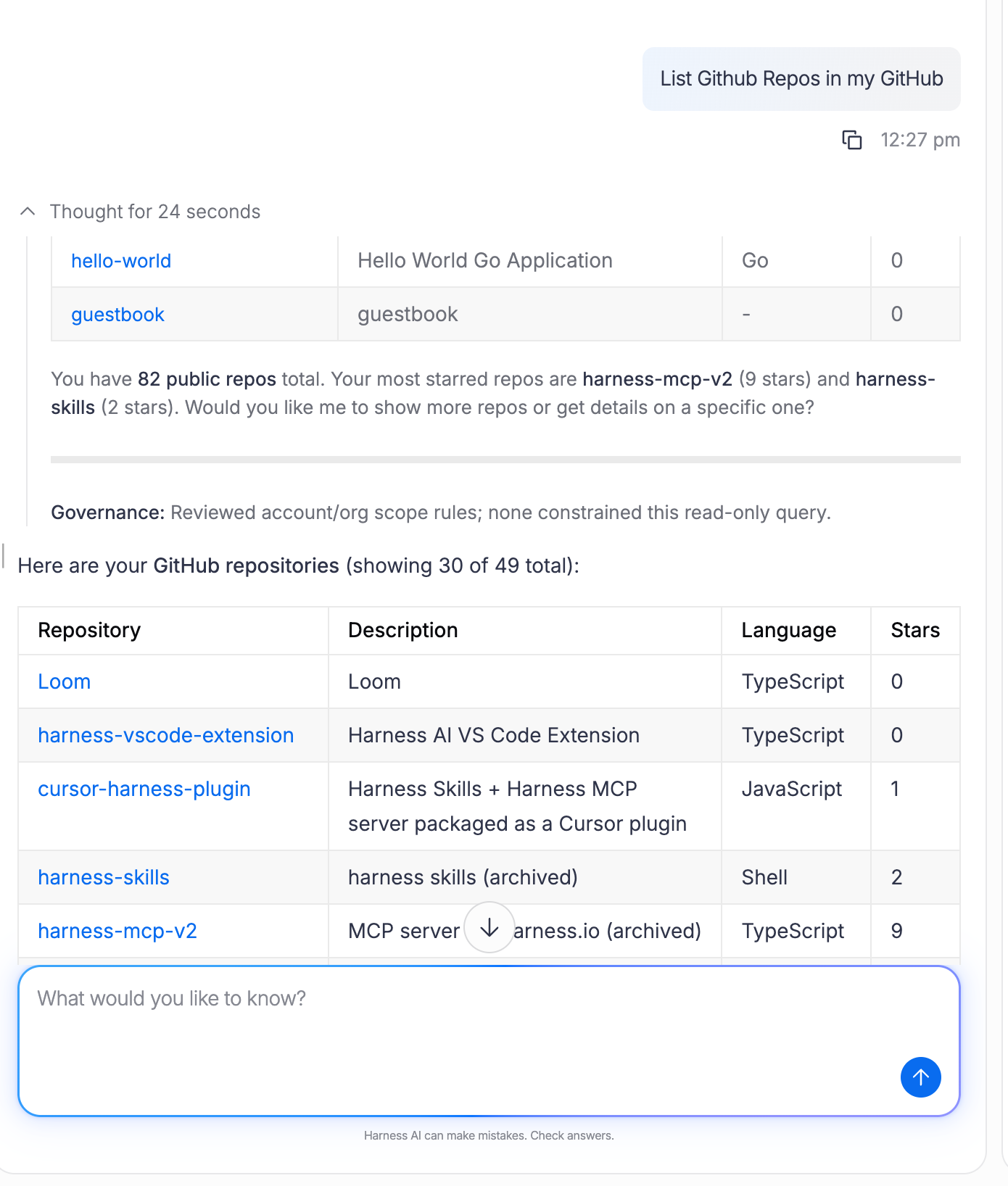
Harness AI calls the connected GitHub MCP connector and returns repository data directly in the chat.
Supported MCP servers
You can connect any third-party MCP Server connector that exposes a reachable endpoint and a valid credential. Common sources include:
- GitHub: Repositories, issues, and pull requests.
- GitLab: Projects, merge requests, and issues.
- Jira: Issues, projects, and tickets.
- Other providers: Any custom or third-party MCP server that follows the Model Context Protocol and exposes a reachable endpoint.
Harness AI already has built-in access to Harness data such as pipelines, executions, services, and environments, so you do not need an MCP connector for Harness-native workflows. Add MCP connectors when you want Harness AI to reach tools and data in external systems. For more information, see Harness MCP Server.
Troubleshooting
The MCP Connectors tab does not appear in Harness AI chat settings
MCP connectors in Harness AI chat are behind the ML_ENABLE_CHAT_MCP_SETTINGS feature flag. Contact Harness Support to enable it for your account.
An MCP connector shows a red connection status in Harness AI chat settings
A red status means the connector cannot reach its MCP server. Open the connector, confirm the server URL is correct and reachable, and verify the API key secret is valid and not expired.
Harness AI does not use the tools from a connected MCP connector
Confirm you selected Save after connecting the connector, that the connector status is healthy, and that your prompt clearly asks for an action the server's tools support.
Related articles
- Overview of Harness AI: Review available AI features.
- Configure MCP connectors: Set up an MCP Server connector that includes a server URL, authentication, and connector YAML.
- Harness MCP Server: Review Harness-native MCP tools and resource types.
- Harness AI Rules: Govern AI output before Harness resources change.
- Effective Prompting with Harness AI: Write prompts that produce better tool calls.