Clone
After you create a repository, you can work directly in the Harness Code UI, or clone the repository to your local machine and use your own IDE. Harness Code supports cloning over HTTPS and over SSH.
Before you begin
-
Repository access: You need View on the repository you want to clone, and Push if you intend to push changes back. Go to the permissions reference to review the permission list.
-
Git installed: You need a local Git client. Partial clone requires Git 2.19 or later, so upgrade if you plan to use
--filter. -
SSH availability: Cloning over SSH is behind the
CODE_SSH_ENABLEDfeature flag. Contact Harness Support to enable it.
Clone over HTTPS
To clone a repository over HTTPS, do the following:
-
When viewing a repository in Harness Code, go to Summary, then select Clone repository.
-
If this is the first time you have cloned this repository, select Generate Clone Credentials, then copy the Token and store it somewhere secure. Clone credentials are shown only once.
When you select Generate Clone Credentials, Harness Code creates an API token in your user profile.
warningTokens carry many privileges. Treat your user tokens as passwords and store them securely.
-
Copy the Git clone URL shown on the Clone dropdown, then use it to clone the repository through the Git command line or your preferred Git GUI tool.
Git prompts you for your Harness user name and the API token that was shown when you generated clone credentials.
-
Work with the cloned repository as you would with any other Git repository, by creating commits, pushing to the remote, and pulling changes.
Clone over SSH
Cloning over SSH suits you if you prefer key-based authentication over token-based authentication.
Add your SSH key to Harness
Before you clone over SSH, confirm you have a key pair and register the public key with Harness.
-
Check whether an SSH key pair exists on your machine:
ls ~/.ssh/id_rsa.pubIf the file does not exist, generate a key pair and press Enter to accept the defaults:
ssh-keygen -t rsa -b 4096 -C "your_email@example.com" -
In the bottom-left corner of the Harness UI, click your Profile icon.
-
Select + SSH Key.
-
Enter a name for the key, then paste your public SSH key.
-
Click Save.
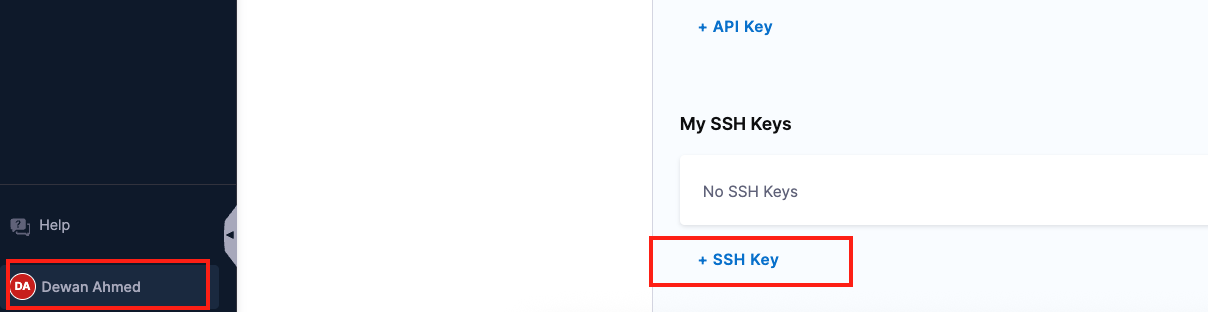
Paste the contents of your public key file, not the private key.
Clone with the SSH URL
To clone a repository over SSH, do the following:
-
In Harness, navigate to the repository you want to clone, then copy its SSH URL.
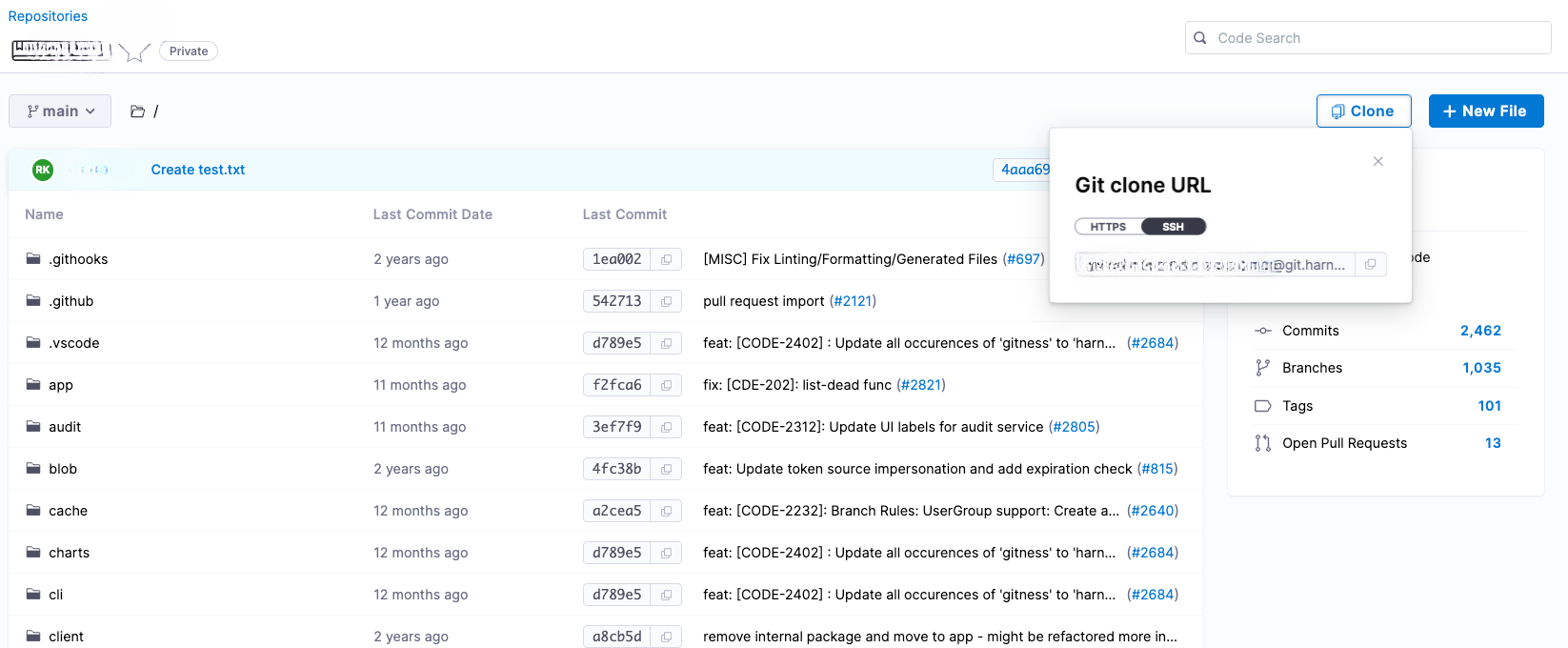
Select SSH in the Clone dropdown to reveal the SSH URL.
The URL uses the following format:
<USER_ID>@git.harness.io:<USER_ID>/<ACCOUNT_NAME>/<PROJECT_NAME>/<REPO_NAME>.git -
From your terminal, run
git clonewith the URL in quotes:git clone '<USER_ID>@git.harness.io:<USER_ID>/<ACCOUNT_NAME>/<PROJECT_NAME>/<REPO_NAME>.git'For example:
git clone 'AB12CD34EF56@git.harness.io:AB12CD34EF56/CODE/CODE/sample-app.git' -
Change into the cloned directory and verify the remote:
cd sample-appgit remote -vThe SSH URL appears as
origin.
Reduce transfer size with partial and shallow clone
By default, git clone downloads the entire commit history along with every blob and tree, which costs bandwidth and time on large monorepos and multi-service repositories. Harness Code supports Git filtering so you can avoid that cost.
Use the --filter flag to exclude blobs from the initial clone. Git fetches them lazily when you need them:
git clone --filter=blob:none <REPO_URL>
Combine filtering with a shallow clone to also truncate history:
git clone --depth=1 --filter=blob:none <REPO_URL>
Go to the Git documentation for --filter to review the full filter specification.
Filtering options require Git 2.19 or later.
Troubleshooting
Cloning or pushing to a Harness Code repository returns HTTP 500 or curl 22 The requested URL returned error: 500
The HTTP request size often exceeded the client-side buffer limit. Run git config http.postBuffer 524288000 to raise the buffer to 500 MiB for the repository, then retry. If the error persists, contact Harness Support.
Git reports unexpected disconnect while reading sideband packet when cloning a Harness Code repository
The connection dropped mid-transfer, commonly from network instability, timeouts, or server-side limits. Retry on a stable connection, and use Git LFS for files of 1 GiB or more. Contact Harness Support if it continues.
Cloning or pushing files larger than 4 GiB fails on Git for Windows
Git for Windows can stop transferring files larger than 4 GiB. Run Git from Windows Subsystem for Linux (WSL), or contact Harness Support about Harness Artifact Registry for very large artifacts.
Cloning a Harness Code repository over SSH is rejected or the SSH URL is unavailable
SSH cloning is behind the CODE_SSH_ENABLED feature flag. Confirm the flag is enabled on your account, and that your public key is registered on your Harness user profile.
Next steps
You have a local copy of your repository and know how to keep the initial transfer small.
- Git LFS: Store files of 1 GiB or more outside the main object store.
- Branch: Create and manage branches in your clone.
- Sign commits: Prove authorship on the commits you push back.