Helm blue-green deployment
A Helm blue-green deployment deploys a new chart version to a stage Kubernetes Service while the primary Service continues serving production traffic. After the new workload reaches steady state and passes any validation you add, Harness swaps the selectors on the primary and stage Services so production traffic moves to the new version. If a failure occurs before the swap, production traffic is never affected. If it occurs after, Harness re-swaps the selectors to restore the previous version.
Before you begin
- A Helm service: Go to Helm services to set up a service with a chart source and values files.
- A Helm infrastructure: Go to Helm infrastructure to connect a cluster and namespace.
- A Harness delegate in the target cluster: The delegate runs Helm commands against your cluster.
- Runtime configuration: Every Helm stage requires a
runtimeblock specifying the connector and namespace. Go to Helm runtime configuration to understand the required fields. - A chart with primary and stage services: Your chart must define two Kubernetes Services annotated so Harness can identify which is primary and which is stage. Go to Prepare your Helm chart to review the exact template structure.
How blue-green deployments work
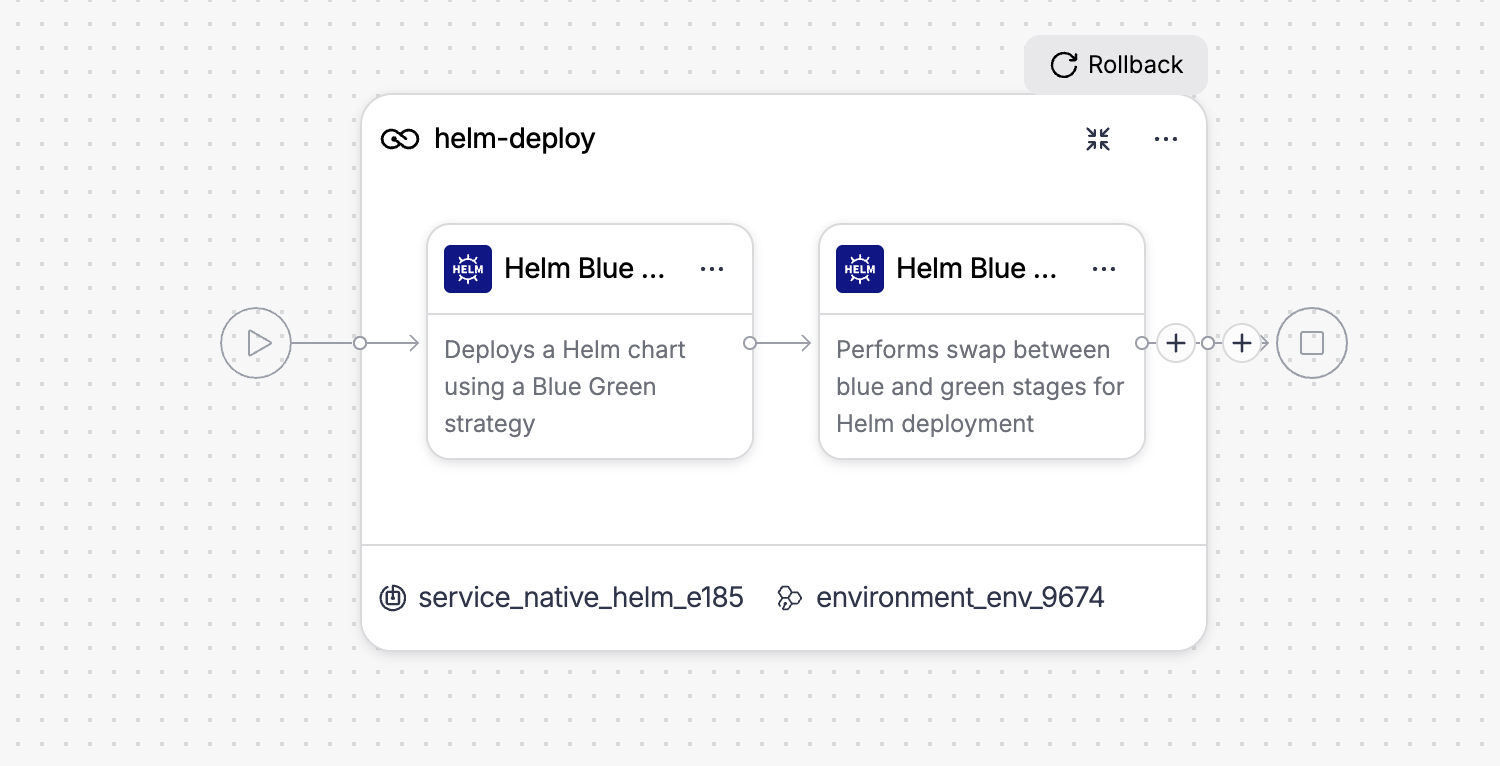
A Helm blue-green deployment runs two steps in sequence:
-
Helm Blue Green Deploy: Runs
helm upgrade --installwith the new chart version. The new workload deploys alongside the existing workload, fronted by the stage service. The primary service continues routing all production traffic to the existing workload while Harness waits for the new workload to reach steady state. -
Helm Blue Green Swap: Swaps the selectors on the primary and stage services so production traffic routes to the new workload. The previous workload keeps running behind the stage service until the next deployment replaces it.
Use a blue-green deployment when:
- You want production traffic to move to the new version only after it reaches steady state, with an instant selector swap back if something goes wrong.
- Your application supports two full workloads running simultaneously in the same namespace.
- You need to insert manual approval or automated verification steps between deploy and swap without exposing production traffic to the new version.
Pipeline YAML
View complete blue-green stage YAML
pipeline:
  name: helm-blue-green-deploy
  identifier: helm_blue_green_deploy
  clone:
    disabled: true
  stages:
    - name: blue-green-deploy
      id: blue_green_deploy
      service:
        type: helm
        items:
          - <your-service-id>
      environment:
        id: <your-environment-id>
        deploy-to: <your-infrastructure-id>
      steps:
        - name: Helm Blue Green Deploy
          id: helmDeployBluegreenStep
          template:
            uses: helmDeployBluegreenStep
        - name: Helm Blue Green Swap
          id: helmBluegreenSwapStep
          template:
            uses: helmBluegreenSwapStep
      rollback:
        - group:
            steps:
              - name: Helm Blue Green Swap Rollback
                id: helmBluegreenSwapStepRollback
                template:
                  uses: helmBluegreenSwapStep
            id: helmBlueGreenRollback
            name: Helm Blue Green Rollback
      on-failure:
        errors: all
        action: stage-rollback
      runtime:
        kubernetes:
          namespace: <target-namespace>
          connector: <your-kubernetes-connector-id>
          delegate: <your-delegate-name>
Go to Helm runtime configuration to understand the required runtime block and how to find your connector and namespace values.
Configure blue-green stage
Select blue-green strategy
When creating a new Helm stage, the strategy wizard asks you to choose a deployment strategy. Select Blue Green from the list.
Harness automatically adds two steps to the stage canvas: Helm Blue Green Deploy and Helm Blue Green Swap.
Prepare your Helm chart
Your chart must include two Kubernetes Service templates: one primary service and one stage service. Harness identifies them using a label on each service and an annotation on the stage service that points to the primary.
Create a service-primary.yaml template with the harness.io/service-type: primary label:
apiVersion: v1
kind: Service
metadata:
  name: {{ .Release.Name }}-nginx
  labels:
    harness.io/service-type: primary
spec:
  selector:
    app: {{ .Release.Name }}-nginx
  ports:
    - port: 80
Create a service-stage.yaml template with the harness.io/service-type: stage label and a harness.io/primary-service annotation that contains the exact Kubernetes name of the primary service:
apiVersion: v1
kind: Service
metadata:
  name: {{ .Release.Name }}-nginx-stage
  labels:
    harness.io/service-type: stage
  annotations:
    harness.io/primary-service: {{ .Release.Name }}-nginx
spec:
  selector:
    app: {{ .Release.Name }}-nginx
  ports:
    - port: 80
The harness.io/service-type value must be set as a Kubernetes label, not an annotation. The error hint in step output says "annotated" but the plugin reads the label field. Setting this only as an annotation causes the deploy step to report that no stage service was found.
The harness.io/primary-service annotation on the stage service must contain the exact Kubernetes resource name of the primary service — for example {{ .Release.Name }}-nginx. The swap step reads this annotation to locate the primary service in the cluster.
Configure Helm Blue Green Deploy step
The following fields are available on the Helm Blue Green Deploy step.
| Parameter | Description | Default |
|---|---|---|
| Name | Display name for the step in the pipeline canvas. | Helm Blue Green Deploy |
| Ignore Failed Release History | When true, proceeds with deployment even if the previous Helm release has a failed status. Use this to recover from a broken release without manual cleanup. | false |
| Skip Steady State Check | When true, skips waiting for the new workload to reach ready status after deployment. | false |
| Run Chart Tests | When true, runs helm test against the new release after a successful deployment. | false |
| Environment Variables | Additional environment variables to pass into the Helm plugin execution. | — |
| Command Flags | Additional flags to append to the helm upgrade command, for example --atomic or --cleanup-on-fail. | — |
Select + More options to access additional fields:
| Parameter | Description | Default |
|---|---|---|
| Skip Cleanup | When true, skips cleanup of a failed first release. Use this to inspect resources left behind after a failed initial install. | false |
| Print Manifests | When true, logs the full rendered chart manifest to the step output with secrets redacted. | false |
| Server-Side Rendering | When true, passes --server to helm template so manifests are rendered against the live cluster rather than locally. | false |
Go to Helm Blue Green Deploy step reference to review all step settings.
After the Helm Blue Green Deploy step and before Helm Blue Green Swap, insert approval, verification, or notification steps to validate the new workload before production traffic moves to it.
Configure Helm Blue Green Swap step
The following fields are available on the Helm Blue Green Swap step.
| Parameter | Description | Default |
|---|---|---|
| Name | Display name for the step in the pipeline canvas. | Helm Blue Green Swap |
| Command Flags | Additional flags to append to the Helm command. | — |
The step identifies the stage and primary services automatically from the harness.io/service-type label and the harness.io/primary-service annotation on the live release manifest. There are no service name fields to configure.
Go to Helm Blue Green Swap step reference to review all step settings.
Rollback
If the Helm Blue Green Deploy or Helm Blue Green Swap step fails, Harness runs the rollback group automatically. The rollback group is named Helm Blue Green Rollback and contains one step.
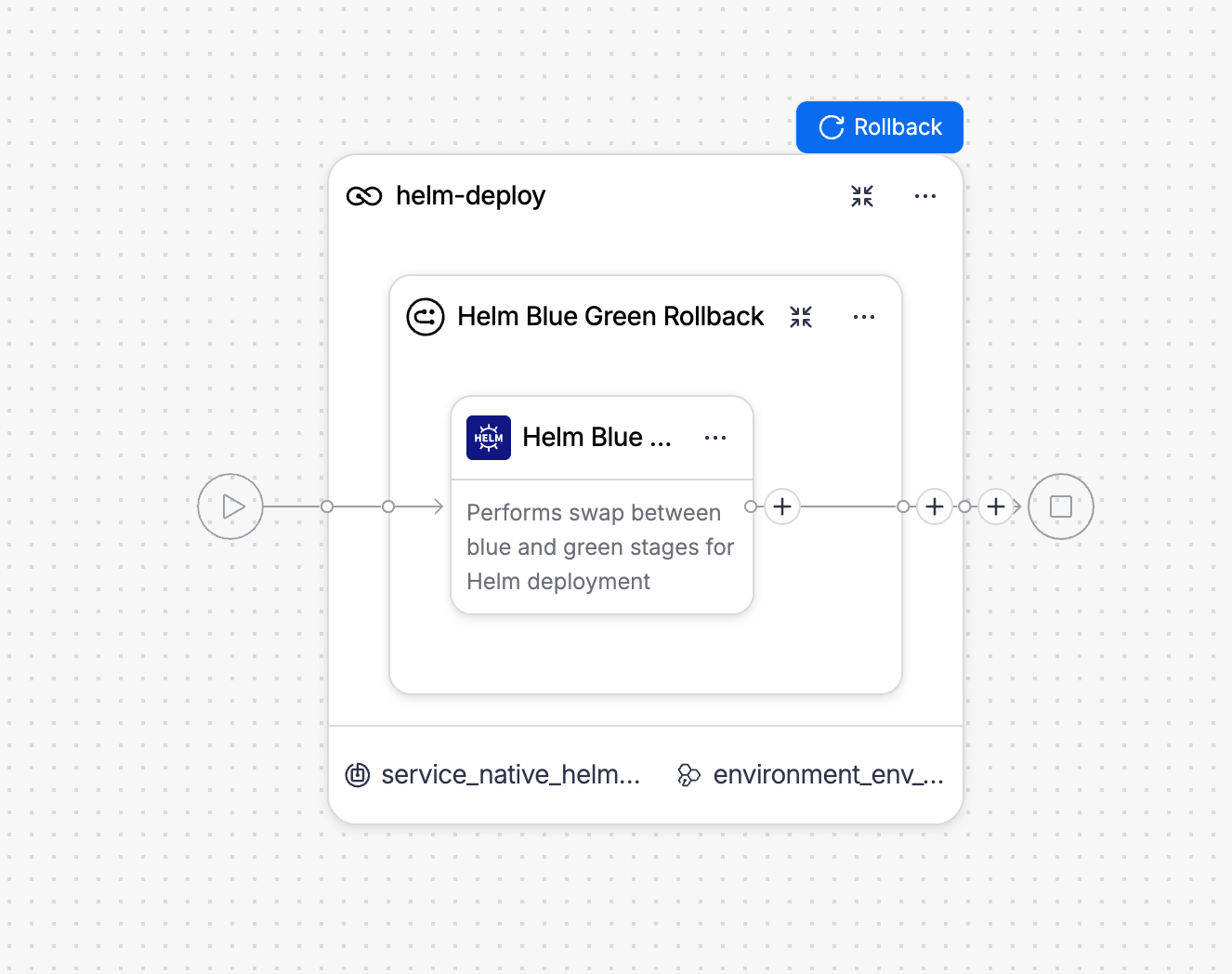
Helm Blue Green Swap Rollback reuses the Helm Blue Green Swap step, pre-wired to the service names captured by the Helm Blue Green Deploy step's rollback data:
${{rollback.data.PLUGIN_STABLE_SERVICE}}
${{rollback.data.PLUGIN_STAGE_SERVICE}}
If the failure occurred before the swap ran, the rollback swap is a no-op and the previous version continues serving production traffic. If the swap had already occurred, the rollback re-swaps the selectors to restore the previous version as primary. Both workloads continue running after rollback; only the service selectors change.
Go to Helm Blue Green Swap step reference to review the full rollback behavior.
Next steps
- Go to Helm canary deployment to deploy to a subset of instances first and validate before promoting.
- Go to Helm basic deployment to use a simpler single-phase deployment.
- Go to Helm Blue Green Deploy step reference to review all step settings.