Set Up Keyless Authentication for Cloud Spanner and CloudSQL with GKE Workload Identity
What is keyless authentication in GCP?
Keyless authentication allows applications to access Google Cloud services without storing service account keys, using IAM and GKE Workload Identity instead. In this model, a Kubernetes Service Account (KSA) is mapped to a Google Service Account (GSA) with the necessary IAM permissions. The Harness Delegate running in your GKE cluster can then authenticate to Google Cloud Spanner and CloudSQL databases using the GSA's permissions without needing a JSON key file.
When to use this method
Use GKE Workload Identity authentication when your Harness Delegate runs in a GKE cluster, you prefer Kubernetes-native authentication, or you want to leverage existing GKE infrastructure.
Comparison with OIDC authentication
The table below shows when to choose GKE Workload Identity over OIDC-based authentication.
| Aspect | GKE Workload Identity (This Guide) | OIDC with Workload Identity Federation |
|---|---|---|
| Delegate Location | Must run in GKE | Runs anywhere (GKE, EKS, on-premises, VMs) |
| Setup Focus | Kubernetes (KSA, annotations, RBAC) | GCP IAM (WIF pools, OIDC provider) |
| Connector Auth Type | Service Account (delegate-based) | OIDC (embedded configuration) |
| Supported Databases | Cloud Spanner, CloudSQL | Cloud Spanner, CloudSQL |
| Best For | GKE-native deployments | Multi-cloud or hybrid environments |
If your delegate runs outside GKE or you prefer OIDC-based authentication, go to Configure OIDC authentication for Cloud Spanner and CloudSQL for an alternative keyless authentication method using Workload Identity Federation. OIDC authentication works with delegates running anywhere (GKE, EKS, on-premises, or VMs).
How it works
GKE Workload Identity authenticates your delegate to Google Cloud services through a chain of IAM bindings between a Kubernetes Service Account and a Google Service Account.
- The Harness Delegate runs inside your Kubernetes cluster
- It uses a Kubernetes Service Account (KSA)
- The KSA is mapped to a Google Service Account (GSA) using Workload Identity
- The GSA is granted IAM permissions to access Google Cloud databases
- JDBC connections are authenticated automatically via IAM
Before you begin
Ensure the following are in place:
-
A Google Cloud Spanner instance and database or CloudSQL PostgreSQL/MySQL instance
-
A GKE cluster with Workload Identity enabled
-
A Harness Delegate installed in the cluster
-
Permissions to manage IAM roles and service accounts in GCP
-
The following GCP APIs must be enabled on the relevant GCP project(s):
- Cloud Spanner API (
spanner.googleapis.com) - for Cloud Spanner databases - Cloud SQL Admin API (
sqladmin.googleapis.com) - for CloudSQL databases - IAM Service Account Credentials API (
iamcredentials.googleapis.com) - required for Workload Identity token exchange - IAM API (
iam.googleapis.com)
You can enable these APIs using the
gcloudCLI:gcloud services enable spanner.googleapis.com \sqladmin.googleapis.com \iamcredentials.googleapis.com \iam.googleapis.com \--project=<project-id> - Cloud Spanner API (
Set up GKE Workload Identity authentication
Follow these steps to configure keyless authentication between your GKE delegate and your Cloud Spanner or CloudSQL database.
Step 1: Create a Google Service Account (GSA)
Create a service account in your GCP project:
gcloud iam service-accounts create db-access-sa \
  --display-name="Database Access Service Account"
Grant the appropriate roles based on your database type:
For Cloud Spanner:
gcloud projects add-iam-policy-binding <project-id> \
  --member="serviceAccount:db-access-sa@<project-id>.iam.gserviceaccount.com" \
  --role="roles/spanner.databaseUser"

gcloud projects add-iam-policy-binding <project-id> \
  --member="serviceAccount:db-access-sa@<project-id>.iam.gserviceaccount.com" \
  --role="roles/spanner.databaseAdmin"
For CloudSQL:
gcloud projects add-iam-policy-binding <project-id> \
  --member="serviceAccount:db-access-sa@<project-id>.iam.gserviceaccount.com" \
  --role="roles/cloudsql.client"

gcloud projects add-iam-policy-binding <project-id> \
  --member="serviceAccount:db-access-sa@<project-id>.iam.gserviceaccount.com" \
  --role="roles/cloudsql.instanceUser"
Step 2: Create a Kubernetes Service Account (KSA)
kubectl create namespace dbops
kubectl create serviceaccount dbops-ksa --namespace dbops
Step 3: Bind KSA to GSA (Workload Identity)
Annotate the Kubernetes Service Account:
kubectl annotate serviceaccount dbops-ksa \
  --namespace dbops \
  iam.gke.io/gcp-service-account=db-access-sa@<project-id>.iam.gserviceaccount.com
Grant IAM permission for the KSA to impersonate the GSA:
gcloud iam service-accounts add-iam-policy-binding \
  db-access-sa@<project-id>.iam.gserviceaccount.com \
  --member="serviceAccount:<project-id>.svc.id.goog[dbops/dbops-ksa]" \
  --role="roles/iam.workloadIdentityUser"
Step 4: Configure RBAC for runtime execution
Create a role:
kubectl create role dbops-runtime-role \
  --namespace=dbops \
  --verb=get,list,watch,create,update,patch,delete \
  --resource=pods,pods/status,secrets,events
Bind the role to the service account:
kubectl create rolebinding dbops-runtime-role-binding \
  --namespace=dbops \
  --role=dbops-runtime-role \
  --serviceaccount=dbops:dbops-ksa
During the setup, a secret is created in GCP Secret Manager (for example: secops-16236 in the following example).
You must use exact secret name in the Reference Secret field when configuring the secret in Harness. Any mismatch will result in authentication or connection failures.
Step 5: Configure the Harness Delegate
Ensure your delegate uses the Kubernetes Service Account:
spec:
  template:
    spec:
      serviceAccount: dbops-ksa
      serviceAccountName: dbops-ksa
Step 6: Configure database-specific IAM authentication
Each database type requires additional IAM configuration at the database level.
Depending on your database type, you need to configure IAM authentication at the database level.
For Cloud Spanner
Cloud Spanner uses the service account permissions configured in Step 1. No additional database-level configuration is required.
For CloudSQL
Unlike Cloud Spanner which uses GCP-level IAM alone, CloudSQL requires authentication at three layers because it runs a traditional database engine (PostgreSQL/MySQL) that needs its own internal user management.
CloudSQL requires additional configuration to enable IAM-based authentication at three layers: Google Cloud infrastructure, database engine, and application client.
Phase 1: Google Cloud configuration
-
Enable the IAM authentication flag on the CloudSQL instance:
gcloud sql instances patch <instance-name> \--database-flags=cloudsql.iam_authentication=on -
Create the IAM database user (note the naming convention):
For PostgreSQL:
gcloud sql users create "db-access-sa@<project-id>.iam" \--instance=<instance-name> \--type=CLOUD_IAM_SERVICE_ACCOUNTFor MySQL:
gcloud sql users create "db-access-sa" \--instance=<instance-name> \--type=CLOUD_IAM_SERVICE_ACCOUNT
Phase 2: Database engine permissions
Connect to your database using the default postgres or root user and grant the necessary permissions:
For PostgreSQL:
GRANT cloudsqliamuser TO "db-access-sa@<project-id>.iam";
GRANT ALL PRIVILEGES ON DATABASE <database-name> TO "db-access-sa@<project-id>.iam";
For MySQL:
GRANT ROLE cloudsql_iam_user TO 'db-access-sa@<project-id>.iam';
GRANT ALL PRIVILEGES ON <database-name>.* TO 'db-access-sa@<project-id>.iam';
Phase 3: Application client setup
The JDBC connection URL must include the following parameters for IAM authentication:
cloudSqlInstance: Instance connection name (project-id:region:instance-name)socketFactory:com.google.cloud.sql.postgres.SocketFactoryorcom.google.cloud.sql.mysql.SocketFactoryenableIamAuth=true: Enables IAM authenticationuser: Service account user name
Go to CloudSQL JDBC Socket Factory documentation to review authentication types and usage.
Step 7: Create a JDBC connector in Harness
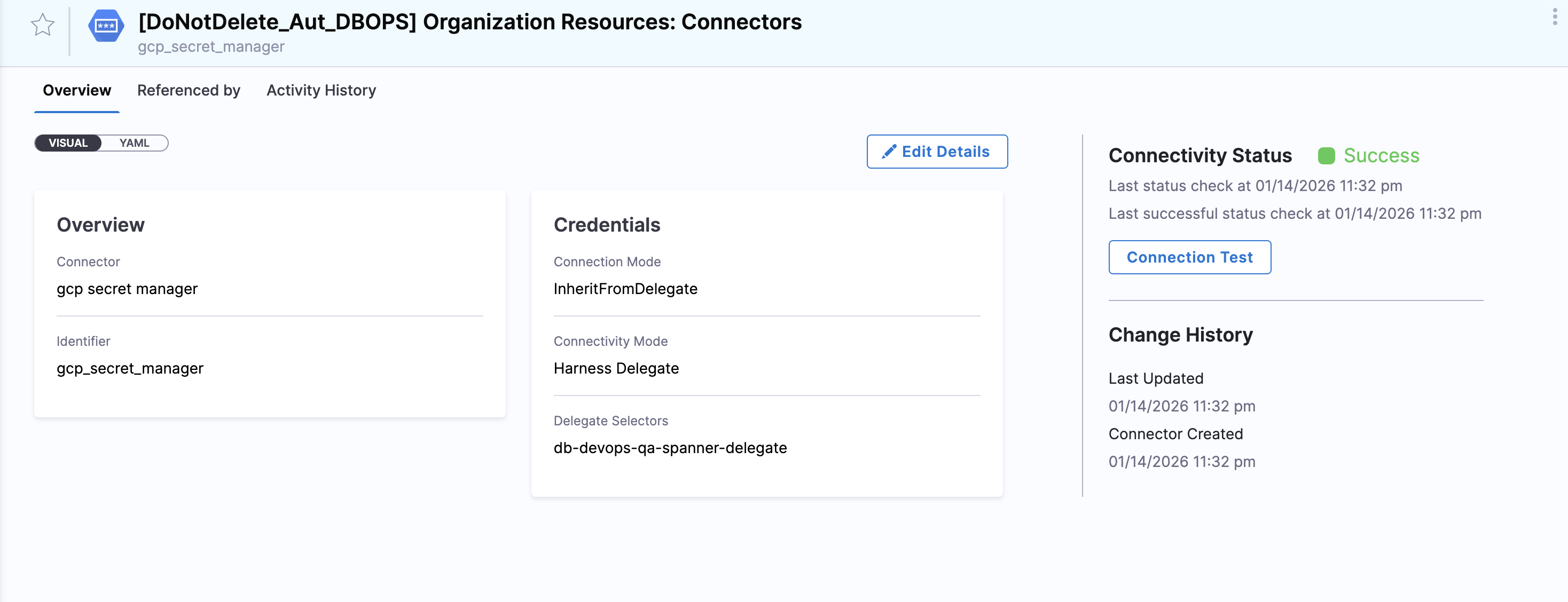
-
Use the GCP Secret Manager in Harness to reference delegate credentials.
-
Using the secret manager created, create a secret reference for the key.
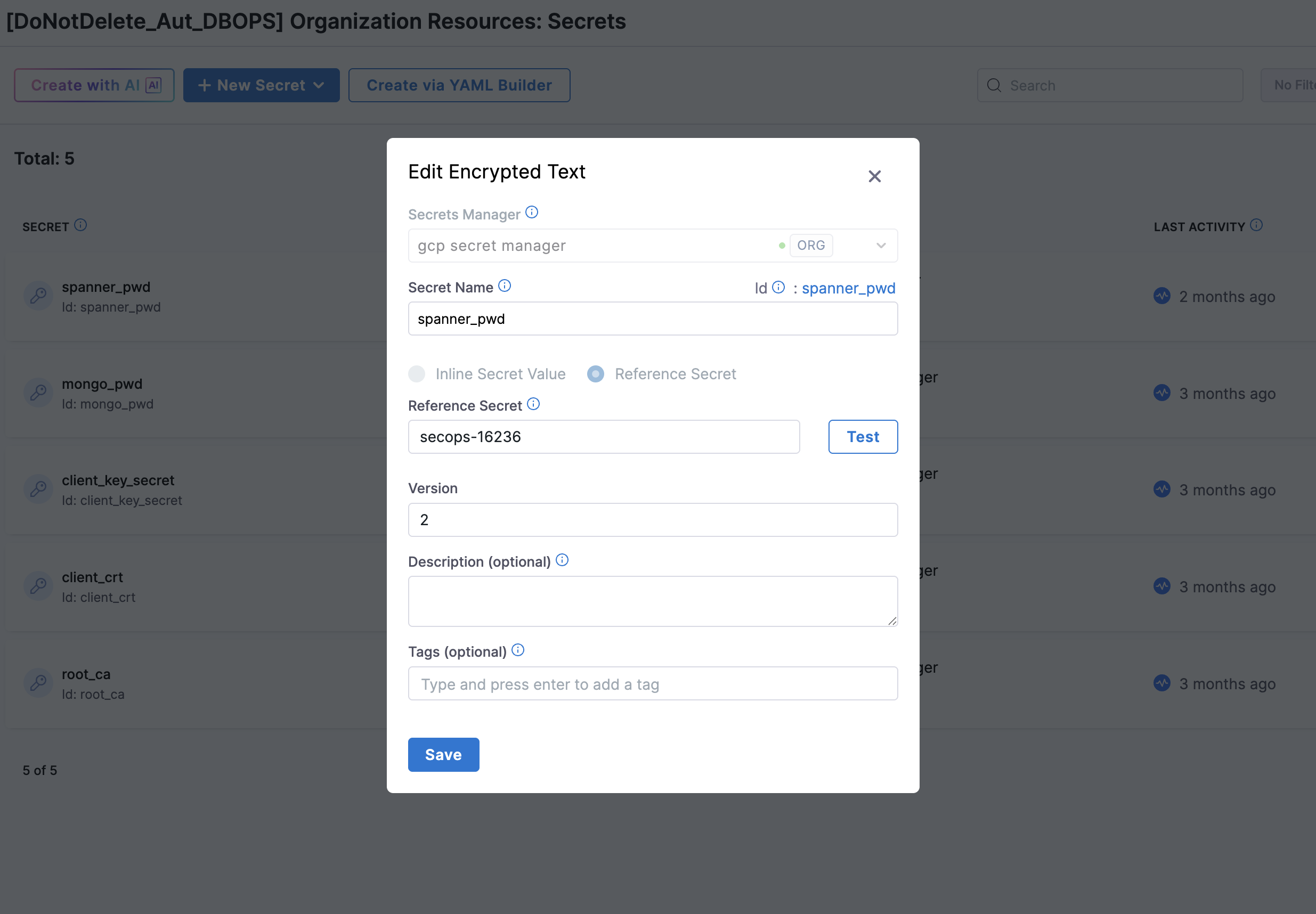
- Secret Manager: GCP Secret Manager
- Secret Name:
Database Access Service Account - Reference Secret:
secops-16236(example secret name created in GCP Secret Manager)
-
Create a JDBC connector in Harness with the appropriate configuration for your database type.
Cloud Spanner connector
Configure the connector using the JDBC URL and authentication settings below.
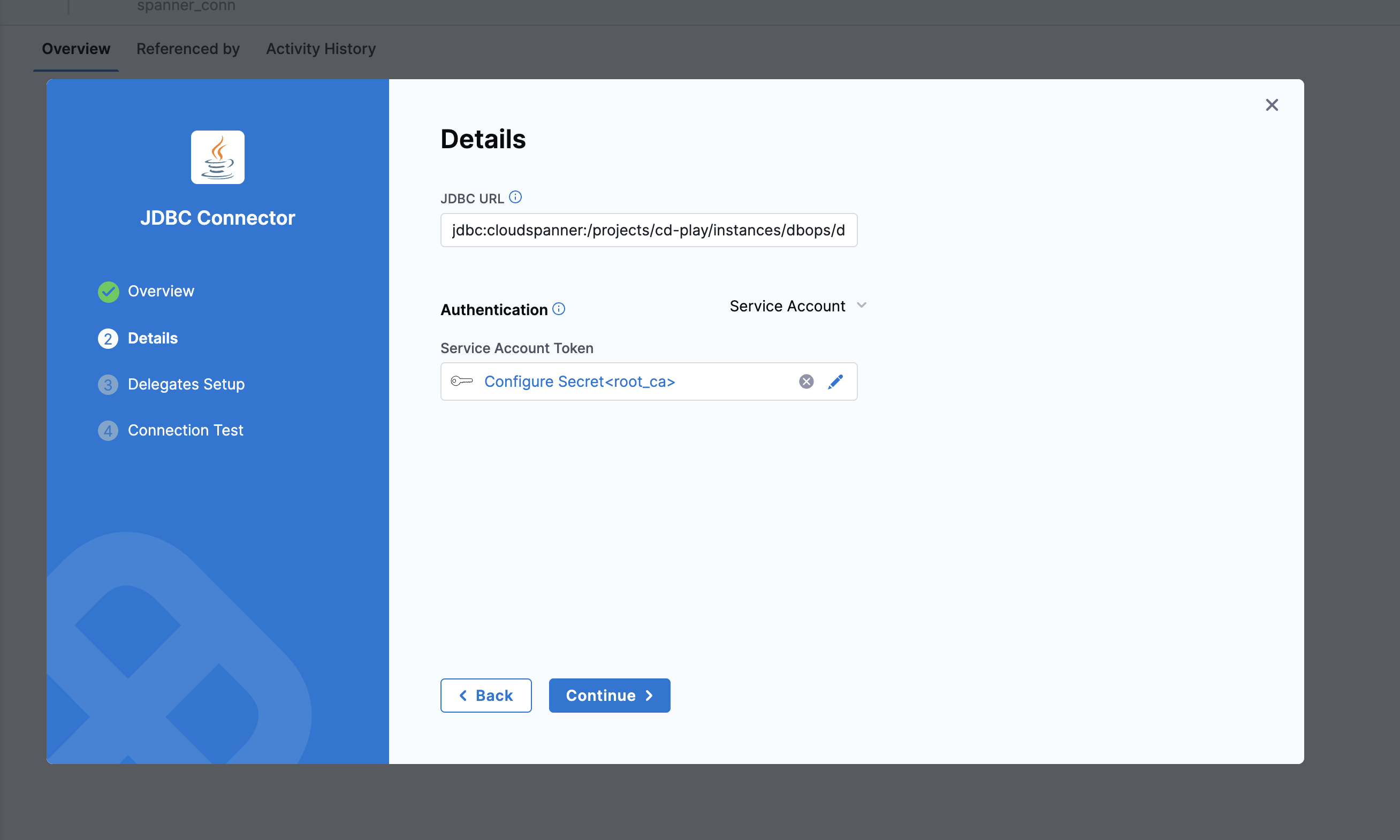
JDBC URL format:
jdbc:cloudspanner:/projects/<project-id>/instances/<instance-id>/databases/<database-name>?lenient=true
Connector configuration:
- Authentication Type: Service Account
- Credential: Use delegate-based authentication (no key required)
CloudSQL PostgreSQL connector
Configure the connector using the JDBC URL and authentication settings below.
JDBC URL format:
jdbc:postgresql:///<database-name>?cloudSqlInstance=<project-id>:<region>:<instance-name>&socketFactory=com.google.cloud.sql.postgres.SocketFactory&enableIamAuth=true&user=db-access-sa@<project-id>.iam
Connector configuration:
- Authentication Type: Service Account
- Credential: Use delegate-based authentication (no key required)
CloudSQL MySQL connector
Configure the connector using the JDBC URL and authentication settings below.
JDBC URL format:
jdbc:mysql:///<database-name>?cloudSqlInstance=<project-id>:<region>:<instance-name>&socketFactory=com.google.cloud.sql.mysql.SocketFactory&enableIamAuth=true&user=db-access-sa
Connector configuration:
- Authentication Type: Service Account
- Credential: Use delegate-based authentication (no key required)
Step 8: Test the connection
Verify the delegate is connected and the JDBC connector can reach your database.
Test the JDBC connector in Harness to confirm it can connect to your database using keyless authentication.
Common failure points:
- Username suffix: Database user names for IAM authentication end in
.iam, not.iam.gserviceaccount.com. - Case sensitivity: In PostgreSQL, wrap the username in double quotes in SQL commands (for example,
"user@proj.iam"). - Plugin null error: In Java, this usually means
enableIamAuth=trueis missing or the Socket Factory library is not in the classpath (CloudSQL only).
Go to Authenticating Cloud SQL with IAM service accounts for additional troubleshooting guidance.
Step 9: Use keyless authentication in pipelines
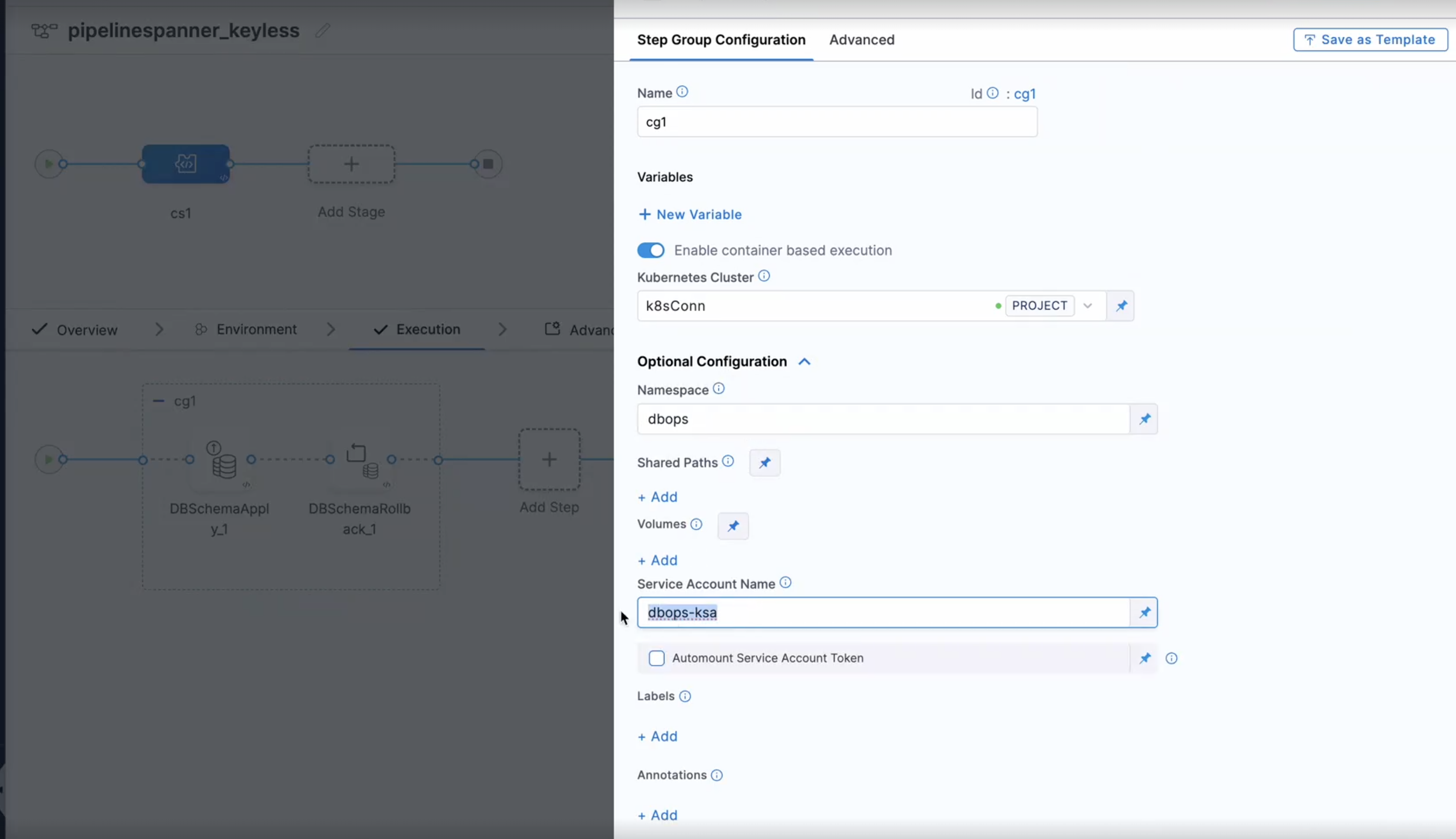
Select the keyless JDBC connector in your pipeline steps and specify the service account in the step group.
When configuring your pipeline steps, select the JDBC connector set up for keyless authentication. When creating the step group, enter the associated service account name in the service account field.
Best practices
- Use keyless authentication for production workloads: Eliminates the risk of leaked service account key files.
- Follow least-privilege IAM principles: Grant only the roles required for the specific database and operation.
- Avoid storing service account keys: The entire point of Workload Identity is to remove static credentials.
- Monitor delegate health and scaling: An unhealthy delegate breaks the Workload Identity token exchange silently.
- Use GCP Secret Manager for sensitive configuration: Reference secrets by name instead of embedding values in connectors.
- Enable audit logging for service account impersonation: Workload Identity impersonation events appear in Cloud Audit Logs.
- Rotate service accounts periodically: Even keyless setups benefit from rotating the GSA for security compliance.
- Test connections in non-production environments first: Validate the full IAM chain before promoting to production.
Next steps
Now that you have configured keyless authentication with GKE Workload Identity, you can use your connector in Database DevOps pipelines. Go to Create a Database DevOps pipeline to build automated database change workflows.
If you encounter issues during setup, go to the Troubleshooting guide to diagnose common failures.