Troubleshooting Guide
This guide outlines common issues encountered while using Harness Database DevOps and their corresponding solutions.
searchPath parameter issue
When working with a changelog file that includes other changelog files, Liquibase might throw an error due to improper handling of file paths. This can occur when the "file" path is not set correctly:
Error Message:
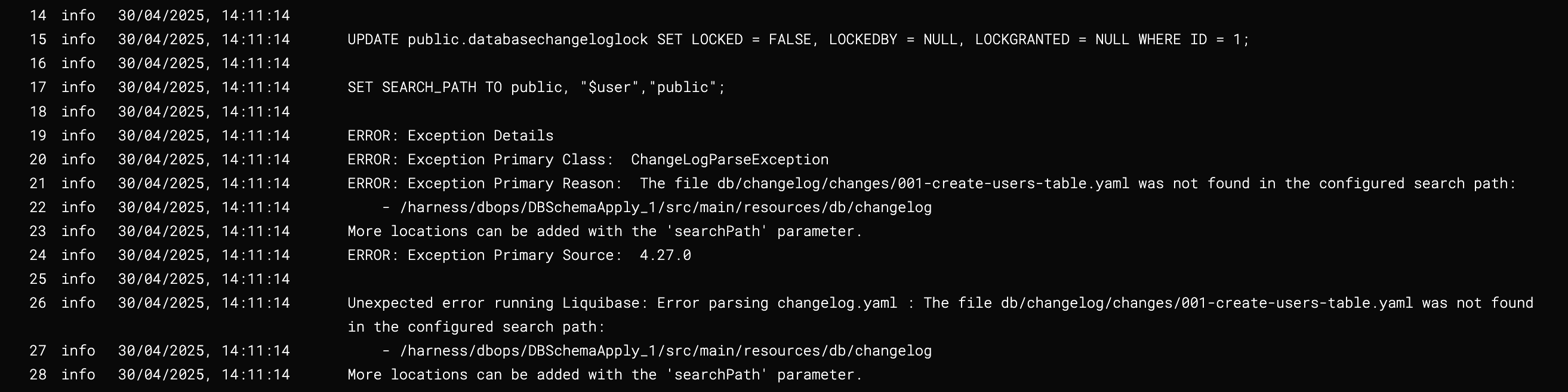
Example usage in a master changelog:
## db/changelog/changelog.yaml
databaseChangeLog:
  - include:
      file: db/changelog/changes/001-create-users-table.yaml
  - include:
      file: db/changelog/changes/002-add-sample-data.yaml
How to Solve:
The searchPath parameter is used to specify the schema search order for database objects. If the changelog file includes other changelogs, ensure that the paths are correctly specified relative to location of the master changelog file, which is considered the master file.
For example, if the master changelog is located in db/changelog/master.yaml, the path to the included changelogs should be relative to that file. Correct example:
## db/changelog/changelog.yaml
databaseChangeLog:
  - include:
      file: changes/001-create-users-table.yaml
  - include:
      file: changes/002-add-sample-data.yaml
This way, Liquibase can correctly resolve the paths to the included changelogs, and the error should be resolved.
Liquibase uses the full path to the changelog file as part of the identifier of unique change ids. If your changelog has already been applied to an existing database, and your changelog path needs to change, you can add a change of type ''- logicalFilePath: example-changelog.yaml' to specify the path to the changelog that should be used for uniquely identifying change IDs.
changelog.yaml does not exist
Liquibase throws this error when it cannot find the changelog file. This can occur when the path is incorrect or the file is missing.
Error Message:

How to Solve:
- Verify that the changelog file exists at the specified location.
- Ensure the filename and path in your configuration exactly match the file in your repository or working directory.
- Cross-check for typos or incorrect directory structures.
Could not find databaseChangeLog node
This error comes up when Harness DB DevOps cannot find the databaseChangeLog node in the changelog file. This can occur if the file is not formatted correctly or is missing the required node. This issue typically surfaces when the changelog file contains unexpected content.
Most common occurrence of this issue will be while setting up DB Schema with a custom script.
Error Message:

Example for such a incorrect custom script:
if [ ! -d "db" ]; then
  mkdir db
  curl https://api.github.com/repos/Sonichigo/mux-sql/main/liquibase.yml -o db/changelog.yml
fi
Above we have an invalid API call to fetch the changelog file, which resulted in an error response, which was mistakenly written to the changelog output file. As a result, instead of a valid changelog XML or YAML, the file contained an error log or HTML/JSON response and when the system attempted to run Update SQL, it failed due to the absence of the required databaseChangeLog node.
How to Solve:
Ensure while fetching the changelog file, you are calling the correct API endpoint and the response is in the expected format. You can also check the contents of the changelog file to ensure it contains the correct databaseChangeLog node, after the API call.
Example for a correct custom script:
if [ ! -d "db" ]; then
  mkdir db
  curl -H 'Accept: application/vnd.github.v3.raw' -L https://api.github.com/repos/Sonichigo/mux-sql/contents/liquibase.yml?ref=main -o db/changelog.yml
fi
ImagePullError of alpine/curl:latest
This error is generally limited to Custom Script steps.
When using the Custom Script step to set up a DB schema in a pipeline with the default image registry (Harness Docker Registry), you may encounter an ImagePullError for the alpine/curl:latest image. This happens as the image available in the specified default image registry contains only related to Harness Platform.
However, you may also encounter the ImagePullError in other steps if your configured image repository does not contain the required out-of-the-box Drone images (e.g., alpine/curl, plugins/git, etc.). In such cases, these base images must be manually added to your image registry.
Error Message:

How to Solve:
Ensure you are using the correct container registry for your environment. Go to Docker Registry connector settings to configure this custom image Registry. Make sure that in the new registry Connector, the alpine/curl:latest image is available.
Authentication error: could not read username
While adding a remote repository and pushing changes in a pipeline or shell environment, you may encounter an authentication error. This typically occurs when the credentials for the remote repository are not set up in a specified manner.
Error Message:

How to Solve:
Use a properly formatted Git URL that includes:
- The email address (URL encoded) as the username.
- A secret-based Personal Access Token (PAT) for secure authentication.
Example for a properly formatted URL:
git remote add origin https://my.email%40gmail.com:<+secrets.getValue("PAT_TOKEN")>@gitlab.com/<John_Doe>/changelog.git
git push -u origin main
- Replace
my.email@gmail.comwith your Git account email (URL-encoded as %40 for @). - Replace
PAT_TOKENwith the name of the Harness secret containing your GitLab PAT. - Make sure the secret is securely stored in Harness under Project Settings → Secrets.
Rollback behavior for dropTable and dropColumn changesets
When a dropTable or dropColumn operation is executed and subsequently rolled back, only the schema structure can potentially be recreated, and the original data will not be restored. While it is technically possible to instruct the rollback to recreate the table or column definition, the associated data is permanently lost unless a backup was taken beforehand.
In scenarios involving destructive operations like DROP, the rollback cannot magically recover deleted data. The only viable recovery strategy would be to restore from a database backup taken prior to the drop operation, which still results in some level of data loss and operational risk.
Dropping tables or columns in production environments should be treated with extreme caution. It is highly recommended to adopt a backup-first approach and validate rollback strategies before applying such changes.
Rollback error messages
This error occurs in PostgreSQL when replication is enabled, and the databasechangelog table (created by Liquibase) has no primary key or replica identity. PostgreSQL requires a replica identity to process DELETE operations during rollback.
Error Message: ERROR: cannot delete from table "databasechangelog" because it does not have a replica identity and publishes deletes.
How to Solve:
Run the following SQL to allow deletes even without a primary key:
ALTER TABLE databasechangelog REPLICA IDENTITY FULL;
This tells PostgreSQL to use the full row for replication tracking. We are planning to update DB DevOps to add a primary key to this table automatically in future versions.
Apply the workaround only if your environment uses logical replication and encounters this error. In non-replicated environments, this issue typically does not occur
Long-Term Fix (Planned):
We plan to update Harness DB DevOps to include a primary key on the databasechangelog table upon creation to ensure better compatibility with replication-enabled PostgreSQL environments. Until then, applying the above workaround will unblock affected users.
DB Instance connector cannot be an expression error
This is by design - features like drift detection depend on resolving the database schema, instance, and connector outside of pipeline execution. To support such functionality, the connector must be fully defined and cannot be referenced as a runtime or expression value.
Use a fixed connector when defining your DB Instance in order to enable full DB DevOps capabilities.
Extra memory release version requirement
In latest versions, memory is allocated based on your changelog complexity. If your changesets are large in number or size, increase the memory allocation from the default 200 MB to 500 MB to avoid unexpected OOM (Out of Memory) events during changelog parsing and SQL generation.
Go to Override resource limits to update memory allocation in step configuration.
If you are upgrading from any version prior to 1.9.0, ensure your deployment configuration reflects the updated 500 MB memory requirement.
Unexpected resource lock with no database-level locks
In many scenarios, the “lock” you encounter is not a database engine–level lock but a Liquibase changelog lock. Liquibase uses an internal DATABASECHANGELOGLOCK table to coordinate concurrent change executions. If a pipeline fails, times out, or terminates unexpectedly, the lock may remain active even when the underlying database shows no locks.
This residual lock prevents subsequent runs from proceeding until the lock is manually released.
How to Identify Liquibase Locks: Liquibase stores the lock state in the DATABASECHANGELOGLOCK table. If the LOCKED column is true, Liquibase considers the schema locked.
How to Solve: Use the liquibase step to run the Liquibase command:
release-locks
This clears any stale Liquibase-level locks and restores normal pipeline execution.
kinit fails with client not found in Kerberos database
The principal does not exist in the realm, or the realm name is incorrect (case sensitive).
How to Solve:
- Verify the principal exists in the KDC/Active Directory.
- Verify the principal format:
user@REALM - Ensure the realm is uppercase (e.g., DBDEMO.ORG)
- Regenerate the keytab if necessary
Connection fails despite kinit succeeding
kinit only proves that the principal is valid. The database connection requires a properly registered SPN.
How to Solve:
- Verify SPN registration in AD
- MSSQL format:
MSSQLSvc/hostname:1433@REALM - Oracle format:
oracle/hostname@REALM
- MSSQL format:
- Ensure the hostname in the JDBC URL matches the SPN
- Avoid using IP addresses in JDBC URLs
Clock skew too great errors
This error occurs when there is a significant time difference between the client machine (where kinit is run) and the KDC/AD server. Kerberos requires synchronized time for ticket validation.
Delegate fails to resolve the KDC server
This can occur if the Delegate's DNS configuration cannot resolve the KDC hostname specified in krb5.conf.
How to Solve:
- Validate resolution using:
nslookup dc1.dbdemo.org - Ensure the Delegate has proper DNS settings to resolve the KDC hostname.
No Kerberos credentials available error
This error indicates that the Kerberos credentials obtained via kinit are not accessible to the pipeline execution environment. The TGT was not generated, expired, or is not accessible to the JVM process.
How to Solve: Ensure the keytab is mounted at the correct path and the path is correctly referenced in the Delegate YAML configuration. Then restart the Delegate to pick up the new credentials. Also, confirm that the environment variables for Kerberos are set correctly in the Delegate configuration.
Oracle Kerberos authentication fails while MSSQL works
Oracle has additional server-side requirements for Kerberos authentication, such as correct sqlnet.ora configuration and correct keytab usage. Whereas, MSSQL is often more straightforward to set up for Kerberos.
Connection works locally but fails in Harness
This is often due to differences in the environment where kinit is executed and where the pipeline runs. The local environment may have access to Kerberos credentials, while the pipeline environment does not.
How to Solve:
- Compare
krb5.conffiles - Confirm mounted keytab path inside Delegate container
- Validate environment variables in Delegate YAML
- Ensure network policies allow traffic to KDC and database
ORA-12514 TNS listener error with Oracle Kerberos
This error indicates that the Oracle listener does not recognize the service name specified in the JDBC URL.
How to Solve: Either incorrect service name is specified in the JDBC URL or the Oracle listener is configured to listen on the correct port. Verify the service name in the JDBC URL matches the one registered with the Oracle listener. Also, ensure the listener is running and configured to accept connections for that service.
Oracle encryption type for Kerberos keytab entry
Oracle requires aes256-cts-hmac-sha1-96 and aes128-cts-hmac-sha1-96 as the encryption type for modern oracle versions. Older version of Oracle also support rc4-hmac encryption type, but Oracle has deprecated this encryption type in modern versions due to RC4's known cryptographic weaknesses.
Spanner connection fails or does not establish
- Ensure Workload Identity is enabled on your GKE cluster.
- Verify the Kubernetes Service Account (KSA) is correctly annotated with the GCP Service Account
- Confirm the required IAM roles are assigned to the GCP Service Account (GSA)
Permission or access denied errors
Check that the roles/iam.workloadIdentityUser binding is correctly configured and then validate that the GSA has the required database IAM roles (e.g., roles/spanner.databaseUser, roles/spanner.databaseAdmin)
Intermittent or unreliable pipeline executions
- Scale up the Harness Delegate replicas to handle load
- Increase CPU and memory resources allocated to the delegate
- Ensure the delegate remains consistently connected and healthy
Connection failure
The connection will fail if Workload Identity not enabled or missing KSA annotation/IAM roles on GSA.
Permission errors
Either there is missing roles/iam.workloadIdentityUser or Incorrect database IAM roles
BigQuery access denied error with OIDC
This error indicates that the service account used for OIDC authentication does not have the required BigQuery IAM roles.
How to Solve:
- Verify that the service account has
roles/bigquery.dataViewerorroles/bigquery.adminfor dataset access. - Ensure the service account has
roles/bigquery.jobUserto run queries and schema operations. - Confirm the service account has
roles/iam.serviceAccountTokenCreatorfor OIDC token exchange. - Check that the Workload Identity Pool binding includes the service account with
roles/iam.workloadIdentityUser.
Verify roles:
gcloud projects get-iam-policy PROJECT_ID \
  --flatten="bindings[].members" \
  --filter="bindings.members:serviceAccount:SA_EMAIL"
BigQuery OIDC token exchange failure
The OIDC token exchange follows a two-step process. Failures can occur at either step.
How to Solve:
Step 1 failure (Harness JWT to GCP Workload Access Token):
- Ensure
sts.googleapis.com(Security Token Service API) is enabled in your GCP project. - Verify the Workload Identity Pool and Provider are configured with the correct Harness issuer URL.
- Check that the attribute mapping includes
google.subject = assertion.sub. - Confirm the pool conditions filter by
account_idonly (not pipeline-specific attributes).
Step 2 failure (Workload Token to Service Account Access Token):
- Ensure
iamcredentials.googleapis.com(IAM Service Account Credentials API) is enabled. - Verify the service account has
roles/iam.serviceAccountTokenCreatorbound to itself:gcloud iam service-accounts add-iam-policy-binding SA_EMAIL \--project=PROJECT_ID \--role="roles/iam.serviceAccountTokenCreator" \--member="serviceAccount:SA_EMAIL"
BigQuery dataset not found error with OIDC
This error occurs when the BigQuery dataset specified in the JDBC URL does not exist or the service account does not have access to it.
How to Solve:
- Verify the
DefaultDatasetparameter in your JDBC URL matches an existing BigQuery dataset in your project. - Ensure the
Locationparameter matches the dataset region (for example,us-central1,asia-south1). - Check that the service account has access to the specified dataset:
bq show --format=prettyjson PROJECT_ID:DATASET_NAME
- For dataset-level permissions, grant access explicitly:
bq update --dataset \--add_iam_binding_member="serviceAccount:SA_EMAIL" \--add_iam_binding_role="roles/bigquery.dataViewer" \PROJECT_ID:DATASET_NAME
BigQuery pipeline fails with invalid JDBC URL
This error occurs when the BigQuery JDBC URL format is incorrect or contains invalid parameters for OIDC authentication.
How to Solve:
- Ensure your JDBC URL follows the correct format:
jdbc:bigquery://https://www.googleapis.com/bigquery/v2:443;ProjectId=PROJECT_ID;DefaultDataset=DATASET;Location=REGION;
- Do not include
OAuthTypeorOAuthAccessTokenparameters when using OIDC authentication. The access token is injected automatically by Harness. - Verify all required parameters are present:
ProjectId: Your GCP project IDDefaultDataset: Target BigQuery datasetLocation: Dataset region
- Check for syntax errors (missing semicolons, incorrect parameter names).
BigQuery connection test succeeds but pipeline execution fails
Connection tests and pipeline executions generate OIDC tokens with different custom attributes. This can cause authentication to work in one context but fail in the other.
How to Solve:
- Ensure your Workload Identity Pool attribute conditions accept both connector validation and pipeline execution contexts.
- The pool conditions should filter by
account_idonly, not by pipeline-specific attributes likeorg_id,project_id, orpipeline_id. - Update the attribute condition in the service account's IAM policy:
attribute.account_id = "YOUR_HARNESS_ACCOUNT_ID"
- Avoid overly restrictive conditions that might block pipeline execution tokens.
BigQuery API not enabled error
This error occurs when the BigQuery API is not enabled in your GCP project.
How to Solve: Enable the required GCP APIs for BigQuery with OIDC authentication:
gcloud services enable bigquery.googleapis.com \
  iamcredentials.googleapis.com \
  sts.googleapis.com \
  --project=YOUR_PROJECT_ID
Verify the APIs are enabled:
gcloud services list --enabled --project=YOUR_PROJECT_ID | grep -E 'bigquery|iamcredentials|sts'
DB DevOps pipelines falsely queued on resource constraint locks
When executing DB DevOps pipelines that utilize dynamic resource constraint locks (e.g., schema or instance-level locks), the pipeline fails or remains indefinitely queued with the following message:
Error Message: Current execution is queued as another execution is running with given resource key.
This occurs even when no other active pipeline runs are targetting or executing against the specified database instance or schema.
Because the key was encoded before variable resolution, the pipeline engine failed to resolve dynamic Harness expressions, such as <+stage.variables.schema> or target instance identifiers at runtime. Consequently, the literal expression string was evaluated as a fixed static lock key across all pipeline executions, causing unrelated pipeline runs to block one another under a single shared lock key.
Resolution: This issue is resolved automatically in db-devops-service in version 1.111.0 and above. Ensure your environment is running db-devops-service 1.111.x and that ng-manager has been upgraded to v1.160.0.
AI impact analysis conditional approval
The following issues apply to the Database Impact Analysis agent step and its conditional approval pattern.
Approval step runs when agent returned PASS
Cause: The conditional execution expression does not exactly match the output variable path.
How to Solve:
- Verify that the step group identifier, agent step identifier, and variable name in the condition expression are correct and match what is configured in the pipeline.
- Expression references are case-sensitive. For example,
Preview_SQLandpreview_sqlare different identifiers. - Confirm the full path follows the pattern:
<+execution.steps.<StepGroupId>.steps.<AgentStepId>.steps.agent.output.outputVariables.VALIDATION_STATUS>!="PASS"
Agent step fails with missing SQL input or empty sqlCommands
Cause: The expression referencing the Preview SQL step output is incorrect, or the Preview SQL step did not complete successfully.
How to Solve:
- Confirm that the Preview SQL step completed without errors before the agent step runs.
- Verify the
sqlCommandsexpression uses the correct step group identifier and step identifier from the Preview SQL step:<+execution.steps.<StepGroupId>.steps.<PreviewSQLStepId>.output.sqlCommands> - Check that both the Preview SQL step and the agent step are inside the same step group.
Approval message shows blank SUMMARY or raw SQL
Cause: The expression path for SUMMARY or sqlCommands in the approval message is incorrect or incomplete.
How to Solve:
- The
SUMMARYvariable requires the full stage path, including the stage identifier, step group identifier, and agent sub-step:<+pipeline.stages.<StageId>.spec.execution.steps.<StepGroupId>.steps.<AgentStepId>.steps.agent.output.outputVariables.SUMMARY> - The raw SQL expression uses the shorter execution-scoped path:
<+execution.steps.<StepGroupId>.steps.<PreviewSQLStepId>.output.sqlCommands>
- Go to AI-powered SQL impact analysis with conditional approval to review the full expression examples.
Next steps
- Go to Set up JDBC connectors to verify connector configuration for connection issues.
- Go to Rollback for database schemas to configure rollback strategies for failed deployments.