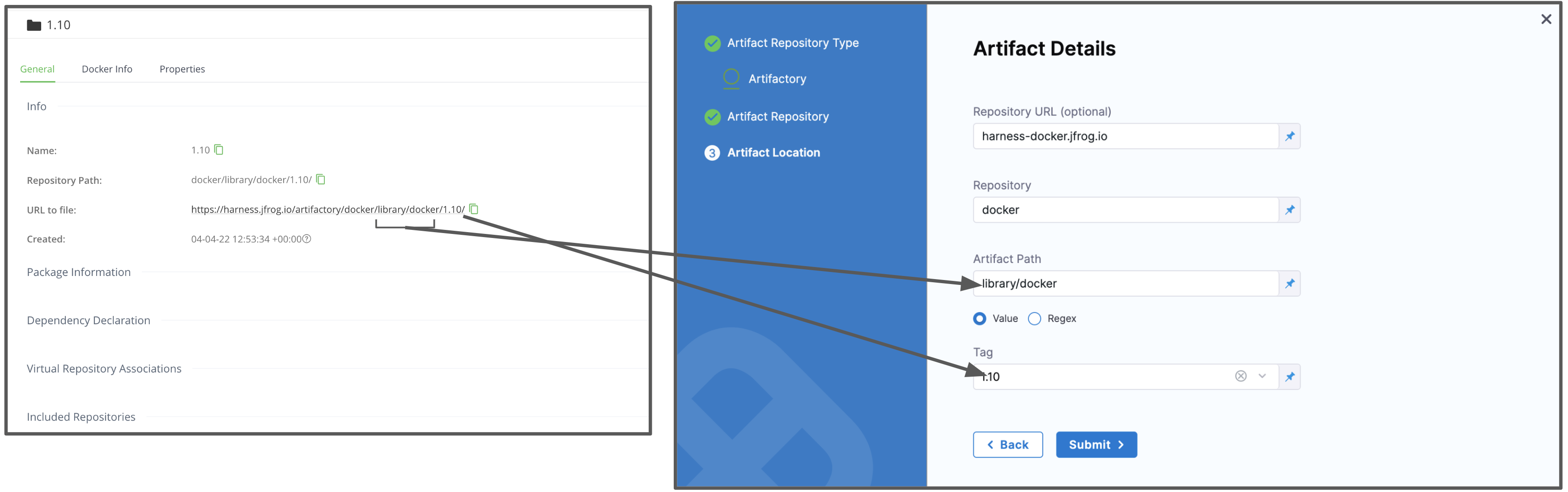
Artifactory Connector Settings Reference
Harness supports both cloud and on-prem versions of Artifactory.
This topic provides settings and permissions for the Artifactory Connector.
Artifactory Permissions
Make sure the following permissions are granted to the user:
- Privileged User is required to access API, whether Anonymous or a specific username (username and passwords are not mandatory).
- Read permission to all Repositories.
If used as a Docker Repo, user needs:
- List images and tags
- Pull images
See Managing Permissions: JFrog Artifactory User Guide.
Supported sources and registry types
The utility of the Artifactory connector depends on the module and file types you're using it with.
Continuous Delivery
The following Artifactory sources are supported for Continuous Delivery:
- Docker Image (Kubernetes): Metadata
- Helm Chart: File
- Zip: File
Metadata/File sources include Docker image and registry information. For AMI, this means AMI ID-only.
Support for the following sources is in development:
- Terraform
- AWS AMI
- AWS CodeDeploy
- AWS Lambda
- JAR
- RPM
- TAR
- WAR
- Tanzu (PCF)
- IIS
If you are new to using Artifactory as a Docker repo, go to the JFrog documentation on Getting Started with Artifactory as a Docker Registry.
Continuous Integration
If you are pulling images or building/pushing images to JFrog Artifactory in Harness CI pipelines, you can use the Artifactory connector for JFrog non-Docker registries only.
For JFrog Docker registries, you must use the Docker connector. For more information, go to Build and push to JFrog Docker registries and Upload Artifacts to JFrog. This restriction also applies when pulling images from Artifactory for use in other steps, such as CI Run steps.
Artifactory connector settings
The Artifactory connector has the following settings.
Connector metadata
- Name: The unique name for this Connector.
- ID: Go to Entity Identifier reference.
- Description: Optional text string.
- Tags: Go to the Tags reference.
Artifactory Repository URL
The Harness Artifactory Artifact server connects your Harness account to your Artifactory artifact resources.
For Artifactory Repository URL, enter your registry base URL followed by your module name, such as https://mycompany.jfrog.io/artifactory or https://*****server_name*****/artifactory.
The URL format depends on your Artifactory configuration, and whether your Artifactory instance is local, virtual, remote, or behind a proxy.
Get your JFrog URL
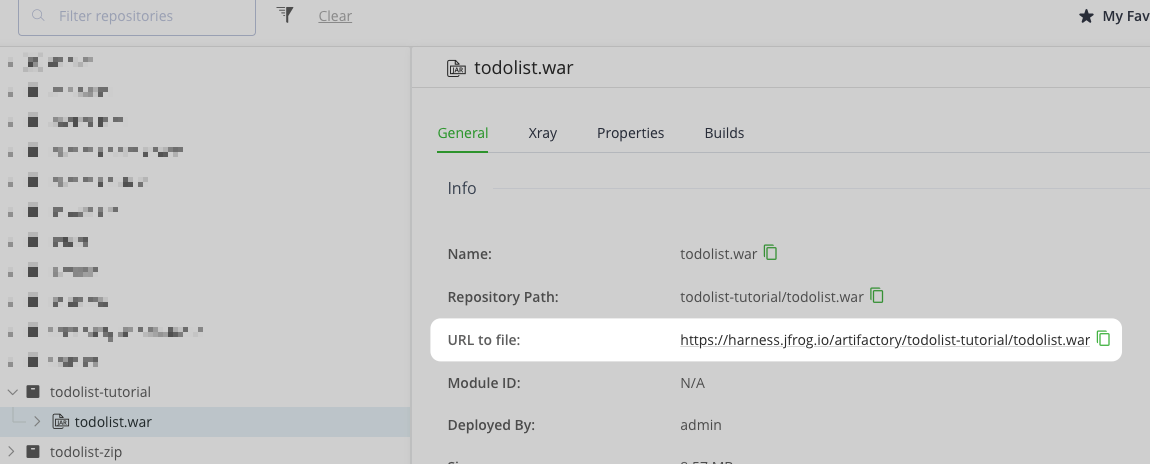
You can get the URL from your Artifactory settings.
When examining a file in your registry, check the URL to file setting.
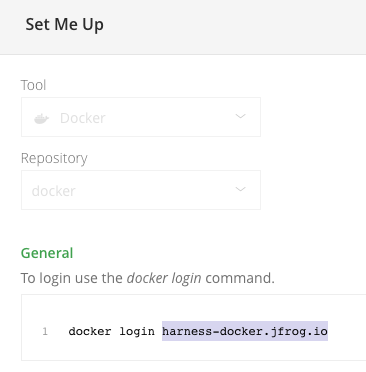
You can also select your repo in your JFrog instance, select Set Me Up, and get the repository URL from the server name in the docker-login command.
For more information, go to the JFrog documentation on Repository Management and Configuring Docker Repositories.
Authentication
The Artifactory connector supports three authentication methods. Select one from the Authentication dropdown.
Username and Password
Enter the Username for the Artifactory account user, and select or create a Harness encrypted text secret containing the corresponding Password.
Anonymous (no credentials required)
Use this option for public Artifactory repositories that do not require authentication. No credentials are needed.
OIDC Authentication
This feature is behind the feature flag CDS_ARTIFACTORY_OIDC_AUTHENTICATION. Contact Harness Support to enable the feature.
OIDC authentication enables credential-free, federated authentication with JFrog Artifactory. Harness acts as an OIDC Identity Provider and generates short-lived JWT tokens that Artifactory exchanges for access tokens.
Before using OIDC authentication, you must configure Harness as an OIDC provider in your JFrog Artifactory instance. For more information, refer to the JFrog documentation on OpenID Connect Integration.
Configure Harness as OIDC provider in Artifactory
When configuring Harness as an OIDC provider in JFrog Artifactory, use the following issuer URL:
https://<HARNESS_HOST>/ng/api/oidc/account/<ACCOUNT_ID>
Replace the placeholders:
<HARNESS_HOST>: Your Harness instance hostname (for example,app.harness.iofor Harness SaaS, or your custom domain for self-managed installations)<ACCOUNT_ID>: Your Harness account identifier. You can find your account ID in the URL when logged into Harness (for example,https://app.harness.io/ng/account/ACCOUNT_ID/...)
This issuer URL tells Artifactory where to fetch the OIDC configuration and validate tokens issued by Harness.
Connector configuration fields
When you select OIDC Authentication in the Harness connector, configure the following fields:
-
Provider Name: Enter the OIDC provider name you configured in JFrog Artifactory (for example,
harness-oidc-provider). This value must match the provider name exactly (case-sensitive). -
Audience (optional): Enter the audience value if you specified one when creating the OIDC provider in Artifactory. The audience value is included in the JWT token
audclaim and must match the expected audience configured in JFrog. -
JFrog Project Key (optional): Enter the JFrog project key if your Artifactory resources are scoped to a specific project. This field is required when accessing project-scoped repositories or artifacts.
Supported OIDC claims for identity mapping
Harness includes the following claims in the OIDC token payload. You can use these claims to configure identity mapping policies in JFrog Artifactory to control access based on pipeline context.
Enhanced Subject
Currently, extra scope information included with the JWT in the sub field is behind the feature flag PL_OIDC_ENHANCED_SUBJECT_FIELD. Contact Harness Support to enable the feature.
- sub: What is issuing the JWT. This value will change depending on the scope of the OIDC connector.
- At project scope:
account/<account_id>:org/{organization_id}:project/<project_id> - At organization scope:
account/<account_id>:org/<organization_id>:project/ - At account scope:
account/<account_id>:org/:project/
- At project scope:
If the feature flag CDS_ENABLE_PIPELINE_SCOPED_OIDC_SUB is enabled on top of PL_OIDC_ENHANCED_SUBJECT_FIELD, the Pipeline ID will also be included in the sub field. For example: account/<account_id>:org/<organization_id>:project/<project_id>:pipeline/<pipeline_id>. Contact Harness Support to enable the feature.
Additional claims
| Claim | Description | Example Value |
|---|---|---|
account_id | Harness account identifier | acc123 |
organization_id | Harness organization identifier | myOrg |
project_id | Harness project identifier | myProj |
pipeline_id | Pipeline identifier (when available) | myPipe |
connector_id | Artifactory connector identifier | artifactoryOidc |
connector_name | Artifactory connector name | Artifactory OIDC |
environment_id | Environment identifier (when available) | prod |
environment_type | Environment type (when available) | Production |
triggered_by_name | User or service account that triggered the pipeline | jane.doe |
step_type | Step type using the connector | Artifactory |
context | Specifies the Harness context in which this OIDC token was generated. Possible values are: CONNECTOR_VALIDATION (sent when the connector is being set up), PIPELINE_CONFIGURATION (sent when a pipeline configuration is being completed), PIPELINE_EXECUTION (sent when a pipeline is executing), PERPETUAL_TASK (sent when a perpetual task is executing) | PIPELINE_EXECUTION |
Example OIDC token payload
The following example shows a token payload when both feature flags (PL_OIDC_ENHANCED_SUBJECT_FIELD and CDS_ENABLE_PIPELINE_SCOPED_OIDC_SUB) are enabled:
{
  "sub": "account/acc123:org/myOrg:project/myProj:pipeline/myPipe",
  "account_id": "acc123",
  "organization_id": "myOrg",
  "project_id": "myProj",
  "pipeline_id": "myPipe",
  "connector_id": "artifactoryOidc",
  "connector_name": "Artifactory OIDC",
  "environment_id": "prod",
  "environment_type": "Production",
  "triggered_by_name": "jane.doe",
  "step_type": "Artifactory",
  "context": "PIPELINE_EXECUTION",
  "iss": "https://app.harness.io/ng/api/oidc/account/acc123",
  "aud": "jfrog-artifactory",
  "exp": 1234567890,
  "iat": 1234567800
}
Replace app.harness.io in the iss field with your Harness instance hostname.
Use these claims in your Artifactory identity mapping rules to grant permissions based on the pipeline execution context. For example, you can allow access only from specific projects, environments, pipelines, or contexts (such as allowing only PIPELINE_EXECUTION context while blocking CONNECTOR_VALIDATION).
Connectivity Mode
Select how you want the connector to connect to your Artifactory instance:
-
Connect through Harness Delegate: The connector uses a Harness Delegate installed in your environment to connect to Artifactory. The delegate securely connects to the Harness Platform and performs tasks using your repositories. This option is required for on-premise Artifactory instances or when your Artifactory instance is behind a corporate firewall.
-
Connect through Harness Platform: The connector connects directly from the Harness Platform to your Artifactory instance. All credentials are encrypted and stored in the Secret Manager configured in Harness. A Harness Delegate is still used for deployment operations, even if this option is selected.
Delegates Setup
If you selected Connect through Harness Delegate in the connectivity mode, specify which delegates the connector should use:
-
Use any available Delegate: The connector can use any delegate that is available.
-
Only use Delegates with all of the following tags: The connector only uses delegates that have all the specified tags. Enter or select delegate tags to filter which delegates can be used.
Additional artifact details
These settings are for Artifactory deployments.
- Repository URL: Go to Artifactory Repository URL.
- Repository: Enter the name of the repository where the artifact source is located. Harness supports only the Docker repository format as the artifact source for deployments.
- Artifact/Image Path: Enter the name of the artifact you want to deploy. The repository and artifact path must not begin or end with
/. - Tag: Select a tag from the list.
The Artifactory user account you use in the Harness Artifact connector requires basic authentication to fetch the Artifact/Image Path and Tag.