Navigation in Harness 3.0
Harness 3.0 introduces a modern hierarchical navigation system designed for efficiency and discoverability. The navigation is composed of a left sidebar, top header bar, expandable "More" menu, settings panel, recent items list, and an integrated AI assistant.
The 3.0 navigation replaces the previous module-based tab layout with a unified sidebar that surfaces the most commonly used areas while keeping the full breadth of the platform accessible through the More menu.
Primary Navigation
The left sidebar is the primary entry point for all navigation in Harness 3.0. It is always visible and provides quick access to the most-used areas of the platform.
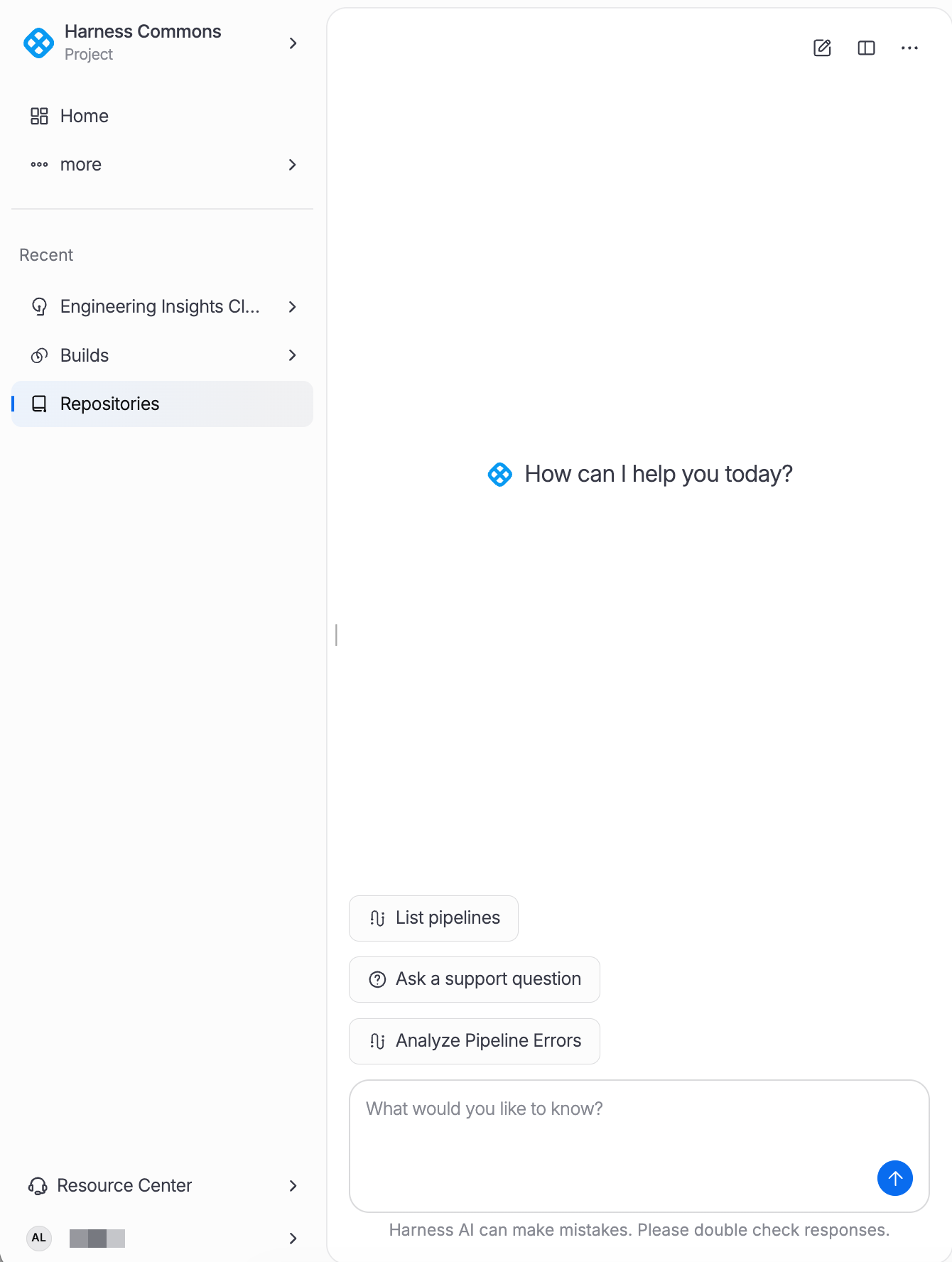
The table below describes what each section contains and when you'd use it.
| Section | Contents | Description |
|---|---|---|
| Home | Dashboard, Metrics, Notifications | Landing page with an overview dashboard, key metrics, and notification center for the current scope. |
| Activity | Deployment Events, Pipeline Executions, Audit Logs | Centralized activity feed showing deployment events, pipeline execution history, and audit trail entries. |
| More | Expands to full category list | Expands to reveal all available modules and resources organized by category. See More Menu below. |
| Recent | Dynamically populated, pinnable items | Displays recently accessed resources. Items can be pinned to keep them visible at the top of the list. |
| Settings | Account, Organization, Project settings | Located at the bottom of the sidebar. Opens the settings page scoped to the current account, organization, or project. |
Sidebar
  |-- Home
  |     |-- Dashboard
  |     |-- Metrics
  |     |-- Notifications
  |
  |-- Activity
  |     |-- Deployment Events
  |     |-- Pipeline Executions
  |     |-- Audit Logs
  |
  |-- More  -->  [Expands to category grid]
  |
  |-- Recent
  |     |-- [Pinned items]
  |     |-- [Recently accessed items]
  |
  |-- Settings  (bottom of sidebar)
More Menu
The More menu is the gateway to the full Harness platform. Clicking More in the sidebar expands a categorized grid of all available modules, tools, and resource management pages.
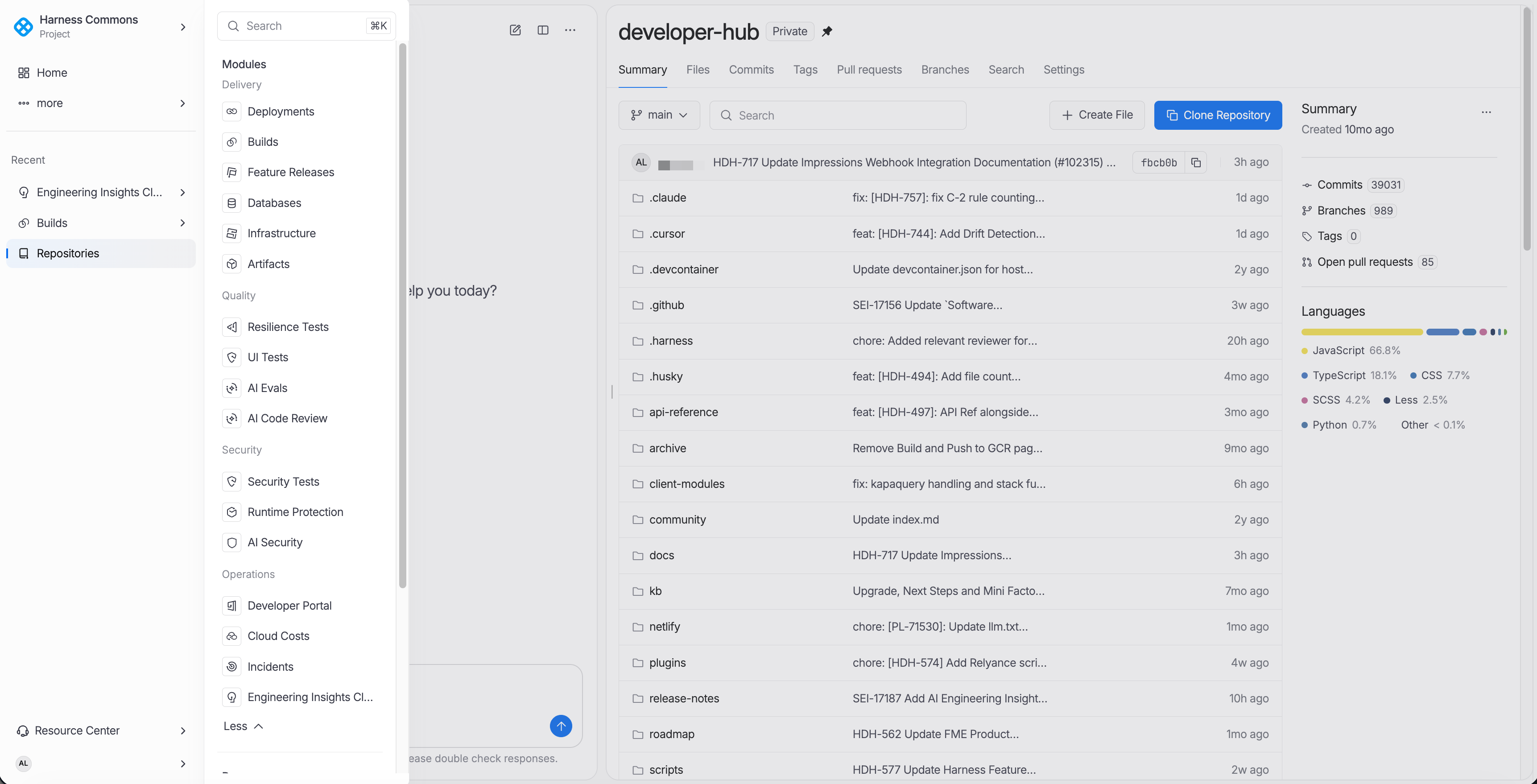
DevOps
Core DevOps capabilities for building, deploying, and managing applications.
- Deployments: Continuous delivery pipeline management and execution.
- Artifacts: Artifact registry and artifact management.
- Portal: Developer portal for service catalog and documentation.
- Repositories: Source code repository management (Harness Code).
- Workspaces: Infrastructure as Code workspace management.
Security
Security scanning and runtime protection capabilities.
- Security Tests: Static and dynamic security analysis integrated into pipelines.
- Runtime Security: Runtime threat detection and policy enforcement.
Efficiency
Cloud cost optimization and infrastructure efficiency tools.
- Cloud Costs: Cloud cost management, recommendations, and budgeting.
Platform
Platform-wide dashboards and account management.
- Dashboards: Custom dashboards for cross-module visibility.
- Dashboards 2.0: Next-generation dashboard builder with advanced visualizations.
- Account: Account-level settings and billing overview.
Resources
Shared platform resources used across modules and pipelines.
- Connectors: Integration endpoints for external systems.
- Secrets: Secure credential storage and management.
- Environments: Deployment target environment definitions.
- Delegates: Worker agents for executing pipeline tasks.
- Services: Application service definitions and configurations.
- Templates: Reusable pipeline, stage, and step templates.
- Variables: Shared variables accessible across pipelines.
- Policies: OPA-based governance policies.
- Webhooks: Webhook endpoint management for external integrations.
Recent Items
The Recent section in the sidebar is dynamically populated based on the resources and pages you access most frequently. It provides a fast way to return to items you were recently working with.
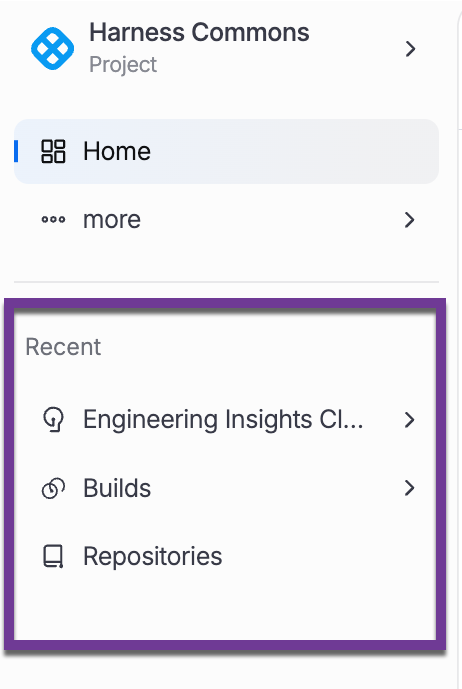
| Feature | Description |
|---|---|
| Dynamic Population | Items appear automatically as you navigate the platform. The list updates in real time based on your activity. |
| Pin / Unpin | Pin frequently used items to keep them at the top of the Recent list. Pinned items persist across sessions and are not displaced by newer activity. |
| Capacity Limits | The Recent list has a fixed capacity. When the limit is reached, the oldest unpinned items are removed to make room for new entries. |
| Per-User Personalization | Recent items are scoped to the individual user. Each team member sees their own activity history. |
Hover over any item in the Recent list to reveal the pin icon. Clicking the icon toggles the pinned state. Pinned items are displayed in a separate group at the top of the list for quick access.
Manage your Recent items
To manage your Recent Items list:
-
Click the Menu icon to the right of
Recent.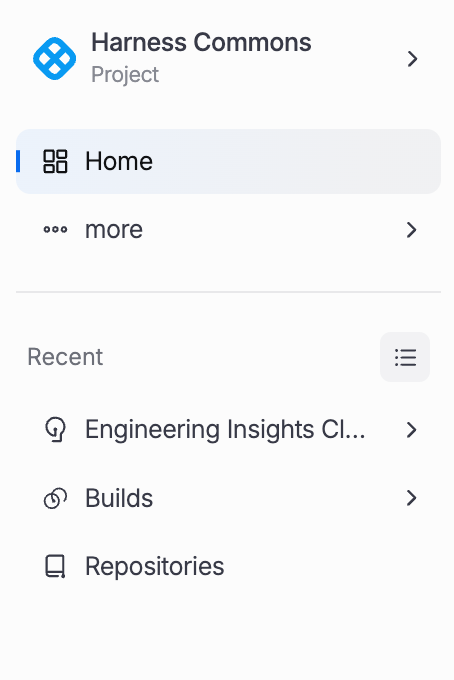
-
In the
Recentsection, you can add recent items to thePinnedsection. To remove recently visited items, click Clear all.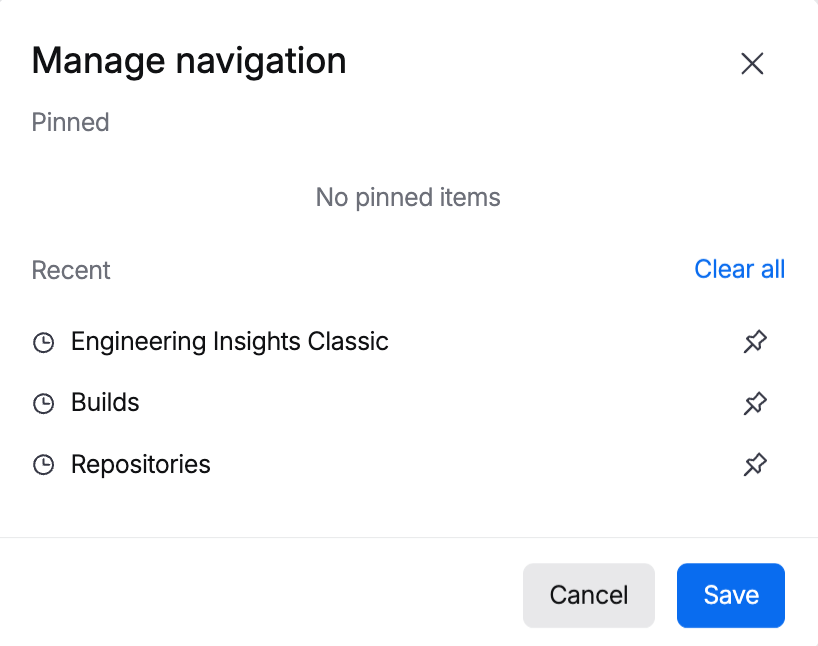
-
When you're done customizing your Recent Items list, click Save.
Keyboard Shortcuts
Harness 3.0 supports keyboard shortcuts for common navigation actions. These shortcuts work from any page and provide a fast way to move through the platform without using the mouse.
| Shortcut | Action |
|---|---|
/ | Open the global search dialog. Begin typing to search across all resources, pages, and documentation. |
g then h | Navigate to Home. |
g then a | Navigate to Activity. View deployment events, pipeline executions, and audit logs. |
g then s | Navigate to Settings. Opens the settings page for the current scope. |
Esc | Close the current dialog, panel, or overlay. Works for search, AI assistant, and modal dialogs. |
Keyboard shortcuts are disabled when a text input field is focused to prevent accidental navigation. Press Esc first to blur the input, then use the shortcut.