Add a stage
Stages are the primary building blocks of a Harness pipeline. A stage defines what work the pipeline performs and on what infrastructure that work runs. You can add stages of different types depending on the modules you have enabled in your project. This topic explains how to add and configure stages, including standard stages, custom stages, and dynamic stages.
This functionality is limited to the modules and settings that you have access to.
What you will learn from this topic
- How to add a stage to your pipeline
- How to configure stage names and identifiers
- How to use stage variables to pass data
- How to configure advanced stage settings such as conditional executions and failure strategies
- How to add a custom stage for use cases outside standard stage types
- How to add a dynamic stage to execute generated pipeline YAML
Before you begin
- Harness project access: Ensure you have View and Create/Edit permissions on Pipelines. An administrator must assign you a role that includes these permissions. For more information, refer to RBAC in Harness.
- Module enablement: The available stage types depend on which Harness modules are enabled in your project. For more information, refer to Create organizations and projects.
Add a stage
Perform the following steps to add a stage to a pipeline:
-
Navigate to your Harness project and create a pipeline in any module that supports pipelines.
-
In your pipeline, select Add Stage, and then select the stage type.
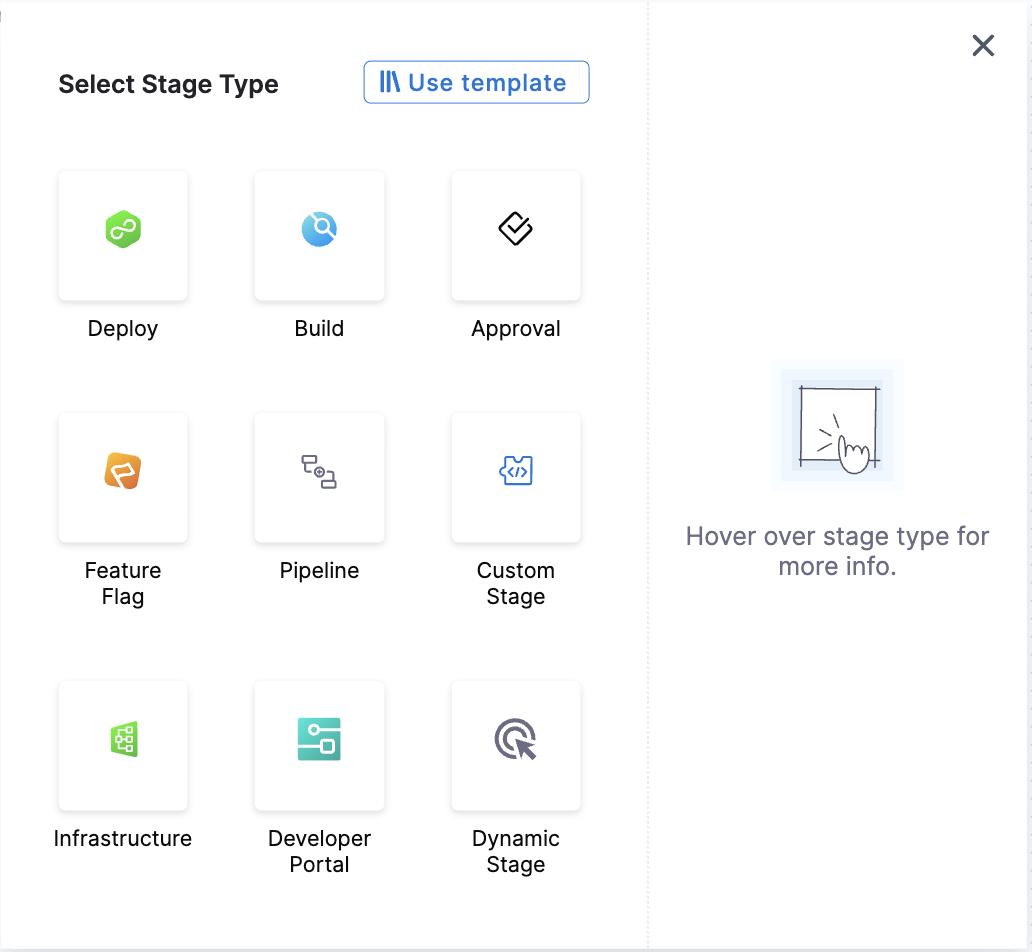
The following stage types are available:
- Deploy: Deploy services, serverless functions, or other workloads.
- Build: Build, test, and push artifacts to repositories.
- Approval: Approve or reject changes during pipeline progress.
- Feature Flag: Enable or disable functionality remotely without redeploying code.
- Pipeline: Run a pipeline as a stage in another pipeline.
- Custom Stage: Custom stages are flexible stages you can configure for use cases outside the standard stage types.
- Infrastructure: Provision, configure, and manage infrastructure resources as part of the pipeline.
- Dynamic Stage: Dynamic Stage allows you to import pipeline YAMLs within a stage. These YAMLs can either be generated and transformed at runtime or be directly passed to the input source field of the dynamic stage in encoded form.
- Developer Portal: Integrate with your developer portal to automate and manage developer workflows within the pipeline.
 tip
tipIf a specific module or stage type is not shown, make sure the module is enabled in your project. For more information, refer to Create organizations and projects.
-
Configure the stage settings.
You must provide a few initial settings, such as the Stage Name, to add a stage to a pipeline.
After adding the stage, you can configure additional settings across the available tabs, such as Stage Variables, Environment, Infrastructure, and other stage-specific options.
The available settings depend on the module and stage type. For more information about the stage settings available for that module, refer to your module's documentation.
-
Configure the stage execution.
If applicable to the stage type or module, use the Execution tab to add and configure the steps that define the tasks performed by the stage.
You can also configure execution-related settings, such as Execution Strategy, Conditional Execution, Looping Strategy, and Failure Strategy. The available steps and settings depend on the stage type. For details about configuring the available execution options, refer to your module's documentation.
Stage names
When you create a stage, you give it a name. Harness automatically creates an Id (Entity Identifier) based on the name.
You can change the Id during initial stage creation. However, once the stage is saved, the Id becomes immutable.
You can change the Name at any time, but you cannot change the Id.
Stage variables
Stage variables are variables defined at the stage level and used to configure or reference values within the stage and in subsequent stages of the pipeline.
You can add stage variables in the Pipeline Studio's Visual Editor or YAML Editor.
- Visual
- YAML
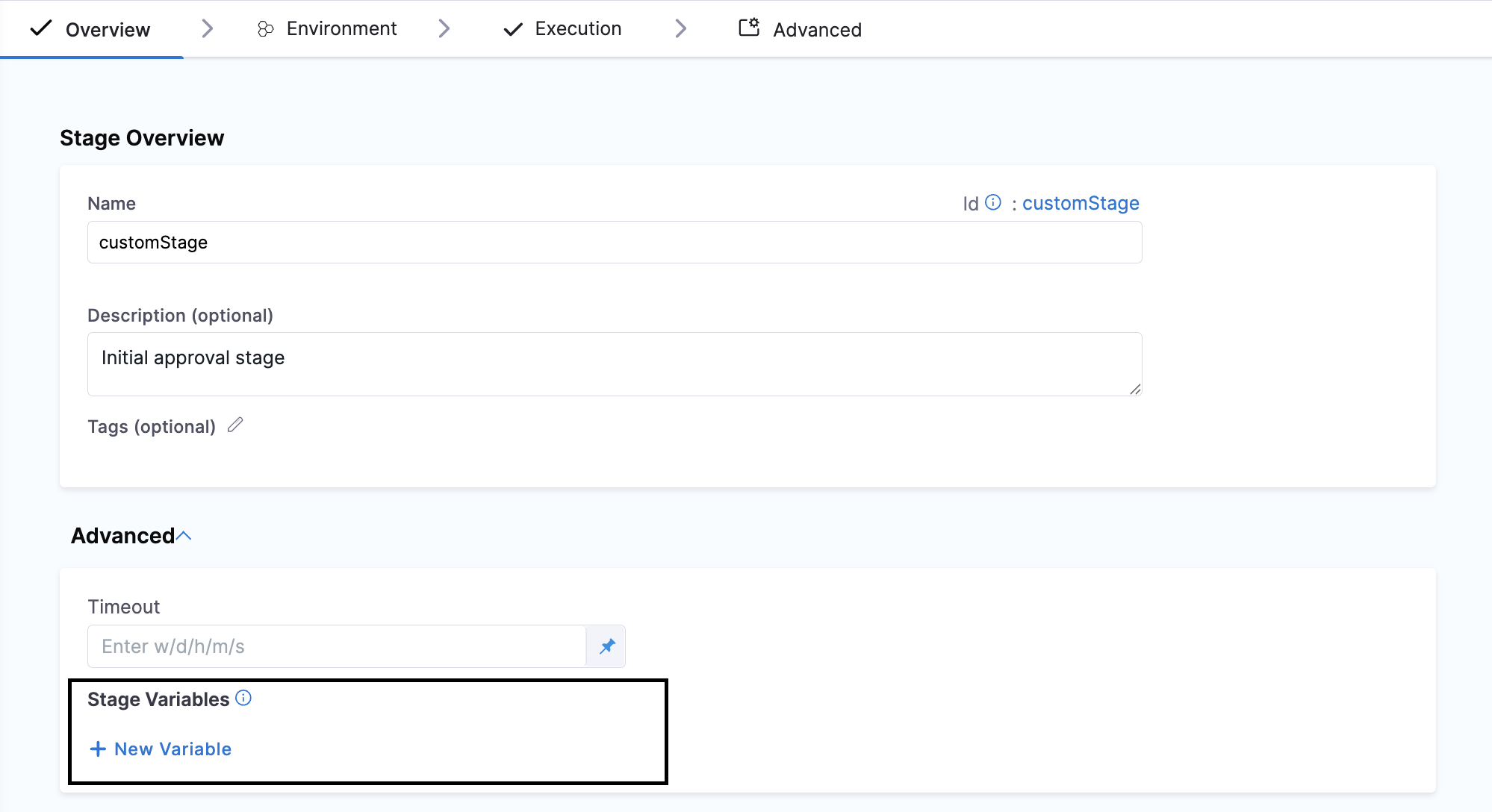
To add stage variables, go to a stage's Overview tab, expand the Advanced section, and then select Add Variable.
- stage:
    ...
    variables:
      - name: VAR_NAME
        type: String ## String or Secret
        description: ""
        value: 90
Variable values can be fixed values, runtime inputs, or expressions.
Stage variables are available across the pipeline and you can override their values in later stages.
-
To reference stage variables in the same stage where they are defined, use the expression
<+stage.variables.VAR_NAME>. -
To reference stage variables in other stages, use the expression
<+pipeline.stages.STAGE_ID.variables.VAR_NAME>. -
You can also reference stage variables in files fetched at runtime. For example, create a stage variable called
NAMEand then reference it in the Kubernetesvalues.yamlfile used by that stage by calling the Harness expression<+stage.variables.NAME>.name: <+stage.variables.NAME>replicas: 2image: <+primary.artifact.image>...When you run this pipeline, the value you set for
NAMEin the stage settings is supplied to thevalues.yamlfile.
Advanced stage settings
On the Advanced tab, you can configure:
- Manual Execution: Allows you to pause the pipeline at a stage and require a user to manually trigger the stage before it can continue. You can also configure a timeout; if the stage is not manually triggered within the specified time, the stage fails. For more information, refer to Run a pipeline.
- Timeout: Specifies the maximum amount of time Harness waits for the stage to complete. For manual stages, the timeout also determines how long the stage can remain waiting for manual execution before it fails.
- Delegate Selector (optional): Allows you to specify which Harness Delegate should execute the stage or its associated tasks. Delegate selectors use delegate tags to target delegates with the required connectivity or capabilities. Stage-level delegate selectors can also be overridden by selectors configured at the step or step-group level. For more information, refer to Select delegates with selectors.
- Conditional executions: Control when a stage executes based on conditions you define.
- Failure strategies: Define how the pipeline responds when a stage fails.
- Looping strategies: Run stages multiple times using matrix, repeat, or parallelism strategies.
- Send Status to Git: Allows Harness to send the stage's execution status to the Git provider for pipelines triggered by Git events, such as pull requests. This can be used to display the stage as a status check on the pull request and, where supported, customize the status check name. For more information, refer to Git Experience.
- Name: Specifies the name displayed for the stage's status check in the Git provider. You can use a fixed value or a Harness expression to generate the name dynamically.
Add a custom stage
Custom stage executions will count towards service license consumption. Harness CD will consume 1 Service license for every 2000 custom stage executions. For more information, refer to licensing for pipelines with no service.
Harness provides predefined stages for common pipeline operations, including Build (CI), Deploy (CD), and Approval stages. Each stage type provides settings and steps specific to its intended use case.
Use a Custom stage when you need to perform operations that do not require the predefined settings or functionality of the standard stage types. For example, you can use a Custom stage for ad hoc provisioning or to run jobs before or after a deployment stage. Unlike Build, Deploy, or Approval stages, a Custom stage has no predefined functionality or requirements and provides flexibility for use cases outside the standard stages.
Perform the following steps to add a Custom stage to your pipeline:
- Select Add Stage in the pipeline.
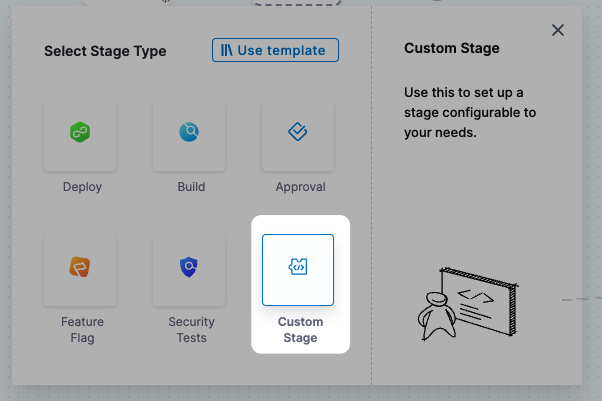
- Select Custom as the stage type.
- Enter a name for the stage and configure the required settings.
- Add the required steps in the Execution tab.
- Configure optional settings, such as Stage Variables, Environment, Infrastructure, and Advanced settings.
- Save the stage.
Environments and infrastructure definitions in custom stages
You can also use Environment and Infrastructure Definition in Custom stages.
- Service is not supported in Custom stages.
- Both Environment and Infrastructure Definition are optional. You can have a Custom stage with no Environment or Infrastructure Definition or with only Environment or with both Environment and Infrastructure Definition.
- Currently, you can only use a single environment and single infrastructure.
- Harness does not support environment propagation in the Custom stage.
- Harness does not support dynamic infrastructure provisioning in the Custom stage.
- Harness does not support environment and infrastructure filtering in the Custom stage.
- You can add both environment global and infrastructure global overrides in Custom stages.
- Service-specific overrides are not supported as services are not supported in Custom stages.
Custom stage capabilities
Custom stages support the following capabilities:
- Stage variables.
- Advanced stage settings: Conditional executions, failure strategies, and looping strategies.
- Templates: You can create stage templates based on Custom stages, and you can use step templates in Custom stages. You can also create pipeline templates from pipelines that have Custom stages.
- Delegate selectors: You can select the Harness Delegate to use for each step in a Custom stage. If you do not specify a delegate, Harness uses the default delegate selection process.
Custom stages do not support rollback failure strategies, but you can use conditional executions to run steps or stages based on the outcomes of other steps or stages. For example, run a step only if a previous step succeeded.
Steps in custom stages
- The Custom stage leverages steps from other stage types. Any steps listed in the Step Library for your Custom stages are also available for Build, Deploy, or Approval stages. Harness has no steps that are applicable only to the Custom stage.
- The Custom stage cannot use module-specific steps. Steps specific to CI and CD stages, like the Rolling Deployment step, are not available for the Custom stage.
- Licensing is applied to steps in Custom stages. For example, CD steps, such as the HTTP step, are available for the Custom stage only if you have a CD license.
Delegate-based steps, such as shell scripts and command steps, can run for a maximum of 4 days. This applies to any tasks executed via the Harness Delegate. Ensure that your workflows account for this runtime, as any delegate-based step exceeding 4 days will not complete successfully.
Add a dynamic stage
A Dynamic Stage is a Harness pipeline feature that allows you to import and execute pipeline YAML within a stage. It is similar to running an entire pipeline within a stage. The pipeline YAML can be generated or transformed at runtime by a previous stage, or provided directly to the Dynamic Stage's source input in encoded form. Dynamic Stages work across Harness CI and CD modules.
Dynamic Stage is behind the Feature Flag PIPE_DYNAMIC_STAGE_EXECUTION. Contact Harness Support to enable this stage.
Perform the following steps to add a Dynamic Stage to your pipeline:
-
Select Add Stage in the pipeline.
-
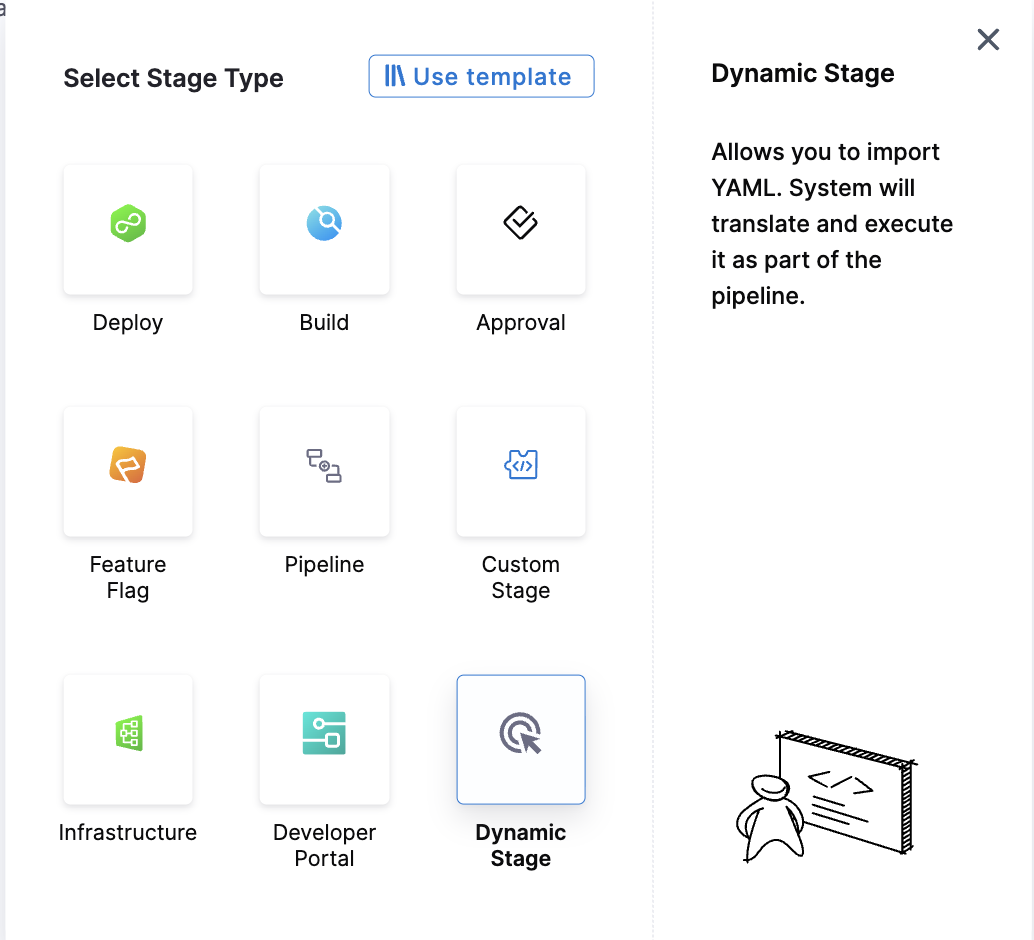
Select Dynamic Stage as the stage type.
-
Enter the Stage Name and click Set Up Stage.
-
In the Overview tab, select Source Location:
-
Configure execution-related settings, such as Execution Strategy, Conditional Execution, Looping Strategy, and Failure Strategy in the Advanced tab, if required.
-
Save the pipeline.
Define inline source location
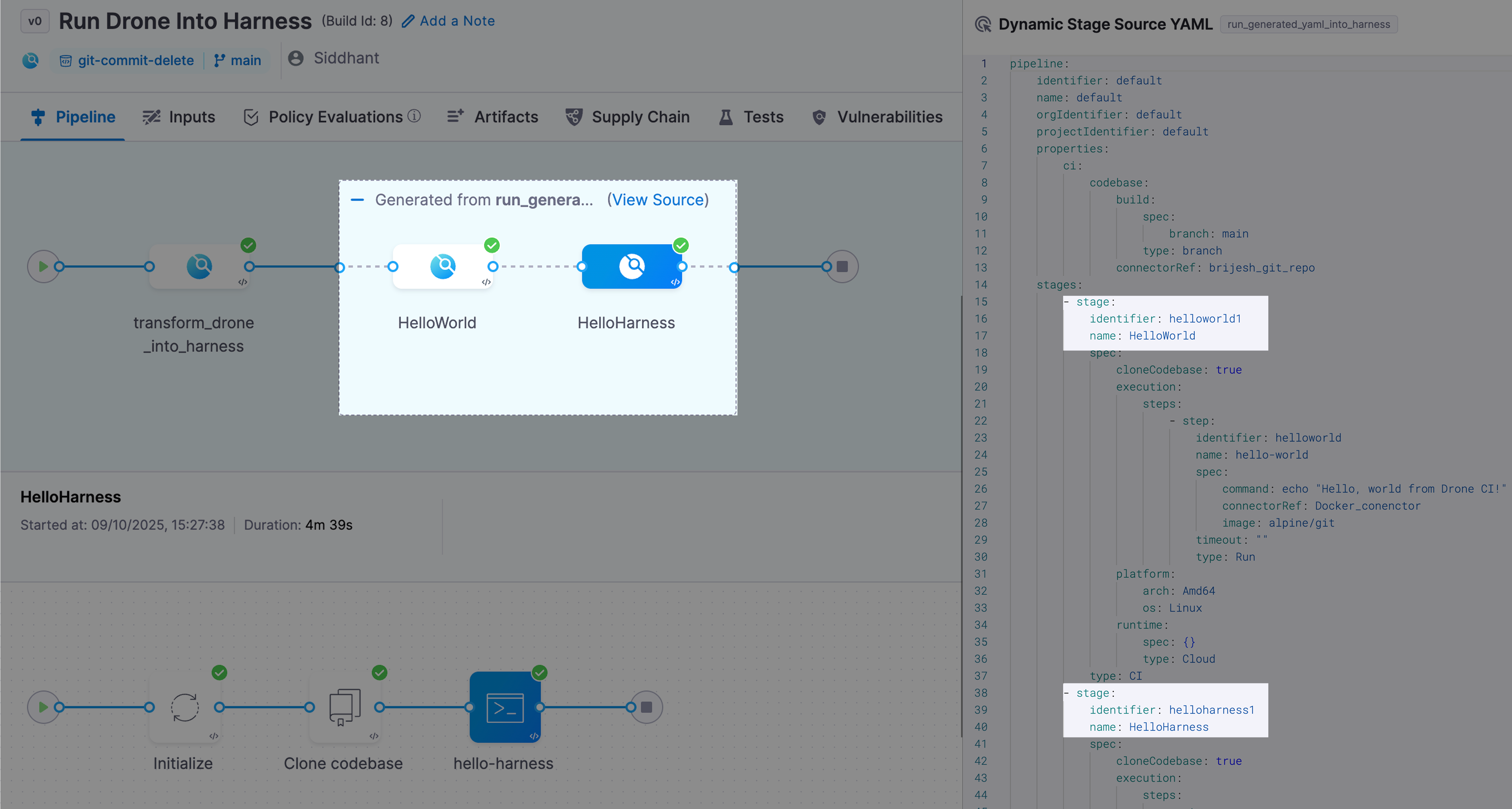
Define the inline source to provide pipeline YAML to the Dynamic Stage using the following two methods:
Upon execution, the Dynamic Stage executes the stages and steps as per the Dynamic Stage Source YAML. You can click on the View Source option to view the decoded pipeline YAML.
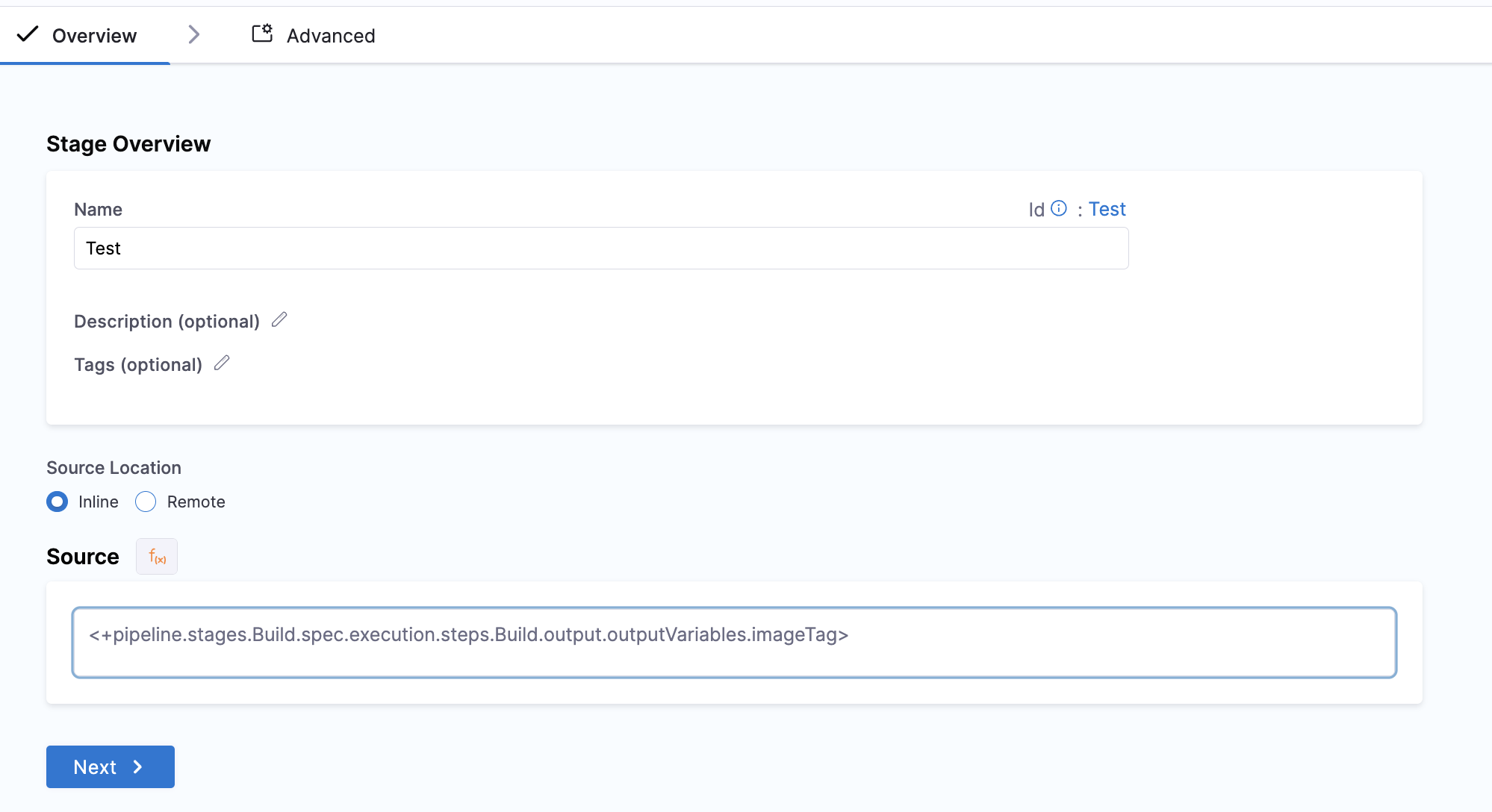
Encoded YAML using Expressions
Dynamic Stage accepts Expressions in the source input field, which enables the execution of YAML pipelines generated at runtime. To achieve this, you can use an expression to output the YAML pipeline in base64-encoded form, for example, through a previous stage or step that outputs the pipeline YAML in base64-encoded form through an output variable.
The following example demonstrates a pipeline in which a Drone pipeline is converted into a Harness pipeline through a plugin, and the encoded Harness pipeline YAML is passed to the Dynamic Stage through an expression containing the output variable belonging to the stage prior to the Dynamic Stage. This output variable stores the encoded pipeline YAML and, hence, serves as the source for the Dynamic Stage.
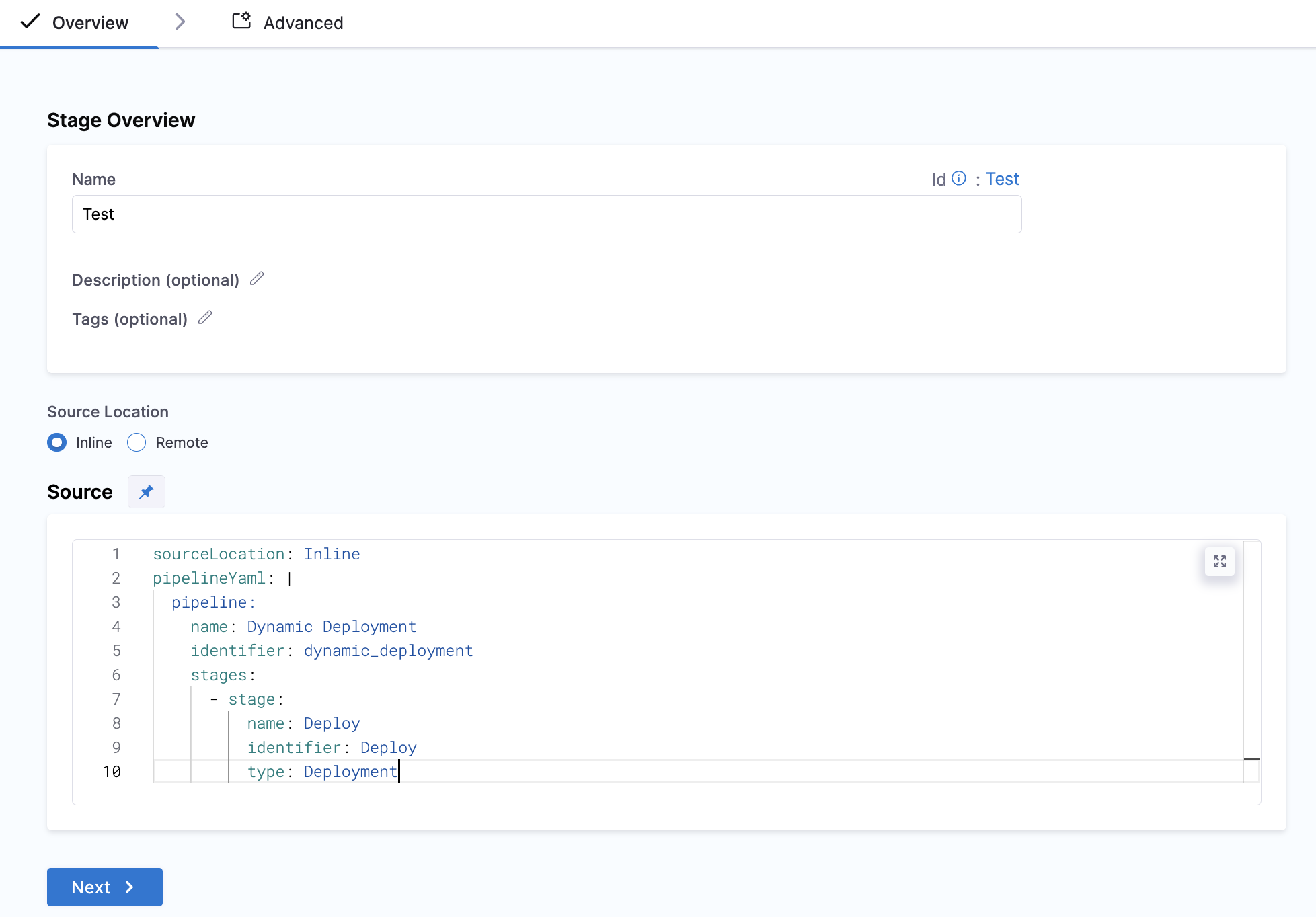
Encoded YAML via Fixed Value
Dynamic Stage accepts the encoded value of the pipeline YAML in the source input field. You can convert any Harness Pipeline YAML into base64-encoded form and pass it to the Dynamic Stage.
The example below demonstrates a pipeline consisting of a Dynamic Stage where the encoded Pipeline YAML is being provided to the source as a Fixed Value.
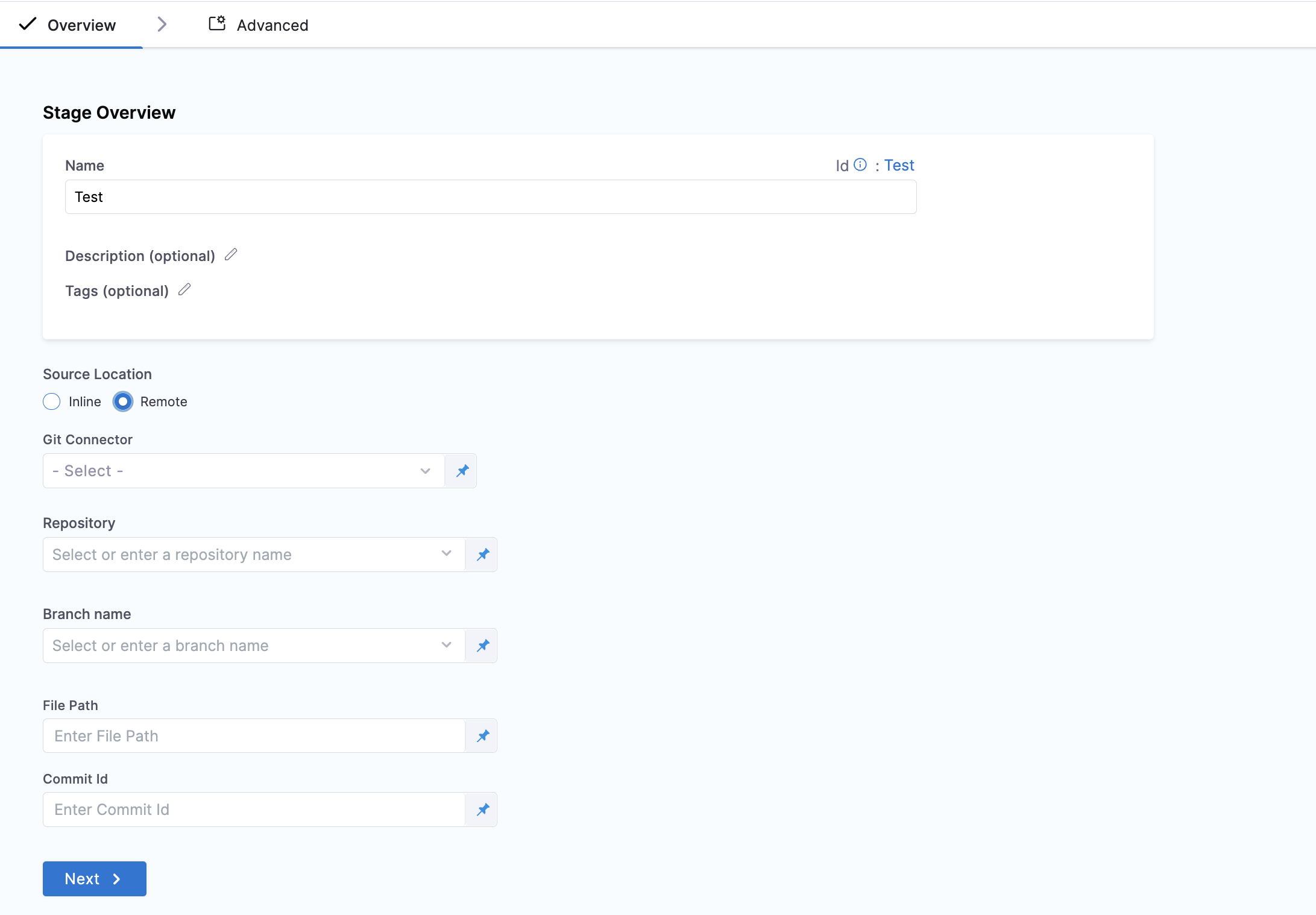
Define remote source location
Load the pipeline YAML from a Git repository.
- Git Connector: Select the connector used to access the Git repository.
- Repository: Select or enter the name of the Git repository containing the pipeline YAML.
- Branch Name: Select or enter the branch containing the pipeline YAML.
- File Path: Specify the path to the pipeline YAML file in the repository.
- Commit ID: Optionally specify the commit from which to retrieve the pipeline YAML.
Next steps
- Organize steps in step groups: Group and organize steps within a stage for better organization.
- Pipeline chaining in Harness: Chain pipelines together to create complex workflows.
- Define failure strategies: Configure how stages handle failures.