Add tags dynamically to an execution
Overview
Harness supports dynamic tagging of pipeline executions, enabling you to attach contextual metadata as tags during runtime. These tags become part of the execution record and can be used with Harness’s standard tag-based search and filters to quickly locate specific runs.
In real delivery workflows, critical information such as artifact versions, environment details, matrix dimensions, or dynamically generated configuration values often emerges only at runtime, not when the pipeline is authored. Dynamic tags allow you to capture this real-time context directly on the execution, giving you a richer, more accurate history of what was deployed, where, and under what conditions. This makes debugging, auditing, compliance checks, and operational insights significantly easier and more reliable.
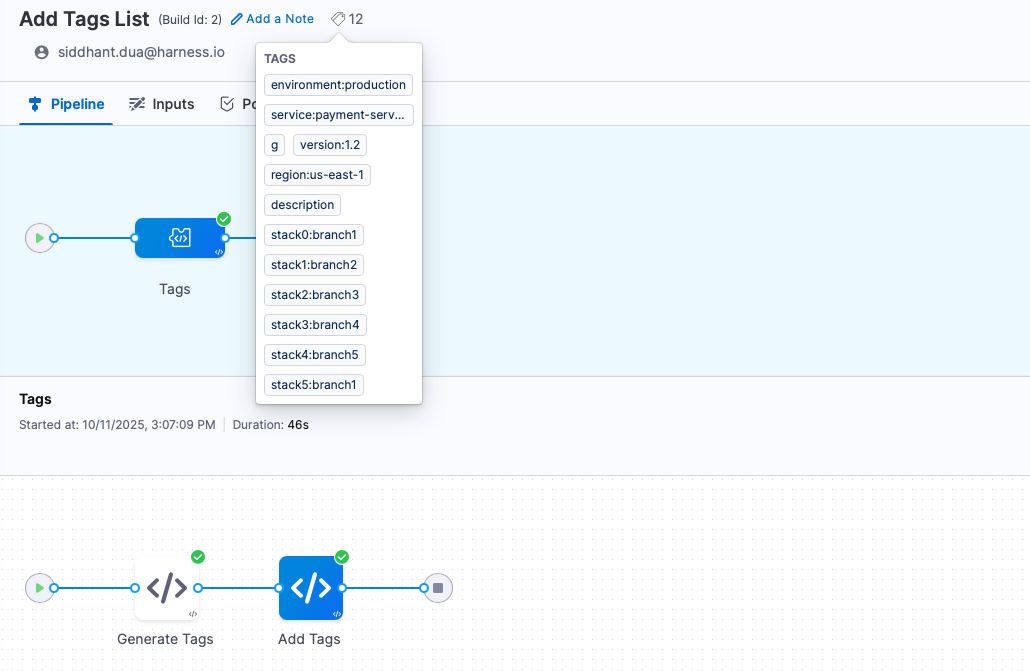
Expressions to add tags dynamically
The following expressions enable Harness to add tags dynamically to an execution:
| Expression | Description |
|---|---|
<+executionTags.addTag(name, value)> | attaches a single key-value tag to the execution at the moment the expression is evaluated. |
<+executionTags.addTagsList(listOfPairs)> | attaches a list of tags to the execution at the moment the expression is evaluated. |
Tags are not added to the pipeline definition. It exists only on the specific execution.
Limitations Inside Shell Script Steps
These expressions cannot be invoked within a loop inside a Shell Script step. This is because all expressions are evaluated before the Shell Script step begins execution. Therefore, a loop in a script cannot call addTag multiple times and you cannot generate tag values inside the same script and immediately attach them.
If your workflow requires generating multiple tags in a script, use the following pattern instead:
- Generate a list of tags inside a script and export it as an output variable.
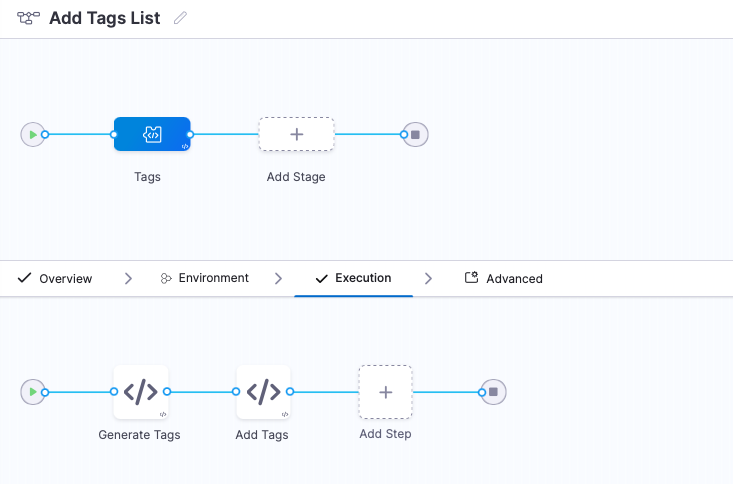
Sample yaml for Generate Tags Shell Script Step
            - step:
                  type: ShellScript
                  name: Generate Tags
                  identifier: ShellScript_3
                  spec:
                    shell: Bash
                    executionTarget: {}
                    source:
                      type: Inline
                      spec:
                        script: |-
                          #!/bin/bash

                          # Define tag keys and values (use empty string "" for blank values)
                          keys=("environment" "service" "g" "version" "region" "description")
                          values=("production" "payment-service" "" <+stage.variables.version> "us-east-1" "")

                          # Generate tags JSON
                          TAGS_JSON="["

                          for i in "${!keys[@]}"; do
                            if [ $i -gt 0 ]; then
                              TAGS_JSON+=","
                            fi
                            TAGS_JSON+="{\"key\":\"${keys[$i]}\",\"value\":\"${values[$i]}\"}"
                          done
                          TAGS_JSON+="]"
                          export EXECUTION_TAGS_LIST="$TAGS_JSON"
                          echo "Generated tags: $EXECUTION_TAGS_LIST"

                          json_output="["

                          # Generate 100 stack-branch combinations
                          for i in $(seq 0 900); do
                            if [ $i -gt 0 ]; then
                              json_output+=","
                            fi
                            stack="stack$i"
                            # Random-looking branch name using modulo logic
                            branch="branch$((i % 5 + 1))"  # branch1 to branch5
                            json_output+="{\"key\":\"$stack\",\"value\":\"$branch\"}"

                          done

                          # TAGS_JSON+=""
                          json_output+="]"

                          # Export for use in pipeline
                          export EXECUTION_TAGS_LONG_LIST="$json_output"

                          echo "Generated tags: $EXECUTION_TAGS_LONG_LIST"
                    environmentVariables: []
                    outputVariables:
                      - name: EXECUTION_TAGS_LIST
                        type: String
                        value: EXECUTION_TAGS_LIST
                      - name: EXECUTION_TAGS_LONG_LIST
                        type: String
                        value: EXECUTION_TAGS_LONG_LIST
                  timeout: 10m
- Use
<+executionTags.addTagsList(listOfPairs)>in the next step to attach them.
Sample yaml for Add Tags List Shell Script Step
        - step:
                  type: ShellScript
                  name: Add Tags
                  identifier: ShellScript_2
                  spec:
                    shell: Bash
                    executionTarget: {}
                    source:
                      type: Inline
                      spec:
                        script: |
                          echo <+executionTags.addTagsList(<+pipeline.stages.shell.spec.execution.steps.ShellScript_3.output.outputVariables.EXECUTION_TAGS_LIST>)>
                          echo <+executionTags.addTagsList(<+pipeline.stages.shell.spec.execution.steps.ShellScript_3.output.outputVariables.EXECUTION_TAGS_LONG_LIST>)>
                    environmentVariables: []
                    outputVariables: []
                  timeout: 10m
Adding tags dynamically with Matrix Looping Strategy
You can use the expression <+executionTags.addTag(name, value)> with matrix looping strategy to add tags iteratively to an execution.
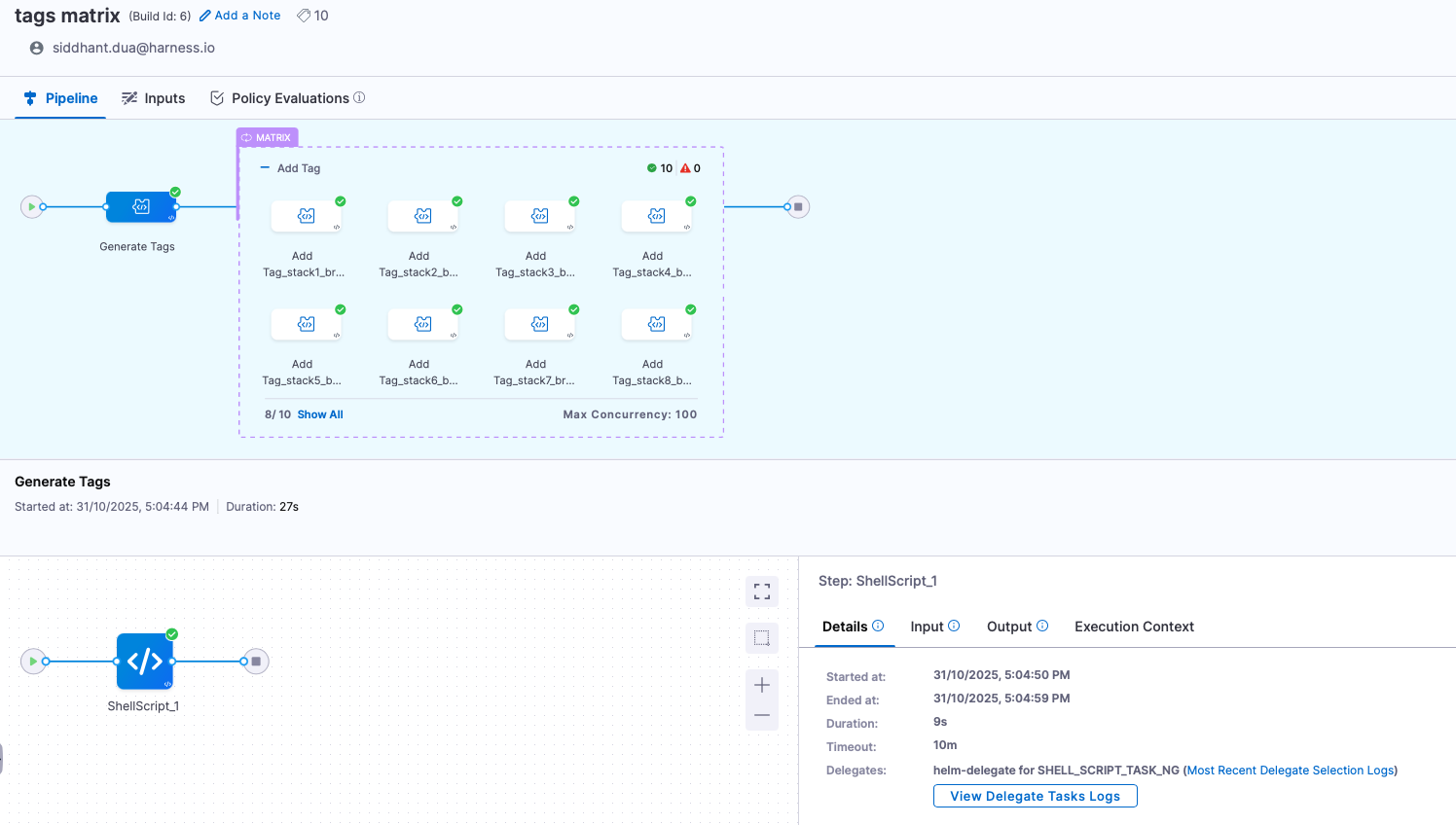
The step to add tags dynamically with matrix looping strategy will look like this:

Please refer to the sample pipeline yaml provided below for more insights on how to add tags dynamically with matrix looping strategy:
Sample Pipeline Yaml for Generating Tags and Adding Tags dynamically with Matrix Looping Strategy
pipeline:
  name: tags matrix
  identifier: tags_matrix
  tags: {}
  projectIdentifier: siddhant_playground
  orgIdentifier: default
  stages:
    - stage:
        name: Generate Tags
        identifier: shell
        description: ""
        type: Custom
        spec:
          execution:
            steps:
              - step:
                  type: ShellScript
                  name: ShellScript_1
                  identifier: ShellScript_1
                  spec:
                    shell: Bash
                    executionTarget: {}
                    source:
                      type: Inline
                      spec:
                        script: |-
                          export out="out"

                          json_output="{\"service\":["

                          # Generate 100 stack-branch combinations
                          for i in $(seq 1 10); do
                            stack="stack$i"
                            # Random-looking branch name using modulo logic
                            branch="branch$((i % 5 + 1))"  # branch1 to branch5
                            json_output+="{\"stack\":\"$stack\",\"branch\":\"$branch\"},"

                          done
                          # Remove the trailing comma and close the array
                          export json_output="${json_output%,}]}"

                          # Export as a string variable
                          echo "Exporting service output..."
                          echo "service=$json_output"
                          export service="$json_output"
                    environmentVariables: []
                    outputVariables:
                      - name: out
                        type: String
                        value: out
                      - name: service
                        type: String
                        value: service
                      - name: json_output
                        type: String
                        value: json_output
                  timeout: 10m
        tags: {}
    - stage:
        name: Add Tag
        identifier: poll
        description: ""
        type: Custom
        spec:
          execution:
            steps:
              - step:
                  type: ShellScript
                  name: ShellScript_1
                  identifier: ShellScript_1
                  spec:
                    shell: Bash
                    executionTarget: {}
                    source:
                      type: Inline
                      spec:
                        script: |
                          echo "stack is <+matrix.service.stack>"
                          echo "branch is <+matrix.service.branch>"
                          echo <+executionTags.addTag(<+matrix.service.stack>,<+matrix.service.branch>)>
                    environmentVariables: []
                    outputVariables: []
                  timeout: 10m
        tags: {}
        strategy:
          matrix:
            nodeName: <+matrix.service.stack>_<+matrix.service.branch>
            service: <+json.list("service", <+pipeline.stages.shell.spec.execution.steps.ShellScript_1.output.outputVariables.json_output>)>
            maxConcurrency: 100
        when:
          pipelineStatus: All
Filter pipeline executions by tag logic
When you view pipeline execution history, you can filter by multiple tags using AND or OR logic. This helps you narrow down results to find executions that match specific tag combinations.
Filter executions by tags
After you have added tags to your pipeline executions (either statically or dynamically), you can filter the execution history to find specific runs.
-
Go to Pipelines and select Execution History.
-
Select the Filters panel.
-
In the Pipeline Tags section, select the tags you want to filter by.
-
After selecting multiple tags, choose the operator under Conditions:
- Matches Any: Returns executions that have at least one of the selected tags (OR logic)
- Matches All: Returns only executions that have all of the selected tags (AND logic)
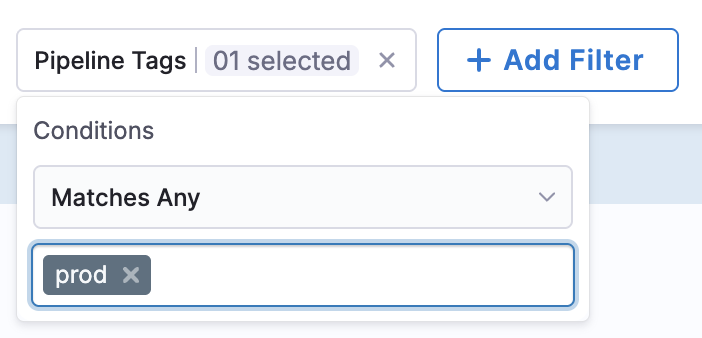
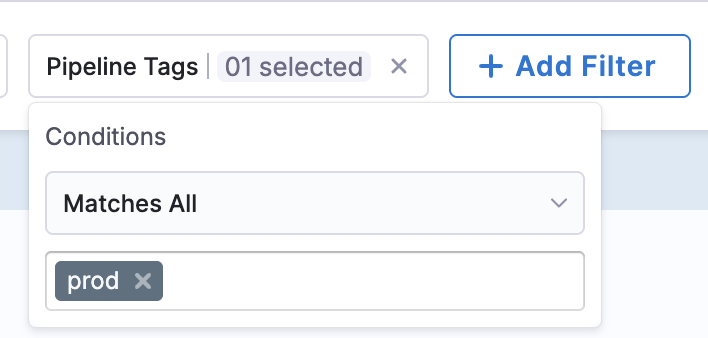
The default behavior is Matches Any (OR logic), which returns any pipeline that has at least one of your selected tags. When you switch to Matches All (AND logic), only pipelines that have every tag you selected will appear in the results.
Use cases for AND logic
The AND logic option (Matches All) is behind the feature flag PIPE_TAG_CONDITIONAL_FILTER. Contact Harness Support to enable the feature. OR logic (Matches Any) is available by default.
AND logic is most useful when you need to identify pipelines that meet multiple specific criteria simultaneously.
When troubleshooting production issues in a specific service, filter by tags such as env:prod AND service:payment-api to see only production deployments for that service, excluding test deployments or other services running in production.
For compliance audits, combine tags such as compliance:sox AND environment:production AND region:us-east-1 to generate reports showing only production deployments in SOX-compliant regions.
When multiple teams share a pipeline execution view, use tags such as team:platform AND priority:high to focus on high-priority work from a specific team.
Use cases for OR logic
OR logic works well when you want to see pipelines matching any of several criteria.
When monitoring deployments across multiple regions, filter by tags such as region:us-east-1 OR region:eu-west-1 to see deployments in either region.
For reviewing work across related services, use tags such as service:payment-api OR service:checkout-service to view executions for any service in your payment flow.
Save filters with conditional logic
When you save a filter, Harness saves your tag filter operator choice along with the selected tags.
Filters created before this feature was enabled default to OR logic (Matches Any) when you edit them. If you want a saved filter to use AND logic, edit the filter and change the operator to Matches All, then save the filter again.
Go to Tags to learn how to structure tags and assign metadata using them in Harness.
You can find more on structure of tags and how to assign metadata using them in Harness here.