Dynamic execution of Pipelines
Dynamic pipeline execution allows you run pipelines by providing the pipeline YAML configuration at runtime, without requiring a pre-saved pipeline in Harness.
In this model, Harness acts primarily as the execution engine, while an external system within your ecosystem is responsible for generating and editing the YAML configuration. This approach is particularly useful when pipelines need to be generated dynamically based on user actions.
Dynamic execution also enables integration with existing systems while retaining Harness security and governance controls.
What you will learn from this topic
- How to enable dynamic execution at account and pipeline levels.
- How to execute pipelines dynamically using the API.
- How to generate and execute dynamic stages within a running pipeline.
Before you begin
- Feature flag required: This feature requires the
PIPE_DYNAMIC_PIPELINES_EXECUTIONfeature flag. Contact Harness Support to enable it. - Pipeline permissions: Edit and Execute permissions on pipelines. For more information, refer to Manage roles.
- Existing pipeline: The pipeline must already exist in Harness UI. The pipeline-level dynamic execution setting is only visible after the account-level setting is enabled.
- API access: Dynamic execution is only supported via the API endpoint:
https://app.harness.io/gateway/pipeline/api/v1/orgs/{org}/projects/{project}/pipelines/{pipeline}/execute/dynamic
If you do not see the dynamic execution options in your account, the feature flag may not be enabled. Contact Harness Support at support@harness.io to enable the PIPE_DYNAMIC_PIPELINES_EXECUTION feature flag.
Enable dynamic execution
Before you can execute pipelines dynamically, you need to enable two settings at both the account and pipeline levels.
Account level setting
- Navigate to Account Setting, then select Default Settings.
- Select Pipeline.
- Enable Allow Dynamic Execution for Pipelines.
You can disable dynamic execution for the account at any time by turning off this setting.
Pipeline level setting
After enabling the account setting, you must enable the pipeline-level setting in your pipeline.
- Navigate to Advanced Options.
- Select Dynamic Execution Settings (optional).
- Enable Allow Dynamic Execution for Pipeline.

Supported features
Dynamic pipeline execution supports the following features:
- Template resolution at runtime: Resolve templates dynamically when the pipeline executes.
- Expression resolution: Use Harness expressions in your dynamic YAML.
- Services and environments: Reference existing services and environments in your dynamic pipelines.
- Secrets and connectors: Access secrets and connectors configured in Harness.
- OPA policy enforcement: Apply Open Policy Agent (OPA) policies to dynamic pipelines.
Use the dynamic execution API
The Dynamic Execution API in Harness allows you to execute a pipeline dynamically by passing YAML configurations directly in the request body.
To execute a pipeline dynamically, you must provide a valid YAML configuration through the Dynamic Execution API.
API request format
curl --location 'https://app.harness.io/gateway/pipeline/api/v1/orgs/default/projects/PROJECT_ID/pipelines/PIPELINE_ID/execute/dynamic' \
--header 'accept: */*' \
--header 'content-type: application/json' \
--header 'origin: https://app.harness.io' \
--header 'Harness-Account: ACCOUNT_ID' \
--header 'x-api-key: HARNESS_API_KEY' \
--data '{
    "yaml": "" # Replace with your pipeline YAML configuration
}'
Replace the following placeholders:
PROJECT_ID: Your Harness project identifierPIPELINE_ID: Your pipeline identifierACCOUNT_ID: Your Harness account identifierHARNESS_API_KEY: Your Harness API key
If the API returns an authentication error or permission denied, verify you have both Edit and Execute permissions on the pipeline. For more information, refer to Manage roles.
Example API request
curl --location 'https://app.harness.io/gateway/pipeline/api/v1/orgs/default/projects/Krishika_CD_Samples/pipelines/Deploy_Web_Application/execute/dynamic' \
--header 'accept: */*' \
--header 'content-type: application/json' \
--header 'origin: https://app.harness.io' \
--header 'Harness-Account: ACCOUNT_ID' \
--header 'x-api-key: HARNESS_API_KEY' \
--data '{
    "yaml": "pipeline:\n  name: Deploy_Web_Application\n  identifier: Deploy_Web_Application\n  projectIdentifier: Krishika_CD_Samples\n  orgIdentifier: default\n  tags: {}\n  stages:\n    - stage:\n        name: Build_Web_App\n        identifier: Build_Web_App\n        description: \"\"\n        type: CI\n        spec:\n          cloneCodebase: false\n          caching:\n            enabled: true\n          buildIntelligence:\n            enabled: true\n          platform:\n            os: Linux\n            arch: Amd64\n          runtime:\n            type: Cloud\n            spec: {}\n          execution:\n            steps:\n              - step:\n                  type: Run\n                  name: Run_1\n                  identifier: Run_1\n                  spec:\n                    shell: Sh\n                    command: echo \"Building Web App\"\n    - stage:\n        name: Deploy_Web_App\n        identifier: Deploy_Web_App\n        description: \"\"\n        type: Deployment\n        spec:\n          deploymentType: Kubernetes\n          service:\n            serviceRef: k8s_service\n            serviceInputs:\n              serviceDefinition:\n                type: Kubernetes\n                spec:\n                  artifacts:\n                    primary:\n                      primaryArtifactRef: <+input>\n                      sources: <+input>\n          environment:\n            environmentRef: k8sdemoenv\n            deployToAll: false\n            infrastructureDefinitions:\n              - identifier: k8sdemoinfra\n          execution:\n            steps:\n              - step:\n                  name: Rollout Deployment\n                  identifier: rolloutDeployment\n                  type: K8sRollingDeploy\n                  timeout: 10m\n                  spec:\n                    skipDryRun: false\n                    pruningEnabled: false\n              - step:\n                  type: ShellScript\n                  name: ShellScript_1\n                  identifier: ShellScript_1\n                  spec:\n                    shell: Bash\n                    executionTarget: {}\n                    source:\n                      type: Inline\n                      spec:\n                        script: echo \"Web App Deployed\"\n                    environmentVariables: []\n                    outputVariables: []\n                  timeout: 10m\n            rollbackSteps:\n              - step:\n                  name: Rollback Rollout Deployment\n                  identifier: rollbackRolloutDeployment\n                  type: K8sRollingRollback\n                  timeout: 10m\n                  spec:\n                    pruningEnabled: false\n        tags: {}\n        failureStrategies:\n          - onFailure:\n              errors:\n                - AllErrors\n              action:\n                type: StageRollback"
}'
API response
Upon successful execution, the API returns the following response:
{
    "execution_details": {
        "execution_id": "xD908VCSQVaP3Zo14tEI8g",
        "status": "RUNNING"
    }
}
Monitor pipeline execution
Once the API is triggered, you can monitor the pipeline execution in the Harness UI.

In the trigger summary you will see a message indicating This was executed dynamically. This confirms that the pipeline was triggered using the Dynamic Execution API.
Example pipeline with dynamic stage
This example demonstrates how to transform and execute dynamically generated YAML within a running pipeline.
YAML example: Pipeline with dynamic stage
pipeline:
  name: Dynamic Stage Example
  identifier: Dynamic_Stage_Example
  projectIdentifier: <PROJECT_ID> # Replace with your project identifier
  orgIdentifier: <ORG_ID> # Replace with your organization identifier
  stages:
    - stage:
        name: generate_yaml
        identifier: generate_yaml
        description: ""
        type: CI
        spec:
          cloneCodebase: true
          caching:
            enabled: true
            override: true
            paths: []
          buildIntelligence:
            enabled: true
          infrastructure:
            type: KubernetesDirect
            spec:
              connectorRef: <K8S_CONNECTOR> # Replace with your Kubernetes connector
              namespace: default
              automountServiceAccountToken: true
              nodeSelector: {}
              os: Linux
          execution:
            steps:
              - step:
                  type: Plugin
                  name: Generate_Pipeline_YAML
                  identifier: Generate_Pipeline_YAML
                  spec:
                    connectorRef: <DOCKER_CONNECTOR> # Replace with your Docker connector
                    image: <PLUGIN_IMAGE>:<IMAGE_TAG> # Replace with plugin image and tag
                    settings:
                      source_yaml: <SOURCE_YAML_PATH> # Replace with source YAML path
                      options: "--repo-connector <REPO_CONNECTOR> --docker-connector <DOCKER_CONNECTOR> --build-branch <BUILD_BRANCH>" # Replace placeholders
    - stage:
        name: execute_generated_yaml
        identifier: execute_generated_yaml
        description: ""
        type: Dynamic
        spec:
          source: <+pipeline.stages.generate_yaml.spec.execution.steps.Generate_Pipeline_YAML.output.outputVariables.PLUGIN_HARNESS_YAML>
        tags: {}
  properties:
    ci:
      codebase:
        connectorRef: <REPO_CONNECTOR> # Replace with your repository connector
        build: <+input>
        sparseCheckout: []
        resources:
          limits:
            cpu: 1600m
            memory: 2000Mi
  tags: {}
In this example:
- The
generate_yamlstage uses a plugin to generate Harness pipeline YAML dynamically. - The plugin outputs the generated YAML to the variable
PLUGIN_HARNESS_YAML. - The
execute_generated_yamldynamic stage consumes this output variable via thesourcefield. - When the pipeline executes, the dynamic stage appends and runs the newly generated stages or steps.
Generate and execute dynamic stages
You can generate pipeline stages or steps at runtime and append them to the executing pipeline using a Dynamic stage type.
To add a Dynamic stage:
- Add a Dynamic stage to your pipeline.
- In Source Location, specify the location of the dynamically generated YAML.
- Configure the preceding stage to generate the pipeline YAML during execution.
- Store the generated YAML in a pipeline variable.
- Configure the Dynamic stage to consume the variable containing the generated YAML.
- Run the pipeline. The Dynamic stage uses the generated YAML to add and execute the new stages or steps.
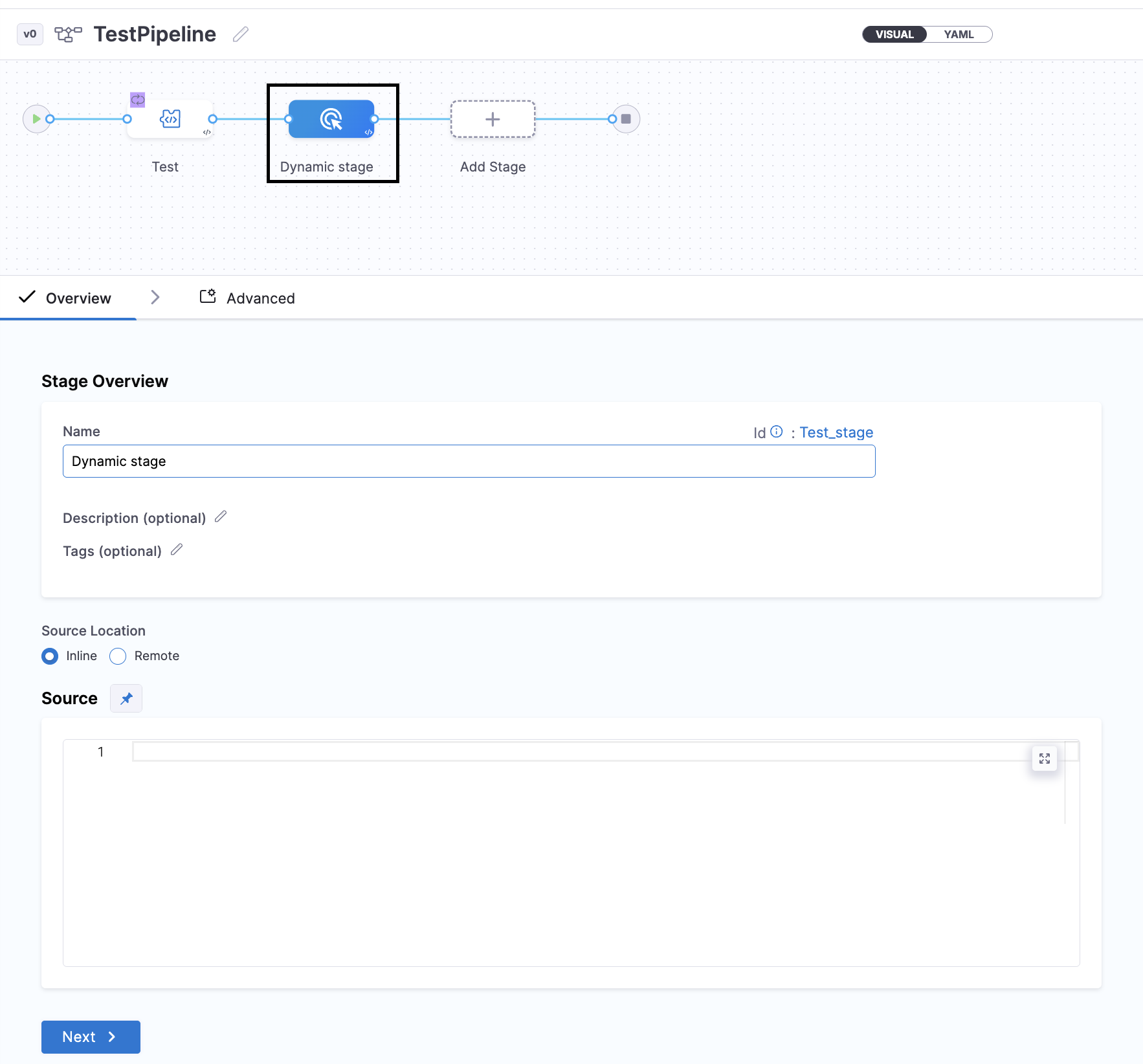
The stage before the dynamic stage generates pipeline YAML and outputs it to a variable that the dynamic stage consumes. For a complete working example, go to Example pipeline with dynamic stage.
Limitations
Dynamic pipeline execution does not support the following features:
- Input sets: Cannot use input sets with dynamic execution.
- Selective stage execution: Cannot selectively execute specific stages.
- Retry or re-run capability: Cannot retry or re-run dynamically executed pipelines.
- Automatic triggers: Cannot configure automatic triggers for dynamic pipelines.
- Post production rollback: Post production rollback is not available.
- Runtime inputs: Cannot use runtime inputs in dynamic execution.
Next steps
- Add a stage: Learn how to create and configure pipeline stages.
- RBAC in Harness: Understand how to manage permissions for pipelines.
- Templates: Use templates for reusable pipeline configurations.