Run stages manually
Manual execution allows you to control when a pipeline stage starts. When a stage is configured for manual execution, the pipeline waits for you to manually start the stage before continuing to the next stage in sequential execution.
Manual execution is useful when a stage should not start until an external validation, human decision, or dependent system is ready.
What you will learn from this topic
- How to enable manual execution for a stage.
- How to handle runtime inputs when manually executing a stage.
- How to run a stage manually during pipeline execution.
- How to understand failure behavior when a manual stage times out or fails.
Before you begin
- Feature flag enabled: This feature requires the
PIPE_ENABLE_MANUAL_STAGE_RUNfeature flag. Contact Harness Support to enable it. - Existing pipeline: You need a pipeline with at least one stage. For more information, refer to Create your first pipeline.
- Pipeline permissions: You need Pipeline: Create/Edit permission to enable manual execution and Pipeline: Execute permission to trigger manual stages. For more information, refer to RBAC in Harness.
Enable manual execution of a stage
Perform the following steps to enable manual execution for a stage.
-
In Harness, open your pipeline in Pipeline Studio.
-
Select the stage you want to run manually.
-
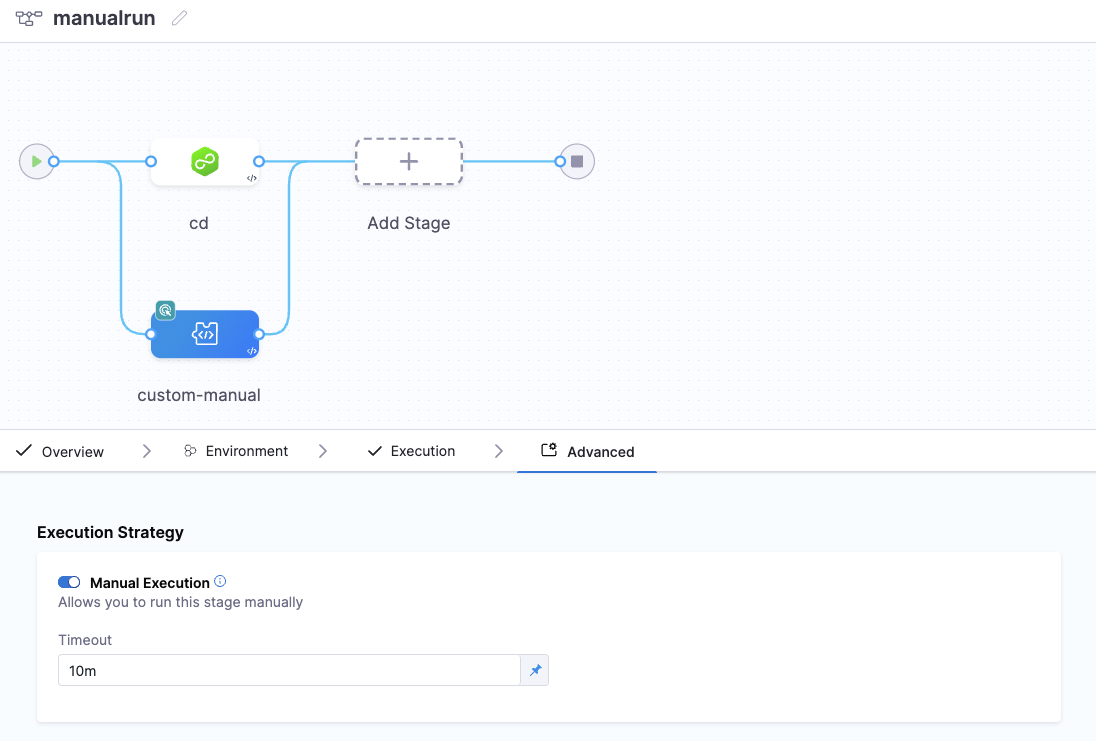
In the stage configuration panel, select the Advanced tab.
-
Under Manual Execution, select the toggle to enable it.
-
In the Timeout field, enter the timeout value. The default timeout is 10m. If the stage is not manually triggered within this timeout, the stage fails.
-
Select Apply Changes, then select Save to save the pipeline.
YAML example
stage:
  name: customStage
  identifier: customStage
  description: Initial approval stage
  type: Custom
  spec:
    execution:
      steps:
        - step:
            type: ShellScript #use any step
            name: Setup
            identifier: Setup
            spec:
              shell: Bash
              executionTarget: {}
              source:
                type: Inline
                spec:
                  script: echo "Pipeline started - preparing for deployment"
              environmentVariables: []
              outputVariables: []
            timeout: 10m
  tags: {}
  runMode:
    type: Manual  #Indicating the stage is set to manual run
    timeout: 10m
Handle runtime inputs
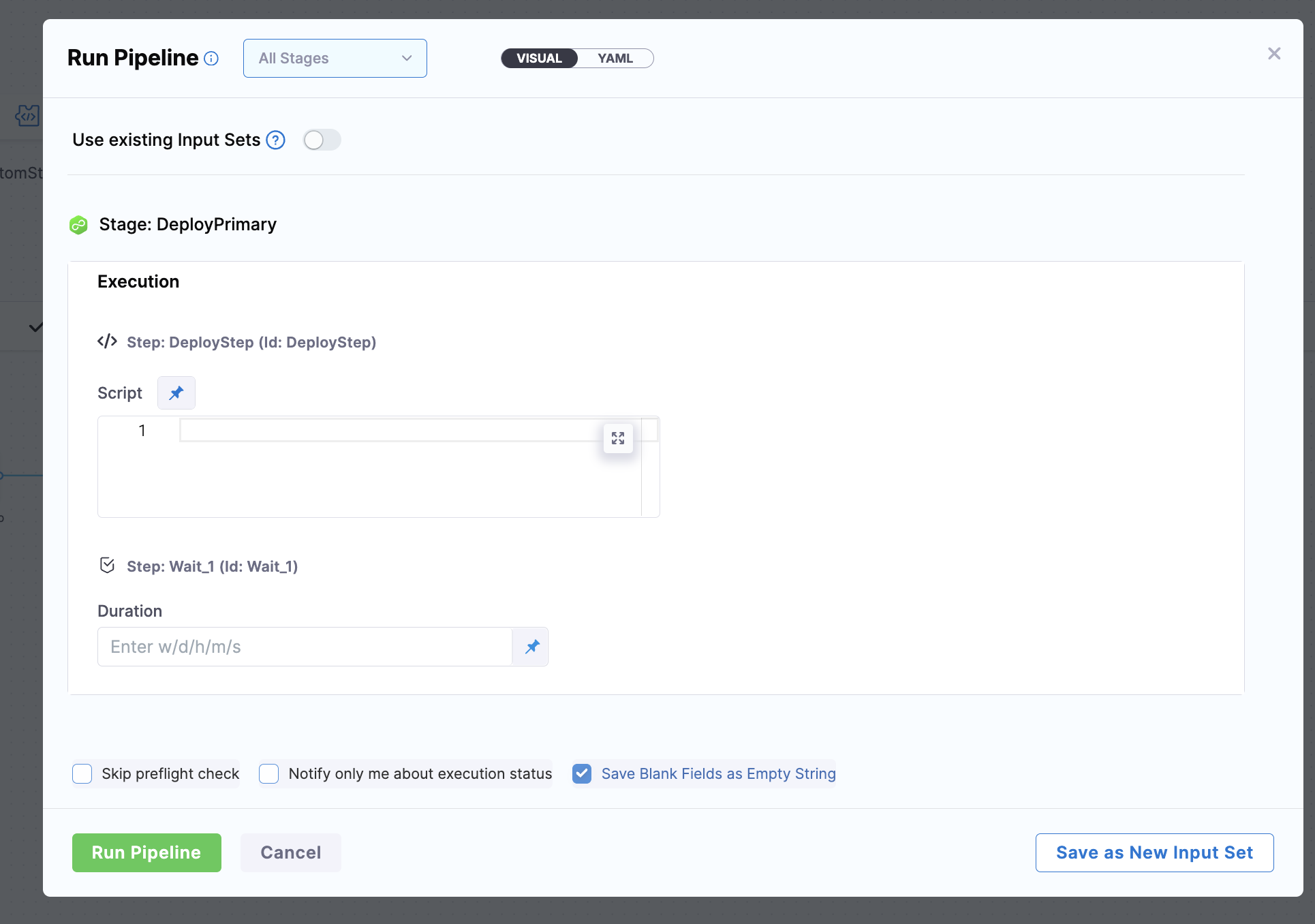
If your stage includes runtime inputs, you must provide values for those inputs when you manually trigger the stage. You can not run the pipeline until you define values for all required runtime inputs.
Run a stage manually
When a pipeline reaches a stage marked for manual execution, the pipeline pauses and waits for you to manually trigger the stage.
Perform the following steps to manually trigger a stage during pipeline execution.
-
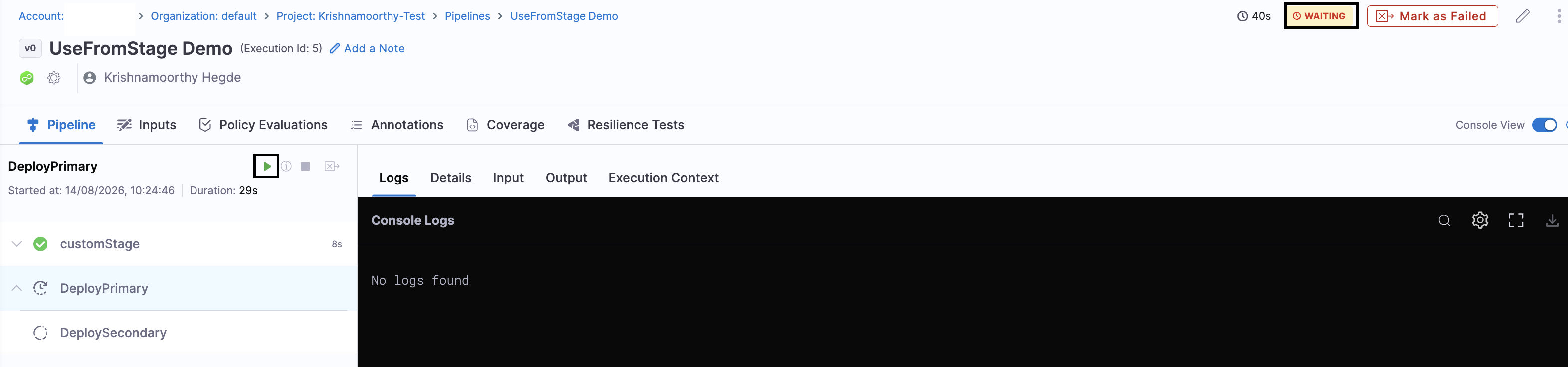
Navigate to the pipeline execution view. The stage marked for manual execution shows a Waiting status. A Run button appears next to the stage name.
noteThe Run button is visible only after you define values for all runtime inputs required by the stage.
-
Select Run.
-
If the stage requires runtime inputs, the Run Stage dialog opens. Enter the required values and select Run Stage.
-
The stage begins executing.
The pipeline does not proceed to the next stage in sequential order until the manual stage completes successfully.
Execution behavior
Manual execution affects the stage that is configured for manual execution.
- The pipeline waits while the stage is in the Waiting state.
- Sequential stages after the manual stage do not start until the manual stage is triggered and successfully completes.
- Stages that run in parallel with the manual stage are independent and continue to execute without waiting for the manual stage.
Failure of a manual stage
A manual stage can fail in two ways:
- Timeout failure: The stage is not manually triggered within the defined timeout period.
- Execution failure: The stage is triggered but fails during execution (for example, a step inside the stage fails).
Timeout failure
If the manual stage times out because it was not manually triggered within the defined timeout:
- The stage status changes to Failed.
- The failure strategy you configured for the stage takes effect (for example, mark as success, retry, or run a rollback stage).
- The pipeline stops if the stage is in a sequential flow, unless the failure strategy continues the pipeline.
Execution failure
If the stage is manually triggered but fails during execution:
- Stage-level failure strategies are overridden by step and step group failure strategies, if present.
- For more information, refer to failure strategies.
Next steps
- Conditional execution: Run stages only when specific conditions are met.
- Failure strategies: Define what happens when a stage fails.
- Runtime inputs: Provide values at execution time instead of defining them in the pipeline.