Rerun Pipeline with Original Pipeline Definition and Inputs
Harness allows you to rerun a pipeline using the exact same pipeline definition (YAML) and input variables used during the original execution. This ensures accurate reproducibility of past executions, even if the pipeline definition has changed since the original run.
Before using this feature, note the following:
- Feature flag required: This feature requires the
PIPE_USE_ORIGINAL_YAML_FOR_EXECUTIONfeature flag. Contact Harness Support to enable it. - Data retention: Reruns are subject to data retention policies. By default, execution data is retained for 30 days, unless your account has a custom retention setting. You can only rerun executions that are still available within this retention window.
What you will learn from this topic
- How to enable rerun with original definition for your account.
- How to rerun a pipeline with original definition and inputs from execution history.
- How rerun with original definition differs from regular rerun.
Before you begin
- Harness project: You need an existing project. For more information, refer to Organizations and Projects.
- Pipeline: You need an existing pipeline with at least one completed execution. For more information, refer to Create your first pipeline.
- Pipeline permissions: You need Pipeline: Execute permission to rerun pipelines. For more information, refer to RBAC in Harness.
Enable rerun with original definition
Perform the following steps to enable rerun with original definition for your account.
- In Harness, navigate to Account Settings.
- Select Default Settings.
- Select Pipeline.
- In the Allow using original pipeline YAML for reruns setting, select true.
- Select Save.
Rerun pipeline with original definition and inputs
When you rerun a pipeline with original definition, Harness uses the compiled pipeline YAML from the original execution and auto-populates the original input values.
Example:
Imagine you have a pipeline that takes input variables (for example, environment name or version number). You run the pipeline with a specific set of inputs. This is Execution ID: 1.
A few days later, you modify the pipeline YAML by adding a new step or changing a stage name. You run the pipeline again with new input values. This is Execution ID: 2.
If you want to rerun the pipeline exactly as it was during Execution ID: 1, you can use rerun with original definition. This option uses:
- The original YAML that was in place during Execution ID: 1.
- The exact same inputs you provided during Execution ID: 1.
You do not need to worry about any changes made to the pipeline after Execution ID: 1. When you rerun using the original definition, Harness reproduces the pipeline exactly as it was during that execution.
Rerunning with original definition does not revert or affect the current pipeline state. The new YAML you used for Execution ID: 2 remains intact. You are running a point-in-time snapshot of the pipeline as it was during Execution ID: 1.
Perform the following steps to rerun a pipeline with its original definition and inputs.
-
In Harness, navigate to your pipeline and select the Execution History tab.
-
Select the execution you want to rerun from.
-
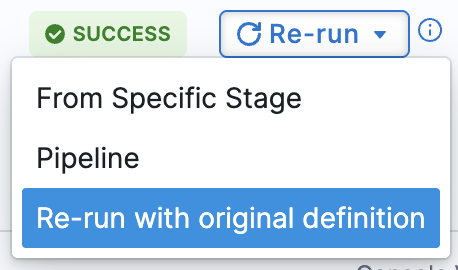
Select Re-run.
-
Select Re-run with original definition.
-
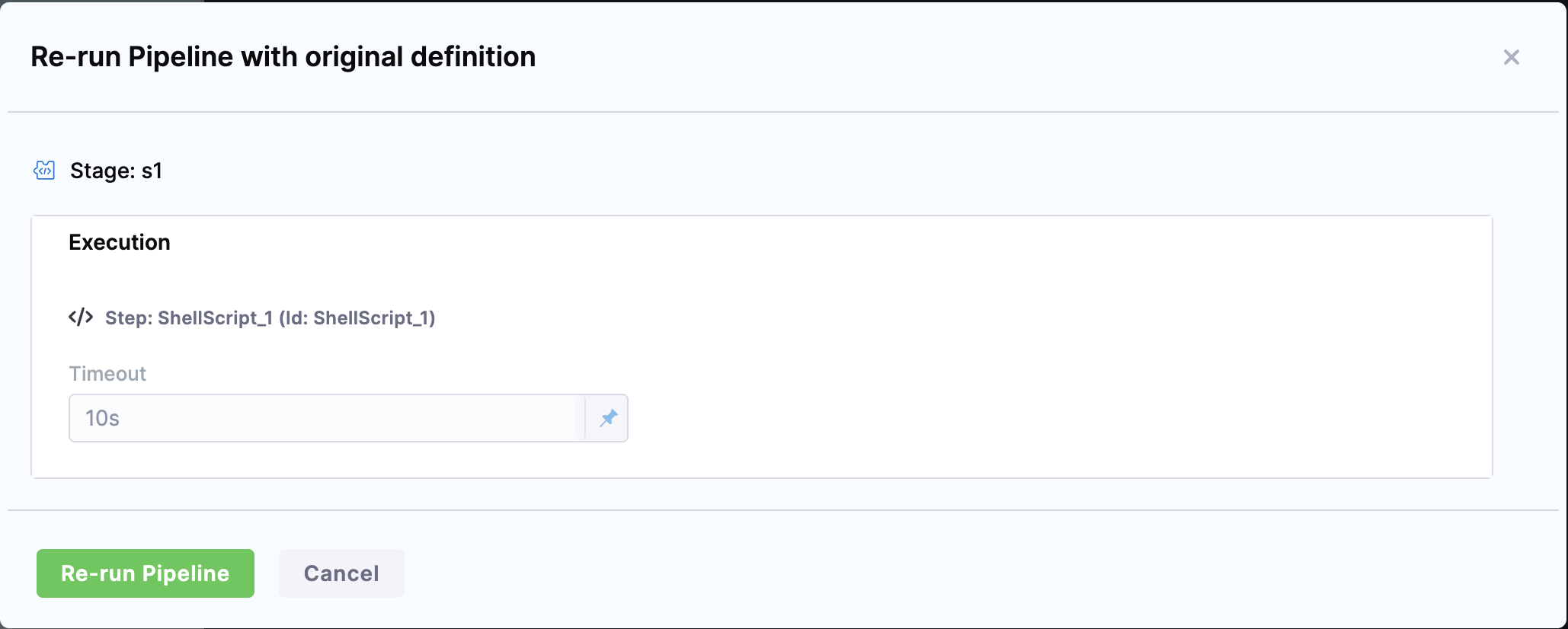
The Run Pipeline dialog opens with the original input values auto-populated.
-
Select Re-run Pipeline.
The pipeline executes using the original compiled pipeline YAML and input values from the selected execution.
Difference from regular rerun
Rerun with original definition differs from regular rerun in how it handles pipeline YAML and input values.
-
When you use the regular Re-run Pipeline or Re-run from Specific Stage options, Harness uses the latest version of the pipeline YAML. This means:
- Any changes made to the pipeline after the original execution are included in the rerun.
- You must manually re-enter input variables.
-
When you use Re-run with original definition, Harness uses the pipeline YAML from the specific execution. This means:
- The pipeline executes with the YAML definition that was in place during the original execution.
- Input variables are automatically filled in with the values used during the original execution.
This approach is especially helpful for debugging, validating reproducibility, or comparing past outcomes with current ones.
Next steps
- Run specific stages: Select which stages to run during pipeline execution.
- Rerun pipeline with no input changes: Configure pipelines to prevent input changes during rerun.
- Runtime inputs: Learn how runtime inputs work in pipelines.