Organize steps in step groups
Step groups organize related steps within a pipeline and can run their steps sequentially or in parallel, providing fine-grained control over execution flow and resource utilization.
Step groups can have conditional execution, failure strategies, and looping strategies that apply to all steps in the group.
Step groups help you to:
- Improve test times in pipelines that include a lot of tests.
- Run health checks on background services.
- Organize complex stages that have lots of steps.
What you will learn from this topic
- How to add a step group to a pipeline stage
- How to organize steps and step groups for serial and parallel execution
- How to reference step group data using expressions
- How to configure step group advanced configuration including conditional execution, failure strategies, and looping strategies
Before you begin
- Harness project access: You need View and Edit permissions on Pipelines. An administrator must assign you a role that includes these permissions. For more information, refer to RBAC in Harness.
- Existing pipeline: You need a pipeline with at least one stage. For more information, refer to Add a stage.
Add a step group
Perform the following steps to add a step group:
-
Go to the pipeline stage where you want to add a step group.
-
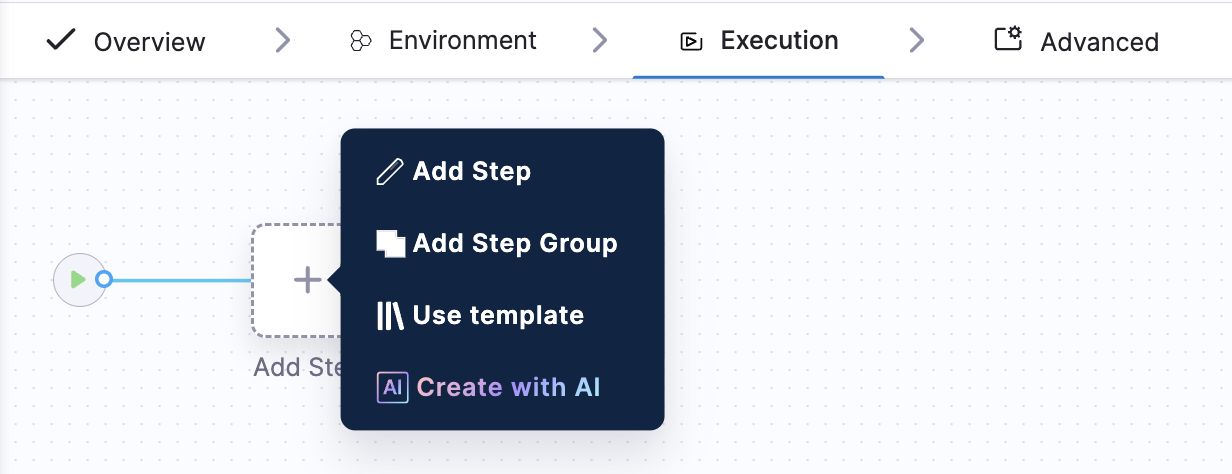
In the stage's Execution tab, click Add Step, and then select Add Step Group.
-
Enter a name for the step group.
-
When you manually add a step group, you can enable containerized step groups by selecting the Enable container based execution option. For more information, refer to Containerize step groups
-
Select Apply Changes.
-
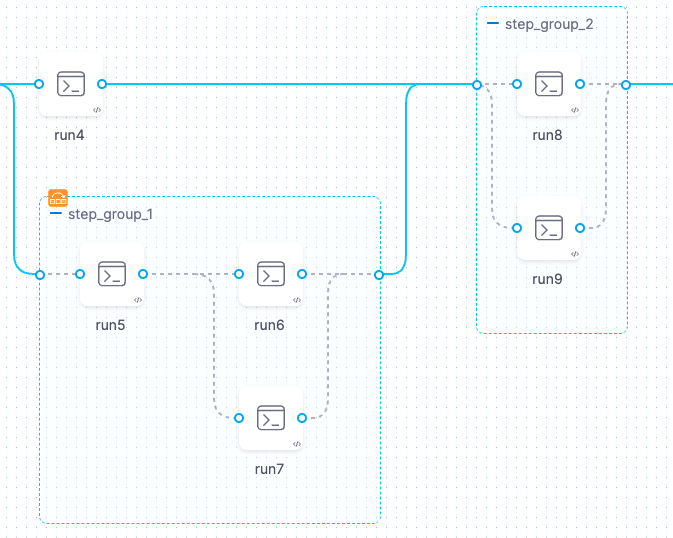
Add or drag steps into the step group, and then configure the steps as usual.
YAML example: Step group in a Build stage
The following YAML example includes one stage with three steps. Two steps are in a step group, and one step is not in the step group.
- stage:
    type: CI
    name: build
    identifier: build
    spec:
      cloneCodebase: false
      infrastructure:
        ...
      execution:
        steps: # Step container for the entire stage.
          - stepGroup: # Step group flag.
              name: sg1 # Step group name.
              identifier: sg1 # Step group ID.
              steps: # Step container for the step group. The following two steps are in the step group.
                - step:
                    type: Run
                    name: Run_1
                    identifier: Run_1
                    spec:
                      ...
                - step:
                    type: Run
                    name: Run_2
                    identifier: Run_2
                    spec:
                      ...
          - step: # This step is outdented so that it is not in the step group.
              type: Run
              name: Run_3
              identifier: Run_3
              spec:
                ...
Organize steps and step groups
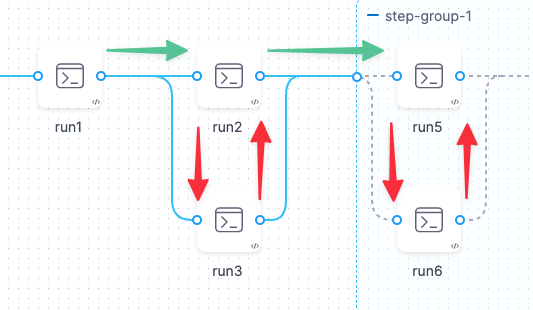
You can have multiple step groups in the same stage. Step groups can run in parallel.
Within each step group, you can arrange the steps to run sequentially, in parallel, or a combination.
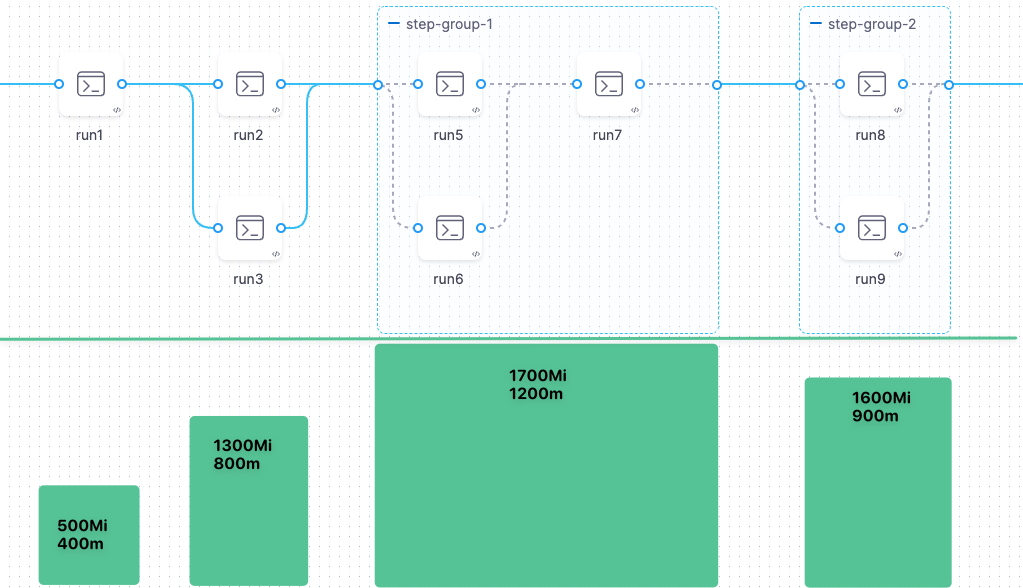
Running groups or steps in parallel can have significant impacts on resource allocation.
Resource consumption with parallel execution
When you use self-managed build infrastructures, running steps or step groups in parallel can improve execution time by running multiple sets of tasks at the same time. However, this can also increase the resource consumption of the infrastructure during pipeline execution.
When you use Harness-managed build infrastructures, Harness bills your account based on the compute resources used during each pipeline execution. Running steps or step groups in parallel increases your resource consumption, and your account is billed accordingly. For more information, refer to Harness Cloud billing and build credits.
Step group nesting
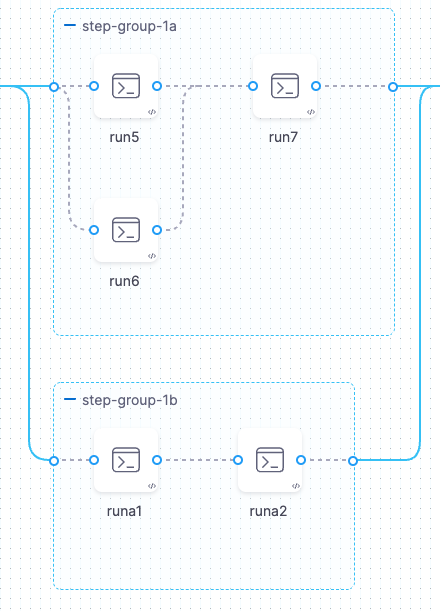
You cannot create a step group inside another step group, but you can configure the steps within a group to run in parallel. You can also run multiple step groups in parallel.
Reference step group data
To reference a step, step setting, variable, output, or other data from a step in a step group, you must include the step group ID in the expression, such as:
<+execution.steps.STEP_GROUP_ID.steps.STEP_ID.SETTING_NAME>
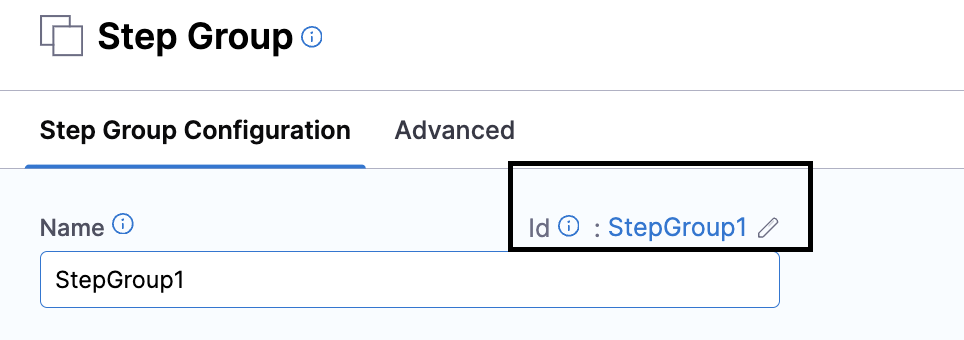
For example, the following reference calls an output variable named outVar1 that comes from a step with the ID run_script that is inside a step group with the ID StepGroup1:
<+execution.steps.StepGroup1.steps.run_script.output.outputVariables.outVar1>
Referencing outputs from parallel steps
Steps running in parallel cannot reference output data from each other, since the data might not be available if a step in the group is still running. A step can reference outputs only from other steps that have already finished running.
Step group advanced configuration
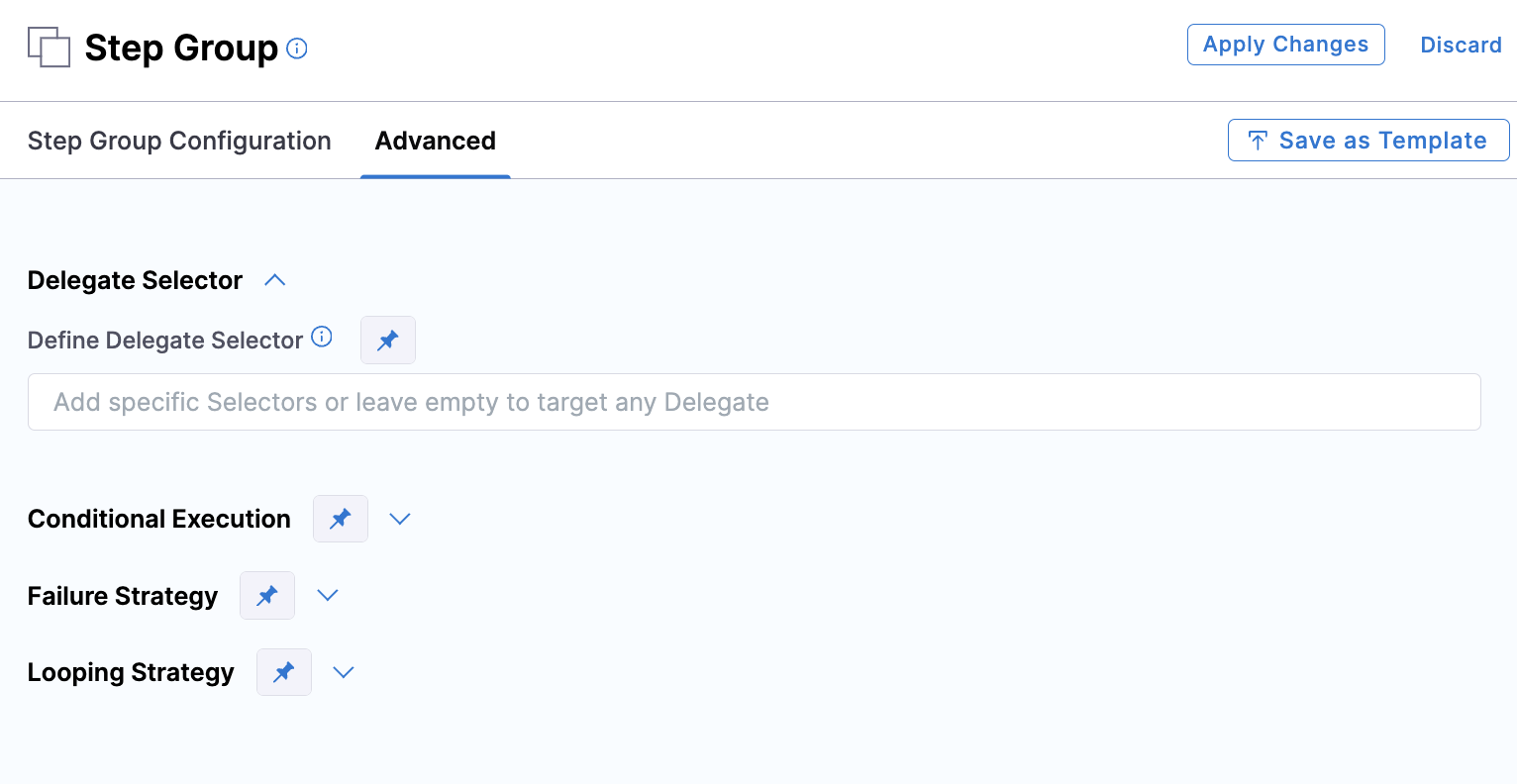
You can configure Conditional Execution, Failure Strategy, and Looping Strategy settings for step groups. These settings apply to all steps in the group, unless an individual step has its own settings.
However, if a step within the group has its own step-level Conditional Execution or Failure Strategy, then the individual step's settings override the step group's settings for that single step.
If you configure stage-level Conditional Execution and Failure Strategy settings, then those settings apply to any step groups or steps that do not have their own Conditional Execution and Failure Strategy settings.
Perform the following steps to access Conditional Execution, Failure Strategy, and Looping Strategy settings for step groups:
-
Select the step group name in the Pipeline Studio.
-
Select Advanced on the Step Group settings panel.
-
Configure the required settings.
Next steps
- Step skip condition settings: Configure when steps or step groups should skip execution.
- Define failure strategies: Configure how steps and step groups handle failures.
- Looping strategies: Apply matrix, repeat, or parallelism strategies to step groups.