Tags reference
Tags are metadata that you can attach to Harness entities, such as pipelines, services, environments, and repositories. They allow you to organize, search, and filter resources. You can add multiple tags to an entity in the form of key-value pairs or key-only flags.
Tags are unavailable for feature flags.
What you will learn in this topic
By the end of this topic, you will know how to:
- Add tags to new and existing pipelines.
- Search and filter pipelines using tags.
- Remove tags from pipelines.
- Understand how tags sync between pipeline YAML and Harness metadata.
- Handle tags for Git-stored pipelines across multiple branches.
Before you begin
Before you work with pipeline tags, ensure you have the following:
- Access to a Harness project: You need permissions to view and edit pipelines. Go to RBAC in Harness to configure roles.
- Understanding of pipelines: Familiarity with creating and managing pipelines in Harness. Go to Create your pipeline to learn the basics.
Create tags for pipelines
In your Harness account, go to Pipelines and create a pipeline or select an existing pipeline. You can specify tags when you are creating a new pipeline.
If you want to add tags to an existing pipeline, use the pencil icon next to the name of the pipeline, and specify tags under the Tags (optional) field.
Search and filter using tags
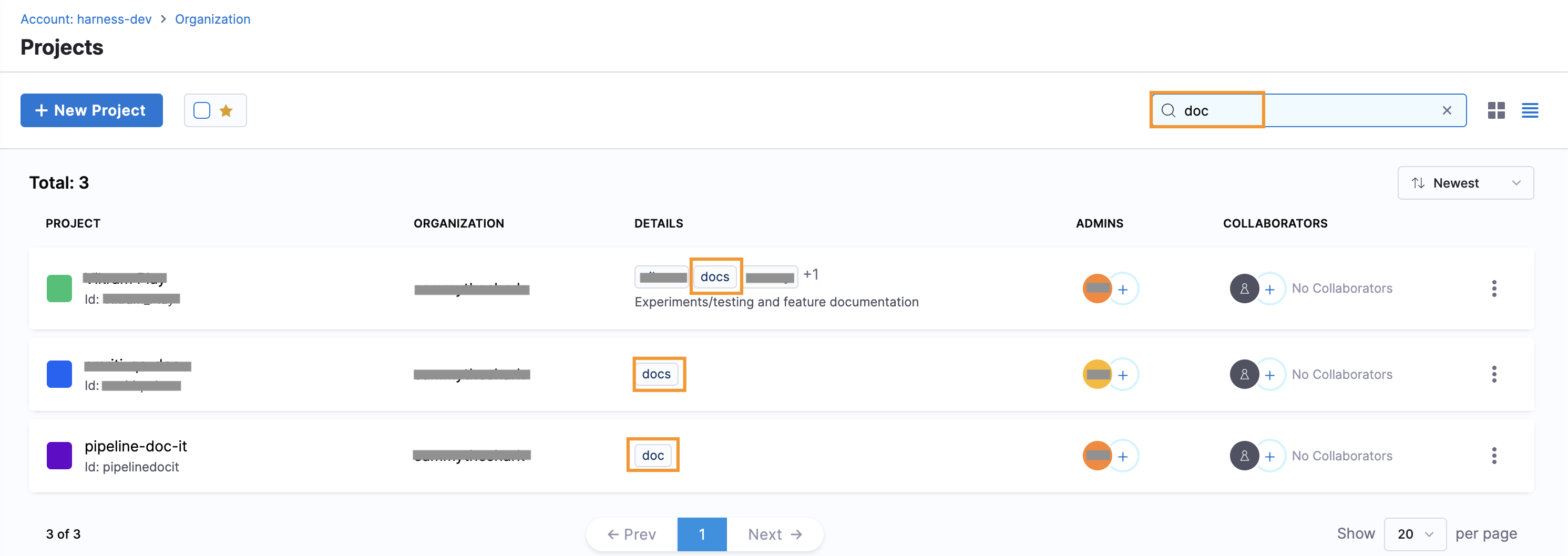
You can use tags to search for all matching entities. For example, if you add the tag docs to two projects, a search for doc returns projects with names and tags that match:
Remove tags from pipelines
Go to the pipeline whose tag you want to remove and select Edit. Remove the tag and click Save to apply the changes.
Tag sources and syncing
There are two locations where tags are stored:
- In the pipeline YAML: The source of truth for pipeline configuration.
- In the Harness metadata: Properties that Harness stores for fast reference, indexing, and filtering.
Handle tag updates in pipeline YAML
Inline pipelines
The Harness metadata for a pipeline is synced with the latest values of the tags whenever the pipeline is saved in Harness (when YAML is stored as inline). This includes updates made via the Update API.
Remote pipelines
If you update the tags in the pipeline YAML directly (by updating the YAML stored in Git when your pipeline is stored remotely), this does not update the Harness metadata. This can lead to discrepancies in displayed tags.
Display tags
Tags are displayed on two main pages: the page that lists the pipelines (Pipeline List page) and the page that gives details about a specific pipeline (Pipeline Detail page page).
- Pipeline List page: Reads tags from the Harness metadata. Changes made directly in the YAML that are not synced by saving the pipeline will not reflect here.
- Pipeline Detail page: Reads the latest pipeline YAML from the source (repository or inline), displaying the newest values of the tags.
To ensure tags are displayed correctly in both the list and filters, save the pipeline in Harness after making any changes.
Delegate tags and general tags
Delegate tags are different from general tags in the following ways:
- Delegate tags: Tags added to delegates.
- Not used in searches: Delegate tags are not used in searches.
- Separate tagging: Delegates are only tagged with delegate tags. General tags are not applied to delegates.
Handling multiple branches in Git
When different versions of the pipeline exist in different branches in Git, the Harness metadata is synced to the branch that was last saved in Harness. This can cause the tags to vary if multiple users work on different branches of the pipeline in Harness. The tags will update based on the latest saved branch.
Limitations
- Runtime inputs: Runtime inputs (
<+input>) are not supported in tags. - Variable expressions: Harness variable expressions can be used in pipeline tags. Go to Built-in Harness Variables and Expressions Reference to learn more.
Next steps
You have learned how to add, remove, and manage tags for pipelines. Tags help you organize and filter resources at scale.
- RBAC in Harness: Understand the permissions and role-based access control in Harness.
- Manage pipeline access with tag-based RBAC: Control permissions using tags instead of selecting individual pipelines.
- Apply filters using tags: Filter and search Harness entities based on tags.
- Assign metadata using tags: Organize and categorize resources with tag metadata.