Trigger pipelines on new Helm chart
You can trigger Harness pipelines in response to a new Helm chart version being added to an HTTP Helm repo. For example, every time a new Helm chart is pushed to an HTTP Helm repo, it triggers a CD pipeline that deploys it automatically.
A Helm chart trigger is a simple way to automate deployments for new Helm charts.
Currently, this feature is behind the feature flag CD_TRIGGERS_REFACTOR. Contact Harness Support to enable it.
What will you learn in this topic?
By the end of this topic, you will be able to:
- Understand how Helm chart triggers work.
- Create a Helm chart trigger through the Configuration, Conditions, and Pipeline Input steps.
- Test the trigger by pushing a new chart version, and enable or disable it.
Before you begin
Before you create a Helm chart trigger, ensure you have the following:
- A Harness CD pipeline for Helm charts: An existing pipeline that deploys a Helm chart. Go to the Helm chart deployment tutorial for more information on building one.
How Helm chart triggers work
When you add a Helm chart trigger to a pipeline, you tell Harness which Helm chart to listen on for changes. When a new version of the Helm chart is added in its repo, Harness initiates the trigger and the pipeline is executed.
Typically, you add a Helm chart trigger to a pipeline that deploys the same Helm chart. The Helm chart is added to the CD stage in the pipeline, as part of the Harness Service Manifest, and the same Helm chart is added to the trigger. However, the Helm chart you specify in the trigger does not have to be used in the pipeline:
- A change in a Helm chart can trigger any pipeline, even one that does not deploy a Helm chart.
- A change in a Helm chart can trigger a pipeline that deploys a different Helm chart.
Chart polling
After you create a trigger to listen for new Helm chart versions, Harness polls for new charts continuously. Polling is immediate because Harness uses a perpetual task framework that constantly monitors for new versions.
Harness looks at what has changed in the repo to determine if a new chart version has been added. If Harness detects a change, it initiates the trigger.
Chart versions in artifacts
When you add the Helm chart to Harness as a manifest, you have different options for the Chart Version.
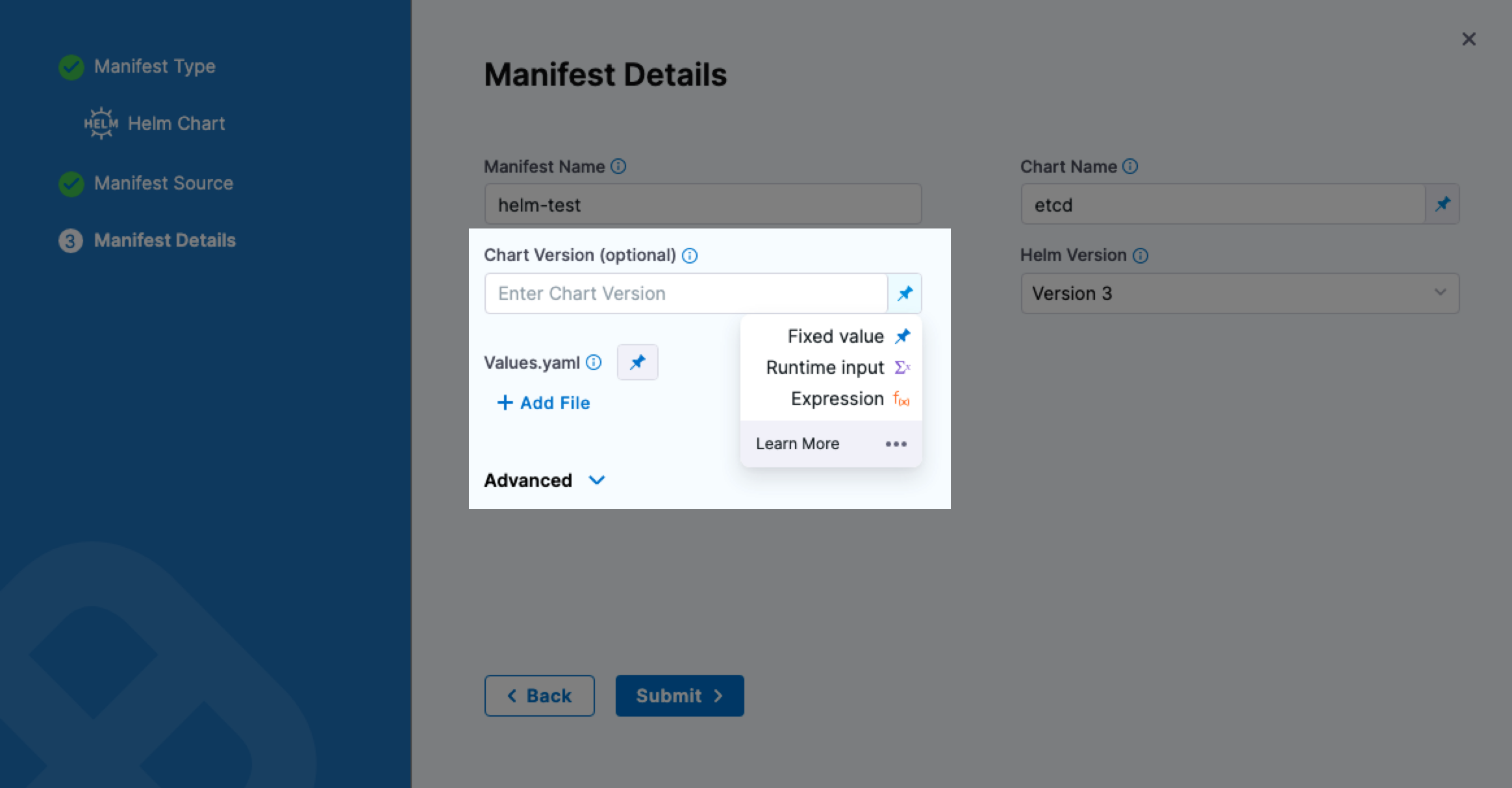
- Fixed Value: If you use a fixed value for Chart Version (for example,
0.1.4), Helm chart triggers work, but Harness does not select the latest chart version. Instead, Harness selects the hardcoded chart version in Chart Version (0.1.4). - Runtime Input: If you use a runtime input for Chart Version, you can enter the version to use in your trigger as part of the Trigger Pipeline Inputs. Go to Pipeline Input below.
- Expression: If you use an expression for Chart Version, you can:
- Use a Harness variable expression, such as a Service variable.
- Use the expression
<+trigger.manifest.version>to pass in the new chart version that initiated the trigger as the version to deploy.
Harness variable expressions are not supported in triggers for pipeline or stage variables.
Create a Helm chart trigger
Typically, you add a Helm chart trigger to a pipeline that deploys a Helm chart, where the Helm chart is added to the CD stage as part of the Harness Service Manifest. The trigger wizard walks you through three steps in order: Configuration, Conditions, and Pipeline Input.
To open the trigger:
-
Select a Harness pipeline that includes a Helm chart in the stage's Service Definition.
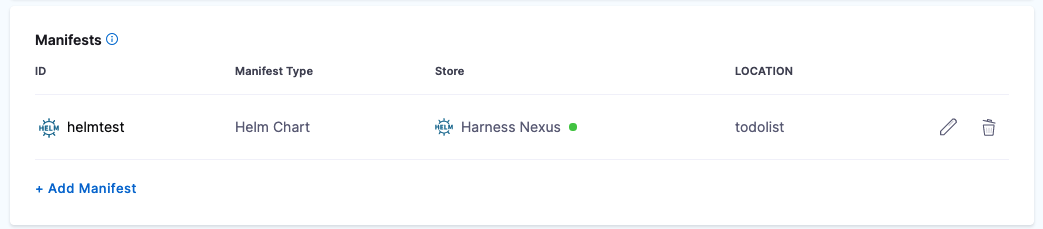
Go to the Helm chart deployment tutorial for more information on adding Helm charts to a stage's Service Definition.
-
Select Triggers.
-
Click New Trigger.
-
Select the Helm Chart trigger listed under Manifest. The On New Manifest trigger opens on the Configuration step.
Configuration
-
Enter a Name for the trigger. Description and Tags are optional.
-
In Listen on New Manifest, select Define Manifest Source.
-
In Specify Helm Chart Store, select the store type:
- HTTP Helm: Go to the HTTP Helm repo connector settings reference for more information on HTTP Helm connectors.
- S3: Go to the AWS connector settings reference for more information on AWS connectors.
- Google Cloud Storage: Go to the Google Cloud Platform (GCP) connector settings reference for more information on GCS connectors.
noteYou cannot use OCI Helm registries with Helm chart triggers.
-
Create or select a connector for the store, and then click Continue.
-
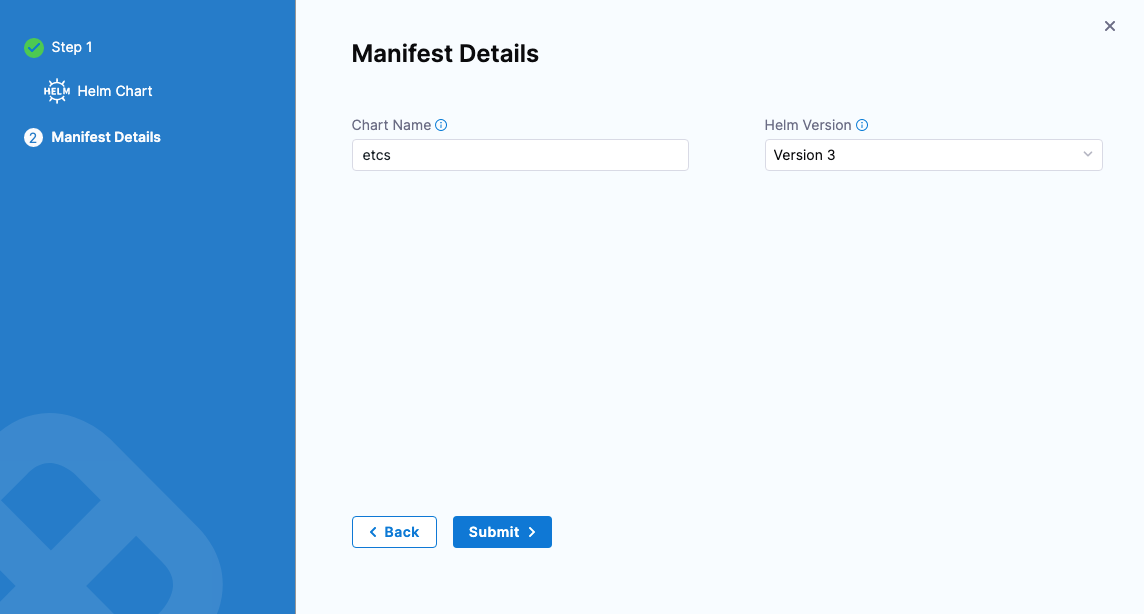
In Manifest Details, enter the name of the Helm chart to listen on in Chart Name, for example,
nginxoretcd. The exact Manifest Details fields depend on the Helm chart store you selected. -
In Helm Version, select the version of Helm your repo uses.
-
Click Submit to add the Helm chart to the trigger. Harness now polls that Helm chart for changes.
-
Click Continue to move to the Conditions step.
Conditions (optional)
The Conditions step is optional. Specify the conditions for running the pipeline, for example, when the manifest version matches a value or pattern.
- To add a condition, set the Manifest/Package Version: select an operator and enter a value to match.
- Click Continue to move to the Pipeline Input step.
Regex and wildcards
You can use wildcards in the condition's value, and you can select Regex.
For example, if the build is todolist-v2.0:
- With Regex not selected, both
todolist*or*olist*match. - With Regex selected, the regex
todolist-v\d.\dmatches.
If the regex expression does not result in a match, Harness ignores the value.
Harness supports standard Java regex. For example, if Regex is enabled and the intent is to match a filename, the wildcard should be .* instead of simply a wildcard *. To match all of the files that end in -DEV.tgz, enter .*-DEV\.tgz.
Pipeline Input
-
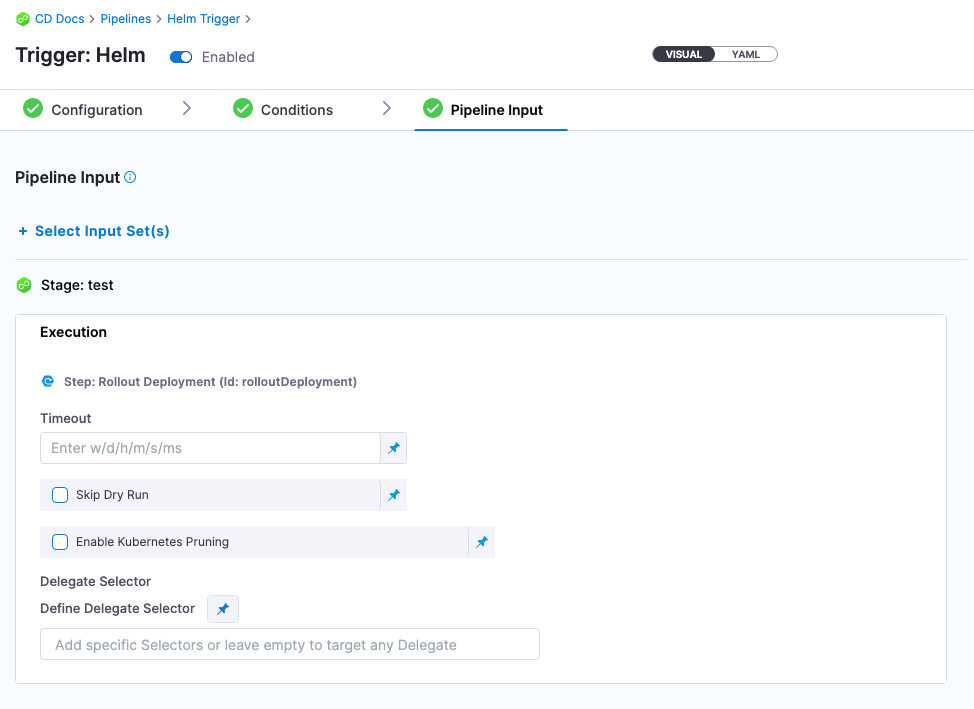
Select the Pipeline Stages to run, and provide values for any runtime inputs. If your pipeline uses runtime inputs or input sets, you can select the inputs to use when the trigger executes the pipeline.
-
Click Create Trigger. The new trigger is listed.
Test the trigger
After the trigger is created and the pipeline runs using it, in Deployments, you can see the trigger and the user who initiated the deployment.

If you look at the trigger in your pipeline again, you can see its activation records, which are also available in the trigger details.
You can test the trigger by pushing a new chart version to your Helm chart registry. You can use Harness CI to build and push to your registry.
The following is a simple cURL example using a Nexus repo that works as a Helm chart HTTP server.
Add the repo:
helm repo \
add nexus_http \
https://nexus3.dev.example.io/repository/<repo_name>/ \
--username '<username>' --password '<password>'
Fetch the chart:
helm fetch nexus_http/<chart_name>
Next, update the version in your chart.
Package the chart:
helm package <filename>
Push the new version to the Helm HTTP server:
curl -u <username>:<password> \
https://nexus3.dev.example.io/repository/<repo_name>/ \
--upload-file <chart_name>-<chart_version>.tgz \
-v
Your Helm chart HTTP server now has the new version of the Helm chart.
Enable or disable a trigger
Use the Enabled toggle at the top of the trigger to enable or disable it.
Reuse trigger YAML to create new triggers
Reuse triggers by copying and pasting trigger YAML. This is helpful when you have advanced conditions you do not want to set up each time.
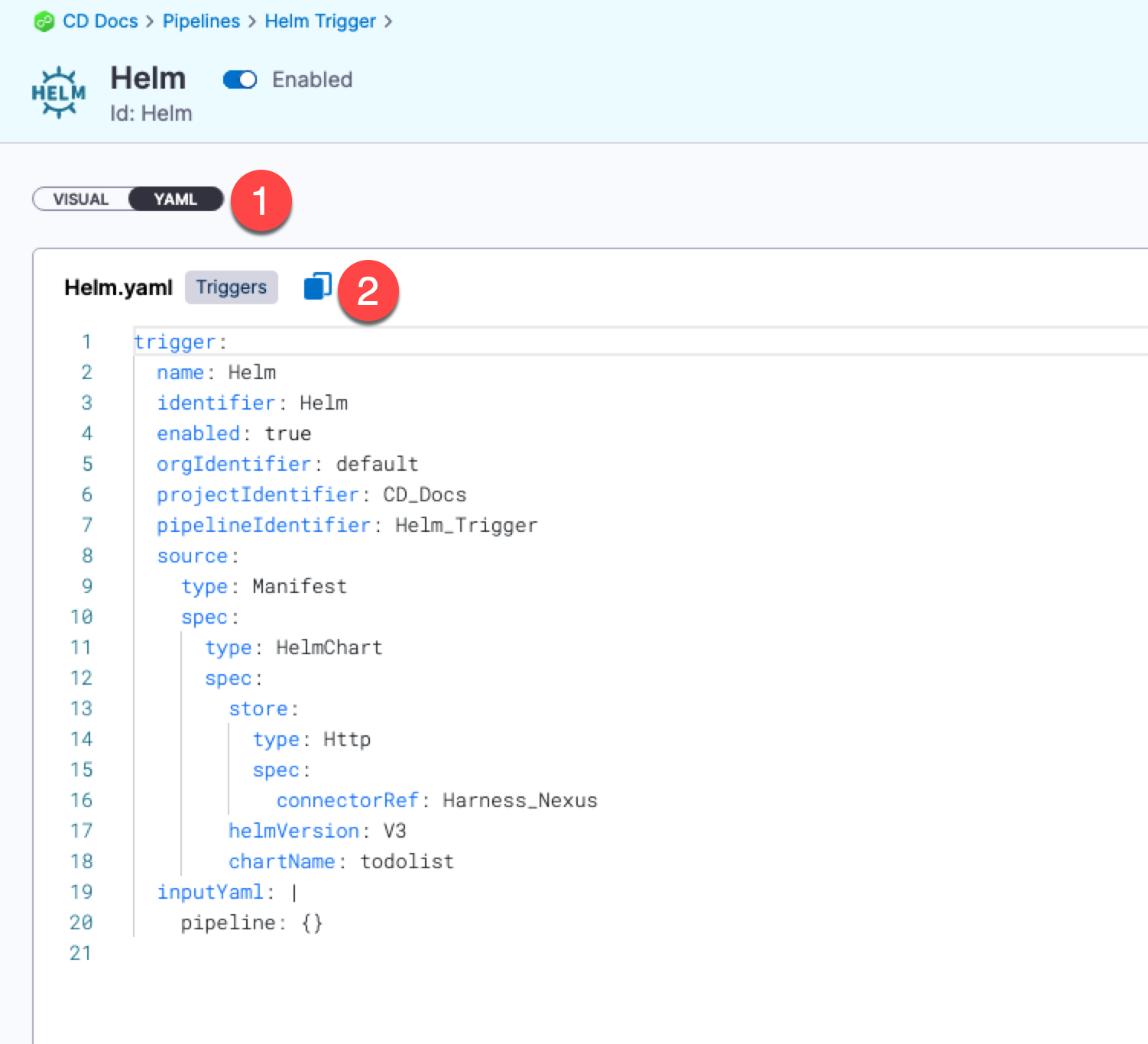
Trigger manifest expressions used in a pipeline are resolved when you rerun a pipeline that was activated by a trigger.
Related articles
- Schedule pipelines using triggers: Schedule pipeline executions with cron triggers.
- Trigger pipelines using Git events: Run pipelines in response to Git events.