Locust
Locust is a Python load testing framework that models user behavior as Python classes and tasks. Use Locust when your team works in Python, when you want to express user journeys as code with conditional logic, or when you need a straightforward ramp-up to steady-state load. Locust runs on both Linux VM and Kubernetes infrastructure, so it fits everything from a single on-premises host to scalable distributed runs.
What you can do with Locust
- Reuse Python skills and scripts. Write scenarios as Python classes, or upload an existing
.pyLocust script. - Test from a single host. Run on a Linux VM for on-premises targets or direct network access to internal services.
- Scale out on Kubernetes. Run a master pod with worker pods for higher concurrency.
- Model user behavior. Weight tasks so frequent actions run more often than rare ones.
Prerequisites
- Module access: Access to the Harness Resilience Testing module.
- Infrastructure: A chaos infrastructure with load testing enabled, either a Linux Chaos Infrastructure or a Kubernetes Chaos Infrastructure (v1.85.3 or later).
- Environment: An environment created in your project for the infrastructure.
- Reachable target: Target application endpoints accessible from the test infrastructure.
Create a load test
- Navigate to Resilience Testing > Load Testing.
- Click + New Load Test.
Click the + New Load Test dropdown and select Try Sample Test to explore the flow with a pre-configured test before you build your own.
Set the overview
On the Overview tab, enter the test metadata, then select the infrastructure where the test runs. Set Name, an optional Description, and optional Tags, then choose a Target Type.
- Linux VM
- Kubernetes
Select Linux VM as the target type, then select a Linux Chaos Infrastructure (with load testing enabled) from the Load Test Infrastructure dropdown. Set Load Test Type to Locust.
The Harness chaos agent on the VM runs the Locust process locally and streams results back to Harness.
- Best for simple setups, on-premises hosts, or direct network access to internal services.
- Go to Linux Infrastructure for setup instructions.
Select Kubernetes as the target type, then select a Kubernetes Chaos Infrastructure from the Load Test Infrastructure dropdown. Set Load Test Type to Locust.
The agent in the cluster orchestrates a master pod and optional worker pods for load generation.
- Best for scalable, distributed load generation and cloud-native environments.
- Go to Kubernetes Infrastructure for setup instructions.
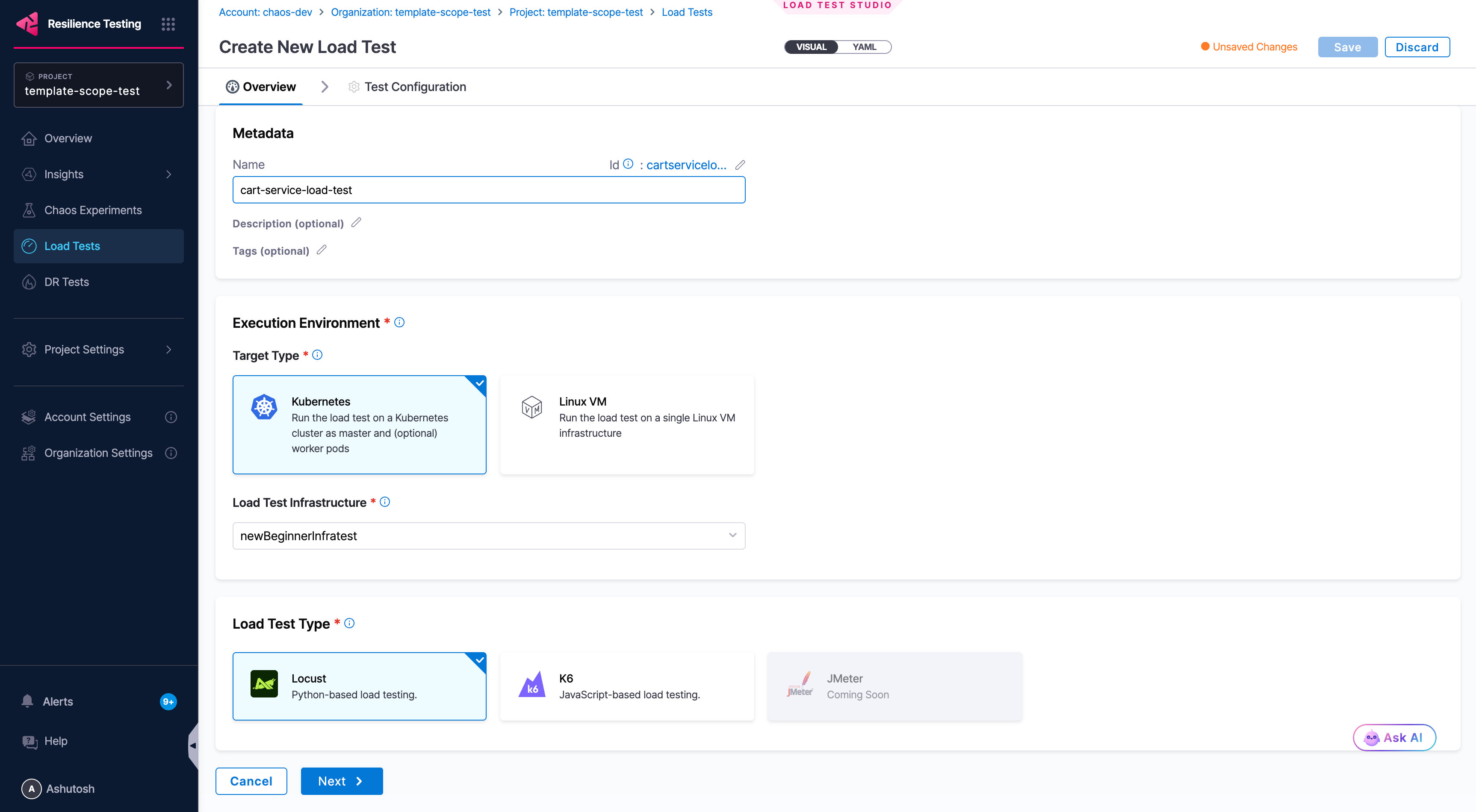
The Overview tab. Enter the test name and optional description and tags, choose a Target Type (Kubernetes or Linux VM), select the load test infrastructure, then set Load Test Type to Locust.
Click Next to proceed to Test Configuration.
Define the test
On the Test Configuration tab, choose how you want to define the test workload. Locust supports two modes: upload a Python script, or reference a custom container image.
- Upload Python script
- Using Custom Image
Upload a custom Locust .py script for advanced scenarios that require custom logic, authentication flows, or complex user behavior.
| Field | Description |
|---|---|
| Host URL | Base URL of the application under test. Locust prepends this to all relative paths in your script. |
| Script file | Drag and drop or browse to upload. .py files only. |
from locust import HttpUser, task, between

class WebsiteUser(HttpUser):
    wait_time = between(1, 3)

    @task
    def get_homepage(self):
        self.client.get("/")

    @task(2)
    def get_products(self):
        self.client.get("/api/products")
@task(weight) controls relative execution frequency across tasks.
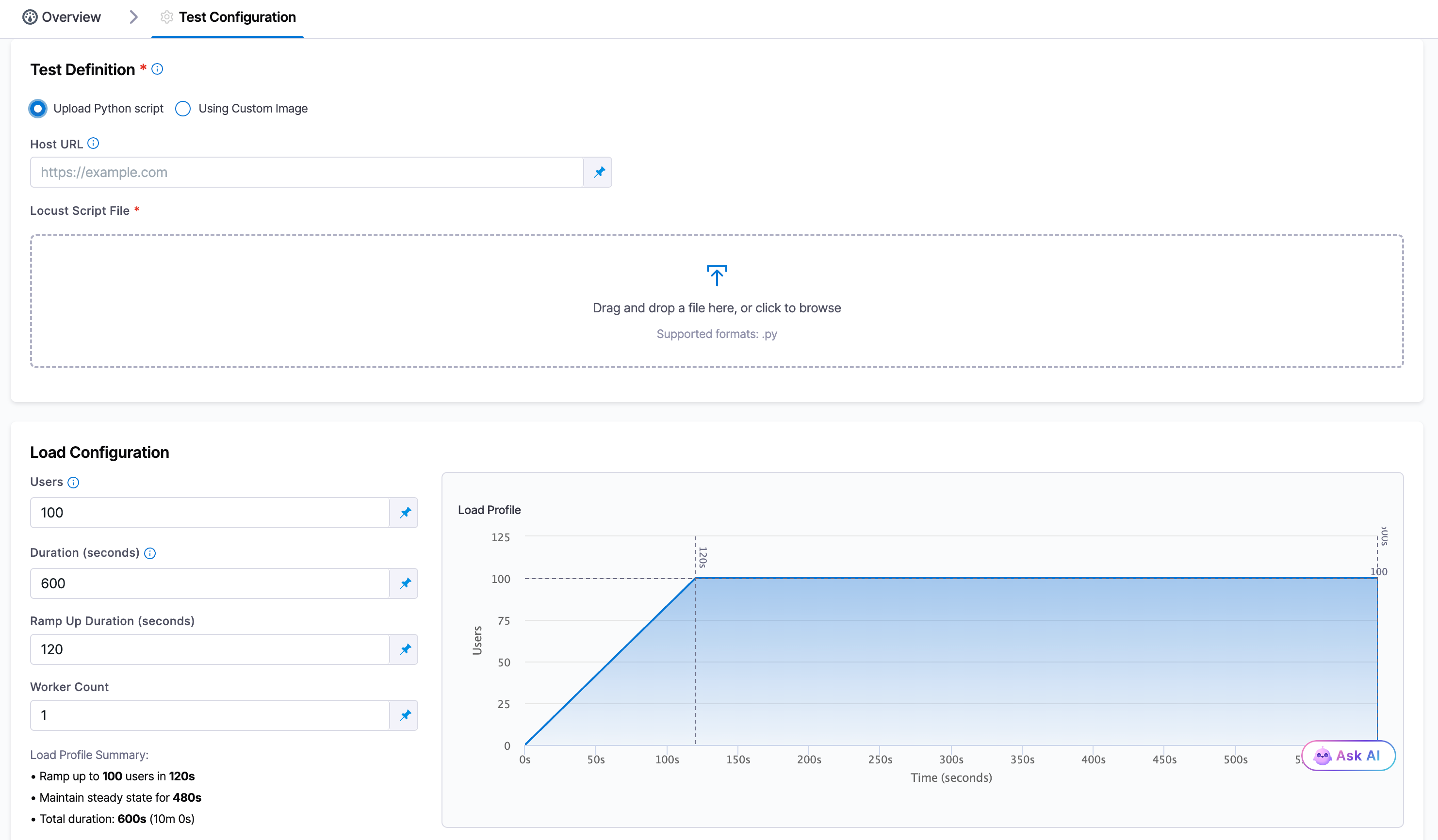
The Upload Python script mode. Provide an optional Host URL that Locust prepends to relative paths, upload your .py script, then set Users, Duration, Ramp Up Duration, and Worker Count in the Load Configuration.
Use a prebuilt container image as the load test source. This is useful when you have a custom Locust setup packaged as a Docker image. This mode is available on Kubernetes infrastructure only, since the image runs as a pod in the cluster.
| Field | Description |
|---|---|
| Host URL | Base URL of the application under test. |
| Load Test Image | Container image reference (for example, my-registry/my-load-test:latest). |
| Entrypoint | Path to the Locust script inside the container (for example, /scripts/locustfile.py). |
| Arguments | Optional runtime arguments passed to the container (for example, tags=smoke,fast;headless=true). |
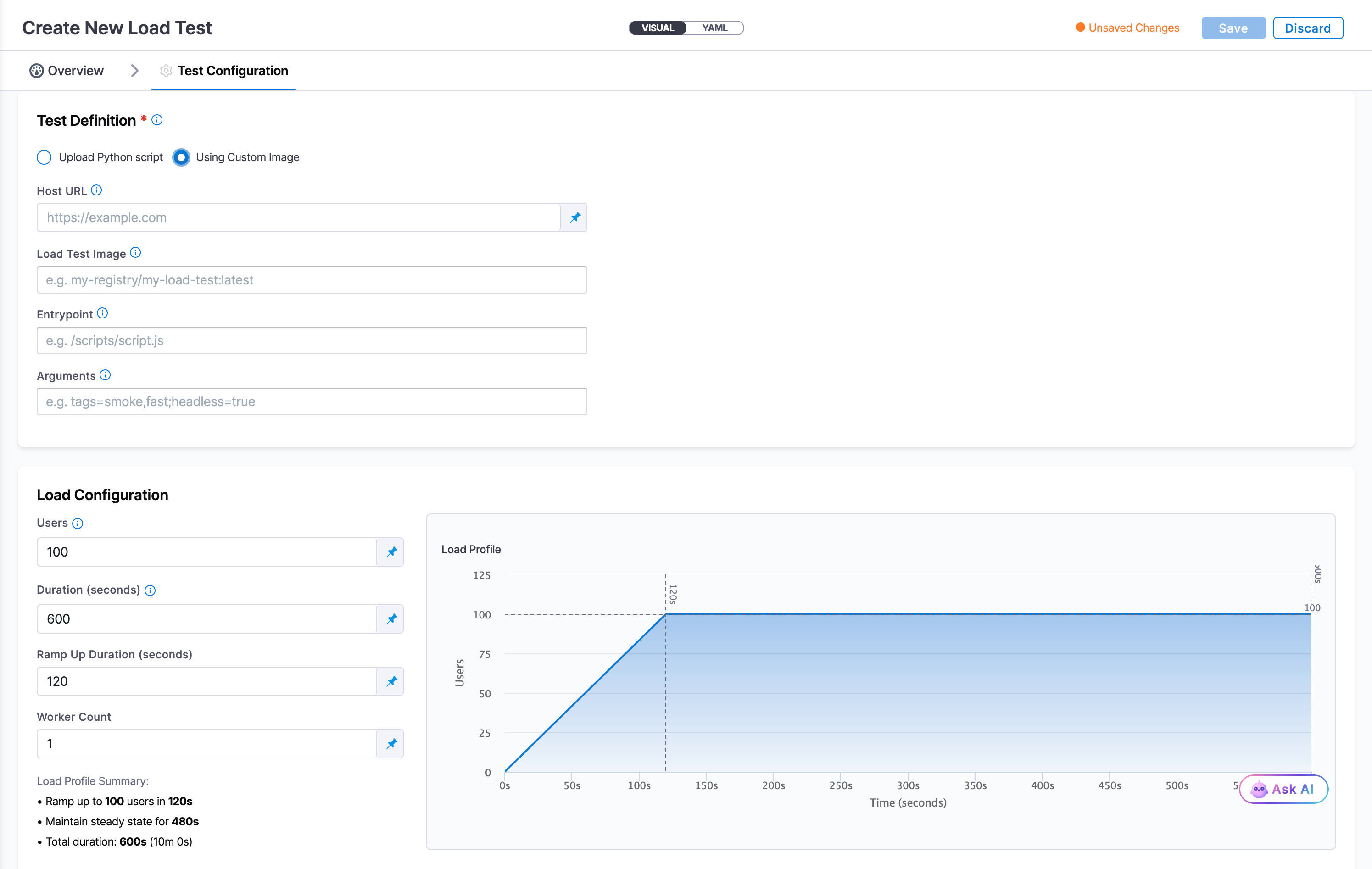
The Using Custom Image mode, available on Kubernetes only. Provide the Host URL, container image, entrypoint, and optional arguments, then set the load profile in the Load Configuration.
Configure the load profile
Configure how virtual users are ramped up and sustained during the test:
| Parameter | Description | Constraint |
|---|---|---|
| Users | Peak concurrent virtual users. | Must be a positive integer. |
| Duration (seconds) | Total test runtime. | Must be greater than Ramp Up Duration. |
| Ramp Up Duration (seconds) | Time to reach peak users from zero. | Must be less than Duration. |
| Worker Count | Number of worker processes that generate load. | Must be a positive integer. |
Steady-state duration = Duration - Ramp Up Duration.
The Load Profile graph updates in real time as you adjust values. The Load Profile Summary shows a plain-English breakdown, for example: Ramp up to 100 users in 120s, maintain steady state for 480s, total duration 600s (10m 0s).
Save and run the test
- Click Save to create the load test.
- Find your test in the Load Tests list, which shows Type, Users, Duration, and recent executions at a glance.
- Click the Run (▶) button on any test to start an execution.
- Monitor real-time results during execution.
Next steps
- Go to Analyze load test results to interpret throughput, error rate, and response times.
- Go to k6 to run a JavaScript-based test with thresholds on Kubernetes.
- Go to JMeter to run an existing
.jmxtest plan on Linux VM or Kubernetes. - Go to Key concepts to review virtual users, ramp-up, assertions, and load profiles.