When you select a metric, only work attributed to the developers included in this team based on developer filters and identity mappings is used in that metric’s calculation.
Metrics that are not selected continue to use their default attribution logic.
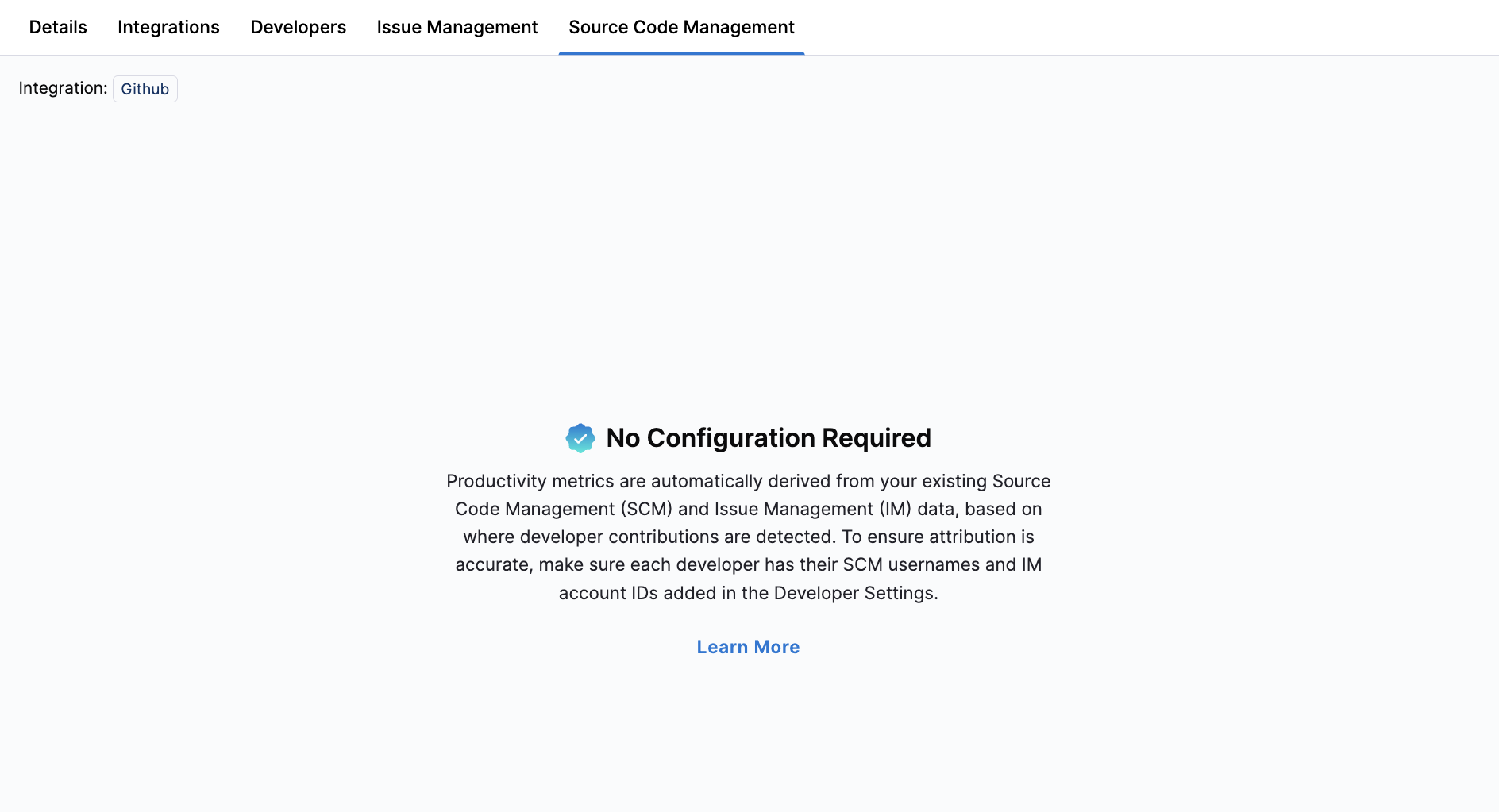 Developer identifiers can be automatically discovered using [Auto Identity Discovery](/ai-dlc-insights/management-and-administration/automatch-developers.md) or manually configured if needed. If you select multiple SCM integrations on the **Integrations** tab, you must include all repositories your team contributes to for more complete metric calculations.
{% endhint %}
Use the **Source Code Management** tab in **Team Settings** to define which repositories represent your team's development work, and how AI DLC Insights identifies deployment-related changes from your SCM data. These setting impact delivery metrics such as Lead Time for Change and Deployment Frequency.
#### Repositories
Select the repositories your team actively contributes to. AI DLC Insights uses this configuration to scope developer activity and delivery metrics to relevant codebases.

| Filter field | Available options |
| -------------- | ---------------------------------------------------------------------- |
| **Properties** | Repositories |
| **Conditions** | Equals, Not Equals, Contains, Does Not Contain, Starts With, Ends With |
| **Values** | One or more repositories selected from connected SCMs |
Select only the repositories your team owns or contributes to regularly, for example, use `Repositories Equals documentation`.
#### Destination and target branches
Determine which branches are considered production or deployment targets.

| Filter field | Available options |
| -------------- | ---------------------------------------------------------------------- |
| **Properties** | Destination Branch |
| **Conditions** | Equals, Not Equals, Contains, Does Not Contain, Starts With, Ends With |
| **Values** | Branch names from your SCM system (for example, `main`, `production`) |
To include the main branch, use `Destination Branch Equals main`. To include release branches, use `Destination Branch Starts With release/`.
#### Change exclusion criteria
Exclude non-deployment changes, such as automated or administrative commits, from delivery metrics.

| Filter field | Available options |
| -------------- | ---------------------------------------------------------------------- |
| **Properties** | Labels |
| **Conditions** | Equals, Not Equals, Contains, Does Not Contain, Starts With, Ends With |
| **Values** | Custom label values (for example, `chore`, `docs-only`) |
To exclude maintenance changes, use `Labels Does Not Contain chore`. This helps prevent noise from inflating deployment metrics.
Label-based filters apply across all selected SCM integrations, ensuring deployment-related changes are identified consistently even when multiple SCM tools are configured. Once you've configured the repositories, branches, and deployment criteria, click **Save SCM Settings** to apply the configuration to the team.
{% hint style="info" %}
Correctly defining repositories, branches, and deployment-related criteria ensures AI DLC Insights accurately calculates **Lead Time for Change** and **Deployment Frequency**, especially when multiple SCM integrations are configured.
{% endhint %}
{% endtab %}
{% tab title="Pipeline Settings" %}
Use the **CD Pipelines** tab in **Team Settings** to define which CD pipelines belong to your team and how AI DLC Insights identifies successful and failed deployments when calculating deployment-related metrics.

#### Services or CD pipelines
Define the scope of CD pipelines by creating one or more filter sets.
| Filter field | Available options |
| -------------- | ------------------------------------------------------------------------------------------- |
| **Properties** | Service Name, Infrastructure ID, Environment ID, Tags, Pipeline Name, Project, Organization |
| **Conditions** | Equals, Not Equals, Contains, Does Not Contain, Starts With, Ends With |
| **Values** | Values from your CD system (for example, service names, pipeline names, or tags) |
To include pipelines by name, use `Pipeline Name Contains deploy`. To scope services to a production environment, use `Environment ID Equals prod`.
{% hint style="info" %}
Only services and CD pipelines that match these filters are used to calculate **Change Failure Rate**.
{% endhint %}
#### Failed deployments or rollbacks
Define how AI DLC Insights detects failed deployments or rollbacks in your CD system. These filters determine when a deployment is classified as a failure.
| Filter field | Available options |
| -------------- | ----------------------------------------------------------- |
| **Properties** | Pipeline Status, Rollback |
| **Conditions** | Equals, Not Equals |
| **Values** | Values from your CD system (for example, `Failure`, `true`) |
To identify a rollback, use `Rollback Equals true`. To identify failed executions, use `Pipeline Status Equals Failure`.
{% hint style="info" %}
Correct failure detection ensures AI DLC Insights accurately calculates **Change Failure Rate**.
{% endhint %}
After completing all CD Pipelines filters, click **Save CD Settings** to apply the configuration to the team.
{% endtab %}
{% tab title="Security Settings" %}
{% hint style="info" %}
Security Insights is in beta. To request access, contact [Harness Support](/software-engineering-insights/troubleshooting-and-resources/sei-support.md).
{% endhint %}
Use the **Security** tab in **Team Settings** to define how AI DLC Insights maps Application Security Posture Management (ASPM) data to your teams.
Click **+ Add Condition** to set the scope of security assets. These filters determine which ASPM data is associated with the team and used to calculate security-related metrics. If you add several filter sets, these filter sets are evaluated together to determine the final scope of security data mapped to the team.

| Filter field | Available options |
| ------------- | ------------------------------------------------------------------------------------------- |
| **Property** | Product Name, Sub Product Name, Environment, Asset Name, Asset Type, Asset URL, Tool Source |
| **Condition** | Equals, Contains, Starts With, Ends With |
| **Value** | A value from your ASPM data (for example, `production`, `api-service`, or `snyk`) |
To associate assets from a specific environment, use `Environment Equals Production`. To scope assets by a source, use `Tool Source Equals Snyk`.
{% hint style="info" %}
Only ASPM data that matches these filters is used to calculate **Security** metrics in AI DLC Insights.
{% endhint %}
After adding Security filters, click **Save Security Filters** to apply the configuration to the team.
{% endtab %}
{% tab title="Incident Management Settings" %}
Use the **Incident Management** tab in **Team Settings** to define how AI DLC Insights maps incident and change request data from your incident management tools to your teams. Filters determine which records are included in metric calculations.

Click **+ Add Condition** to define filter sets for incident identification and change request identification using fields such as `Assignment Group` or custom fields available in your [ServiceNow integration](/ai-dlc-insights/use-ai-dlc-insights/setup/integrations/servicenow/index.md).
If you have configured the [PagerDuty integration](/ai-dlc-insights/use-ai-dlc-insights/setup/integrations/pagerduty/index.md), every field ingested from PagerDuty, both standard and custom, is also available here. This lets each team define which PagerDuty incidents belong to it using fields such as `PD Service`, `Incident Priority`, or `Incident Urgency`.
Use the `AND/OR` toggle to control how conditions are evaluated:
* `AND`: All conditions must be true for data to be included.
* `OR`: Any condition can be true for data to be included.
For example, `Assignment Group Equals Platform AND Urgency Equals High` includes only high-urgency incidents owned by the Platform team, while `Urgency Equals High OR Urgency Equals Medium` includes all high and medium-priority records.
#### Incident identification
Add filters to include relevant incident data from ServiceNow.
| Filter field | Available options |
| ------------- | ---------------------------------------------------------------------------------- |
| **Property** | Assignment Group, Priority, Severity, Business Service, Urgency, and custom fields |
| **Condition** | Equals, Not equals, Contains, Does not contain, Starts with, Ends with |
| **Value** | Values from your ServiceNow data |
For example, `Urgency Equals High` only includes high-priority incidents, `Urgency Equals High OR Urgency Equals Medium` includes both high and medium priority incidents, and `Assignment Group Equals Mobile` scopes incidents to a specific team.
{% hint style="info" %}
Correct incident identification ensures AI DLC Insights accurately calculates **Change Failure Rate** and **MTTR**.
{% endhint %}
#### Change request identification
Add filters to include relevant change request data from ServiceNow.
| Filter field | Available options |
| ------------- | ---------------------------------------------------------------------------------- |
| **Property** | Assignment Group, Priority, Severity, Business Service, Urgency, and custom fields |
| **Condition** | Equals, Not equals, Contains, Does not contain, Starts with, Ends with |
| **Value** | Values from your ServiceNow data |
For example, `Urgency Equals High` only includes high-priority change requests, `Assignment Group Equals Platform` scopes changes to a specific team, and `Business Service Contains Payments` includes changes to a specific service.
{% hint style="info" %}
Correct change request identification ensures AI DLC Insights accurately calculates **Deployment Frequency**.
{% endhint %}
After configuring filters, click **Save ITSM Settings** to apply the configuration.
{% endtab %}
{% tab title="Custom Variables" %}
{% hint style="info" %}
Studio is in beta. To request access, contact [Harness Support](/software-engineering-insights/troubleshooting-and-resources/sei-support.md).
{% endhint %}
Use the **Custom Variables** tab in **Team Settings** to override default values for variables defined in Studio metrics. Custom variables are created in the [**Query Variables** menu on the **Studio** page](/ai-dlc-insights/use-ai-dlc-insights/studio.md#use-query-variables-in-dashboards) and automatically appear for each team. You can override the default value to tailor how metrics are computed for that specific team.

Each variable includes the following fields:
| Field | Description |
| ----------- | ---------------------------------------------------------------------------- |
| Name | The variable identifier used in queries (for example, `${priority_issues}`). |
| Description | A description of what the variable controls. |
| Value | The team-specific value that overrides the default. |
To override a variable:
1. Click the **Edit** icon next to a variable value.
2. Enter a new value.
3. Click the **Checkmark** icon to save.
{% hint style="info" %}
If no override is provided, the default value defined in Studio is used. Overrides apply only to the selected team, and changes affect how metrics are calculated in Studio dashboards.
{% endhint %}
{% endtab %}
{% endtabs %}
### Access insights
After you save your tool-specific settings, AI DLC Insights automatically attributes data to your team, mapping events and activity from integrated systems based on your filters and developer identifiers. AI DLC Insights calculates all relevant Efficiency, Productivity, and Business Alignment metrics using your defined criteria, and all dashboards on the **Insights** page update reflect these data-driven insights in real time.
Once your settings are configured, you can explore team insights by reviewing metrics and trends for individual teams and organizational insights by analyzing aggregated data across your Org Tree.
{% @harness-feedback/feedback %}
[^1]: Beta features are feature-complete but still being validated. Available on request.
Developer identifiers can be automatically discovered using [Auto Identity Discovery](/ai-dlc-insights/management-and-administration/automatch-developers.md) or manually configured if needed. If you select multiple SCM integrations on the **Integrations** tab, you must include all repositories your team contributes to for more complete metric calculations.
{% endhint %}
Use the **Source Code Management** tab in **Team Settings** to define which repositories represent your team's development work, and how AI DLC Insights identifies deployment-related changes from your SCM data. These setting impact delivery metrics such as Lead Time for Change and Deployment Frequency.
#### Repositories
Select the repositories your team actively contributes to. AI DLC Insights uses this configuration to scope developer activity and delivery metrics to relevant codebases.

| Filter field | Available options |
| -------------- | ---------------------------------------------------------------------- |
| **Properties** | Repositories |
| **Conditions** | Equals, Not Equals, Contains, Does Not Contain, Starts With, Ends With |
| **Values** | One or more repositories selected from connected SCMs |
Select only the repositories your team owns or contributes to regularly, for example, use `Repositories Equals documentation`.
#### Destination and target branches
Determine which branches are considered production or deployment targets.

| Filter field | Available options |
| -------------- | ---------------------------------------------------------------------- |
| **Properties** | Destination Branch |
| **Conditions** | Equals, Not Equals, Contains, Does Not Contain, Starts With, Ends With |
| **Values** | Branch names from your SCM system (for example, `main`, `production`) |
To include the main branch, use `Destination Branch Equals main`. To include release branches, use `Destination Branch Starts With release/`.
#### Change exclusion criteria
Exclude non-deployment changes, such as automated or administrative commits, from delivery metrics.

| Filter field | Available options |
| -------------- | ---------------------------------------------------------------------- |
| **Properties** | Labels |
| **Conditions** | Equals, Not Equals, Contains, Does Not Contain, Starts With, Ends With |
| **Values** | Custom label values (for example, `chore`, `docs-only`) |
To exclude maintenance changes, use `Labels Does Not Contain chore`. This helps prevent noise from inflating deployment metrics.
Label-based filters apply across all selected SCM integrations, ensuring deployment-related changes are identified consistently even when multiple SCM tools are configured. Once you've configured the repositories, branches, and deployment criteria, click **Save SCM Settings** to apply the configuration to the team.
{% hint style="info" %}
Correctly defining repositories, branches, and deployment-related criteria ensures AI DLC Insights accurately calculates **Lead Time for Change** and **Deployment Frequency**, especially when multiple SCM integrations are configured.
{% endhint %}
{% endtab %}
{% tab title="Pipeline Settings" %}
Use the **CD Pipelines** tab in **Team Settings** to define which CD pipelines belong to your team and how AI DLC Insights identifies successful and failed deployments when calculating deployment-related metrics.

#### Services or CD pipelines
Define the scope of CD pipelines by creating one or more filter sets.
| Filter field | Available options |
| -------------- | ------------------------------------------------------------------------------------------- |
| **Properties** | Service Name, Infrastructure ID, Environment ID, Tags, Pipeline Name, Project, Organization |
| **Conditions** | Equals, Not Equals, Contains, Does Not Contain, Starts With, Ends With |
| **Values** | Values from your CD system (for example, service names, pipeline names, or tags) |
To include pipelines by name, use `Pipeline Name Contains deploy`. To scope services to a production environment, use `Environment ID Equals prod`.
{% hint style="info" %}
Only services and CD pipelines that match these filters are used to calculate **Change Failure Rate**.
{% endhint %}
#### Failed deployments or rollbacks
Define how AI DLC Insights detects failed deployments or rollbacks in your CD system. These filters determine when a deployment is classified as a failure.
| Filter field | Available options |
| -------------- | ----------------------------------------------------------- |
| **Properties** | Pipeline Status, Rollback |
| **Conditions** | Equals, Not Equals |
| **Values** | Values from your CD system (for example, `Failure`, `true`) |
To identify a rollback, use `Rollback Equals true`. To identify failed executions, use `Pipeline Status Equals Failure`.
{% hint style="info" %}
Correct failure detection ensures AI DLC Insights accurately calculates **Change Failure Rate**.
{% endhint %}
After completing all CD Pipelines filters, click **Save CD Settings** to apply the configuration to the team.
{% endtab %}
{% tab title="Security Settings" %}
{% hint style="info" %}
Security Insights is in beta. To request access, contact [Harness Support](/software-engineering-insights/troubleshooting-and-resources/sei-support.md).
{% endhint %}
Use the **Security** tab in **Team Settings** to define how AI DLC Insights maps Application Security Posture Management (ASPM) data to your teams.
Click **+ Add Condition** to set the scope of security assets. These filters determine which ASPM data is associated with the team and used to calculate security-related metrics. If you add several filter sets, these filter sets are evaluated together to determine the final scope of security data mapped to the team.

| Filter field | Available options |
| ------------- | ------------------------------------------------------------------------------------------- |
| **Property** | Product Name, Sub Product Name, Environment, Asset Name, Asset Type, Asset URL, Tool Source |
| **Condition** | Equals, Contains, Starts With, Ends With |
| **Value** | A value from your ASPM data (for example, `production`, `api-service`, or `snyk`) |
To associate assets from a specific environment, use `Environment Equals Production`. To scope assets by a source, use `Tool Source Equals Snyk`.
{% hint style="info" %}
Only ASPM data that matches these filters is used to calculate **Security** metrics in AI DLC Insights.
{% endhint %}
After adding Security filters, click **Save Security Filters** to apply the configuration to the team.
{% endtab %}
{% tab title="Incident Management Settings" %}
Use the **Incident Management** tab in **Team Settings** to define how AI DLC Insights maps incident and change request data from your incident management tools to your teams. Filters determine which records are included in metric calculations.

Click **+ Add Condition** to define filter sets for incident identification and change request identification using fields such as `Assignment Group` or custom fields available in your [ServiceNow integration](/ai-dlc-insights/use-ai-dlc-insights/setup/integrations/servicenow/index.md).
If you have configured the [PagerDuty integration](/ai-dlc-insights/use-ai-dlc-insights/setup/integrations/pagerduty/index.md), every field ingested from PagerDuty, both standard and custom, is also available here. This lets each team define which PagerDuty incidents belong to it using fields such as `PD Service`, `Incident Priority`, or `Incident Urgency`.
Use the `AND/OR` toggle to control how conditions are evaluated:
* `AND`: All conditions must be true for data to be included.
* `OR`: Any condition can be true for data to be included.
For example, `Assignment Group Equals Platform AND Urgency Equals High` includes only high-urgency incidents owned by the Platform team, while `Urgency Equals High OR Urgency Equals Medium` includes all high and medium-priority records.
#### Incident identification
Add filters to include relevant incident data from ServiceNow.
| Filter field | Available options |
| ------------- | ---------------------------------------------------------------------------------- |
| **Property** | Assignment Group, Priority, Severity, Business Service, Urgency, and custom fields |
| **Condition** | Equals, Not equals, Contains, Does not contain, Starts with, Ends with |
| **Value** | Values from your ServiceNow data |
For example, `Urgency Equals High` only includes high-priority incidents, `Urgency Equals High OR Urgency Equals Medium` includes both high and medium priority incidents, and `Assignment Group Equals Mobile` scopes incidents to a specific team.
{% hint style="info" %}
Correct incident identification ensures AI DLC Insights accurately calculates **Change Failure Rate** and **MTTR**.
{% endhint %}
#### Change request identification
Add filters to include relevant change request data from ServiceNow.
| Filter field | Available options |
| ------------- | ---------------------------------------------------------------------------------- |
| **Property** | Assignment Group, Priority, Severity, Business Service, Urgency, and custom fields |
| **Condition** | Equals, Not equals, Contains, Does not contain, Starts with, Ends with |
| **Value** | Values from your ServiceNow data |
For example, `Urgency Equals High` only includes high-priority change requests, `Assignment Group Equals Platform` scopes changes to a specific team, and `Business Service Contains Payments` includes changes to a specific service.
{% hint style="info" %}
Correct change request identification ensures AI DLC Insights accurately calculates **Deployment Frequency**.
{% endhint %}
After configuring filters, click **Save ITSM Settings** to apply the configuration.
{% endtab %}
{% tab title="Custom Variables" %}
{% hint style="info" %}
Studio is in beta. To request access, contact [Harness Support](/software-engineering-insights/troubleshooting-and-resources/sei-support.md).
{% endhint %}
Use the **Custom Variables** tab in **Team Settings** to override default values for variables defined in Studio metrics. Custom variables are created in the [**Query Variables** menu on the **Studio** page](/ai-dlc-insights/use-ai-dlc-insights/studio.md#use-query-variables-in-dashboards) and automatically appear for each team. You can override the default value to tailor how metrics are computed for that specific team.

Each variable includes the following fields:
| Field | Description |
| ----------- | ---------------------------------------------------------------------------- |
| Name | The variable identifier used in queries (for example, `${priority_issues}`). |
| Description | A description of what the variable controls. |
| Value | The team-specific value that overrides the default. |
To override a variable:
1. Click the **Edit** icon next to a variable value.
2. Enter a new value.
3. Click the **Checkmark** icon to save.
{% hint style="info" %}
If no override is provided, the default value defined in Studio is used. Overrides apply only to the selected team, and changes affect how metrics are calculated in Studio dashboards.
{% endhint %}
{% endtab %}
{% endtabs %}
### Access insights
After you save your tool-specific settings, AI DLC Insights automatically attributes data to your team, mapping events and activity from integrated systems based on your filters and developer identifiers. AI DLC Insights calculates all relevant Efficiency, Productivity, and Business Alignment metrics using your defined criteria, and all dashboards on the **Insights** page update reflect these data-driven insights in real time.
Once your settings are configured, you can explore team insights by reviewing metrics and trends for individual teams and organizational insights by analyzing aggregated data across your Org Tree.
{% @harness-feedback/feedback %}
[^1]: Beta features are feature-complete but still being validated. Available on request.