> For the complete documentation index, see [llms.txt](https://developer.harness.io/llms.txt). Markdown versions of documentation pages are available by appending `.md` to page URLs; this page is available as [Markdown](https://developer.harness.io/ai-security-use-ai-security-ai-firewall-policies/use-ai-security/ai-assets.md).
# AI Assets
Use the AI Assets page to review AI APIs and MCP assets, how they are used, and the sensitive data flowing through them
Updates (October 2026 to December 2026)
* October 2026 — Updated the topic to add the Documentation Type and Documentation File filters and columns, clarify the Shadow status for MCP assets awaiting Conformance Analysis, and use the MCP server name instead of the host name in the inventory.
The **AI Assets** page under **Discovery** → **Inventory** provides a centralized view of all AI-related components discovered in your application ecosystem. It helps you understand how AI assets, such as AI APIs, MCP tools, prompts, resources, and servers, are being used, what sensitive data flows through them, and which assets may require your attention.
## What you will learn from this topic
By the end of this topic, you will understand:
* The widgets displayed on the AI Assets page.
* The insights available on the AI Assets page.
* How to identify sensitive data exposure across AI assets.
* How to use the page to improve AI asset visibility and security posture.
***
## Understand the AI assets view
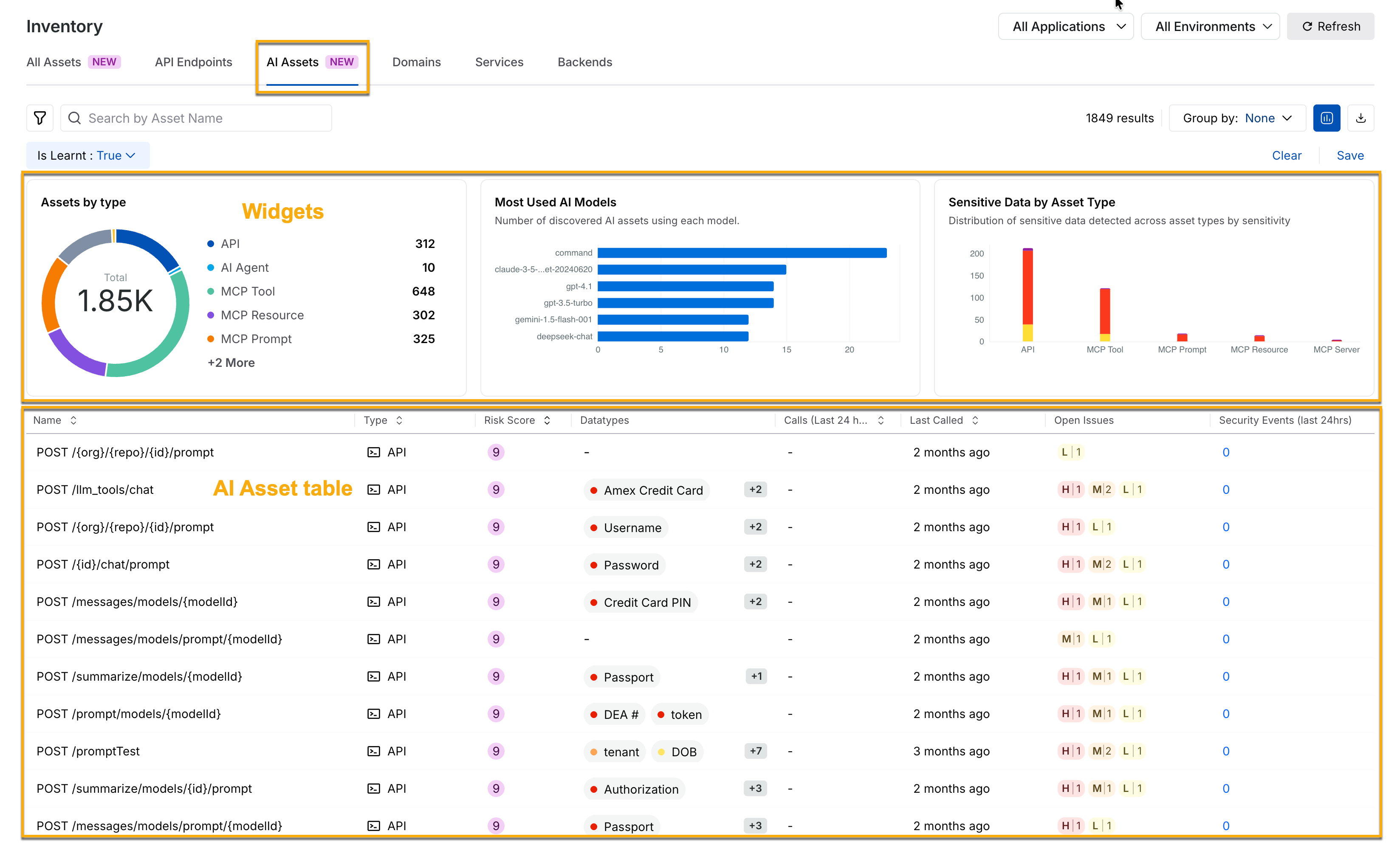
The AI Assets page displays widgets at the top to summarize the distribution, usage, and data exposure of AI assets across your environment(s). These widgets help you assess inventory coverage and identify areas that require investigation and remediation.
AI Assets
Harness displays the following widgets on the page:
* **Assets by type**: This widget provides a breakdown of discovered AI assets using a donut chart. You can use this widget to understand how AI functionality is distributed across your environment(s) and identify which assets are used more often.
* **Monthly Call Volume**: This widget displays the number of calls made to the AI assets over time. You can use this widget to identify usage spikes, detect unusual activity patterns, and understand AI adoption. A sudden increase in call volume may indicate misuse, configuration changes, or potential asset abuse.
* **Sensitive Data by Asset Type**: This widget displays where sensitive data flows across different AI asset types. You can use this widget to identify which asset types handle sensitive information and prioritize them for investigation and protection.
Below the widgets on the page, Harness displays the AI asset table, which provides detailed information about each discovered AI asset, such as **asset name**, **type**, **risk score**, **call volume**, **last called timestamp**, **open issues**, and **security events**. You can click a specific asset to view detailed insights, such as metadata, schema details, and activity context. Go to [AI Asset Details](/ai-security-use-ai-security-ai-firewall-policies/use-ai-security/ai-asset-details.md) for the insights available for each asset type.
You can use this information to understand which AI assets are actively used, identify assets handling sensitive data, detect high-risk assets, and prioritize remediation actions.
***
## Leverage the AI assets view
Once you understand the AI assets view, you can use the available filters, grouping options, and metrics to effectively investigate AI activity.
Leveraging the AI Assets View
### Filter strategically
Use filters to narrow the dataset and focus on the relevant AI components. For example, you can filter by:
* *Asset Type* to isolate MCP tools or prompts.
* *Datatypes* to identify sensitive data exposure issues.
* *Risk Score* to identify high-priority assets.
* *Last Called* time to detect inactive assets.
* *Documentation Type* to identify assets added from a specific documentation format, such as *MCP* or *OpenAPI*.
* *Documentation Files* to find all assets defined in a specific documentation file.
Filtering assets based on the components above helps you reduce investigation time and improve visibility into security-relevant assets.
For example, to view only the assets defined in a specific documentation file, click the **Filter** icon, select **Documentation Files**, and select the file. The following demo illustrates how to do this:
{% @arcade/embed flowId="gEbRrMR9mtV1qHqPCOCJ" url="" %}
### Group for insights
You can group assets to identify patterns across your environment. For example, grouping by:
* *Labels* or *Ownership* to identify the stakeholders responsible for the asset in your application.
* *Application Name* to identify applications with the most sensitive data flow.
Grouping assets helps you identify patterns and understand how assets are distributed across your environment.
### Take necessary actions
After identifying the relevant assets, you can use the insights from this page to perform the following actions:
* **Improve security and reduce risk**: Identify AI assets with high-risk scores or sensitive data exposure, and prioritize them for review.
* **Improve posture**: Identify inactive or rarely used AI assets that may increase operational expenses.
* **Strengthen governance**: Track sensitive data flow across prompts, tools, and APIs, and prioritize policy enforcement to support compliance.
***
## Examples
The following examples show how you can use filters and columns in the AI Assets view to investigate common security scenarios. Investigate sensitive data exposure in an AI asset
Suppose the Sensitive Data by Asset Type widget shows that MCP tools are handling authorization-related data. You can filter the table by clicking the **Filter** (:filter:) icon in the page’s top right corner and selecting:
* **Asset Type** as *MCP Tool*
* **Datatype** as *Authorization*
This helps you identify which MCP tools are processing authorization-related information. With this insight, you can:
* Verify that the appropriate assets have access to the data.
* Review the authentication mechanisms.
* Assess whether sensitive data tokens are exposed.
* Prioritize remediation, if required.
This workflow improves control over your AI assets and reduces the risk of unintended data exposure across your application(s).
Identify undocumented MCP tools
Suppose you are preparing for an AI governance review and need to confirm that every MCP tool running in production is defined in your MCP Server documentation. Click the **Filter** icon in the top left corner of the page and select:
* **Asset Type** as *MCP Tool*
* **Documentation Type** as *MCP*
* **Environment** as *production*
Then add the **Is** **Shadow** and **Documentation File** columns to the AI Assets table.
The following table describes how to interpret the **Shadow** value for each MCP tool:
| Shadow value | Meaning | Recommended action |
| ------------ | ----------------------------------------------------------------------------------------------------------------------------- | ---------------------------------------------------------------------------------------------------------------------------------------------------------------------------------------------------------------------------------------- |
| *True* | Harness observed the tool in live traffic, but the tool is not defined in your MCP Server documentation. | Verify whether the tool is approved. If it is, add it to your MCP Server documentation. If it is not, identify its owner and restrict its use. |
| *False* | The tool is defined in your MCP Server documentation. The **Documentation File** column shows the file that defines the tool. | No action is required. If the **Documentation File** column shows *+1* or more, the tool is defined in more than one file. Review these files to confirm that they define the tool the same way, and update or remove any outdated file. |
| *Unresolved* | Harness has not yet completed a conformance analysis for the tool. | Run a conformance analysis against the relevant MCP Server documentation. For more information, see [Conformance Analysis](/web-application-and-api-protection-waap-discovery-discovery/discovery/risk/conformance-analysis.md). |
This workflow helps you detect unapproved MCP tools before they handle sensitive data, and keeps your MCP Server documentation aligned with the tools running in your environment.
{% @harness-feedback/feedback %}