
Widgets on the AI Agents page
Widgets on the AI Agents page
 ) icon in the top-right corner of the page.
### AI agent inventory
The **AI agent inventory** lists the AI agents that Harness discovers in your environment. It allows you to review key information about each agent, including the AI models it uses, the environment in which it operates, and any sensitive data detected in its prompt and response traffic.
) icon in the top-right corner of the page.
### AI agent inventory
The **AI agent inventory** lists the AI agents that Harness discovers in your environment. It allows you to review key information about each agent, including the AI models it uses, the environment in which it operates, and any sensitive data detected in its prompt and response traffic.
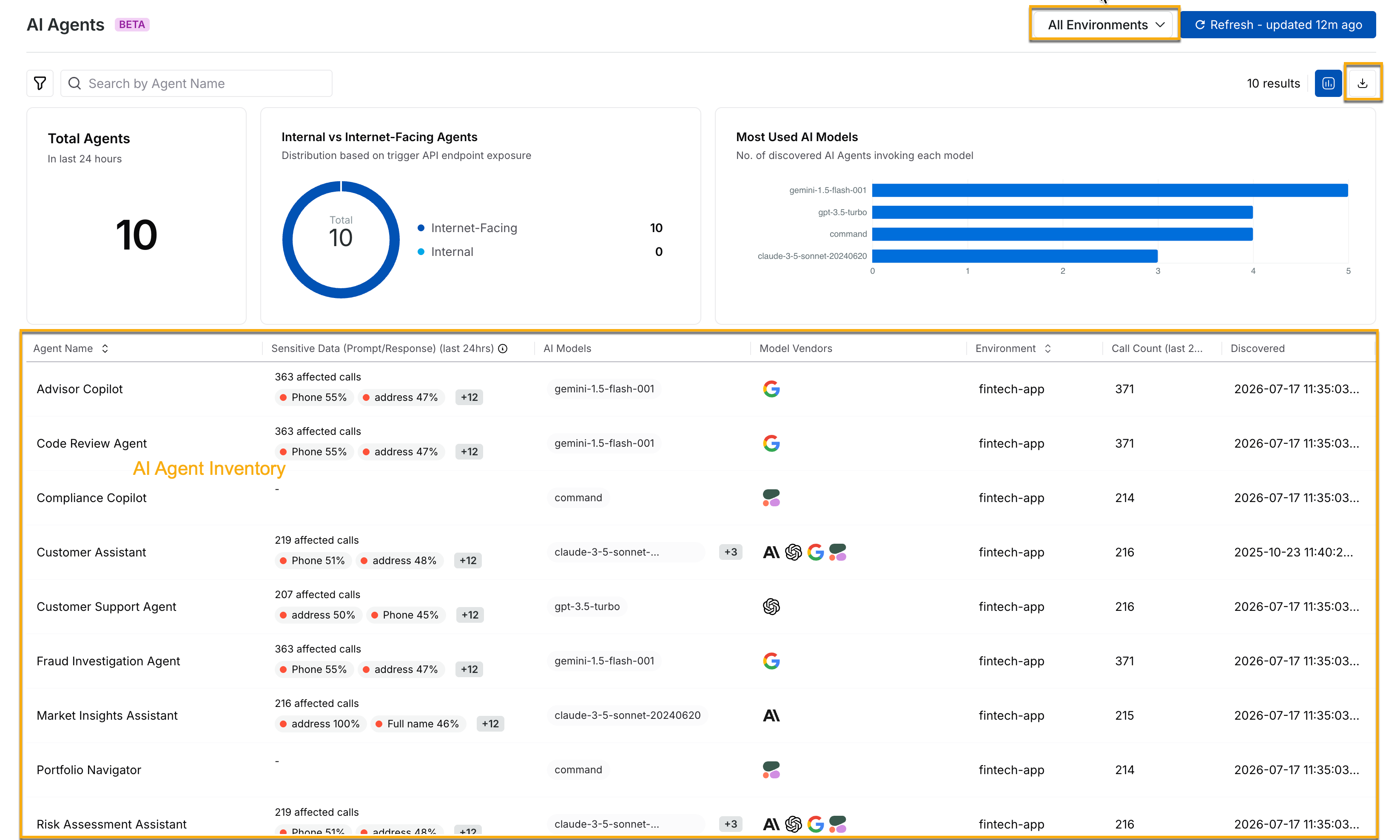
AI Agent Inventory
 ) icon. When downloading the data, you can specify the number of rows to download.
To investigate an individual agent further, select it from the inventory to view its details. Go to [AI agent details](/ai-security/use-ai-security/ai-agents-details.md) for more details.
***
## Filters
The **AI Agents** page provides filters that you can use to narrow the agents displayed in the inventory. To open the filter pane, click the **Filter** (
) icon. When downloading the data, you can specify the number of rows to download.
To investigate an individual agent further, select it from the inventory to view its details. Go to [AI agent details](/ai-security/use-ai-security/ai-agents-details.md) for more details.
***
## Filters
The **AI Agents** page provides filters that you can use to narrow the agents displayed in the inventory. To open the filter pane, click the **Filter** ( ) icon in the top-left corner of the page.
The filter pane includes the following tabs:
| **Tab** | **Description** |
| ----------- | ---------------------------------------------------- |
| **Filters** | Lists the filters available for AI agents. |
| **Saved** | Lists the filters that you have saved for later use. |
| **Recent** | Lists the filters that you have recently applied. |
Under **Filters**, you can filter agents by:
* **Agent Name**
* **AI Models**
* **Environment**
* **Internet-Facing Agent**
For example, to view only agents that use a specific AI model, click the filter icon, select **AI Models**, and choose the required model. The following demo illustrates how to do this:
{% embed url="
) icon in the top-left corner of the page.
The filter pane includes the following tabs:
| **Tab** | **Description** |
| ----------- | ---------------------------------------------------- |
| **Filters** | Lists the filters available for AI agents. |
| **Saved** | Lists the filters that you have saved for later use. |
| **Recent** | Lists the filters that you have recently applied. |
Under **Filters**, you can filter agents by:
* **Agent Name**
* **AI Models**
* **Environment**
* **Internet-Facing Agent**
For example, to view only agents that use a specific AI model, click the filter icon, select **AI Models**, and choose the required model. The following demo illustrates how to do this:
{% embed url="