> For the complete documentation index, see [llms.txt](https://developer.harness.io/llms.txt). Markdown versions of documentation pages are available by appending `.md` to page URLs; this page is available as [Markdown](https://developer.harness.io/ai-sre/ai-sre-for-administrators/set-up-incident-management/incidents.md).
# Incident Overview
Track incidents from detection through resolution with automated workflows, escalation, and post-mortems in one system instead of stitching together separate tools.
Harness AI SRE's incident management system provides a comprehensive platform for tracking, coordinating, and resolving service disruptions. From incident creation to resolution, teams can manage the entire incident lifecycle with automated workflows, real-time collaboration, and intelligent response procedures.
### Overview
Incidents in Harness AI SRE help you:
* Create and track service disruptions with standardized incident types
* Coordinate response efforts across teams and stakeholders
* Document incident timelines with automated event tracking
* Execute automated remediation steps through integrated runbooks
* Generate comprehensive post-mortems and action items
* Integrate with monitoring tools for automatic incident creation
* Manage escalation policies and on-call notifications
***
### Key features
#### Intelligent incident creation
* AI-powered problem description analysis and field auto-population
* Multiple creation methods: manual, alert-based, and monitoring integration
* Standardized incident types with pre-configured fields and workflows
* Quick Start functionality for rapid incident creation
#### Comprehensive incident management
* Real-time incident details page with editable fields
* Timeline tracking with automatic event logging
* Manual key event addition for important milestones
* Status updates and ownership management
* Integration with on-call schedules and escalation policies
#### Automated response procedures
* Runbook execution directly from incident interface
* Action item creation and assignment with due dates
* Automated workflow triggers based on incident type
* Integration with monitoring tools and alert systems
#### Collaboration and communication
* Timeline-based messaging and updates
* Structured status updates via email to service subscribers
* Team notifications and stakeholder communication
* Action item tracking and assignment
* Post-incident analysis and documentation
***
### Create an incident
{% tabs %}
{% tab title="Interactive Guide" %}
{% embed url="" %}
Create an Incident
{% endembed %}
Follow this interactive guide to create and manage incidents with AI-powered assistance and automated workflows.
{% endtab %}
{% tab title="Step by Step" %}
#### Step 1: Access incident creation
Open the incident creation flow:
1. Navigate to **Incidents** from the left panel

2. Choose your creation method:
* Click **New Incident** for a blank incident
* Select an **Incident Type** from the dropdown next to "New Incident" for pre-configured templates
#### Step 2: Select incident type
Pick the incident type that matches the disruption:
1. Choose the appropriate **Incident Type** from the available options
2. This will pre-populate relevant fields and associate appropriate runbooks
3. Incident types ensure consistent data collection and response procedures
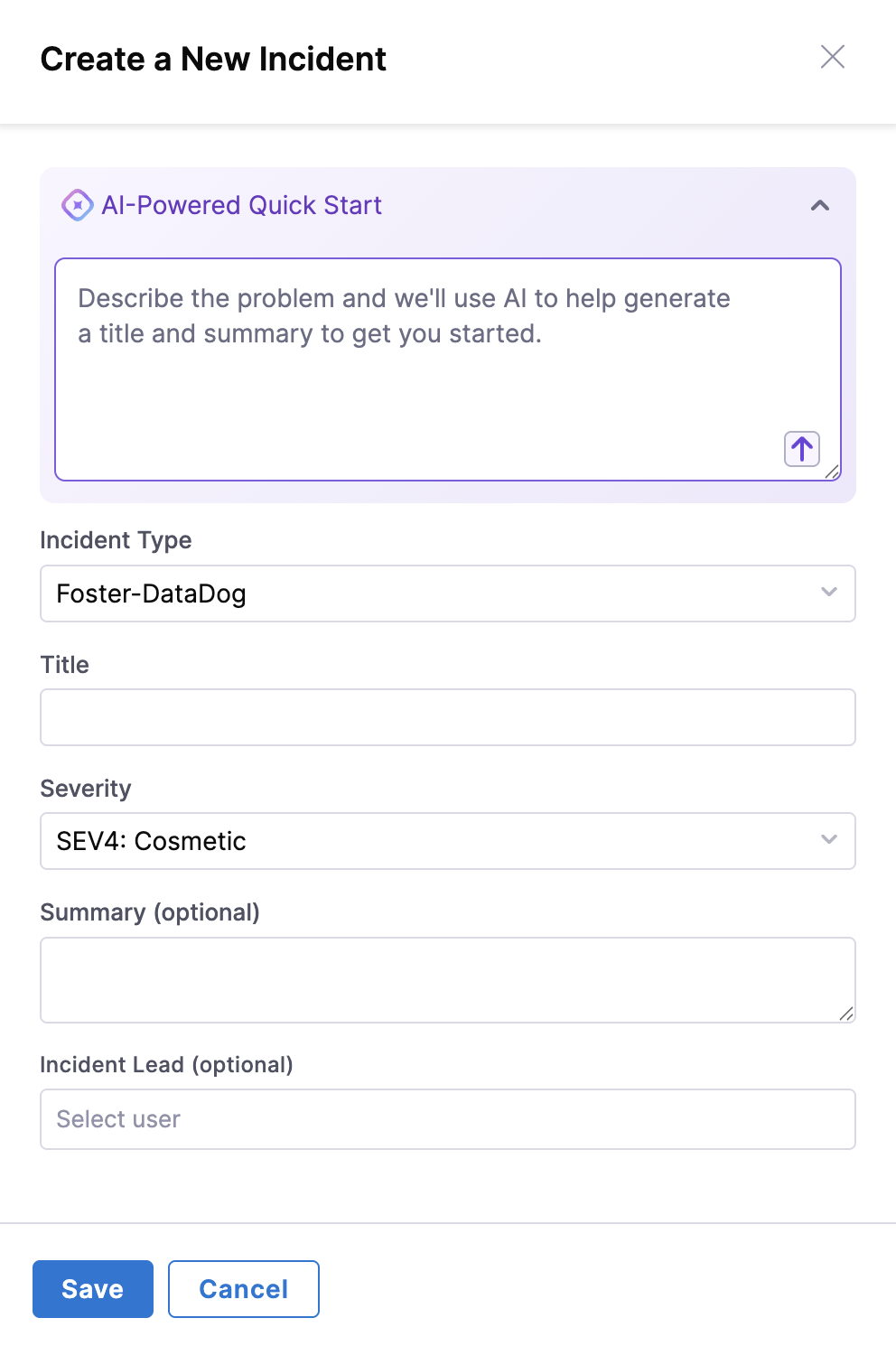
#### Step 3: Describe the problem
Give the AI enough context to populate the incident:
1. Use the **Quick Start** block to describe the problem
2. Provide a clear, concise description of the issue
3. The AI system will analyze your description and suggest field values
4. Include relevant details like affected services, symptoms, and impact
#### Step 4: Generate incident fields
Let AI SRE derive field values from your description:
1. Click the **up arrow** sign to process your description
2. AI will automatically populate incident fields based on your description
3. The system will suggest appropriate severity, priority, and other relevant fields
#### Step 5: Review and customize
Verify and adjust the generated values before saving:
1. Review all auto-generated field values
2. **Manually change** any field values that need adjustment:
* Title and description
* Severity and priority levels
* Add Assignee
* Add values to any custom fields added as per the Incident type
3. Click **Save** to create the incident
#### Step 6: Manage incident details
Review and edit the incident from its details page:
1. The **Incident Details** page will display with all incident information
2. Use the **Edit icon** to edit individual fields as needed
3. Click **Edit** to modify the **Incident Summary**
4. Click **Save** after making any changes
#### Step 7: Add key events
Document important milestones on the incident:
1. Click **Add Key Event** to manually document important milestones
2. Type the key event description in the text box
3. Include relevant details about actions taken or status changes
4. Click the **check mark** to save the key event
5. Remember to **Save** from the top right
#### Step 8: Monitor timeline activity
Track and post to the incident timeline:
1. Navigate to the **Timeline** tab
2. View all incident-related activity in chronological order
3. Post messages to the timeline by typing in the text field and pressing Enter
4. All automated actions and manual updates appear here
#### Step 9: Execute runbooks (optional)
Run automated response procedures from the incident:
1. Click the **Runbooks** tab
2. Click **Execute Additional Runbook** to link automated response procedures
3. Select the appropriate runbook from available options
4. Click **Execute** to perform the runbook actions
5. Monitor execution progress and results
6. Click **Close** when execution is completed
#### Step 10: Manage action items
Create and assign follow-up tasks:
1. Navigate to the **Action Items** tab
2. Click **Create Action Item** to add follow-up tasks
3. Define the action item with:
* Clear description of the task
* **Assignee** responsible for completion
* **Due date** for completion
4. Click the **check mark** to save the action item
5. Use the **Edit icon** to edit action item status as needed
#### Step 11: Finalize and save
Confirm everything is documented, then save:
1. Review all incident details, timeline events, and action items
2. Ensure all necessary information is documented
3. Click **Save** to finalize all changes
4. The incident is now ready for ongoing management and resolution
{% endtab %}
{% endtabs %}
***
### Best practices
#### Incident creation and classification
* **Choose appropriate incident types:** Select the most specific incident type to ensure proper field configuration and runbook association
* **Provide detailed descriptions:** Use the Quick Start feature with comprehensive problem descriptions to enable accurate AI field population
* **Verify auto-generated fields:** Always review and adjust AI-suggested field values to ensure accuracy
* **Set correct severity levels:** Align severity with actual business impact and response time requirements
#### Incident response and management
* **Acknowledge quickly:** Respond to incidents promptly to minimize impact and meet SLA requirements
* **Assess impact thoroughly:** Evaluate affected services, user impact, and business consequences
* **Execute relevant runbooks:** Use associated runbooks for standardized response procedures
* **Document all actions:** Record every action taken in the timeline for audit trails and learning
* **Update status regularly:** Keep incident status current to inform stakeholders and trigger appropriate workflows
#### Timeline and event management
* **Add key events:** Document critical milestones, decisions, and turning points in the incident lifecycle
* **Use timeline messaging:** Communicate updates and coordination through the incident timeline
* **Maintain chronological order:** Ensure all events are properly timestamped and sequenced
* **Include context:** Provide sufficient detail in timeline entries for future reference and analysis
#### Action item management
* **Create specific action items:** Define clear, actionable tasks with specific outcomes
* **Assign ownership:** Ensure every action item has a designated owner and due date
* **Track progress:** Regularly update action item status and completion
* **Follow up:** Monitor action items through completion to prevent issues from recurring
#### Communication and collaboration
* **Use structured communication:** Follow incident communication templates and standards
* **Update stakeholders regularly:** Provide timely updates to affected teams and leadership
* **Leverage integration channels:** Use Slack, Teams, or other integrated communication tools
* **Maintain professional tone:** Keep all incident communication clear, factual, and professional
#### Post-incident activities
* **Complete action items:** Ensure all follow-up tasks are completed within specified timeframes
* **Conduct reviews:** Analyze incident response effectiveness and identify improvement opportunities
* **Update documentation:** Refine runbooks, procedures, and incident types based on lessons learned
* **Share knowledge:** Communicate insights and improvements with the broader team
***
### Benefits
Incident management in AI SRE delivers the following benefits:
* **Streamlined response:** AI-powered incident creation reduces time to response and improves accuracy
* **Standardized processes:** Incident types ensure consistent handling across all teams and services
* **Automated workflows:** Integrated runbooks and action items automate response procedures
* **Complete visibility:** Timeline tracking and event logging provide full incident lifecycle visibility
* **Enhanced collaboration:** Built-in communication tools facilitate team coordination and stakeholder updates
* **Continuous improvement:** Action item tracking and post-incident analysis drive process optimization
* **Integration ready:** Seamless connection with monitoring tools, alert systems, and communication platforms
***
### Next steps
#### Getting started
* [Configure incident types](/ai-sre/ai-sre-for-administrators/set-up-incident-management/incident-types.md): Standardize incident classification.
* [Set up route alerts](/ai-sre/ai-sre-for-administrators/set-up-alert-management/alert-rules/overview.md): Automatically create incidents from monitoring alerts.
* [Configure on-call schedules](/ai-sre/ai-sre-for-administrators/set-up-on-call-management/oncall.md): Ensure proper incident assignment and escalation.
#### Advanced configuration
* [Customize incident fields](/ai-sre/ai-sre-for-administrators/set-up-incident-management/incident-fields.md): Capture specialized data.
* [Set up incident workflows](/ai-sre/ai-sre-for-administrators/set-up-incident-management/incident-workflows.md): Enable advanced automation.
* [Configure incident templates](/ai-sre/ai-sre-for-administrators/set-up-incident-management/incident-templates.md): Standardize incident creation.
* [Configure status updates](/ai-sre/ai-sre-for-administrators/set-up-incident-management/status-updates.md): Communicate with stakeholders.
* [Integrate monitoring tools](/ai-sre/ai-sre-for-administrators/set-up-alert-management/webhooks/templates/overview.md): Generate incidents automatically.
#### Best practices resources
* [AI SRE best practices guide](/ai-sre/troubleshooting-and-resources/ai-sre-best-practices.md): Review recommendations for running AI SRE.
* [Incident response playbooks](/ai-sre/ai-sre-for-administrators/set-up-runbook-management/create-runbook.md): Build runbooks for standardized response.
* [AI SRE onboarding guide for administrators](/ai-sre/ai-sre-for-administrators/get-started/overview.md): Set up AI SRE for your organization.
{% @harness-feedback/feedback %}