> For the complete documentation index, see [llms.txt](https://developer.harness.io/llms.txt). Markdown versions of documentation pages are available by appending `.md` to page URLs; this page is available as [Markdown](https://developer.harness.io/ai-sre/ai-sre-for-administrators/set-up-runbook-management/integrations/collaboration/teams.md).
# Microsoft Teams Integration for Runbooks
Connect Microsoft Teams at the project level so runbooks can create incident channels, schedule meetings, and post updates.
Harness AI SRE integrates with Microsoft Teams at the project level, enabling automated incident communication and team collaboration.
### Overview
Teams integration enables your runbooks to do the following:
* Send automated notifications
* Create incident-specific channels
* Schedule and manage meetings
* Share incident updates
* Coordinate response teams
***
### Set up the integration
Microsoft Teams integration uses OAuth 2.0 for secure authentication.
#### Prerequisites
* **Microsoft Teams admin access:** To authorize the Harness app
* **Harness Project Admin role:** To configure integrations
#### Setup steps
Connect the Microsoft Teams integration with these steps:
1. Go to **Project Settings**, then **Third Party Integrations (AI SRE)**.

2. Click **Connect** for **Microsoft Teams**.
3. Complete the OAuth authorization in the popup window.
4. Grant the requested permissions when prompted.
After authorization completes, the Teams integration status shows as **Connected**.
***
### Use Teams actions in runbooks
Microsoft Teams actions are configured through the runbook action form in the UI:
1. **In your runbook**, click **New Step**, then **Action**.
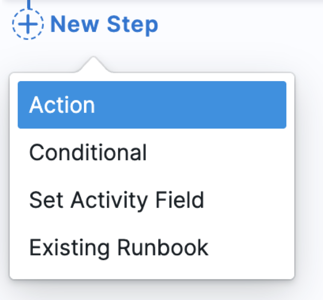
2. In the **Select Action** dialog, go to the **Communication** category.
3. Select the Teams action you need from the available options.

4. Configure the action through a form-based interface. The specific fields depend on the action type you select.
#### Send Teams message action
Sends a message to a specified Teams channel.
**Form fields:**
* **Team:** Team name or ID
* **Channel:** Channel name within the team
* **Message:** Message text to send
* Supports Mustache variables: `{{Activity.title}}`, `{{Activity.summary}}`
* Can include formatting and mentions
#### Create Teams channel action
Creates a new Teams channel for incident coordination.
**Form fields:**
* **Team:** Team where the channel will be created
* **Channel Name:** Name for the new channel
* Example: `incident-{{Activity.id}}`
* **Description:** Channel description
**Available Mustache variables:**
* `{{Activity.title}}`: AI SRE incident title
* `{{Activity.id}}`: AI SRE incident ID
* `{{Activity.severity}}`: AI SRE incident severity
* `{{Activity.status}}`: AI SRE incident status
* Any custom incident fields configured in your incident template
***
### Best practices
#### Channel management
* Use consistent naming conventions
* Archive resolved incident channels
* Limit channel creation to active incidents
* Document channel purpose
#### Message structure
* Use clear formatting
* Include severity indicators
* Add relevant links
* Mention appropriate teams
#### Permissions
* Follow least privilege principle
* Regular permission audits
* Document access requirements
* Monitor usage
***
### Common use cases
#### Incident coordination
1. Create dedicated channel
2. Notify stakeholders
3. Share initial assessment
4. Track response actions
#### Status updates
1. Send periodic updates
2. Track resolution progress
3. Share incident metrics
4. Document action items
#### Meeting management
1. Schedule incident bridges
2. Send meeting reminders
3. Share meeting notes
4. Track action items
***
### Troubleshooting
A Microsoft Teams runbook action fails with an authentication error
Re-authorize the Teams connection in Project Settings, confirm you have Teams admin permissions, and verify the OAuth consent was completed.
Creating a Microsoft Teams channel from a runbook fails
Check the channel naming conventions, confirm you have access to the target team, and ensure the Harness app has been added to the team.
A Microsoft Teams runbook message fails to send
Confirm the target channel exists, validate the message formatting, and check that you have not exceeded Teams rate limits.
***
### Next steps
* [Slack Integration](/ai-sre/ai-sre-for-administrators/set-up-runbook-management/integrations/collaboration/slack.md): Configure Slack notifications.
* [Zoom Integration](/ai-sre/ai-sre-for-administrators/set-up-runbook-management/integrations/collaboration/zoom.md): Configure Zoom meetings.
* [Runbooks Overview](/ai-sre/ai-sre-for-administrators/set-up-runbook-management/runbooks.md): Return to the runbooks overview.
{% @harness-feedback/feedback %}