> For the complete documentation index, see [llms.txt](https://developer.harness.io/llms.txt). Markdown versions of documentation pages are available by appending `.md` to page URLs; this page is available as [Markdown](https://developer.harness.io/ai-sre/ai-sre-for-administrators/set-up-runbook-management/integrations/ticketing/confluence.md).
# Confluence Integration
Create and update documentation pages from runbooks.
Integrate Confluence with AI SRE runbooks to automate documentation and knowledge base updates during incident response.
### Use cases
Use the Confluence integration to keep incident documentation current:
* Create incident postmortem pages
* Update runbook documentation
* Add incident notes to knowledge base
* Track incident history in Confluence
* Generate incident reports
***
### Prerequisites
* Confluence account with page creation permissions
* Confluence API token
* Space permissions for the spaces you need to update
***
### Configure the Confluence integration
Connect AI SRE to your Confluence site with an API token:
1. Go to **Project Settings**, then **Third-Party Integrations for AI SRE**.

2. Select the connector you want to use or create a new one.
3. Provide your Confluence credentials:
* **Site URL:** Your Confluence site URL (e.g., `https://yoursite.atlassian.net/wiki`)
* **Email:** Your Atlassian account email
* **API Token:** Generate from Atlassian account settings
4. Test the connection.
5. Save the integration.
***
### Available actions
#### Post content to Confluence
Create a new page or update an existing page in Confluence with specified content.
**Required fields:**
* Space Key: Confluence space identifier where the page will be created or updated
* Page Title: Title of the Confluence page
* Content: Page content in Confluence storage format (HTML)
**Optional fields:**
* Page ID: ID of existing page to update. If not provided, a new page will be created
**Outputs:**
* Page ID: ID of the created or updated page
* Page URL: URL to access the page
* Version: Version number of the page
***
### Use Confluence actions in runbooks
Confluence actions are configured through the runbook action form in the UI:
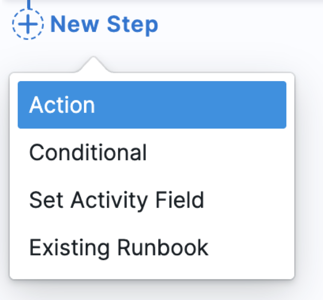
1. **In your runbook**, click **New Step**, then **Action**.
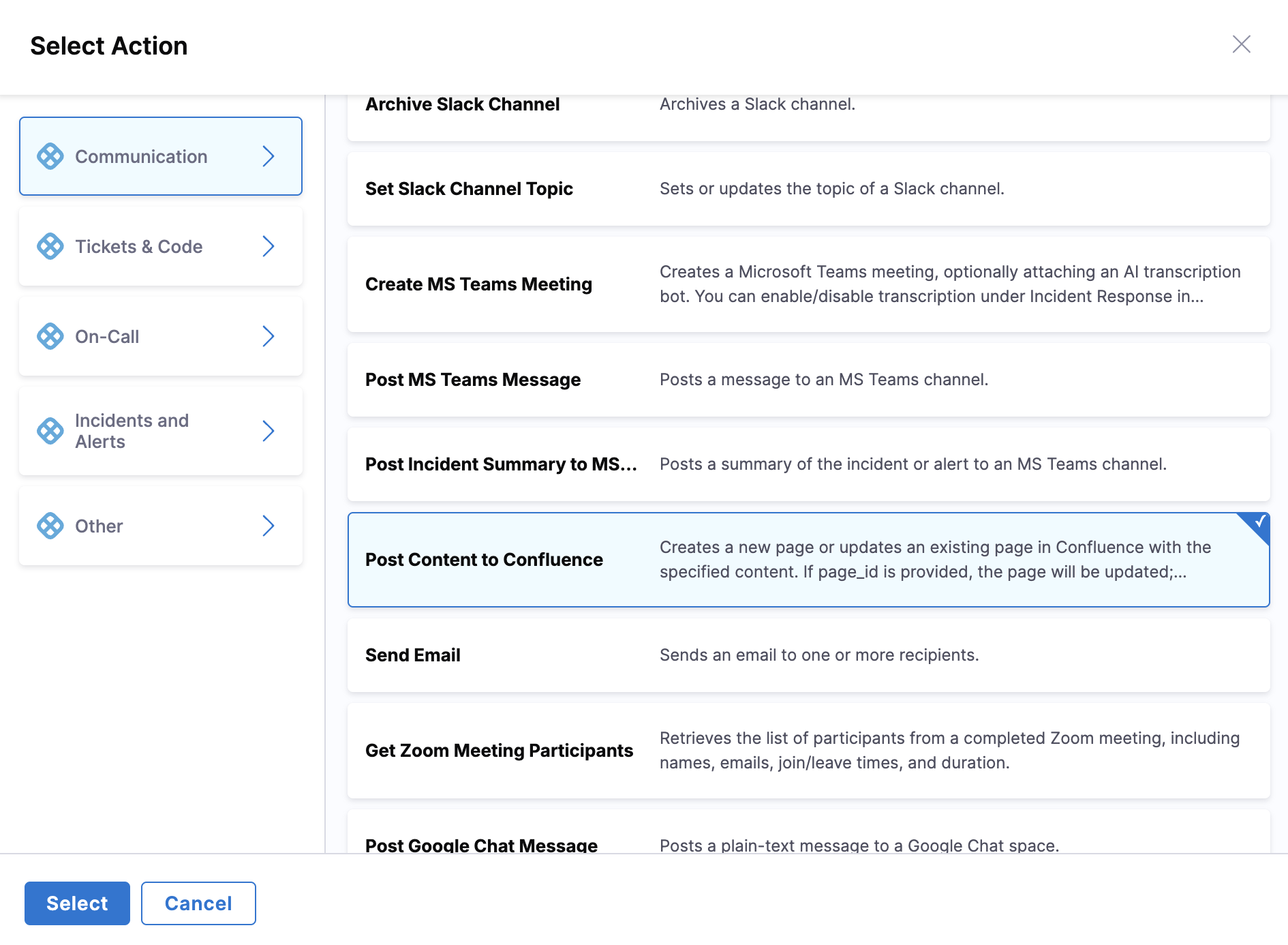
2. In the **Select Action** dialog, go to the **Communication** category.
3. Select **Post Content to Confluence** from the available actions.
4. Fill in the form fields using the **Data Picker** to insert dynamic values like `incident.severity`, `incident.title`, etc.
***
### Available Mustache variables
Use these variables to map AI SRE incident data to Confluence fields:
| Variable | Description | Example Value |
| -------------------------- | ----------------------------- | --------------------------------------- |
| `{{Activity.title}}` | Incident title | `API Gateway Outage` |
| `{{Activity.summary}}` | Incident summary | `Payment API returning 500 errors` |
| `{{Activity.severity}}` | Incident severity | `0`, `1`, `2`, `3`, `4` |
| `{{Activity.status}}` | Incident status | `Detected`, `Investigating`, `Resolved` |
| `{{Activity.service}}` | Affected service name | `payment-service` |
| `{{Activity.environment}}` | Environment | `production`, `staging` |
| `{{Activity.owner}}` | Incident owner email | `jane.doe@company.com` |
| `{{Activity.created_at}}` | Incident creation timestamp | `2026-05-06T20:30:00Z` |
| `{{Activity.resolved_at}}` | Incident resolution timestamp | `2026-05-06T21:15:00Z` |
| `{{Activity.url}}` | Incident URL in AI SRE | `https://app.harness.io/...` |
| `{{Activity.short_id}}` | Human-readable ID | `INC-123` |
***
### Example runbook actions
#### Create an incident postmortem page
**Use case:** Automatically create a Confluence page template for incident postmortem documentation.
**Runbook configuration:**
1. In the runbook editor, add a **Post Content to Confluence** action.
2. Configure the form fields:
* **Space Key:** `INCIDENTS`
* **Page Title:** `Postmortem - {{Activity.title}}`
* **Content** (using Confluence storage format HTML):
```html
Incident Postmortem: {{Activity.short_id}}
Summary
Title: {{Activity.title}}
Severity: SEV{{Activity.severity}}
Duration:
{{Activity.created_at}} - {{Activity.resolved_at}}
Service: {{Activity.service}}
Environment: {{Activity.environment}}
Timeline
To be filled during postmortem
Root Cause
To be determined
Action Items
List action items here
Links
Incident in AI SRE
```
* **Page ID:** Leave blank to create a new page
**Result:** New Confluence page created in `INCIDENTS` space with title `Postmortem - API Gateway Outage`, containing incident details and postmortem template sections.
#### Update existing runbook documentation
**Use case:** Update an existing runbook documentation page with recent incident information.
**Runbook configuration:**
1. In the runbook editor, add a **Post Content to Confluence** action.
2. Configure the form fields:
* **Space Key:** `ENGINEERING`
* **Page Title:** `Runbook Documentation`
* **Content** (append incident entry):
```html
Recent Incidents
-
{{Activity.short_id}} - {{Activity.title}} -
SEV{{Activity.severity}} - {{Activity.created_at}}
```
* **Page ID:** Enter the Confluence page ID to update
**Result:** Existing Confluence page updated with the latest incident entry. Because a Page ID was provided, the existing page is updated rather than creating a new one.
***
### Confluence wiki markup reference
#### Headers
```
h1. Heading 1
h2. Heading 2
h3. Heading 3
```
#### Lists
```
* Bullet point
# Numbered list
```
#### Links
```
[Link text|https://example.com]
[Link to page|Page Title]
```
#### Text styles
```
*bold*
_italic_
{{monospace}}
{code}code block{code}
```
***
### Security best practices
Protect your Confluence integration with these safeguards:
* Use API tokens instead of passwords
* Limit space access to only what is needed
* Rotate API tokens regularly
* Use read-only access when possible
* Audit integration usage regularly
***
### Next steps
* [Configure Runbook Actions](/ai-sre/ai-sre-for-administrators/set-up-runbook-management/create-runbook.md): Add Confluence actions to runbooks.
* [Runbook Best Practices](/ai-sre/ai-sre-for-administrators/set-up-runbook-management/workflows/best-practices.md): Review automation patterns.
{% @harness-feedback/feedback %}