> For the complete documentation index, see [llms.txt](https://developer.harness.io/llms.txt). Markdown versions of documentation pages are available by appending `.md` to page URLs; this page is available as [Markdown](https://developer.harness.io/ai-sre/ai-sre-for-administrators/set-up-runbook-management/integrations/ticketing/servicenow.md).
# ServiceNow Integration for Runbooks
Create records and synchronize incidents bidirectionally from runbooks.
Harness AI SRE offers comprehensive integration with ServiceNow, enabling both outbound (AI SRE to ServiceNow) and inbound (ServiceNow to AI SRE) incident management and tracking.
### Overview
ServiceNow integration enables your runbooks to:
* Create and update incidents
* Track incident progress
* Automate workflow transitions
* Sync incident updates bidirectionally
***
### Integration setup
#### Prerequisites
* ServiceNow admin access
* Instance URL
* Service account credentials
* Harness Project Admin role
#### Configure the ServiceNow connector
Set up the ServiceNow connector with the following steps:
1. Go to **Project Settings**, then **Third Party Integrations (AI SRE)**.

2. Select **ServiceNow** from the available integrations.
3. Configure authentication:
* Instance URL
* Username
* Password/OAuth credentials
4. Test the connection.
#### Required permissions
The ServiceNow service account requires these roles:
* incident\_manager role
* itil role
* rest\_service role
* web\_service\_admin role
***
### Use ServiceNow actions in runbooks
ServiceNow actions are configured through the runbook action form in the UI:
1. **In your runbook**, click **New Step**, then **Action**.
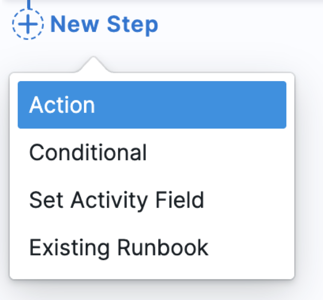
2. In the **Select Action** dialog, go to the **Tickets & Code** category.
3. Select the ServiceNow action you need from the available options.

4. Configure the action through a form-based interface with the following fields.
#### Create ServiceNow Incident action
The Create ServiceNow Incident action creates a new incident in ServiceNow and automatically updates the AI SRE incident's `service_now_ticket` field with the ServiceNow incident number.
**Form fields:**
* **Short Description:** Brief title for the ServiceNow incident
* Example: `{{Activity.title}}`
* **Description:** Detailed description of the incident
* Example: `{{Activity.summary}}`
* **Urgency:** Urgency level (High, Medium, Low)
* **Impact:** Impact level (High, Medium, Low)
* **Assigned To (optional):** ServiceNow user sys\_id or username to assign the incident to
**Available Mustache variables:**
* `{{Activity.title}}`: AI SRE incident title
* `{{Activity.summary}}`: AI SRE incident summary
* `{{Activity.severity}}`: AI SRE incident severity
* `{{Activity.status}}`: AI SRE incident status
* Any custom incident fields configured in your incident template
#### Field change triggers
You can configure runbooks to trigger when specific AI SRE incident fields change, enabling automatic updates to ServiceNow:
**Supported trigger types:**
* State changes
* Priority updates
* Severity modifications
* Assignment changes
When a field changes in AI SRE, the runbook can execute ServiceNow actions to keep both systems synchronized.
***
### Advanced features
#### Sync architecture
{% hint style="info" %}
**Outbound sync (AI SRE to ServiceNow) is native** and handled via runbook actions as described above.
**Inbound sync (ServiceNow to AI SRE)** is not a built-in feature. It can be configured using Harness Pipelines as the integration mechanism. You create a ServiceNow Business Rule that sends a webhook to a Harness Pipeline, which then updates the corresponding AI SRE incident. Go to [Create webhooks in ServiceNow](#create-webhooks-in-servicenow) to review the setup instructions.
{% endhint %}
**Capabilities**
A pipeline-based inbound sync can provide the following capabilities:
1. **Incident sync**
* ServiceNow to Harness AI SRE status mapping
* Automatic state transitions
* Priority synchronization
2. **Work notes sync**
* Bidirectional updates flow
* Attachment synchronization
* User mapping
***
### Best practices
#### Incident management
Follow these practices for incident management:
* Use standard categorization
* Include business impact
* Maintain SLA tracking
#### Workflow integration
Follow these practices for workflow integration:
* Define clear state mappings
* Document transition rules
* Set up appropriate triggers
* Monitor sync status
#### Field configuration
Follow these practices for field configuration:
* Map essential fields
* Use custom fields appropriately
* Document field purposes
* Validate field values
***
### Common use cases
#### Major incident management
Use a runbook to drive major incident management through these steps:
1. Create ServiceNow incident
2. Assign response teams
3. Track resolution progress
4. Update stakeholders
#### SLA compliance
Use a runbook to track SLA compliance through these steps:
1. Monitor response times
2. Track resolution progress
3. Generate reports
4. Escalate as needed
***
### Troubleshooting ServiceNow runbook action fails with an authentication error
Verify the ServiceNow connector credentials, confirm the service account has the incident\_manager, itil, rest\_service, and web\_service\_admin roles, and confirm the instance URL is reachable.
ServiceNow field update fails during a runbook action
Validate the ServiceNow field names, confirm all required fields are populated, and verify each value matches the field's expected format.
ServiceNow incident state transition is rejected
Check the ServiceNow workflow rules, verify the state mappings between AI SRE and ServiceNow, and confirm the service account has permission to perform the transition.
***
### Create incidents in AI SRE from ServiceNow
This section walks you through setting up an integration in Harness AI SRE to receive incident data from ServiceNow. By following these steps, you can automatically create incidents in Harness AI SRE based on ServiceNow incidents.
#### Integration setup process
**1. Create the integration in AI SRE**
Create the integration in AI SRE with the following steps:
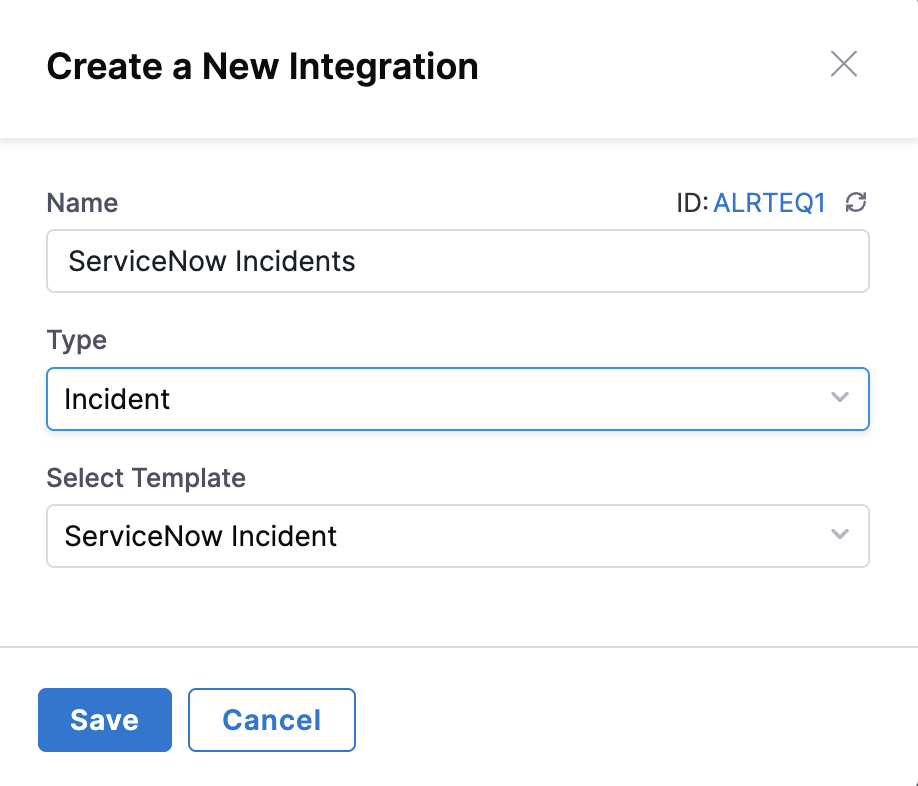
1. Go to **Integrations** in AI SRE.
2. Click **New Integration**.
3. Set the following values:
* **Name:** ServiceNow Incidents
* **Type:** Incident
* **Template:** ServiceNow Incident
4. Copy the generated **Webhook URL**.
**2. Test the integration with cURL**
Use the following curl command to test sending incident data from ServiceNow. Replace `YOUR_URL` with the URL you copied from AI SRE.

```bash
curl -X 'POST' 'YOUR_URL' \
-H 'host: IR' \
-H 'user-agent: ServiceNow/1.0' \
-H 'x-snc-integration-source: c9fdbaf8ebbce694c040fddacad0cd90' \
-H 'content-type: application/json' \
-d $'{
"number": "INC0010166",
"reported_by_email": "admin@example.com",
"opened_at": "2025-07-08 18:08:05",
"impact": "1",
"urgency": "1",
"short_description": "Testing SNOW Creation",
"description": "Testing SNOW Creation",
"category": "software",
"priority": "1",
"sys_id": "096654f28362ea10ea8ff3a6feaad338",
"subcategory": null,
"state": "2",
"incident_url": "https://.service-now.com/incident.do?number="
}'
```
**3. Configure the payload in AI SRE**
Configure the payload in AI SRE with the following steps:
1. In AI SRE, go to the newly created **ServiceNow Incidents** integration.
2. Click **Payload Configuration**.
3. Click **Refetch Payload** to load the fields.
4. Select all available values for use in AI SRE.

{% hint style="info" %}
**CUSTOM FIELDS**
If custom ServiceNow fields are not showing up, update your ServiceNow Business Rule to include those fields in the payload.
{% endhint %}
#### Data mapping: ServiceNow to AI SRE
{% tabs %}
{% tab title="State to Status Mapping" %}
| ServiceNow Value | ServiceNow Label | AI SRE Status |
| ---------------- | ---------------- | ------------- |
| 1 | New | New |
| 2 | In Progress | Investigating |
| 3 | On Hold | Monitoring |
| 4 | Resolved | Closed |
| 5 | Closed | Closed |
| 6 | Canceled | Closed |
| {% endtab %} | | |
{% tab title="Priority to Severity Mapping" %}
| ServiceNow Value | ServiceNow Label | AI SRE Severity |
| ---------------- | ---------------- | --------------- |
| 1 | Critical | SEV0:Critical |
| 2 | High | SEV1:Major |
| 3 | Moderate | SEV2:Moderate |
| 4 | Low | SEV3:Minor |
| 5 | Planning | SEV4:Cosmetic |
| {% endtab %} | | |
| {% endtabs %} | | |
{% hint style="info" %}
**MAPPING USAGE**
Use these mappings when parsing state and priority from the webhook payload to translate ServiceNow values into meaningful context within AI SRE.
{% endhint %}
***
### Create webhooks in ServiceNow
Send data from ServiceNow to Harness AI SRE using a Business Rule and RESTMessageV2. This integration enables automatic incident creation and updates in Harness AI SRE when ServiceNow incidents are created or modified.
#### Setup instructions
Configure the incident Business Rule with the following steps:
1. **Go to Business Rules**
* Go to **System Definition** > **Business Rules**.
* Click **New**.
2. **Configure the Business Rule**
* Name: `Send Incident to Harness AI SRE`
* Table: `Incident`
* Active: ✅
* Advanced: ✅
3. **Set when to run**
* When: `After`
* Insert: ✅
* Update: ✅
* (Optional) Add filter conditions to limit which incidents trigger the webhook
4. **Add the script**
* Go to the **Advanced** tab and paste the following:
```javascript
(function executeRule(current, previous /*null when async*/ ) {
try {
var r = new sn_ws.RESTMessageV2();
// Replace the URL below with your Harness webhook URL:
r.setEndpoint("https://app.harness.io/api/v1/incident/webhook");
r.setHttpMethod("post");
r.setRequestHeader("Content-Type", "application/json");
var usr = new GlideRecord('sys_user');
usr.get('sys_id', current.getValue("caller_id"));
var reported_by_email = usr.getValue('email');
var number = current.getValue("number");
var opened_at = current.getValue("opened_at");
var impact = current.getValue("impact");
var urgency = current.getValue("urgency");
var short_description = current.getValue("short_description");
var description = current.getValue("description");
var category = current.getValue("category");
var priority = current.getValue("priority");
var sys_id = current.getValue("sys_id");
var subcategory = current.getValue("subcategory");
var state = current.getValue("state");
var instanceUrl = gs.getProperty('glide.servlet.uri');
var incident_url = instanceUrl
+ "nav_to.do?uri=/incident.do?sysparm_query=number=" + number;
var obj = {
"number": number,
"reported_by_email": reported_by_email,
"opened_at": opened_at,
"impact": impact,
"urgency": urgency,
"short_description": short_description,
"description": description,
"category": category,
"priority": priority,
"sys_id": sys_id,
"subcategory": subcategory,
"state": state,
"incident_url": incident_url
};
var body = JSON.stringify(obj);
gs.info("AI SRE webhook payload: " + body);
r.setRequestBody(body);
var response = r.execute();
gs.info("AI SRE webhook HTTP status: " + response.getStatusCode());
gs.info("AI SRE webhook response: " + response.getBody());
} catch (ex) {
gs.error("Error sending webhook to AI SRE: " + ex.message);
}
})(current, previous);
```
#### Test the integration
Verify the incident webhook with the following steps:
1. **Create a test incident**
* Create a new incident in ServiceNow to trigger the business rule.
2. **Check system logs**
* Go to **System Logs** > **All**.
* Confirm log output containing "AI SRE webhook payload" and response information.
3. **Verify in Harness AI SRE**
* Log in to your Harness AI SRE account.
* Go to the Incidents section.
* Confirm the incident was created with the correct data.
{% hint style="info" %}
**IMPORTANT FIELDS**
Ensure that all required fields are included in the webhook payload. The minimum fields needed for proper incident creation are: `number`, `short_description`, `state`, and `priority`.
{% endhint %}
***
### Sync from ServiceNow to AI SRE
To enable bidirectional synchronization where ServiceNow comments and work notes are automatically sent to AI SRE, create an additional Business Rule that triggers when journal entries are added to incidents.
#### Create the journal entry Business Rule
This Business Rule automatically pushes comments and work notes from ServiceNow to AI SRE, ensuring both systems stay synchronized even when updates are made directly in ServiceNow.
**Setup instructions**
Configure the journal entry Business Rule with the following steps:
1. **Go to Business Rules**
* Go to **System Definition** > **Business Rules**.
* Click **New**.
2. **Configure the Business Rule**
* Name: `Sync Comments to Harness AI SRE`
* Table: `Journal Entry [sys_journal_field]`
* Active: ✅
* Advanced: ✅
3. **Set when to run**
* When: `After`
* Insert: ✅
* (Optional) Add filter conditions to limit to specific journal types
4. **Add the script**
* Go to the **Advanced** tab and paste the following script:
```javascript
(function executeRule(current) {
gs.info("[Harness IR] BR triggered for journal entry: "
+ current.getValue('sys_id'));
// Determine note type (e.g., comments or work_notes)
var type = current.getValue('element');
// Only continue for work_notes or comments
// if (type !== "work_notes" && type !== "comments") {
// gs.info("[Harness IR] Skipped (not a supported journal type)");
// return;
// }
// Fetch the related Incident record
var incidentId = current.getValue('element_id');
var inc = new GlideRecord('incident');
if (!inc.get(incidentId)) {
gs.info("[Harness IR] Skipped (incident not found): " + incidentId);
return;
}
// Detect instance URL dynamically
// e.g. https://dev319566.service-now.com/
var instanceUrl = gs.getProperty('glide.servlet.uri');
var incidentNumber = inc.getValue('number');
var incidentUrl = instanceUrl
+ "nav_to.do?uri=/incident.do?sysparm_query=number=" + incidentNumber;
// Build payload
var payload = {
snow_incidentId: incidentNumber, // e.g. INC0010234
snow_incidentSysId: inc.getUniqueValue(), // Stable sys_id
note_type: type, // "comments" | "work_notes"
note_text: current.getValue('value') || '',
author: current.getValue('sys_created_by') || '',
created_on: current.sys_created_on.getGlideObject().getNumericValue(),
priority: inc.getValue('priority') || '',
short_description: inc.getValue('short_description') || '',
note_id: current.getValue('sys_id'), // journal entry sys_id
incident_url: incidentUrl // Deep link to incident
};
gs.info("[Harness IR] Payload prepared: " + JSON.stringify(payload));
try {
var r = new sn_ws.RESTMessageV2();
// Replace with your AI-SRE project/org/template webhook endpoint.
// Tip: paste the full webhook URL from AI SRE as one string.
var endpoint = 'https://app.harness.io/ir/tp/api/v1/mc'
+ '/account/'
+ '/orgs/'
+ '/projects/'
+ '/incidentTemplate/'
+ '/servicenow/webhook';
r.setEndpoint(endpoint);
r.setHttpMethod('POST');
r.setRequestHeader("Content-Type", "application/json");
r.setRequestBody(JSON.stringify(payload));
var response = r.execute();
var status = response.getStatusCode();
var body = response.getBody();
if (status === 200) {
gs.info("[Harness IR] Webhook successfully sent. Status: " + status);
} else {
gs.error("[Harness IR] Webhook returned non-200. Status: "
+ status + " Body: " + body);
}
} catch (ex) {
gs.error("[Harness IR] Webhook failed: " + ex.getMessage());
}
})(current);
```
**Configuration notes**
Keep these configuration notes in mind:
1. **Optional filtering**
* The script includes commented lines that filter for only `work_notes` and `comments`.
* Uncomment these lines (remove `//`) to limit synchronization to these specific journal types:
```javascript
if (type !== "work_notes" && type !== "comments") {
gs.info("[Harness IR] Skipped (not a supported journal type)");
return;
}
```
2. **Table configuration**
* This Business Rule must be created on the `sys_journal_field` table.
* It triggers when journal entries (comments, work notes, etc.) are added to any record.
* The script filters for incident-related entries automatically.
**Endpoint substitution guide**
Use this guide to correctly substitute the placeholders in the webhook endpoint used by the Business Rule. The full path is one URL; it is shown across lines here only for readability:
```
https://app.harness.io/ir/tp/api/v1/mc
/account/
/orgs/
/projects/
/incidentTemplate/
/servicenow/webhook
```
* **``:** Your Harness account identifier.
* **``:** The organization identifier in which AI SRE is configured.
* **``:** The project identifier that contains your AI SRE runbooks/incidents.
* **``:** The incident template identifier used for this ServiceNow sync.
Recommended ways to obtain values:
* **Copy from AI SRE:** In AI SRE, open the relevant integration/template and copy the generated webhook URL. It already includes all identifiers. Paste it into `r.setEndpoint(...)`.
* **From UI URLs/settings:** When viewing your org or project in Harness, the URL path shows `orgs//projects/`. Account ID is available in account settings. The template ID is visible in the incident template details or within the generated webhook URL.
Example (for illustration only; the real value is a single line):
```
https://app.harness.io/ir/tp/api/v1/mc
/account/acc_123456
/orgs/engineering
/projects/sre
/incidentTemplate/incident_default
/servicenow/webhook
```
**Test the integration**
Verify the journal entry webhook with the following steps:
1. **Create a test comment**
* Open an existing incident in ServiceNow.
* Add a comment or work note.
* Check the system logs for webhook activity.
2. **Verify system logs**
* Go to **System Logs** > **All**.
* Look for entries containing "\[Harness IR]" to track the webhook execution.
* Confirm successful HTTP 200 responses.
3. **Check AI SRE**
* Go to the corresponding incident in AI SRE.
* Verify that the comment or work note appears in the incident timeline.
{% hint style="info" %}
**BEST PRACTICES**
* Test the integration in a development environment first.
* Monitor system logs regularly to ensure webhook reliability.
* Consider adding additional filtering based on your organization's needs.
* Document any custom fields or modifications for future reference.
{% endhint %}
***
### Next steps
* [Jira Integration](/ai-sre/ai-sre-for-administrators/set-up-runbook-management/integrations/ticketing/jira.md): Configure Jira actions for runbooks.
* [Microsoft Teams Integration](/ai-sre/ai-sre-for-administrators/set-up-runbook-management/integrations/collaboration/teams.md): Send incident notifications to Teams.
* [Runbooks Overview](/ai-sre/ai-sre-for-administrators/set-up-runbook-management/runbooks.md): Return to the runbooks overview.
{% @harness-feedback/feedback %}