> For the complete documentation index, see [llms.txt](https://developer.harness.io/llms.txt). Markdown versions of documentation pages are available by appending `.md` to page URLs; this page is available as [Markdown](https://developer.harness.io/ai-test-automation/3.0/use-ai-test-automation/test-authoring/create-tests/user-actions.md).
# User Actions
### Overview
Harness AI Test Automation transforms testing with its intuitive interactive authoring experience. As you naturally interact with your application, the system intelligently captures each action and converts them into robust test steps, no coding required.
This document explores all available user actions that can be added using the *"+ Add step"* button during test creation, including clicks, text inputs, selections, navigation, keyboard interactions, and more specialized commands like waits and viewport adjustments.
Each action can be enhanced with assertions to validate expected behavior, parametrized for flexibility, and seamlessly integrated into CI/CD pipelines. Understanding these powerful actions will help you create comprehensive test coverage for your applications, whether you are building simple workflows or complex test scenarios.

### Supported actions
### API call
Sends HTTP requests to external APIs directly from your test. This action allows you to integrate with backend services, validate API responses, and use API data in your tests without leaving the test environment.
> This is useful for setting up test data, verifying backend operations, or retrieving data that can be used in subsequent test steps.

### Options
| Option | Description |
| ------------------------------------ | ------------------------------------------------------------------------------------- |
| **Method Type** | HTTP method to use (GET, POST, PUT, DELETE, PATCH, etc.) |
| **URL** | The endpoint URL to send the request to |
| **Headers** | JSON object containing request headers |
| **Body** | JSON object containing the request body for POST/PUT/PATCH requests |
| **Parameter name for Response body** | Name of the parameter where the API response will be stored |
| **Scope** | Determines where the response parameter is stored: `Run time`, `App`, or `Test Suite` |
### Click
{% hint style="info" icon="lightbulb" %}
**TIP**
For a basic click, no additional configuration is required. It allows you to explicitly specify which element to click when multiple elements might match the selector, ensuring precision in complex UI interactions. Click on the element you want to select in the step.
{% endhint %}
Click on any place in the viewport to register a click command as a test step. No additional action required.

### Advanced options
{% tabs %}
{% tab title="Navigation & Timing" %}
* **Wait for document ready** - Pauses test execution until the document's ready state is reached, ensuring elements are available for interaction. Options include `Yes`, `No`, and `App Default`.
* **Expected ready state** - Specifies which document ready state to wait for, such as `complete`, `interactive`, `loaded`, or `app`.
* **Wait for network requests** - Delays test execution until all in-flight network requests complete. Options include `Yes` and `No`.
* **Wait for document timeout (ms)** - Maximum time in milliseconds to wait for the document to reach the ready state before timing out.
* **Wait for network request timeout (ms)** - Maximum time in milliseconds to wait for network requests to complete before continuing.
{% endtab %}
{% tab title="Parameterization" %}
**Text param** - Allows you to use dynamic values in your click action by connecting it to parameters defined in your test. Parameters can be set at the test level or provided at runtime, making your tests more flexible and reusable.
> You can use from the dropdown list or use the `+ Create Parameter` button to create a new parameter.
> {% endtab %}
{% tab title="Response Data Capture" %}
* **URL Pattern / Regular Expression** - Defines which network requests to capture data from, using either a simple URL pattern or a regular expression to match specific endpoints
* **Parameter name for Response body** - The name of the parameter where the captured response data of the body will be stored for later use in your test
* **Response Body Path (JSONPath)** - Extracts specific data from a JSON response using JSONPath syntax, allowing you to capture only the values you need
* **Scope**: App, Test Suite, or Runtime - Determines where the captured parameter is stored and how widely it can be accessed across tests
{% endtab %}
{% tab title="Others" %}
* **Use Touch** - Enables touch events simulation along with mouse clicks, useful when testing applications designed for mobile or touch interfaces
{% endtab %}
{% endtabs %}
### Copy and paste
Perform clipboard operations to copy and paste content between elements in your application.
### Copy to clipboard
Copies text or content from a selected element to the clipboard. This action simulates the user's copy operation (Ctrl+C or Cmd+C) and can be used to capture text, values, or other content from the application for later use in your test.
### Paste from clipboard
Pastes content from the clipboard into a selected element. This action simulates the user's paste operation (Ctrl+V or Cmd+V) and can be used to insert previously copied text, values, or content into input fields, text areas, or other editable elements.
{% hint style="info" icon="lightbulb" %}
**TIP**\
For both actions, select the target element. For Copy, select the element containing the content you want to copy. For Paste, select the editable element (such as an input field or text area) where you want to paste. No additional configuration is required.
{% endhint %}
### DB query
Executes a SQL query against a database and captures the results as parameters. This action allows you to integrate database interactions directly into your test flow, enabling data validation and dynamic test data generation.
> This action requires proper database credentials and connection information. Ensure your database is accessible from the test environment.
{% hint style="info" %}
**NOTE**\
You can use the database types of MongoDB, PostgreSQL, Oracle, and MS SQL.
{% endhint %}

### Options
| Option | Description |
| --------------------------------- | ------------------------------------------------------------------------------------------------------------- |
| **Database type** | Select the type of database you are connecting to (e.g., MySQL, PostgreSQL, SQL Server, Oracle) |
| **Connection String** | The connection string for your database in the appropriate format for the selected database type |
| **Username** | Database username with appropriate permissions to execute the query |
| **Password** | Password for the database user |
| **Query** | The SQL query to execute against the database. Can include SELECT, INSERT, UPDATE, or DELETE statements |
| **Response Body Path (JSONPath)** | Optional JSONPath expression to extract specific data from the query results |
| **Result Parameter** | Name of the parameter where the query results will be stored |
| **Scope** | App, Test Suite, or Runtime - Determines where the result parameter is stored and how widely it is accessible |
| **Tunnel Name (optional)** | Name of the SSH tunnel configuration if connecting to a database through a secure tunnel |
Go to the [DB Query guide](/ai-test-automation/3.0/best-practices-and-resources/ait-how-to-guides/db-query.md) for more information on the DB Query actions.
### Double click
Executes a double-click action on a specific element. This action is particularly useful for actions that require double-clicking, such as opening files, selecting text, or activating certain interface elements that specifically respond to double-clicks.
### Drag and drop
Performs a drag and drop operation by moving an element from one location to another. This action simulates the user clicking and holding an element, dragging it to a target location, and releasing it. It is useful for testing drag-and-drop interfaces, reordering lists, moving items between containers, or any UI that supports drag-and-drop interactions.
 **Options**
| Option | Description |
| ------------------ | ------------------------------------------------------------------------------------------------------------- |
| **Source Element** | The element to be dragged. Click on the element in your application that you want to drag |
| **Destination** | Specifies how to determine the drop location. Options include `To Element` or `To Position` |
| **To Element** | When Destination is set to `To Element`, select the target element where you want to drop the source element |
| **To Position** | When Destination is set to `To Position`, specify the X and Y coordinates where the element should be dropped |
**Options**
| Option | Description |
| ------------------ | ------------------------------------------------------------------------------------------------------------- |
| **Source Element** | The element to be dragged. Click on the element in your application that you want to drag |
| **Destination** | Specifies how to determine the drop location. Options include `To Element` or `To Position` |
| **To Element** | When Destination is set to `To Element`, select the target element where you want to drop the source element |
| **To Position** | When Destination is set to `To Position`, specify the X and Y coordinates where the element should be dropped |
### File upload
Uploads a file to the selected input element on a webpage. Specify the absolute or relative path to the file you want to upload, and select the appropriate file input element in your application. The file input element where you want to upload the file. Click on the appropriate file input element in your application.
> You can upload files from your local system or from your test resources directory. This will be hosted on a S3 bucket and the file path will be used in the test.

### Key press
Simulates a keyboard input action. Specify the key to press, for example, "Enter" or "Backspace". For key combinations, provide an array of keys like `["Control", "c"]`. Explore all supported keys from [here](https://github.com/getgauge/taiko/blob/master/lib/data/USKeyboardLayout.js).
> This action step requires selecting a target element on which to perform the key press operation.
### Mouse over
Simulates hovering the mouse cursor over an element, activating hover states and triggering related events. This action is especially useful for testing dropdown menus, tooltips, and other elements that appear on hover.
> You must select a specific target element for this action to work properly.

### Navigate
Navigate to a specific URL or relative path, allowing you to direct your test to different pages or websites. Supports both absolute URLs (starting with http\:// or https\://) and relative paths that will be appended to your environment's base URL.
 **Advanced Options**
* Navigation & Timing
* Parameterization
* Response Data Capture
* **Wait for document ready** - Pauses test execution until the document's ready state is reached, ensuring elements are available for interaction, you get options like `Yes`, `No`, and `App Default`.
* **Expected ready state** - Specifies which document ready state to wait for (complete, interactive, loaded, app)
* **Wait for network requests** - Delays test execution until all in-flight network requests complete, with option like `Yes` and `No`.
* **Wait for document timeout (ms)** - Maximum time in milliseconds to wait for the document to reach the ready state before timing out
* **Wait for network request timeout (ms)** - Maximum time in milliseconds to wait for network requests to complete before continuing
### Reload
Add this action step to refresh the current page.
**Advanced Options**
* Navigation & Timing
* Parameterization
* Response Data Capture
* **Wait for document ready** - Pauses test execution until the document's ready state is reached, ensuring elements are available for interaction, you get options like `Yes`, `No`, and `App Default`.
* **Expected ready state** - Specifies which document ready state to wait for (complete, interactive, loaded, app)
* **Wait for network requests** - Delays test execution until all in-flight network requests complete, with option like `Yes` and `No`.
* **Wait for document timeout (ms)** - Maximum time in milliseconds to wait for the document to reach the ready state before timing out
* **Wait for network request timeout (ms)** - Maximum time in milliseconds to wait for network requests to complete before continuing
### Reload
Add this action step to refresh the current page.

### Right click
Simulates a right-click mouse action on a specific element. This action is useful for testing context menus, alternative options, and other functionality that is triggered by right-clicking in your application.
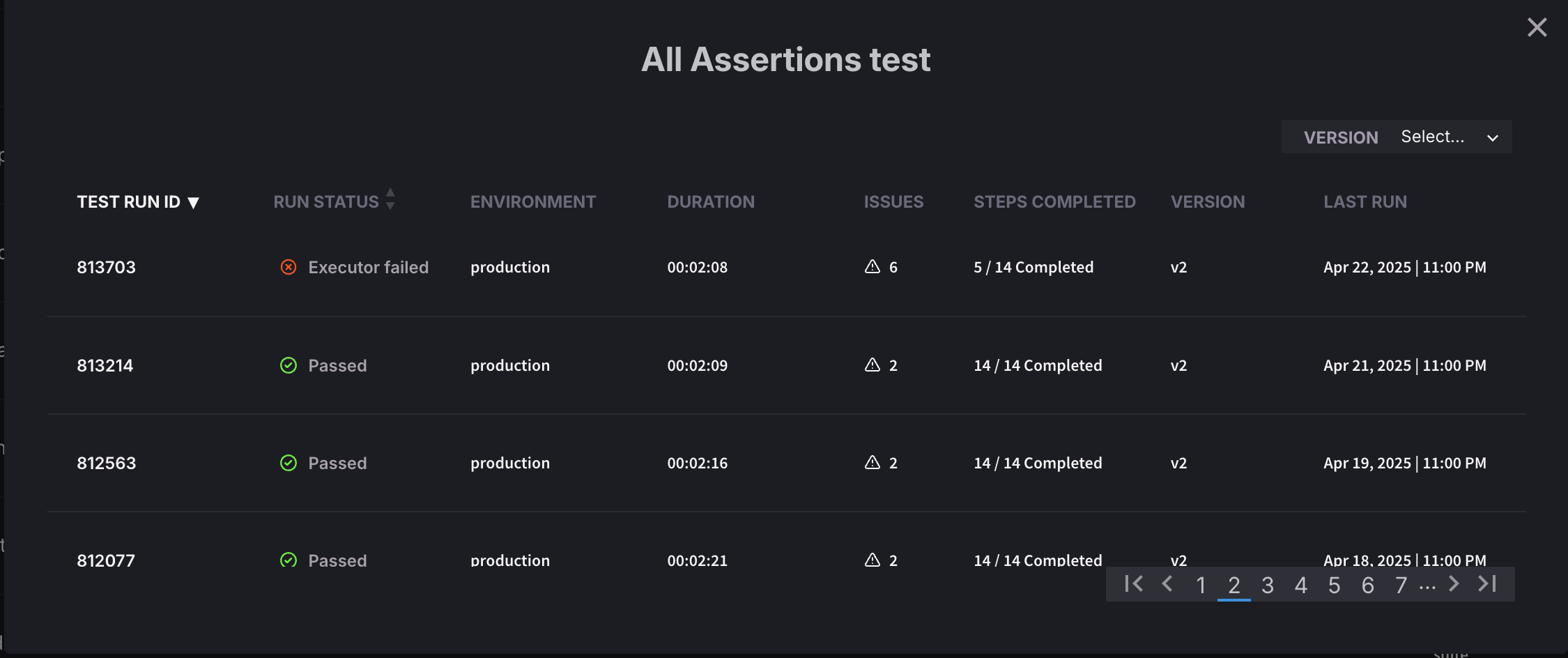
### Scroll within a scrollable region
Controls scrolling within a scrollable region or element of a page. This action allows you to navigate within overflowing content, long pages, or specific scrollable containers.
 **Options**
| Option | Description |
| ---------------- | ---------------------------------------------------------------------------------------------------------------------------- |
| **Top** | Scrolls to the top of the scrollable region |
| **Bottom** | Scrolls to the bottom of the scrollable region |
| **Co-ordinates** | Scrolls to specific X,Y coordinates within the scrollable region |
| **Target** | Optional element to scroll into view. You can either select a specific target element or scroll without targeting an element |
**Options**
| Option | Description |
| ---------------- | ---------------------------------------------------------------------------------------------------------------------------- |
| **Top** | Scrolls to the top of the scrollable region |
| **Bottom** | Scrolls to the bottom of the scrollable region |
| **Co-ordinates** | Scrolls to specific X,Y coordinates within the scrollable region |
| **Target** | Optional element to scroll into view. You can either select a specific target element or scroll without targeting an element |
### Select
Select a value from dropdown menus, select boxes, or other list interfaces. This action simulates a user choosing an option from a dropdown, allowing your test to interact with form selection elements. The system will capture both the display text and underlying value of the selected option.
 info
Click, Write, and Select are automatically detected by Harness AI Test Automation. Users need not have to select these commands from a list.
info
Click, Write, and Select are automatically detected by Harness AI Test Automation. Users need not have to select these commands from a list.
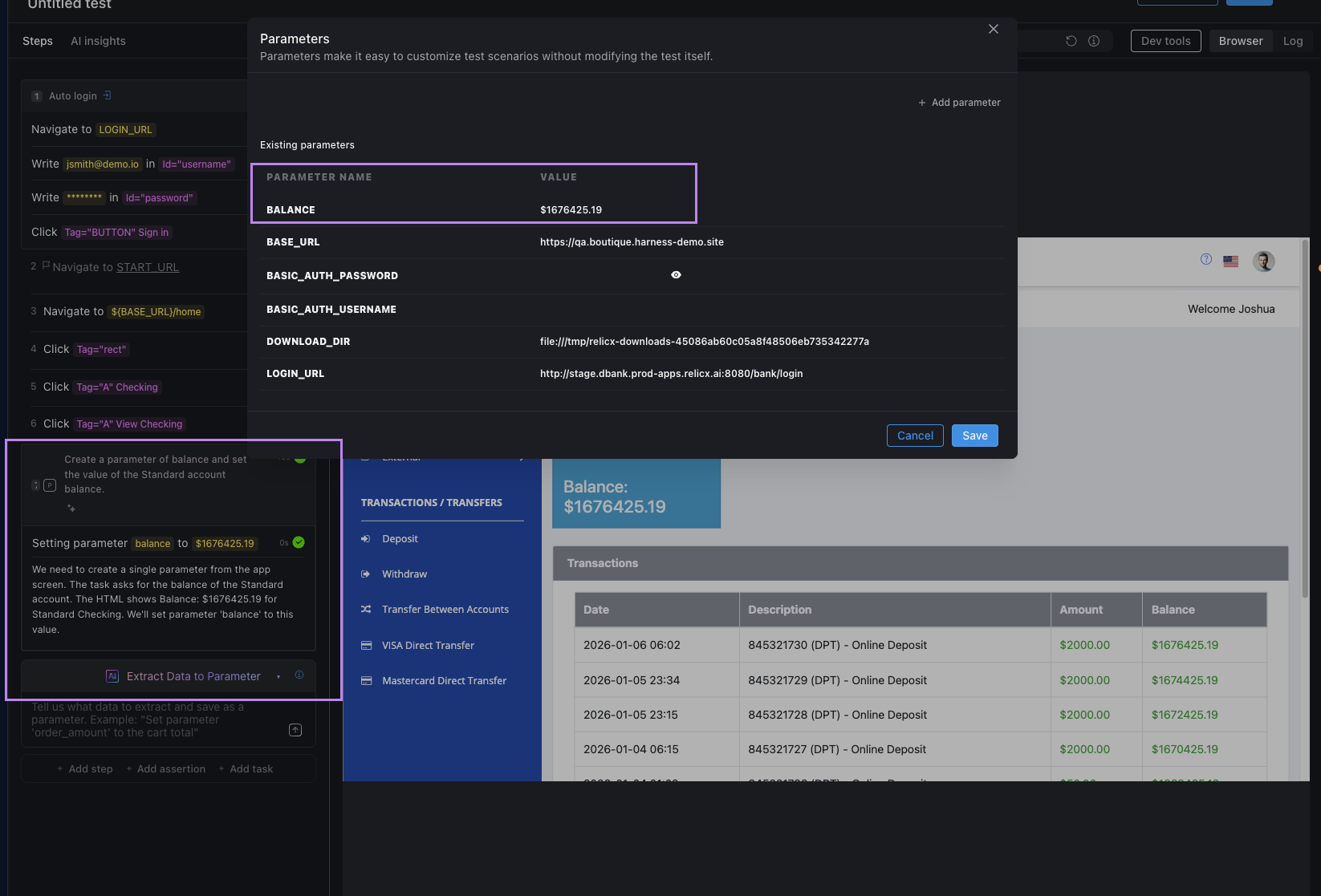
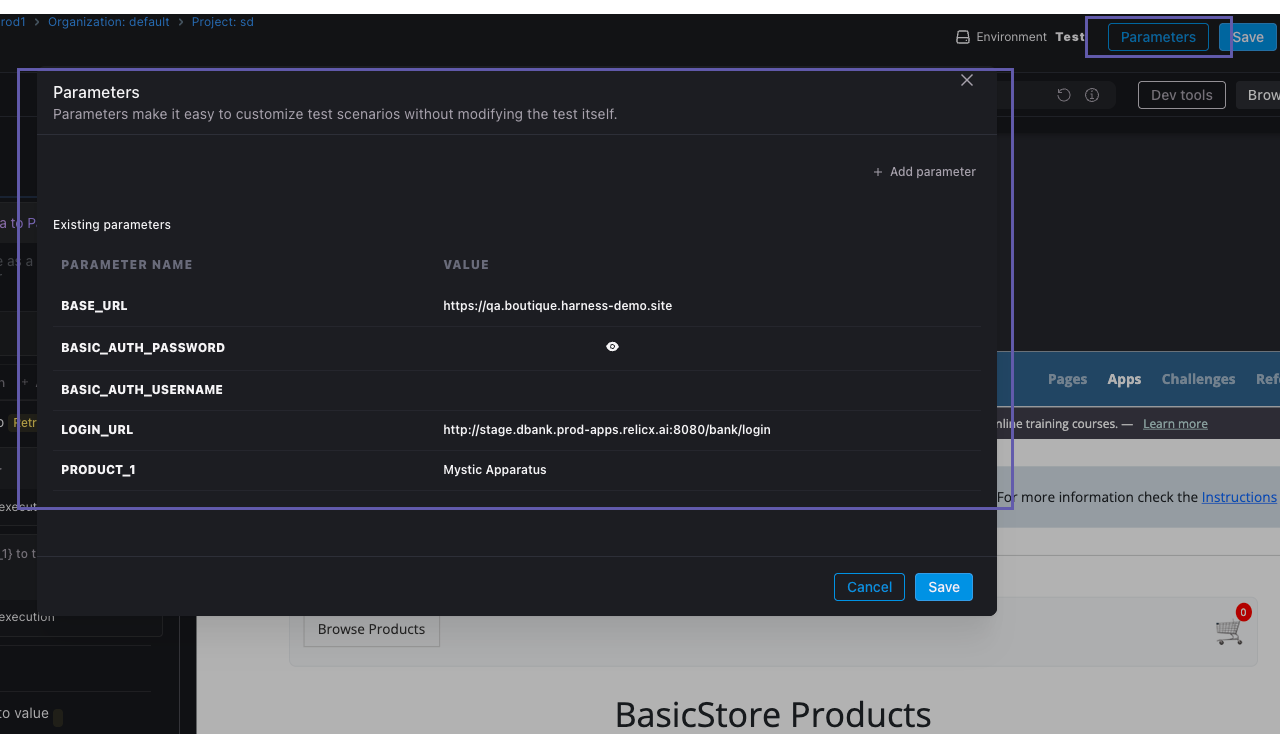
### Set parameter
Creates dynamic variables for test execution. This action allows you to define parameters that can be used throughout your test, making your tests more flexible and data-driven.
**Options**
| Option | Description |
| ------------------ | --------------------------------------------------------------------------------------------------------------------------------------------------------------------------------------------------------------- |
| **Parameter name** | Name of the parameter you want to create or update |
| **Value** | The value to assign to the parameter |
| **Scope** | Determines where the parameter is accessible: `Run time`: Available only during the current test run `App`: Available across all tests in the application `Test Suite`: Available within the current test suite |
### Set checkbox
Toggles a checkbox to the selected state. Use this action to check or uncheck form elements without simulating a click action. Determines whether to check or uncheck the element. Set to `true` to check the element or `false` to uncheck it. It works on the checkbox element you want to manipulate. Click on the appropriate element in your application.
### Set radio button
Selects a specific radio button from a group of options. Use this action to choose one option from a set of radio buttons without simulating a click action. This action sets the selected radio button to `true` while automatically setting all other radio buttons in the same group to `false`. It works on the radio button element you want to select. Click on the appropriate element in your application.
### Set parameter from target
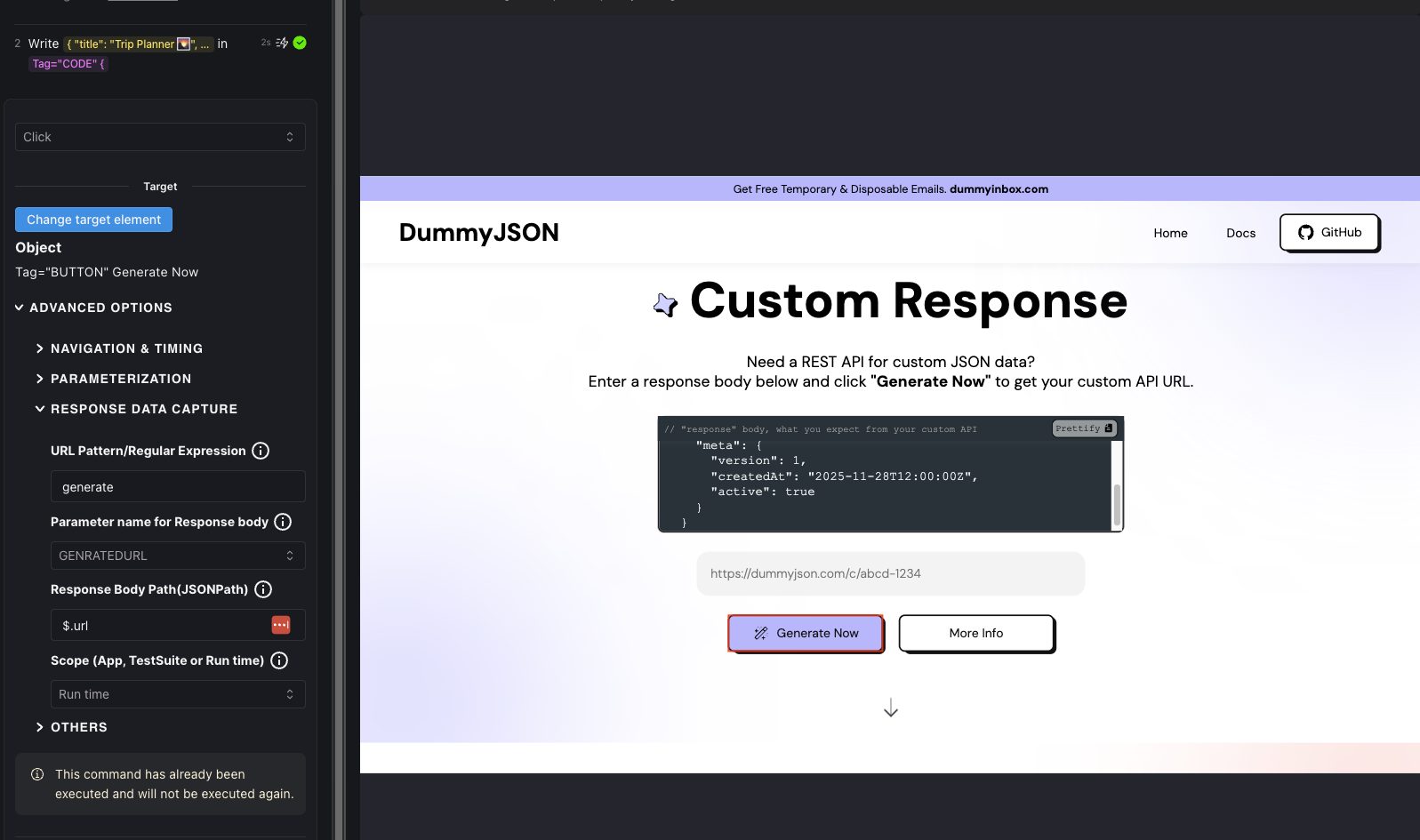
Extracts a value from an element on the page and stores it as a parameter. This action is useful for capturing dynamic values from the UI such as generated IDs, displayed text, or attribute values that you need to use in subsequent test steps.
 **Options**
| Option | Description |
| -------------------------- | --------------------------------------------------------------------------------------------------------------------------------- |
| **Parameter name** | Name of the parameter where the extracted value will be stored |
| **Scope** | Determines where the parameter is stored: `Run time`, `App`, or `Test Suite` |
| **Please select a target** | The element from which to extract the value. Click on the element in your application that contains the value you want to capture |
**Options**
| Option | Description |
| -------------------------- | --------------------------------------------------------------------------------------------------------------------------------- |
| **Parameter name** | Name of the parameter where the extracted value will be stored |
| **Scope** | Determines where the parameter is stored: `Run time`, `App`, or `Test Suite` |
| **Please select a target** | The element from which to extract the value. Click on the element in your application that contains the value you want to capture |
### Viewport
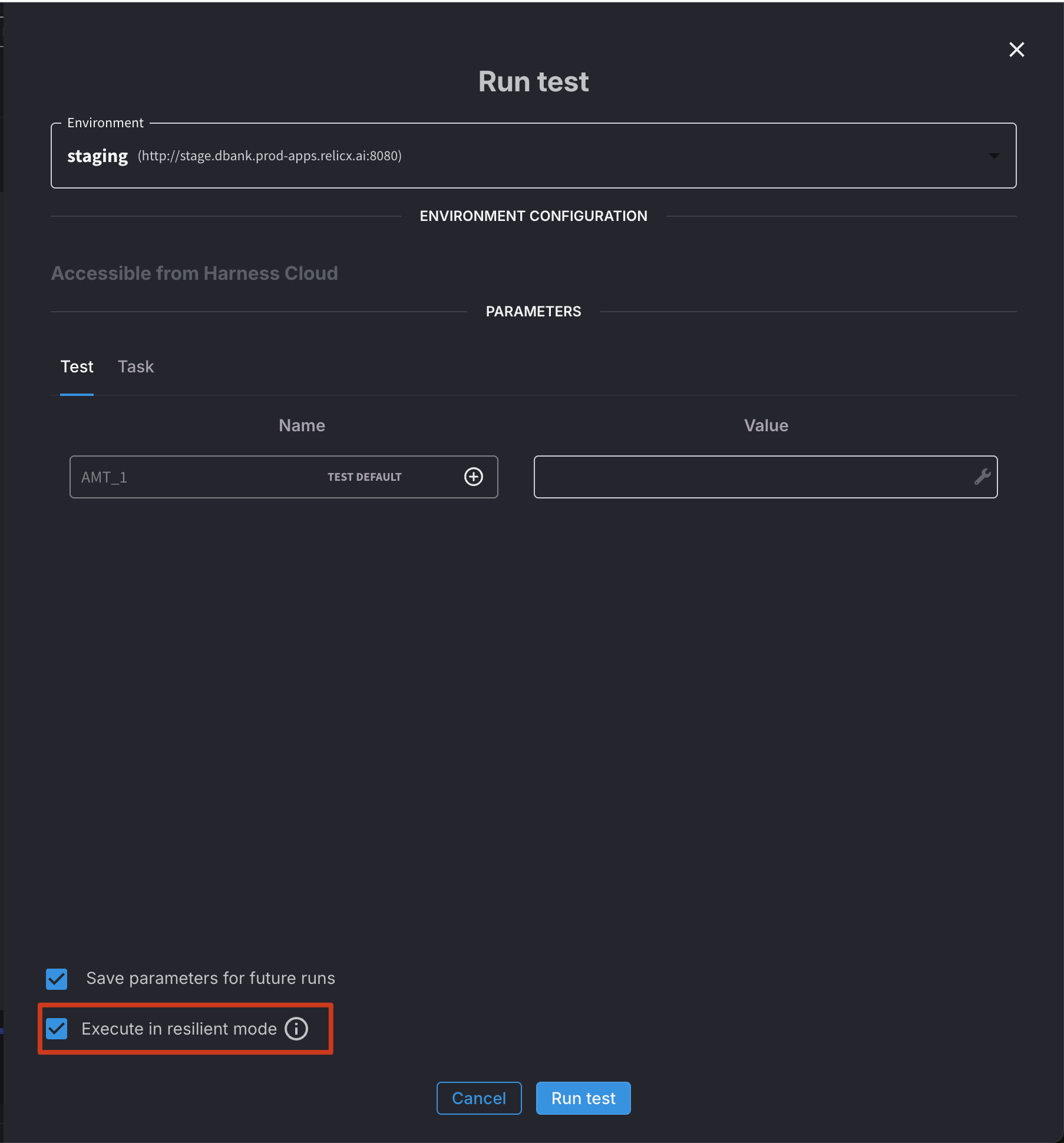
Adjusts the screen dimensions for testing responsive designs. Set the width and height of the screen to emulate different device sizes.
### Wait for time
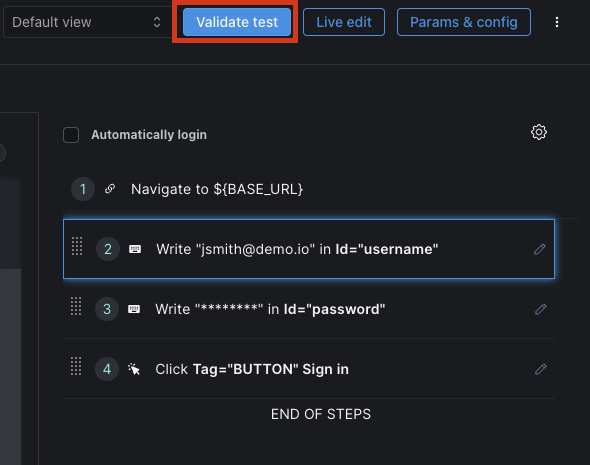
Creates a timed pause in test execution. Specify the duration in milliseconds to delay the test before proceeding to the next step. This is useful for waiting for animations to complete, giving time for background processes to finish, or creating deliberate pauses in your test flow.
### Write
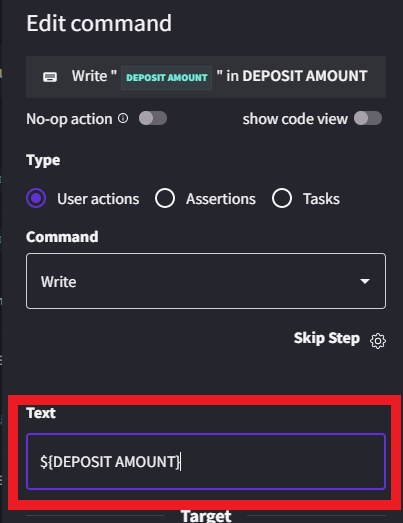
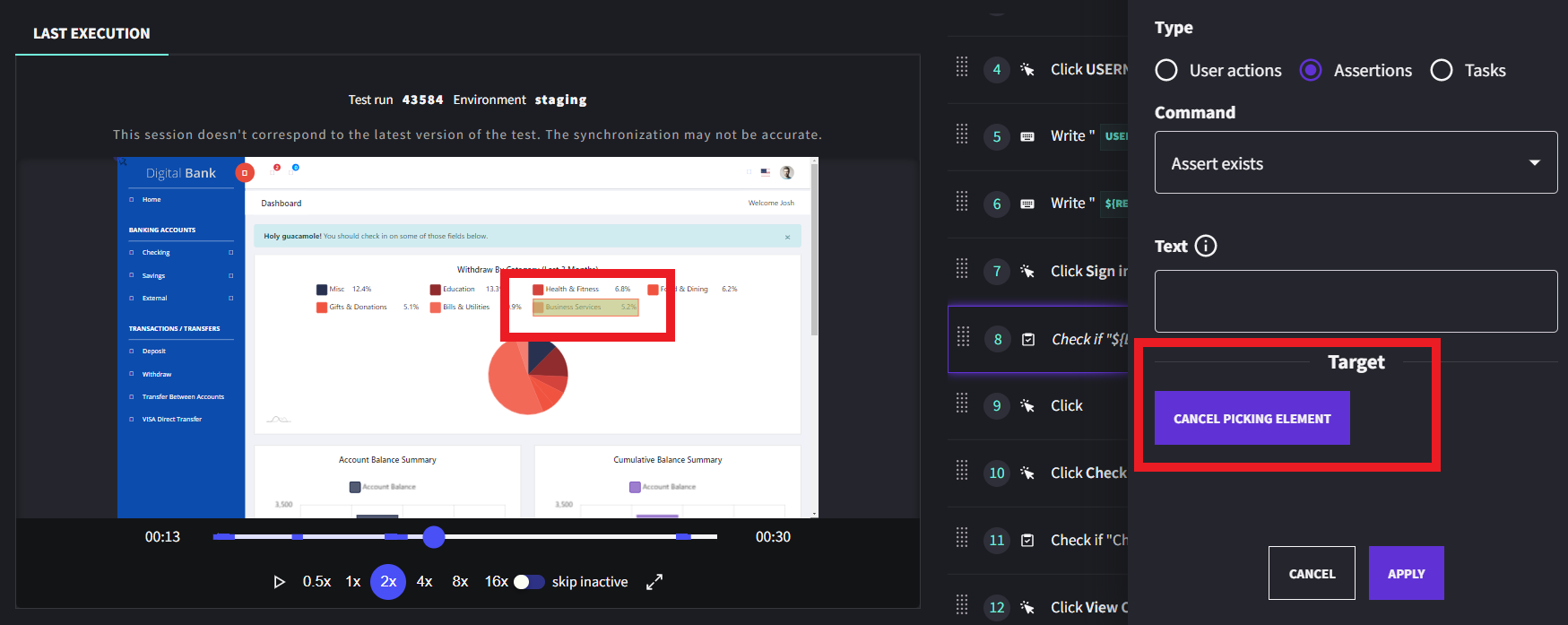
Write text in any input field, text area, or editable element in your application. This action simulates a user typing content into a field, supporting both static text and dynamic parameters. It works with standard HTML inputs, WYSIWYG editors, rich text fields, and most other editable interfaces.
> Can be parameterized directly using available parameters or by creating new ones by clicking on the `{}` button
 tip
For a basic write action, specify the text you want to input and select the appropriate input field based on your selection.
**Advanced Options**
* Response Data Capture
* Others
* **URL Pattern / Regular Expression** - Defines which network requests to capture data from following the write action
* **Parameter name for Response body** - The name of the parameter where the captured response data will be stored
* **Response Body Path (JSONPath)** - Extracts specific data from a JSON response using JSONPath syntax
* **Scope**: App, Test Suite, or Runtime - Determines the scope and accessibility of the captured parameter
{% @harness-feedback/feedback %}
tip
For a basic write action, specify the text you want to input and select the appropriate input field based on your selection.
**Advanced Options**
* Response Data Capture
* Others
* **URL Pattern / Regular Expression** - Defines which network requests to capture data from following the write action
* **Parameter name for Response body** - The name of the parameter where the captured response data will be stored
* **Response Body Path (JSONPath)** - Extracts specific data from a JSON response using JSONPath syntax
* **Scope**: App, Test Suite, or Runtime - Determines the scope and accessibility of the captured parameter
{% @harness-feedback/feedback %}