> For the complete documentation index, see [llms.txt](https://developer.harness.io/llms.txt). Markdown versions of documentation pages are available by appending `.md` to page URLs; this page is available as [Markdown](https://developer.harness.io/artifact-registry/use-artifact-registry/dependency-firewall/affected-pipelines.md).
# Affected Pipelines
Track which CI/CD pipelines use blocked dependencies, trace transitive dependency chains, and set up the Harness CLI for dependency graph generation.
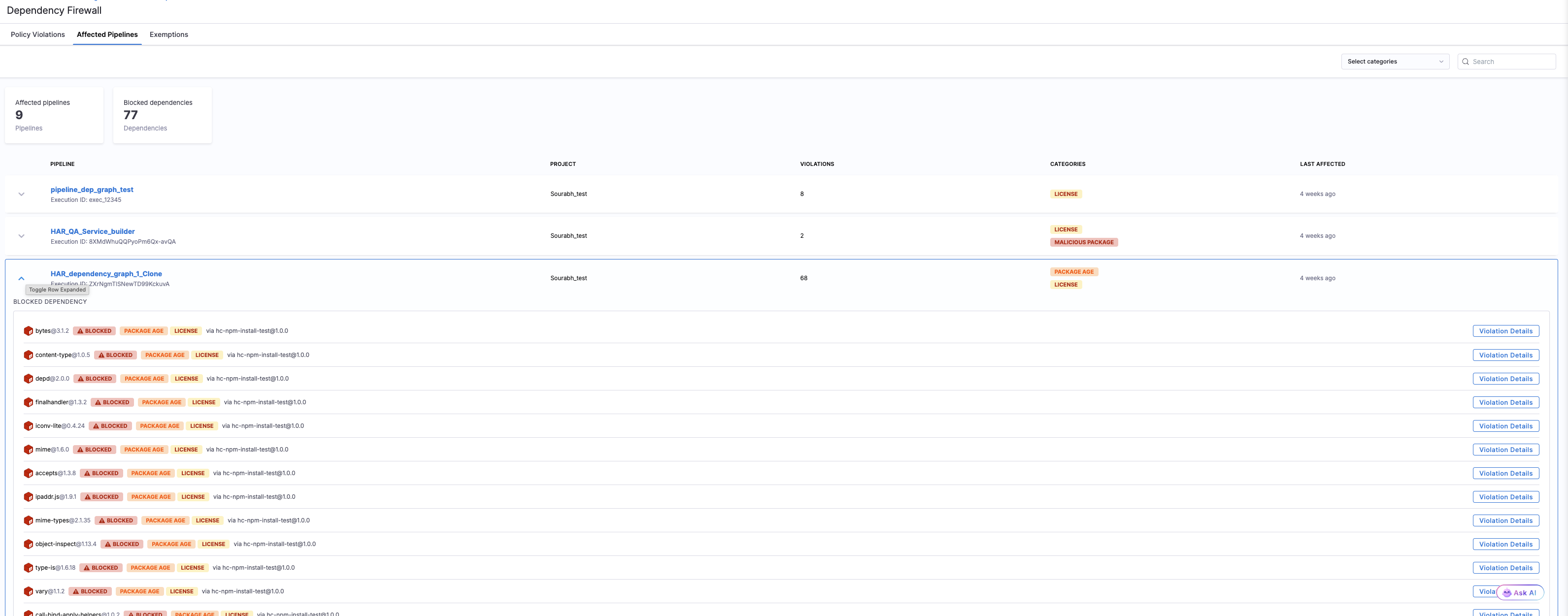
The **Affected Pipelines** tab in Dependency Firewall shows which CI/CD pipelines have encountered blocked dependencies. Use this view to identify impacted pipelines, trace transitive dependency chains back to their root package, and understand which direct dependency to update or replace.
***
### Before you begin
* **Dependency Firewall** is enabled on your upstream proxy registry. Go to [Enable Dependency Firewall](/artifact-registry/use-artifact-registry/manage-registries/configure-registry.md#enable-dependency-firewall) to set it up.
* **Harness CLI (hc)** v1.3.18 or later is installed. Go to [Install the Harness CLI](https://developer.harness.io/harness-platform/use-harness-platform/automation/cli/install) to install it.
* Your pipeline uses the `hc artifact` install wrappers instead of native install commands. Native commands (`npm install`, `mvn install`) do not generate dependency graph data.
***
### Understand the execution flow
The Harness CLI install wrappers (`hc artifact npm install`, `hc artifact mvn install`, etc.) execute a four-phase flow:
1. **Run native install:** Execute the native package manager (`npm`, `mvn`, `pip`, `dotnet`) to install dependencies through the configured upstream proxy.
2. **Generate dependency graph:** Parse the lockfile or resolution output to build a full dependency tree with transitive relationships.
3. **Upload build info:** Send the dependency graph and pipeline context to Harness via the build-info API, linking the pipeline execution to every resolved package.
4. **Handle firewall blocks:** If any package returns a 403 (blocked by Dependency Firewall), display a detailed error showing the policy violation and dependency chain.
The dependency graph resolution strategy varies by package manager:
| Package manager | Resolution method | Output parsed |
| --------------- | -------------------------------------------- | ---------------------- |
| npm | `npm install --package-lock-only` | `package-lock.json` |
| Maven | `mvn dependency:tree` | Stdout (indented tree) |
| pip | `pip install --dry-run --report report.json` | `report.json` |
| NuGet | `dotnet restore` | `project.assets.json` |
***
### Configure pipeline context
When running inside a Harness CI pipeline, the CLI automatically captures pipeline context from environment variables:
| Environment variable | Maps to |
| --------------------- | -------------------- |
| `HARNESS_PIPELINE_ID` | Pipeline identifier |
| `HARNESS_BUILD_ID` | Execution identifier |
| `HARNESS_STAGE_ID` | Stage identifier |
| `ORG_IDENTIFIER` | Organization |
| `PROJECT_IDENTIFIER` | Project |
This context links the dependency graph to the specific pipeline execution, enabling the Affected Pipelines view.
***
### View affected pipelines
Select the **Affected Pipelines** tab in the Dependency Firewall dashboard.
The summary cards show:
* **Affected pipelines:** Total number of pipelines that have encountered blocked dependencies.
* **Blocked dependencies:** Total count of blocked packages across all affected pipelines.
* **Failed policy sets:** Number of distinct policy sets that triggered violations.
The table lists each affected pipeline with:
| Column | Description |
| ----------------- | ----------------------------------------------------------------------------- |
| **Pipeline** | Pipeline name and execution ID. |
| **Project** | The project the pipeline belongs to. |
| **Violations** | Number of blocked packages in this execution. |
| **Categories** | Policy categories that triggered violations (SECURITY, PACKAGE AGE, LICENSE). |
| **Last Affected** | When this pipeline last encountered a blocked dependency. |
Expand a pipeline row to see the individual blocked packages, their versions, violation categories, and the upstream registry that evaluated them.
***
### View pipelines for a specific package
From the **Violation Details** sidebar on any blocked package, the **Affected Pipelines** section shows how many pipelines depend on this package. Select **View pipelines** to see the filtered list.
This view shows only the pipelines that depend on that specific package and version, along with the policy sets that blocked it.
***
### Trace the root package (pulled in by)
The **Pulled in By** section in the Violation Details sidebar shows which root package is downloading the vulnerable package. This tells you which of your direct dependencies is responsible for pulling in the flagged transitive dependency.
Each entry displays:
```
root-package@version → blocked-package@version
```
For example, if `bytes@3.1.2` is blocked and pulled in by two different root packages:
* `hc-npm-install-test@1.0.0` → `bytes@3.1.2`
* `tyest-1@1.0.0` → `bytes@3.1.2`
This helps you identify which root dependency to update or replace to resolve the violation.
***
### Set up dependency tracking
To populate Affected Pipelines and Pulled in By data, use the Harness CLI install wrappers in your pipeline.
#### Supported commands
| Package type | Command | Wraps |
| ------------ | ---------------------------- | ---------------- |
| npm | `hc artifact npm install` | `npm install` |
| npm | `hc artifact npm ci` | `npm ci` |
| Maven | `hc artifact mvn install` | `mvn install` |
| Python | `hc artifact pip install` | `pip install` |
| NuGet/.NET | `hc artifact dotnet restore` | `dotnet restore` |
All other subcommands are passed through to the native tool without firewall evaluation or dependency graph generation.
#### Pipeline example (npm)
```bash
# Authenticate with Harness
hc auth login \
--api-url https://app.harness.io \
--api-token $HARNESS_API_TOKEN \
--account $HARNESS_ACCOUNT_ID
# Configure npm to use your upstream proxy registry
hc registry configure npm \
--registry npm-upstream \
--org $ORG \
--project $PROJECT \
--global
# Install packages with dependency tracking and firewall evaluation
hc artifact npm install
```
#### Pipeline example (Maven)
```bash
hc auth login --api-url https://app.harness.io --api-token $HARNESS_API_TOKEN --account $HARNESS_ACCOUNT_ID
hc registry configure maven --registry maven-upstream
hc artifact mvn install
```
#### Pipeline example (Python)
```bash
hc auth login --api-url https://app.harness.io --api-token $HARNESS_API_TOKEN --account $HARNESS_ACCOUNT_ID
hc registry configure pip --registry pypi-upstream
hc artifact pip install
```
#### Pipeline example (dotnet)
```bash
hc auth login --api-url https://app.harness.io --api-token $HARNESS_API_TOKEN --account $HARNESS_ACCOUNT_ID
hc registry configure nuget --registry nuget-upstream
hc artifact dotnet restore
```
***
### Understand blocked package behavior
When the CLI encounters blocked packages during install:
1. The native install fails with HTTP 403 (Dependency Firewall blocks the package at the upstream proxy).
2. The CLI resolves the full dependency tree from the lockfile or manifest, including transitive dependencies.
3. The CLI evaluates all resolved packages against firewall policies and displays detailed results:
```
FIREWALL EVALUATION: 15 package(s) evaluated
❌ BLOCKED lodash@4.18.1
Policy Set: Firewall
Category: License | Policy: firewall-license
Blocked License: MIT
Allowed Licenses: Apache-2.0
❌ BLOCKED bytes@3.1.2
Chain: my-app@1.0.0 -> express@4.18.0 -> body-parser@1.20.0 -> bytes@3.1.2
Policy Set: Firewall
Category: PackageAge | Policy: firewall-age
✅ PASSED express@4.18.2
```
4. Build info (dependency graph with all node relationships) is uploaded to Harness regardless of whether the install succeeded or failed.
The pipeline execution appears in the **Affected Pipelines** tab even if the install fails. This gives you visibility into which pipelines are blocked and by which dependencies, enabling faster remediation.
***
### Troubleshooting My pipeline does not appear in the Affected Pipelines tab
Affected Pipelines data is only generated when you use the hc artifact install wrappers (hc artifact npm install, hc artifact mvn install, etc.). Native install commands do not upload build info. Also verify that your pipeline runs inside Harness CI where the HARNESS\_PIPELINE\_ID environment variable is set automatically.
Pulled in By shows 0 direct dependencies
The Pulled in By field requires the Harness CLI to generate and upload the dependency graph. If you use native install commands instead of hc artifact npm install (or the equivalent for your package type), the dependency graph is not generated. Switch to the hc artifact wrappers in your pipeline to populate this field.
The dependency graph shows fewer dependencies than expected
The CLI resolves dependencies from your lockfile or manifest. If no lockfile exists, the CLI generates one using the native resolution mechanism. Ensure your project has a valid package.json (npm), pom.xml (Maven), requirements.txt (pip), or .csproj (dotnet) in the working directory when the command runs.
hc artifact install wrappers return 404 registry not found for an account-level upstream registry in a Harness CI pipeline
This affects hc artifact npm install, mvn install, pip install, and dotnet restore on harness-cli versions older than v1.3.22. The CI step injects HARNESS\_ORG\_ID and HARNESS\_PROJECT\_ID for pipeline identity, and older CLI versions read those variables to scope the registry lookup. The lookup is forced to a project-scoped path, so an account-level registry returns 404 registry not found. Upgrade harness-cli to v1.3.22 or later, which no longer reads those variables for registry scoping. Project-level registries are unaffected and work on any CLI version.
***
### Next steps
* Go to [Configure Policies and Policy Sets](/artifact-registry/use-artifact-registry/dependency-firewall/configure-policies.md) to adjust the policies causing violations.
* Go to [Dependency Exemptions](/artifact-registry/use-artifact-registry/dependency-firewall/exemptions.md) to request temporary access to a blocked package while you plan remediation.
* Go to [Audit dependencies with Dependency Firewall](/artifact-registry/use-artifact-registry/artifact-registry-cli/manage-artifacts-registries.md#audit-dependencies-with-dependency-firewall) to audit a manifest or lock file before your pipeline runs.
* Go to [Manage artifacts and registries with the CLI](/artifact-registry/use-artifact-registry/artifact-registry-cli/manage-artifacts-registries.md#install-packages-with-dependency-tracking) for full CLI reference.
{% @harness-feedback/feedback %}