> For the complete documentation index, see [llms.txt](https://developer.harness.io/llms.txt). Markdown versions of documentation pages are available by appending `.md` to page URLs; this page is available as [Markdown](https://developer.harness.io/artifact-registry/use-artifact-registry/lifecycle-rules.md).

# Lifecycle Rules

Lifecycle rules automate artifact retention and cleanup in Harness Artifact Registry. You define policy-based rules that identify stale or unused artifact versions and soft-delete them on a recurring schedule, reducing storage costs without manual intervention.

{% hint style="info" %}
**FEATURE AVAILABILITY**

This feature is behind the feature flag `HAR_ARTIFACT_LIFECYCLE_POLICY`. Contact [Harness Support](mailto:support@harness.io) to enable it.
{% endhint %}

***

### Rule types <a href="#rule-types" id="rule-types"></a>

Harness supports two lifecycle rule types:

* **Cleanup Rule:** Soft-deletes artifact versions that match your cleanup criteria. Deleted artifacts remain recoverable during the configured recovery period.
* **Retention Rule:** Protects matching artifacts from all deletion types, including cleanup rules, manual soft delete, and manual hard delete. Retention rules are always evaluated first, regardless of rule order. A retention rule always overrides any deletion attempt.

***

### How lifecycle rules work <a href="#how-lifecycle-rules-work" id="how-lifecycle-rules-work"></a>

A lifecycle rule is a reusable policy that you create at the account, organization, or project level and attach to one or more registries. Rules do nothing until explicitly attached to a registry.

At the start of a cleanup rule execution run, the system:

1. Fetches all registries attached to the rule.
2. Scans artifact versions in each registry against the cleanup criteria.
3. Applies any matching retention rules first and removes protected artifacts from the candidate set.
4. Soft-deletes remaining candidates that satisfy **all** enabled criteria.
5. Records the execution result with a complete audit trail.

{% hint style="info" %}
**ALL DELETIONS ARE SOFT DELETES**

There is no hard-delete option in lifecycle rules. Deleted artifacts remain recoverable for the recovery period set in **Default Settings** > **Artifact Registry** at the account level. Go to [Delete Artifacts](/artifact-registry/use-artifact-registry/manage-artifacts/soft-delete.md) to understand how soft-delete and recovery work.
{% endhint %}

***

### Rule creation <a href="#rule-creation" id="rule-creation"></a>

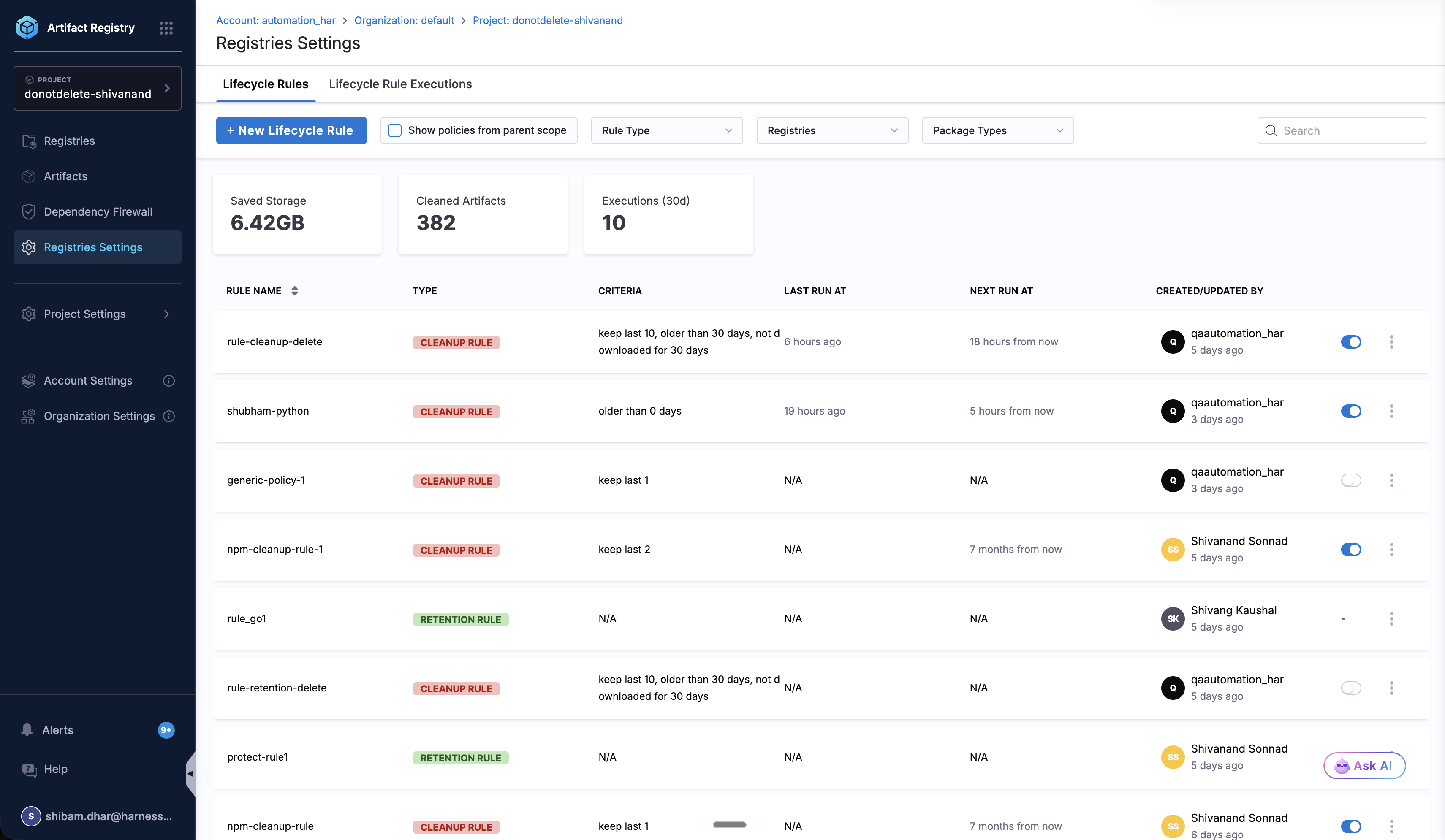
Go to **Artifact Registry** > **Registries Settings** > **Lifecycle Rules** and select **+ New Lifecycle Rule**.

* Go to [Create a cleanup rule](/artifact-registry/use-artifact-registry/lifecycle-rules/create-cleanup-rule.md) to set up automated artifact deletion based on cleanup criteria.
* Go to [Create a retention rule](/artifact-registry/use-artifact-registry/lifecycle-rules/create-retention-rule.md) to protect artifacts from deletion.

<figure><img src="/files/jyno6n9MRjlxsLlL0jzV" alt="Lifecycle rules list showing rule names, types, criteria, run times, and toggle switches"><figcaption><p>Lifecycle Rules tab with active rules and execution metrics</p></figcaption></figure>

***

### Key concepts <a href="#key-concepts" id="key-concepts"></a>

* **Cleanup criteria:** You must select at least one criterion (keep last N versions, older than X days, or not downloaded in X days). When multiple criteria are enabled, **all** conditions must be true for deletion (AND logic).
* **Pattern filters:** Optionally narrow a rule to specific packages or versions using wildcard patterns (for example, `frontend-*`, `*-SNAPSHOT`). Pattern filter fields change based on the selected package type. For example, Docker uses name and tag patterns, while Maven uses group ID, artifact name, and version patterns.
* **Scope:** Rules are created at the account, organization, or project level and attached to all registries in scope or to specific registries. Selecting **All Registries** is dynamic and automatically includes registries created after the rule. Parent-scope rules are not applied to child registries by default; enable **Show policies from parent scope** to view and attach them.
* **Schedule:** Cleanup rules run on a cron schedule (daily, monthly, yearly, or custom). Retention rules do not have a schedule; they are evaluated passively whenever a cleanup rule runs.

{% hint style="warning" %}
**IMMUTABILITY DOES NOT PREVENT DELETION**

If a registry has a Prevent Overwrite (immutability) policy, lifecycle cleanup rules can still delete artifacts from that registry. Immutability prevents content from being replaced, not removed. Use a retention rule to protect specific artifacts from cleanup.
{% endhint %}

{% hint style="info" %}
**UPSTREAM PROXY CACHE EXPIRY IS SEPARATE**

Lifecycle rules apply to artifacts published to your registries. Upstream proxy cache expiry (TTL-based cleanup of cached artifacts from upstream sources) is configured per-registry in the upstream proxy settings and operates independently.
{% endhint %}

***

### Rule management <a href="#rule-management" id="rule-management"></a>

#### Enable or disable a rule <a href="#enable-or-disable-a-rule" id="enable-or-disable-a-rule"></a>

Each rule has a toggle switch in the rules list. Use it to pause a rule without deleting it. A disabled rule retains its configuration and attachment but does not execute on schedule. Toggle it back on to resume scheduled executions.

{% hint style="info" %}
**RETENTION RULES CANNOT BE DISABLED**

Retention rules do not have a toggle switch. To stop a retention rule from protecting artifacts, you must delete it.
{% endhint %}

#### Edit or delete a rule <a href="#edit-or-delete-a-rule" id="edit-or-delete-a-rule"></a>

Select the three-dot menu (**⋮**) on a rule row to access **Edit** and **Delete** options. Cleanup rules also show a **Dry Run** option. Deleting a rule removes it and all its registry attachments. Artifacts that were already soft-deleted by previous executions remain recoverable for the configured recovery period.

<figure><img src="/files/jxePCciGZBYp4gDVddT0" alt="Three-dot actions menu on a lifecycle rule showing Edit, Delete, and Dry Run options"><figcaption><p>Rule actions menu with Edit, Delete, and Dry Run options</p></figcaption></figure>

***

### Use rules from parent scope <a href="#use-rules-from-parent-scope" id="use-rules-from-parent-scope"></a>

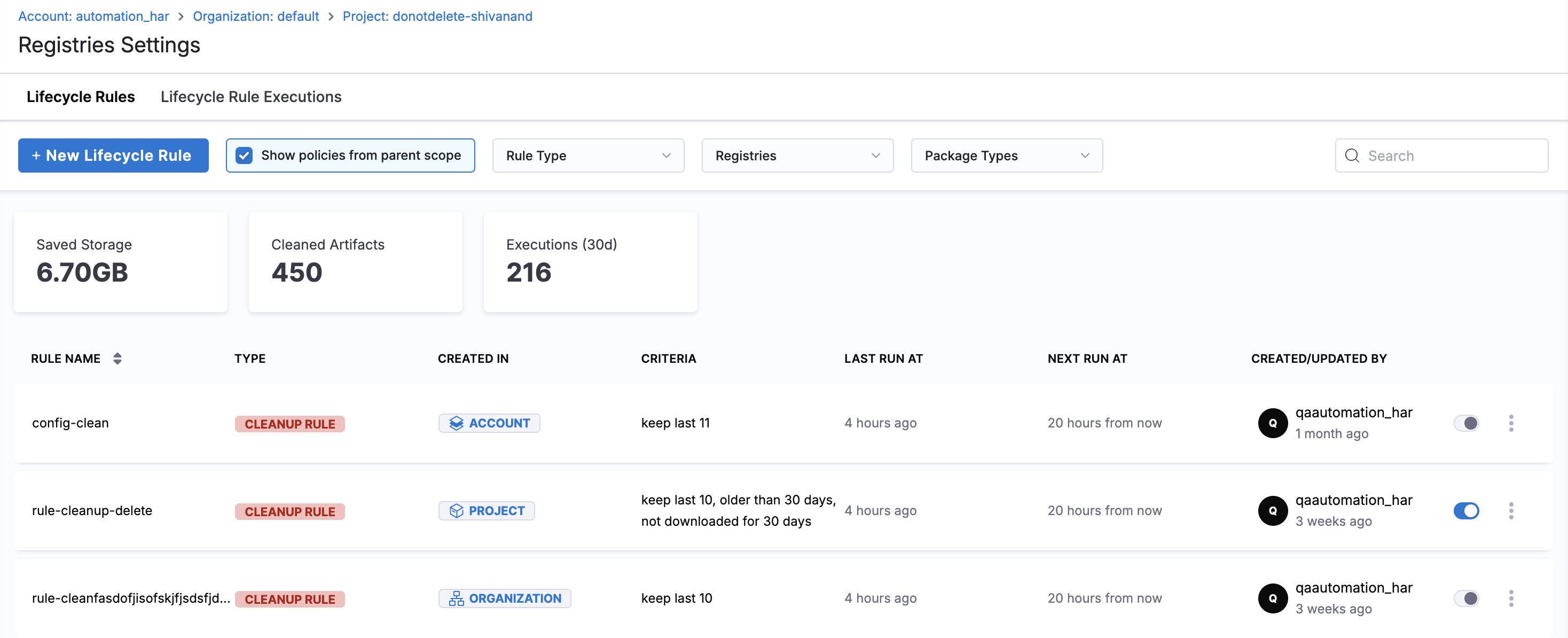
Lifecycle rules created at a parent scope (account or organization) can be applied at child scopes (organization or project). The **Created In** column always shows where each rule was originally created.

**Default view (checkbox unchecked):**

The rules list shows:

* All rules created at the current scope (for example, project-level rules)
* Parent scope rules (account or organization) that are **already applied** for this scope

**Show policies from parent scope (checkbox checked):**

Select **Show policies from parent scope** to additionally see parent scope rules that are **not yet applied** for this scope. This allows a project admin to find rules created by an account admin and apply them to their registries.

<figure><img src="/files/RgTeeJ64DwIXlZP6KSkk" alt="Lifecycle Rules tab with Show policies from parent scope checked, showing rules from Account, Organization, and Project scopes"><figcaption><p>Lifecycle Rules with parent scope policies visible</p></figcaption></figure>

**Edit restrictions:**

When using a rule from a parent scope, the child scope can only edit which registries the rule applies to. Criteria, schedule, and other settings cannot be changed at the child scope. The inheritance icon in the table indicates which rules come from a parent scope.

**Execution visibility:**

Execution details follow a top-down model:

* A parent scope (account) can see execution entries from all child scopes using that rule. Use the "show from children scope" toggle to view artifacts deleted at child levels.
* A child scope (project) can only see entries from its own scope, even if the rule is owned by a parent scope.

#### Filter the rules list <a href="#filter-the-rules-list" id="filter-the-rules-list"></a>

Use the toolbar filters to narrow the view:

* **Rule Type:** Cleanup Rule or Retention Rule.
* **Registries:** Filter by specific registry.
* **Package Types:** Filter by package format.

***

### Preview and dry run <a href="#preview-and-dry-run" id="preview-and-dry-run"></a>

{% hint style="info" %}
**RUN A DRY RUN BEFORE ACTIVATING ANY CLEANUP RULE**

A dry run shows exactly which artifacts would be deleted without making any changes. This helps you validate that your criteria and filters are correct before the rule executes on schedule.
{% endhint %}

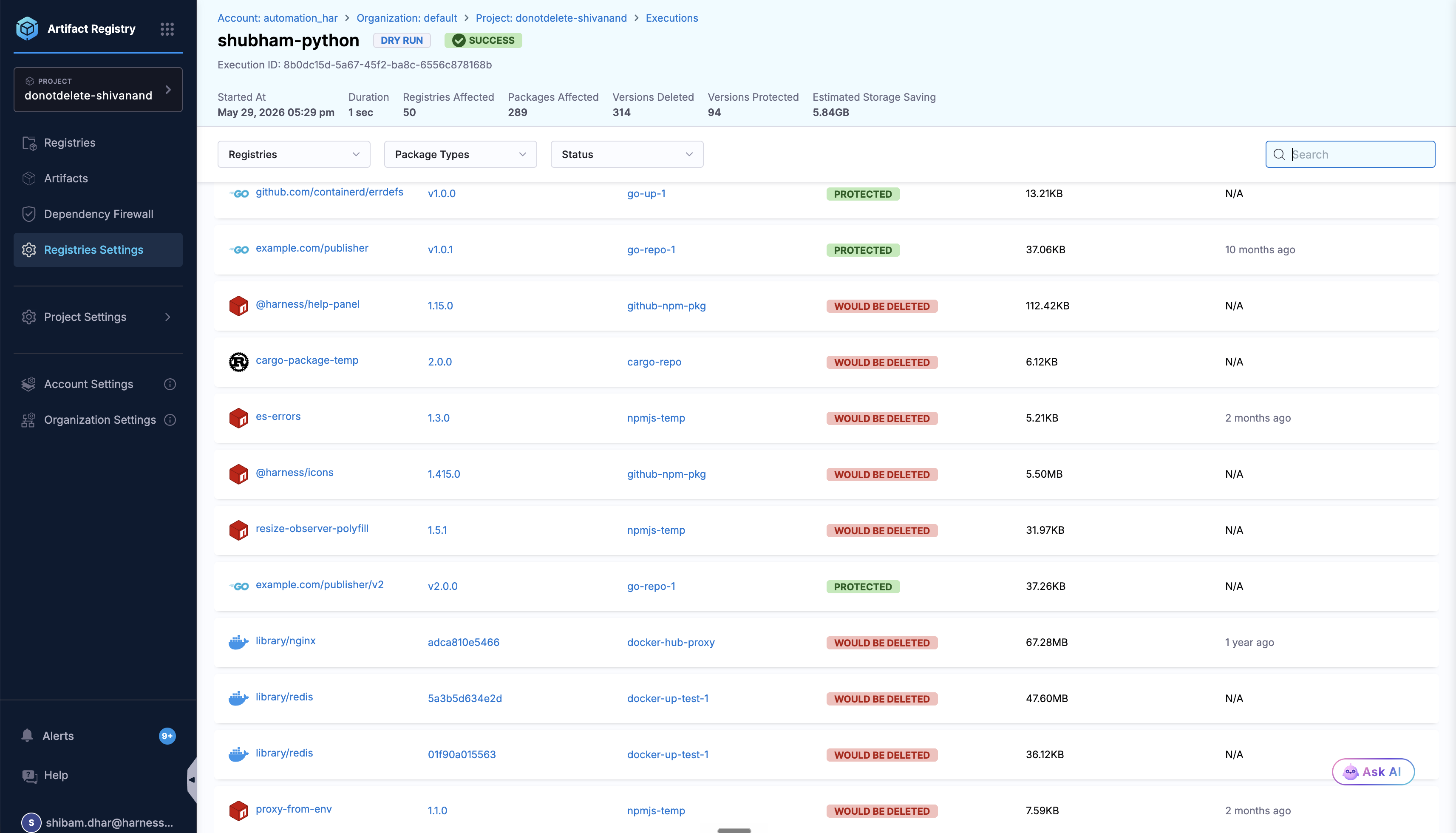
Use **Dry Run** from the rule actions menu. Dry run results appear in the **Lifecycle Rule Executions** tab alongside scheduled executions. The dry run detail view displays:

* Total artifacts scanned.
* Number of artifacts that would be deleted.
* Storage that would be reclaimed.
* Packages affected.
* A detailed table of each artifact version, including size, creation date, and last download date.

Dry runs use identical evaluation logic to a real execution but do not mutate any data. The results show each artifact with a status of **WOULD BE DELETED** or **PROTECTED**.

<figure><img src="/files/f5rHUkSroTkDpvHh25DV" alt="Dry run execution detail showing metrics and artifact table with WOULD BE DELETED and PROTECTED statuses"><figcaption><p>Dry run execution detail: artifact-level outcomes with estimated storage saving</p></figcaption></figure>

***

### Execution history <a href="#execution-history" id="execution-history"></a>

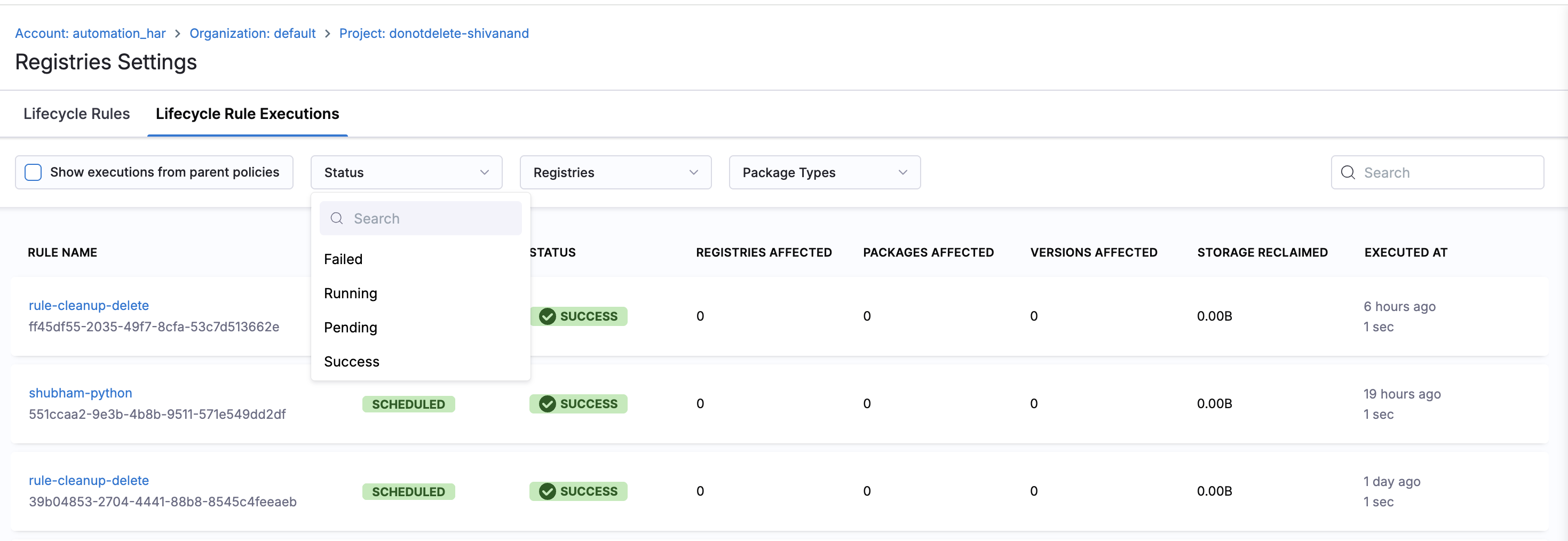
The **Lifecycle Rule Executions** tab provides a full audit trail of every rule run. Each execution record includes:

* Rule name and target registry.
* Trigger type (scheduled or dry run).
* Status (pending, running, success, or failed). The pending status is a brief transitional state between task creation and execution pickup and is rarely visible.
* Registries affected, packages affected, versions deleted, and storage reclaimed.

You can filter executions by:

* **Status:** Failed, Running, Pending, or Success.
* **Registries:** Filter by specific registry.
* **Package Types:** Filter by package format.

Select **Show executions from parent policies** to include executions from rules inherited from a higher scope.

<figure><img src="/files/Z3GmX7JzU3PcWRnptS3y" alt="Lifecycle Rule Executions tab showing execution history with status, registries affected, versions affected, and storage reclaimed"><figcaption><p>Lifecycle Rule Executions tab with status filters</p></figcaption></figure>

***

### Notifications <a href="#notifications" id="notifications"></a>

You can receive alerts when lifecycle rule executions complete. Artifact Registry supports two notification events:

* **Lifecycle Policy Execution Completed:** Triggers when a scheduled cleanup rule finishes executing.
* **Lifecycle Policy Dry Run Execution Completed:** Triggers when a dry run finishes.

Go to [Centralised notification](/harness-ai/use-harness-platform/notifications-alerts-and-banners/notifications/centralised-notification.md#artifact-registry-notifications) to configure notification rules for Artifact Registry events.

***

### Next steps <a href="#next-steps" id="next-steps"></a>

* Go to [Create a cleanup rule](/artifact-registry/use-artifact-registry/lifecycle-rules/create-cleanup-rule.md) to automate artifact deletion.
* Go to [Create a retention rule](/artifact-registry/use-artifact-registry/lifecycle-rules/create-retention-rule.md) to protect critical artifacts.
* Go to [Delete Artifacts](/artifact-registry/use-artifact-registry/manage-artifacts/soft-delete.md) to understand soft-delete recovery and retention settings.
* Go to [Configure a Registry](/artifact-registry/use-artifact-registry/manage-registries/configure-registry.md) to review registry-level settings.