> For the complete documentation index, see [llms.txt](https://developer.harness.io/llms.txt). Markdown versions of documentation pages are available by appending `.md` to page URLs; this page is available as [Markdown](https://developer.harness.io/artifact-registry/use-artifact-registry/lifecycle-rules/create-retention-rule.md).
# Create a retention rule
Create a lifecycle retention rule to protect specific artifacts from all cleanup rules.
A retention rule protects matching artifacts from all deletion types, including cleanup rules, manual soft delete, and manual hard delete. Retention rules are always evaluated first, regardless of rule order.
{% hint style="warning" %}
**PROTECTION APPLIES TO ALL DELETION TYPES**
Any artifact that matches a retention rule cannot be deleted by any method. This includes scheduled cleanup rules, manual soft delete from the UI, and manual hard delete. To delete a protected artifact, you must first remove or disable the retention rule protecting it.
{% endhint %}
***
### Before you begin
* **Artifact Registry access:** Project Admin or Artifact Registry Administrator role. Go to [RBAC in Harness](/harness-platform/3.0/harness-platform-resources/platform-access-control/rbac-in-harness.md) to configure roles.
* **At least one registry:** You need an existing registry to attach the rule to. Go to [Create a Registry](/artifact-registry/use-artifact-registry/manage-registries/create-registry.md) to set one up.
***
### Name the rule
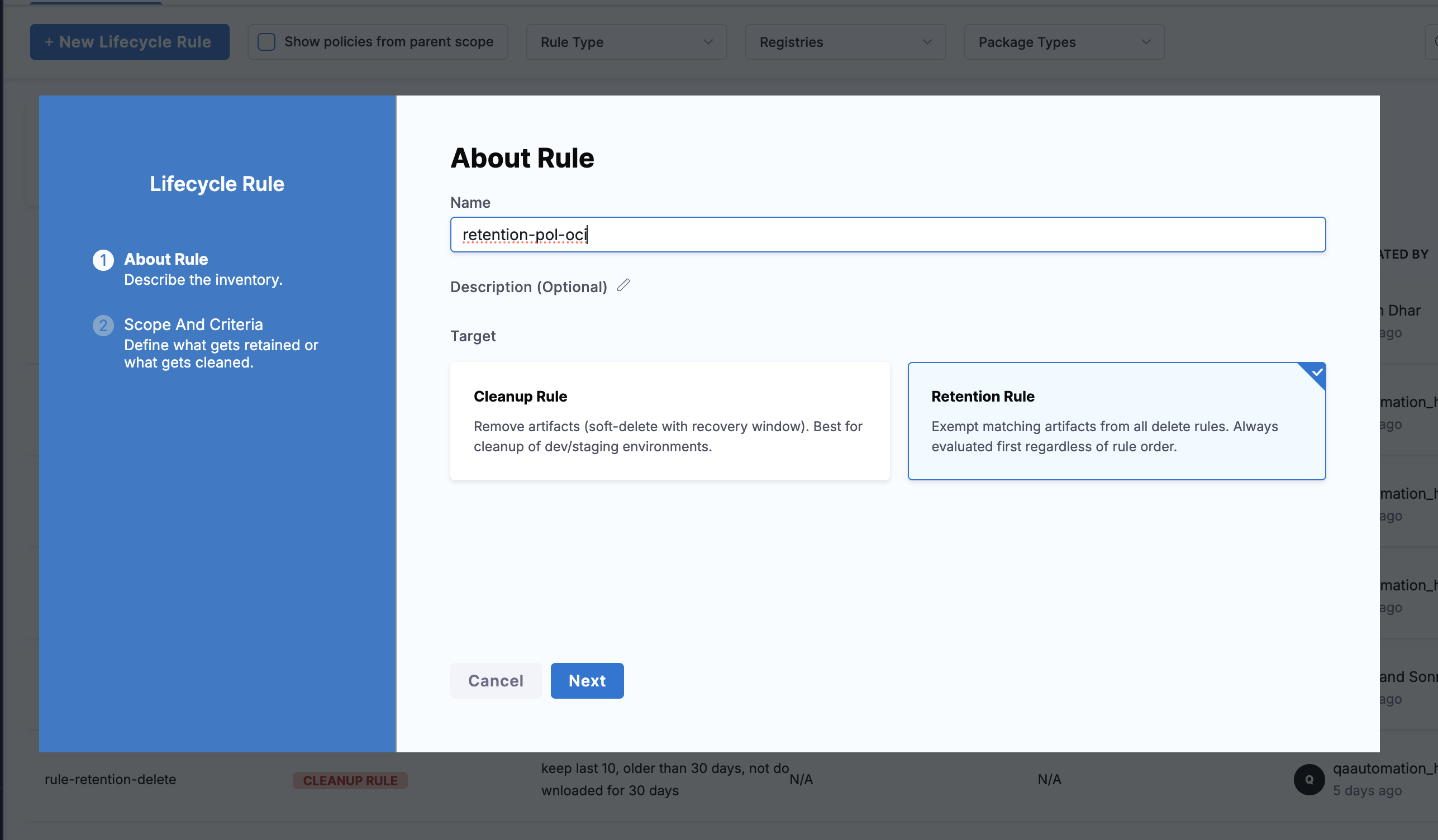
1. Go to **Artifact Registry** > **Registries Settings** > **Lifecycle Rules**.
2. Select **+ New Lifecycle Rule**.
3. Enter a **Name** for the rule.
4. Add a **Description** (optional).
5. Under **Target**, select **Retention Rule**.
6. Select **Next**.
Step 1: Name the rule and select Retention Rule as the target
***
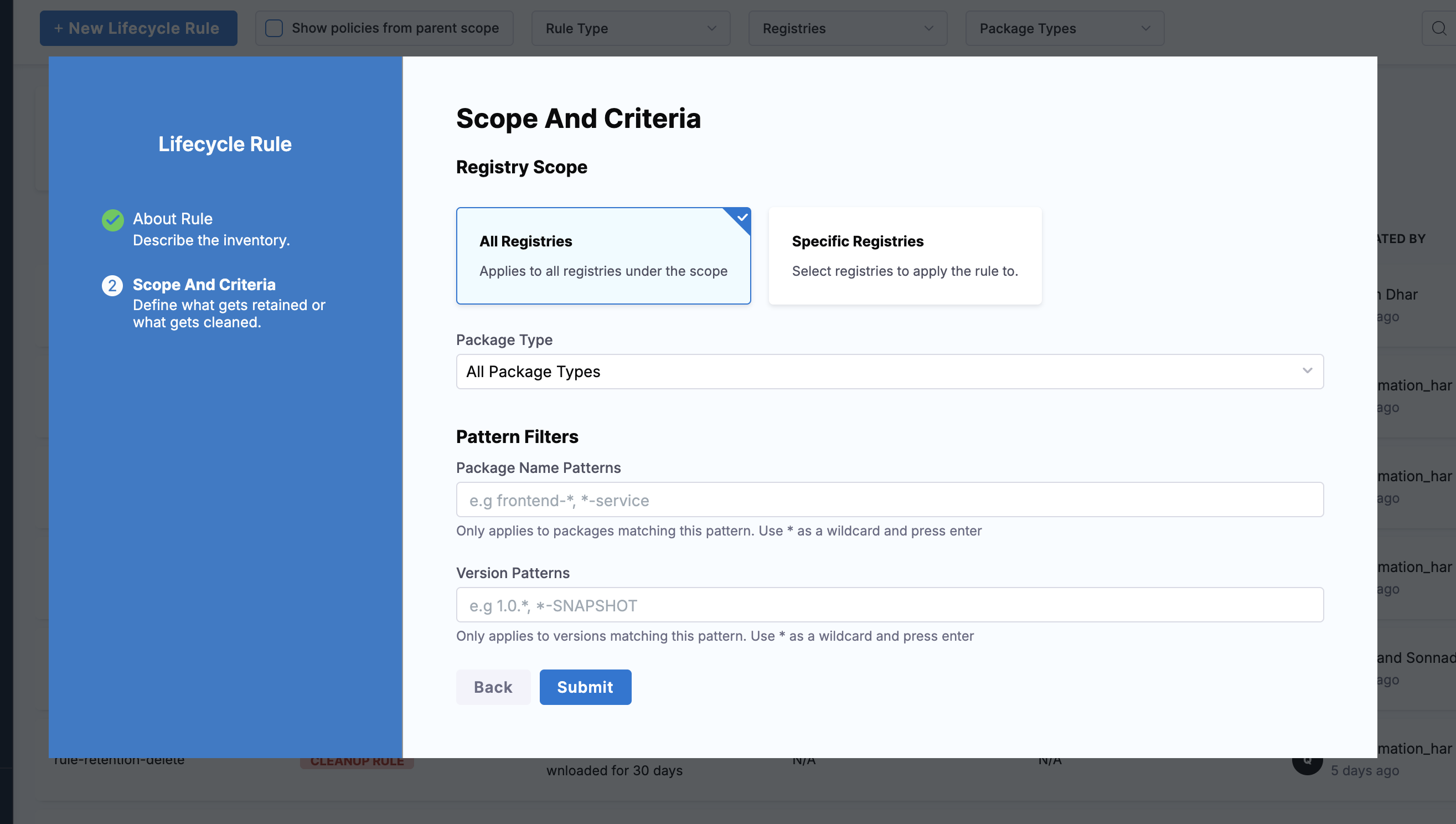
### Configure scope and criteria
Configure which artifacts to protect. Retention rules do not have retention criteria or a schedule because they are always evaluated whenever a cleanup rule executes.
Step 2: Define scope and pattern filters for the retention rule
#### Registry scope
Select which registries this rule protects:
* **All Registries:** Applies to all registries under the current scope.
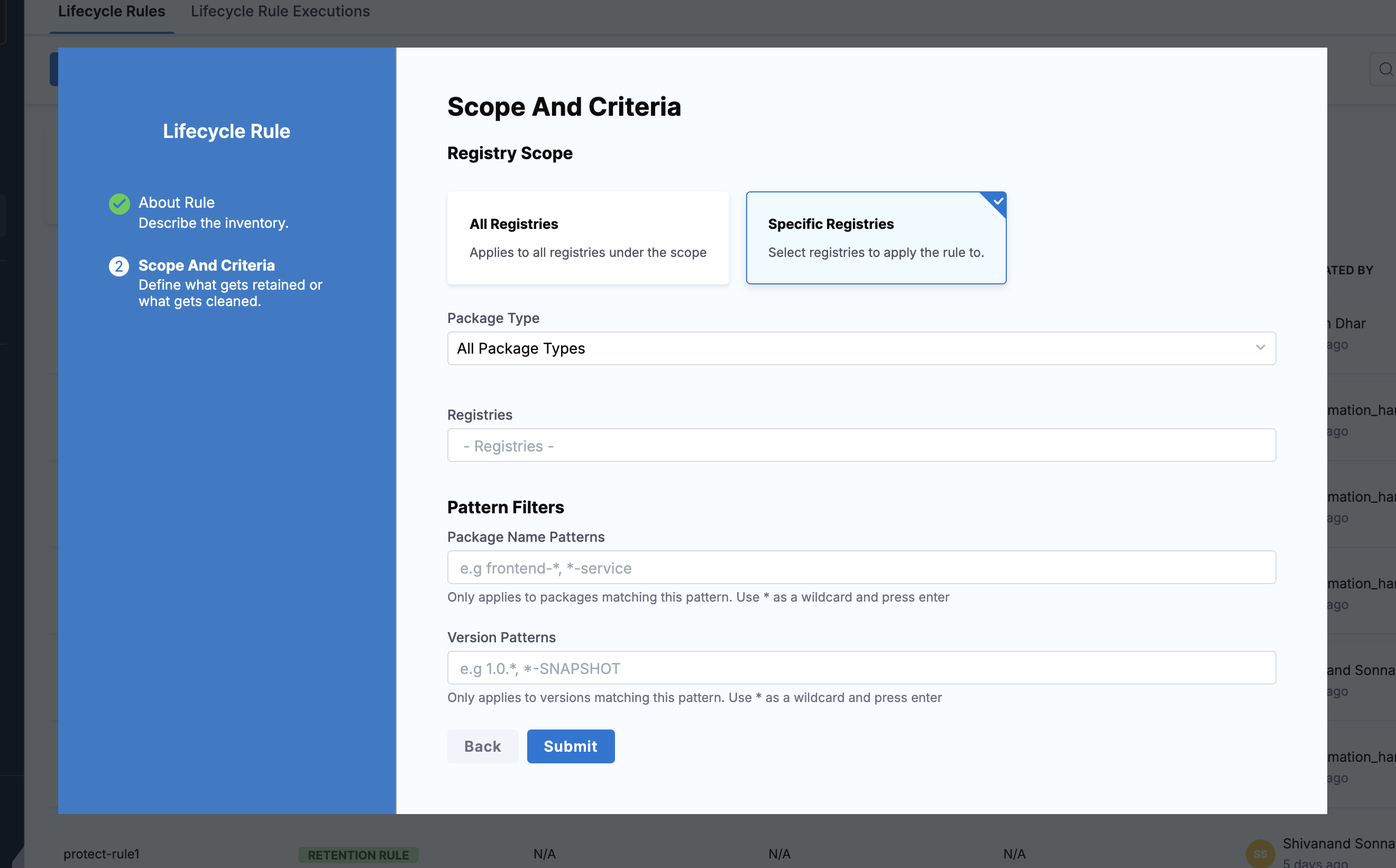
* **Specific Registries:** Select individual registries. When you choose this option, a **Registries** field appears where you search and select registries.
Specific Registries option with registry selector
#### Package type
Select **All Package Types** or choose a specific format to narrow the protection scope.
#### Pattern filters
Optionally restrict which packages and versions are protected:
* **Package Name Patterns:** Wildcard patterns for package names (for example, `*-release`, `core-*`). Use `*` as a wildcard and press enter to add multiple patterns.
* **Version Patterns:** Wildcard patterns for version strings (for example, `v*.*.*`, `*-stable`). Use `*` as a wildcard and press enter to add multiple patterns.
Select **Submit** to create the retention rule.
***
### Retention rule evaluation
When a cleanup rule executes, the system:
1. Identifies deletion candidates based on the cleanup rule criteria.
2. Checks all applicable retention rules against those candidates.
3. Removes any protected artifacts from the deletion set.
A retention rule does not run on its own schedule. It is applied automatically whenever a cleanup rule targets the same registries.
#### Protected artifact indicator
Artifacts protected by a retention rule display a **Protected** status badge. Hover over the badge to see which rule is protecting the artifact (for example, "Protected by `my-retention-rule`"). This helps you identify which rule to modify or disable if you need to delete the artifact.
***
### Next steps
* Go to [Lifecycle rules overview](/artifact-registry/use-artifact-registry/lifecycle-rules.md) to understand the full evaluation flow.
* Go to [Create a cleanup rule](/artifact-registry/use-artifact-registry/lifecycle-rules/create-cleanup-rule.md) to set up automated artifact deletion.
{% @harness-feedback/feedback %}