> For the complete documentation index, see [llms.txt](https://developer.harness.io/llms.txt). Markdown versions of documentation pages are available by appending `.md` to page URLs; this page is available as [Markdown](https://developer.harness.io/artifact-registry/use-artifact-registry/manage-registries/delete-registry.md).
# Delete Registries
Delete an artifact registry from the project UI, including soft and permanent delete.
{% hint style="info" %}
**FEATURE FLAG**
Soft-delete (the default delete behavior described below) is behind the feature flag `HAR_SOFT_DELETE_SUPPORT`. Contact [Harness Support](mailto:support@harness.io) to enable it. Without the flag, the **Permanently delete** path is the only way to remove a registry.
{% endhint %}
This procedure removes an artifact registry from the project. By default, Harness **soft-deletes** the registry: it moves off the **Available** tab on **Artifact Registries** and appears under **Deleted**, where you can restore it or delete it permanently until your retention policy applies. **Soft-deleting a registry applies to everything inside it in one step:** every package, image, and version stored in that registry is soft-deleted together with the registry row (you do not keep artifacts in **Available** while only the registry row is deleted).
{% hint style="warning" %}
Permanently deleting a registry removes all packages, images, versions, and other artifacts it contains in one step. That action cannot be undone through the **Deleted** tab. Confirm the scope before you proceed.
{% endhint %}
### Delete from the registries list
To delete a registry from the main list view, perform the following steps:
1. Go to **Artifact Registries** (or **Registries** in the sidebar).
2. Find the registry, open the row menu (⋮) on the right, and select **Delete**.
3. In the confirmation dialog, type the registry name when prompted. For a soft delete, keep **Permanently delete** cleared. Select **Permanently delete** when you want immediate removal through the permanent path described in the warning above.
Delete a registry from the registries list
### Delete from registry details
To delete from within the registry details page, perform the following steps:
1. Open the registry you want to remove.
2. Select the menu (⋮) next to **Setup Client**, then **Delete**.
3. Complete the confirmation dialog as described above.
Delete a registry from the registry details page
### Soft-deleted registries
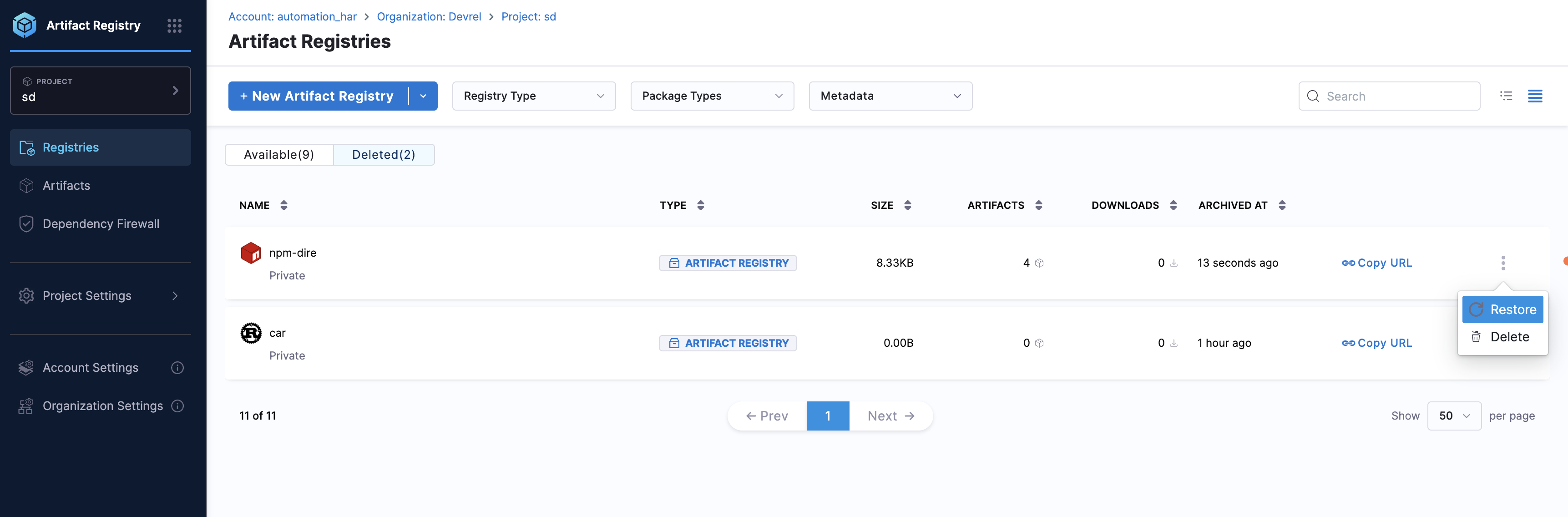
After a soft delete, open **Registries** and select the **Deleted** tab. This view lists the **registry** itself - one row per soft-deleted registry. Use the row menu (⋮) to **Restore** or **Delete** (permanent removal).
Deleted tab: open the row menu to restore or permanently delete
Soft-deleted **packages**, **versions**, and other artifact content appear on the **Artifacts** page under **Deleted** (and in scoped views inside a registry or package). **Artifact Registries** → **Deleted** lists the registry row only. For that flow, go to [Manage deleted artifacts](/artifact-registry/use-artifact-registry/manage-artifacts/soft-delete.md).
## Next steps
* [Manage deleted artifacts](/artifact-registry/use-artifact-registry/manage-artifacts/soft-delete.md) to restore or permanently delete artifact content
* [Create an artifact registry](/artifact-registry/use-artifact-registry/manage-registries/create-registry.md) to set up a new registry
* [Configure registries](/artifact-registry/use-artifact-registry/manage-registries/configure-registry.md) to manage registry settings
{% @harness-feedback/feedback %}