> For the complete documentation index, see [llms.txt](https://developer.harness.io/llms.txt). Markdown versions of documentation pages are available by appending `.md` to page URLs; this page is available as [Markdown](https://developer.harness.io/cloud-cost-management/3.0/cost-reporting/cost-categories/cost-categories.md).

# Cost Categories

CCM cost categories provide an understanding of where and how your money is being spent. Cost categories allow you to take data across multiple sources and attribute it to business contexts, such as…

Cost Categories transform raw cloud spending data into meaningful business contexts by aggregating costs across multiple sources (AWS, GCP, Kubernetes clusters, etc.) and organizing them into customizable business dimensions such as departments, teams, projects, or environments.

With Cost Categories, you can:

* **Map cloud costs to business units** - Create categories like "Teams" or "Departments" to track spending across organizational structures
* **Drill down into detailed cost analysis** - Examine specific cost buckets (e.g., the "Operations" team within a "Teams" category) to identify spending patterns
* **Apply consistent cost attribution** - Use the same business contexts across different cloud providers and resource types
* **Filter and group in CACM Perspectives** - Leverage your categories in reports and dashboards for comprehensive cost analysis

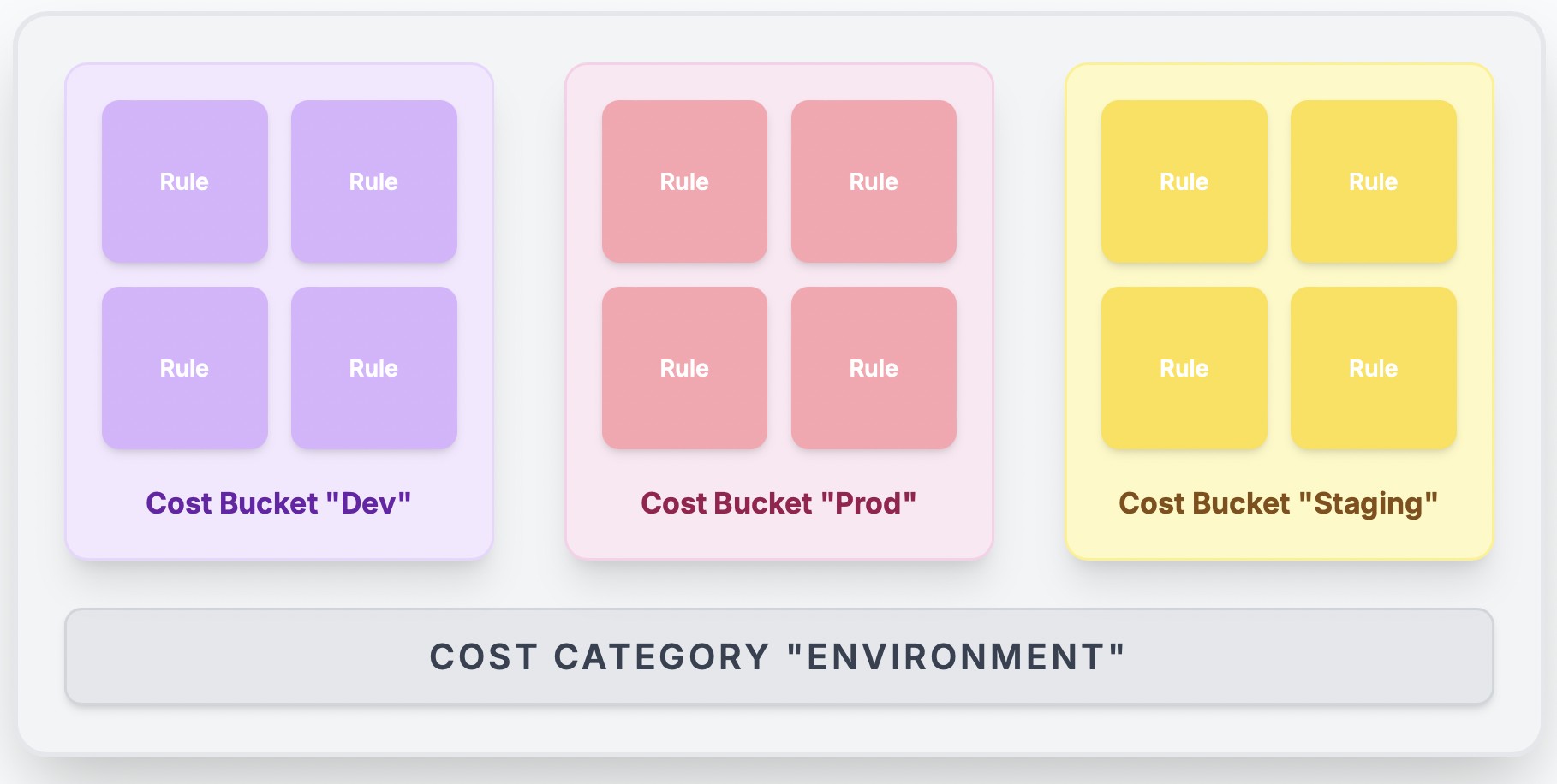
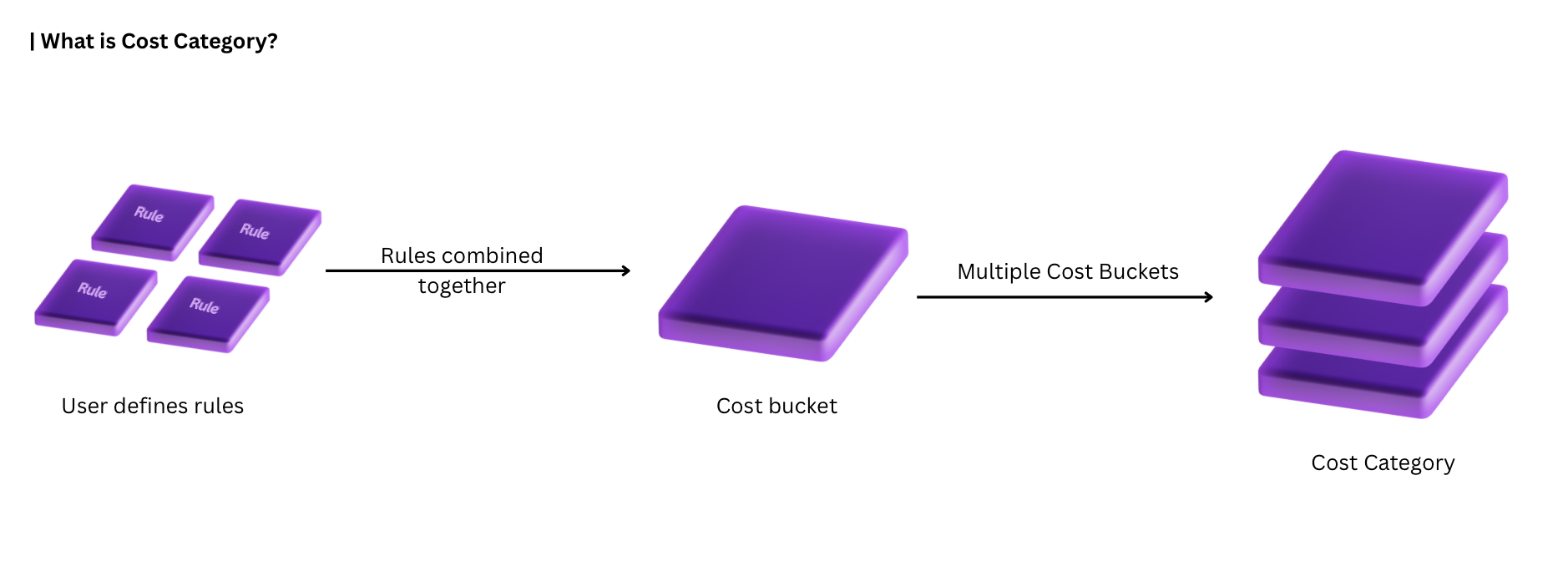
**The logic behind cost categories is simple: Create** [**Rules that bring in cost data**](#what-are-rules) **-> Rules combine to form** [**Cost Bucket**](#define-your-cost-buckets) **-> Cost Buckets combine to form Cost Category**

**For example:** Imagine your company has multiple departments. You want better visibility into marketing spend across various campaigns and cloud platforms. Currently, marketing costs are scattered across parts of AWS resources (for digital marketing), GCP resources (for YouTube marketing), and some kubernetes Clusters (for social media marketing tools):

* **Create a Cost Category** called "Marketing"
* **Add Cost Buckets** to this category:
  * "Digital Marketing" - with rules for AWS resources
  * "YouTube Marketing" - with rules for GCP resources
  * "Social Media Marketing" - with rules for Kubernetes clusters
* **Result:** A comprehensive view of all Marketing costs across multiple cloud platforms

<figure><img src="https://3362046280-files.gitbook.io/~/files/v0/b/gitbook-x-prod.appspot.com/o/spaces%2FLgkNK1xq1Uj6rzIm2kum%2Fuploads%2Fgit-blob-c2a1e5e145140b92a7ae28e809a713f45c6c1e86%2Fwhat-is.png?alt=media" alt=""><figcaption><p>Click to view full size image</p></figcaption></figure>

#### What is the difference between Cost Categories and Perspectives? <a href="#what-is-the-difference-between-cost-categories-and-perspectives" id="what-is-the-difference-between-cost-categories-and-perspectives"></a>

Cost Categories label and organize your cloud spend into custom buckets, while Perspectives let you view and analyze that categorized data using Cost Categories as filters or group-by dimensions.

| Aspect     | Cost Categories                                                                                              | Perspectives                                                                                                       |
| ---------- | ------------------------------------------------------------------------------------------------------------ | ------------------------------------------------------------------------------------------------------------------ |
| What it is | A **classification system** that assigns costs into custom buckets based on rules you define.                | A **saved view** of cost data with predefined filters, groupings, and time ranges.                                 |
| Purpose    | To **label and organize** costs into meaningful business groupings (e.g., Environment, Department, Project). | To **analyze and visualize** costs through a consistent lens, making it easy to track trends or budgets over time. |
| Scope      | Changes how cost line items are categorized across all reporting and dashboards.                             | Controls **how** the categorized cost data is displayed and compared in reports.                                   |

#### How They Work Together

* **Cost Categories** define the labels for your costs.
* **Perspectives** decide how to look at those costs.

**You can:**

* Use a Cost Category as a filter in a Perspective → see only costs for a specific category value.
* Use it as a group-by dimension → break down total cost into category buckets.

<details>

<summary>Example: Using Cost Categories with Perspectives</summary>

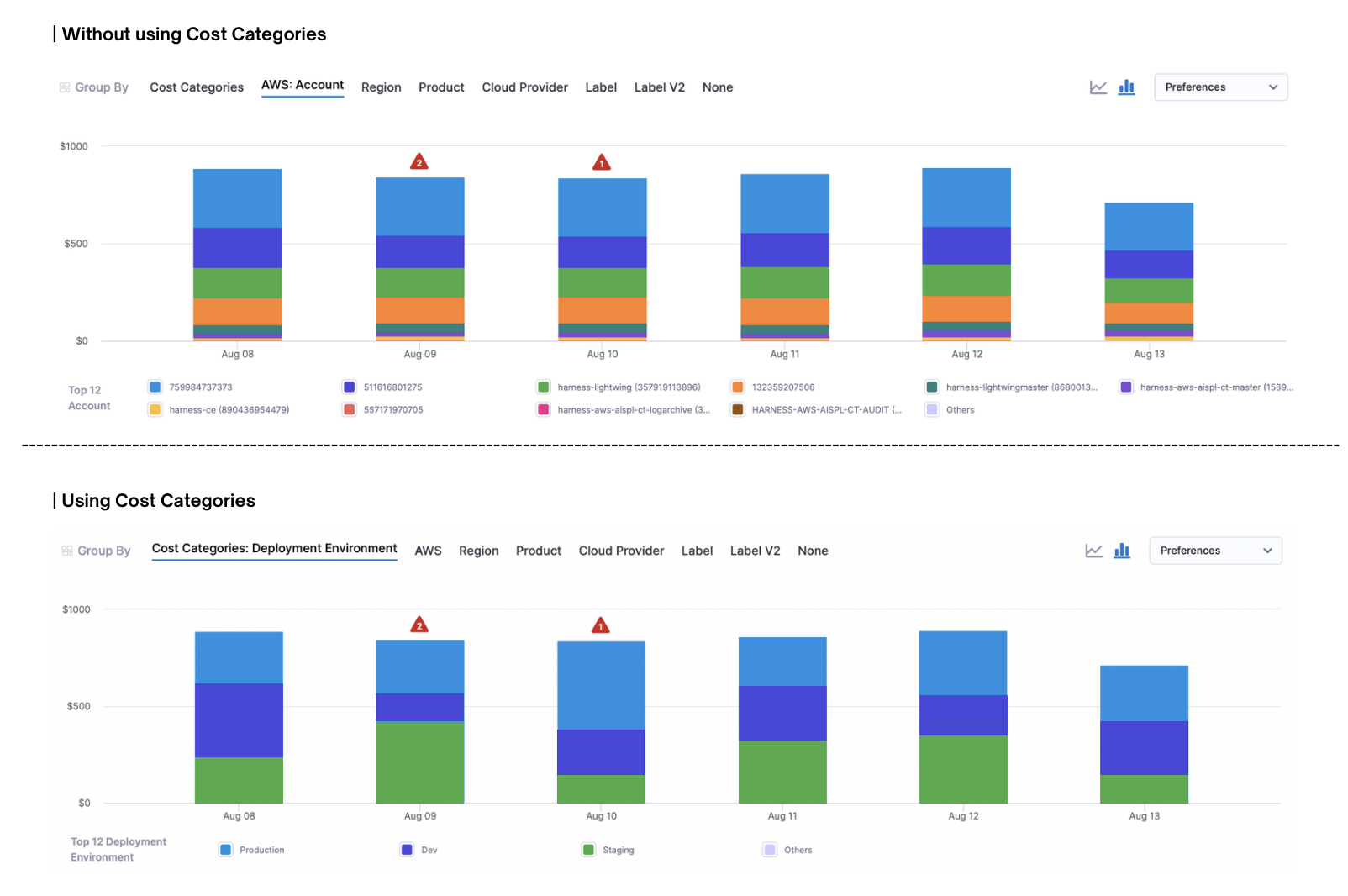
Let's say your organization runs workloads in multiple AWS accounts. Some accounts are for Production, some for Development, and others for Staging.

**Without Cost Categories:** Creating a Perspective to analyze costs by environment requires creating perspectives with multiple rules and any new account or tag variation means updating the Perspective again.

**With Cost Categories:** You can define an Environment cost category that standardizes this classification by using three cost buckets (Production, Development, and Staging).

| Rule                                                                                                                                                                                                 | Cost Bucket |
| ---------------------------------------------------------------------------------------------------------------------------------------------------------------------------------------------------- | ----------- |
| **Operand:** AWS, **Operator:** Account, **Value:** {all the accounts related to production}                                                                                                         | Production  |
| **Operand:** AWS, **Operator:** Usage Type, **Value:** {all the usage types related to development} OR **Operand:** AWS, **Operator:** Service, **Value:** {all the services related to development} | Development |
| **Operand:** AWS, **Operator:** Service, **Value:** {all the services related to staging}                                                                                                            | Staging     |

<figure><img src="https://3362046280-files.gitbook.io/~/files/v0/b/gitbook-x-prod.appspot.com/o/spaces%2FLgkNK1xq1Uj6rzIm2kum%2Fuploads%2Fgit-blob-655a04fd4a1ae63582b49ea3f09244af29aa631f%2Fexample.png?alt=media" alt=""><figcaption><p>Click to view full size image</p></figcaption></figure>

Once this Cost Category is in place, you can use it in Perspectives to:

* Filter: Filter by any cost bucket.
* Group By: Break down total spend by your cost buckets.

<figure><img src="https://3362046280-files.gitbook.io/~/files/v0/b/gitbook-x-prod.appspot.com/o/spaces%2FLgkNK1xq1Uj6rzIm2kum%2Fuploads%2Fgit-blob-20b78a1d1067bd404a08c94fd35c4c41215bb82c%2Fexample-static.png?alt=media" alt=""><figcaption><p>Click to view full size image</p></figcaption></figure>

</details>

#### Before You Begin <a href="#before-you-begin" id="before-you-begin"></a>

To create and manage Cost Categories in Harness CACM, you need:

**Active CACM Connectors**: You must have at least one active cloud connector set up for the cloud providers you want to categorize costs for: Set Up [CACM Connectors](/cloud-cost-management/integrations/cloud-providers/aws.md).

**Required Permissions**: Your Harness user account must belong to a user group with the following role permissions:

* **Cloud & AI Cost Management: Cost Categories: Create/Edit**
* **Cloud & AI Cost Management: Cost Categories: View**

For more details on CACM permissions, see [CACM Roles and Permissions](/cloud-cost-management/3.0/troubleshooting-and-resources/access-control/ccm-roles-and-permissions.md).

***

### Creating Cost Categories <a href="#creating-cost-categories" id="creating-cost-categories"></a>

{% tabs %}
{% tab title="Step-by-Step" %}

* In your Harness application, go to Cloud & AI Cost Management > Cost Categories > New Cost Category.

{% tabs %}
{% tab title="Define Cost Bucket(s)" %}

#### Define your Cost Bucket(s) <a href="#define-your-cost-buckets" id="define-your-cost-buckets"></a>

<figure><img src="https://3362046280-files.gitbook.io/~/files/v0/b/gitbook-x-prod.appspot.com/o/spaces%2FLgkNK1xq1Uj6rzIm2kum%2Fuploads%2Fgit-blob-9275c65b7b379f880889918c16afd7fe4dc5788b%2Fstep-one.png?alt=media" alt=""><figcaption><p>Click to view full size image</p></figcaption></figure>

A cost category is composed of one or more buckets. Each bucket contains filters that collect data from specific sources.

* Enter a descriptive name for the cost bucket (e.g., "Marketing Department")
* Each bucket collects costs from data sources that belong to that department
* **Define Rules:** Add multiple conditions to a rule using the **AND** operator (Use to filter data sources that include both criteria)/ **OR** operator (Use to filter data sources that include one of the criteria)

**What are Rules?**

Rules help you define which cloud resources to include in your Cost Bucket using a simple "Operand-Operator-Value" structure.

Operand The data category or attribute you want to filter on Select from:

* Common
* Cost Categories
* Cluster
* AWS
* GCP
* Azure
* External Data

Operator The comparison method that defines how to match values Choose from:

* **IN**: Include only resources that exactly match the specified value
* **NOT IN**: Include all resources except those that match the specified value
* **NULL**: Include only resources where this field has no value (excludes resources with this field)
* **NOT NULL**: Include only resources where this field has a value
* **LIKE**: Include resources where the field partially matches a pattern (uses regular expressions)
  * For exact pattern matching, use `^pattern$` syntax

Values The specific data points to include or exclude in your perspective Select the specific data points to apply the rule to. These will vary based on your selected Operand and Operator.

{% hint style="info" %}
**Account-level tags** are available as operands too. When you select **AWS**, **GCP**, or **Azure** as the operand, account-level tags appear alongside resource-level tags as `Label V2` keys: AWS uses the `accountTag/` prefix, GCP uses `projectLabels/`, and Azure uses a plain key (only when tag inheritance is enabled). This lets you build a bucket from a tag applied to an entire account, project, or subscription, without tagging individual resources. Go to [Account tags in CACM](/cloud-cost-management/use-cacm/account-level-tags.md) to understand the key formats and setup for each provider.
{% endhint %}

After configuring all your cost buckets, click on "Continue"

{% hint style="info" %}
**Important Limitations When Using Cost Categories:**

* If a cost category has a shared bucket, you cannot nest it inside another cost category
* A cost category cannot reference itself in its own rules
* You cannot create loops between categories
  * Example: If Category A includes Category B, then Category B cannot include Category A
* You can nest categories up to 5 levels deep
  {% endhint %}
  {% endtab %}

{% tab title="Attribute Shared Costs" %}

#### \[Optional] Attribute Shared Costs <a href="#optional-attribute-shared-costs" id="optional-attribute-shared-costs"></a>

<figure><img src="https://3362046280-files.gitbook.io/~/files/v0/b/gitbook-x-prod.appspot.com/o/spaces%2FLgkNK1xq1Uj6rzIm2kum%2Fuploads%2Fgit-blob-dc6f1c4fef605b95f14dcb4356de967941030fb7%2Fstep-two.png?alt=media" alt=""><figcaption><p>Click to view full size image</p></figcaption></figure>

**Shared buckets** allow you to distribute common costs across multiple cost buckets in a category. For example, database maintenance costs that benefit multiple departments can be shared among them using a shared bucket.

1. **Name your shared bucket** (e.g., "Database Costs", "IT Infrastructure")
2. **Define filtering rules** for the shared bucket (similar to regular cost buckets)
3. **Select a sharing strategy:**

| Strategy               | Description                                           | Example                                                                                                                      |
| ---------------------- | ----------------------------------------------------- | ---------------------------------------------------------------------------------------------------------------------------- |
| **Equal Split**        | Divides costs equally among all buckets               | $100 shared across 4 buckets = $25 each                                                                                      |
| **Proportional Split** | Allocates based on each bucket's existing costs       | If Bucket A has 70% of direct costs and Bucket B has 30%: for $100 shared cost, Bucket A receives $70, Bucket B receives $30 |
| **Fixed Percentage**   | Distributes according to manually defined percentages | Manually assign 60% to Bucket A, 25% to Bucket B, 15% to Bucket C                                                            |

4. Click on "Continue".
   {% endtab %}

{% tab title="Manage Unallocated Costs" %}

<figure><img src="https://3362046280-files.gitbook.io/~/files/v0/b/gitbook-x-prod.appspot.com/o/spaces%2FLgkNK1xq1Uj6rzIm2kum%2Fuploads%2Fgit-blob-63d94e989873132f6e974e33b31789fb2ea615af%2Fstep-three.png?alt=media" alt=""><figcaption><p>Click to view full size image</p></figcaption></figure>

#### Manage Unallocated Costs <a href="#manage-unallocated-costs" id="manage-unallocated-costs"></a>

When you use Cost Categories in a Perspective (as a filter or Group By dimension), some costs may not match any of your defined cost buckets. These are called **Unallocated Costs**.

In Manage Unallocated Costs, you can choose to show or ignore unallocated costs, and choose a name for how those costs are displayed.

* Show Unallocated Values as (enter a name)
* Ignore Unallocated Values
* Share Default Costs among Cost Buckets (Coming Soon)
  {% endtab %}
  {% endtabs %}
  {% endtab %}

{% tab title="Interactive Guide" %}
{% embed url="<https://app.tango.us/app/embed/5ff81c2d-83f0-4993-b63c-617037d2226f>" %}
Create Cost Categories in Harness CACM
{% endembed %}
{% endtab %}
{% endtabs %}

***

### Overview Page <a href="#overview-page" id="overview-page"></a>

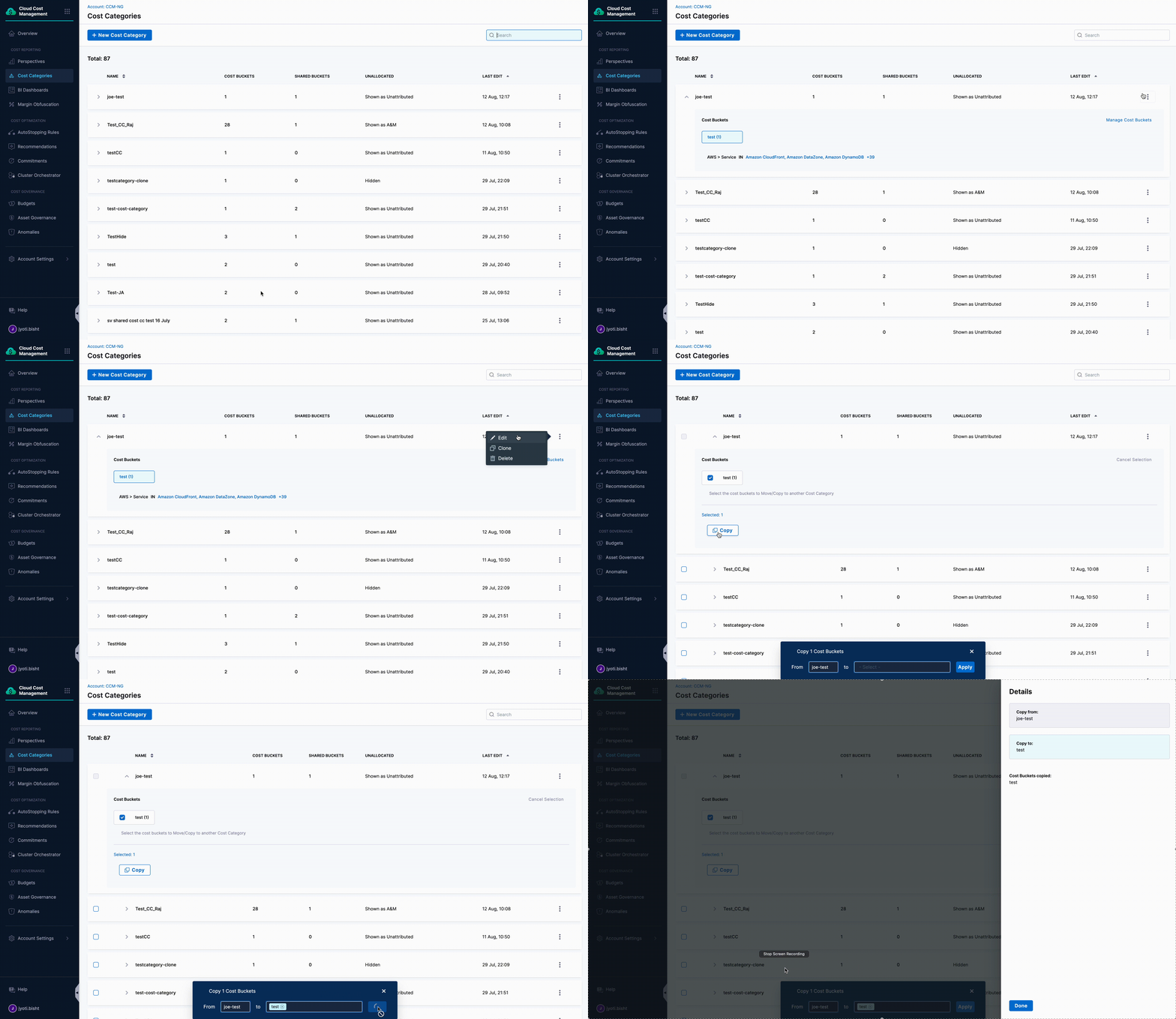
<figure><img src="https://3362046280-files.gitbook.io/~/files/v0/b/gitbook-x-prod.appspot.com/o/spaces%2FLgkNK1xq1Uj6rzIm2kum%2Fuploads%2Fgit-blob-1c619cbbbcaf14d3e2ff4f8d5584f75829fbcfef%2Foutput-overview.gif?alt=media" alt=""><figcaption><p>Click to view full size image</p></figcaption></figure>

The Cost Categories overview page provides a centralized view of all your defined categories. From this dashboard, you can:

* **View category details** - Click any category to examine its cost buckets, rules, and configurations
* **Manage categories** - Edit existing categories, clone them to create similar ones, or delete categories you no longer need
* **Copy cost buckets** - Transfer bucket definitions between categories to maintain consistency across your cost organization structure:

  * Expand the source cost category
  * Select **Manage Cost Buckets**
  * Select buckets to copy
  * Click **Copy** and choose target categories
  * Verify with **View Details**

  **Note:** If a destination category already has a bucket with the same name, rename it first to avoid conflicts.

***

### Use Cost Categories <a href="#use-cost-categories" id="use-cost-categories"></a>

Cost Categories can be used across multiple Harness CACM features. The table below shows how each feature supports different Cost Category capabilities:

| Feature                                  | Perspectives                                                                                                       | Dashboards                  | Recommendations                         |
| ---------------------------------------- | ------------------------------------------------------------------------------------------------------------------ | --------------------------- | --------------------------------------- |
| **Usage Methods**                        | • Rules for filtering                                                                                              |                             |                                         |
| • Group By dimension                     |                                                                                                                    |                             |                                         |
| • Filter panel selection                 | • Dimension for analysis                                                                                           |                             |                                         |
| • Filter for data selection              | • Filter for recommendations, including Governance Recommendations. Cost categories that use labels are supported. |                             |                                         |
| **Shared Cost Buckets**                  | ✅ **Supported**                                                                                                    |                             |                                         |
| Costs allocated per sharing strategy     | ❌ **Not Supported**                                                                                                | ❌ **Not Supported**         |                                         |
| **Nested Categories**                    | ✅ **Supported**                                                                                                    | ✅ **Supported**             | ✅ **Supported**                         |
| **Cluster Data**                         | ✅ **Supported**                                                                                                    |                             |                                         |
| Can create categories with cluster rules | ✅ **Supported**                                                                                                    | ✅ **Supported**             |                                         |
| **If Changes in Cost Category**          | Updates apply to historical data                                                                                   | Monthly tracking of changes | Updates apply to future recommendations |

> **Note:** When using Cost Categories across multiple features, be aware of the different support levels and behaviors to ensure consistent analysis.

#### In Perspectives <a href="#in-perspectives" id="in-perspectives"></a>

{% tabs %}
{% tab title="GroupBy" %}
When you group by a cost category:

* Each cost bucket appears as a separate line item
* Costs are distributed to their respective buckets based on the rules defined in the cost category
* Shared costs are allocated proportionally to each cost bucket according to your sharing strategy
* Resources that don't match any bucket rules appear under "Unattributed"

**Cross-Category Interactions**

When using one cost category in a rule and grouping by another cost category:

* Only costs that match your rule's cost category will be included
* These costs are then grouped according to the buckets in your group-by cost category
* Resources that match your rule but don't belong to any bucket in your group-by category appear under "No \[Category Name]"
* Shared costs from both categories are allocated according to their respective sharing strategies

> **Important:** When using multiple cost categories with overlapping resources, be careful with shared buckets. If both categories have shared buckets with overlapping rules, costs might be counted differently than expected.
> {% endtab %}

{% tab title="Filter" %}
**Filter**

You can use Group By and filters together. For example, your filter could select **Manufacturing** from the Department Cost Category, and then you can select **GCP: SKUs** in **Group By**.

When including multiple cost categories in your filter, it is important to check for any shared cost buckets between them. If you have shared cost buckets with overlapping rules in both cost categories, the cost of these buckets is counted twice, resulting in duplication of costs. Therefore, it is recommended not to have multiple cost category filter in a Perspective. However, if you must add a multiple cost category filter, avoid overlapping shared cost buckets between cost categories to prevent any potential errors.
{% endtab %}

{% tab title="Perspective rule" %}
When creating a Perspective, you can define a rule using cost categories. The benefit of using a cost category as a rule in a Perspective is that the cost category definition is separated from all the Perspectives that use it.

If you modify the definition of a cost category, any Perspective that uses the cost category automatically displays the changes.

For example, if a new product is added to the Manufacturing department, you can simply update the Manufacturing bucket in the Departments Cost Category, and that change is automatically reflected in all the Perspectives that use that Cost Category.

If cost categories with overlapping cost buckets are used in your Perspective rule, the total cost of the cost buckets in both categories is counted only once. However, the cost of the shared buckets between the two categories is duplicated because of overlapping rules. Therefore, it is recommended to avoid using multiple cost categories with overlapping shared cost buckets in your perspective rule to prevent any potential errors.

When you add a cost category to your Perspective rule:

* The Perspective will only show costs that match the selected cost buckets within that category
* Shared cost buckets associated with the selected cost buckets will be included and allocated according to your sharing strategy
* Costs outside your selected buckets will not appear unless you include "Unattributed" in your selection
  {% endtab %}
  {% endtabs %}

***

#### In Dashboards <a href="#in-dashboards" id="in-dashboards"></a>

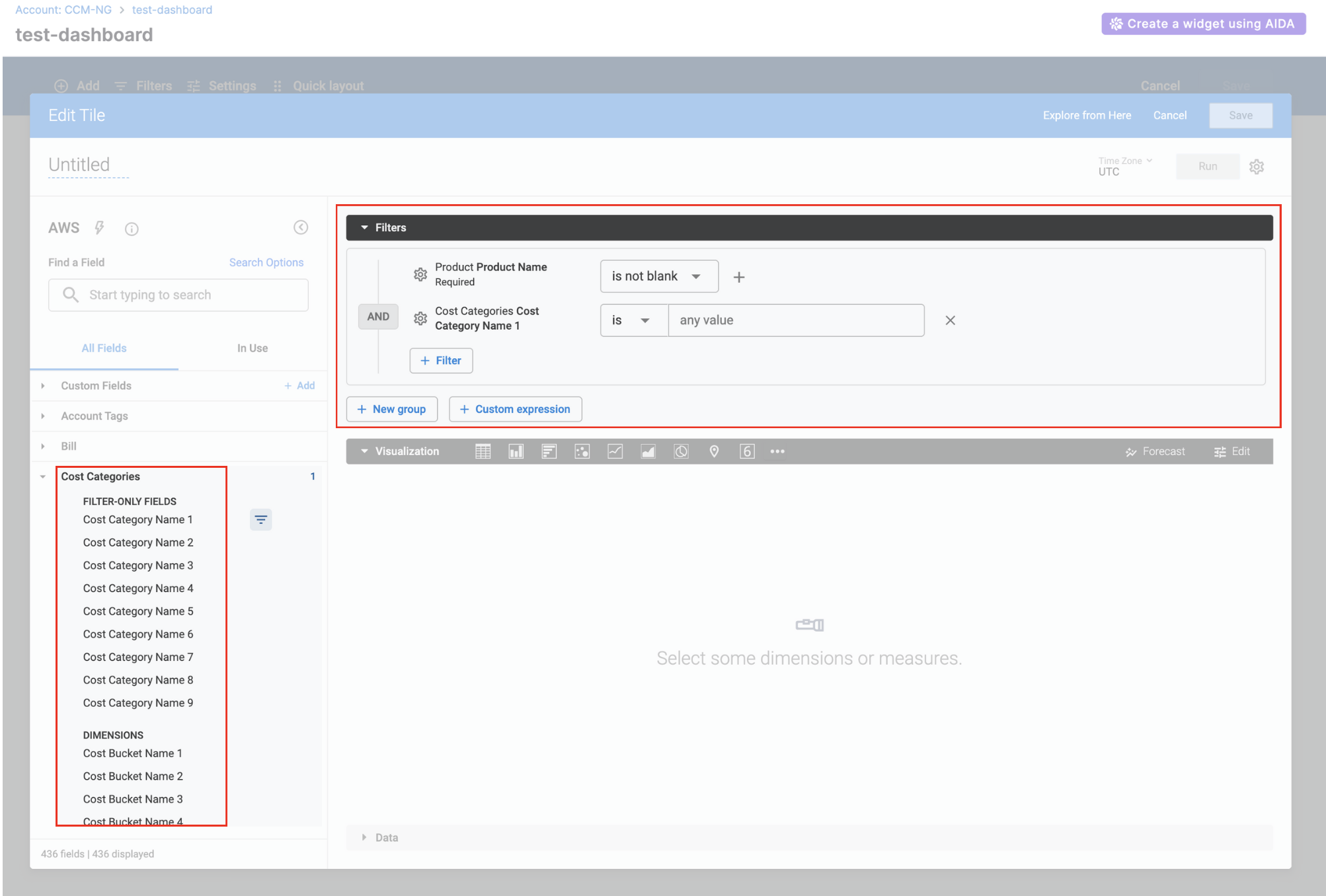
You can visualize cost categories in your custom dashboard. Cost Categories is available in AWS, GCP, Azure, Unified and External Data Explores

* **Update Delay:** Changes to cost categories may take **up to 24 hours** to appear in dashboard data.
* **Historical Data Behavior:** Cost category changes apply to data from the **current month forward** via CUR and Billing Exports. Historical data remains unchanged.
* **Deletion Behavior:** When you delete a cost category, it remains visible in dashboards **until the end of the current month**. Example: If deleted on January 24th, it will still appear until January 31st.
* **Shared Buckets:** **Important:** Shared cost buckets are **not included** when using cost categories in dashboards.

<figure><img src="https://3362046280-files.gitbook.io/~/files/v0/b/gitbook-x-prod.appspot.com/o/spaces%2FLgkNK1xq1Uj6rzIm2kum%2Fuploads%2Fgit-blob-2c386b99ddd489a121b4937468997ed95027461b%2Fcc-example.png?alt=media" alt=""><figcaption><p>Click to view full size image</p></figcaption></figure>

{% hint style="info" %}
In AWS, you cannot use cost categories as a dimension in custom dashboards if you have selected any of the following fields in the explore:

* Resource ID
* Line Item Type
* Market Type
* Amortised Cost
* Net Amortised Cost
  {% endhint %}

***

#### In Recommendations <a href="#in-recommendations" id="in-recommendations"></a>

**Using Cost Categories with Recommendations**

You can filter CACM Recommendations using Cost Categories to focus on specific business areas:

| Feature                    | Support Status  |
| -------------------------- | --------------- |
| **Regular Cost Buckets**   | Fully supported |
| **Nested Cost Categories** | Fully supported |
| **Shared Cost Buckets**    | Not supported   |

{% hint style="info" %}

* Since recommendations operate at the resource level, all resources included in your selected cost buckets will appear in the filtered recommendations view.
* Governance Recommendations support labels, so cost categories that use labels also work when filtering Governance Recommendations.
  {% endhint %}

To filter recommendations using cost categories:

1. Go to **Cloud & AI Cost Management > Recommendations**
2. Select your cost category in the **Filter** panel
3. Select the cost buckets you want to include
4. All the resources included in your selected cost buckets will appear in the filtered recommendations view.

<figure><img src="https://3362046280-files.gitbook.io/~/files/v0/b/gitbook-x-prod.appspot.com/o/spaces%2FLgkNK1xq1Uj6rzIm2kum%2Fuploads%2Fgit-blob-5865b1537244368a32bf7b15327cbbbcb03425c0%2Frec-filter.png?alt=media" alt=""><figcaption><p>Click to view full size image</p></figcaption></figure>

### Stamped and Dynamic Cost Categories <a href="#stamped-and-dynamic-cost-categories" id="stamped-and-dynamic-cost-categories"></a>

Cost Categories let you group and filter cloud spend using custom bucket rules. But when you filter a Perspective by a specific bucket, the results can differ significantly depending on whether your pipeline uses stamped or dynamic mode, even when the underlying cost data is identical.

Stamped mode assigns each cost record to exactly one bucket at ingestion time, using a priority-ordered CASE WHEN evaluation. The bucket assignment is stored as a column on the row so when you filter later, you're filtering against a pre-computed value.

Dynamic mode skips the pre-assignment. Instead, it evaluates the bucket's filter conditions directly at query time against the raw data. No priority logic is applied, it simply checks whether a row satisfies the bucket's rules.

Refer to this to understand the Dynamic Toggle on Perspectives Page: [Dynamic Toggle](/release-notes/cloud-cost-management.md#september-2025---hotfix-dynamic-cost-categories-toggle-in-perspectives)

**Example Setup**

**Cost Category:** `CC1`

**Buckets (in priority order):**

1. `CB1`: `region = us-east-1`
2. `CB2`: `awsAccountId = acc1`

**Raw Cost Data:**

| region    | awsAccountId | cost |
| --------- | ------------ | ---- |
| us-east-1 | acc1         | $10  |
| us-west-2 | acc1         | $20  |

***

#### How Stamping Works <a href="#how-stamping-works" id="how-stamping-works"></a>

At data ingestion, each cost record is assigned to exactly one bucket using a `CASE WHEN` statement that respects rule priority:

```sql
CASE
  WHEN region = 'us-east-1' THEN 'CB1'
  WHEN awsAccountId = 'acc1' THEN 'CB2'
  ELSE 'Unattributed'
END
```

**Result after stamping:**

| region    | awsAccountId | cost | costCategory |
| --------- | ------------ | ---- | ------------ |
| us-east-1 | acc1         | $10  | CB1          |
| us-west-2 | acc1         | $20  | CB2          |

The first row matches both rules (`region = us-east-1` AND `awsAccountId = acc1`), but because `CB1` has higher priority, it wins. The row is stamped as `CB1` and never considered for `CB2`.

***

#### Filtering Behavior: Stamped vs Dynamic <a href="#filtering-behavior-stamped-vs-dynamic" id="filtering-behavior-stamped-vs-dynamic"></a>

**Scenario: Perspective filtered by `CC1 = CB2`**

**Stamped Mode — Result:**

| region    | awsAccountId | cost |
| --------- | ------------ | ---- |
| us-west-2 | acc1         | $20  |

> Note: The `us-east-1 | acc1` row ($10) is **not** in these results — it was stamped as `CB1`, not `CB2`. It doesn't appear as Unattributed either; it simply doesn't match the `CB2` filter and is excluded entirely.

**Dynamic Mode — Result:**

| region    | awsAccountId | cost |
| --------- | ------------ | ---- |
| us-east-1 | acc1         | $10  |
| us-west-2 | acc1         | $20  |

***

**Why Are the Results Different?**

The difference comes down to **what question each mode is answering** when you filter by a bucket.

**Stamped Mode: "Which rows were assigned to this bucket?"**

Stamped mode stores the bucket assignment as a column on each row at ingestion time. When you filter by `CB2`, the query is:

```sql
WHERE costCategory = 'CB2'
```

This asks: *"Give me rows where the pre-computed bucket is CB2."*

The `us-east-1 | acc1` row was stamped as `CB1` (because `CB1` had higher priority). When you filter for `CB2`, that row simply doesn't match — it is excluded from results. It does **not** fall into `Unattributed`; `Unattributed` only applies to rows that matched **no bucket** during stamping.

**Dynamic Mode: "Which rows match this bucket's filter conditions?"**

Dynamic mode doesn't use the stamped column. Instead, it evaluates the bucket's underlying filter at query time:

```sql
WHERE awsAccountId = 'acc1'
```

This asks: *"Give me rows that satisfy CB2's rule definition."*

Both rows have `awsAccountId = acc1`, so both match — regardless of what bucket they would have been assigned to by priority.

***

**The Root Cause: Priority is Lost in Dynamic Filtering**

When stamping occurs, the system evaluates **all bucket rules together** in priority order and assigns each row to exactly one bucket. The priority logic is baked into the stamped value.

When dynamic filtering occurs, the system only evaluates **the single bucket's filter** you're querying. It has no awareness of other buckets or their priority. It simply checks: "Does this row match the filter conditions for CB2?"

This is why:

* **Stamped** respects priority → overlapping rows go to the highest-priority bucket only
* **Dynamic** ignores priority → overlapping rows appear wherever their attributes match

***

#### Grouping Behavior <a href="#grouping-behavior" id="grouping-behavior"></a>

When grouping by `CC1`, we always use all buckets' `CASE WHEN` statement with priority order:

```sql
GROUP BY (CASE WHEN region = 'us-east-1' THEN 'CB1'
               WHEN awsAccountId = 'acc1' THEN 'CB2'
               ELSE 'Unattributed' END)
```

**Result (same for both modes):**

| Bucket | Cost |
| ------ | ---- |
| CB1    | $10  |
| CB2    | $20  |

Grouping reconstructs the full priority logic, so results are consistent.

***

**Summary**

| Mode        | Filter Question                              | Priority Awareness                                  |
| ----------- | -------------------------------------------- | --------------------------------------------------- |
| **Stamped** | "Which rows were assigned to this bucket?"   | Yes — priority is baked into the stamped value      |
| **Dynamic** | "Which rows match this bucket's conditions?" | No — only evaluates the bucket you are filtering by |

> **Key clarification:** In Stamped Mode, the $10 row doesn't go to `Unattributed` — it goes to `CB1`. `Unattributed` only applies to rows that matched no bucket at all during stamping.

### Examples <a href="#examples" id="examples"></a>

<details>

<summary>Example 1: Department Cost Category</summary>

Let's say you've created a "Department" Cost Category with these buckets:

| Department Bucket                             | What's Included                               |
| --------------------------------------------- | --------------------------------------------- |
| Engineering                                   | • All EC2 instances with tag "team=dev"       |
| • All S3 buckets with tag "team=dev"          |                                               |
| Marketing                                     | • All EC2 instances with tag "team=marketing" |
| • All RDS instances with tag "dept=marketing" |                                               |
| Shared Services                               | • All network costs                           |
| • All support costs                           |                                               |

**When used as a Perspective rule:**

* You'll see costs broken down by Engineering, Marketing, and Shared Services
* Shared costs are properly allocated based on your sharing strategy

**When used with Group By:**

* You can group by Department to see costs for each department
* You can combine with other dimensions (e.g., Group by Department → AWS Service)

</details>

<details>

<summary>Example 2: Multiple Cost Categories</summary>

Imagine you have two Cost Categories:

1. **Department Category** (Engineering, Marketing, Finance)
2. **Environment Category** (Production, Development, Testing)

When you:

* Use Department Category in your Perspective rule
* Group By Environment Category

You'll see:

| Environment    | Cost   | What This Shows                                                           |
| -------------- | ------ | ------------------------------------------------------------------------- |
| Production     | $5,000 | Production costs across selected departments                              |
| Development    | $2,000 | Development costs across selected departments                             |
| Testing        | $1,000 | Testing costs across selected departments                                 |
| No Environment | $500   | Costs that belong to selected departments but don't have environment tags |

> **Note:** When using multiple Cost Categories together, be careful with shared buckets. If both categories have shared buckets with overlapping rules, costs might be counted twice.

</details>

### FAQs <a href="#faqs" id="faqs"></a>

<details>

<summary>What's the difference between "No [Category Name]" and "Unattributed" costs?</summary>

**Unattributed Costs:**

* Appear when you're using a single cost category
* Represent costs that don't match any bucket rules within that category
* Example: If your "Department" category has buckets for Engineering, Marketing, and Finance, costs that don't match any department rules will appear as "Unattributed"
* These costs are completely outside your defined buckets

**No \[Category Name] Costs:**

* Appear when you're using multiple cost categories together (one in rules, another in Group By)
* Represent costs that match your rule category but don't match any bucket in your group-by category
* Example: If you filter by "Department = Engineering" and group by "Environment", costs from Engineering that don't have an environment tag will appear as "No Environment"
* These costs are within your primary category but not classified in your secondary category

</details>

<details>

<summary>Can I use cost categories with multiple cloud providers?</summary>

Yes, cost categories work across all supported cloud providers (AWS, Azure, GCP) and Kubernetes clusters. You can create rules that span multiple providers and organize costs consistently across your entire cloud estate.

</details>

<details>

<summary>How do shared buckets affect my cost reporting?</summary>

Shared buckets distribute common costs (like infrastructure or support) across multiple cost buckets according to your chosen allocation strategy. In Perspectives, these shared costs are included when you select the associated cost buckets. However, be aware that:

* Shared buckets are not supported in Dashboards or Recommendations
* Using multiple cost categories with overlapping shared buckets can potentially count costs twice
* Shared buckets cannot be nested inside other cost categories

</details>

{% @harness-feedback/feedback %}