> For the complete documentation index, see [llms.txt](https://developer.harness.io/llms.txt). Markdown versions of documentation pages are available by appending `.md` to page URLs; this page is available as [Markdown](https://developer.harness.io/cloud-cost-management/3.0/troubleshooting-and-resources/autostopping-guides/autostopping-page-drilldown.md).
# Understanding AutoStopping Rule Details Page
This topic explains the various metrics, terms, and components displayed on the AutoStopping rule details page for Kubernetes clusters.
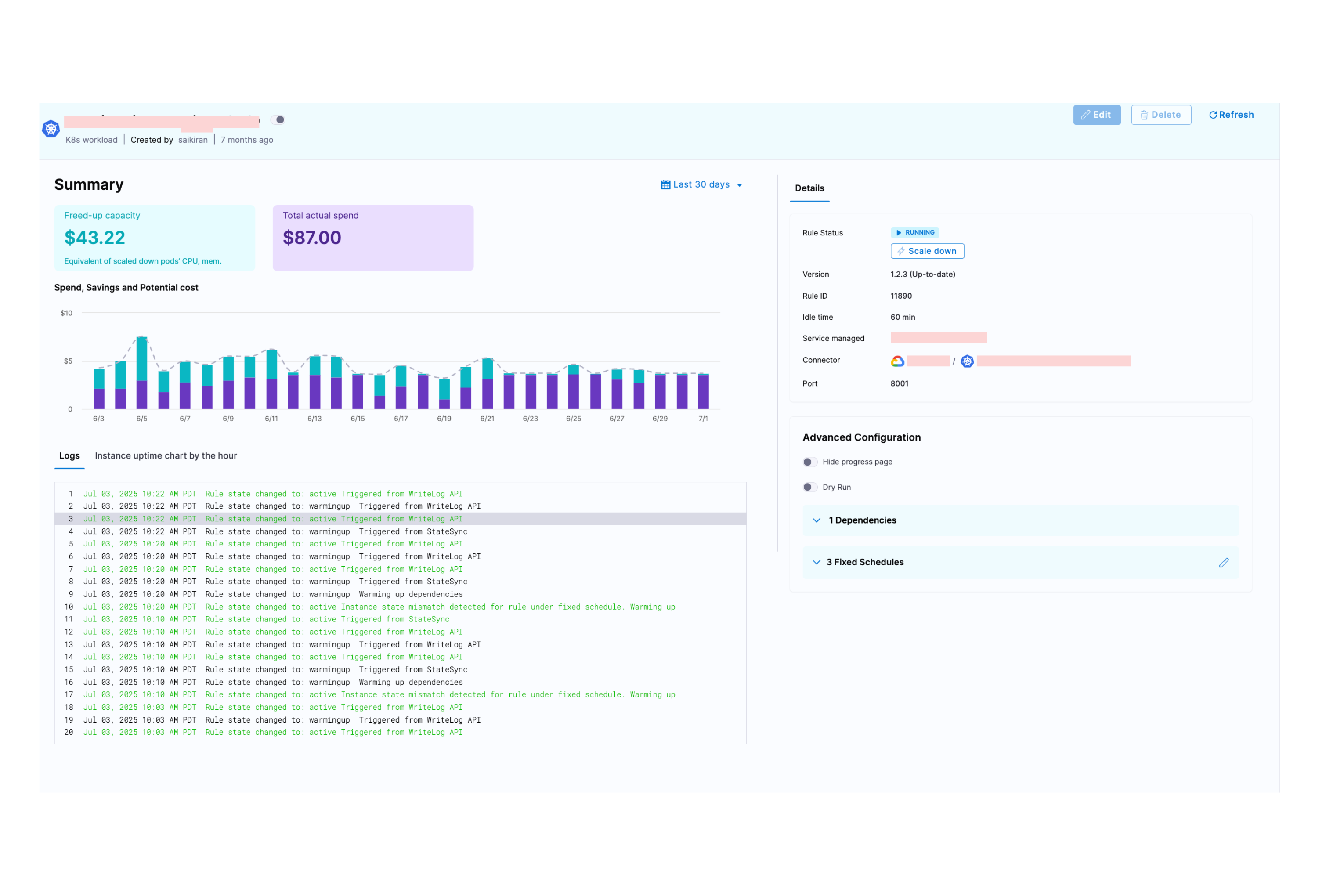
When you click on an AutoStopping rule from the summary page, you're taken to a detailed view that provides comprehensive information about the rule's performance, configuration, and current status. This page helps you monitor and manage your Kubernetes AutoStopping rules effectively.
Click to view full size image
### Freed-up Capacity
**What it shows:** The monetary value of compute resources (CPU and memory) that were freed up when pods were scaled down during idle periods.
**How it's calculated:** When AutoStopping scales down pods, it calculates the equivalent cost of the CPU and memory resources that are no longer being used. This freed-up capacity represents idle node space that can be reclaimed, potentially allowing nodes to be terminated or downsized.
### Total Actual Spend
**What it shows:** The actual amount spent on resources managed by this AutoStopping rule during the selected time period.
### Spend, Savings and Potential Cost Graph
**What it shows:** A visual graph that displays the relationship between your freed-up capacity (cost savings from scaled-down resources) and total actual spend over time.
**How to interpret:**
* The graph helps you visualize the cost optimization impact of your AutoStopping rule
* Shows trends in both spending and savings across the selected time period
* Allows you to identify patterns in resource usage and cost efficiency
### Logs Section
The logs section provides a chronological record of all state changes and events for your AutoStopping rule.
### Instance Uptime Chart by the Hour
**What it shows:** A visual timeline showing when your managed resources were active versus idle/stopped throughout each hour.
## Details Section
This section shows the current configuration and status of your AutoStopping rule.
### Rule Configuration
* **Rule Status:** Shows the operational state of the rule. You also have the option to manually trigger the scaling up or down of resources managed by this rule.
* **Version:** Displays the current version of the AutoStopping controller and indicates if an update is available.
* **Rule ID:** Unique identifier for this AutoStopping rule within your Harness account.
* **Idle Time:** The duration of inactivity after which the rule will scale down or stop the managed resources.
* **Service Managed:** The name of the Kubernetes service that this AutoStopping rule is managing.
* **Connector:** The cloud connector that links your Kubernetes cluster to Harness CACM.
* **Port:** The port number on which your service receives traffic.
### Advanced Configuration
This section shows optional settings that modify the behavior of your AutoStopping rule.
* **Hide Progress Page:** This is especially useful when the service is invoked by an automation system, as it prevents misinterpretation of the progress page as the intended response from a service that is onboarded to AutoStopping.
* **Dry-Run:** Toggle the button if you wish to evaluate this feature without terminating your cloud resources.
* **Dependencies:** Link your rule to other AutoStopping rules when resources depend on each other.
* **Fixed Schedules:** Create fixed schedules to automatically start or stop your instances at specific times.
{% @harness-feedback/feedback %}