> For the complete documentation index, see [llms.txt](https://developer.harness.io/llms.txt). Markdown versions of documentation pages are available by appending `.md` to page URLs; this page is available as [Markdown](https://developer.harness.io/cloud-cost-management/cost-governance/asset-governance/overview.md).
# Overview
This topic talks about Harness cloud asset governance.
**Cloud Asset Governance** is a comprehensive **governance-as-code** solution that helps organizations **automatically manage** their cloud resources according to **cost, security, and compliance standards**. It implements **rules written as code** to enforce policies consistently across your cloud infrastructure, rather than relying on manual checks or approvals.
Asset Governance:
* Establishes the rules and policies that control how cloud resources are used, ensuring your environment remains secure against threats, cost-effective for your business and compliant with industry regulations.
* Treats **governance policies as code (GAC)**, allowing you to Write policies in languages like YAML, Apply them automatically across your infrastructure, Enforce them consistently at scale.
* Enables you to Automatically manage cloud resources, Enforce standards, Replace manual checks with code-based policies, Apply consistent rules throughout your cloud infrastructure
{% hint style="success" %}
### Cloud Custodian integration
**Cloud Asset Governance** is built on top of the popular open source software [Cloud Custodian](https://cloudcustodian.io) and covers all the cloud resources for [AWS](https://cloudcustodian.io/docs/aws/resources/index.html), [GCP](https://cloudcustodian.io/docs/gcp/resources/index.html) and [Azure](https://cloudcustodian.io/docs/azure/resources/index.html). The cloud-custodian versions utilised currently are as following:
* c7n==0.9.44
* c7n\_azure==0.7.43
* c7n\_gcp==0.4.43
See how [Harness CACM compares to Cloud Custodian](https://www.harness.io/blog/harness-cloud-asset-governance-cloud-custodian-beyond).
{% endhint %}
***
## Asset governance overview page
Here is an in-depth explanation of the Overview page and the information it displays for the users:
{% tabs %}
{% tab title="Details about Evaluations, Enforcements, Savings" %}
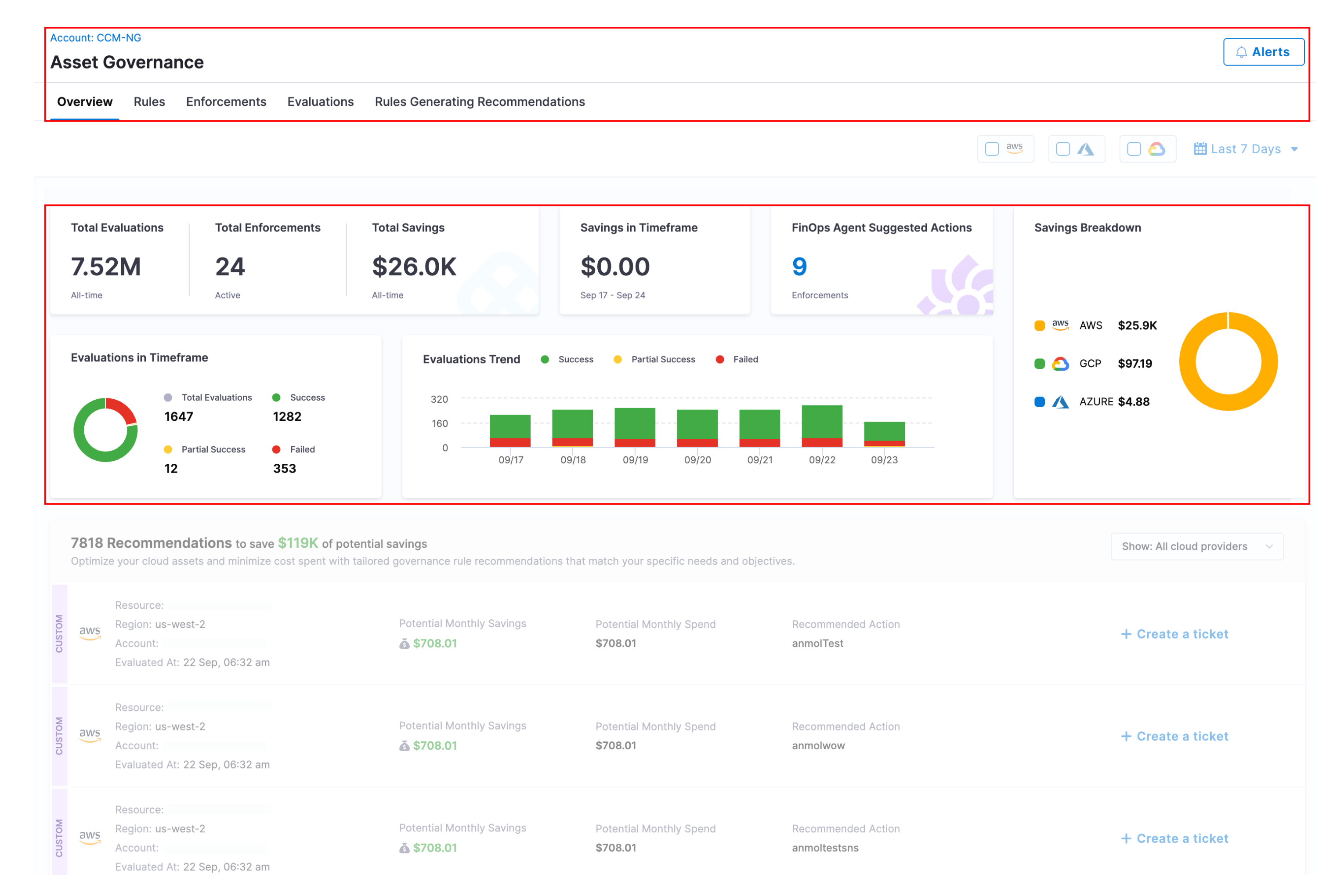
Click to view full size image
* **Total Evaluations**: The total number of evaluations performed to date.
* **Total Enforcements**: The total number of active enforcements created to date.
* **Total Savings**: The total cost savings achieved from day one to date.
* **Savings in Timeframe**: The total cost savings achieved in the timeframe selected.
* **FinOps Agent Suggested Actions**: The number of suggested actions by our intelligent FinOps Agent.
* **Evaluations in Timeframe**: Harness supports multiple statuses for Evaluations. The overview page now displays a detailed breakdown of evaluation counts by status. - Total Evaluations: The total number of evaluations in the timeframe selected. - Success Evaluations: Total number of evaluations with status as "Successful". - Failure Evaluations: Total number of evaluations with status as "Failure". - Partial Success Evaluations: Total number of evaluations with status as "Partial Success".
* **Savings Breakdown**: A granular graph that shows savings breakdown across different cloud providers and resources. You can see savings broken down by:
* **Cloud Provider**: This shows total cost savings for each cloud provider.
* **Evaluations Trend** - This graph shows evaluations performed per day in the selected timeframe. If timeframe is selected for more than 2 months, the evaluations are shown per month in the selected timeframe. Also, evaluations along with their status i.e. "Success", "Partial Success" and "Failed" are shown.
* **Rules Generating Recommendations**: This section displays all governance rules that are configured to generate actionable cost optimization recommendations. For each rule, you can specify targeted application (all cloud accounts or specific accounts only), set recommendation priority levels, and define potential savings thresholds.
Click to view full size image
* **Alerts**: Alerts allow you to receive notifications when certain conditions are met during governance evaluations. These conditions can be fine-tuned based on cloud providers, resource types, account/subscription/project, cost impact, and resource count. You can create alerts by defining the following parameters:
* **Cloud Provider**: Choose the cloud platform(s) where the policy evaluation should trigger an alert: **AWS**, **GCP**, or **Azure**.
* **Resource Type**: Select the type of resources to monitor. These are defined based on [Cloud Custodian](https://cloudcustodian.io/) resource types.
* **Accounts / Subscriptions / Projects**: Specify the scope of the alert: **AWS accounts**, **Azure subscriptions**, or **GCP projects**.
* **Minimum Resource Count**: Set the threshold for the number of resources.
* **Minimum Cost Impact**: Set minimum cost impact associated with an evaluation.
* **Specify Alert Channels**: Enter one or more email addresses to receive alert notifications.
* **Attach Evaluation Output**: Enable this to **attach a `.json` file** containing the full evaluation output in the email. Useful for automated analysis or deep dives.
{% hint style="info" %}
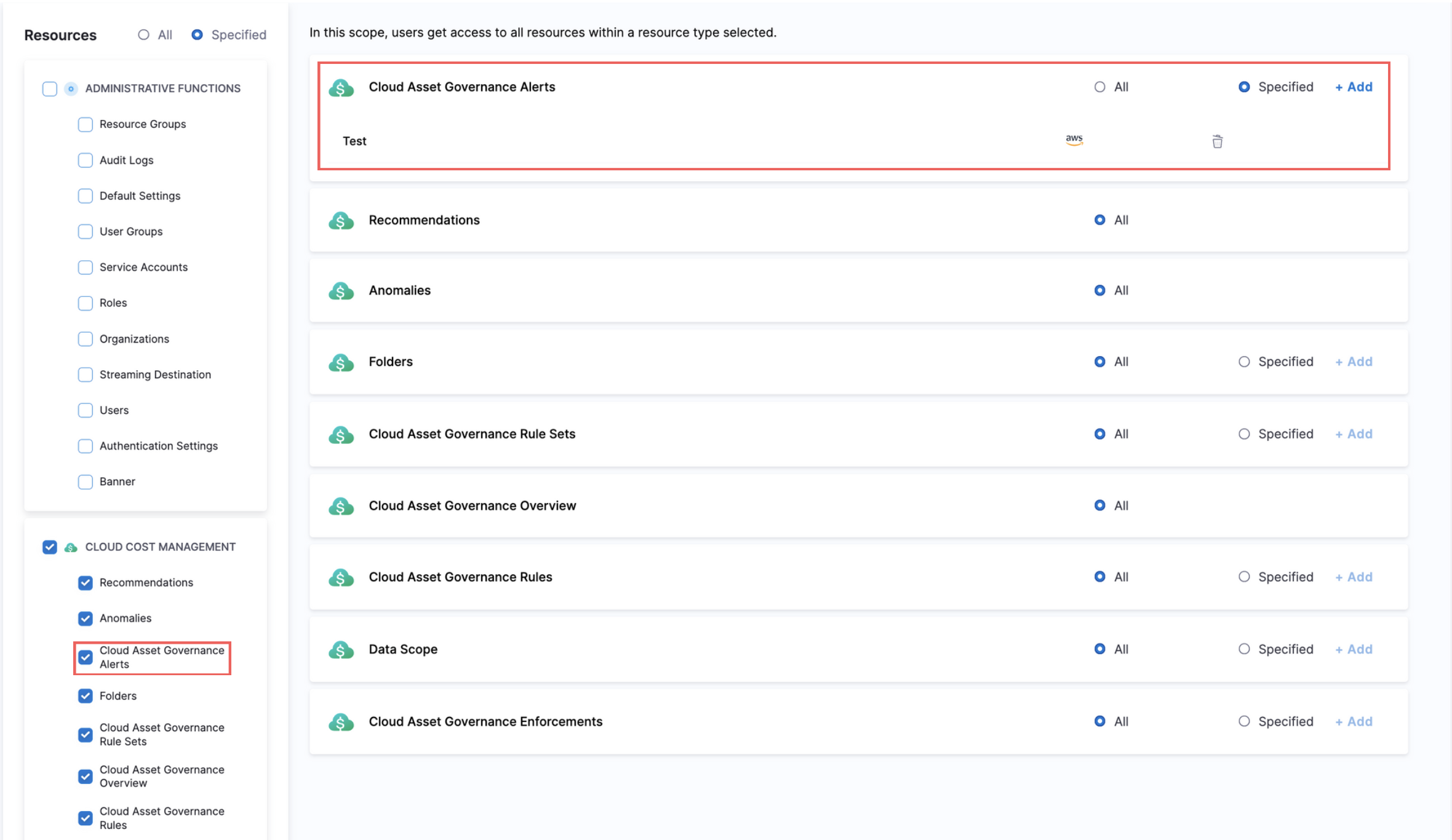
* **Granular RBAC for Governance Alerts**: You can assign granular permissions for Governance Alerts to specific resource groups and roles, enabling more precise access control.
**For Resource Groups:**
1. Navigate to **Account Settings** > **Access Control** > **Resource Groups**
2. Select an existing Resource Group or create a new one
3. Enable the **Cloud Asset Governance Alerts** permission
4. Choose between **All** alerts or **Specified** alerts for more granular control
Click to view full-size image
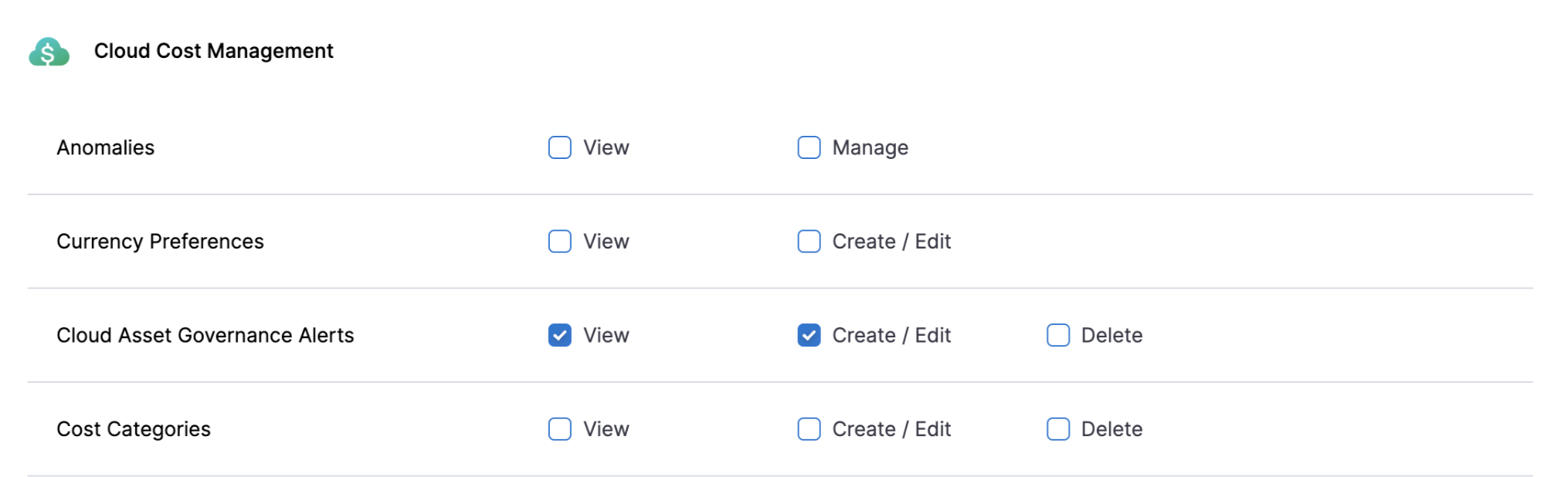
**For Roles:**
1. Navigate to **Account Settings** > **Access Control** > **Roles**
2. Select an existing Role or create a new one
3. Enable the **Cloud Asset Governance Alerts** permission
4. Assign specific permissions such as **View** or **Edit/Delete**
{% endhint %}
{% endtab %}
{% tab title="Governance Recommendations" %}
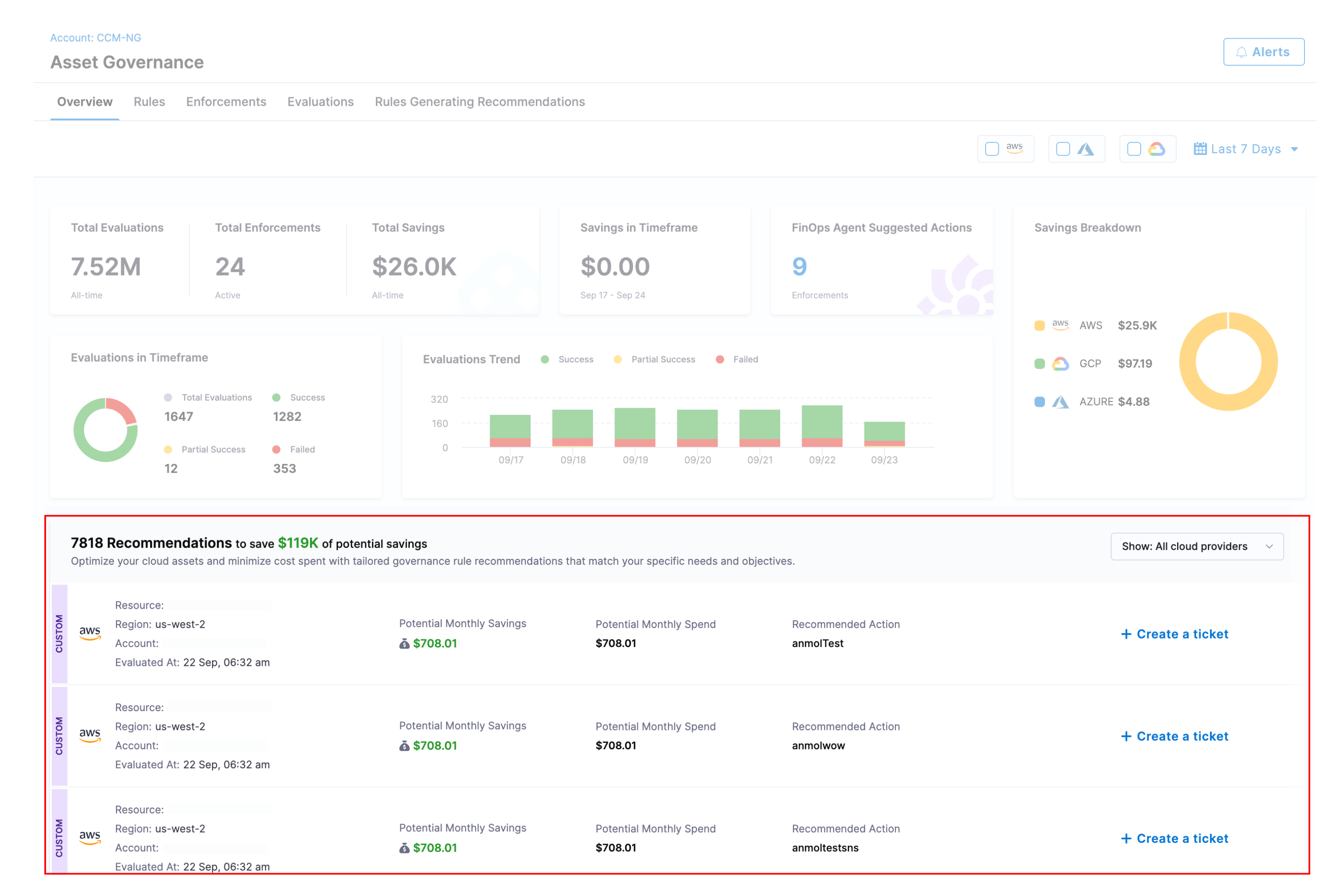
Click to view full size image
{% hint style="success" %}
### Cost settings
Potential Monthly Spend and Potential Monthly Savings are calculated using your account-level default cost settings. To change the cost type, navigate to **Account Settings** → **Cloud & AI Cost Management** → **Cost Settings**.
{% endhint %}
* **Recommendations** - Governance Overview displays a list of all recommendations that can help optimize the cloud assets and minimize cloud costs. Governance Overview highlights the total potential savings that can be achieved if all recommendations are applied. Additional to this, for each recommendation, Harness shows more details like:
* **Potential Monthly Savings**: Monthly cost savings that can be realized if the recommendations are applied.
* **Potential Monthly Spend**: Potential Monthly Spend is the monthly spend for all the resources that surfaced out as part of recommendations. Why potential? Because the resource might be newly added and Harness looks at the last 30 days of cost data which might not be present for all the days for newly created resources.
* **Resource Count**: Number of resources to which the recommendation will be applied.
* **Ignored list tag** if the recommendation is added to the "Ignored list". - Option to **view details** about the recommendation like which Account (in case of Azure, AWS)/ Project (in case of GCP), resource (AWS, Azure) the recommendation was applied to, the enforcements, etc.
* **Custom Recommendations**: All Custom Recommendations show up with a "Custom" badge after successful creation.
NOTE
In case of AWS and Azure, Account/ Subscription and region combination with greater than 300$ of monthly spend are considered for recommendations.
In case of GCP, Project with greater than 300$ of monthly spend is considered for recommendations.
To apply a recommendation, select the row. The recommendation opens on the **Recommendations** page. To learn how to enforce this recommendation, go to Governance recommendations.
You can see a list of all recommendations offered by Harness for each Cloud provider here:
* [Asset Governance recommendations](/cloud-cost-management/cost-governance/asset-governance/recommendations.md)
{% endtab %}
{% endtabs %}
{% @harness-feedback/feedback %}

 {% endhint %}
{% endtab %}
{% tab title="Governance Recommendations" %}
{% endhint %}
{% endtab %}
{% tab title="Governance Recommendations" %}