For the complete documentation index, see llms.txt. This page is also available as Markdown.

Budgets

This topic describes how to create a new budget.

Harness CACM Budgets provide comprehensive cost governance capabilities that help you proactively manage and control your cloud spending.

With Budgets, you can:

  • Set Custom Budget Limits: Define spending thresholds for specific cloud resources, services, or entire projects based on your organizational needs

  • Receive Proactive Alerts: Get notified when your actual costs exceed or are forecasted to exceed your predefined budget limits

  • Monitor Multiple Time Periods: Create budgets for various timeframes including monthly, quarterly, or yearly periods

  • Track Actual vs. Forecasted Costs: Compare real-time spending against predicted costs to make informed financial decisions

  • Organize with Budget Groups: Combine multiple budgets into hierarchical groups for better organization and cascading budget management


Prerequisites

  • Create CACM Connector: Create a CACM connector to connect to your cloud provider.

  • Create Cost Perspectives: Budgets are created on Perspectives. If you do not have a Perspective of the resources you would like to budget, first create a new Perspective and then proceed to set a budget.


Budgets Overview Page

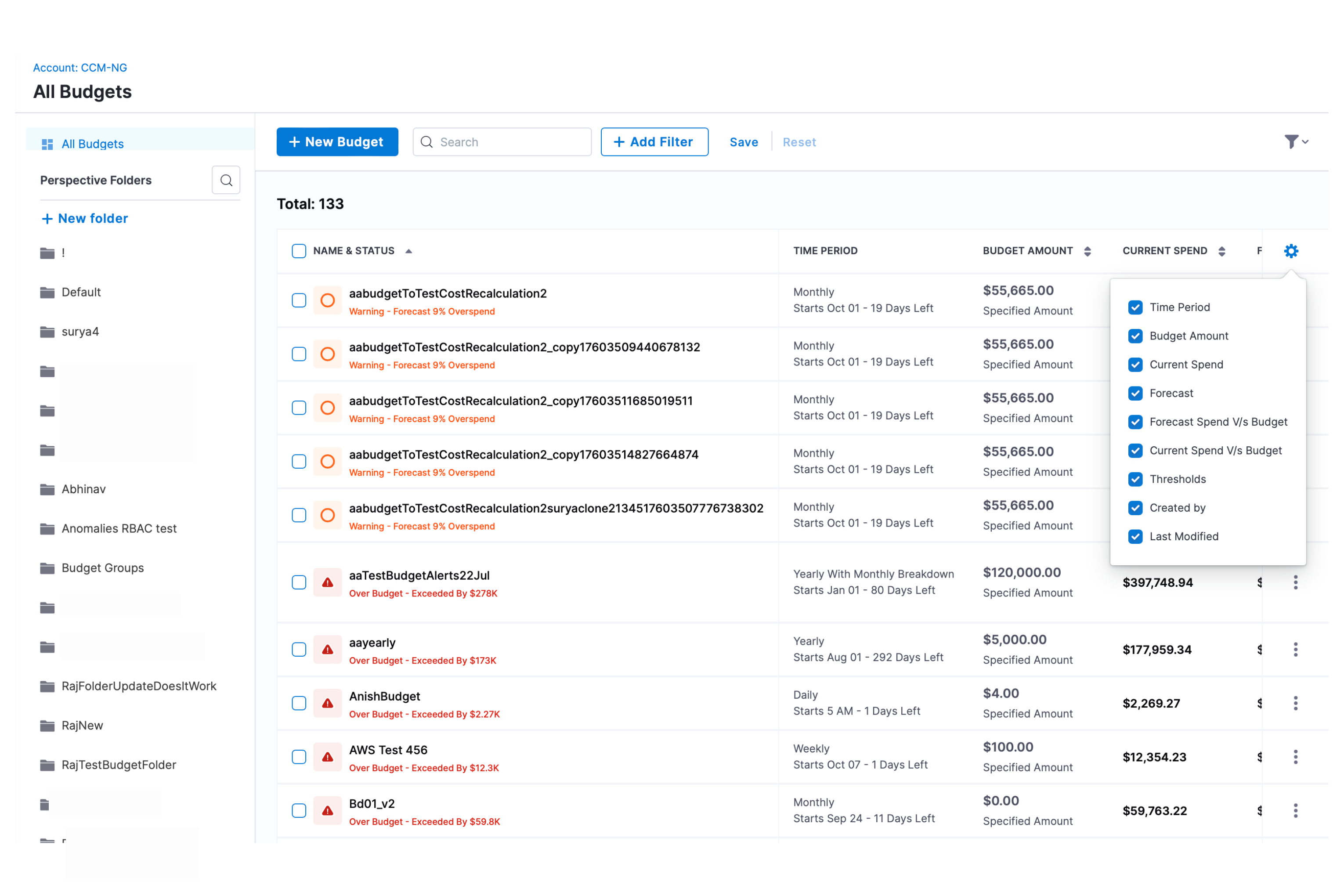
The Budgets Overview page provides a centralized dashboard for managing all your cost budgets. Access it by selecting Budgets from the left navigation bar.

From this page, you can:

  • Folder Navigation: Drill down into specific folders or view the complete budget list for comprehensive visibility

  • Create New Budgets: Quickly set up new budgets with customizable parameters

  • Customizable View: Configure your columns to display the metrics that matter most: Time Period, Budget Amount, Current Spend, Forecast, Forecast vs. Budget, Current Spend vs. Budget, Thresholds, Created By, Last Modified

BUDGET FOLDER MANAGEMENT

Budgets are automatically associated with their perspective's folder. When you move a perspective to a different folder, all linked budgets will follow automatically.

Click to view full-size image
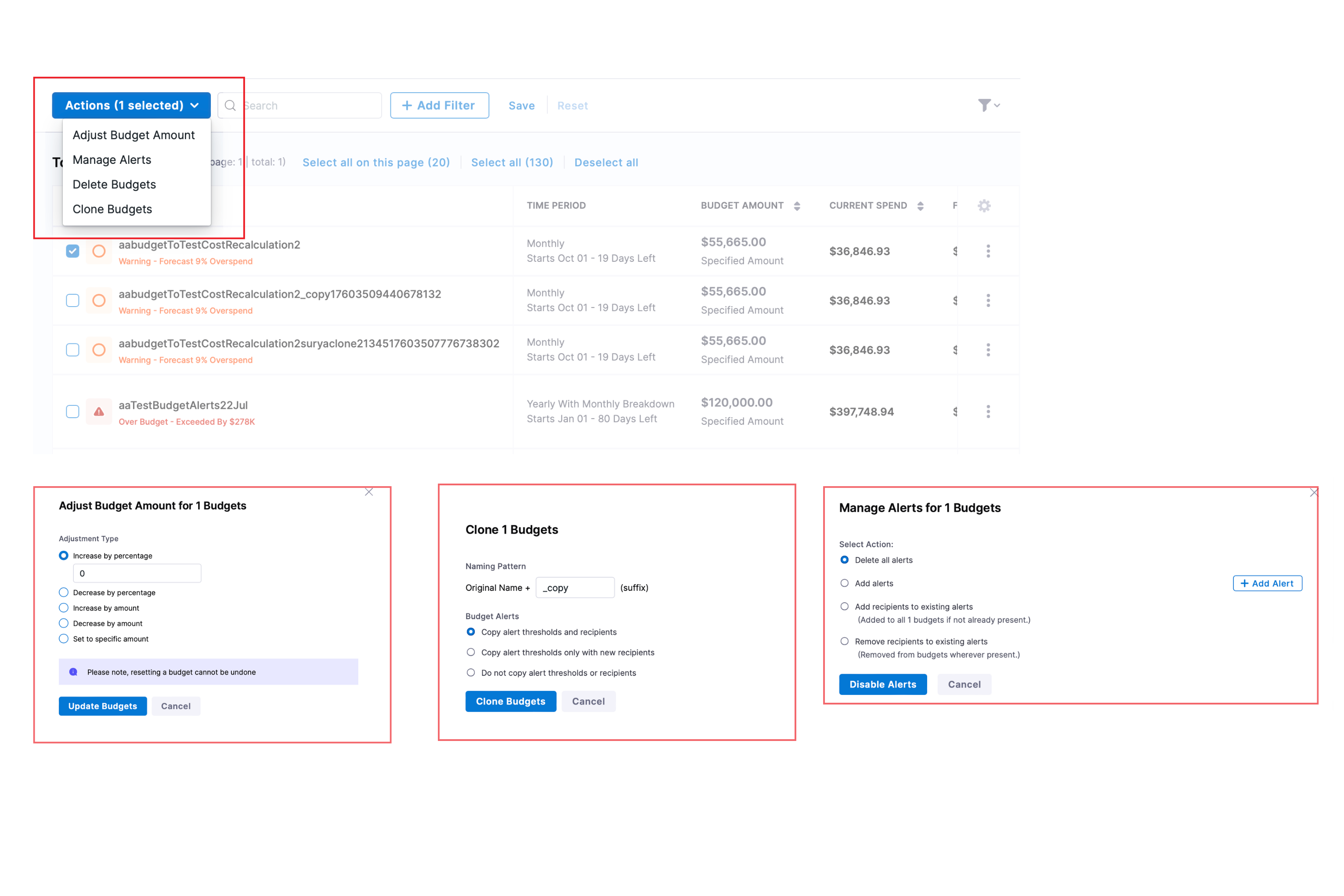
  • Bulk Budget Management: Select multiple budgets to perform batch operations:

    • Adjust Budget Amounts: Increase/decrease by percentage or fixed amount, or set to a specific value

    • Manage Alerts: Delete existing alerts, add new alerts with custom thresholds, add or remove recipients from existing alerts

    • Delete Budgets: Remove multiple budgets in a single operation

    • Clone Budgets: Duplicate selected budgets with options to copy alert thresholds and recipients or customize as needed

Click to view full-size image
  • Filtering: Quickly find relevant budgets using these filters:

    • Created By: Filter by budget creator

    • Last Modified: Select from preset timeframes (7/30/90 days) or choose a custom date

    • Budget Amount: Set minimum and maximum budget thresholds

    • Period: Filter by budget cycle (Daily, Weekly, Monthly, Quarterly, Yearly)

    • Perspective: View budgets associated with specific perspectives

Click to view full-size image

Create a Budget

  1. Navigate to the Cloud & AI Cost Management module and click Budgets.

  2. Click New Budget.

Step 1: Define Target

Click to view full-size image
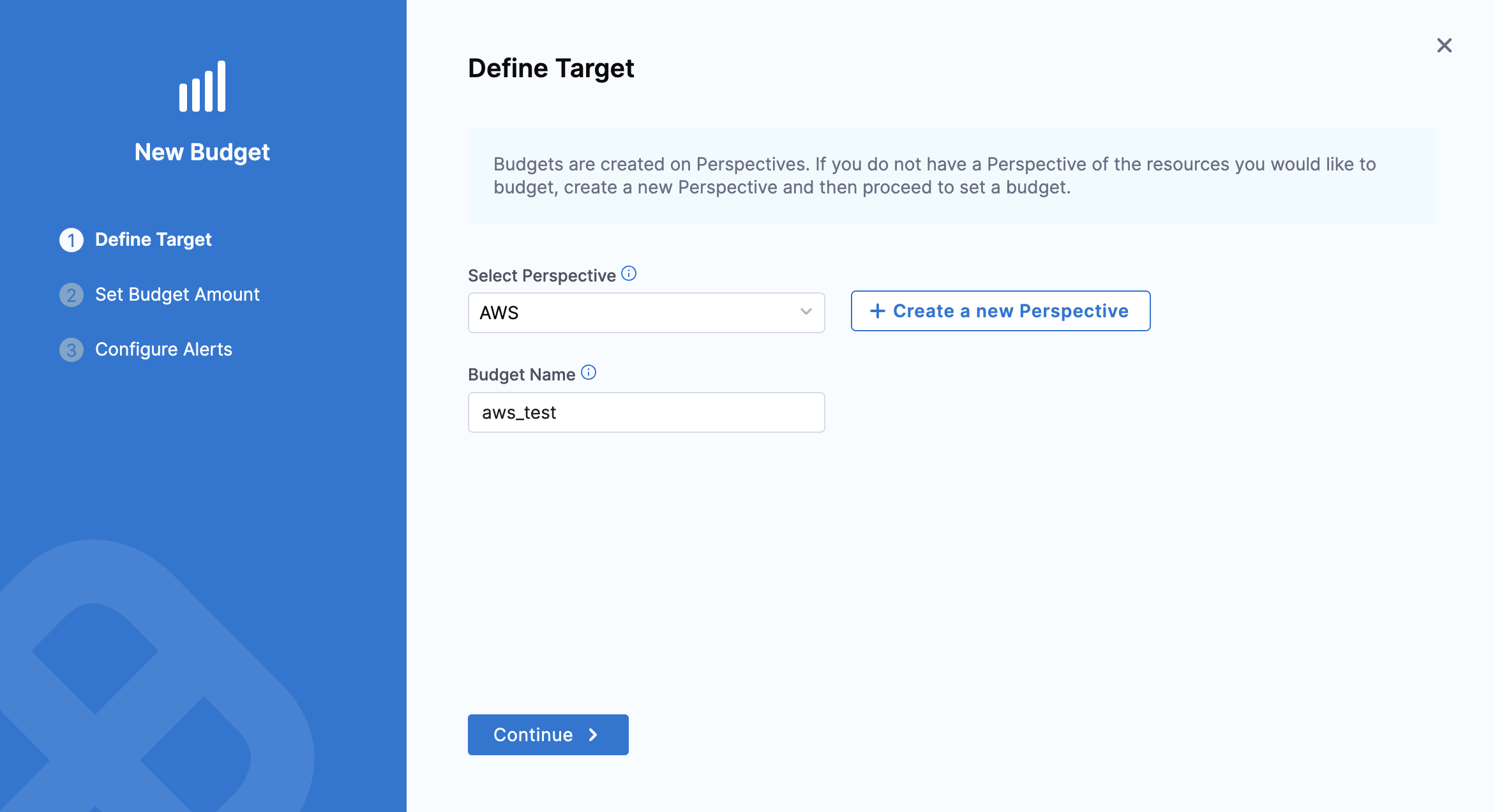
  • Select Perspective, select the Perspective for which you want to set a budget. Budgets are created on Perspectives. If you do not have a Perspective of the resources you would like to budget, first create a new Perspective and then proceed to set a budget. You can add multiple budgets for a single Perspective.

  • Budget Name: enter a name for your budget that will appear in the budget dashboard to identify this budget.

  • Click Continue.


Step 2: Set Budget Amount

Budgets' start date cannot be later than the 28th of any month.

Click to view full-size image
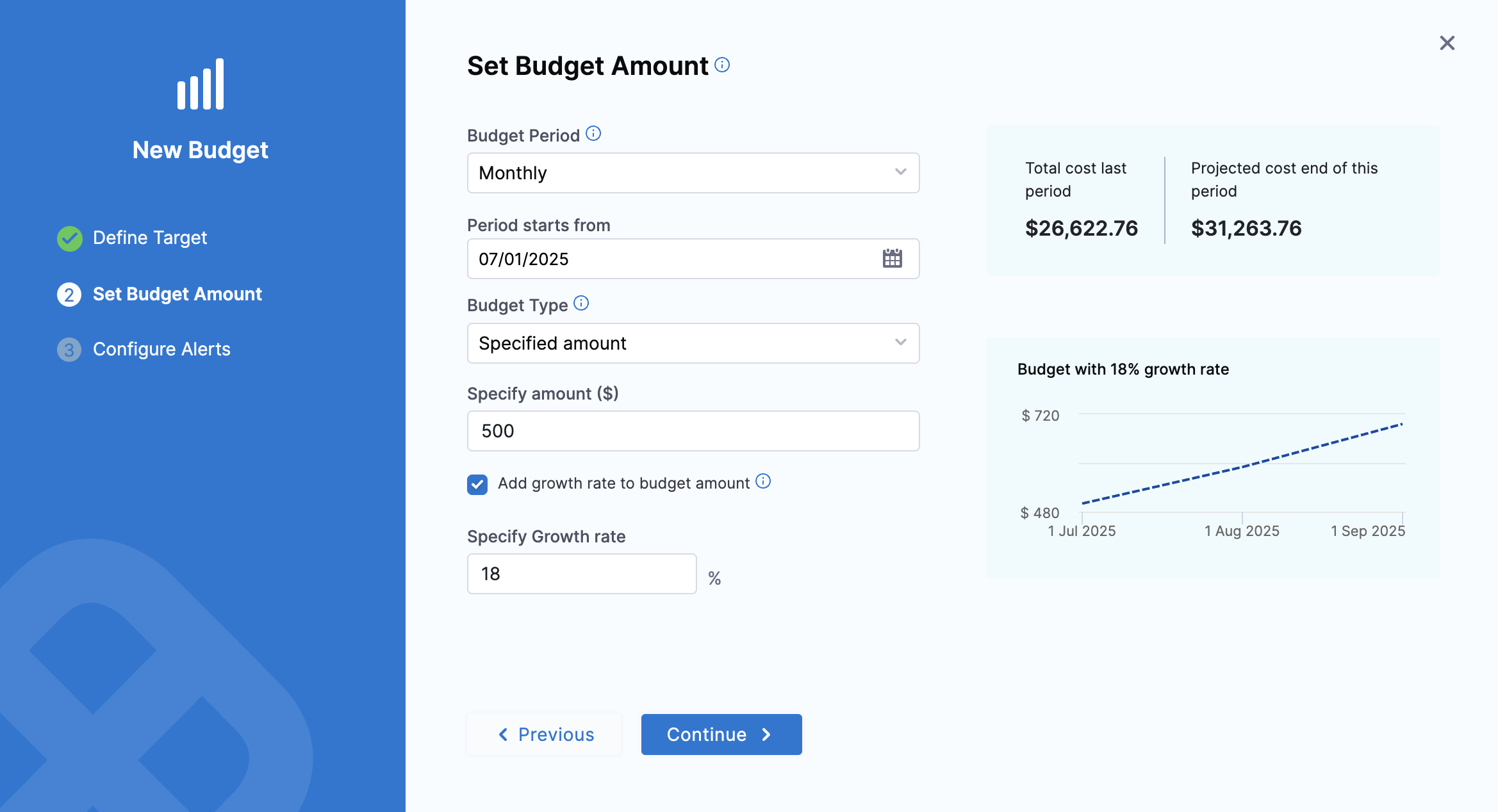
  • Budget Period: Select the time period for your budget. Available options include:

    • Monthly: Set a budget for each calendar month

    • Daily: Set a daily budget

    • Weekly: Set a weekly budget

    • Quarterly: Set a budget for each quarter

    • Yearly: Set an annual budget

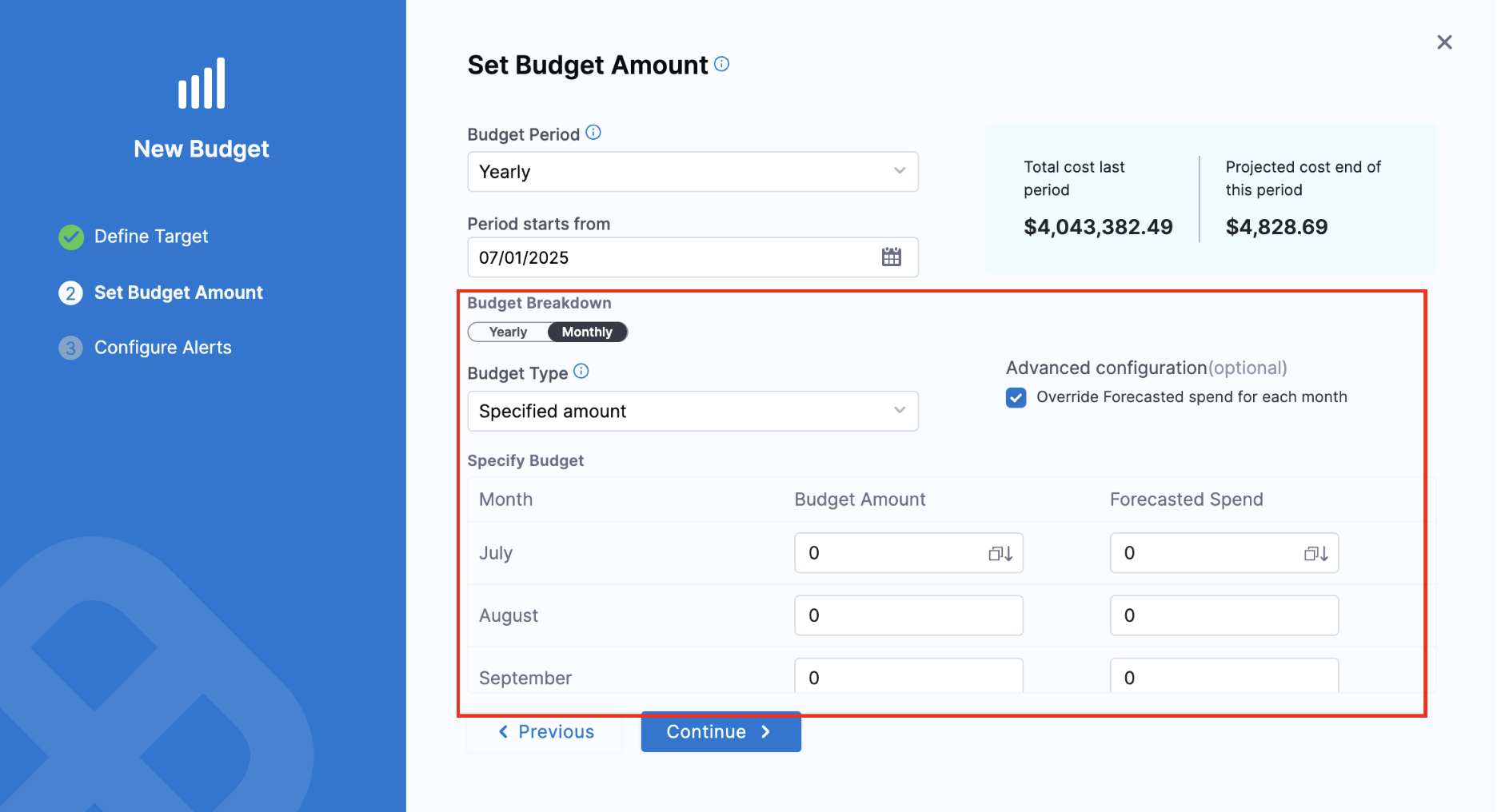
    When selecting Yearly, you can choose your budget breakdown as either:

    • Yearly: One budget amount for the entire year

    • Monthly: Individual budget amounts for each month of the year, with the option to override forecasted spend for each month.

Click to view full-size image
  • Period starts from: Use the date picker to set the start date for your budget.

  • Budget Type: select a Budget Type:

    • Specified Amount: Enter the amount that you want to set as the budget limit.

    • Previous Month Spend: Sets the previous month spent as your budget.

  • Specify amount ($): Enter the amount that you want to set as the budget limit if you have selected Specified Amount in the Budget Type.

  • [Optional] Add growth rate to budget amount: Growth rate refers to the percentage change of the budgeted amount within the specified time period. When you've decided to add growth rate to the budget amount, specify the growth rate percentage.

    • Specify Growth rate: Enter the percentage of the growth rate to the budget amount. You can select this option only if you have selected Specified Amount in the Budget Type.

    You can view the increased amount of your budget in the graph. The graph displays the amount and budget period.

  • Click Continue.


(Optional) Step 3: Configure Alerts

Click to view full-size image

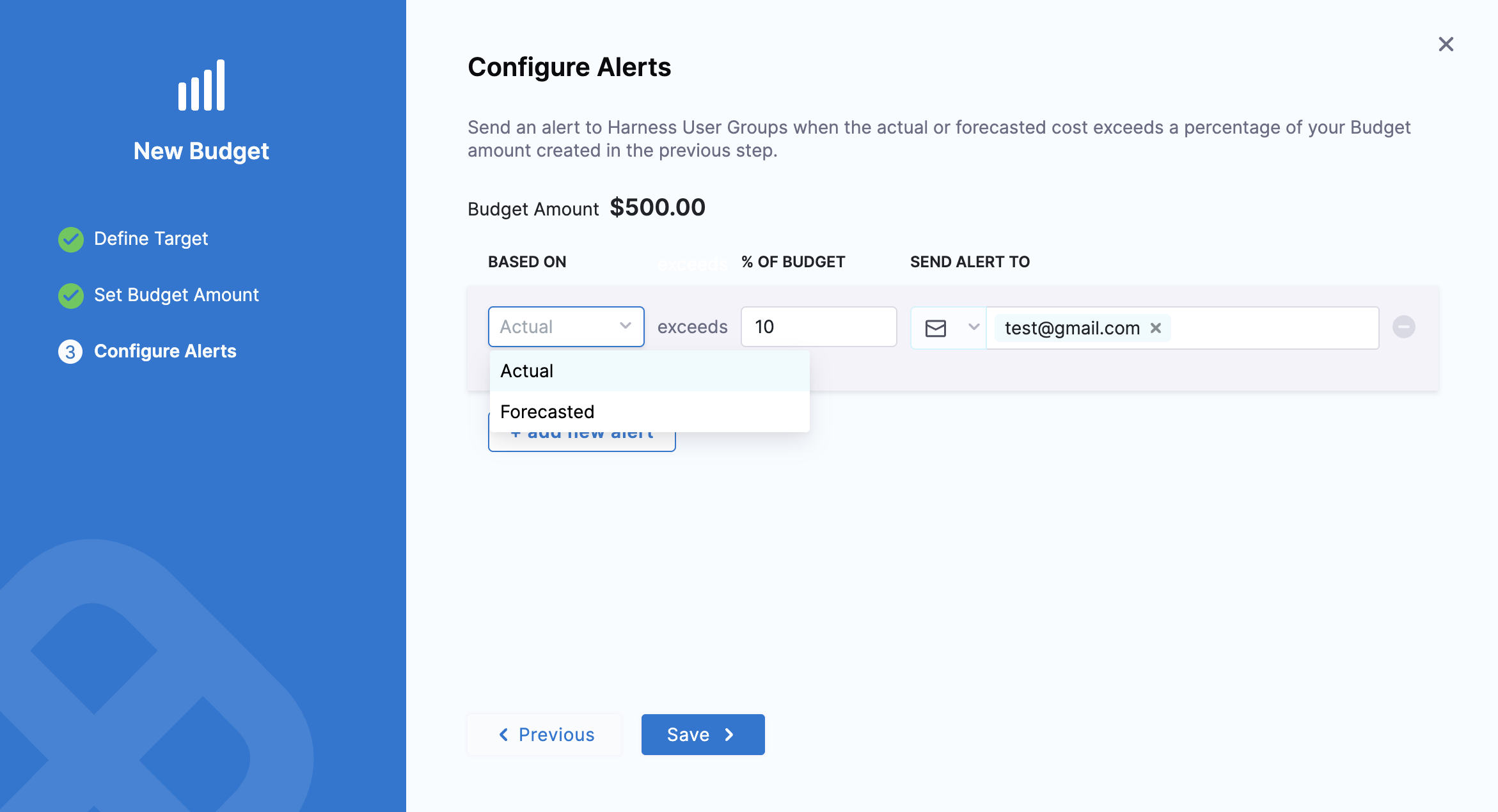
Harness will send an alert to the specified email addresses and Harness User Groups when the actual or forecasted cost exceeds a percentage of your monthly budget

  • Click on +Add New Alert.

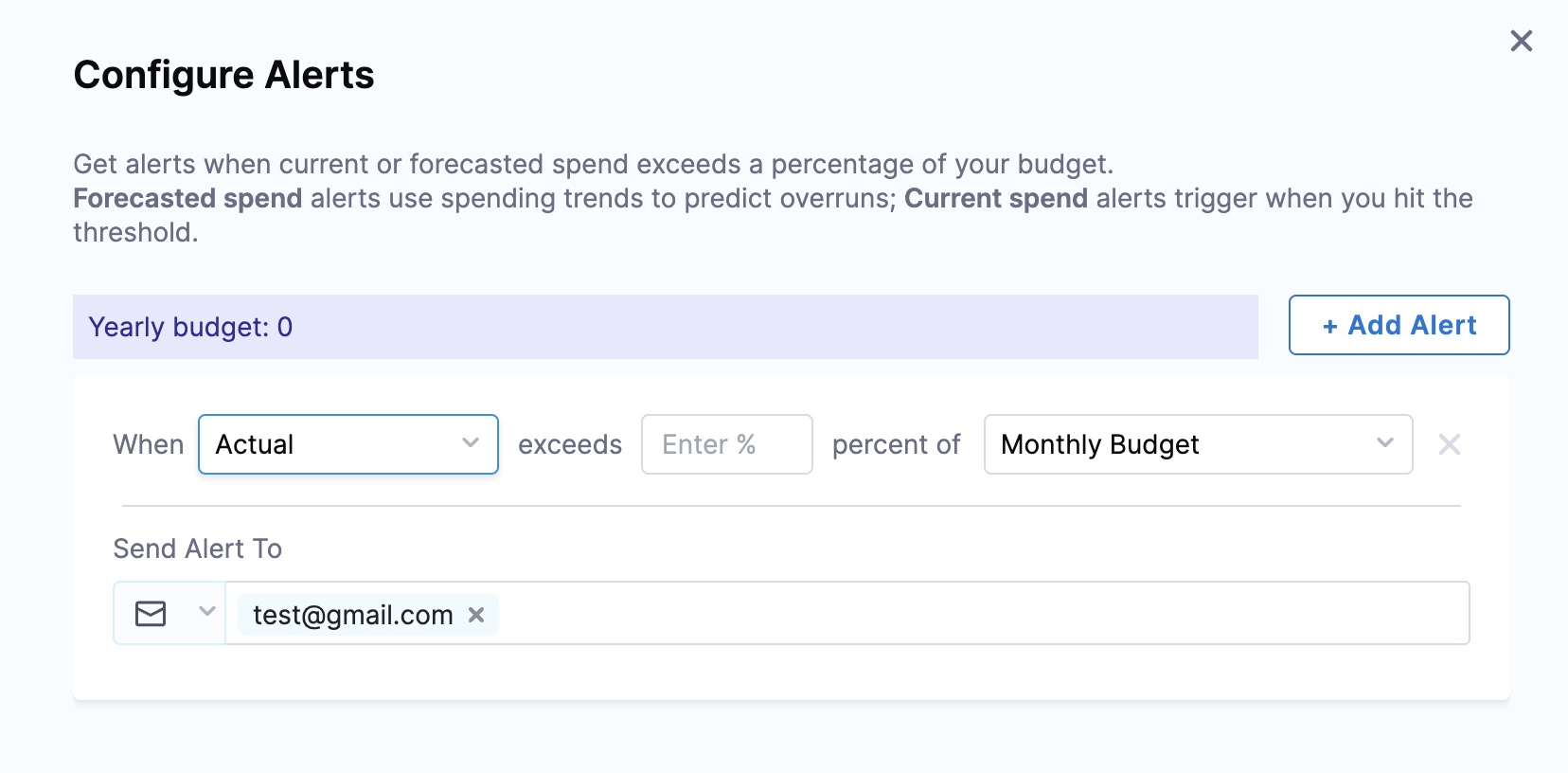
  • Specify the Percentage of Budget based on the Actual Cost or Forecasted Cost. Harness sends alerts when the Actual Cost or Forecasted Cost exceeds the threshold.

  • In Send Alert To, select one of the following options to receive budget notifications.

    1. Email: Enter the email address (you can enter more than one email address or email groups).

    2. Slack Webhook URL: Enter the webhook URL.

  • Click Save. Your budget is listed.

If your Budget Period is set to Yearly and the Budget Breakdown is Monthly, you can configure separate alerts for each month.

Click to view full-size image


Add AWS Cloud Cost Connector in Harness

Tracking Budget

Click to view full-size image

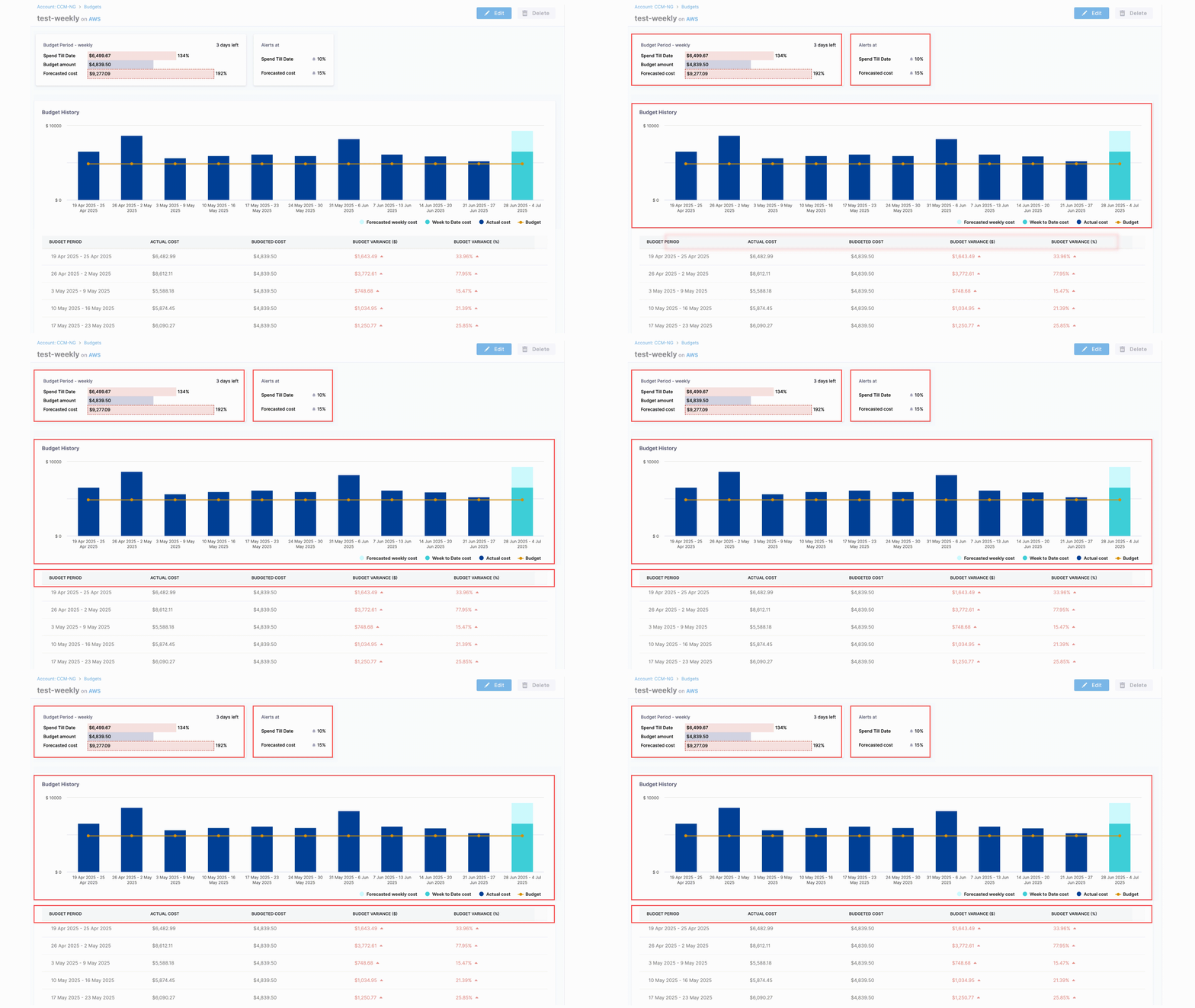
When you click on a specific budget, you'll see a detailed view containing:

Budget Overview Cards

Each budget displays the following key metrics:

  • Budget Period: The time frame for your budget (daily, weekly, monthly, quarterly, or yearly)

  • Spend Till Date: The actual amount spent from the budget start date to the current date

  • Budget Amount: The total budget limit you've set for the specified period

  • Forecasted Cost: Predicted spending based on current usage patterns and historical data.

  • Alerts At: The threshold percentages and notification settings you've configured

Budget History Graph and Table

Historical data for a budget is displayed through an interactive graph as well as a table.

Budget History Graph

An interactive graph displaying:

  • Forecasted Cost Trend: Projected spending over the budget period

  • Period-to-Date Cost: Cumulative actual spending from the start of the latest budget period to current date where "Period" refers to the budget period. For example, if you have a monthly budget, the Month-to-Date Cost will show the cumulative cost from the start of the current month to the current date.

  • Actual Cost: Real-time comparison of spending against your budget limit

  • Budget: Visual indicators showing your alert thresholds

Budget Details Table

A detailed breakdown corresponding to the Budget History Graph:

Metric
Description

Budget Period

The specific time frame (e.g., January 2024, Q1 2024)

Actual Cost

Real spending incurred during the period

Budgeted Cost

The allocated budget amount for the period

Budget Variance ($)

Dollar difference between actual and budgeted costs

Budget Variance (%)

Percentage variance showing over/under budget performance

Visual Walkthrough

Follow this interactive guide to understand how to navigate and use the Budget Dashboard effectively:

Budget Dashboard Navigation Guide

Edit / Delete Budgets

To edit a budget:

  1. In All Budgets, select the budget that you want to edit.

  2. Click Edit to edit the budget. You cannot edit the Budget Period.

  3. To delete a budget, In All Budgets, select the budget that you want to delete and click on Delete.

Click to view full-size image

FAQs

What is Forecasted Cost and how is it calculated?

Harness CACM displays a Forecasted Cost for every budget. It estimates how much you will spend by the end of the current period if your current pace continues.

Calculation

Average Daily Spend = (H + C) / Dₕ

Forecasted Cost

  • For Daily Budget: (H + C) / Dₕ

  • For Weekly, Monthly, Quarterly, Yearly: C + AverageDailySpend × R

Where:

  • H: Sum of Actual Cost across all completed periods

  • C: Actual spend in the current period so far (start-day → yesterday)

  • Dₕ: Days from the first history day through yesterday (inclusive)

  • R: Calendar days remaining (today → last day of period)

Examples:

Budget Period
Date Range
Today
H (Historical Spend)
Dₕ (Days of History)
C (Current Spend)
R (Days Remaining)
Average Daily Spend
Forecasted Cost

Weekly

Mon 8 Jan – Sun 14 Jan

Wed 10 Jan

$12,000

86

$350

5

$143

$1,065

Monthly

1 Jan – 31 Jan

10 Jan

$48,000

101

$8,600

21

$560

$20,360

Quarterly

1 Apr – 30 Jun

15 May

$400,000

409

$160,000

46

$1,369

$222,974

Yearly

1 Jan 2025 – 31 Dec 2025

1 Aug 2025

$1,800,000

577

$1,150,000

152

$5,106

$1,927,000

Last updated

Was this helpful?