> For the complete documentation index, see [llms.txt](https://developer.harness.io/llms.txt). Markdown versions of documentation pages are available by appending `.md` to page URLs; this page is available as [Markdown](https://developer.harness.io/cloud-cost-management/cost-governance/user-budgets/user-budgets.md).
# Overview
Set per-developer spend limits across AI tools, with enforcement, approvals, and self-service increase requests.
{% hint style="success" %}
This feature is in Limited GA and requires enablement. [View all early access features.](/release-notes/features.md)
{% @harness-feature-flag-access/request-feature-flag-access module="cloud-ai-cost-management" pagePath="cloud-ai-cost-management/cost-governance/user-budgets/user-budgets" featureFlags="%5B%7B%22name%22%3A%22AI%20User%20Budgets%22%2C%22key%22%3A%22CCM\_USER\_BUDGETS%22%2C%22status%22%3A%22LIMITED\_GA%22%2C%22description%22%3A%22Enables%20the%20User%20Budgets%20section%20under%20Cost%20Governance%20and%20the%20AI%20Budgets%20view%20in%20user%20profiles.%20Admins%20can%20create%20per-user%20AI%20spending%20budgets%20with%20configurable%20approval%20workflows%20and%20enforcement%20actions.%22%7D%5D" %}
{% endhint %}
User Budgets let you define a spending cap for each user on AI tools such as Cursor, Devin, GitHub Copilot, Claude Enterprise, and Amazon Bedrock. When a developer approaches or exceeds their limit, Harness notifies them and, optionally, blocks their access. Developers who need more can request a limit increase directly from their profile without filing a support ticket.
{% hint style="info" %}
User Budgets are separate from [Resource Budgets](/cloud-cost-management/cost-governance/budgets/create-a-budget.md), which track cloud infrastructure spend against cost perspectives.
{% endhint %}
***
## What you will learn from this topic
* How the User Budgets list is organized and what each column shows
* How to search, sort, and filter budgets
* How to use folders to organize budgets and control access
* How to create, move, and delete budgets from the list view
***
## Before you begin
* Your AI connectors must have **AI Governance** enabled in the connector setup. If not, ask your Admin to enable it.
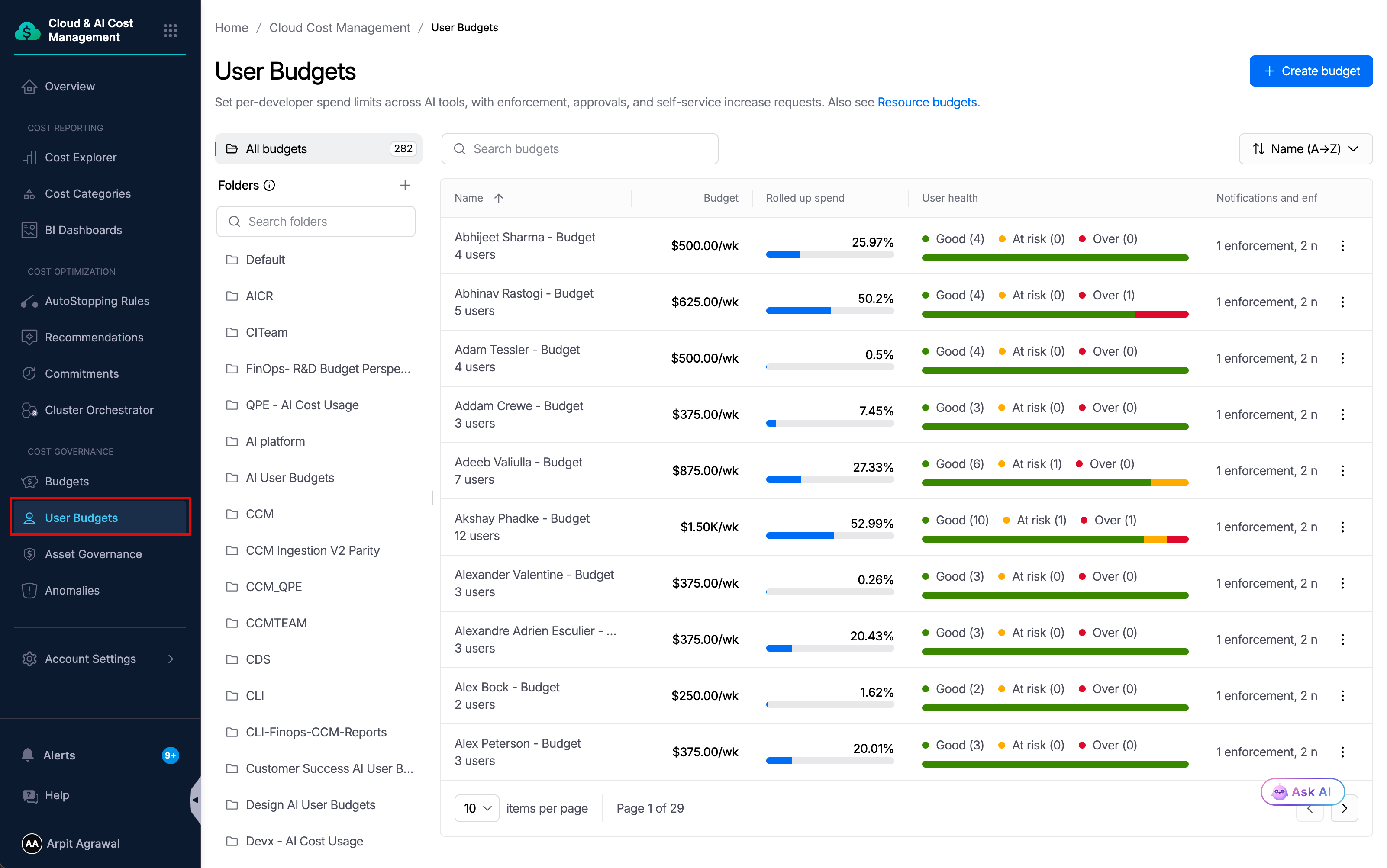
On the left navigation bar, select **Cost Governance** > **User Budgets** to see all user budgets configured in your account.
User Budgets list view
Each row shows:
| Column | Description |
| ------------------------------ | -------------------------------------------------------------------------------------------------------------------------------------------------------------------------------------------------------------------- |
| Name | Budget name, folder, and the number of users in the budget |
| Budget | Per-user spend limit and billing period (for example, $500.00/wk) |
| Rolled up spend | Aggregate AI spend across all users in the budget for the current period, shown as a percentage and progress bar |
| User health |
Good: all users within limit
At risk: one or more users nearing their threshold
Over: one or more users have exceeded the limit
|
| Notifications and enforcements | Active alert and block rules configured for the budget |
| Upgrade requests | Pending limit-increase requests submitted by users in the budget |
{% hint style="success" %}
### Finding and filtering budgets
Use the **Search budgets** bar to find a budget by name. Use the sort dropdown to order the list:
* **Name (A→Z / Z→A)**
* **Created (newest / oldest)**
* **Updated (newest / oldest)**
{% endhint %}
***
## Folders
Folders organize user budgets and control access. Users with access to a folder can see the budgets inside it. Use folders to scope visibility by team or org unit.
Select a folder in the **Folders** panel to filter the list. Select **All budgets** to return to the full list.
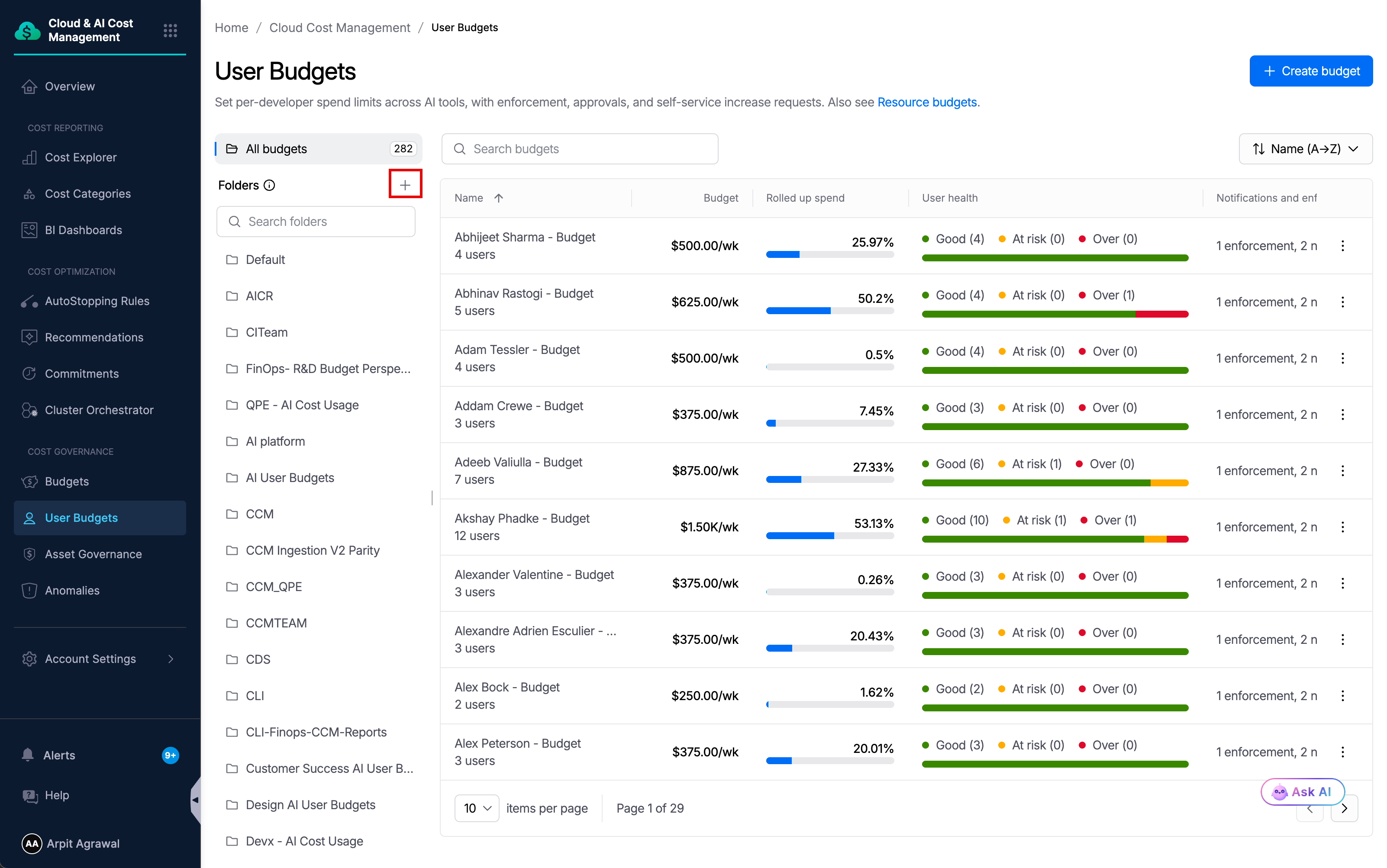
To create a folder, click **+** next to the **Folders** heading.
Click + next to Folders to create a new folder
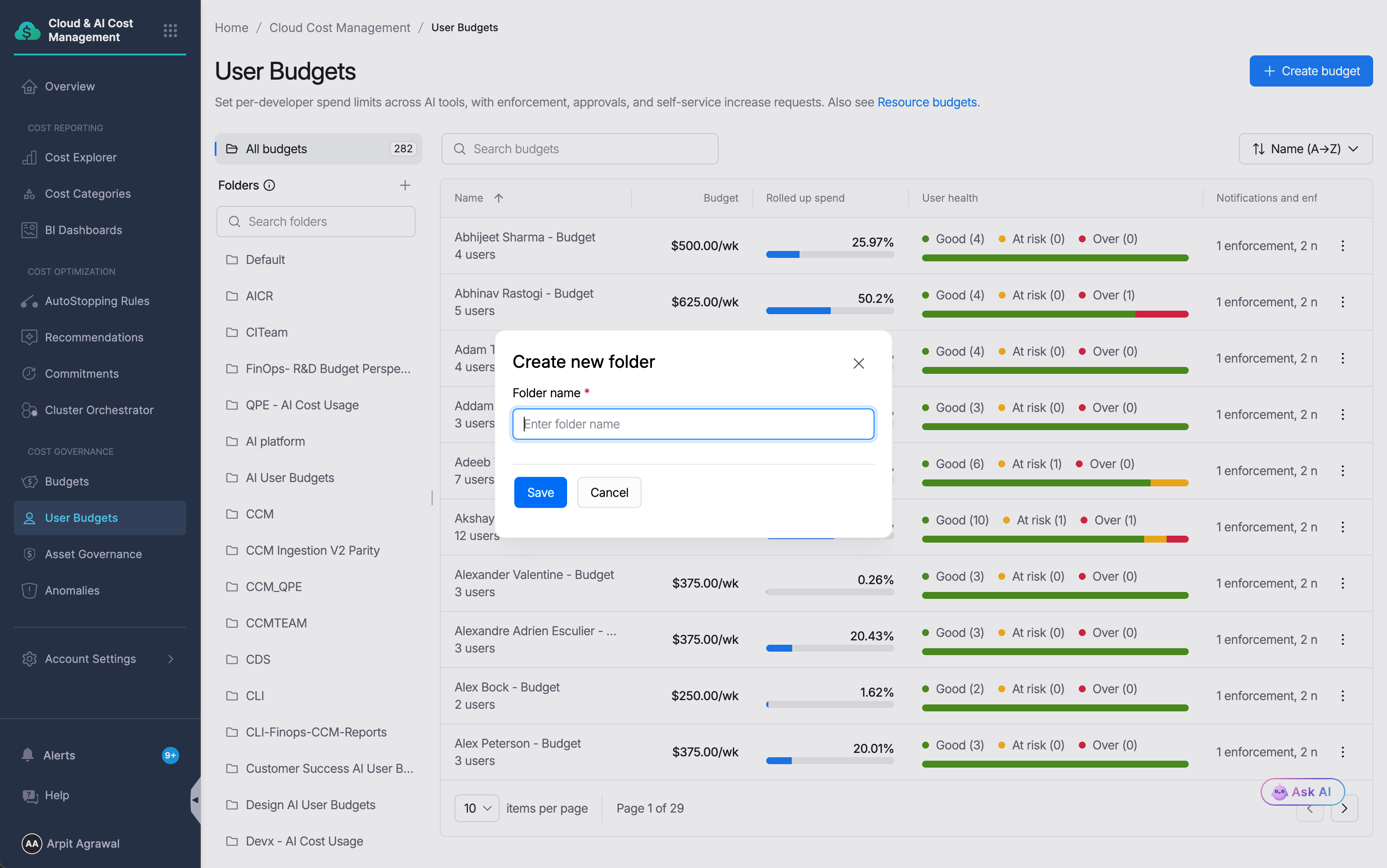
Enter a folder name and click **Save**.
Create new folder dialog
To manage an existing folder, hover over it in the panel to reveal three actions:
| Action | Description |
| -------------- | --------------------------------------------------------------- |
| Edit (pencil) | Rename the folder |
| Delete (trash) | Permanently remove the folder |
| Pin (pin icon) | Pin the folder to the top of the Folders panel for quick access |
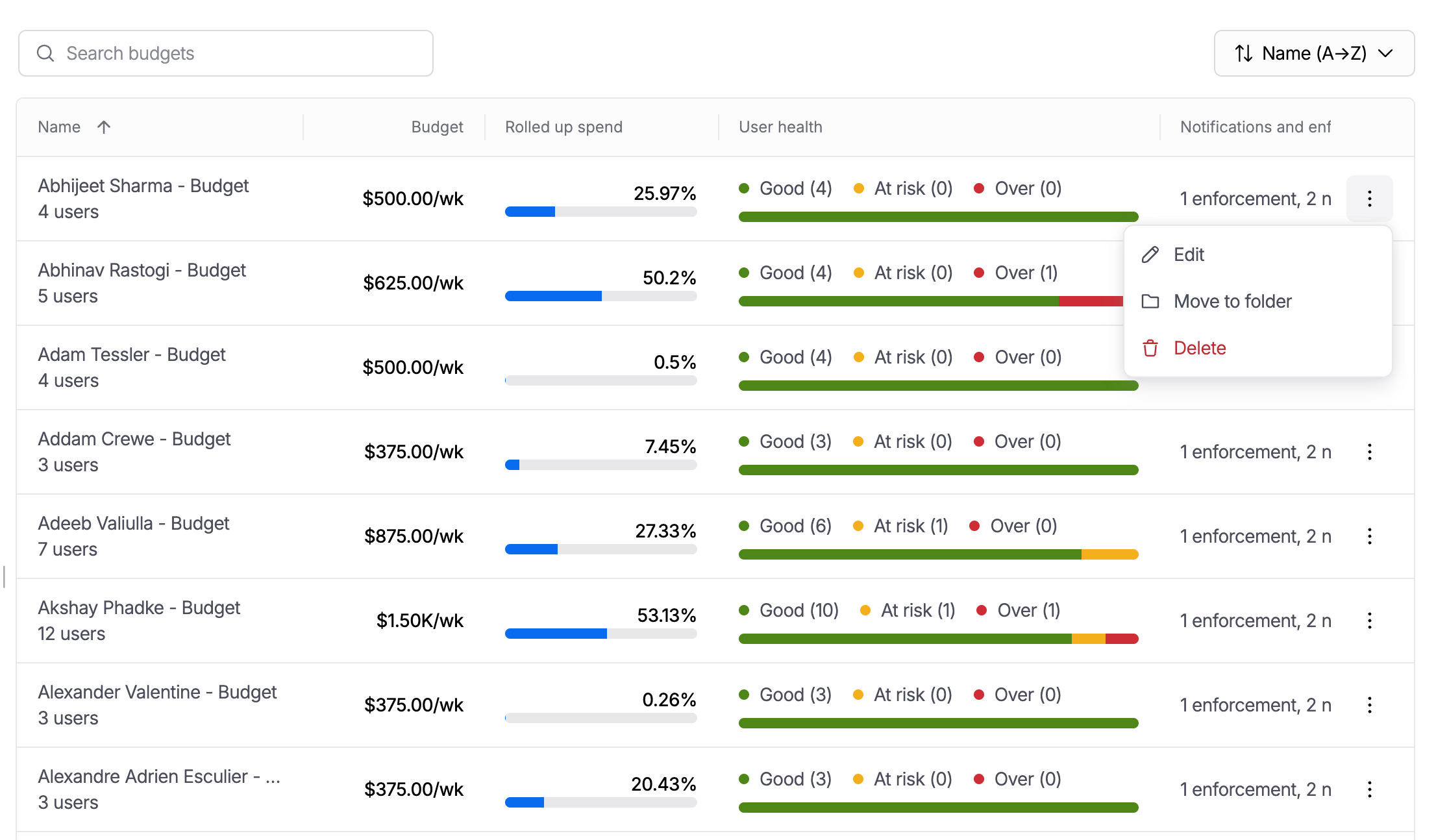
You can assign a budget to a folder when you create it. To change the folder for an existing budget, use the three-dot menu on the budget row. Select **Move to folder** to change only the folder, or select **Edit** to update the folder along with other budget settings.
Each budget row has a three-dot menu with Edit, Move to folder, and Delete options
***
## Next steps
Go to [Create and manage user budgets](/cloud-cost-management/cost-governance/user-budgets/manage-user-budgets.md) to set up a budget, configure enforcement rules and an approval workflow, and manage limit increase requests.
{% @harness-feedback/feedback %}