> For the complete documentation index, see [llms.txt](https://developer.harness.io/llms.txt). Markdown versions of documentation pages are available by appending `.md` to page URLs; this page is available as [Markdown](https://developer.harness.io/cloud-cost-management/cost-optimization/commitment-orchestrator/get-started/ec2-get-started.md).

# EC2

Get started with Commitment Orchestrator for EC2 to automate Reserved Instance and Savings Plan purchases and reduce AWS compute costs

{% @harness-package-selector/package-selector platforms="%5B%7B%22label%22%3A%22RDS%22%2C%22slug%22%3A%22rds%22%2C%22path%22%3A%22cloud-cost-management%2Fcost-optimization%2Fcommitment-orchestrator%2Fget-started%2Frds-get-started%22%2C%22logo%22%3A%22aws-logo.svg%22%7D%2C%7B%22label%22%3A%22EC2%22%2C%22slug%22%3A%22ec2%22%2C%22path%22%3A%22cloud-cost-management%2Fcost-optimization%2Fcommitment-orchestrator%2Fget-started%2Fec2-get-started%22%2C%22logo%22%3A%22aws-logo.svg%22%7D%2C%7B%22label%22%3A%22Elasticache%22%2C%22slug%22%3A%22elasticache%22%2C%22path%22%3A%22cloud-cost-management%2Fcost-optimization%2Fcommitment-orchestrator%2Fget-started%2Felasticache-get-started%22%2C%22logo%22%3A%22aws-logo.svg%22%7D%5D" selectedPlatform="ec2" iconLibrary="<https://developer.harness.io/provider-logos>" %}

## Before you begin

To setup Commitment Orchestrator in Harness CACM, you need:

* **Active CACM Connectors**: You must have at least one active cloud connector set up for the cloud providers you want to categorize costs for: Set Up [CACM Connectors](/cloud-cost-management/integrations/cloud-providers/aws.md).
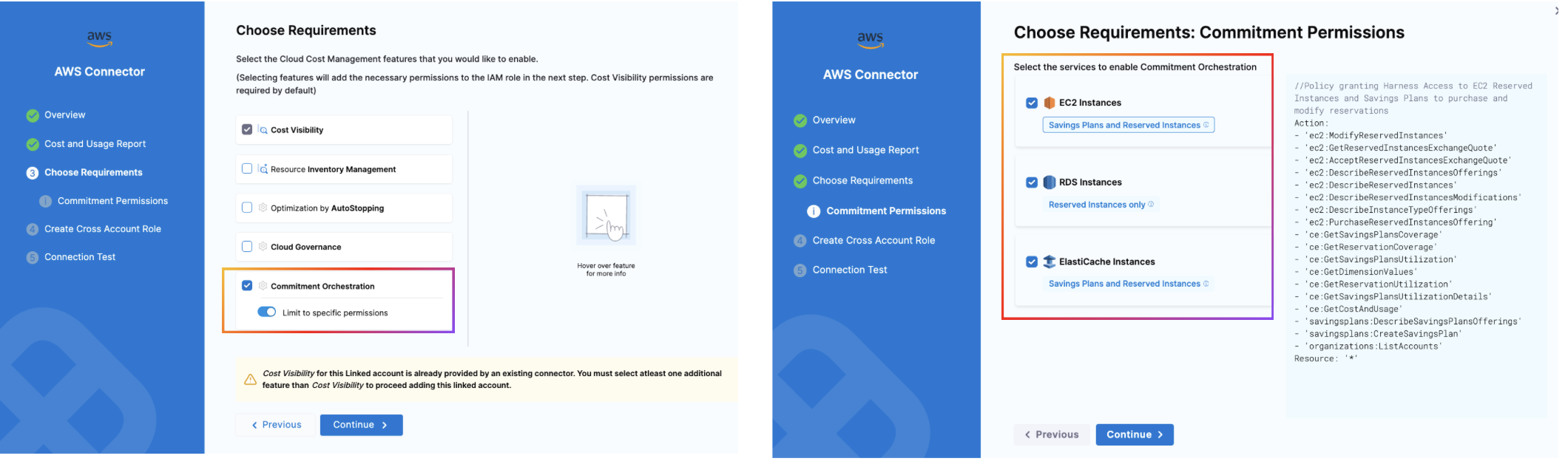
* A master account with the right permissions to be added via AWS connector on which you want to enable orchestration. Select the services for which you want to enable orchestration (permissions can be limited to specific service).

<figure><img src="https://1217180450-files.gitbook.io/~/files/v0/b/gitbook-x-prod.appspot.com/o/spaces%2FO2HVWkYMptNUG08jo8hr%2Fuploads%2Fgit-blob-d105f302d700ab17400aa29a0be37e6080a3a915%2Fpermissions.png?alt=media" alt=""><figcaption><p>Click to view full size image</p></figcaption></figure>

Available permissions for EC2:

```yaml
Action:
- 'ec2:ModifyReservedInstances'
- 'ec2:GetReservedInstancesExchangeQuote'
- 'ec2:AcceptReservedInstancesExchangeQuote'
- 'ec2:DescribeReservedInstancesOfferings'
- 'ec2:DescribeReservedInstances'
- 'ec2:DescribeReservedInstancesModifications'
- 'ec2:DescribeInstanceTypeOfferings'
- 'ec2:PurchaseReservedInstancesOffering'
- 'ce:GetSavingsPlansCoverage'
- 'ce:GetReservationCoverage'
- 'ce:GetSavingsPlansUtilization'
- 'ce:GetDimensionValues'
- 'ce:GetReservationUtilization'
- 'ce:GetSavingsPlansUtilizationDetails'
- 'ce:GetCostAndUsage'
- 'savingsplans:DescribeSavingsPlansOfferings'
- 'savingsplans:CreateSavingsPlan'
- 'organizations:ListAccounts'
Resource: '*'
```

* **Required Permissions**: Your Harness user account must belong to a user group with the following role permissions:

<details>

<summary>Required Read-Only Permissions</summary>

To enable visibility, in the master account connector, you need to add the following permissions.

```
"ec2:DescribeReservedInstancesOfferings",
"ce:GetSavingsPlansUtilization",
"ce:GetReservationUtilization",
"ec2:DescribeInstanceTypeOfferings",
"ce:GetDimensionValues",
"ce:GetSavingsPlansUtilizationDetails",
"ec2:DescribeReservedInstances",
"ce:GetReservationCoverage",
"ce:GetSavingsPlansCoverage",
"savingsplans:DescribeSavingsPlans",
"organizations:DescribeOrganization"
"ce:GetCostAndUsage"
```

And to enable actual orchestration, you need to add the following permissions.

```
"ec2:PurchaseReservedInstancesOffering",
"ec2:GetReservedInstancesExchangeQuote",
"ec2:DescribeInstanceTypeOfferings",
"ec2:AcceptReservedInstancesExchangeQuote",
"ec2:DescribeReservedInstancesModifications",
"ec2:ModifyReservedInstances"
"ce:GetCostAndUsage"
savingsplans:DescribeSavingsPlansOfferings
savingsplans:CreateSavingsPlan
```

</details>

***

### Steps to configure: <a href="#steps-to-configure" id="steps-to-configure"></a>

* Go to Commitment Orchestrator > Setup Orchestrator.

{% tabs %}
{% tab title="Account and Service details" %}

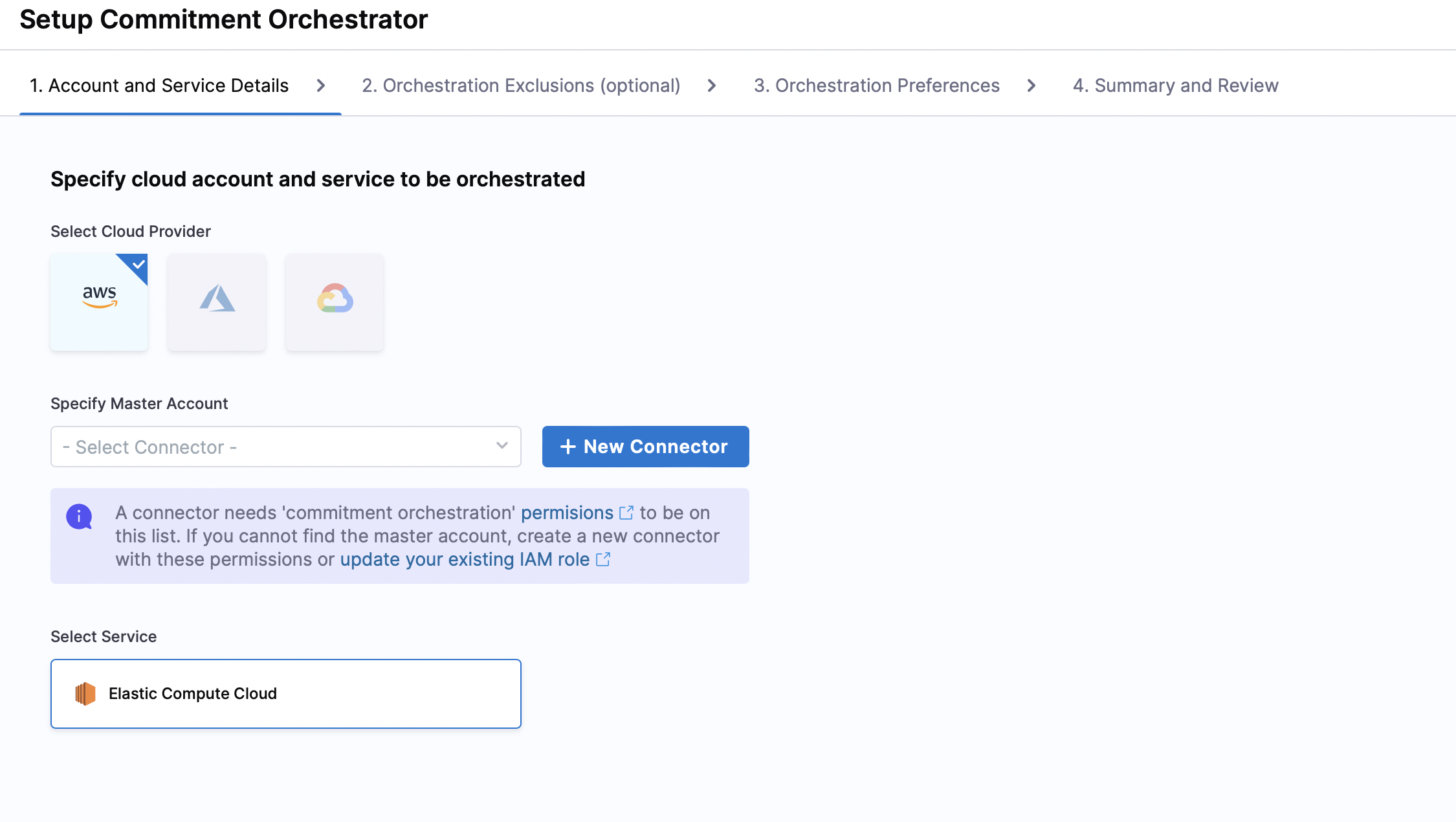
* Specify the cloud account and service for which you want to enable orchestration. Currently, Commitment Orchestrator supports AWS Elastic Compute Cloud (EC2). Support for other cloud providers is in the works.
* Specify the Master Account Connector. You need to select the master account with the right permissions to be added via connector on which you want to enable orchestration. You can either select an existing connector for your master account or create one. Note: even if "Commitment Orchestrator" is enabled in Connector Set Up for any other Account except for Master, it will not be visible in the connector list in Commitment Orchestrator Setup since Commitment Orchestrator requires Master Account connector.

<figure><img src="https://1217180450-files.gitbook.io/~/files/v0/b/gitbook-x-prod.appspot.com/o/spaces%2FO2HVWkYMptNUG08jo8hr%2Fuploads%2Fgit-blob-c6d0b6de4a31d2e47aae924f615a73c95690e6f4%2Fstepone-copy.png?alt=media" alt=""><figcaption><p>Click to view full size image</p></figcaption></figure>
{% endtab %}

{% tab title="Orchestrator Exclusions (Optional)" %}
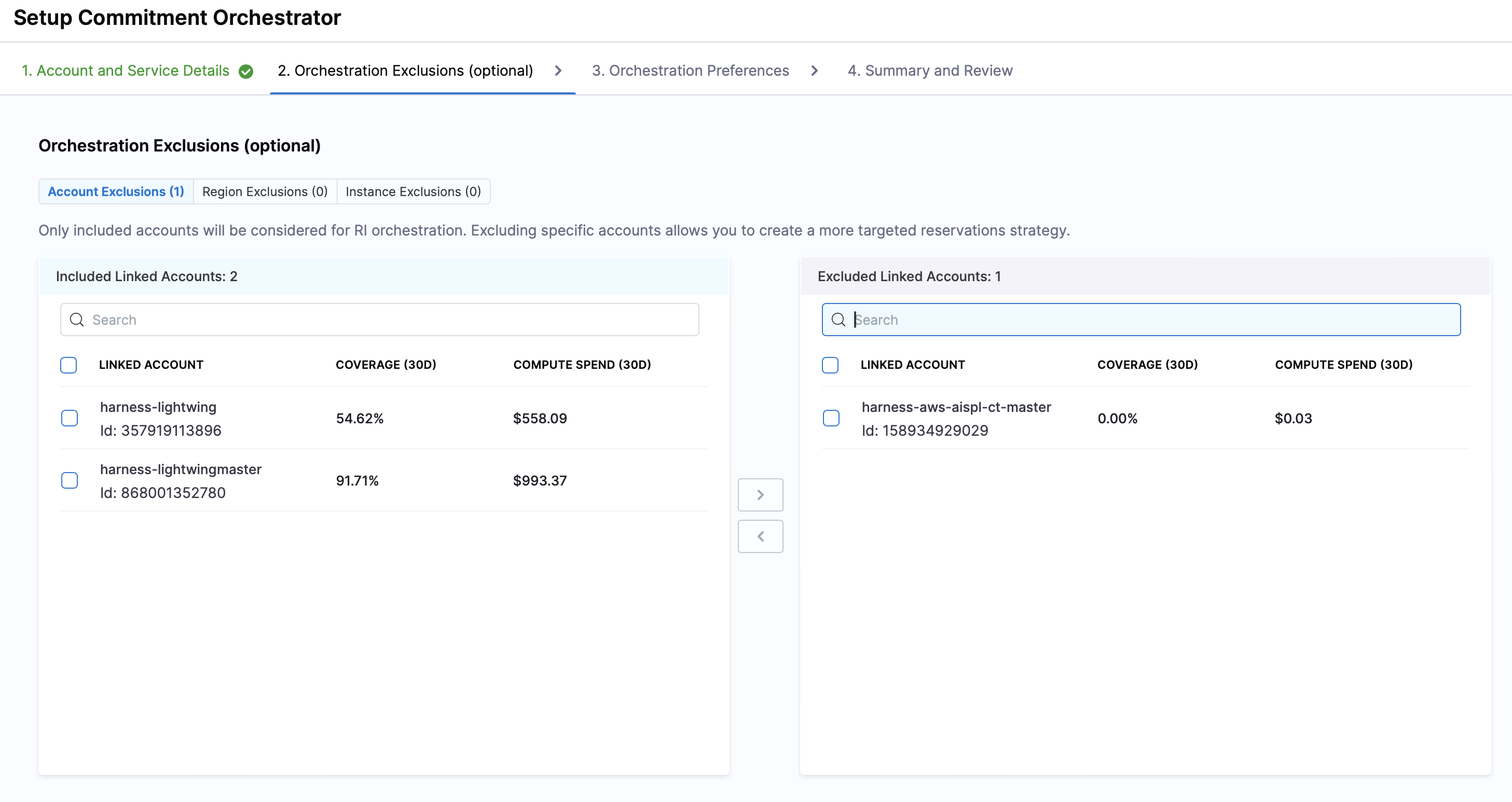
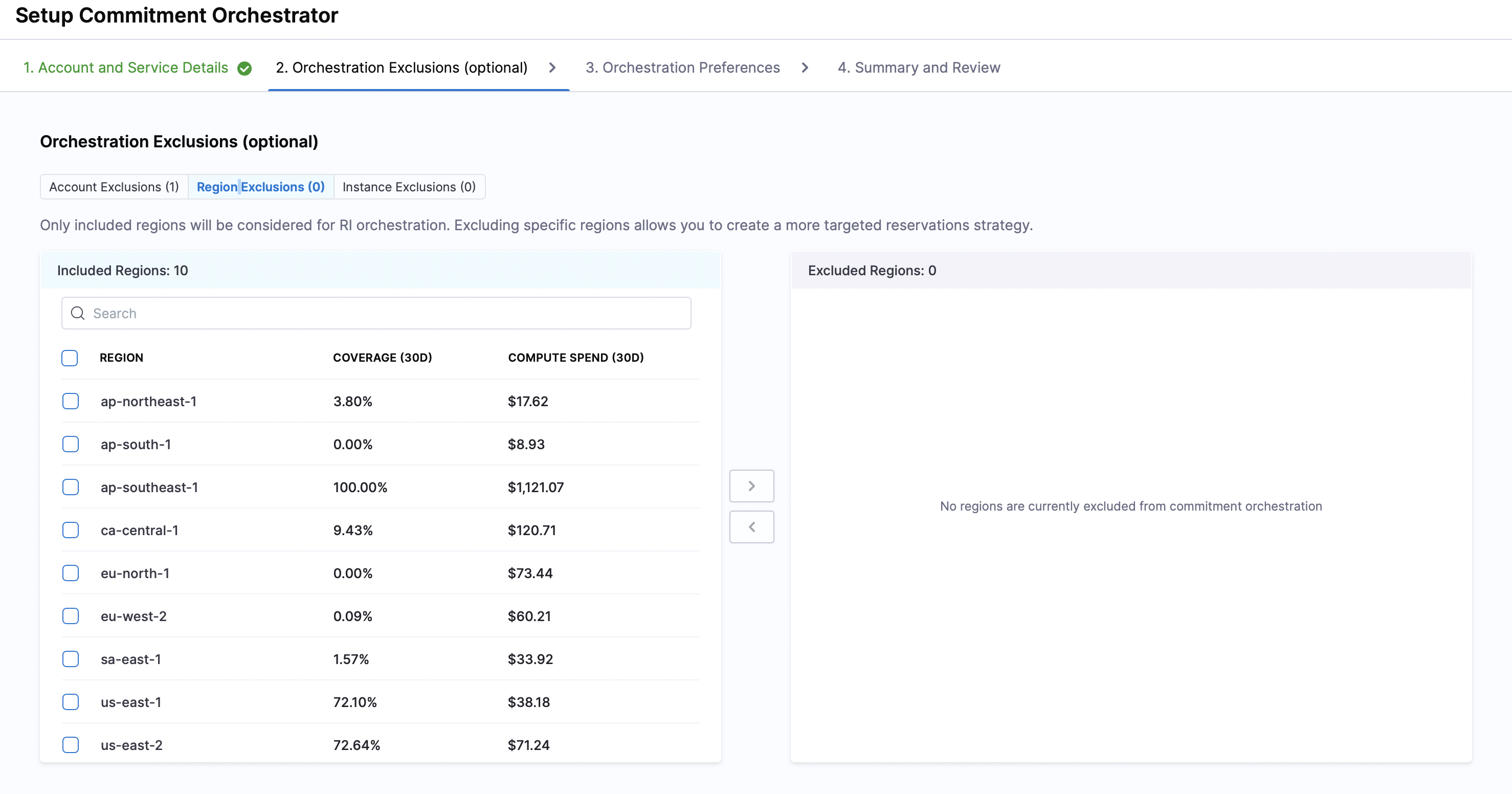
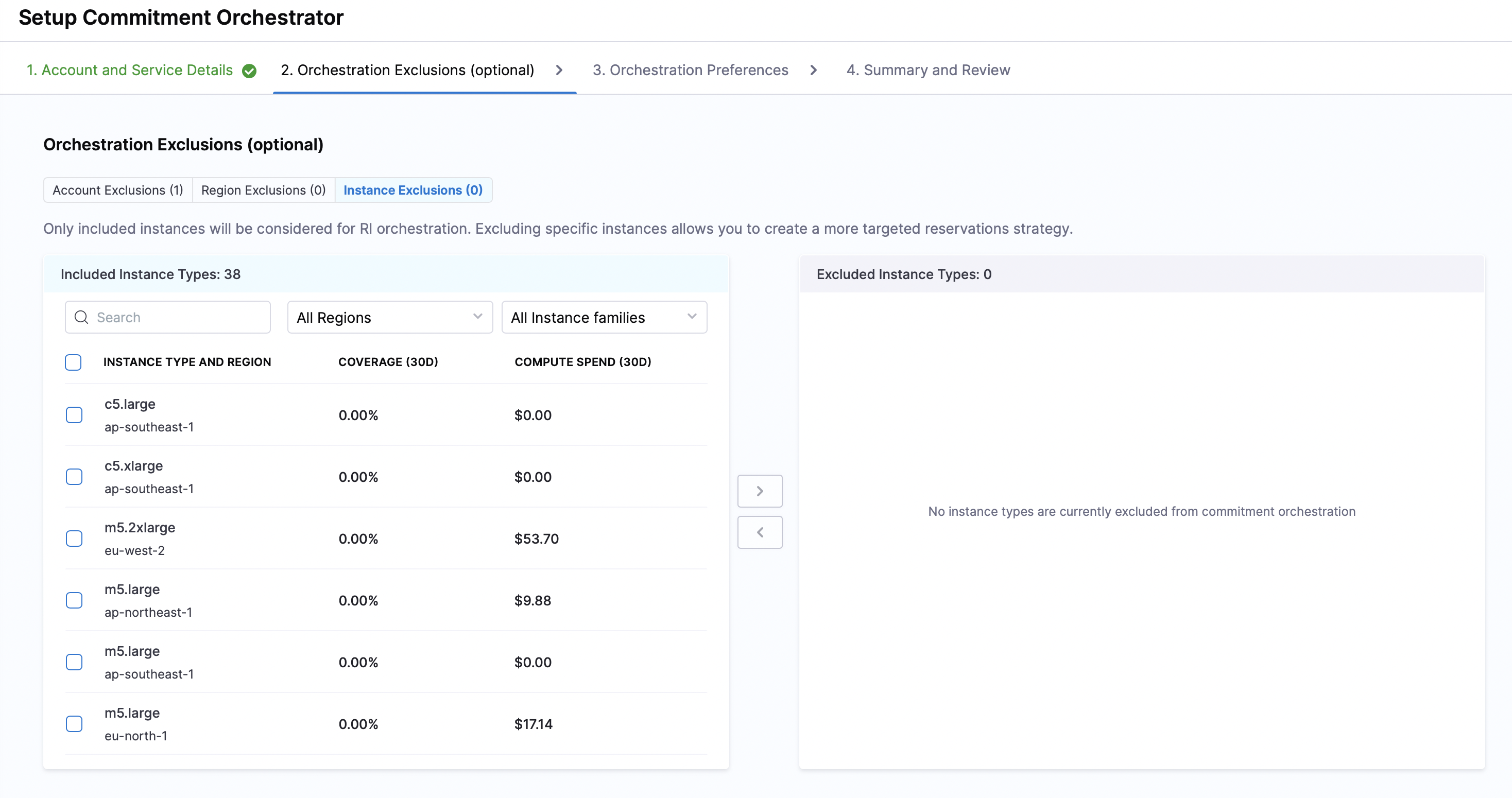
Commitment Orchestrator provides you with an option to exclude Accounts, Regions and Instances from the orchestration.

* Account Exclusions: You can include or exclude specific accounts from the orchestration. The accounts marked as included will be considered for RI Orchestration.

<figure><img src="https://1217180450-files.gitbook.io/~/files/v0/b/gitbook-x-prod.appspot.com/o/spaces%2FO2HVWkYMptNUG08jo8hr%2Fuploads%2Fgit-blob-d316e67dd09888a50bd059fe0c4a7bd86de74e9f%2Fsteptwo-copy.png?alt=media" alt=""><figcaption><p>Click to view full size image</p></figcaption></figure>

* Region Exclusions: You can include or exclude specific regions from the orchestration. All the regions are shown with their coverage and compute spend for making an informed decision

<figure><img src="https://1217180450-files.gitbook.io/~/files/v0/b/gitbook-x-prod.appspot.com/o/spaces%2FO2HVWkYMptNUG08jo8hr%2Fuploads%2Fgit-blob-097c5b3066b81c4e24403cbb56bb872c612f9b8e%2Fstepthree-copy.png?alt=media" alt=""><figcaption><p>Click to view full size image</p></figcaption></figure>

* Instance Exclusions: You can include or exclude specific instances from the orchestration.

<figure><img src="https://1217180450-files.gitbook.io/~/files/v0/b/gitbook-x-prod.appspot.com/o/spaces%2FO2HVWkYMptNUG08jo8hr%2Fuploads%2Fgit-blob-c5b2311cf33c2376c5d0205ebb4dbf709aa926a3%2Fstepfour-copy.png?alt=media" alt=""><figcaption><p>Click to view full size image</p></figcaption></figure>

{% hint style="info" %}
**NOTE**

The purchases will happen only at master account level and thus will be in turn applicable for child accounts as well. The exclusion list will only be considered for the compute spend calculations and actual RI/SP may be used against the instances if they are part of child accounts.
{% endhint %}
{% endtab %}

{% tab title="Orchestration Preferences" %}

### Target Coverage

The maximum percentage of your compute spend that you want covered by Savings Plans or Reserved Instances. Any remaining spend will continue to run on On-Demand. The Commitment Orchestrator automatically adjusts coverage levels based on evolving usage patterns.

### Preferred commitment type

Select whether the orchestrator prioritizes Reserved Instances or Savings Plans when both can cover the same EC2 usage.

* **Reserved Instances** (default): The orchestrator prioritizes reserved instances. Savings plans are used only when reserved instances are not a good fit for the usage pattern.
* **Savings Plans**: The orchestrator prioritizes savings plans. Reserved instances are used only when savings plans are not a good fit for the usage pattern.

{% hint style="success" %}
The **Preferred commitment type** setting controls which commitment type spends the shared coverage budget first. Both types may still be purchased; selecting one does not disable the other.
{% endhint %}

<figure><img src="https://1217180450-files.gitbook.io/~/files/v0/b/gitbook-x-prod.appspot.com/o/spaces%2FO2HVWkYMptNUG08jo8hr%2Fuploads%2Fgit-blob-2f16991e2a276c29cc962cabfe07a1390b3b083c%2Fco-sp-preferences.png?alt=media" alt=""><figcaption><p>Click to view full size image</p></figcaption></figure>

### Maximum commitment per savings plan

Set an upper limit (in USD per hour) on the size of any single Savings Plan recommendation. The orchestrator will not recommend or purchase a Savings Plan with an hourly commitment above this amount.

| Setting        | Behavior                                                                               |
| -------------- | -------------------------------------------------------------------------------------- |
| Unset          | No limit applied; the orchestrator sizes recommendations based on your eligible spend. |
| Greater than 0 | Each net-new SP recommendation is capped at this hourly value.                         |

For example, if your eligible on-demand spend is $100/hr and you set this to $25/hr, the orchestrator recommends a $25/hr Savings Plan in the first run. After that purchase is approved, the next run recommends another $25/hr, and so on until coverage is built up.

{% hint style="info" %}
The maximum commitment per savings plan cap applies to net-new Savings Plan recommendations only. Renewals of existing Savings Plans are not governed by this limit in the same way.
{% endhint %}

<figure><img src="https://1217180450-files.gitbook.io/~/files/v0/b/gitbook-x-prod.appspot.com/o/spaces%2FO2HVWkYMptNUG08jo8hr%2Fuploads%2Fgit-blob-5174a07691d13b415b5ac467b13641e047bd1c09%2Fco-sp-max-commitment.png?alt=media" alt=""><figcaption><p>Click to view full size image</p></figcaption></figure>

### Atomization

Atomization helps restrict all RI-based transactions to a specified date. Harness Commitment Orchestrator purchases an Atom RI monthly in each region, so an Atom RI expires on a monthly basis.

You can select the Atom purchase frequency and select the Atom purchase terms and you can also see the cost implications of Atomization. By default, CACM sets it for one year, but you can also set it for three years.

### Harness SP Staggering

When Harness SP Staggering is enabled, the Commitment Orchestrator builds your Savings Plan coverage gradually through a series of smaller purchases instead of one large commitment.

**Why this reduces risk**

A single large Savings Plan locks you into a fixed hourly commitment for one or three years. If your usage drops after purchase, the unused portion is wasted spend. Use Harness SP Staggering to reduce this risk:

* Buying only a fraction of your remaining uncovered demand at each step, so early purchases are modest and later ones shrink naturally as coverage grows
* Spreading purchases over time, creating decision points where the orchestrator can adjust if usage changes
* Ensuring no single purchase can be oversized when combined with the maximum commitment per savings plan setting

**How it works**

Each orchestrator run calculates how much of your on-demand spend remains uncovered by active and pending Savings Plans. The orchestrator then purchases a fraction of that remaining amount rather than the full total. By default, Harness SP Staggering uses a balanced pace that covers approximately 50% of your coverable usage within the first month, with several purchases spaced throughout.

{% hint style="info" %}
Harness SP Staggering applies to net-new Savings Plan purchases only. It does not affect Reserved Instance purchases or renewals of existing Savings Plans.
{% endhint %}

<figure><img src="https://1217180450-files.gitbook.io/~/files/v0/b/gitbook-x-prod.appspot.com/o/spaces%2FO2HVWkYMptNUG08jo8hr%2Fuploads%2Fgit-blob-f22f6d1f6a16d9195d741ee1711fe022a6c96e20%2Fco-sp-staggering.png?alt=media" alt=""><figcaption><p>Click to view full size image</p></figcaption></figure>

### (Optional) Savings Plan Renewal Reduction % (Roll-Down Policy)

Set a percentage to decide how much of an expiring commitment will be renewed. The Roll-Down Policy gives you strategic control over how your expiring AWS Savings Plans are renewed and optimizes your commitment mix over time.

**How it works**: When a Savings Plan expires, the Roll-Down Policy automatically renews a specified percentage as another Savings Plan, while converting the remaining portion to Reserved Instances. For example, if set to 80% and you have a $10/hr SP expiring, we'll renew $8/hr as SP and shift the remaining $2/hr to RIs.

**Benefits**:

* **Gradual portfolio adjustment**: Allows you to shift your commitment strategy as your workload patterns evolve
* **Risk management**: Minimizes commitment risk through monthly expiring Atom RIs, allowing for better adaptation to changing usage patterns
* **Balanced flexibility**: Maintains cost savings while introducing more flexibility into your commitment portfolio through a mix of SPs and RIs

<figure><img src="https://1217180450-files.gitbook.io/~/files/v0/b/gitbook-x-prod.appspot.com/o/spaces%2FO2HVWkYMptNUG08jo8hr%2Fuploads%2Fgit-blob-835e9bfd89f978cd2e2452d6cabd1531ca10210b%2Fsp-rolldown.png?alt=media" alt=""><figcaption><p>Click to view full size image</p></figcaption></figure>

### Orchestration Mode

Select how the orchestrator executes recommended commitment purchases:

* **Fully Automated**: Commitment purchases are executed automatically without requiring manual approval.
* **Manual**: All commitment purchases require explicit manual approval before execution, giving you complete control over the process. All the recommendations are visible in the **Actions** tab on the dashboard.

<figure><img src="https://1217180450-files.gitbook.io/~/files/v0/b/gitbook-x-prod.appspot.com/o/spaces%2FO2HVWkYMptNUG08jo8hr%2Fuploads%2Fgit-blob-a702e13664dc95542a7145a9acb811925bc5ee19%2Fstepsix.png?alt=media" alt=""><figcaption><p>Click to view full size image</p></figcaption></figure>

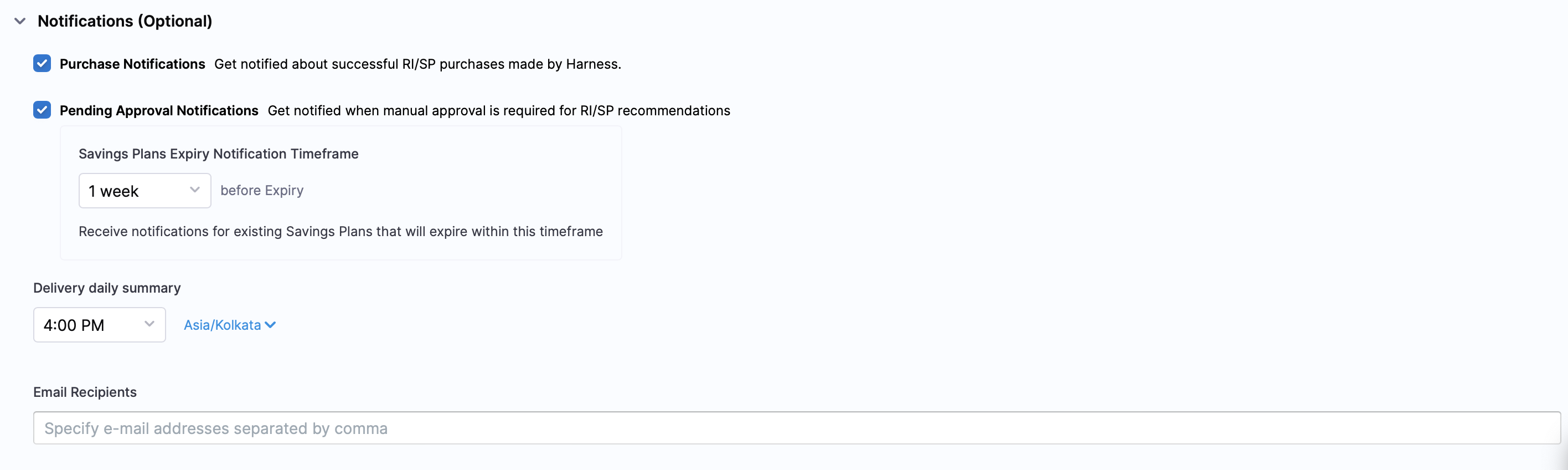
### (Optional) Notifications

Configure alerts to stay informed about commitment-related activities. You can set up the following notification types:

* **Purchase Notifications**: Receive alerts when Harness successfully executes RI/SP purchases on your behalf. These notifications include details such as commitment type, term length, upfront cost, and estimated savings.
* **Pending Approval Notifications**: You receive a notification when manual approval is required for RI/SP recommendations. Pending Approval Notifications are particularly useful when using Manual orchestration mode, ensuring you never miss an opportunity to approve cost-saving commitments.
* **Savings Plans Expiry Notifications**: Set a timeframe (up to 7 days before expiry) to receive alerts about your existing Savings Plans that will soon expire. This gives you adequate time to plan for renewals or replacement commitments.
* **Email Recipients**: Specify the email addresses that should receive these notifications. You can add multiple recipients by separating email addresses with commas. You can also direct notifications to specific teams or distribution lists.

<figure><img src="https://1217180450-files.gitbook.io/~/files/v0/b/gitbook-x-prod.appspot.com/o/spaces%2FO2HVWkYMptNUG08jo8hr%2Fuploads%2Fgit-blob-7c492584d11728442e5b4bf3e1128089e19fe0ca%2Fnotifications.png?alt=media" alt=""><figcaption><p>Click to view full size image</p></figcaption></figure>
{% endtab %}

{% tab title="Review & Complete" %}
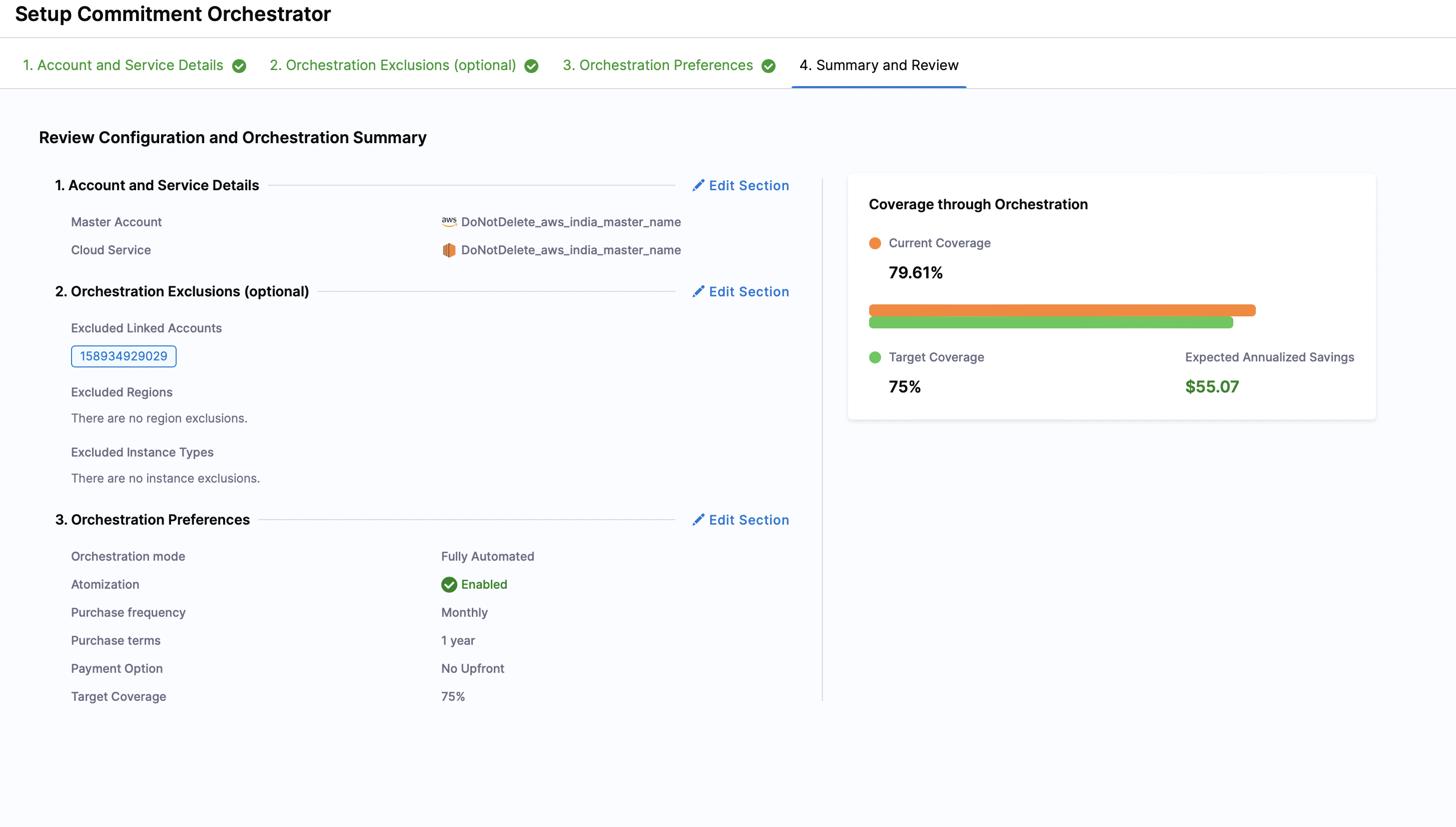
**Review**

After all the set-up steps, you can review and finalise your inputs.

<figure><img src="https://1217180450-files.gitbook.io/~/files/v0/b/gitbook-x-prod.appspot.com/o/spaces%2FO2HVWkYMptNUG08jo8hr%2Fuploads%2Fgit-blob-b04786459f15f04ef53458e55d707305f282a919%2Fstepseven.png?alt=media" alt=""><figcaption><p>Click to view full size image</p></figcaption></figure>
{% endtab %}
{% endtabs %}

***

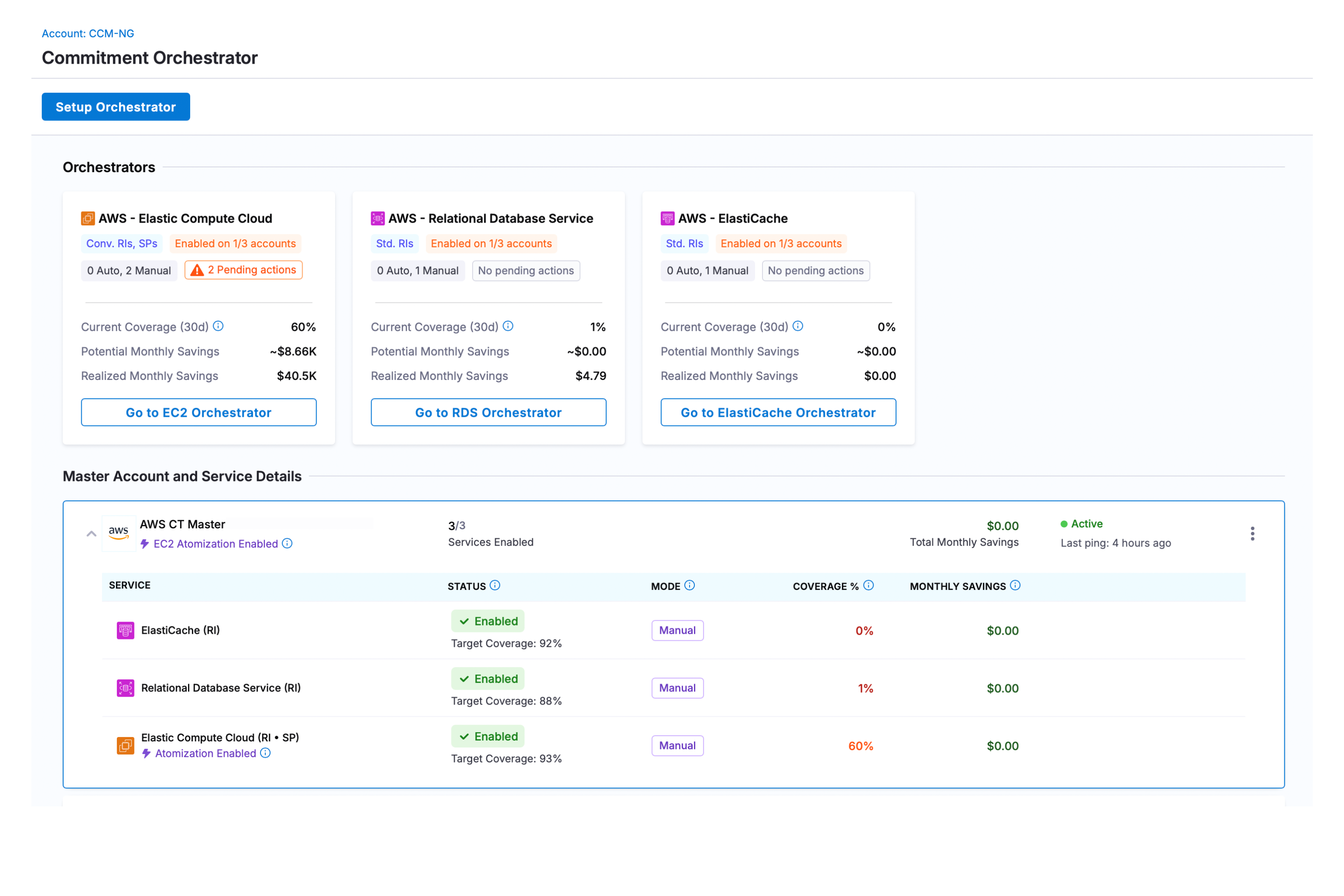
### Overview screen

The Orchestration Setup page displays a comprehensive list of all Master Accounts with Commitment Orchestrator connector permissions. From this page, users can enable new orchestration setups and view key metrics including Last 30 Days Coverage, Savings, and the current status of each Orchestrator configuration.

<figure><img src="https://1217180450-files.gitbook.io/~/files/v0/b/gitbook-x-prod.appspot.com/o/spaces%2FO2HVWkYMptNUG08jo8hr%2Fuploads%2Fgit-blob-3314246201cd0c0ce7523796a41adb230449d731%2Fco-overview.png?alt=media" alt=""><figcaption><p>Click to view full size image</p></figcaption></figure>

***

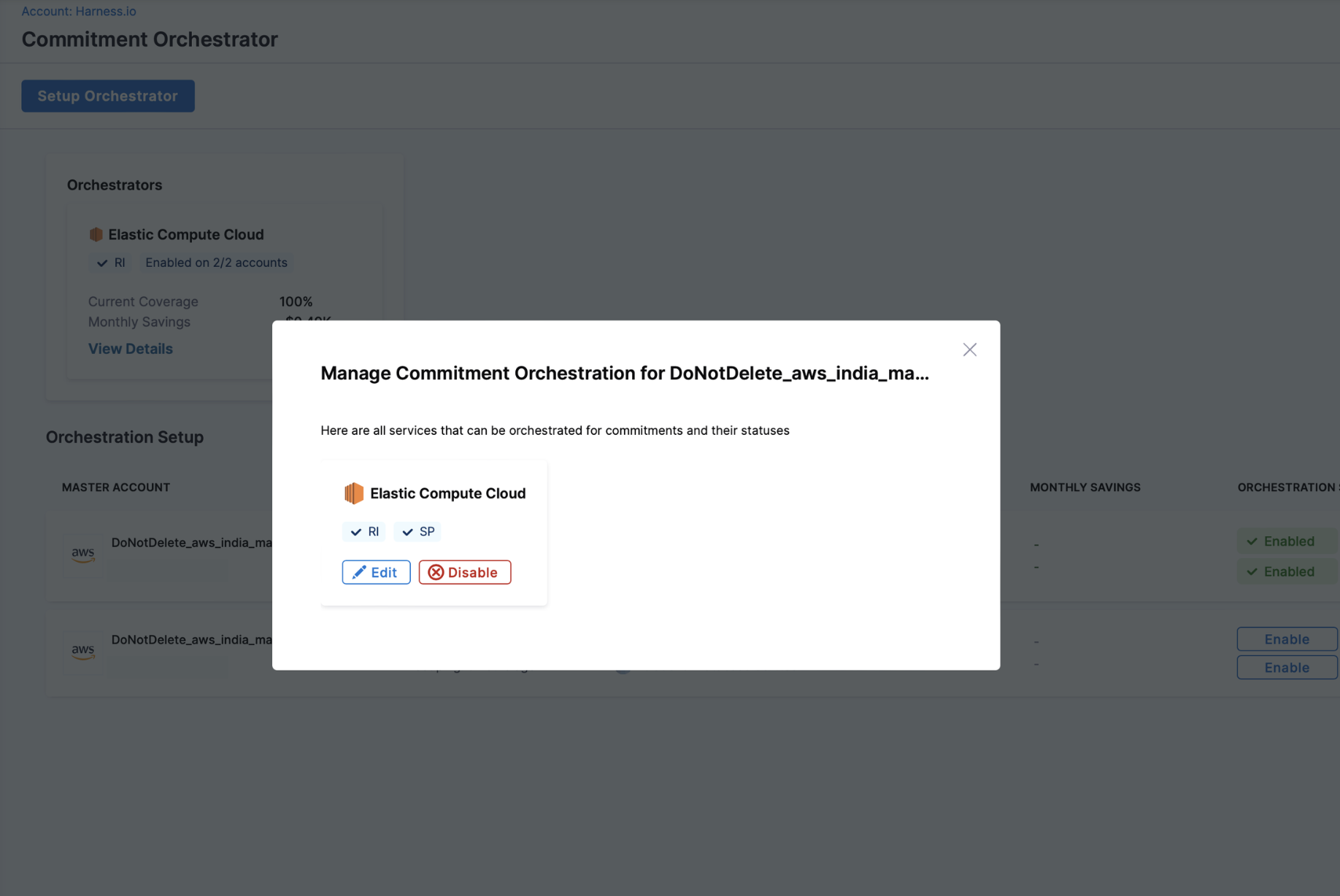
### Disable Commitment Orchestrator

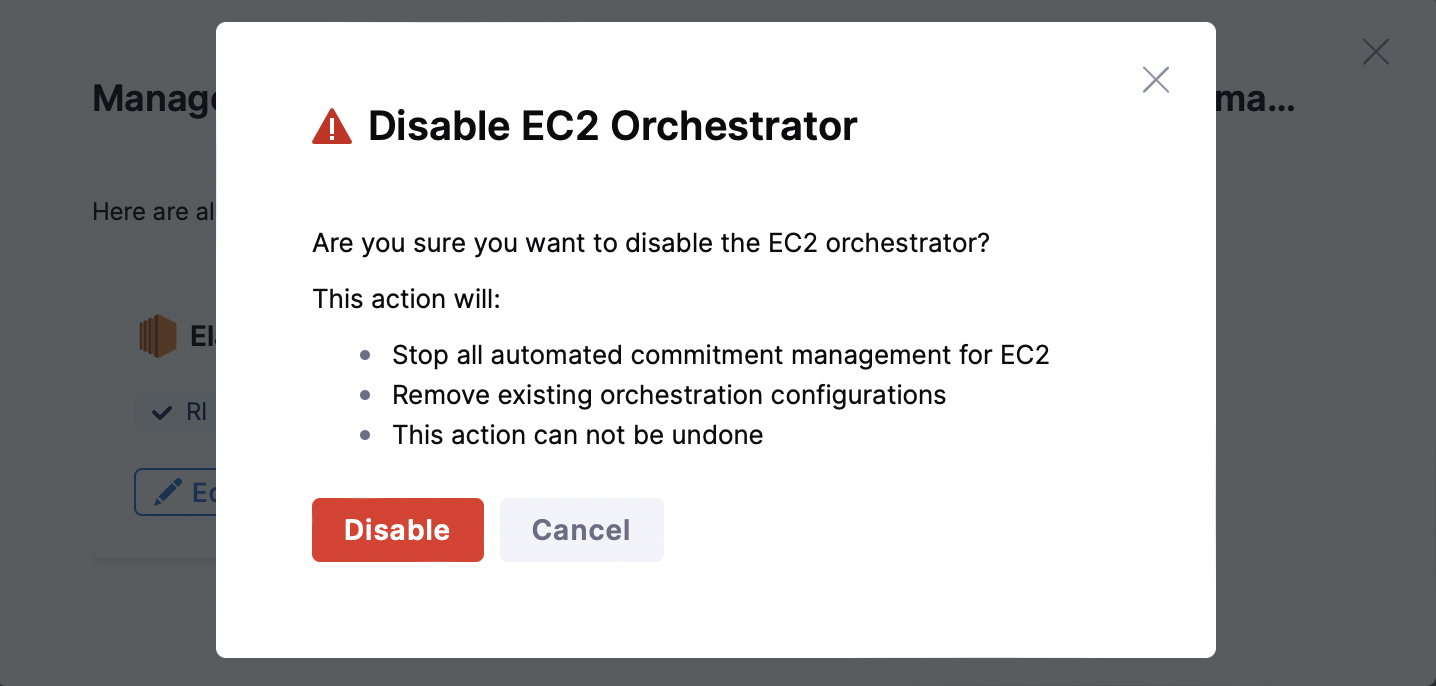
To disable a Commitment Orchestrator, navigate to **Cloud & AI Cost Management** > **Commitment** > **Orchestration Setup**. Click on the three ellipses for the orchestrator you want to disable > **Manage Orchestration Setup** > **Disable**.

Disabling the Commitment Orchestrator will:

* Stop all automated commitment management for the selected orchestrator
* Remove existing orchestration configurations

  <figure><img src="https://1217180450-files.gitbook.io/~/files/v0/b/gitbook-x-prod.appspot.com/o/spaces%2FO2HVWkYMptNUG08jo8hr%2Fuploads%2Fgit-blob-32b90a5a9938820112e2477cd74c368eba03b7c6%2Fdisable.png?alt=media" alt=""><figcaption><p>Click to view full size image</p></figcaption></figure>

  <figure><img src="https://1217180450-files.gitbook.io/~/files/v0/b/gitbook-x-prod.appspot.com/o/spaces%2FO2HVWkYMptNUG08jo8hr%2Fuploads%2Fgit-blob-5124e86bb18aeb0553eb557dcfa5bff6640b9036%2Fdisable-two.png?alt=media" alt=""><figcaption><p>Click to view full size image</p></figcaption></figure>

***

{% @harness-feedback/feedback %}