> For the complete documentation index, see [llms.txt](https://developer.harness.io/llms.txt). Markdown versions of documentation pages are available by appending `.md` to page URLs; this page is available as [Markdown](https://developer.harness.io/cloud-cost-management/integrations/ai-providers/cursor.md).
# Cursor
Connect Cursor to bring your AI coding spend into Cloud & AI Cost Management alongside your cloud costs.
Connecting Cursor brings your Cursor spend into Harness Cloud & AI Cost Management alongside your cloud costs. The connector uses a Cursor Team API key with Admin scope to pull usage and cost data from your Cursor account, so you can analyze AI spend in Cost Explorer, attribute it with Views and Cost Categories, and govern it with budgets and anomaly detection, the same workflow you already use for cloud.
## Before you begin
**Cursor Team API key:** A Team API key with **Admin** scope from your Cursor account. Go to the [Cursor documentation on creating API keys](https://cursor.com/docs/api#creating-api-keys) to generate one, or follow the steps below. You cannot use an individual Cursor account to generate a Team API key.
## Create the Cursor team API key
1. Sign in to the Cursor dashboard at [cursor.com/dashboard](https://cursor.com/dashboard) as a **Team administrator**.
2. Go to **API Keys** and click **New API Key**.
3. Give the key a descriptive name, for example, `Harness CCM Integration`.
4. Copy the key and store it securely. The key starts with `crsr_` and is shown only once. Cursor does not display it again after creation.
{% hint style="info" %}
Only team administrators can create and manage API keys. The key requires the `admin:*` scope and is tied to your organization, so any team administrator can view or manage it.
{% endhint %}
## Set up the Cursor connector
To connect Cursor, go to **Cloud & AI Cost Management** > **Account Settings** > **AI Providers**, click **AI Provider**, and then select **Cursor**.
### Step 1: Name the connector
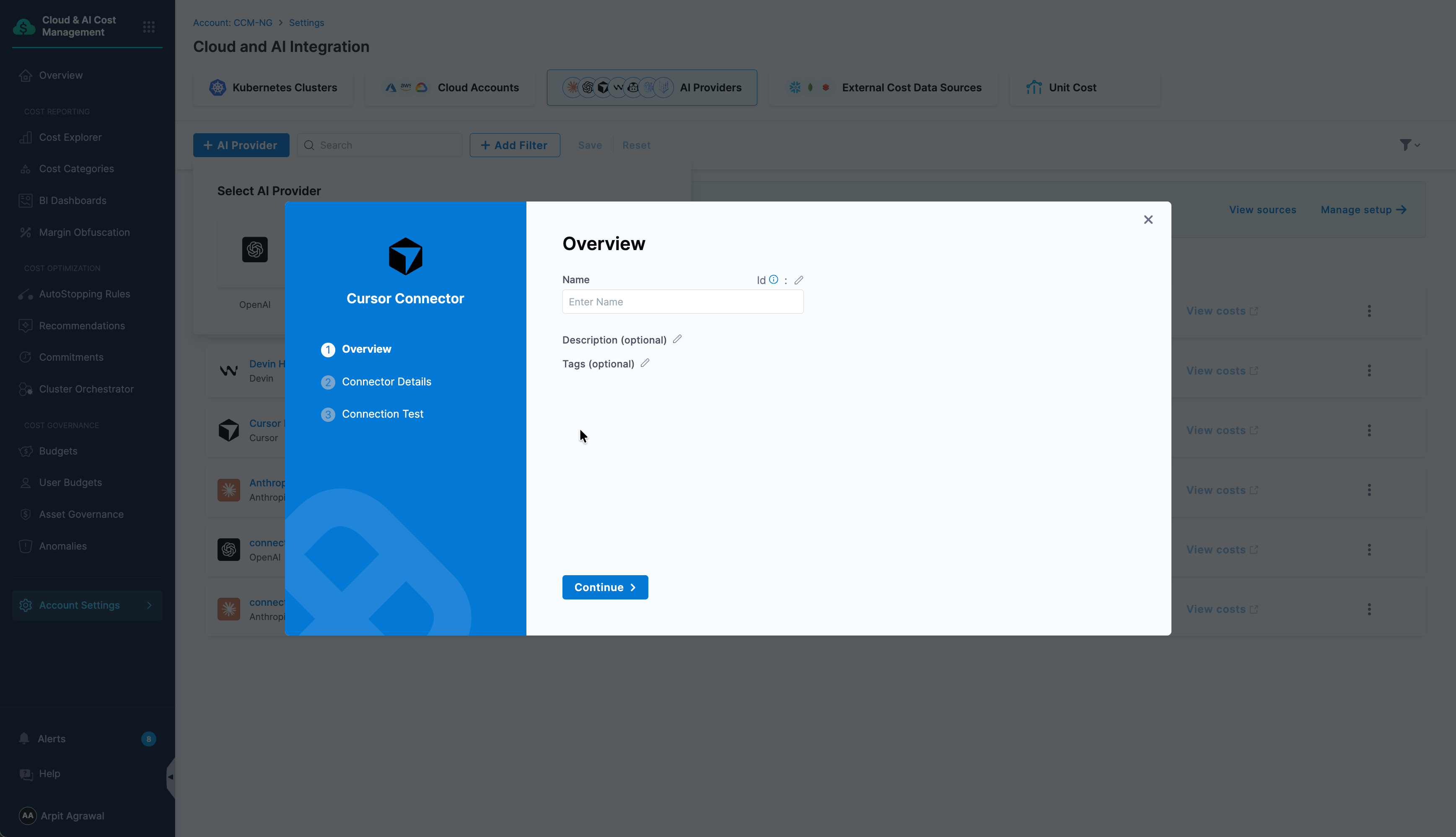
1. On the **Overview** panel, enter a **Name** for the connector.
2. Optionally, add a **Description** and **Tags** to organize and filter connectors.
Click to view full size image
3. Click **Continue**.
### Step 2: Add the API key
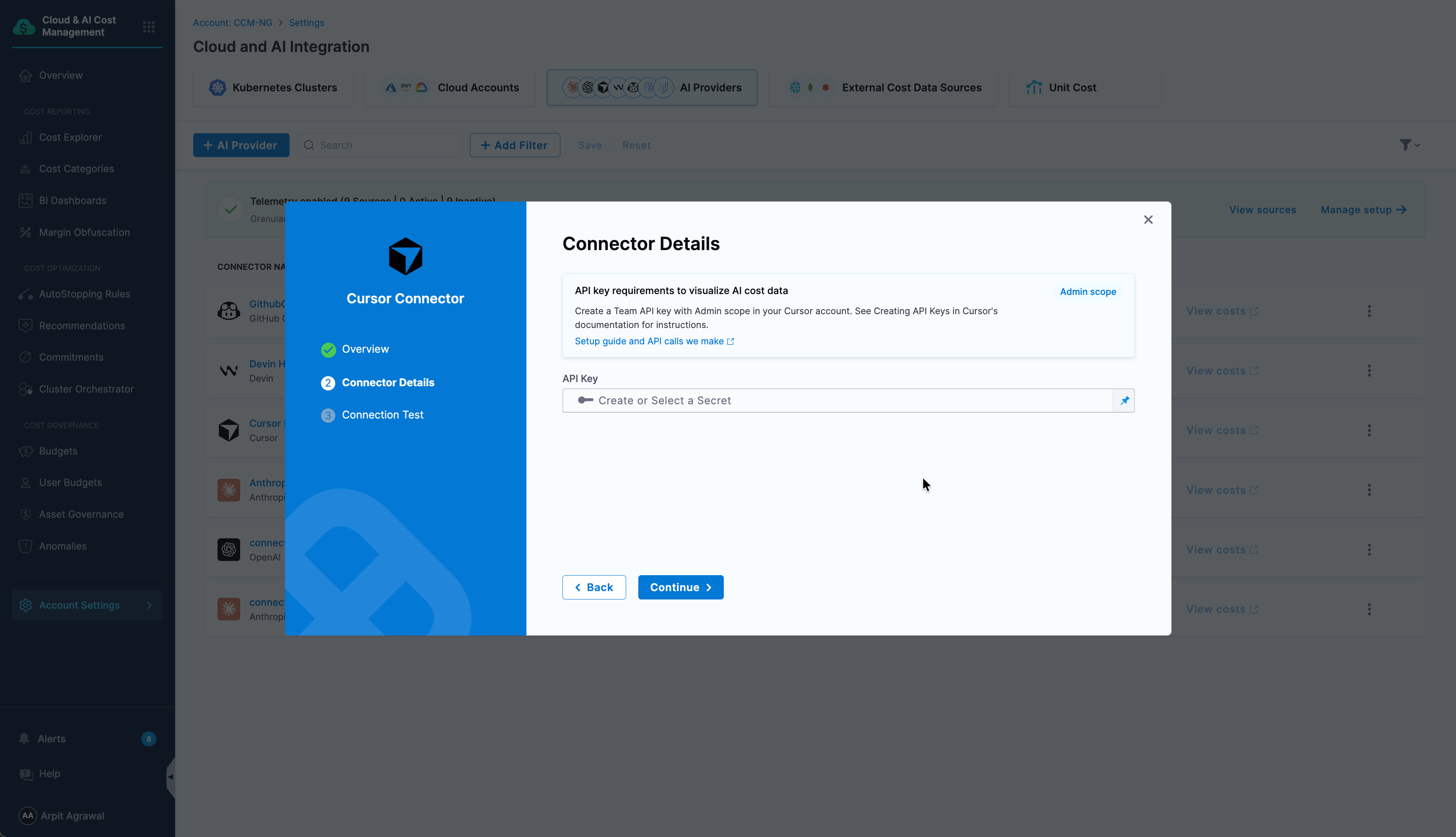
On the **Connector Details** panel, provide the Cursor Team API key you created in [Create the Cursor Team API Key](#create-the-cursor-team-api-key) as a Harness secret. Do the following:
Click to view full size image
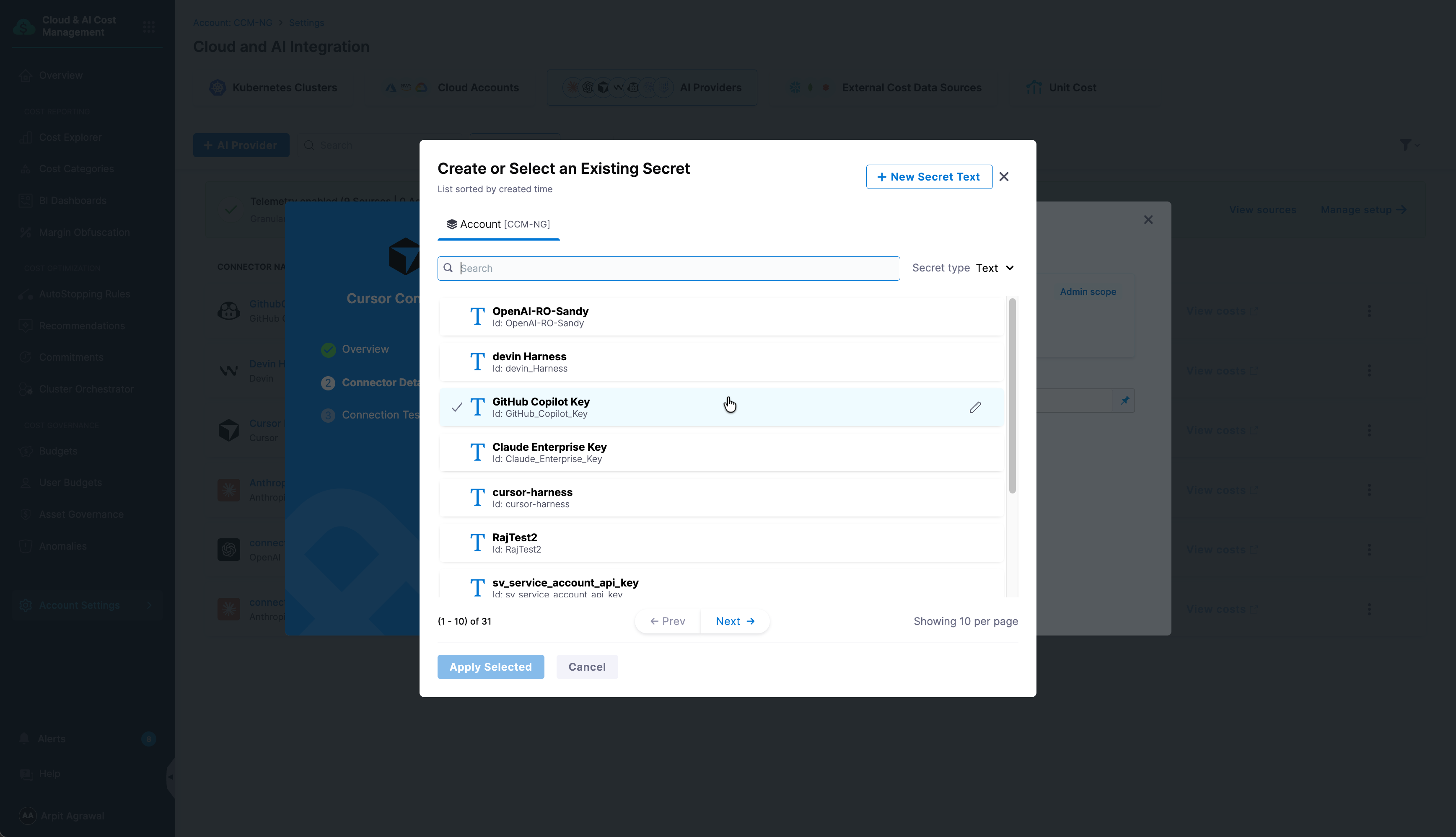
1. In the **API Key** field, click **Create or Select a Secret**.
* To use an existing secret that contains your Cursor Team API key, select it from the list, then click **Apply Selected**.
* To add a new secret, click **New Secret Text**, enter a **Secret Name**, and provide the Cursor Team API key you created as the **Secret Value**.
Click to view full size image
Go to [Add and reference text secrets](https://developer.harness.io/harness-ai/use-harness-platform/secrets/add-use-text-secrets) to review all secret creation options.
2. Click **Continue**.
### Step 3: Verify the connection
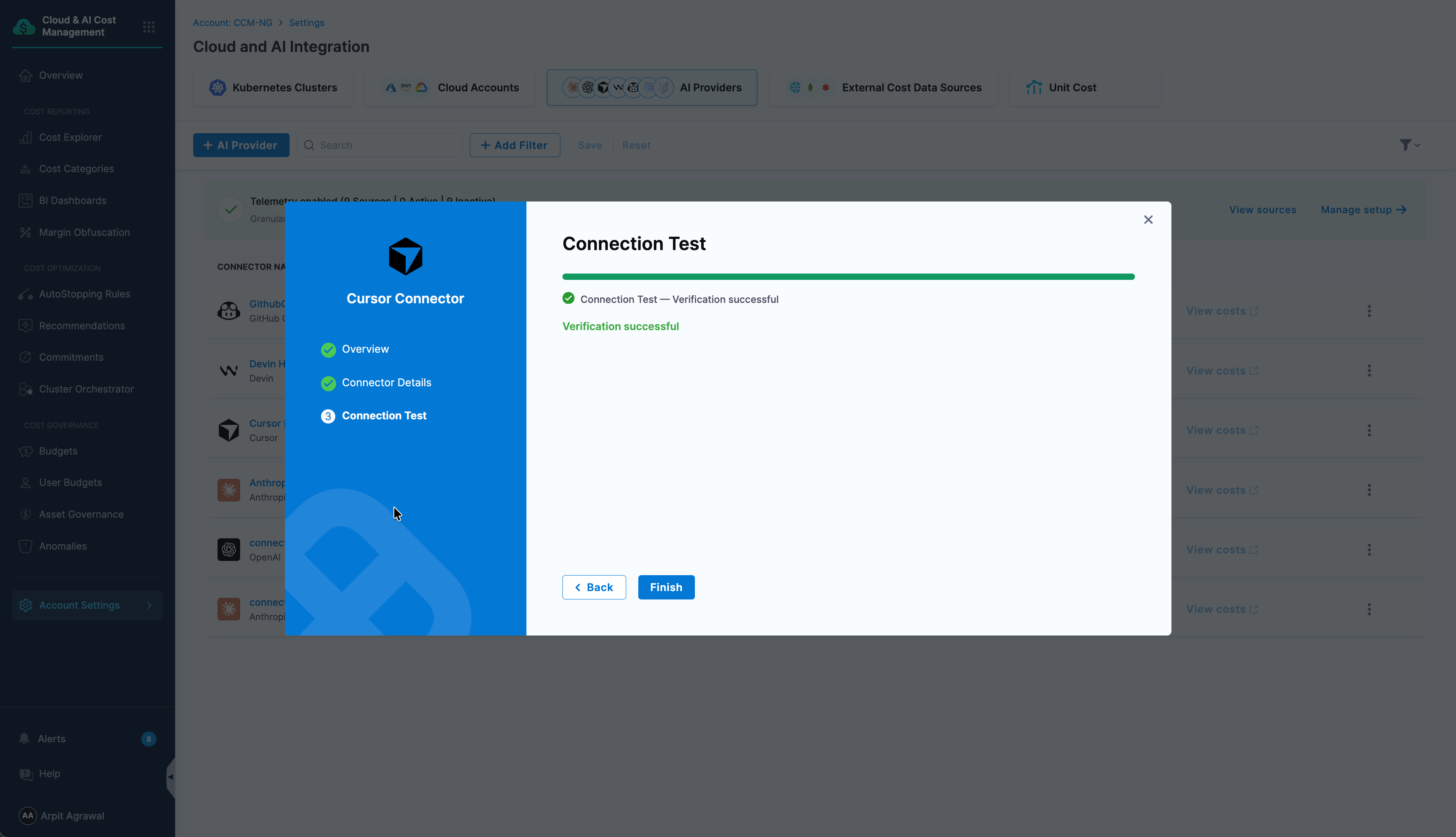
On the **Connection Test** panel, Harness validates the API key against your Cursor account. Once the verification is successful, click **Finish** to create the connector.