> For the complete documentation index, see [llms.txt](https://developer.harness.io/llms.txt). Markdown versions of documentation pages are available by appending `.md` to page URLs; this page is available as [Markdown](https://developer.harness.io/cloud-cost-management/resources/margin-obfuscation-for-msps.md).
# Margin obfuscation for MSPs
Margin obfuscation for managed service providers using Cloud & AI Cost Management
{% hint style="success" %}
This feature is in Limited GA and requires enablement. [View all early access features.](/release-notes/features.md)
{% @harness-feature-flag-access/request-feature-flag-access module="cloud-ai-cost-management" pagePath="cloud-ai-cost-management/resources/margin-obfuscation-for-msps" featureFlags="%5B%7B%22name%22%3A%22Margin%20Obfuscation%22%2C%22key%22%3A%22CCM\_MSP%22%2C%22status%22%3A%22LIMITED\_GA%22%2C%22description%22%3A%22Lets%20a%20managed%20service%20provider%20(MSP)%20add%20a%20per-service%20markup%20on%20top%20of%20pre-negotiated%20cloud%20service%20provider%20(CSP)%20costs%2C%20shown%20to%20end%20customers%20as%20the%20MSP's%20negotiated%20cost%20plus%20margin.%22%7D%5D" %}
{% endhint %}
Each managed service provider (MSP) works with multiple end customers who have Harness CACM customer accounts. The MSP has pre-negotiated discounted costs with each cloud service provider (CSP), which are reflected in the AWS CUR and Azure/GCP billing exports. Harness CACM retrieves these discounted costs from the billing exports.
In addition to the pre-negotiated discounted costs paid to each CSP, the MSP adds a margin that can vary based on the customer, CSP, and service. The MSP enters this margin per service to be added on top of the costs.
Harness CACM incorporates the pre-negotiated discounted costs per CSP and the additional margin per customer and service. As a result, end customers can view the cost per service per CSP as the MSP's negotiated cost plus the MSP margin.
## Before you begin
Set up CACM for your CSP. Go to the following topics for more information:
* [Set up CACM for AWS](/cloud-cost-management/references/onboarding/aws.md)
* [Set up CACM for GCP](/cloud-cost-management/references/onboarding/gcp.md)
* [Set up CACM for Azure](/cloud-cost-management/references/onboarding/azure.md)
* [Set up CACM for Kubernetes clusters](/cloud-cost-management/references/onboarding/k8s.md)
Add customers to the Harness CACM account. Create [Harness Support](mailto:support@harness.io) tickets to add customers.
{% hint style="info" %}
In its initial release, Margin Obfuscation is supported only on AWS.
{% endhint %}
## Set markup

To add a markup to your CSP cost of a managed account, perform the following steps:
1. In your Harness application, go to **Cloud Costs**.
2. Select **Margin Obfuscation**.
3. Select **+ Set markup**.
4. Select the managed account.
5. In the **Resource Markups** section, specify the following details:
* **Markup%** - Specify the markup percentage to add to the billing amount retrieved from the CSP.
* **Scope** - Specify scope of the markup.
1. Select the Cloud Service Provider.
2. Select the accounts.
3. Select the resource or service for which you want to set markup. You can use the search text box to search for a particular resource or service.
6. Select **Add**. You can add multiple markups for the same account if you want to set up different markup percentages for different services.
7. Select **Apply**.
## View the set markups
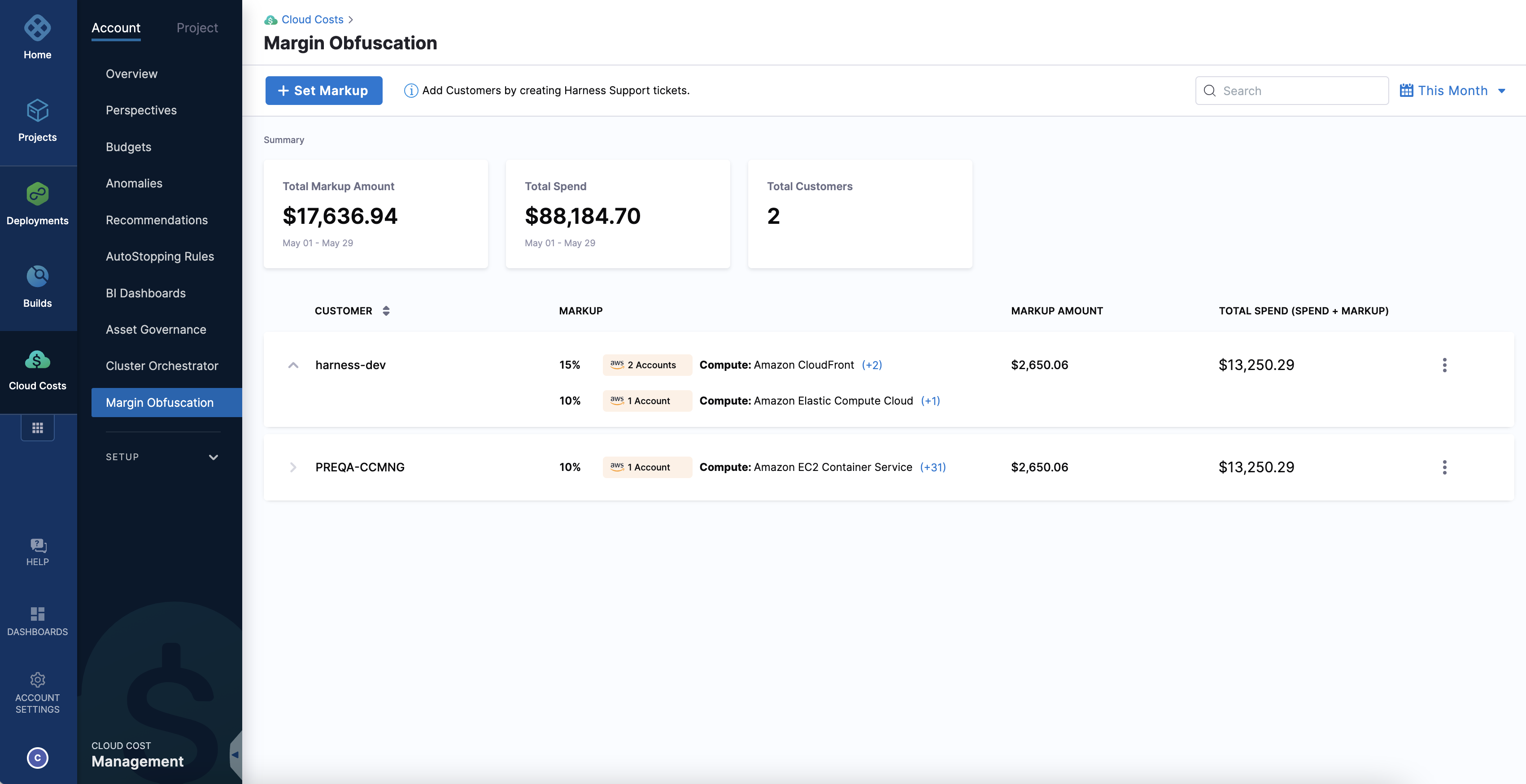
The Summary area displays the following information:
* **Total Markup Amount** - The total markup amount including all managed accounts.
* **Total Spend** - The total spend includes the CSP cost plus the markup amount.
* **Total Customers** - The total number of managed accounts set up for margin obfuscation.
The markup details of each customer show the managed account name, the CSP accounts, the markup percentage, the markup amount, and the total spend. Expand to view all the markups for a customer.
Click to view full size image
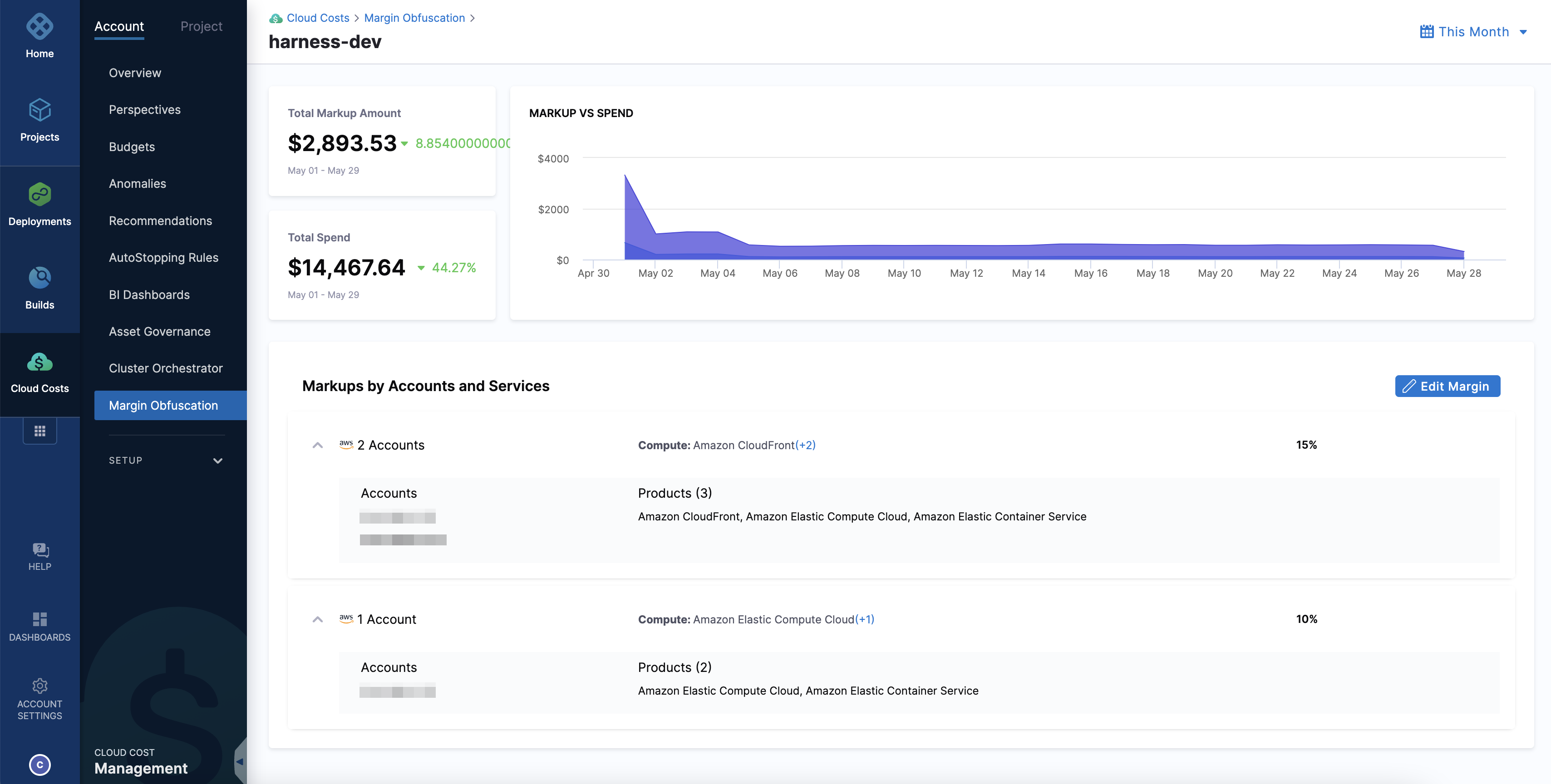
To view details of individual markups, select the customer.
Click to view full size image
On this page, you can view the total markup amount and total spend associated with a specific customer. The Markup Vs Spend graph visually presents the markup amount and total spend based on the selected time filter.
## Edit markups
To edit an existing markup, perform one of the following steps:
* Select the more options menu (three vertical dots) available for the managed account, and then select **Edit**. The **Set Markup** window opens.
* Select the managed account, and then select **Edit Markup** on the customer's markup details page. The **Set Markup** window opens.
Then:
1. Update the required fields. Go to [Set markup](#set-markup) for more information.
2. Select **Apply**.
{% @harness-feedback/feedback %}