> For the complete documentation index, see [llms.txt](https://developer.harness.io/llms.txt). Markdown versions of documentation pages are available by appending `.md` to page URLs; this page is available as [Markdown](https://developer.harness.io/cloud-cost-management/resources/self-managed-enterprise-edition/azure-smp.md).

# Azure

This topic walks you through the steps required to set up CACM for Azure in a self-managed platform.

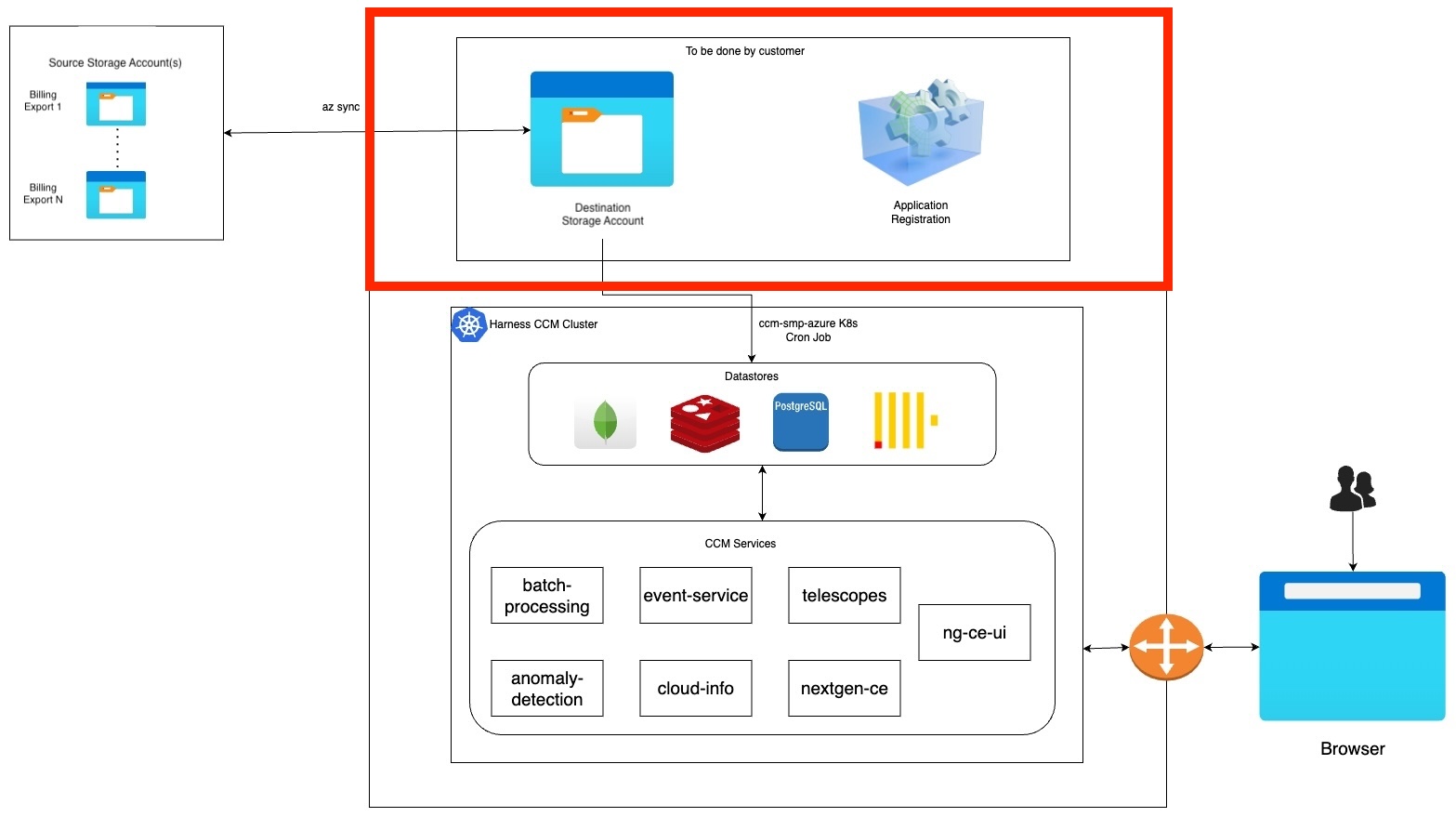
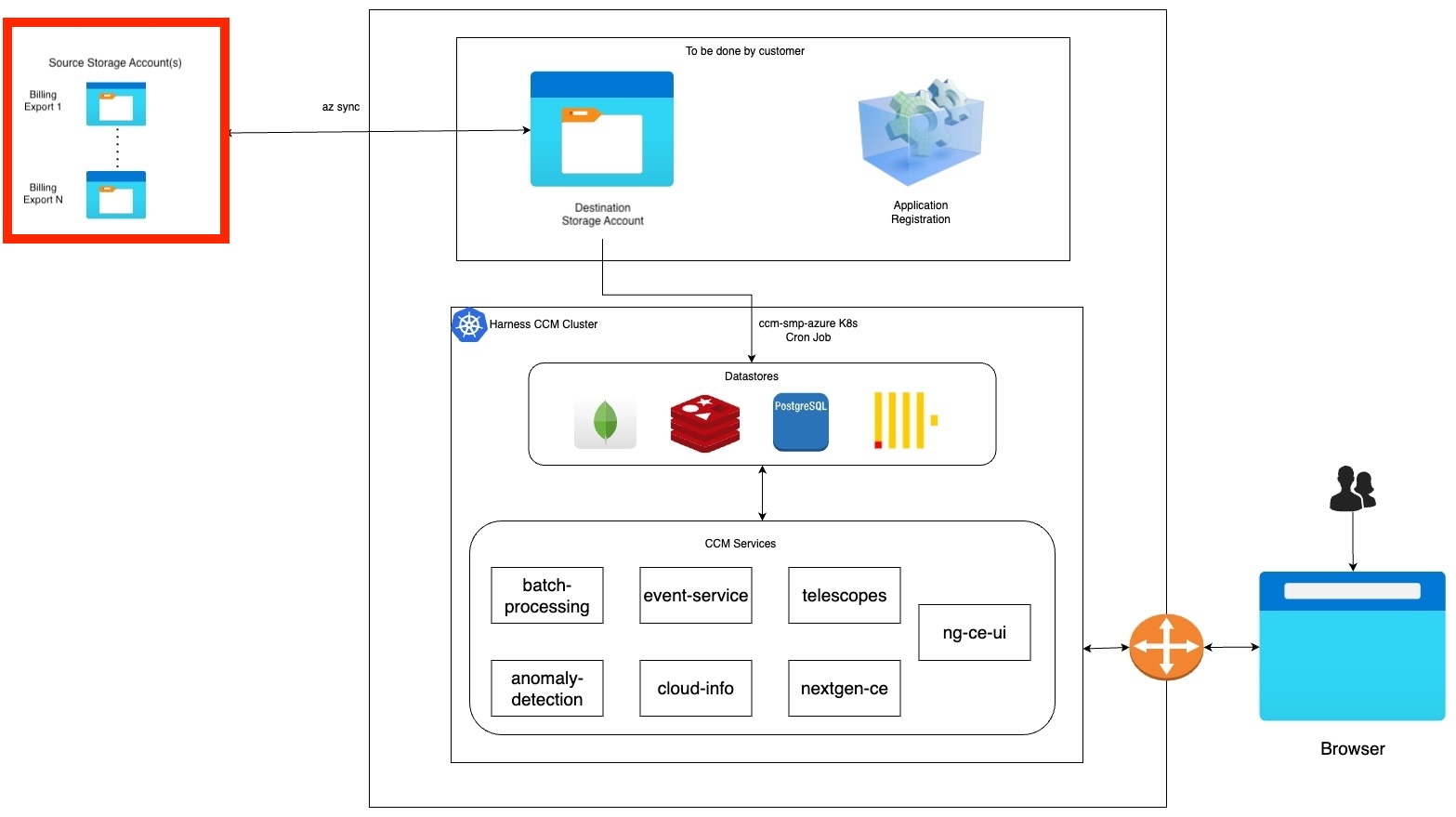
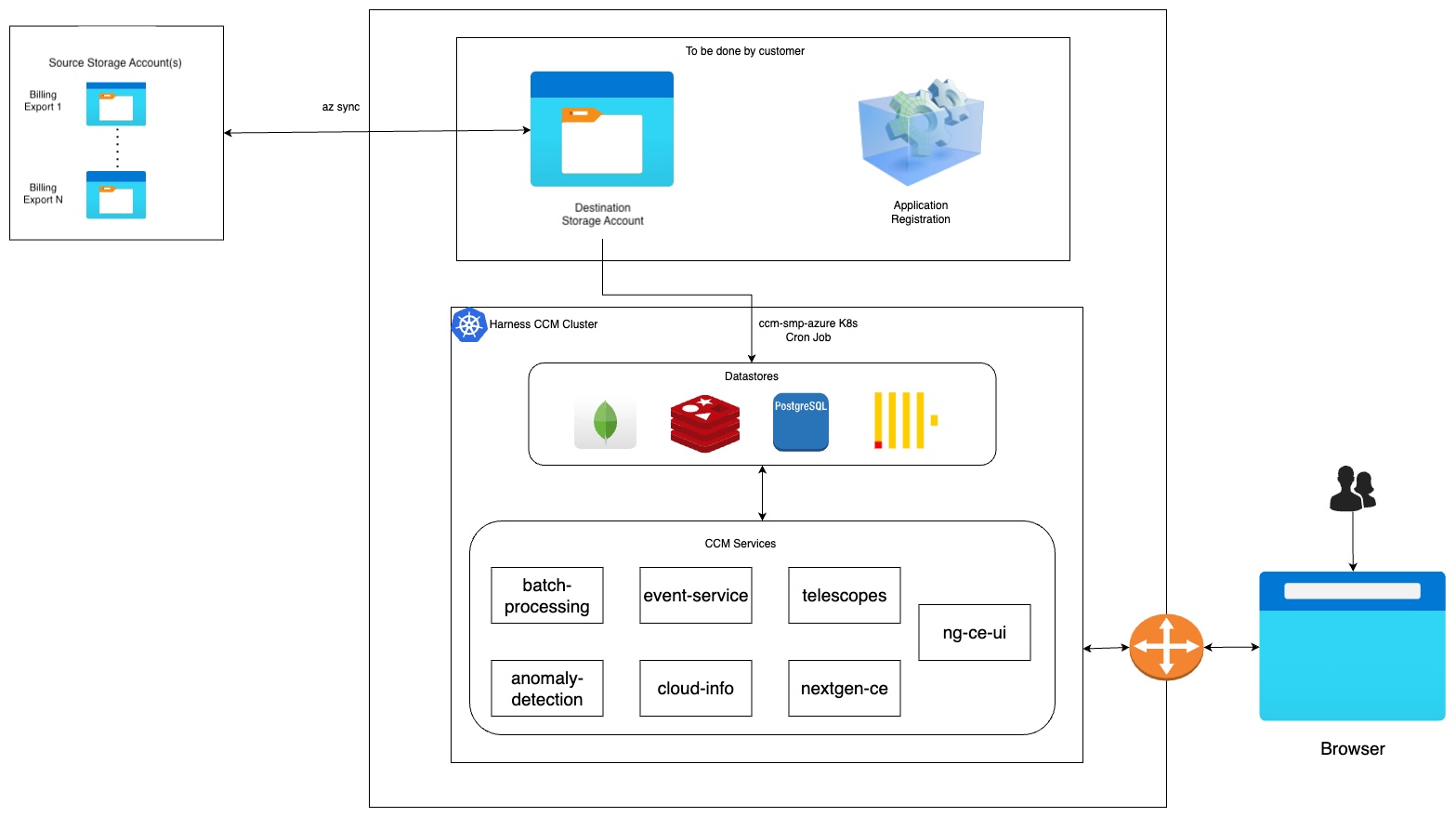
**Figure: Azure CACM Self-Managed Enterprise Edition architecture diagram**

<figure><img src="/files/S33zSh8tx2CkCypQynf9" alt=""><figcaption><p>Click to view full size image</p></figcaption></figure>

The flow at a high level works similarly to our SaaS environment. We support syncing data from multiple Azure account exports residing in different source storage accounts into CACM via a destination storage account (staging).

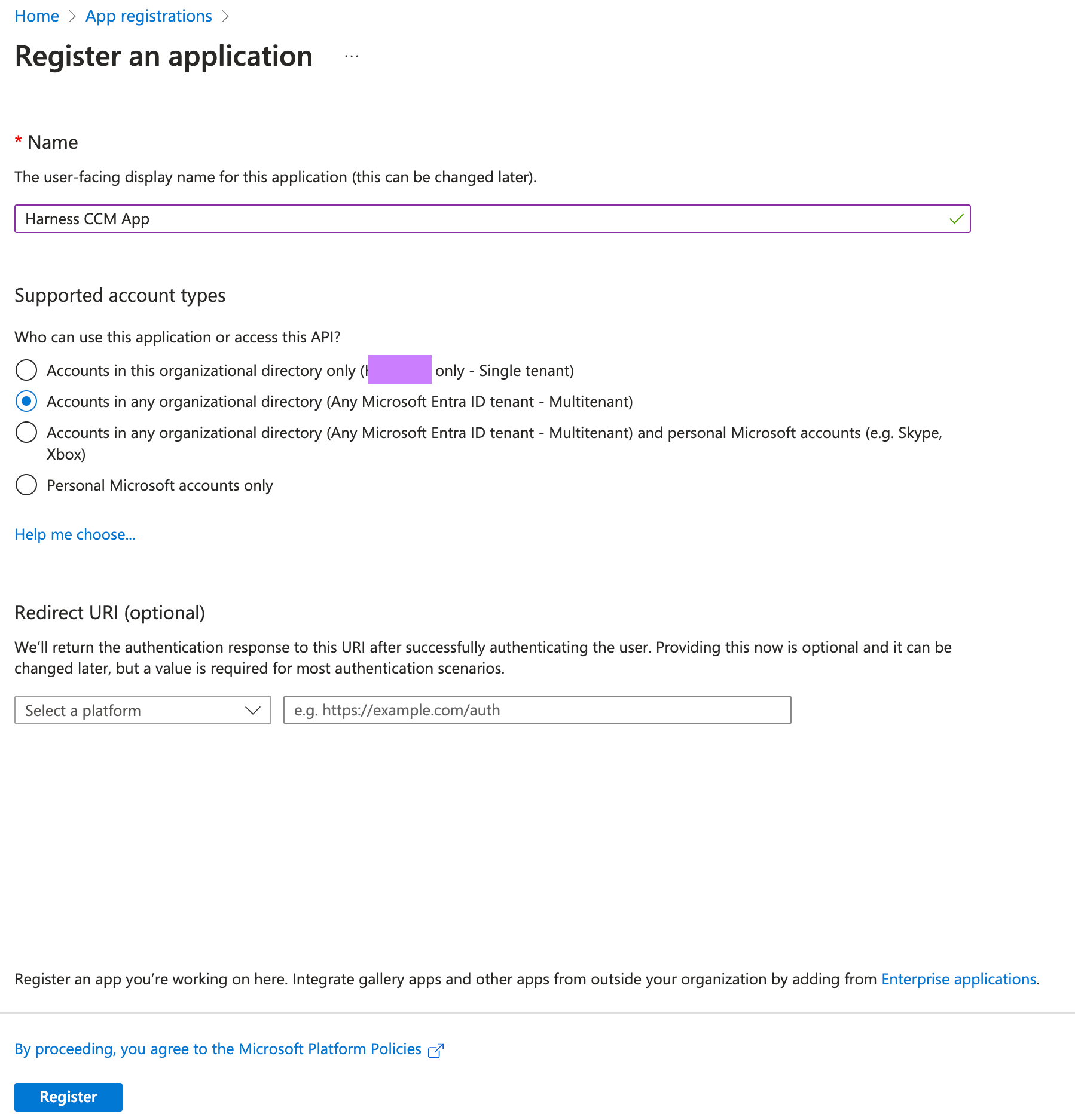
The goal of this particular documentation page is to set up an Azure Destination Storage Account and Application Registration, then configure an existing Harness Self-Managed Enterprise Edition deployment to utilize these components to act as a "staging area" for future Azure Billing Exports to be processed and made available for Harness CACM capabilities.

**Figure: Azure CACM Self-Managed Documentation Goal**

<figure><img src="/files/Qo0QotrLMrQP8M6KZfjP" alt=""><figcaption><p>Click to view full size image</p></figcaption></figure>

This goal consists of four tasks. For steps 1, 2, and 3 sign in to your [Azure Portal](https://portal.azure.com/#home):

1. [Setup a new Application via App Registration](#setup-a-new-application-via-app-registration).
2. [Create a new Client secret](#create-a-new-client-secret).
3. [Create a new Destination Storage Account and a new Storage Container](#create-a-new-destination-storage-account-and-a-new-storage-container).
4. [Deploy workloads via Helm charts](#deploy-workloads-via-helm-charts).

{% hint style="info" %}
There are several times when you'll need to note some items as suggested `variables`. Keep these values in a document or note as they will be used later in the process.
{% endhint %}

## Setup a new Application via App Registration <a href="#setup-a-new-application-via-app-registration" id="setup-a-new-application-via-app-registration"></a>

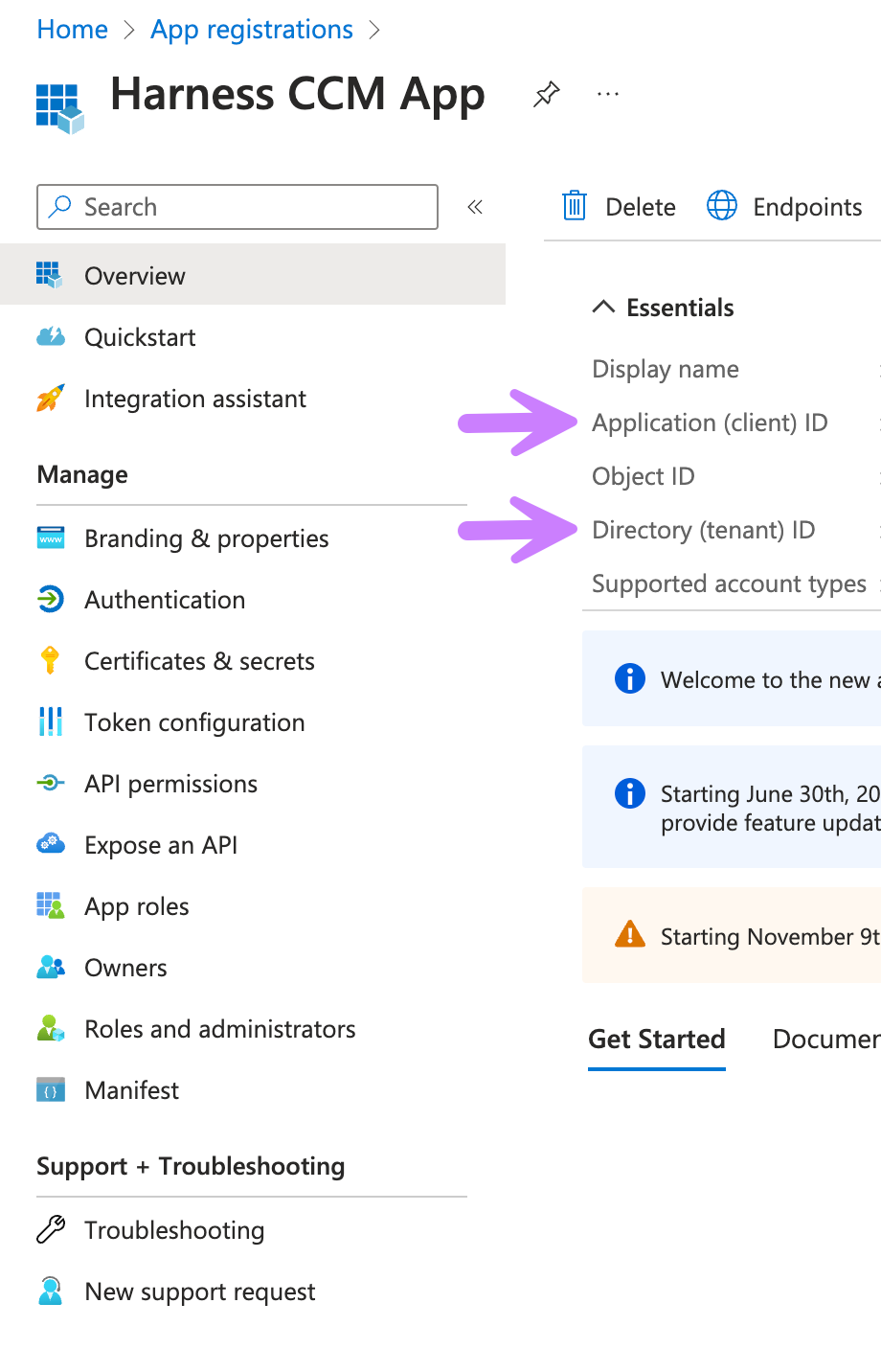
Within your Microsoft Azure WebUI:

1. Navigate to [App registrations](https://portal.azure.com/#view/Microsoft_AAD_RegisteredApps/ApplicationsListBlade).
2. Select "New Registration"
3. Give your App registration a Name like `Harness CACM App`.
4. For Supported account types select: `Accounts in any organizational directory (Any Microsoft Entra ID tenant - Multitenant)`.
5. Click on Register. For more information, go to [Quickstart: Register an App](https://learn.microsoft.com/en-us/entra/identity-platform/quickstart-register-app).

<figure><img src="/files/2StCxsbQyB5UKoDTsmQt" alt=""><figcaption><p>Click to view full size image</p></figcaption></figure>

## Create a new Client secret <a href="#create-a-new-client-secret" id="create-a-new-client-secret"></a>

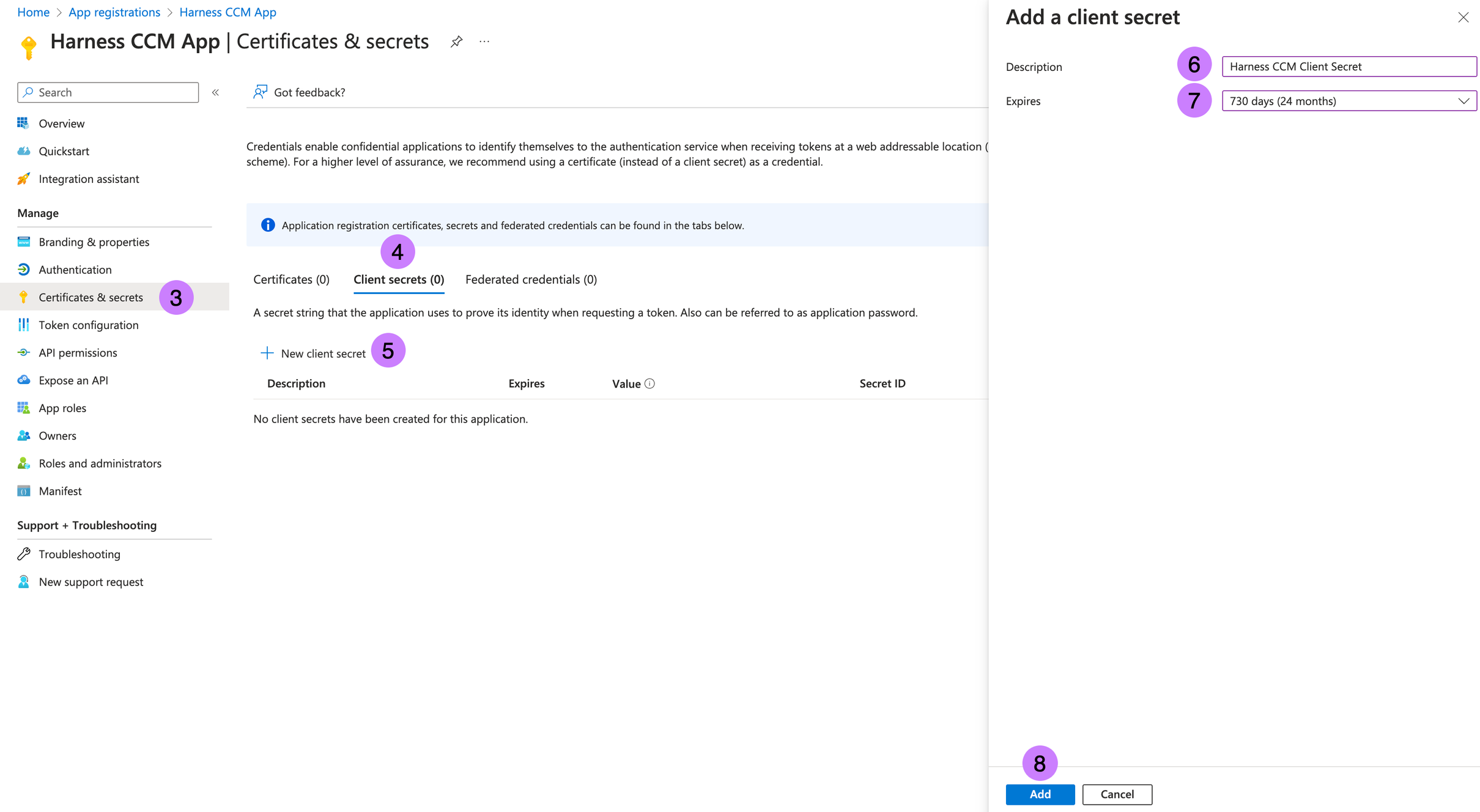
1. Once you click register, the App Overview Page would be open.
2. From the overview page, make a note and the save the following from it:

* Note & Save **Directory (tenant) ID** → `tenantId`
* Note & Save **Application (client) ID** → `clientId`.

  <figure><img src="/files/IcLwYeEEDPdIUNTt32B9" alt=""><figcaption><p>Click to view full size image</p></figcaption></figure>

3. Now click on **Certificates & secrets** in the left panel.
4. Go to **Client secrets (0)** tab.
5. Click on **New client secret**.
6. Enter **Description** `Harness CACM Client Secret`.
7. Select **Expires** from the drop down select `730 days (24 months)`(or the maximum allowed time).
8. Click **Add** Button.

<figure><img src="/files/EGkeTiGRqXDHnikLXTmy" alt=""><figcaption><p>Click to view full size image</p></figcaption></figure>

9. From the new Client secret, Note & Save **Value** → `clientSecret`. For more information, go to [Add credentials](https://learn.microsoft.com/en-us/entra/identity-platform/quickstart-register-app#add-credentials).

{% hint style="info" %}
Make a note of the following:

* tenantId
* clientId
* clientSecret
  {% endhint %}

## Create a new Destination Storage Account and a new Storage Container <a href="#create-a-new-destination-storage-account-and-a-new-storage-container" id="create-a-new-destination-storage-account-and-a-new-storage-container"></a>

This Storage Account will act as a staging area for CACM to sync data from multiple billing exports originating from other Storage Accounts.

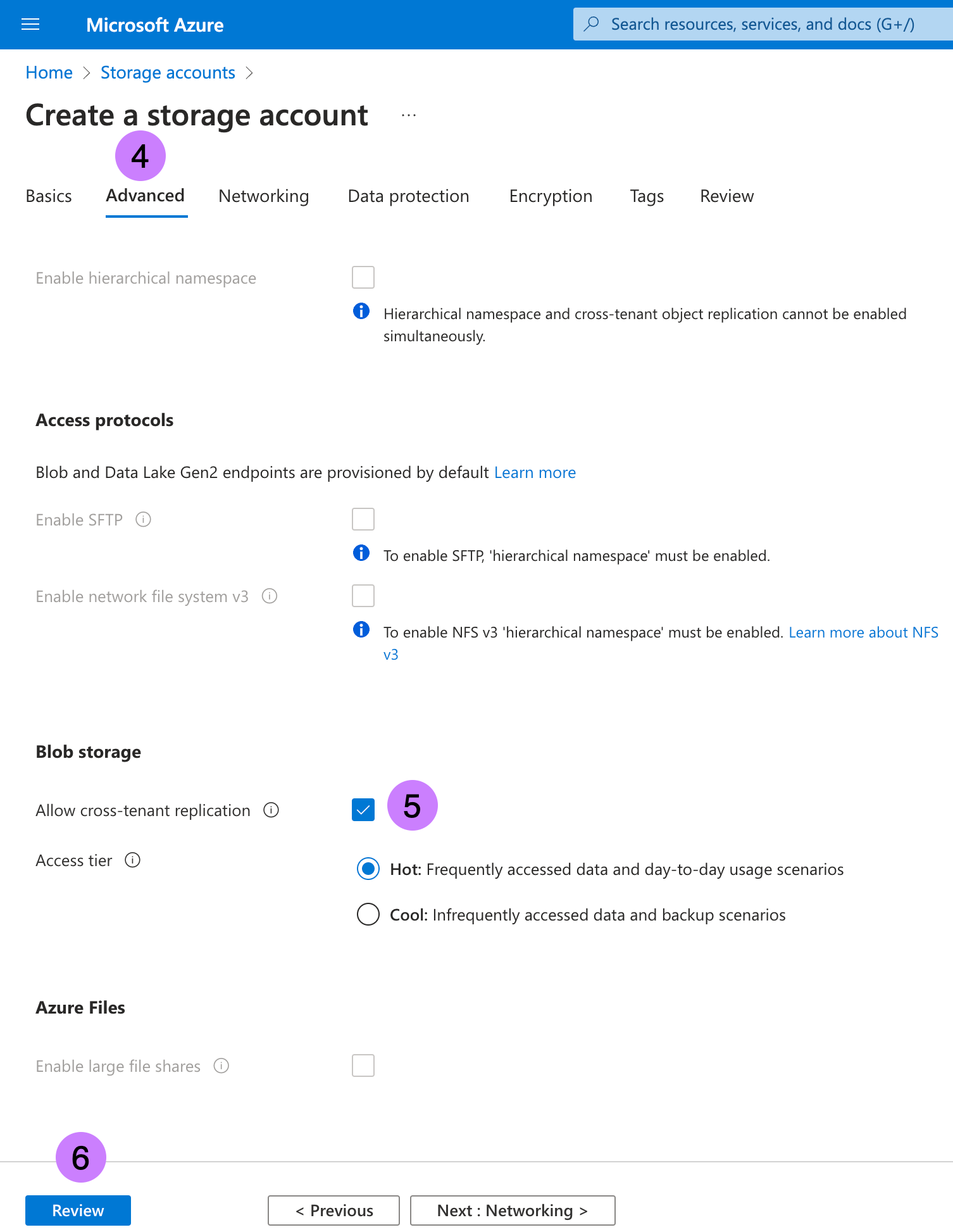
1. Select **Create** within the [Storage Accounts](https://portal.azure.com/#create/Microsoft.StorageAccount-ARM) page.
2. Select a **Subscription** you intend to use from the drop down.
3. Select a **Resource Group** you intend to use from the drop down.
4. Enter **Storage account** name `ccmbillingdatasmp`. Note this as → `storageName`
5. Move to **Advanced** Tab.
6. In **Blob storage** section, enable `Allow cross-tenant replication`
7. Click on **Review + create**.

<figure><img src="/files/AsWrCDAdKorGRDCdNzQI" alt=""><figcaption><p>Click to view full size image</p></figcaption></figure>

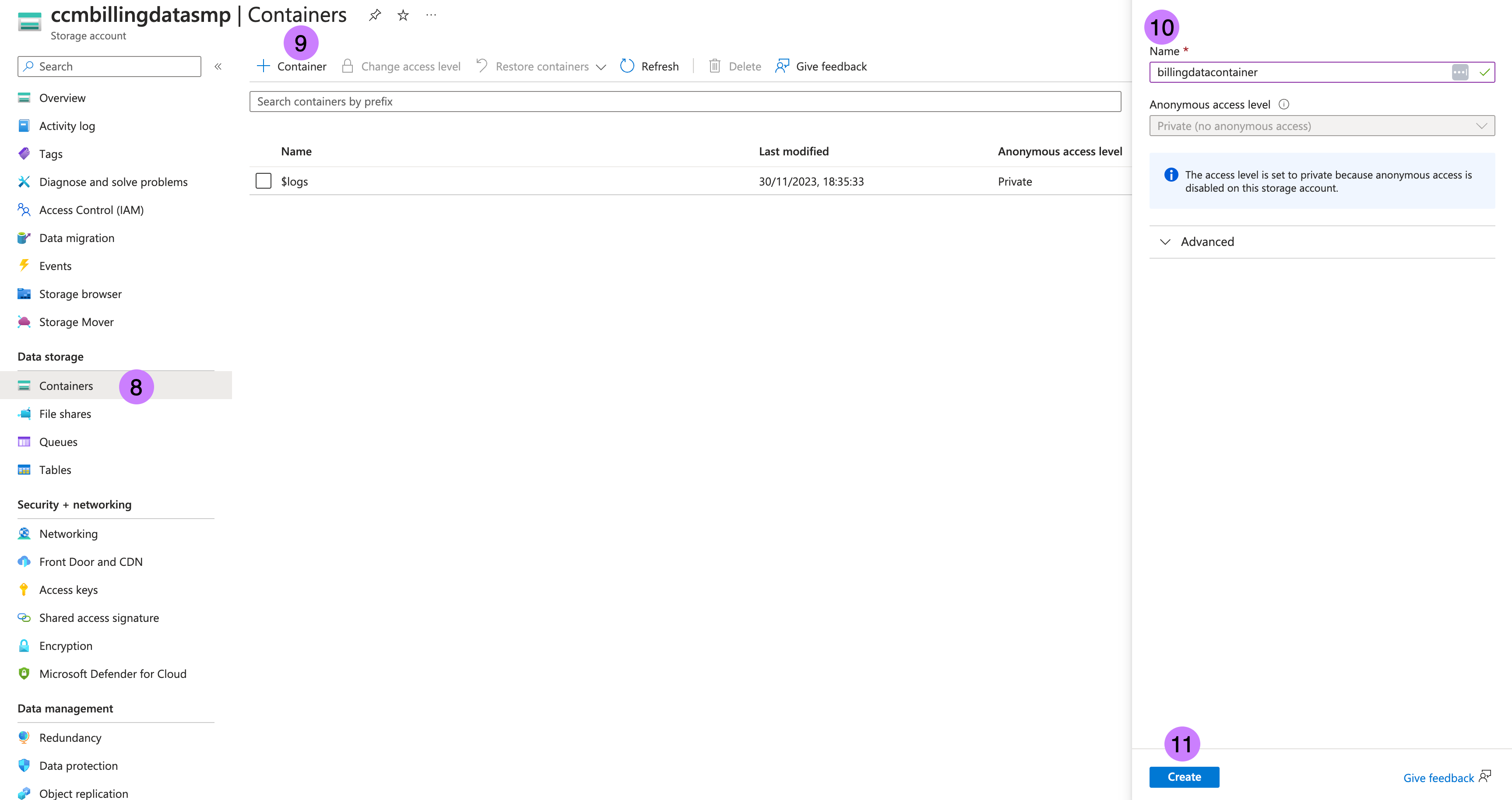
7. Click on **Create**. For more information, go to [Create a storage account](https://learn.microsoft.com/en-us/azure/storage/common/storage-account-create?tabs=azure-portal).
8. Once the storage account is created, navigate to the storage account then to **Containers** in left panel.
9. Click on **+ Container**.
10. Enter **Name** as `billingdatacontainer`. Note **Name** as → `containerName`
11. Click on **Create**. For more information, go to [Create a container](https://learn.microsoft.com/en-us/azure/storage/blobs/storage-quickstart-blobs-portal#create-a-container).

<figure><img src="/files/2Z6aQv3SHMzwLcNYj4G1" alt=""><figcaption><p>Click to view full size image</p></figcaption></figure>

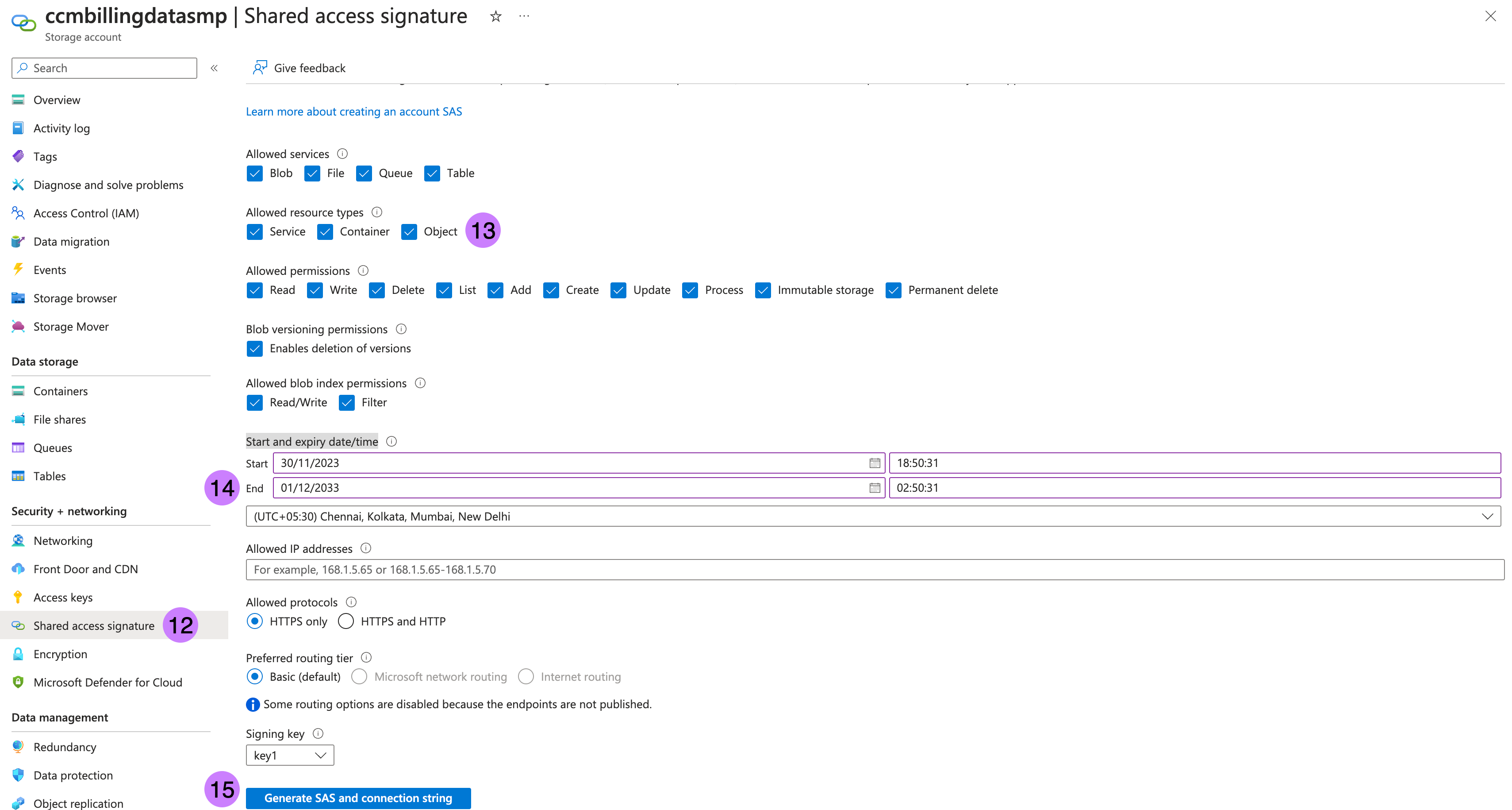
12. Go to **Shared access signature** in left panel.
13. Check all **Allowed resource types** which are `Service`, `Container` and `Object`.
14. Add 10 years to **End** in **Start and expiry date/time**.
15. Click on **Generate SAS and connection string**. This is required to sync data from multiple source account to destination storage account.
16. Note **SAS token** as → `sasToken` starting from `sv=`, ignore `?` in beginning. For more information, go to [Create your SAS tokens](https://learn.microsoft.com/en-us/azure/ai-services/document-intelligence/create-sas-tokens?view=doc-intel-4.0.0#use-azure-storage-explorer).

<figure><img src="/files/8ioK4BAyG5x85Uik0ACl" alt=""><figcaption><p>Click to view full size image</p></figcaption></figure>

{% hint style="info" %}
Make a note of the following:

* storageName
* containerName
* sasToken
  {% endhint %}

## Deploy workloads via Helm charts <a href="#deploy-workloads-via-helm-charts" id="deploy-workloads-via-helm-charts"></a>

From here, we will use the values we've noted from previous steps to update our Harness SMP deployment.

1. Clone the chart repository if you have not already.

```
git clone git@github.com:harness/helm-charts.git
cd main/src/harness
```

2. Upgrade charts if you're already using Harness Self-managed Enterprise Edition services. Perform the following steps to update the override files:
   1. Retrieve the current override values provided during the installation or upgrade of the Helm charts.

      ```
      helm get values <chart-name> -n <namespace> > override.yaml
      ```
   2. After obtaining the override file, you can make necessary modifications as mentioned below, replacing values in brackets with the values noted from the Azure interface.

      ```
      global:
        ccm:
          enabled: true
        smtpCreateSecret:
          enabled: true
        license:
          ng: <SMP NG License with CCM>
        database:
          clickhouse:
            enabled: true

      ccm:
        nextgen-ce:
          cloudProviderConfig:
            AZURE_APP_CLIENT_ID: "<clientId>"
        batch-processing:
          azureConfig:
            AZURE_SMP_ENABLED: true
            AZURE_SMP_REPORT_RETRIES: 5
            AZURE_SMP_HISTORY_TIME_DELTA: 1
            HARNESS_CE_AZURE_CONTAINER_NAME: "<containerName>"
            HARNESS_CE_AZURE_STORAGE_NAME: "<storageName>"
            HARNESS_CE_AZURE_IS_SYNC_JOB_DISABLED: "false"
      ```

{% hint style="info" %}
Air-gapped environment for Azure in SMP is not supported as of now
{% endhint %}

3. After making the necessary updates to the override file, you can proceed with the Helm chart upgrade.

```
helm upgrade <chart-name> <chart-directory> -n <namespace> -f override.yaml 
```

## Handling Kubernetes secrets <a href="#handling-kubernetes-secrets" id="handling-kubernetes-secrets"></a>

When installing or upgrading the Helm charts, Kubernetes secrets with default values are created within the cluster. These generated secrets should be updated with the values mentioned above.

Before updating the secrets, you need to convert the secret into base64 encoded format. For example, if your **HARNESS\_CE\_AZURE\_CLIENTID** value is "clientId", it would be stored as `Y2xpZW50SWQ==` after encoding. Please

```shell
$ echo -n 'clientId' | openssl base64
Y2xpZW50SWQ=
```

After changing secrets, we will provide directives to `kubectl delete` the corresponding pods in order for your release to inherit new changes.

The following are the secrets specific to CACM services:

* batch-processing

```
kubectl edit secret batch-processing -n <namespace>
```

```
HARNESS_CE_AZURE_CLIENTSECRET: "<base64 of clientSecret>"
HARNESS_CE_AZURE_SAS: "<base64 of sasToken>"
HARNESS_CE_AZURE_CLIENTID: "<base64 of clientId>"
HARNESS_CE_AZURE_TENANTID: "<base64 of tenantId>"
```

After these secrets are implemented, please `kubectl delete` the `batch-processing` pod for this release to start a newly configured pod.

* cloud-info-secret-mount \[config-file]

```
kubectl edit secret cloud-info-secret-mount -n <namespace>
```

```
config-file: <Config file> [In "Config file" provided below: Replace <clientId>, <tenantId> and <clientSecret> with their base64 decodings.]
```

<details>

<summary>Config file</summary>

```
environment = "production"
debug = false
shutdownTimeout = "5s"

[config.vault]
enabled = false
address = ""
token = ""
secretPath = ""

[log]
format = "json"
level = "info"

[metrics]
enabled = false
address = ":9090"

[jaeger]
enabled = false

# Configure either collectorEndpoint or agentEndpoint. <a href="#configure-either-collectorendpoint-or-agentendpoint" id="configure-either-collectorendpoint-or-agentendpoint"></a>
# When both are configured collectorEndpoint will take precedence and the exporter will report directly to the collector. <a href="#when-both-are-configured-collectorendpoint-will-take-precedence-and-the-exporter-will-report-directly-to-the-collector" id="when-both-are-configured-collectorendpoint-will-take-precedence-and-the-exporter-will-report-directly-to-the-collector"></a>
collectorEndpoint = "http://localhost:14268/api/traces?format=jaeger.thrift"
agentEndpoint = "localhost:6831"
# username = "" <a href="#username" id="username"></a>
# password = "" <a href="#password" id="password"></a>

[app]
address = ":8000"
basePath = "/"

[scrape]
enabled = true
interval = "24h"

[provider.amazon]
enabled = false

# See available regions in the documentation: <a href="#see-available-regions-in-the-documentation" id="see-available-regions-in-the-documentation"></a>
# https://aws.amazon.com/about-aws/global-infrastructure/regions_az <a href="#httpsawsamazoncomabout-awsglobal-infrastructureregionsaz" id="httpsawsamazoncomabout-awsglobal-infrastructureregionsaz"></a>
# region = "us-east-1" <a href="#region-us-east-1" id="region-us-east-1"></a>

# Static credentials <a href="#static-credentials" id="static-credentials"></a>
# accessKey = "" <a href="#accesskey" id="accesskey"></a>
# secretKey = "" <a href="#secretkey" id="secretkey"></a>

# Shared credentials <a href="#shared-credentials" id="shared-credentials"></a>
# sharedCredentialsFile = "" <a href="#sharedcredentialsfile" id="sharedcredentialsfile"></a>
# profile = "" <a href="#profile" id="profile"></a>

# IAM Role ARN to assume <a href="#iam-role-arn-to-assume" id="iam-role-arn-to-assume"></a>
# assumeRoleARN = "" <a href="#assumerolearn" id="assumerolearn"></a>

# http address of a Prometheus instance that has AWS spot price metrics via banzaicloud/spot-price-exporter. <a href="#http-address-of-a-prometheus-instance-that-has-aws-spot-price-metrics-via-banzaicloudspot-price-exporter" id="http-address-of-a-prometheus-instance-that-has-aws-spot-price-metrics-via-banzaicloudspot-price-exporter"></a>
# If empty, the cloudinfo app will use current spot prices queried directly from the AWS API. <a href="#if-empty-the-cloudinfo-app-will-use-current-spot-prices-queried-directly-from-the-aws-api" id="if-empty-the-cloudinfo-app-will-use-current-spot-prices-queried-directly-from-the-aws-api"></a>
prometheusAddress = ""

# advanced configuration: change the query used to query spot price info from Prometheus. <a href="#advanced-configuration-change-the-query-used-to-query-spot-price-info-from-prometheus" id="advanced-configuration-change-the-query-used-to-query-spot-price-info-from-prometheus"></a>
prometheusQuery = "avg_over_time(aws_spot_current_price{region=\"%s\", product_description=\"Linux/UNIX\"}[1w])"

# Amazon pricing API credentials (optional) <a href="#amazon-pricing-api-credentials-optional" id="amazon-pricing-api-credentials-optional"></a>
# Falls back to the primary credentials. <a href="#falls-back-to-the-primary-credentials" id="falls-back-to-the-primary-credentials"></a>
[provider.amazon.pricing]

# See available regions in the documentation: <a href="#see-available-regions-in-the-documentation" id="see-available-regions-in-the-documentation"></a>
# https://docs.aws.amazon.com/awsaccountbilling/latest/aboutv2/using-pelong.html <a href="#httpsdocsawsamazoncomawsaccountbillinglatestaboutv2using-pelonghtml" id="httpsdocsawsamazoncomawsaccountbillinglatestaboutv2using-pelonghtml"></a>
# region = "us-east-1" <a href="#region-us-east-1" id="region-us-east-1"></a>

# Static credentials <a href="#static-credentials" id="static-credentials"></a>
# accessKey = "" <a href="#accesskey" id="accesskey"></a>
# secretKey = "" <a href="#secretkey" id="secretkey"></a>

# Shared credentials <a href="#shared-credentials" id="shared-credentials"></a>
# sharedCredentialsFile = "" <a href="#sharedcredentialsfile" id="sharedcredentialsfile"></a>
# profile = "" <a href="#profile" id="profile"></a>

# IAM Role ARN to assume <a href="#iam-role-arn-to-assume" id="iam-role-arn-to-assume"></a>
# assumeRoleARN = "" <a href="#assumerolearn" id="assumerolearn"></a>

[provider.google]
enabled = false

# base64 encoded credentials in json format (base64 encoded content of the credential file) <a href="#base64-encoded-credentials-in-json-format-base64-encoded-content-of-the-credential-file" id="base64-encoded-credentials-in-json-format-base64-encoded-content-of-the-credential-file"></a>
# credentials = "" <a href="#credentials" id="credentials"></a>

# credentialsFile = "" <a href="#credentialsfile" id="credentialsfile"></a>

# project = "" <a href="#project" id="project"></a>

[provider.alibaba]
enabled = false

# region = "" <a href="#region" id="region"></a>
# accessKey = "" <a href="#accesskey" id="accesskey"></a>
# secretKey = "" <a href="#secretkey" id="secretkey"></a>

[provider.oracle]
enabled = false

# tenancy = "" <a href="#tenancy" id="tenancy"></a>
# user = "" <a href="#user" id="user"></a>
# region = "" <a href="#region" id="region"></a>
# fingerprint = "" <a href="#fingerprint" id="fingerprint"></a>
# privateKey = "" <a href="#privatekey" id="privatekey"></a>
# privateKeyPassphrase = "" <a href="#privatekeypassphrase" id="privatekeypassphrase"></a>

# configFilePath = "" <a href="#configfilepath" id="configfilepath"></a>
# profile = "" <a href="#profile" id="profile"></a>

[provider.azure]
enabled = true

# subscriptionId = "" <a href="#subscriptionid" id="subscriptionid"></a>

# Client credentials <a href="#client-credentials" id="client-credentials"></a>
clientId = "<clientId>"
clientSecret = "<clientSecret>"
tenantId = "<tenantId>"

[provider.digitalocean]
enabled = false

[provider.vsphere]
enabled = false

# accessToken = "" <a href="#accesstoken" id="accesstoken"></a>

[management]
enabled = true
address = ":8001"

[serviceloader]
serviceConfigLocation = "./configs"
serviceConfigName = "services"
format = "yaml"

[store.redis]
enabled = false
host = "localhost"
port = 6379

[store.cassandra]
enabled = false
hosts = "localhost"
port = 9042
keyspace = "cloudinfo"
table = "products"

[store.gocache]
expiration = 0
cleanupInterval = 0
```

</details>

After these secrets are implemented, please \`kubectl delete\` the \`cloud-info\` pod for this release to start a newly configured pod.

* nextgen-ce

```
kubectl edit secret nextgen-ce -n <namespace>
```

```
AZURE_APP_CLIENT_SECRET: "<base64 of clientSecret>"
```

After these secrets are implemented, please `kubectl delete` the `nextgen-ce` pods for this release to start a newly configured pod.

The following are some secrets from platform-service that you need to update:

* smtp-secret - Required to support budget alerts email.

```
kubectl edit secret smtp-secret -n <namespace> 
```

```
SMTP_HOST: <base64 of SMTP_HOST>
SMTP_PASSWORD: <base64 of SMTP_PASSWORD>
SMTP_PORT: <base64 of SMTP_PORT>
SMTP_USE_SSL: <base64 of SMTP_USE_SSL>
SMTP_USERNAME: <base64 of SMTP_USERNAME>
```

After these secrets are implemented, please `kubectl delete` any pods related to `platform-service` and `batch-processing` for this release to start newly configured pods.

{% hint style="info" %}
Please ensure your Persistent Volumes related to TimescaleDB is at least 100Gi, run: `kubectl edit pvc wal-volume-harness-timescaledb-0 -n <namespace>`. These volumes are critical for capabilities like Recommendations and Anomalies within CACM.
{% endhint %}

## Next steps <a href="#next-steps" id="next-steps"></a>

At this point, your "staging area" for future Microsoft Azure Billing Exports is ready and we can follow our standard methodologies for onboarding these assets.

**Figure: Azure CACM Self-Managed Documentation Next Steps**

<figure><img src="/files/8zj9izj92Y0kWD0p1eVK" alt=""><figcaption><p>Click to view full size image</p></figcaption></figure>

* Use [Azure connector setup](https://developer.harness.io/docs/cloud-cost-management/get-started/onboarding-guide/set-up-cost-visibility-for-azure) to set up Azure Billing Exports and push them to our configured destination storage account.
* Use [Kubernetes connector setup](https://developer.harness.io/docs/cloud-cost-management/get-started/onboarding-guide/set-up-cost-visibility-for-kubernetes#create-ccm-connector) to expand visibility and reporting for Azure Kubernetes and other Kubernetes clusters hosted in Azure.

### Troubleshooting <a href="#troubleshooting" id="troubleshooting"></a>

If in case the K8s secrets expire, the secrets will have to be set again. First you would have to update the secrets in respective `secret.yaml` and then delete the pod. We recommend to \`kubectl delete\`\` the following pods:

* `batch-processing`
* `ce-nextgen`
* `cloud-info`

and then follow the [same steps](#handling-kubernetes-secrets) to set the keys. After the new keys are set, verify the changes by looking at the `configs` for the pods. Please refer to the steps below for a faster execution.

* batch-processing: `kubectl exec -it -n <namespace> batch-processing cat batch-processing-config.yml | grep -E 'awsAccessKey|awsSecretKey`

```
awsAccessKey: Updated Access Key
awsSecretKey: Updated Secret Key

```

* cloud-info:

`kubectl exec -it -n <namespace> cloud-info cat config/config.toml | grep -E 'accessKey|secretKey'`

```
accessKey = "Updated Access Key"
secretKey = "Updated Secret Key"
accessKey = "You can ignore this"
secretKey = "You can ignore this"
accessKey = "You can ignore this"
secretKey = "You can ignore this"

```

* nextgen-ce: `kubectl exec -it -n <namespace> nextgen-ce cat config.yml | grep -E 'accessKey|secretKey|harnessAwsAccountId|destinationBucket:|awsConnectorTemplate'`

```
accessKey: Updated Access Key
secretKey: Updated Secret Key
destinationBucket: Updated Destination Bucket
harnessAwsAccountId: Updated AWS Account Id
awsConnectorTemplate: Updated AWS Template URL
accessKey: You can ignore this
secretKey: You can ignore this
harnessAwsAccountId: You can ignore this
awsConnectorTemplate: You can ignore this
```