> For the complete documentation index, see [llms.txt](https://developer.harness.io/llms.txt). Markdown versions of documentation pages are available by appending `.md` to page URLs; this page is available as [Markdown](https://developer.harness.io/continuous-delivery/troubleshooting-and-resources/knowledge-base-article/harness-approval-notifications.md).
# Using Harness approval notifications
Gain a deep understanding of Harness Approval Notifications and best practices for configuring approval message
Harness Approval Notifications is a feature designed to keep your team in the loop during crucial decision points in your deployment pipeline. These notifications are sent when the Harness Approval Step is waiting for an approval, and also when it gets approved or rejected. These notifications provide stakeholders with real-time information about the pipeline, ensuring transparency and informed decision-making.
These notifications contain the following information:
1. Pipeline Name
2. Pipeline execution url
3. User who triggered the pipeline
4. Stage Name
5. Approval message
6. Organization
7. Project
8. Pipeline Start Time
9. Approval Expiry Time
If the option `Include stage execution details in approval` is selected in the Harness Approval Step configuration, the notification will also contain the summary of completed, running and upcoming stages. If the pipeline which is containing this approval step also has a CD Stage, the notification contains data related to the service, environment and infrastructure as well.
For more information, see [Approval notifications to approvers](https://developer.harness.io/harness-platform/use-harness-platform/approvals/adding-harness-approval-stages#approval-notifications-to-approvers).
In certain scenarios, some of the fields present in the approval notification might not be resolved for the future stages and instead come as an unresolved expression. The following example describes best practices to resolve this, so that all the necessary information is visible in the notification itself.
### A sample scenario using Harness approval notifications
Consider a sample scenario where you have an external system which builds a new artifact tag and once this process is complete, it automatically triggers a pipeline to deploy these new builds to the Production Environment. In an ideal scenario, the deployment pipeline would consist of 2 stages:
* **Stage 1: Prod Approval Stage**
***Step 1: Prod Approval Step - Approval Step just before the prod deployment:***
This Harness Approval step will wait to deploy the new builds into Production until it gets the necessary approvals
* **Stage 2: Prod Deployment Stage**
This stage has the deployment steps, to do the actual deployment to the production system. As this pipeline may be used to deploy different services to different environment, the service and environment are runtime inputs.
The following sample pipeline template YAML can be used to construct the pipeline described above.
```yaml
template:
name: prodDeployment
type: Pipeline
projectIdentifier: default
orgIdentifier: default
spec:
stages:
- stage:
name: Prod Approval
identifier: Prod_Approval
description: ""
type: Approval
spec:
execution:
steps:
- step:
name: Prod Approval
identifier: Prod_Approval
type: HarnessApproval
timeout: 1d
spec:
approvalMessage: Please review the following information and approve the pipeline progression
includePipelineExecutionHistory: true
approvers:
minimumCount: 1
disallowPipelineExecutor: false
userGroups:
- account._account_all_users
isAutoRejectEnabled: false
approverInputs: []
tags: {}
- stage:
name: Prod Deployment
identifier: Prod_Deployment
description: ""
type: Deployment
spec:
deploymentType: Kubernetes
service:
serviceRef: <+input>
serviceInputs: <+input>
environment:
environmentRef: <+input>
deployToAll: false
environmentInputs: <+input>
serviceOverrideInputs: <+input>
infrastructureDefinitions: <+input>
execution:
steps:
- step:
type: ShellScript
name: ShellScript_1
identifier: ShellScript_1
spec:
shell: Bash
executionTarget: {}
source:
type: Inline
spec:
script: echo "Deploying to Prod"
environmentVariables: []
outputVariables: []
timeout: 10m
rollbackSteps: []
tags: {}
failureStrategies:
- onFailure:
errors:
- AllErrors
action:
type: StageRollback
identifier: prodDeployment
versionLabel: V1
```
To trigger this pipeline, this example uses a Custom Trigger, which can trigger the pipeline using a curl request. The runtime inputs for the service, environment and infra in the above pipeline can be provided as trigger payload expressions. The following is a sample YAML for the custom trigger.
```yaml
trigger:
name: triggerDeploy
identifier: triggerDeploy
enabled: true
description: ""
tags: {}
stagesToExecute: []
orgIdentifier: default
projectIdentifier: default
pipelineIdentifier: managerDeployment
source:
type: Webhook
spec:
type: Custom
spec:
payloadConditions: []
headerConditions: []
inputYaml: |
pipeline:
identifier: managerDeployment
template:
templateInputs:
stages:
- stage:
identifier: Prod_Deployment
type: Deployment
spec:
service:
serviceRef: <+trigger.payload.serviceId>
environment:
environmentRef: <+trigger.payload.envId>
infrastructureDefinitions:
- identifier: <+trigger.payload.infraId>
```
### Triggering the pipeline
Consider an example where you trigger the pipeline using the above configurations, while providing a payload like the following.
```json
{
"serviceId": "Manager",
"envId": "Prod",
"infraId": "K8s_Infra"
}
```
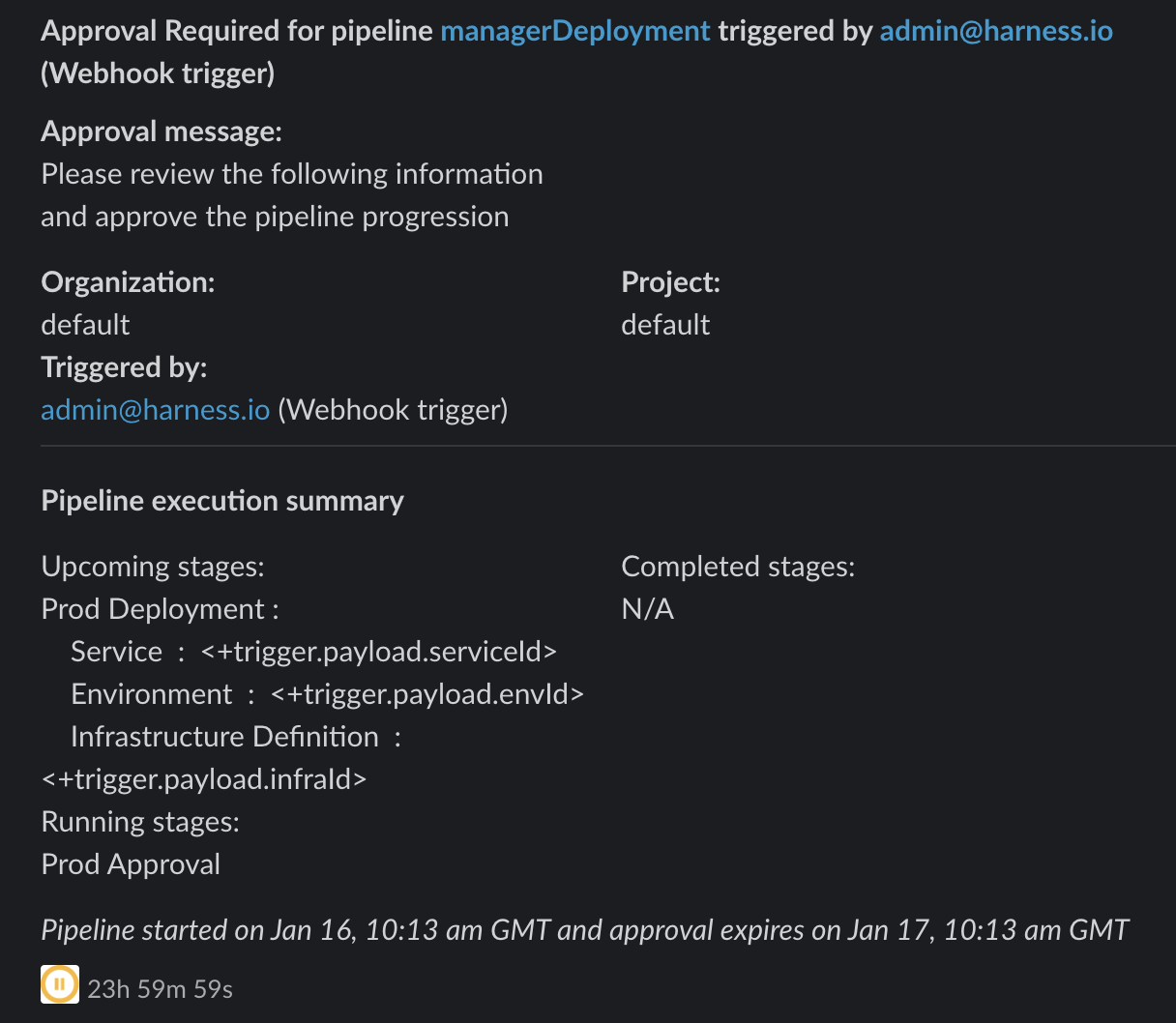
The pipeline runs its course to the first stage and waits for an approval. Once it starts waiting for approval, the approval notification is sent based on the communication channels (Slack, Email, or MS Teams) configured in the user group used for the approval, which looks something like the following.
Click to view full size image
If you observe the `Upcoming stages` information, it contains the trigger expressions for service, environment, and infra IDs, because these expressions were supplied in the trigger YAML. This is not useful for approvers, because they would have to navigate through the pipeline to see what service will be deployed to which environment after they approve the pipeline.
### Best practices for approval message
The approval message provided in the Harness Approval Step configuration can be used to resolve the expressions that have already resolved up to this step. For example, in the trigger scenario described above, the trigger payload expressions have already been resolved by the time the approval step executes. Using the same expressions for service, environment, and infra can help print this information in the approval notification itself, so that the notification has all the information an approver needs to approve.
Continuing this scenario, the following example changes the approval message in the step to include the service, environment, and infra information. The following is a sample step YAML that can be used in the pipeline template above.
```yaml
- step:
name: Prod Approval
identifier: Prod_Approval
type: HarnessApproval
timeout: 1d
spec:
approvalMessage: |-
Please review the following information and approve the pipeline progression, this will approve deployment to:
Service: <+trigger.payload.serviceId>
Environment: <+trigger.payload.envId>
Infrastructure Definition: <+trigger.payload.infraId>
includePipelineExecutionHistory: true
approvers:
minimumCount: 1
disallowPipelineExecutor: false
userGroups:
- account._account_all_users
isAutoRejectEnabled: false
approverInputs: []
```
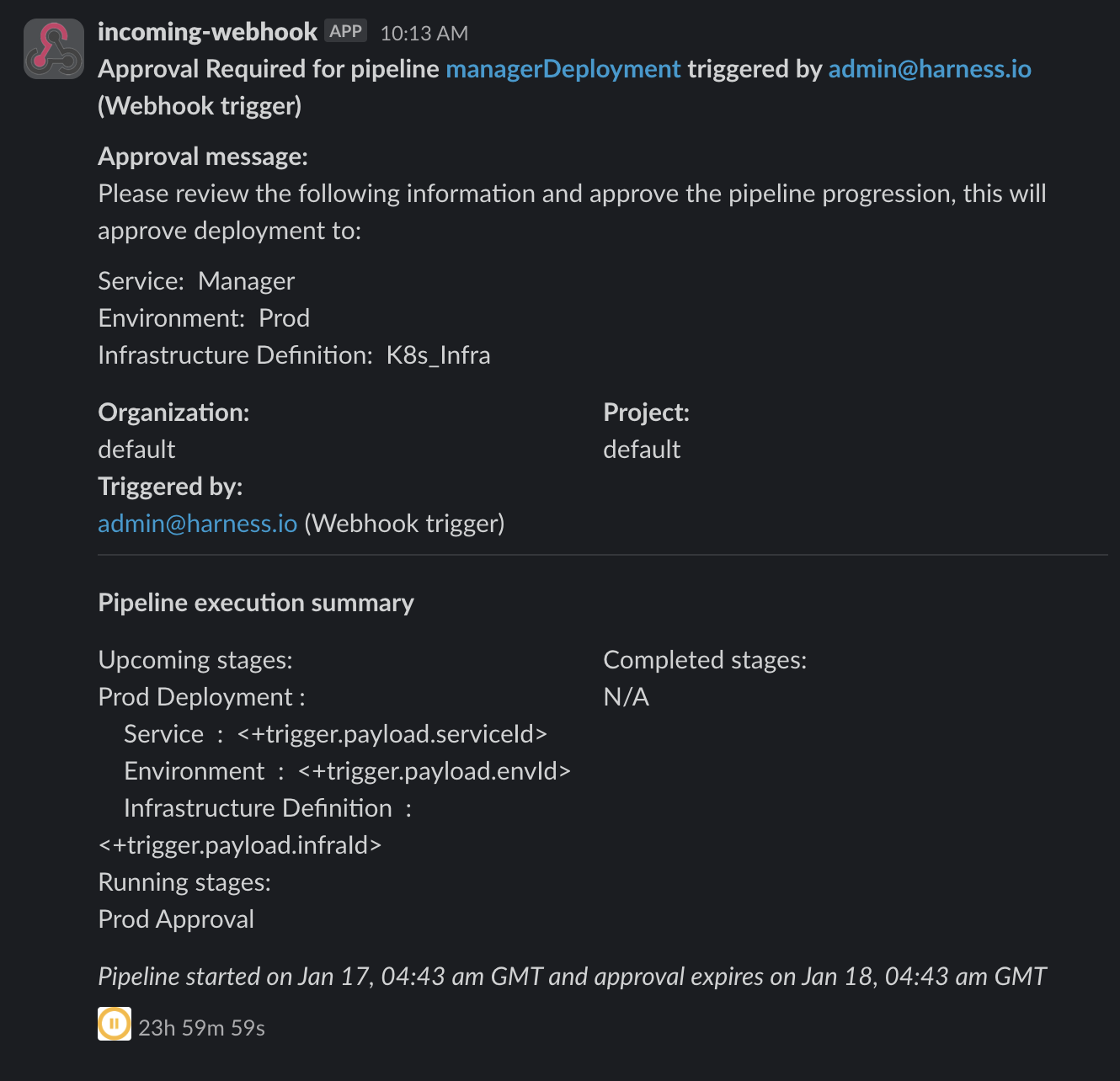
After executing the pipeline again using the trigger, the notification now looks something like the following.
Click to view full size image
The approval message now contains the resolved expressions for the service, environment, and infra. The approval message can similarly be used to provide more useful information that an approver may need to approve the pipeline.
## Related topics
* Go to [Using Harness Approval Steps in CD stages](/continuous-delivery/use-continuous-delivery/cd-building-blocks/cd-steps/approvals/using-harness-approval-steps-in-cd-stages.md) to review the Harness Approval Step.
* Go to [Approval notifications to approvers](https://developer.harness.io/harness-platform/use-harness-platform/approvals/adding-harness-approval-stages#approval-notifications-to-approvers) for detailed information on Harness Approval Notifications.
* Go to [Trigger deployments using Custom Triggers](https://developer.harness.io/harness-platform/use-harness-platform/triggers/trigger-deployments-using-custom-triggers) for more information on Custom Triggers.
{% @harness-feedback/feedback %}