> For the complete documentation index, see [llms.txt](https://developer.harness.io/llms.txt). Markdown versions of documentation pages are available by appending `.md` to page URLs; this page is available as [Markdown](https://developer.harness.io/continuous-delivery/use-continuous-delivery/ai-agents-deployment/aws-agent-core/environment.md).
# Environment
Configure the environment and infrastructure definition that target AWS Agent Core for an agent deployment.
The environment defines where an agent deploys. It groups your deployment targets, and its infrastructure definition describes the AWS Agent Core target, such as the connector, region, gateway, and networking. This page shows you how to add an AWS Agent Core infrastructure definition.
{% hint style="info" %}
Agent deployments are behind the feature flag `CDS_AGENT_RUNTIME_DEPLOYMENT`. Contact [Harness Support](mailto:support@harness.io) to enable the feature.
{% endhint %}
You need a registered agent service with **AWS Agent Core** as its deploy target and an AWS connector with permission to deploy to AgentCore. For all prerequisites, go to [Before you begin](/continuous-delivery/use-continuous-delivery/ai-agents-deployment/aws-agent-core/overview.md#before-you-begin) on the overview. For how environments and infrastructure definitions work in CD, go to [Environment overview](/continuous-delivery/use-continuous-delivery/cd-building-blocks/environments/environment-overview.md).
***
### Create the environment
Create an environment for your agent deployments, or reuse an existing one. Set the environment type to **Production** or **Pre-Production** based on the target. Go to [Create environments](/continuous-delivery/use-continuous-delivery/cd-building-blocks/environments/create-environments.md) to add one.
***
### Add an infrastructure definition
The infrastructure definition describes the cloud target for one environment. In the environment, open the **Infrastructure Definitions** tab and select **Infrastructure Definition** to add one.
1. Enter a name for the infrastructure definition.
2. Set **Deployment Type** to **AI Agent Services**.
3. Under **Select Infrastructure Type**, select **AWS Agent Core**.
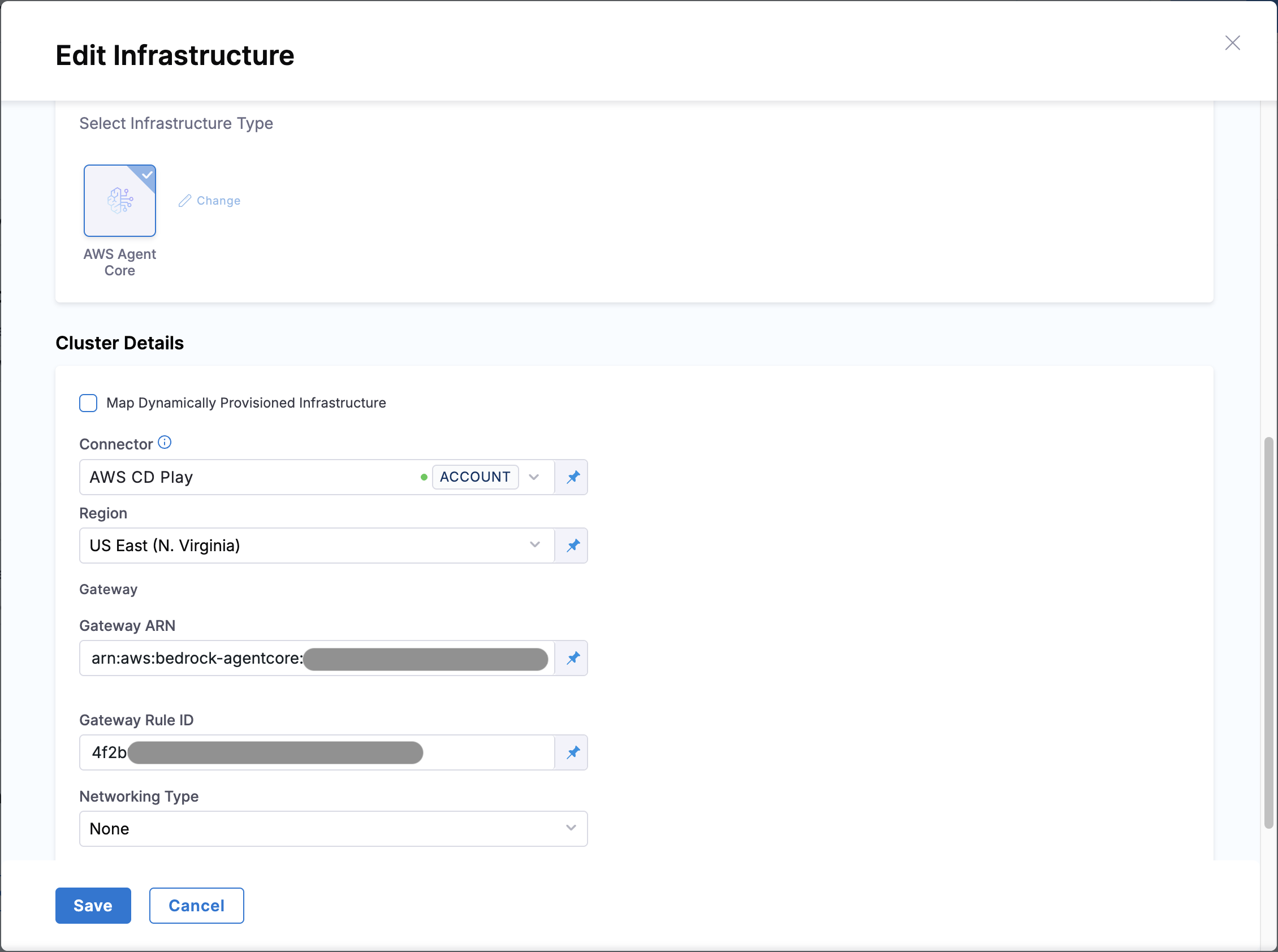
4. Under **Cluster Details**, configure the connector and target. Go to [Configure the infrastructure](#configure-the-infrastructure) for the fields.
5. Select **Save**.
#### Configure the infrastructure
The cluster details define the connector Harness uses and the AgentCore target the agent deploys to. Configure the following fields:
* **Connector:** The AWS connector with permission to deploy to AgentCore.
* **Region:** A region where AgentCore is available, for example `us-east-1`.
* **Networking Type:** Select **None** for the default, or **VPC** when the agent must reach private resources. When you select **VPC**, provide the subnets, which must all belong to the same VPC, and optionally the security groups.
**Gateway (optional):** An AgentCore Gateway enables weighted canary traffic shifting between agent versions. If you do not need traffic switching, leave the **Gateway ARN** and **Gateway Rule ID** fields empty. Without a gateway, each deploy performs a direct endpoint cutover and the traffic shift step in the pipeline is skipped.
To set up gateway-based traffic shifting, complete the following steps in order:
1. Deploy the agent once without a gateway configured. This initial deploy creates the first live AgentCore endpoint.
2. Note the live endpoint ARN from the deployed agent. Provision an AgentCore Gateway outside Harness, through Terraform, CDK, or the AWS console, and create a static target rule in the gateway that points to the live endpoint ARN.
3. Return to this infrastructure definition, enter the **Gateway ARN** and **Gateway Rule ID** from the gateway you provisioned, and save.
After the gateway is in place, Harness manages the live and candidate endpoints and shifts traffic between them according to the canary steps in your pipeline.
Click to view full size
AWS Agent Core infrastructure definition YAML
```yaml
infrastructureDefinition:
name: Agent Core CD Play
identifier: Agent_Core_CD_Play
orgIdentifier: default
projectIdentifier: Demo
environmentRef: Aws_Agent_Core
deploymentType: AiAgent
type: AwsAgentCore
spec:
connectorRef: account.aws_connector
region: us-east-1
networking:
type: none
gateway:
arn: arn:aws:bedrock-agentcore:us-east-1:123456789012:gateway/my-agent-gateway
ruleId:
allowSimultaneousDeployments: false
```
***
### Next steps
With the infrastructure defined, build the pipeline stage that wires the service, environment, and infrastructure together.
* [Canary deployment](/continuous-delivery/use-continuous-delivery/ai-agents-deployment/aws-agent-core/canary-deployment.md)
* [Agent service](/continuous-delivery/use-continuous-delivery/ai-agents-deployment/aws-agent-core/agent-service.md)
{% @harness-feedback/feedback %}