> For the complete documentation index, see [llms.txt](https://developer.harness.io/llms.txt). Markdown versions of documentation pages are available by appending `.md` to page URLs; this page is available as [Markdown](https://developer.harness.io/continuous-delivery/use-continuous-delivery/ai-agents-deployment/google-agent-runtime/agent-service.md).
# Agent service
Register an agent service that represents your AI agent and targets Google Agent Runtime.
An agent service represents a single AI agent in Harness CD. It defines the agent identity, the target runtime, the container image the agent runs from, and any configuration variables the agent needs at runtime. This page shows you how to register an agent service that deploys to Google Agent Runtime, the Vertex Agent Engine execution environment.
{% hint style="info" %}
Agent deployments are behind the feature flag `CDS_AGENT_RUNTIME_DEPLOYMENT`. Contact [Harness Support](mailto:support@harness.io) to enable the feature.
{% endhint %}
For prerequisites, go to [Before you begin](/continuous-delivery/use-continuous-delivery/ai-agents-deployment/google-agent-runtime/overview.md#before-you-begin) on the overview.
***
### Open Agent Services
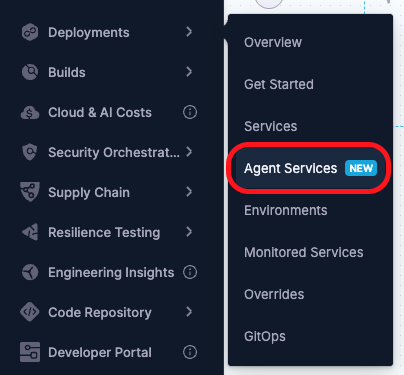
Agent services live in the **Continuous Delivery & GitOps** module. Select **Agent Services** in the left navigation to open the listing page, which shows every agent service in the project. Use the search field to filter by name, and select any row to review or edit its configuration.
Click to view full size image
***
### Register an agent service
To register an agent service, select **New Agent Service** on the listing page and complete the **Register an Agent** panel.
1. In **Agent name**, enter a name for the agent. Harness generates the agent **Id** from the name. Select the edit icon next to the **Id** to change it before you save.
2. Under **Deploy target**, select **Google Agent Runtime** to deploy the agent to Vertex Agent Engine.
3. In **Image URI**, enter the Artifact Registry URI of the agent container image. Build the URI in the format the Google container image method documents. Go to [Deploy an agent (Google Cloud)](https://cloud.google.com/gemini-enterprise-agent-platform/scale/runtime/deploy-an-agent) to review the container image format.
4. (Optional) Add config variables. Go to [Add config variables](#add-config-variables) for details.
5. (Optional) Expand **Metadata** to add a description and tags.
6. Select **Save**.
#### Add config variables
Config variables pass configuration to the agent at runtime. Vertex Agent Runtime supports a set of optional parameters, and config variables are how you supply them from Harness. For the parameters the runtime accepts, go to [Deploy an agent (Google Cloud)](https://cloud.google.com/gemini-enterprise-agent-platform/scale/runtime/deploy-an-agent).
To add a config variable, select **Add variable** and complete the panel:
* **Type:** The variable type, either **String**, **Number**, or **Secret**. Plain values reach the agent environment as-is, and secret values resolve through the Harness secret manager at deploy time.
* **Name:** The variable name.
* **Value:** The variable value. For a secret, reference a Harness secret.
* **Set variable as required during runtime:** Set to **True** to require a value at runtime.
* **Description:** (Optional) A description of the variable.
***
### Review an agent service
Select an agent service from the listing page to open its details.
The **Configuration** tab shows the agent identity, the target platform and its settings, the platform config such as the image URI, and any config variables. You can edit the configuration from this tab.
The **Summary** tab shows the agent details and the list of deployments that reference this agent service across environments. **Referenced by** shows the pipelines and other entities that use the agent service.
***
### Next steps
After you register an agent service, configure the environment for Google Agent Runtime and build the deployment pipeline.
* [Environment](/continuous-delivery/use-continuous-delivery/ai-agents-deployment/google-agent-runtime/environment.md)
* [Canary deployment](/continuous-delivery/use-continuous-delivery/ai-agents-deployment/google-agent-runtime/canary-deployment.md)
{% @harness-feedback/feedback %}