> For the complete documentation index, see [llms.txt](https://developer.harness.io/llms.txt). Markdown versions of documentation pages are available by appending `.md` to page URLs; this page is available as [Markdown](https://developer.harness.io/continuous-delivery/use-continuous-delivery/cd-building-blocks/cd-steps/utilities/email-step.md).
# Email step
Send emails to users and teams during a Harness pipeline execution
This topic describes the settings for the Email step available in Continuous Delivery (CD) and custom stages.
The Email step lets you send emails to users and teams during a pipeline execution.
## What you will learn from this topic
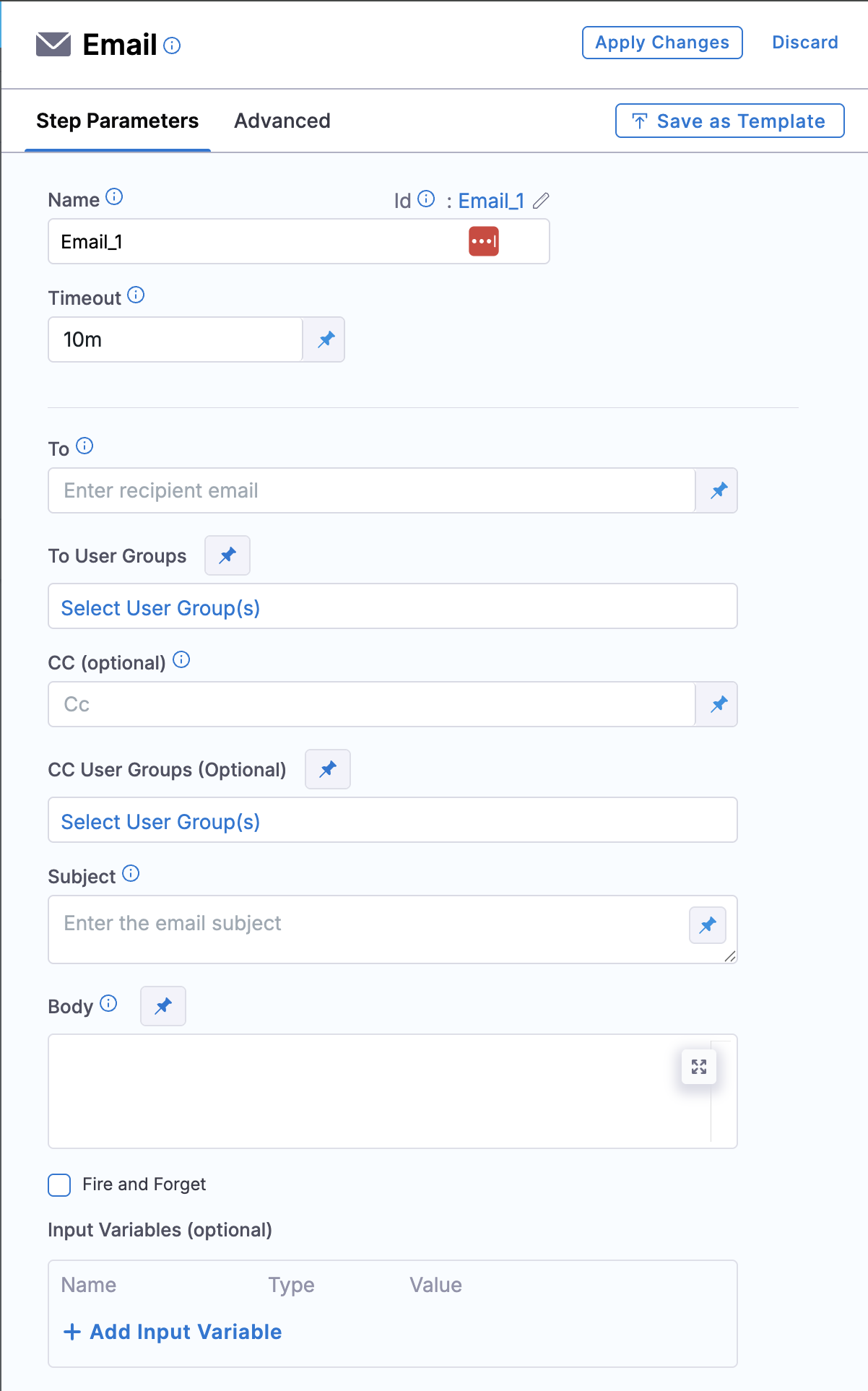
* How to configure the [To](#to), [CC](#cc-optional), [subject](#subject), and [body](#body) settings for the Email step.
* How to control delivery behavior with [Fire and Forget](#fire-and-forget).
* How to [send emails to non-Harness users](#sending-emails-to-non-harness-users).
* How to use [advanced settings](#advanced-settings) and review [important notes](#important-notes) and limits.
***
Click to view full size image
## Email step features
The Email step has the following features:
* Send emails during pipeline executions.
* You can use the Harness SMTP Server included with your Harness account.
* Use your own SMTP server by adding it to Harness. For more information, go to [add SMTP configuration](https://developer.harness.io/harness-platform/use-harness-platform/notifications-alerts-and-banners/notifications/add-smtp-configuration).
* You can use this step as a [step template](https://developer.harness.io/harness-platform/use-harness-platform/templates/run-step-template-quickstart) or as part of a [stage template](https://developer.harness.io/harness-platform/use-harness-platform/templates/add-a-stage-template).
* You can manage this step's configuration via [Harness Git Experience](https://developer.harness.io/harness-platform/use-harness-platform/git-experience/git-experience-overview).
* You can send emails to Harness users and users outside of Harness using the SMTP server in your Harness account.
* Use input variables in the email step to customize the subject, body, and recipient list dynamically based on pipeline variables and context.
### Email step overview
{% embed url="" %}
### YAML example
The following example shows an Email step in a pipeline.
```yaml
steps:
- step:
type: Email
name: Update Status
identifier: Update_Status
spec:
to:
cc:
subject: Deployment Status
body: "Pipeline: <+pipeline.name> is complete. Harness deployed service <+service.name> into environment <+env.name>"
timeout: 10m
```
## Step settings
The Email step has the following settings.
### To
The email addresses where you want this Harness pipeline to send an email.
This setting can be a comma-separated string of addresses. For example, `john.doe@harness.io, bill.smith@harness.io`.
You can set **To** as a runtime input.
You can pass in the email as a Harness expression, such as `<+pipeline.triggeredBy>`.
For more information on runtime inputs and expressions, go to [fixed values, runtime inputs, and expressions](https://developer.harness.io/harness-platform/use-harness-platform/variables-and-expressions/runtime-inputs).
### To user groups
You can select user groups to send the email to. For more information on how to add user groups, go to [User Groups](https://developer.harness.io/harness-platform/use-harness-platform/platform-access-control/add-user-groups).
### CC (optional)
You can add email addresses to the **CC** section to carbon copy addresses on the email that will be sent with the pipeline execution.
### CC user groups (optional)
You can select user groups to carbon copy addresses on the email that will be sent with the pipeline execution.
### Subject
You can provide a subject for the email.
This subject can be a fixed string (for example, `Prod Deployment Notification`), a string with expressions (for example, `<+env.name> Deployment Notification`), or a runtime input.
For more information on runtime inputs and expressions, go to [fixed values, runtime inputs, and expressions](https://developer.harness.io/harness-platform/use-harness-platform/variables-and-expressions/runtime-inputs).
### Body
The **Body** is a string field. You can enter in text and Harness expressions. Harness will resolve the expressions before sending the email.
* You can use HTML formatting in **Body**, such as ` ` tags, for line breaks in the email body.
* If the `CDS_EMAIL_USE_DEFAULT_FORMATTING` feature flag is enabled, new lines will not be auto-detected. Instead, you must explicitly define new lines using ` ` tags or similar HTML formatting.
For more information on runtime inputs and expressions, go to [fixed values, runtime inputs, and expressions](https://developer.harness.io/harness-platform/use-harness-platform/variables-and-expressions/runtime-inputs).
Example of using ` ` tag in the email body.
Below is an illustration of how you can insert ` ` tags within the **Email Step** body:

**Pipeline YAML example**:
```yaml
pipeline:
name: Email-test
identifier: emailtest
projectIdentifier: PROJECT_ID
orgIdentifier: default
tags: {}
stages:
- stage:
name: s1
identifier: s1
description: ""
type: Custom
spec:
execution:
steps:
- step:
type: Email
name: Email_1
identifier: Email_1
spec:
to: RECIPIENT_EMAIL
cc: ""
subject: Pipeline status
body: |-
These are the pipeline details
Pipeline name: <+pipeline.name>
Pipeline status: <+pipeline.status>.
Pipeline step identifier: <+step.identifier>
inputVariables: []
timeout: 10m
tags: {}
```
### Fire and Forget
The **Fire and Forget** checkbox controls whether the Email step waits for email delivery confirmation or continues immediately.
* **Unchecked (default):** The Email step waits for the notification service to confirm email delivery before marking the step as complete. If email delivery fails, the step fails and the pipeline may be interrupted depending on your failure strategy.
* **Checked:** The Email step sends the email request and immediately marks as successful without waiting for delivery confirmation. Pipeline execution continues regardless of whether the email is actually delivered. This prevents email delivery issues from blocking or failing your pipeline.
Enable this option when email notifications are informational and should not affect pipeline success. Leave it unchecked when email delivery is critical to your workflow.
### Use input variables
You can use input variables in the Email Step to customize the subject, body, and recipient list with dynamic values from your pipeline.
* **Subject**: Personalize the subject line using placeholders like `${pipeline.buildNumber}` or `${deployment.status}`.
* **Body**: Insert dynamic content in the email body using pipeline variables.
* **Recipients**: Define the recipient list dynamically with pipeline variables, such as sending emails to team members based on environment or role.
You can use both predefined and custom pipeline variables in your emails. The Email Step also supports condition-based customization, allowing you to modify the email content based on pipeline states like success, failure, or approval.
### Send emails to non-Harness users
By default, the Email step can only send emails to Harness users.
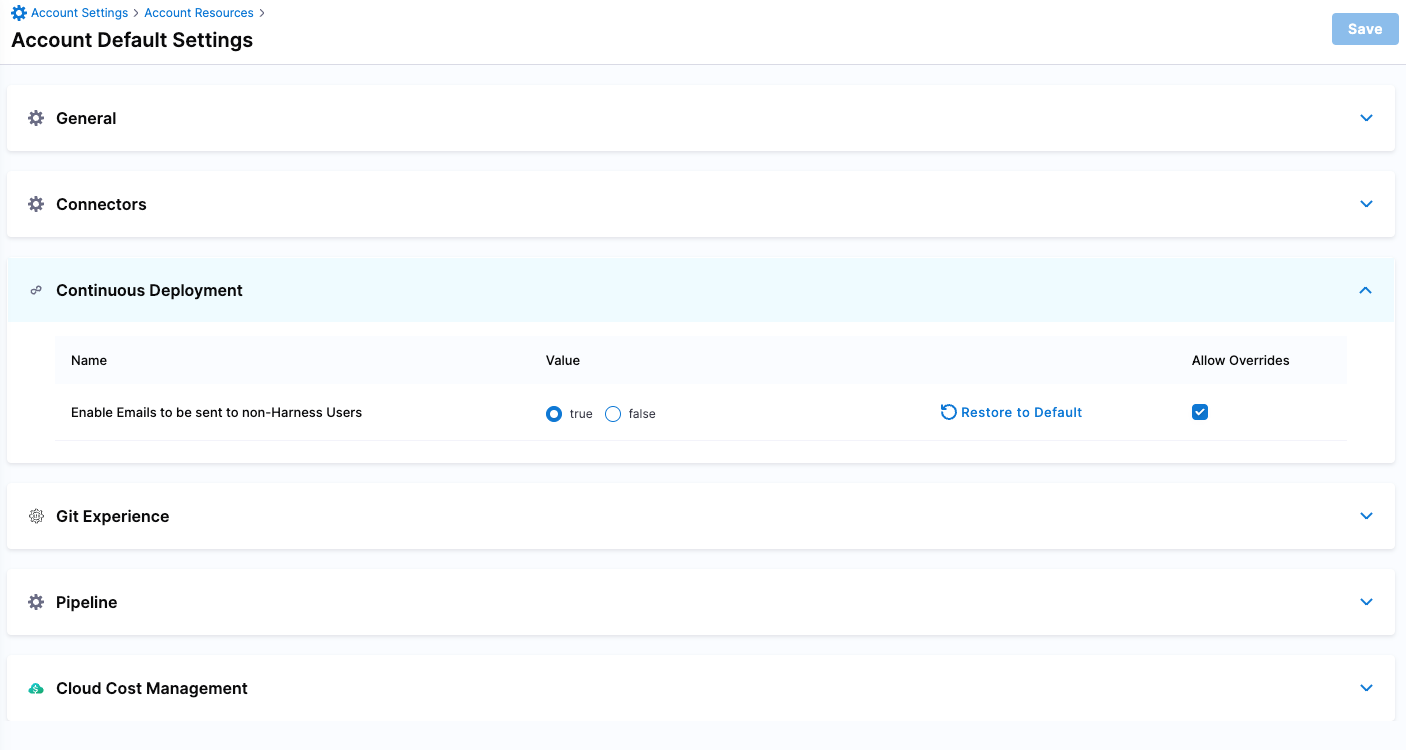
To send emails to non-Harness users, you must configure your own SMTP server and enable the **Enable Emails to be sent to non-Harness Users** default setting.
{% hint style="info" %}
**NOTES**
* The Harness internal SMTP server included in your account is not used to email non-Harness users.
* Only users belonging to a user group with the **Default Setting** permission set to **Edit** can configure the **Enable Emails to be sent to non-Harness Users** default setting.
{% endhint %}
To send emails to non-Harness users, do the following:
1. Add your own SMTP server. For details, go to [Add SMTP configuration](https://developer.harness.io/harness-platform/use-harness-platform/notifications-alerts-and-banners/notifications/add-smtp-configuration).
2. In **Default Settings** (at the account, organization, or project level), select **Continuous Deployment**, and then set **Enable Emails to be sent to non-Harness Users** to **true**.
Click to view full size image
Enable **Allow Overrides** to allow a project to override the setting of its org, or an org to override its account setting.
### Advanced settings
In **Advanced**, you can use the following options:
* [Delegate Selector](https://developer.harness.io/harness-platform/use-harness-platform/delegates/delegate/manage-delegates/select-delegates-with-selectors)
* [Conditional Execution](https://developer.harness.io/harness-platform/use-harness-platform/pipelines/step-skip-condition-settings)
* [Failure Strategy](https://developer.harness.io/harness-platform/use-harness-platform/pipelines/failure-handling/define-a-failure-strategy-on-stages-and-steps)
* [Looping Strategy](https://developer.harness.io/harness-platform/use-harness-platform/pipelines/looping-strategies/looping-strategies-matrix-repeat-and-parallelism)
* [Policy Enforcement](https://developer.harness.io/harness-platform/use-harness-platform/governance/policy-as-code/harness-governance-overview)
### Options
You can send emails using your own SMTP Server. For more information, go to [add SMTP configuration](https://developer.harness.io/harness-platform/use-harness-platform/notifications-alerts-and-banners/notifications/add-smtp-configuration).
## Limits and behaviors
Review the following limits and behaviors before you rely on the Email step for critical notifications.
### Recipient limits
The Email step supports up to **2100 recipients** per execution (combined across the **To** and **CC** fields). Exceeding this limit may cause the step to time out or fail.
To notify larger audiences, use a distribution list (DL) or group email address instead of individual addresses.
### Asynchronous processing
When the **Fire and Forget** option is enabled, the Email step operates asynchronously. Your pipeline execution continues immediately without waiting for email delivery confirmation.
Harness marks the Email step as successful once the email request is sent to the notification service, even if email delivery fails later. This design prevents email issues from blocking pipeline executions when the notification is informational rather than critical.
Before you re-run a failed email step, check your SMTP server logs to verify whether the emails were delivered. This prevents duplicate messages.
### SMTP server limits
Harness does not control or document the limits imposed by your SMTP server. Consult your email provider's documentation for rate limits and bulk-sending policies. If you are using a custom email provider (as described in [Add SMTP configuration](https://developer.harness.io/harness-platform/use-harness-platform/notifications-alerts-and-banners/notifications/add-smtp-configuration)), check your provider's logs directly to verify delivery.
***
## Next steps
* [Event listener step](/continuous-delivery/use-continuous-delivery/cd-building-blocks/cd-steps/utilities/event-listener-step.md): Resume or fail pipeline execution based on webhook events.
* [HTTP step](/continuous-delivery/use-continuous-delivery/cd-building-blocks/cd-steps/utilities/http-step.md): Run HTTP methods and validate assertions in your pipeline.
{% @harness-feedback/feedback %}