> For the complete documentation index, see [llms.txt](https://developer.harness.io/llms.txt). Markdown versions of documentation pages are available by appending `.md` to page URLs; this page is available as [Markdown](https://developer.harness.io/continuous-delivery/use-continuous-delivery/deploy-services-on-different-platforms/google-cloud-functions/google-cloud-run.md).
# Google Cloud Run Deployments
Run containerized applications on Google Cloud.
This guide explains how to deploy artifacts to Google Cloud Run using Harness.
## Overview
Harness supports deploying both **Google Cloud Run Services** and **Google Cloud Run Jobs**.
* A **Google Cloud Run Service** is a stateless containerized application that scales automatically based on traffic. It is ideal for APIs, websites, and event-driven backends.
* A **Google Cloud Run Job** is designed for task-based execution and runs to completion, making it ideal for batch processing, scheduled tasks, or background workloads.
Follow these steps to set up a **Google Cloud Run Service** in Harness:
## What you will learn from this topic
* How to create a Harness CD pipeline for Google Cloud Run Services and Jobs
* How to configure a Cloud Run service definition, artifact source, and infrastructure connector
* How to select a deployment strategy and execute a Cloud Run deployment in Harness
* Troubleshooting tips for common Cloud Run deployment issues
## Before you begin
Before you deploy to Google Cloud Run, ensure you have the following:
* A Harness GCP connector configured with the [permissions required for Cloud Run deployments](#cloud-run-permission-requirements).
* A Google Artifact Repository or Docker Registry artifact source, since these are the only supported artifact repositories for Cloud Run.
## Interactive guide
{% tabs %}
{% tab title="Interactive guide" %}
Here is an interactive guide to setup your Cloud Run Service pipeline.
{% embed url="" %}
{% endtab %}
{% endtabs %}
## Create a CD pipeline
1. In the Harness UI, create a new CD pipeline.
2. Add a Deploy stage and select **Google Cloud Run** as the deployment type.
3. Click **Set Up Stage**.
## Configure the service
{% hint style="info" %}
Only Google Artifact Repository and Docker Registry are supported as artifact repositories.
{% endhint %}
1. Select **Add Service** and add the **Google Cloud Run Service Manifest Definition**. This defines the containerized application compatible with Google Cloud Run.
2. Save the new service.
## Configure the environment and infrastructure
1. Select **New Environment**, provide a name for the environment, and click **Save**.
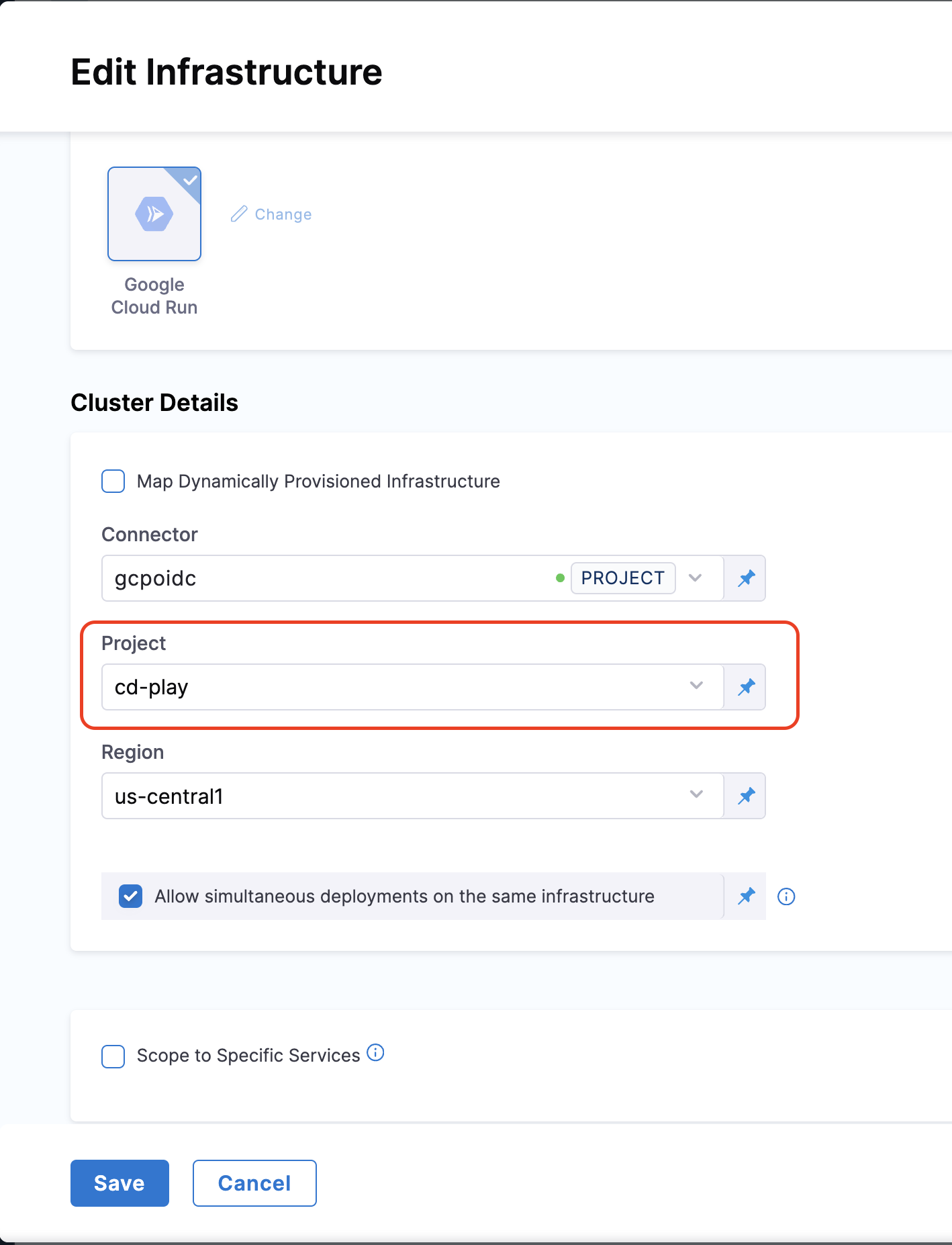
2. In the **Infrastructure Definition** section, click **New Infrastructure** and configure the following details:
* **Harness GCP Connector**: Create or select a Harness GCP connector to authenticate with your Google Account.
* **GCP Project**: Specify the project ID to define the target GCP project.
* **GCP Region**: Select the region where the Cloud Run service will be deployed.
3. Save the infrastructure configuration.
**GCP Authentication Support**
Harness supports the following methods for GCP authentication:
* **Google OIDC support**: Create an OIDC connector to connect to the GCP account. For more information, see [Use OpenID Connect (OIDC) Connector](https://developer.harness.io/docs/platform/connectors/cloud-providers/ref-cloud-providers/gcs-connector-settings-reference#use-openid-connect-oidc).
* **Service account**: Create a GCP connector by providing a Service Account. For more information, see [Create a GCP connector](https://developer.harness.io/docs/platform/connectors/cloud-providers/connect-to-google-cloud-platform-gcp).
### Enable cross-project access
You can have one connector scoped to multiple GCP projects, eliminating the need to create separate connectors for each project. With this feature, the connector will allow access to multiple GCP projects.
**Prerequisite** : For OIDC-based connectors, the associated service account (SA) must have cross-project access.
* **Project** (required): It can refer to a **different project** than the one configured in the connector, or the **same project**
* **Region** (required): It refers to the region where the container will be deployed.
Click to view full size image
## Configure the execution
In the **Execution** tab, select the deployment strategy. Currently, Harness supports the **Basic** and **Canary** deployment strategies for Google Cloud Run Service.
Harness automatically adds the **Deploy Cloud Run Step Group** based on the strategy you select.
The **Basic Strategy** includes the following steps:
1. **Download Manifest**
2. **Google Cloud Run Prepare Rollback**
3. **Google Cloud Run Deploy Step**

Optionally, you can add a **Google Cloud Run Traffic Shift Step**.
The **Canary Strategy** includes the following steps:
1. **Download Manifest**
2. **Google Cloud Run Prepare Rollback**
3. **Google Cloud Run Deploy Step**
4. **Google Cloud Run Traffic Shift Step**

### Download Manifest
* **Purpose**: Downloads the manifest specified in the service.
* **Details**: The manifest contains all the configuration details necessary for deploying the service.
### Google Cloud Run Prepare Rollback
* **Purpose**: Fetches and saves the current deployment configurations for potential rollback scenarios.
* **Details**:
* Uses the `gcloud run services describe` command to retrieve service details.
* Saves configuration details for use during rollback if required.
* For more information, see the [Google Cloud Run Documentation](https://cloud.google.com/sdk/gcloud/reference/run/services/describe).
### Google Cloud Run Deploy Step
* **Purpose**: Applies the YAML manifest to create a new service or revision.
* **Details**:
* Executes the `gcloud run services replace` command to deploy the service.
* Updates the container image in the YAML manifest to match the specified artifact.
* Harness fetches and logs instance details using the **Google Cloud Monitoring SDK**.
* Additional configuration options can be specified under **Google Cloud Run Services Replace Command Options**.
* For more information, see the [Google Cloud Run Documentation](https://cloud.google.com/sdk/gcloud/reference/run/services/replace).
{% hint style="info" %}
Harness does not use the Google Run Deploy command here because this command takes every field as a command flag. Instead, Harness uses the replace command and applies all the configurations provided in the YAML file.
{% endhint %}
### Skip Traffic Shift
The Deploy step includes a **Skip Traffic Shift** option that allows you to create a new revision without immediately shifting traffic to it.
**Configuration**:
```yaml
- step:
type: GoogleCloudRunDeploy
name: Google Cloud Run Deploy
identifier: Google_Cloud_Run_Deploy
spec:
connectorRef: account.harnessImage
image: harness/google-cloud-run-plugin:1.0.0-linux-amd64
imagePullPolicy: Always
skipTrafficShift: true
timeout: 10m
```
When `skipTrafficShift: true`:
* The Deploy step only creates a new revision without shifting traffic to it
* Traffic shifting will be performed explicitly in the Google Cloud Run Traffic Shift step
* When disabled (default), traffic shifts to the new revision immediately upon deployment
{% hint style="info" %}
For the first deployment, traffic is always shifted to the new revision regardless of this setting. This applies to subsequent deployments only.
{% endhint %}
### Google Cloud Run Traffic Shift Step
* **Purpose**: Manages traffic distribution across different revisions of the service.
* **Details**:
* Uses the `gcloud run services update-traffic` command.
* Allows users to specify the percentage of traffic each revision should handle.
* For more information, see the [Google Cloud Run Documentation](https://cloud.google.com/sdk/gcloud/reference/run/services/update-traffic).
### Tags
The Traffic Shift step supports assigning tags to revisions. Tags provide named aliases for revisions (e.g., 'stable', 'canary', 'latest') and create named URLs for accessing specific revisions.
**Configuration**:
```yaml
- step:
type: GoogleCloudRunTrafficShift
name: Google Cloud Run Traffic Shift
identifier: Google_Cloud_Run_Traffic_Shift
spec:
revisionTrafficDetails:
- revisionName: latest
trafficValue: 100
tag: canary, latest
connectorRef: account.harnessImage
image: harness/google-cloud-run-plugin:1.0.0-linux-amd64
imagePullPolicy: Always
```
**Field Details**:
* `revisionName` - The name of the Cloud Run revision
* `trafficValue` - The percentage of traffic to route to this revision (0-100)
* `tag` (optional) - Comma-separated list of tags to assign to this revision
{% hint style="info" %}
**TAG BEHAVIOR**
If any tags are provided, all existing tags in the service will be removed and replaced with the new ones. If no tags are specified, existing tags will remain unchanged.
{% endhint %}
### Container configuration
For Container Registry, create or select a Docker connector to access the container registry. Use the following public Docker images:
* Docker Hub: [`harness/google-cloud-run-plugin:1.0.4-linux-amd64`](https://hub.docker.com/r/harness/google-cloud-run-plugin/tags)
* GAR:
* Europe region: [GAR Image Repository for Google Cloud Run Plugin (Europe)](https://console.cloud.google.com/artifacts/docker/gar-prod-setup/europe/harness-public/harness%2Fgoogle-cloud-run-plugin?inv=1\&invt=Ab5cNA)
This image is required to perform deployments to Google Cloud Run
### Optional configurations
Harness allows for several optional configurations to customize deployment behavior:
* **Pre-Execution Command**: Run commands before deployment.
* **Image Pull Policy**: Specifies when to pull the container image from the registry.
* **Run as User**: Configures the user identity for security and access control.
* **Limit Memory**: Defines the maximum memory for the container or function.
* **Limit CPU**: Sets a limit on CPU usage for the container or function.
* **Environment Variables**: Additional environment variables can be configured.
### Rollback steps
Harness provides rollback functionality to revert to previous configurations or states:
* **First Deployment**: Deletes the service using the `gcloud run services delete` command.
* **Subsequent Deployments**: Redirects traffic to older revisions using the `gcloud run services update-traffic` command.
{% hint style="info" %}
Google Cloud Run does not allow deletion of the new revision; only traffic can be diverted to previous revisions.
{% endhint %}
### Google Cloud Run Job Step
You can add a Google Cloud Run Job step in the Execution tab.
{% tabs %}
{% tab title="Interactive guide" %}
Here is an interactive guide to setup your Cloud Run Job Stage.
{% embed url="" %}
{% endtab %}
{% endtabs %}
**Container Configuration**
For Container Registry, create or select a Docker connector to access the container registry. Use the following public Docker image:
* [`harness/google-cloud-run-plugin:1.0.4-linux-amd64`](https://hub.docker.com/r/harness/google-cloud-run-plugin/tags)
This image is required to perform deployments to Google Cloud Run.
You can define your job using either Job Name or Job Manifest.
**Job Name**: Select Job Name when you already have a job defined in your Google Cloud Platform and you only want to execute it.
* Under **Job Name**, specify the name of the job you want to run.
* You can also make it a Runtime Input or an Expression.
**Job Manifest**: Select Job Manifest when you want to deploy a new job or update an existing job using a manifest file.
* Click **+ Google Cloud Run Job Manifest**.
* In the **Specify Google Cloud Run Job Manifest Store**, select the source where the manifest file is stored.
* In **Manifest Details**, specify the path where the manifest file is stored.
{% hint style="info" %}
If you are deploying a **container-based Google Cloud Run Job**, ensure that you:
1. Create a Step Group by clicking on **Add Step Group** in the execution tab.
2. Provide the Name of the Step Group. Enable the **Enable Container-Based Execution** toggle.
3. Provide **Kubernetes Cluster** details.
4. Add the **Google Cloud Run Job** Step to the Step Group.
These steps are necessary for successful execution.
{% endhint %}
**Deploy Step**
The deploy step uses the deploy `gcloud run jobs replace` command and execute `gcloud run jobs execute` command in sequence.\
For more information on `gcloud run jobs replace` command, refer to the [Google Documentation](https://cloud.google.com/sdk/gcloud/reference/run/jobs/replace?hl=en).\
For more information on `gcloud run jobs execute` command, refer to the [Google Documentation](https://cloud.google.com/sdk/gcloud/reference/run/jobs/execute?hl=en).
**Optional Configurations**
You can provide additional command options (flags) in the Optional Configuration section:
* **Google Cloud Run Jobs Replace Command Options**: Used for the replace function.
* **Google Cloud Run Jobs Execute Command Options**: Used for the execute function.
Additionally, you can configure the following options:
* **Pre-Execution Command**: Run commands before deployment.
* **Image Pull Policy**: Specifies when the container image should be pulled from the registry.
* **Run as User**: Configures the user identity under which the function or container should run, useful for security and access control.
* **Limit Memory**: Defines the maximum memory that can be allocated to the container or function during execution.
* **Limit CPU**: Sets a limit on the CPU usage for the function or container, ensuring the function does not consume excessive resources.
* **Environment Variables**: Additional environment variables can be configured.
## Cloud Run permission requirements Cloud Run Minimum Permissions
The following are the minimum set of permissions required for deploying Google Cloud Run services:
1. **List, Get, and Describe Services**:
* `run.services.list`
* `run.services.get`
2. **Create or Deploy Services**:
* `run.services.create`
* `run.services.update`
3. **Delete Services**:
* `run.services.delete`
4. **Manage Cloud Run Jobs**:
* `run.jobs.create`
* `run.jobs.update`
* `run.jobs.get`
* `run.jobs.run`
5. **Invoke Cloud Run Services** (if needed for execution):
* `run.routes.invoke`
6. **Get Service Monitoring Data for Instance Sync and Post-Deploy Verification**:
* `monitoring.timeSeries.list`
* `monitoring.metricDescriptors.list`
7. **View Configuration and Permissions**:
* `run.configurations.list`
* `run.configurations.get`
8. **Manage IAM Policies for Services**:
* `resourcemanager.projects.getIamPolicy`
* `resourcemanager.projects.setIamPolicy`
9. **Authentication Using OIDC**:
* `iam.workloadIdentityPools.createCredentialConfig`
10. **Authentication Using Service Account Key**:
* `iam.serviceAccounts.get`
* `iam.serviceAccounts.signBlob`
11. **Service Account Impersonation**:
* `iam.serviceAccounts.actAs`
* Required on the service identity used for Cloud Run (the `serviceAccountName` configured for the Cloud Run service).
* This permission is needed even if the deployer service account and Cloud Run service identity are the same account.
* If no custom service account is configured, this permission is required on the Compute Engine default service account.
Alternatively, the following roles can also be used:
1. **Cloud Run Admin (`roles/run.admin`)**:
* Grants full administrative access to manage Cloud Run services, including creating, updating, and deleting services.
* Essential for deploying services to Cloud Run.
2. **Service Account User (`roles/iam.serviceAccountUser`)**:
* Grants permission to use service accounts, which are required to run Cloud Run services.
* This role must be assigned on the service identity used for Cloud Run (the `serviceAccountName` configured for the Cloud Run service, or the Compute Engine default service account if not specified).
* Required even when the deployer service account and Cloud Run service identity are the same account.
3. **Logging Viewer (`roles/logging.viewer`)**:
* Access to logs for debugging Cloud Run services.
4. **Monitoring Viewer (`roles/monitoring.viewer`)**:
* Required for post-deploy instance verification. Harness uses the Google Cloud Monitoring SDK to fetch and log instance details after each new revision is deployed. Without this role, the deploy step may succeed but then fail with a `PermissionDenied` error during verification.
5. **IAM Workload Identity Pool Admin (`roles/iam.workloadIdentityPoolAdmin`)**:
* This role grants you the necessary permissions to create, update, and delete workload identity pools and providers.
## Google Cloud Run sample
To see an example of how to deploy Google Cloud Run Service using Harness, visit the [Harness Community Repository](https://github.com/harness-community/harnesscd-example-apps/tree/master/google-cloud-run).
This repository provides a ready-to-use sample application and the necessary configuration files to help you get started quickly.
### Manifest format and CLI compatibility
Harness uses the `gcloud run` CLI commands in the background for Google Cloud Run deployments. This means Harness supports all manifest formats that are compatible with `gcloud run` commands, providing full flexibility in how you define your Cloud Run services.
{% hint style="info" %}
**GCLOUD CLI COMPATIBILITY**
Harness executes `gcloud run` CLI commands in the background for Google Cloud Run steps. Therefore, Harness supports all manifest formats that are compatible with these commands, including:
* `gcloud run services replace` for service deployments
* `gcloud run jobs replace` and `gcloud run jobs execute` for job deployments
* All standard Cloud Run YAML configurations and Knative serving specifications
This ensures full compatibility with Google Cloud Run's native deployment mechanisms.
{% endhint %}
For detailed YAML reference and manifest specifications, refer to the official [Google Cloud Run YAML Reference](https://cloud.google.com/run/docs/reference/yaml/v1) documentation.
## Limitations and troubleshooting
### Invalid service name error
Google Cloud Run service names must use only lowercase alphanumeric characters and dashes. Underscores are not allowed. If you encounter `Invalid resource name` errors, replace underscores with dashes in your service name (e.g., `my_service` → `my-service`). For details, see [Google Cloud Run naming conventions](https://cloud.google.com/run/docs/resource-model#resource-names).
### Authentication error with "Inherit from Delegate" mode
**Issue**: Pipeline fails when using a GCP connector configured with the **Inherit from Delegate** authentication mode, displaying the following error:
```
Executing command: /google-cloud-sdk/bin/gcloud auth list --filter="status:ACTIVE" --format="value(account)"
ERROR: (gcloud.auth.list) Name expected [ table[title='Credentialed Accounts'](
status.yesno(yes='*', no=''):label=ACTIVE,
account
) *HERE* "value(account)"].
Google Cloud Run plugin execution failed with error:
An error occurred while setting up google cloud credentials:
Error running gcloud auth list command: error executing command: exit status 1
```
**Root Cause**: This issue occurs when the Google Cloud SDK in the plugin container outputs additional messages (such as update notifications or survey prompts) along with the account information. These extra messages interfere with the expected output format of the `gcloud auth list` command, causing the authentication setup to fail.
Example of problematic output:
```
customer-success-244100.svc.id.goog
Updates are available for some Google Cloud CLI components. To install them,
please run:
$ gcloud components update
To take a quick anonymous survey, run:
$ gcloud survey
```
**Solution**: Use the updated Google Cloud Run plugin image that handles these additional messages correctly:
```
harness/google-cloud-run-plugin:1.0.4-linux-amd64
```
**Steps to Update**:
1. Navigate to your pipeline's **Execution** tab.
2. Locate the **Google Cloud Run Deploy Step** or **Google Cloud Run Job Step**.
3. In the **Container Configuration** section, update the image reference to:
* Docker Hub: `harness/google-cloud-run-plugin:1.0.4-linux-amd64`
4. Save and re-run your pipeline.
{% hint style="info" %}
The updated plugin image (`1.0.4`) includes improved parsing logic that filters out extraneous messages from the `gcloud` CLI output, ensuring reliable authentication when using the "Inherit from Delegate" mode.
{% endhint %}
This issue specifically affects deployments using GCP connectors configured with **Inherit from Delegate** authentication. If you are using **Service Account** or **OIDC** authentication methods, you may not encounter this issue.
***
## Next steps
* [Google MIG Blue-Green deployment](/continuous-delivery/use-continuous-delivery/deploy-services-on-different-platforms/google-cloud-functions/mig/mig-blue-green-deployment.md): Configure and execute a Blue-Green deployment strategy for Google Cloud Managed Instance Groups.
* [CD best practices](/continuous-delivery/troubleshooting-and-resources/cd-best-practices.md): Review best practices for deployment strategy selection, environment management, rollback, and governance.
{% @harness-feedback/feedback %}