> For the complete documentation index, see [llms.txt](https://developer.harness.io/llms.txt). Markdown versions of documentation pages are available by appending `.md` to page URLs; this page is available as [Markdown](https://developer.harness.io/continuous-delivery/use-continuous-delivery/deploy-services-on-different-platforms/google-cloud-functions/mig/step-references/gce-provision-backend-service.md).
# GCE Provision Backend Service
Provision a Google Cloud backend service with the GCE Provision Backend Service step
The **GCE Provision Backend Service** step creates or updates a backend service in Google Cloud. This utility step can provision any backend service within Google Cloud Platform (GCP), not only Managed Instance Group (MIG) deployments.
The step includes built-in support for fetching backend service configuration files from multiple sources: **Google Cloud Storage (GCS)**, **Git providers** (GitHub, GitLab, Bitbucket), or the **Harness File Store**. With built-in store configuration, you do not need a separate download step.
{% hint style="info" %}
**Container Step Group required**
Add this step inside a **Container Step Group**. The step runs as a containerized task and requires the container infrastructure configuration from the step group.
{% endhint %}
***
## What you will learn from this topic
* How to configure the step with [built-in store support](#use-built-in-store-support-recommended) (GCS, Git, Harness File Store)
* How the built-in store method differs from the [legacy separate download step](#use-a-separate-download-step-legacy)
* How to set required [step parameters](#step-parameters), including GCP project, region, connector, and optional advanced settings
* How to use this step as a utility step outside of MIG deployments
***
## Before you begin
Complete the following prerequisites before you configure the GCE Provision Backend Service step:
* **Container Step Group:** Add a Container Step Group in the Deploy stage execution. This step must run inside that group.
* **GCP connector:** A Harness Google Cloud Platform connector with permission to create and manage backend services in the target project. Go to [Connect to Google Cloud Platform (GCP)](https://developer.harness.io/docs/platform/connectors/cloud-providers/connect-to-google-cloud-platform-gcp) to create the connector.
* **Backend service configuration file:** A JSON configuration file in GCS, a Git repository, or the Harness File Store.
* **Container registry connector:** A connector that can pull the deployment plugin image used by the step.
***
## Configuration methods
You can configure the backend service in two ways.
### Use built-in store support (recommended)
When you configure the step, select a store type and provide the file location. Harness fetches the file and provisions the backend service automatically.
Supported store types:
* **Google Cloud Storage (GCS):** Fetch configuration from a GCS bucket.
* **Git providers** (GitHub, GitLab, Bitbucket): Fetch from a Git repository.
* **Harness File Store:** Use files stored in Harness.
This method simplifies your pipeline and removes the need for a separate download step.
### Use a separate download step (legacy)
You can also use a **Download Harness Store** or **Git Clone** step before the GCE Provision Backend Service step to fetch the configuration file manually. The **Config File Path** parameter in the provision step must then point to the downloaded file location (for example, `/harness/backendservice.json`).
Harness recommends the built-in store method for simpler pipeline configuration.
***
## What this step does
This step creates or updates a backend service in Google Cloud. You can use it to:
* Create a new backend service in GCP if it does not exist
* Update an existing backend service if it already exists
* Configure load balancing, health checks, and backend groups based on the configuration file
***
## Configure the step
### Step parameters
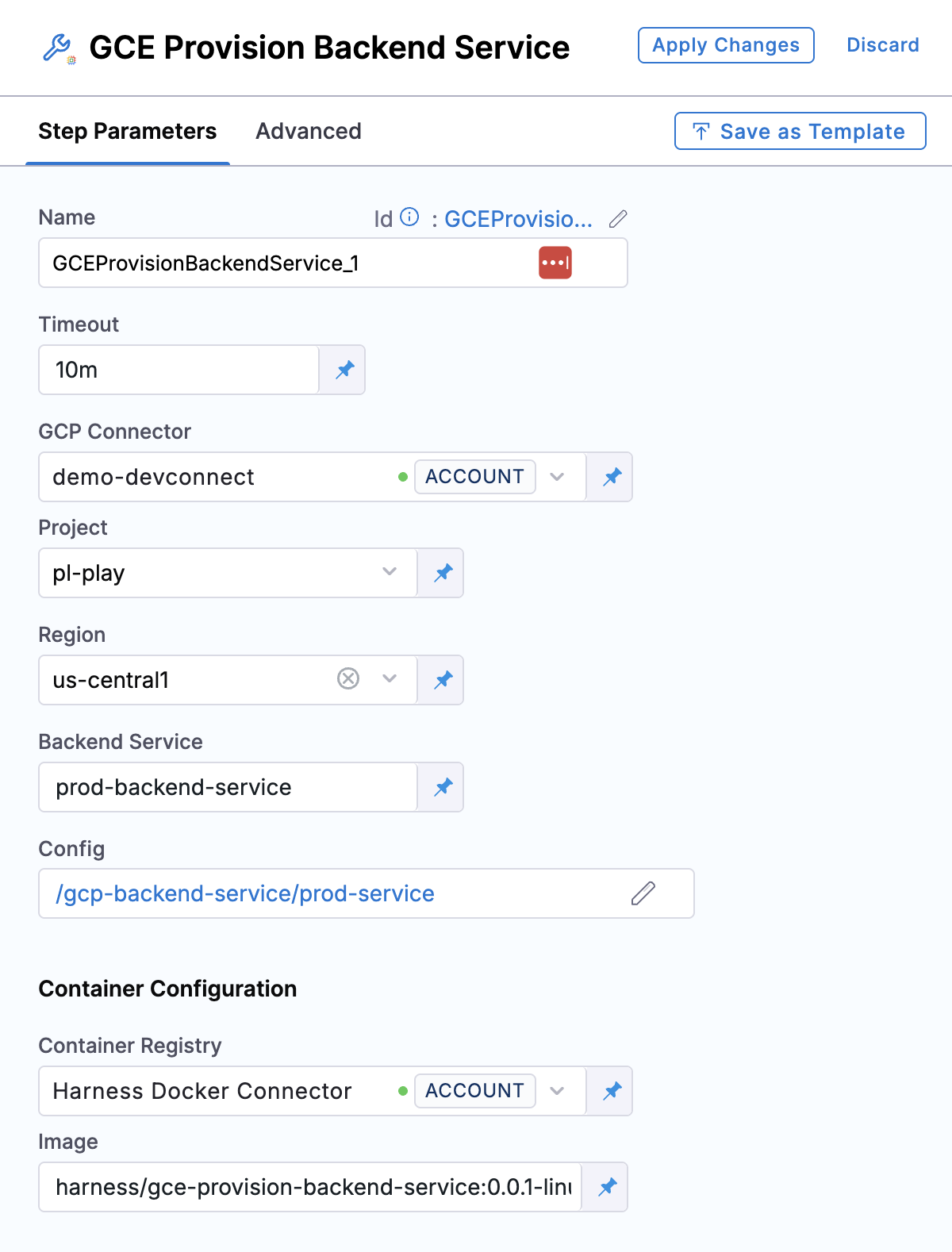
Configure the following fields on the step.
### Name
Enter a name for the step. You can use fixed values or runtime inputs.
### Timeout
Enter the timeout duration for the step. Default is `10m`.
### GCP connector
Select your Harness GCP connector that has permissions to create and manage backend services in your Google Cloud project.
### Project
Enter the GCP project ID where the backend service is created or updated.
### Region
Select the GCP region for the backend service (for example, `us-central1`).
### Backend service
Enter the name of the backend service to create or update.
### Config
Click the **Config** field to open the store configuration wizard. This defines where Harness fetches your backend service configuration file.
Harness supports multiple store types:
* **GCS (Google Cloud Storage):** Fetch configuration from a GCS bucket
* **GitHub:** Fetch from a GitHub repository
* **GitLab:** Fetch from a GitLab repository
* **Bitbucket:** Fetch from a Bitbucket repository
* **Harness:** Use the Harness File Store
* **Git:** Use a generic Git provider
After you select a store type, provide the required details.
**For Google Cloud Storage (GCS):**
* **Google Cloud Storage Connector:** Select your Harness [GCP connector](https://developer.harness.io/docs/platform/connectors/cloud-providers/connect-to-google-cloud-platform-gcp) with read access to the GCS bucket
* **Bucket Name:** Enter the GCS bucket that contains your backend service configuration file
* **Manifest Path:** Enter the path to the JSON file inside the bucket (for example, `backend-services/prod-config.json`)
**For Git providers (GitHub, GitLab, Bitbucket):**
* **Git Connector:** Select your Harness connector to your Git provider. Go to [Code repository connectors](https://developer.harness.io/docs/platform/connectors/code-repositories/ref-source-repo-provider) to configure connectors
* **Repository:** Enter the Git repository name
* **Branch/Commit/Tag:** Enter the Git reference to fetch from
* **File Path:** Enter the path to the JSON file in the repository (for example, `configs/backend-service.json`)
**For Harness File Store:**
* **File Path:** Enter the path to the file in [Harness File Store](/continuous-delivery/use-continuous-delivery/cd-building-blocks/services/add-inline-manifests-using-file-store.md) (for example, `/mig_config/backend-service.json`)
### Container configuration
This step runs as a containerized task and requires container configuration.
### Container registry
Select your Harness connector for authenticating to your container registry. This connector pulls the deployment plugin image.
### Image
Enter the deployment plugin container image. Use the official Harness image:
```
harness/gce-provision-backend-service:0.0.1-linux-amd64
```
***
## Backend service configuration file
The configuration file defines the backend service properties in JSON format. Store this file in GCS, a Git repository, or the Harness File Store, and reference it through the store configuration in the step.
```json
{
"name": "my-backend-service",
"loadBalancingScheme": "INTERNAL_SELF_MANAGED",
"protocol": "HTTP",
"portName": "http",
"sessionAffinity": "NONE",
"timeoutSec": 30,
"connectionDraining": {
"drainingTimeoutSec": 300
},
"healthChecks": [
"projects/PROJECT_ID/global/healthChecks/HEALTH_CHECK_NAME"
],
"backends": [
{
"group": "projects/PROJECT_ID/zones/ZONE/instanceGroups/MIG_NAME",
"balancingMode": "UTILIZATION",
"maxUtilization": 0.8,
"capacityScaler": 1.0
}
]
}
```
### Use expressions for dynamic values
You can use Harness expressions in the configuration file to dynamically reference values from other pipeline steps. This is useful when the MIG name or other values are generated during pipeline execution.
For example, to reference a MIG name from a previous deployment step, use an expression like:
```
<+pipeline.stages.STAGE_ID.spec.execution.steps.STEP_GROUP_ID.steps.DEPLOY_STEP_ID.output.outputVariables.MIG_NAME>
```
The exact expression path depends on your pipeline structure. Replace `STAGE_ID`, `STEP_GROUP_ID`, and `DEPLOY_STEP_ID` with the actual identifiers from your pipeline configuration.
Go to [Use Harness expressions](https://developer.harness.io/docs/platform/variables-and-expressions/harness-variables#get-inputoutput-expressions-from-execution-details) to build input and output expressions from execution details.
***
## Pipeline YAML
View pipeline YAML example
```yaml
- stepGroup:
name: MIG Deployment
identifier: MIG
steps:
- step:
type: GCEProvisionBackendService
name: GCEProvisionBackendService_1
identifier: GCEProvisionBackendService_1
spec:
gcpConnectorRef: <+input>
project: pl-play
region: us-central1
backendService: prod-backend-service
config:
type: Harness
spec:
secretFiles: []
files:
- /gcp-backend-service/prod-service
connectorRef: account.harnessImage
image: harness/gce-provision-backend-service:0.0.1-linux-amd64
timeout: 10m
stepGroupInfra:
type: KubernetesDirect
spec:
connectorRef: <+input>
namespace: <+input>
```
***
## Troubleshooting
Step fails outside a Container Step Group
Move the GCE Provision Backend Service step into a Container Step Group and configure the step group infrastructure (connector and namespace).
Configuration file is not found
For built-in store support, confirm the store type, connector, bucket or repository, and file path. For the legacy download flow, confirm **Config File Path** matches the path produced by the download or Git Clone step (for example, `/harness/backendservice.json`).
Plugin image cannot be pulled
Confirm the container registry connector and the **Image** value. Validate the image tag with engineering if pulls fail for `harness/gce-provision-backend-service:0.0.1-linux-amd64`.
***
## Next steps
* [Blue-Green MIG deployment](/continuous-delivery/use-continuous-delivery/deploy-services-on-different-platforms/google-cloud-functions/mig/mig-blue-green-deployment.md): Run a blue-green Managed Instance Group deployment that can use this backend service step.
* [Google Cloud Run deployments](/continuous-delivery/use-continuous-delivery/deploy-services-on-different-platforms/google-cloud-functions/google-cloud-run.md): Deploy services to Google Cloud Run.
{% @harness-feedback/feedback %}