> For the complete documentation index, see [llms.txt](https://developer.harness.io/llms.txt). Markdown versions of documentation pages are available by appending `.md` to page URLs; this page is available as [Markdown](https://developer.harness.io/continuous-delivery/use-continuous-delivery/deploy-services-on-different-platforms/kubernetes/cd-kubernetes-category/define-kubernetes-manifests.md).
# Add Kubernetes manifests
Add Kubernetes manifests from a Git repo to a Harness service, reference artifacts, use values YAML files, and set Git fetch type as a runtime input.
{% hint style="info" %}
This feature is in Beta[^1] and requires enablement. [View all early access features.](/release-notes/features.md)
{% @harness-feature-flag-access/request-feature-flag-access module="continuous-delivery" pagePath="continuous-delivery/use-continuous-delivery/deploy-services-on-different-platforms/kubernetes/cd-kubernetes-category/define-kubernetes-manifests" featureFlags="%5B%7B%22name%22%3A%22Git%20fetch%20type%20as%20a%20runtime%20input%20for%20manifests%22%2C%22key%22%3A%22CDS\_MANIFEST\_GIT\_FETCH\_TYPE\_RUNTIME\_INPUT%22%2C%22status%22%3A%22BETA%22%2C%22description%22%3A%22Allows%20the%20Git%20fetch%20type%20field%20on%20a%20Git-based%20manifest%20store%20to%20be%20set%20as%20a%20runtime%20input%2C%20so%20you%20choose%20Branch%20or%20Specific%20Commit%20ID%20at%20deployment%20time%20instead%20of%20fixing%20it%20when%20you%20author%20the%20service.%22%7D%5D" %}
{% endhint %}
Harness provides a flexible way to use Kubernetes manifests in your Harness pipelines.
You can link Harness to your remote files in a Git repo. At deployment runtime, Harness fetches and applies your files.
You can also use values YAML files with your manifests to provide different sets of values for the same manifests. The manifests can use Go templating to reference values in your values YAML files.
For example, multiple values files can contain specific deployment settings, such as separate YAML files for QA and Production. You select the values file you want to use during setup. You can use the same manifests in all your Pipeline stages but use one values file in the first stage of your Pipeline (for example, a DEV stage) and a different values file in the next stage (for example, a QA stage).
This topic provides a quick overview of some options and steps when using Kubernetes manifests, with links to more details.
## What you will learn from this topic
* How to add [Kubernetes manifests](#add-kubernetes-manifests-to-a-service) to a Harness service.
* How to reference container images as [Artifacts in your manifests](#artifacts-and-kubernetes-manifests-in-harness).
* How to use [Harness variables in values YAML files](#use-harness-variables-in-values-yaml).
* How to [skip resource versioning](#skip-resource-versioning) for ConfigMaps and Secrets.
* How to add [values YAML files](#add-values-yaml-files) to your manifests.
* How to set [Git fetch type as a runtime input](#set-git-fetch-type-as-a-runtime-input) so you choose Branch or Specific Commit ID at deployment time.
## Harness variables in Kubernetes manifests
You cannot use [Harness variables](https://developer.harness.io/harness-platform/use-harness-platform/variables-and-expressions/harness-variables) in Kubernetes manifests. You can only use Harness variables in Values YAML files. Harness supports Go templating, so you can use variables in Values YAML files and have the manifests reference those variables and values.
## Artifacts and Kubernetes manifests in Harness
If a public Docker image location is hardcoded in your Kubernetes manifest or values YAML file (for example, `image: nginx:1.14.2`) then you can add the manifest or values YAML to Harness, and the Harness Delegate pulls the image during deployment.
Alternatively, you can also add the image to Harness as an Artifact in the **Service Definition**. This allows you to reference the image in your manifests and elsewhere using a Harness expression.

Your values YAML file refers to the Artifact using the Harness variable expression `<+artifact.image>`:
```yaml
image: <+artifact.image>
```
When you deploy, Harness connects to your repo and you select which image version/tag to deploy.

With a Harness Artifact referenced in your values YAML files, you can template your manifests, detaching them from a hardcoded location. This makes your manifests reusable and dynamic.
Go to [Add Container Images as Artifacts for Kubernetes Deployments](/continuous-delivery/use-continuous-delivery/deploy-services-on-different-platforms/kubernetes/cd-kubernetes-category/add-artifacts-for-kubernetes-deployments.md) for more information.
## Use Harness variables in values YAML
You cannot use Harness variables in Kubernetes manifests. You can only use Harness variables in Values YAML files. The following example shows this pattern.
Values YAML using Harness variables for name, image, dockercfg, and namespace
```yaml
name: <+stage.variables.name>
replicas: 2
image: <+artifact.image>
dockercfg: <+artifact.imagePullSecret>
createNamespace: true
namespace: <+infra.namespace>
```
Deployment object that references the values.yaml using Go templating
```yaml
apiVersion: apps/v1
kind: Deployment
metadata:
name: {{.Values.name}}-deployment
spec:
replicas: {{int .Values.replicas}}
selector:
matchLabels:
app: {{.Values.name}}
template:
metadata:
labels:
app: {{.Values.name}}
spec:
{{- if .Values.dockercfg}}
imagePullSecrets:
- name: {{.Values.name}}-dockercfg
{{- end}}
containers:
- name: {{.Values.name}}
image: {{.Values.image}}
{{- if or .Values.env.config .Values.env.secrets}}
envFrom:
{{- if .Values.env.config}}
- configMapRef:
name: {{.Values.name}}
{{- end}}
{{- if .Values.env.secrets}}
- secretRef:
name: {{.Values.name}}
{{- end}}
{{- end}}
```
In Harness, these variables come from multiple places:

At runtime, the Harness variables in the values.yaml file are replaced with the values you entered in the Stage as fixed values or as [Runtime Inputs](https://developer.harness.io/harness-platform/use-harness-platform/variables-and-expressions/runtime-inputs).
Go to [Built-in Harness Variables Reference](https://developer.harness.io/harness-platform/use-harness-platform/variables-and-expressions/harness-variables) and [Example Kubernetes Manifests using Go Templating](/continuous-delivery/use-continuous-delivery/deploy-services-on-different-platforms/kubernetes/cd-k8s-ref/example-kubernetes-manifests-using-go-templating.md) for more information.
## Start a Kubernetes pipeline
This topic assumes you have a Harness Project set up. If not, go to [Create Organizations and Projects](https://developer.harness.io/harness-platform/new-to-harness-platform/get-started) to set one up.
You can create a Pipeline from any module in your Project, or in the **Project Overview**, and then add stages for any module.
Enter a name for the Pipeline and click **Start**. The pipeline is ready for you to add a stage.
## Add a Kubernetes deploy stage
Go to [Add a Stage](https://developer.harness.io/harness-platform/use-harness-platform/pipelines/add-a-stage) for general steps on adding a stage. Perform the following steps to add a Kubernetes Deploy stage:
1. When you add a stage, select **Deploy**.
2. Name the stage, and select what you want to deploy. For example, select **Service**.
3. Click **Set Up Stage**. The new stage's settings appear.
4. Click **Next** or **Service**.
## Create the Harness Kubernetes service
In **Service**, you can define or select the Service and Service Definition. Harness Services represent your microservices and apps logically. You can add the same Service to as many stages as you need. Service Definitions represent your artifacts, manifests, and variables physically; they are the actual files and variable values. By separating Services and Service Definitions, you can propagate the same Service across stages and change artifacts, manifests, and variables with each stage.
Perform the following steps to create the Harness Kubernetes service:
1. Select or create the Service.
2. To add your manifests, go to **Manifests** in the Service Definition.
## Add Kubernetes manifests to a service
You can use your Git repo for the configuration files in **Manifests**, and Harness uses them at runtime. If you are adding the image location to Harness as an Artifact in the Service Definition, go to [Add Container Images as Artifacts for Kubernetes Deployments](/continuous-delivery/use-continuous-delivery/deploy-services-on-different-platforms/kubernetes/cd-kubernetes-category/add-artifacts-for-kubernetes-deployments.md) to configure it.
Perform the following steps to add Kubernetes manifests to a service:
1. In **Manifests**, click **Add Manifest**.
2. In **Specify Manifest Type**, select **K8s Manifest**, and then click **Next**.
3. In **Specify K8s Manifest Store**, select the Git provider. In this example, click GitHub, and then select or create a new GitHub Connector. Go to [Connect to Code Repo](https://developer.harness.io/harness-platform/use-harness-platform/connectors/code-repositories/connect-to-code-repo) for more information.
4. Click **Continue**. **Manifest Details** appears.

5. In **Manifest Identifier**, enter an identifier for the manifest. It must be unique. You can use it in Harness expressions to reference the settings of this manifest.
For example, if the Pipeline is named **MyPipeline** and **Manifest Identifier** were **myapp**, you could reference the **Branch** setting using this expression:
`<+pipeline.stages.MyPipeline.spec.serviceConfig.serviceDefinition.spec.manifests.myapp.spec.store.spec.branch>`
6. In **Git Fetch Type**, select **Latest from Branch** or **Specific Commit ID**, and then enter the branch or commit ID for the repo.
7. For **a specific commit ID**, you can also use a [Git commit tag](https://git-scm.com/book/en/v2/Git-Basics-Tagging).
8. In **File/Folder Path**, enter the path to the manifest file or folder in the repo. The Connector you selected already includes the repo name, so you need to add the path relative to the repo root.
1. **Add all manifests and values files in the folder:** If you enter a folder, Harness automatically detects and uses all of the manifests and values YAML files in that folder. Values files can also be added separately as a [Values YAML type](/continuous-delivery/use-continuous-delivery/deploy-services-on-different-platforms/kubernetes/cd-kubernetes-category/add-and-override-values-yaml-files.md).
9. Click **Submit**. The manifest is added to **Manifests**.
## Set Git fetch type as a runtime input
{% hint style="info" %}
This feature is behind the feature flag `CDS_MANIFEST_GIT_FETCH_TYPE_RUNTIME_INPUT`. Contact [Harness Support](mailto:support@harness.io) to enable.
{% endhint %}
By default, you fix **Git Fetch Type** to **Latest from Branch** or **Specific Commit ID** when you author the manifest, as described in the previous section. You can also set **Git Fetch Type** itself to a runtime input, which defers the choice between branch and commit to pipeline execution instead of locking it into the service definition.
{% hint style="info" %}
**Applies across Git-based manifest stores**
Git fetch type, when provided as a runtime input, applies to any manifest or config file that uses a Git-based store (GitHub, GitLab, Bitbucket, Azure Repos, or Harness Code Repository), not only to Kubernetes manifests. The same behavior applies when the underlying store is shared by other deployment types, including AWS Lambda, AWS SAM, Amazon ECS, Google Cloud Functions, Google Cloud Run, Google Managed Instance Group, Azure Container Apps, Tanzu Application Service, and Serverless.
{% endhint %}
To set **Git Fetch Type** as a runtime input, select **Runtime Input** for the field instead of a fixed value. When you do this, **Branch** and **Specific Commit ID** also become available as runtime inputs, and you can set either one independently as a runtime input, an expression, or a fixed value.
At deployment time, in the input set, trigger, or **Run Pipeline** form, select **Latest from Branch** or **Specific Commit ID** for **Git Fetch Type**, then enter the matching branch name or commit ID. If you set both the branch and commit ID fields as runtime inputs, Harness shows both fields and uses only the one that matches your **Git Fetch Type** selection.
If **Git Fetch Type** resolves to an empty or missing value at execution time, or if the branch or commit ID required for the resolved fetch type is missing, the pipeline fails with an error that names the missing field. Harness does not fall back to a default fetch type.
Manifest YAML with Git Fetch Type, Branch, and Commit Id as runtime inputs
```yaml
manifests:
- manifest:
identifier: myapp
type: K8sManifest
spec:
store:
type: Github
spec:
connectorRef: my_github_connector
gitFetchType: <+input>.allowedValues(Branch,Commit)
branch: <+input>
commitId: <+input>
paths:
- manifests/myapp
```
## Skip resource versioning
By default, Harness versions ConfigMaps and Secrets that are deployed into Kubernetes clusters. In some cases, you might want to skip versioning.
When you enable **Skip Resource Versioning**, Harness does not perform versioning for ConfigMaps and Secrets during deployment.
If you have enabled **Skip Resource Versioning** for a few deployments and then disable it, Harness starts versioning ConfigMaps and Secrets.
## Add values YAML file in manifest folder
If you have a Values YAML file in the same folder as the manifests, you can enter the folder path in **File/Folder Path** and Harness fetches and applies the values file along with the manifests.
If you also add a separate Values YAML file in Manifests using the **Values YAML** type (described below), that Values YAML will overwrite any matching values in the Values YAML in the Manifest **File/Folder Path**.

## Add values YAML files
You add a values file in the same way you added your manifests. Select **Values YAML** in **Specify Manifest Type**.
In **Manifest Details**, you enter the path to each values.yaml file.
Your values YAML files can use [Harness variables](https://developer.harness.io/harness-platform/use-harness-platform/variables-and-expressions/harness-variables) to reference artifacts in the **Service Definition** (`<+artifact.image>`), Stage and Service variables, and other Harness variables.
Your manifests reference your values YAML file using [Go templating](https://godoc.org/text/template), as described above.
You cannot use [Harness variables](https://developer.harness.io/harness-platform/use-harness-platform/variables-and-expressions/harness-variables) in Kubernetes manifests. You can only use Harness variables in values YAML files. Go to [Example Kubernetes Manifests using Go Templating](/continuous-delivery/use-continuous-delivery/deploy-services-on-different-platforms/kubernetes/cd-k8s-ref/example-kubernetes-manifests-using-go-templating.md) for more information.
## Use multiple Helm charts in a single Harness service
For [Kubernetes Helm](/continuous-delivery/use-continuous-delivery/deploy-services-on-different-platforms/helm/helm-cd-quickstart.md) and [Native Helm](/continuous-delivery/use-continuous-delivery/deploy-services-on-different-platforms/helm/native-helm-quickstart.md) deployment types, you can add multiple Helm charts to a Harness service.

When you run a Harness pipeline that deploys the service, you can select one of the Helm charts to deploy.

By using multiple Helm charts, you can deploy the same artifact with different manifests at pipeline runtime.
#### Video summary of using multiple manifests
{% embed url="" %}
#### Helm chart expressions
For [Kubernetes Helm](/continuous-delivery/use-continuous-delivery/deploy-services-on-different-platforms/helm/deploy-helm-charts.md) and [Native Helm](/continuous-delivery/use-continuous-delivery/deploy-services-on-different-platforms/helm/native-helm-quickstart.md) deployments, you can use the following built-in expressions in your pipeline stage steps to reference chart details.
| Expression | Description |
| --------------------------------------------------- | --------------------------------------------------------------------------------------------------------------------- |
| `<+manifests.MANIFEST_ID.helm.name>` | Helm chart name. |
| `<+manifests.MANIFEST_ID.helm.description>` | Helm chart description. |
| `<+manifests.MANIFEST_ID.helm.version>` | Helm Chart version. |
| `<+manifests.MANIFEST_ID.helm.apiVersion>` | Chart.yaml API version. |
| `<+manifests.MANIFEST_ID.helm.appVersion>` | The app version. |
| `<+manifests.MANIFEST_ID.helm.kubeVersion>` | Kubernetes version constraint. |
| `<+manifests.MANIFEST_ID.helm.metadata.url>` | Helm Chart repository URL. |
| `<+manifests.MANIFEST_ID.helm.metadata.basePath>` | Helm Chart base path, available only for OCI, GCS, and S3. |
| `<+manifests.MANIFEST_ID.helm.metadata.bucketName>` | Helm Chart bucket name, available only for GCS and S3. |
| `<+manifests.MANIFEST_ID.helm.metadata.commitId>` | Store commit Id, available only when manifest is stored in a Git repo and Harness is configured to use latest commit. |
| `<+manifests.MANIFEST_ID.helm.metadata.branch>` | Store branch name, available only when manifest is stored in a Git repo and Harness is configured to use a branch. |
| `<+manifests.MANIFEST_ID.spec.chartName>` | The chart name specified in the manifest configuration. |
| `<+manifests.MANIFEST_ID.spec.chartVersion>` | The chart version specified in the manifest configuration. |
| `<+manifests.MANIFEST_ID.spec.subChartPath>` | The sub-chart path specified in the manifest configuration. |
| `<+manifests.MANIFEST_ID.spec.store>` | The store configuration for the manifest (for example, HTTP, Git, OCI). |
| `<+manifests.MANIFEST_ID.spec.valuesPaths>` | The values file paths specified in the manifest configuration. |
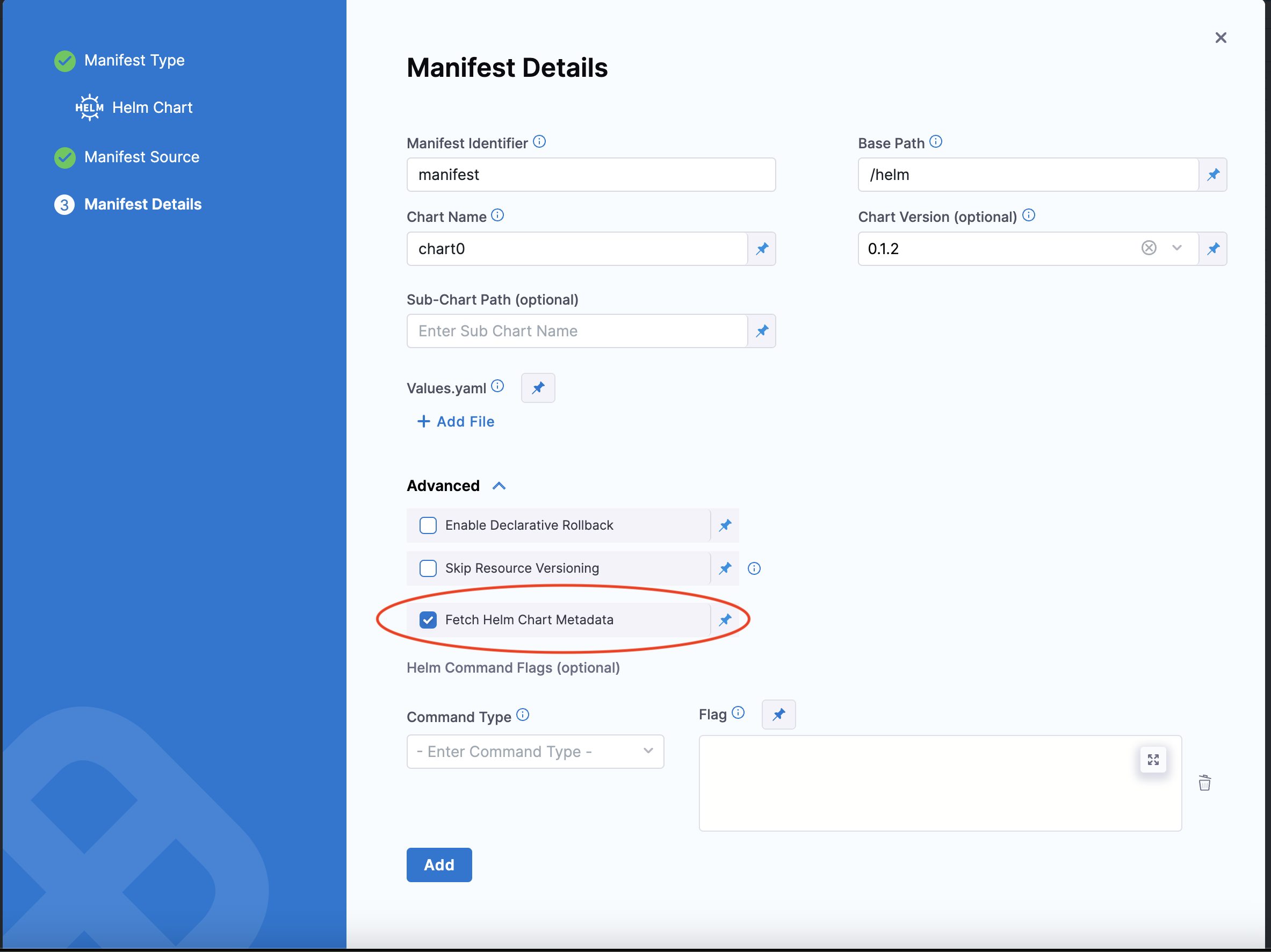
Select **Fetch Helm Chart Metadata** in the **Manifest Details** page's **Advanced** section to enable this functionality.
The `MANIFEST_ID` is located in `service.serviceDefinition.spec.manifests.manifest.identifier` in the Harness service YAML. In the following example, it is `nginx`:
```yaml
service:
name: Helm Chart
identifier: Helm_Chart
tags: {}
serviceDefinition:
spec:
manifests:
- manifest:
identifier: nginx
type: HelmChart
spec:
store:
type: Http
spec:
connectorRef: Bitnami
chartName: nginx
helmVersion: V3
skipResourceVersioning: false
fetchHelmChartMetadata: true
commandFlags:
- commandType: Template
flag: mychart -x templates/deployment.yaml
type: Kubernetes
```
It can also be fetched using the expression `<+manifestConfig.primaryManifestId>`. This expression is supported in multiple Helm chart manifest configurations.\
Using primary manifest ID in expressions
When you have multiple manifests configured in a service, you can reference the primary manifest dynamically using `<+manifestConfig.primaryManifestId>`. This is useful when you need to construct expressions without hardcoding the manifest identifier.
For example, instead of using a hardcoded manifest ID:
```
<+manifests.myHelmChart.spec.chartName>
```
You can use the primary manifest ID dynamically:
```
<+manifests.<+manifestConfig.primaryManifestId>.spec.chartName>
```
This approach allows your expressions to work regardless of the specific manifest identifier used in the service configuration.
## Next steps
* [Add Container Images as Artifacts for Kubernetes Deployments](/continuous-delivery/use-continuous-delivery/deploy-services-on-different-platforms/kubernetes/cd-kubernetes-category/add-artifacts-for-kubernetes-deployments.md): Reference container images in your manifests.
* [Example Kubernetes Manifests using Go Templating](/continuous-delivery/use-continuous-delivery/deploy-services-on-different-platforms/kubernetes/cd-k8s-ref/example-kubernetes-manifests-using-go-templating.md): Review example manifests that use Go templating with values YAML files.
* [Add and override values YAML files](/continuous-delivery/use-continuous-delivery/deploy-services-on-different-platforms/kubernetes/cd-kubernetes-category/add-and-override-values-yaml-files.md): Add a separate values YAML file in Manifests.
{% @harness-feedback/feedback %}
[^1]: Beta features are feature-complete but still being validated. Available on request.