> For the complete documentation index, see [llms.txt](https://developer.harness.io/llms.txt). Markdown versions of documentation pages are available by appending `.md` to page URLs; this page is available as [Markdown](https://developer.harness.io/continuous-delivery/use-continuous-delivery/deploy-services-on-different-platforms/tanzu/override-tanzu-manifest-and-config-files.md).
# Override TAS manifests, config files, and variables
Configure your environment to override settings of the Harness TAS services that use the environment, thereby making the environment dictate TAS manifests, variables, and config file values.
A Tanzu Application Service (TAS) service and environment are used together when you set up a pipeline to deploy your TAS app. You can configure your environment to override settings of the Harness TAS services that use the environment, thereby making the environment dictate TAS manifests, variables, and config file values.
For example, a TAS service uses a `manifest.yaml` file that specifies specific routes, but an environment might need to change the routes because it is deploying the app in the manifest to a QA space.
## What you will learn from this topic
* **Manifest overrides:** How to [override TAS manifests](#override-tas-manifests) for all services deployed to an environment, or for specific services.
* **Config file overrides:** How to [override TAS config files](#override-config-files) for all services deployed to an environment, or for specific services.
* **Variable overrides:** How to [override TAS variables](#override-variables) for all services deployed to an environment, or for specific services.
* **Outcome:** Configure your environment to override settings of the Harness TAS services that use it, so the environment dictates TAS manifests, variables, and config file values.
### Override TAS manifests
{% tabs %}
{% tab title="Environment overrides" %}
To override the manifests of all services deployed to an environment, do the following:
1. In **Environments**, select an environment.
2. In the environment's **Configuration** tab **> Environment Overrides**, select **+ New Manifest Override** under **Manifests**.
3. Specify a manifest type, and select **Continue**.
You can select TAS Manifest, TAS Vars, and TAS AutoScaler manifest types.
4. Follow the same steps as you would when adding a manifest, and then select **Submit**.
{% endtab %}
{% tab title="Service overrides" %}
To override the manifests of specific services deployed to an environment, do the following:
1. In **Environments**, select an environment.
2. In the environment's **Service Overrides** tab, select **New configuration overrides**.
3. In **Service**, select a service you want to override when it is deployed to the selected environment.
4. In **Override Type**, select **Manifest**, and then select **New Manifest Override**.
5. Specify a manifest type, and select **Continue**.
You can select TAS Manifest, TAS Vars, and TAS AutoScaler manifest types.

6. Follow the same steps as you would when adding a manifest in a service, and then select **Submit**.
{% endtab %}
{% endtabs %}
### Override config files
{% tabs %}
{% tab title="Environment overrides" %}
To override the config files of all services deployed to an environment, do the following:
1. In **Environments**, select an environment.
2. In the environment's **Configuration** tab **> Environment Overrides**, select **+ New Config File Override** under **Config Files**.
3. In **Config File Selection**, select the config file to override, and then select **Submit**.
{% endtab %}
{% tab title="Service overrides" %}
To override the config files of specific services deployed to an environment, do the following:
1. In **Environments**, select an environment.
2. In the environment's **Service Overrides** tab, select **New configuration overrides**.
3. In **Service**, select a service you want to override when it is deployed to the selected environment.
4. In **Override Type**, select **Config File**, and then select **New Config File Override**.
5. In **Config File Selection**, select the config file to override, and then select **Override**.

6. Follow the steps to select the override file, and then select **Submit**.
{% endtab %}
{% endtabs %}
### Override variables
{% tabs %}
{% tab title="Environment overrides" %}
To override the variables of all services deployed to an environment, do the following:
1. In **Environments**, select an environment.
2. In the environment's **Configuration** tab **> Advanced (Optional)**, select **+ New Variable** under **Variables**.
3. In the **New Variable** dialog, in **Type**, select String, Secret, or Number, and enter a variable name.
4. Enter an override value. It can be fixed value, runtime input, or expression.
5. Select **Save**.
{% endtab %}
{% tab title="Service overrides" %}
To override the variables of specific services deployed to an environment, do the following:
1. In **Environments**, select an environment.
2. In the environment's **Service Overrides** tab, select **New configuration overrides**.
3. In **Service**, select a service you want to override when it is deployed to the selected environment.
4. In **Override Type**, select **Variable**, and then select **New Variable Override**.
5. In **Add Variable**, select the variable name, and enter an override value.
6. Select **Submit**.
{% endtab %}
{% endtabs %}
{% hint style="info" %}
**NOTE**
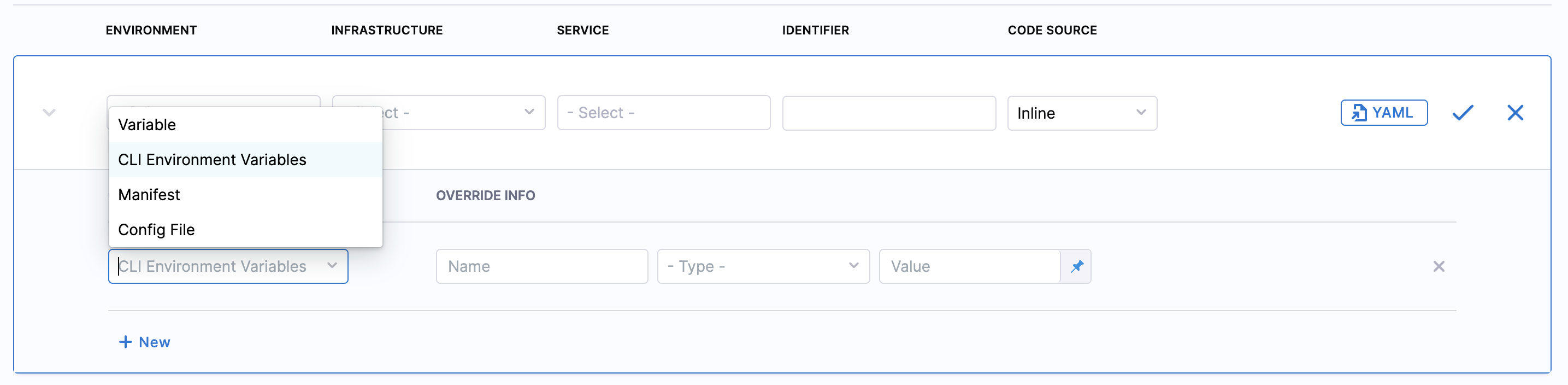
You can configure CLI environment variables override such as CF\_STAGING\_TIMEOUT and CF\_STARTUP\_TIMEOUT. Select the **CLI Environment Variables** in the **Override Type** dropdown and enter the **Override Info** such as Name, Type, and Value.
Certain CF CLI environment variables, such as CF\_HOME, CF\_PLUGIN\_HOME, CF\_USERNAME, CF\_PASSWORD, CF\_DOCKER\_PASSWORD, CF\_SKIP\_SSL\_VALIDATION, CF\_ORG, and CF\_SPACE are internally set by the system and will be ignored.
 {% endhint %}
{% @harness-feedback/feedback %}
{% endhint %}
{% @harness-feedback/feedback %}