> For the complete documentation index, see [llms.txt](https://developer.harness.io/llms.txt). Markdown versions of documentation pages are available by appending `.md` to page URLs; this page is available as [Markdown](https://developer.harness.io/continuous-delivery/use-continuous-delivery/manage-deployments/deployment-freeze.md).
# Freeze deployments
Set freeze windows for deployments.
This topic covers the Harness deployment freeze feature, including how to configure freeze windows, access controls, notifications, and best practices.
## What you will learn from this topic
* How to [create a freeze window](#create-a-freeze-window)
* How to [notify users of freeze window events](#notify-users-of-freeze-window-events)
* How to [enable and disable freeze windows](#enabling-and-disabling-freeze-windows)
* How to [freeze all deployments for an account, org, or project](#freeze-all-deployments-for-an-account-org-or-project)
* How to set up [role-based access to freeze windows by environment type](#role-based-access-to-freeze-windows-by-environment-type)
## Before you begin
* Deployment freeze is a CD-only feature. Go to [Freeze windows only apply to CD stages](#freeze-windows-only-apply-to-cd-stages) to review their scope.
* Your Harness user account must use a role with the **Deployment Freeze** permissions described in [Access control](#access-control).
## Important notes
* Deployment freeze does not apply to [Harness GitOps PR pipelines](/continuous-delivery/use-gitops/applicationsets/harness-git-ops-application-set-tutorial.md).
* You cannot edit enabled deployment freeze windows. If the deployment freeze window you want to change is enabled, you must first disable it, make your changes, and then re-enable it.
* Account admins will always be able to bypass deployment freeze windows.
## Deployment freeze summary
If you are new to deployment freezes, review the following summary.
Deployment freeze summary
A deployment freeze is a period of time during which no new changes are made to a system or application. This ensures that a system or application remains stable and free of errors, particularly in the lead-up to a major event or release.
During a deployment freeze, only critical bug fixes and security patches might be deployed, and all other changes are put on hold until the freeze is lifted.
Deployment freezes are commonly used in software development to ensure that a system is not destabilized by the introduction of new code in new application versions.
## Harness freeze windows
In Harness, you set up a deployment freeze as a **freeze window**.
A freeze window is defined using one or more rules and a schedule. The rules define the Harness orgs, projects, services, and environments to freeze.

The schedule defines when to freeze deployments and the recurrence, if any (yearly, monthly, etc.).

### Freeze window scope
Freeze windows can be set at the Harness account, org, or project levels, with the following differences:
* **Account**: rules can apply to specific, multiple, or all services or environments in the account.
* **Org**: rules can apply to specific, multiple, or all services or environments in the org.
* **Project**: rules can apply to specific, multiple, or all services, environments, or pipelines in the project.
### Exceptions
For each scope level, you can select all subordinate entities and then add exceptions. For example, you can select **All Projects** at the org level, but then select one or more projects as exceptions.
Exceptions save you the time of selecting multiple subordinate entities individually.
### What about pipelines already running?
If a pipeline is running and a freeze occurs, it will continue to run until the current stage has executed. Once that stage executes, the freeze is implemented, and no further stages will execute.
Pipelines that become frozen during execution and cannot complete all stages are marked as **Aborted By Freeze**. Hovering over the pipeline status in its execution history displays the associated freeze windows that caused the pipeline to fail.

### Freeze windows only apply to CD stages
Deployment Freeze is a CD-only feature. It does not apply to other module stages, such as CI and Feature Flags.
If a pipeline includes a CD stage and other module stages, such as CI and Feature Flags, the freeze window applies only to the CD stage(s). The other stages in the pipeline will continue to run.
### Trigger freeze
You can create triggers in Harness to execute a pipeline under multiple conditions, such as changes to a Helm Chart or an artifact.
When a freeze is running, triggers will not execute frozen pipelines. The trigger invocations are rejected.
{% hint style="info" %}
Pipelines triggered by custom webhooks can override the deployment freeze. This can be enabled by associating the API key or Service Account API key authorization with deployment freeze override permissions.
{% endhint %}
You can create a freeze window notification to notify users when a trigger invocation was rejected. Notifications are described below.
### API freeze
A freeze window also applies to the [Harness API](https://apidocs.harness.io/).
If you have set up a deployment freeze on an account, org, or project, you cannot initiate deployment on the frozen entities during the freeze schedule.
### Access control
Deployment freeze access control is configured using the **Deployment Freeze** role permissions.
* **Manage**: add, edit, or delete freezes at any level.
* **Override**: When a deployment is required during a freeze duration, users with this role can still perform deployments.
* **Global**: enable/disable freeze across all deployments at the account, org, and project levels.
## Create a freeze window
1. Ensure your Harness user account uses a role with the required permissions.
Freeze windows can be set at the Harness account, org, or project levels.
2. In Harness, go to **Account Settings**, **Organization Settings**, or **Project Settings**, depending on the [scope](https://developer.harness.io/harness-platform/use-harness-platform/platform-access-control#permissions-hierarchy-scopes) at which you want to add a freeze window.
3. In the legacy nav, select **Freeze Windows**, then select **New Freeze Window**. In nav 2.0, under **Security and Governance**, select **Freeze Windows**, then select **New Freeze Window**.
4. In the **New Freeze Window**, enter a name for the freeze window and click **Start**.
Now you can define the rules for the freeze window.
### Define freeze window coverage and schedule
This example looks at an account-level example that applies a freeze to all orgs and projects from July 3rd to 5th and notifies users by email (`john.doe@harness.io`) and Harness user group (All Account Users).
{% tabs %}
{% tab title="Visual" %}
1. In **Overview**, click **Continue**.
2. In **Coverage**, click **Add rule**.
3. In **Name**, enter a name for the rule.
Rules are combined. You can add multiple rules, and the freeze window is applied according to the sum of all rules.
The remaining settings will depend on whether this freeze window is being created at the account, org, or project level. This example uses the account level.
4. To freeze services, in the **Services** box, select **Services**, and then select the services that you want to freeze.
If you want to freeze all services, select **All Services**.
If you want to include all services except a few, select **All Services**, select **Exclude specific Services**, select **Services** in the box that appears, and then select the services that you want to exclude.
5. To freeze environments, in the **Environments** box, select **Environments**, and then select the environments that you want to freeze.
If you want to freeze all environments, select **All Environments**.
If you want to include all environments except a few, select **All Environments**, select **Exclude specific Environments**, select **Environments** in the box that appears, and then select the environments that you want to exclude.
6. Click in **Organization** and select the org you want to freeze.
You can also click **Exclude specific Organizations** and select the orgs you want to exclude. This can be helpful if you selected **All Organizations** in **Organization**.
7. In **Projects**, select the projects to freeze in the selected orgs.
You can also click **Exclude specific Projects** and select the projects you want to exclude. This can be helpful if you selected **All Projects** in **Projects**.
8. In **Environment Type**, select **All Environments**, **Production**, or **Pre-Production**. For example, this setting allows you to keep deploying pre-production app versions without worrying about production versions being affected.
9. Click the checkmark to add the rule.
The coverage will look something like this:

10. Click **Continue**.
In the **Schedule**, you define when the freeze window starts and stops.
11. In **Timezone**, select a timezone.
12. In **Start Time**, select a calendar date and time for the freeze window to start.
13. In **End Time**, select a duration (for example `1d`) or an end date and time. A minimum of `30m` is required.
For a duration, you can use:
* `w` for weeks
* `d` for days
* `h` for hours
* `m` for minutes
14. In **Recurrence**, select how often to repeat the freeze window and a recurrence end date.
For recurrence, you can select:
* **Does not repeat**: do not repeat the freeze window.
* **Daily**: Repeat the freeze window daily.
* **Weekly**: Repeat the freeze window weekly.
* **Monthly**: Repeat the freeze window monthly. You can select the number of months between freeze window repetitions. For example, select 3 to repeat the freeze window every three months.
* **Yearly**: Repeat the freeze window yearly.
The schedule will look something like this:

15. Click **Save**.
{% endtab %}
{% tab title="YAML" %}
1. Click **YAML**.
2. Paste the following YAML example:
```yaml
freeze:
name: example
identifier: example
entityConfigs:
# enter the rule name
- name: myapp freeze
# select the entities to freeze
entities:
- type: Org
filterType: All
- type: Project
filterType: All
- type: Service
filterType: All
- type: EnvType
filterType: All
# enable or disable the freeze window with Enabled/Disabled
status: Disabled
# define when the freeze windows starts and stops.
windows:
- timeZone: America/Los_Angeles
startTime: 2023-07-03 10:08 AM
endTime: 2023-07-05 10:38 AM
description: ""
# set the notification events and method
notificationRules:
- name: my team
identifier: my_team
events:
- type: FreezeWindowEnabled
- type: DeploymentRejectedDueToFreeze
notificationMethod:
type: Email
spec:
userGroups:
- account._account_all_users
recipients:
- john.doe@harness.io
enabled: true
```
{% endtab %}
{% endtabs %}
## Notify users of freeze window events
You can notify Harness users and people outside your Harness account using freeze-window notifications.
You can notify users of the following freeze window events:
* Freeze window is enabled. The notification is sent when you enable the freeze window.
* Freeze window is enabled and active. The notification is sent at the configured start time of the deployment freeze, provided that the freeze window is enabled.
* Deployments are rejected due to the freeze window. This includes any trigger invocations that are rejected due to a freeze window.
In **Freeze Notification Message**, you can add a custom notification message.
You can use the following notification methods:
* Slack
* Email
* Harness User Groups
* PagerDuty
* Microsoft Teams
To enable notifications, do the following:
{% tabs %}
{% tab title="Visual" %}
1. In a freeze window, click **Notify**.
2. Click **Notifications**.
3. Enter a name for the notification and click **Continue**.
4. In **Configure the conditions for which you want to be notified**, select the freeze window events that send notifications.
5. Click **Continue**.
6. In **Notification Method**, configure one of the methods described in [Add a Pipeline Notification Strategy](/continuous-delivery/use-continuous-delivery/cd-building-blocks/cd-steps/notify-users-of-pipeline-events.md).
7. Click **Finish**.
8. Click **Apply Changes**.
{% endtab %}
{% tab title="YAML" %}
1. In the freeze window, click **YAML**.
2. Enter the freeze window YAML notification events and method. For example, this YAML uses all events and the Email and User Group methods:
```yaml
...
notificationRules:
- name: example
identifier: example
events:
- type: FreezeWindowEnabled
- type: OnEnableFreezeWindow
- type: DeploymentRejectedDueToFreeze
- type: TriggerInvocationRejectedDueToFreeze
notificationMethod:
type: Email
spec:
userGroups:
- account._account_all_users
recipients:
- john.doe@harness.io
enabled: true
```
For examples of all methods, see [Add a Pipeline Notification Strategy](/continuous-delivery/use-continuous-delivery/cd-building-blocks/cd-steps/notify-users-of-pipeline-events.md).
{% endtab %}
{% endtabs %}
### Freeze window alert message
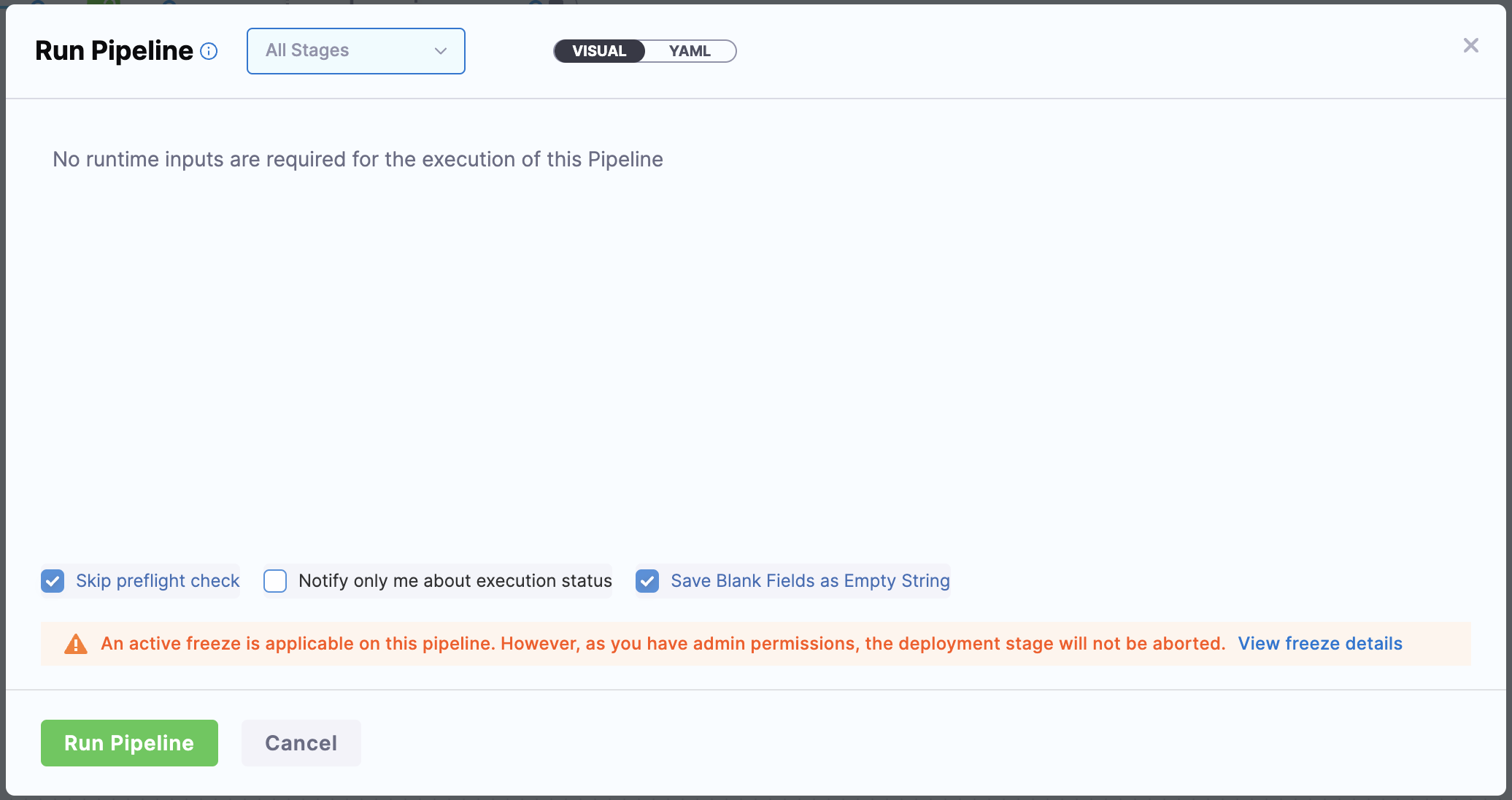
You will see an alert message when an account admin or a user with freeze override permissions triggers a pipeline during a freeze window.
The alert explicitly informs you that:
* A freeze window is active.
* The pipeline can be initiated and will not be aborted because you have freeze override permissions.
Click to view full size image
**When the banner appears**
The freeze banner appears reliably when the freeze window scope is broad, such as:
* Account-level freezes
* Org-level freezes
* Project-level freezes
* Pipeline-level freezes (targeting specific pipelines)
* Global freezes
**When the banner may not appear**
The freeze banner may not appear before pipeline execution when the freeze window uses entity-specific filters, such as:
* Freezes targeting specific services with `filterType: Equals`
* Freezes targeting specific environments with `filterType: Equals`
* Freezes with runtime inputs or expressions that cannot be resolved before execution
In these cases, freeze enforcement still works correctly. It aborts the pipeline during execution with the status **Aborted By Freeze**, but you will not receive a pre-flight warning in the Run Pipeline dialog.
This happens because the pre-flight validation cannot always determine if specific services or environments will be affected when those values depend on runtime resolution.
## Turn the freeze windows on and off
You can turn freeze windows on and off in the following ways:
* Toggle next to the freeze window name.
* Enable/Disable option in the freeze window options.
* Select **Freeze Window**, then select the Enable or Disable button.

## Freeze all deployments for an account, org, or project
At the top of **Freeze Windows** is the option **Freeze disabled on all deployments for this `[Account/Organization/Project]`**.
This is a global setting in the context of accounts, orgs, and projects. It lets you turn all deployments on or off for an account, org, or project for a specific duration.
By default, the setting is disabled so that all deployments will work except those frozen during active freeze windows.
When you enable this setting, you freeze all deployments. This overrides any active freeze windows.
When you enable this setting, you will see **Freeze enabled on all deployments for this `[Account/Organization/Project]` from \[duration]**.

## Role-based access to freeze windows by environment type
Harness supports **granular access control** to manage Deployment Freeze Windows by environment type for **Production** and **Pre-Production**.
Previously, access to Deployment Freeze Windows could only be controlled at a higher level (e.g., across all environments). You can assign a specific role to freeze deployments **only in Production** or **only in pre-production** environments.
**How it works**
### Create a resource group for deployment freeze
1. Navigate to **Project Settings → Access Control → Resource Groups**.
2. Click **+ New Resource Group** to create a new resource group.
3. Provide a name and save the resource group.
4. In the resource group, scroll to the **Shared Resources** section and select **Deployment Freeze**.
5. Under scope, select the **By Env Type** checkbox.
6. Click **+ Add**, then choose the environment types: **ProduRolen** or **Pre-Production**.
7. Click **Add 1 Deployment Freeze Type** to confirm.
8. Save the resource group.

For more information, see [Resource Groups](https://developer.harness.io/harness-platform/use-harness-platform/platform-access-control/manage-resource-groups).
### Assign a resource group to a role
1. Navigate to **Project Settings → Access Control → Roles**.
2. Click **+ New Role** to create a new role.
3. Under **Permissions**, select **Shared Resources**.
4. Choose the permissions required: **Manage**, **Override**, or **Global**, based on the privileges needed.
5. Click **Apply Changes** to save the role.
### Assign the role to users or user groups
1. Navigate to **Project Settings → Access Control → Users / User Groups**.
2. Select the user or user group to assign the role to.
3. Go to the **Role Bindings** tab and click **Manage Role Bindings**.
4. Click **+ Add**, select the previously created Role, and save it.
### Create or enable a freeze window
Users will now be allowed to create or enable a deployment freeze window **only if they have the necessary permissions** for the specified environment type.
* For example, a user with resource group access to the **Pre-Production** environment type can only manage freeze windows for **Pre-Production** environments.
* Similarly, a user with access to **Production** can only manage freeze windows for **Production** environments.
## Deployment freeze best practices
Here are some best practices for implementing a deployment freeze:
* Communicate clearly with all team members about the deployment freeze, including its purpose, duration, and any exceptions that may be made.
* Prioritize critical bug fixes and security updates to be made during the deployment freeze, and establish processes for reviewing and approving these changes.
* Ensure that all necessary testing has been completed and that the system's current state is stable before implementing the deployment freeze.
* Monitor the system closely during the deployment freeze to ensure that it remains stable and that any necessary updates can be made quickly and efficiently.
* After the deployment freeze is lifted, conduct a thorough review of the system to ensure that it is functioning properly and that any changes made during the freeze did not introduce any new issues.
## Next steps
* Go to [Add a Pipeline Notification Strategy](/continuous-delivery/use-continuous-delivery/cd-building-blocks/cd-steps/notify-users-of-pipeline-events.md) to configure freeze window notification methods.
* Go to [Resource Groups](https://developer.harness.io/harness-platform/use-harness-platform/platform-access-control/manage-resource-groups) to scope freeze window access by environment type.
{% @harness-feedback/feedback %}