Click to view full size image
 {% endhint %}
### Roll back deployments at the account level and organization level
Users can perform service rollbacks at both the account and organization levels using **Service Dashboards**.
1. For an account-level overview, go to **Account Settings** -> **Services**. For an organization-level overview, go to **Organization Settings -> Services**.
2. Select the service for which you want to perform a rollback. You can also use the search bar to simplify your search.
3. In the Summary tab, you can view all the service deployments performed at the account or organization level.

4. To distinguish between environments, hover over the Organization/Project on the card to view the service deployment's org\_id and project\_id. You can view the deployments in the Environment, Artifacts, or Charts view.
5. Click **View Instance and Rollback**. All executions are displayed along with their environment details. You can only perform a rollback in the Environment view.
6. Select the deployment for which the rollback is to be performed, and click **Confirm** to initiate the rollback. 
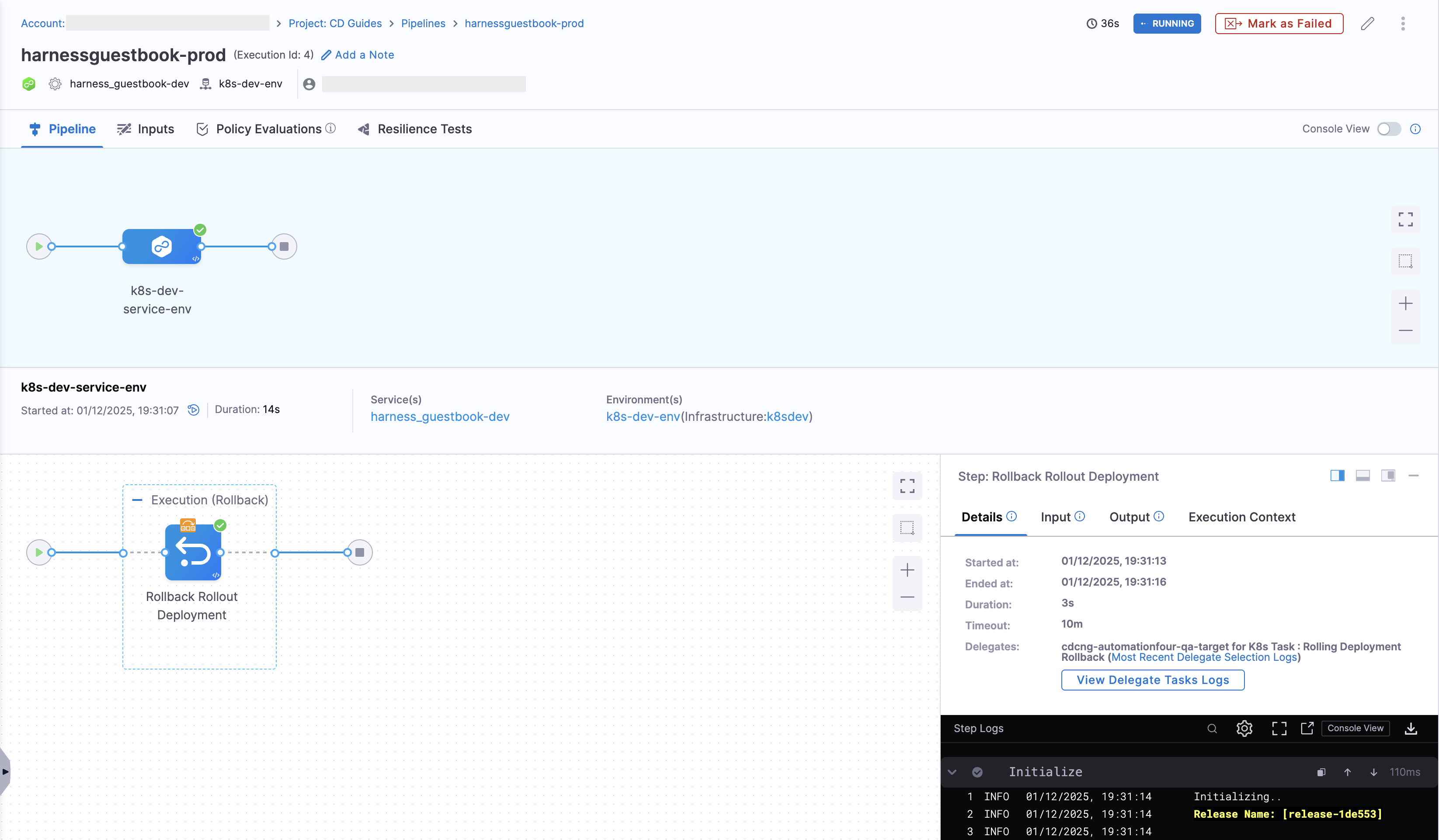
You will be directed to the pipeline execution page, and the Rollback Rollout Step will be executed.

Similarly, users can perform service rollbacks at both the account and organization levels in **Environment Dashboards** by following the same procedures.
1. For an account-level overview, go to **Account Settings** -> **Environments**. For an organization-level overview, go to **Organization Settings -> Environments**.
The remaining steps are the same as those outlined for the Service Dashboards.
### Permissions required for the account and organization-level rollback
To perform a post-deployment rollback, the user must have the following permissions:
1. Pipeline **Execute** permission for the specific pipeline.
2. Environment **Rollback** permission.
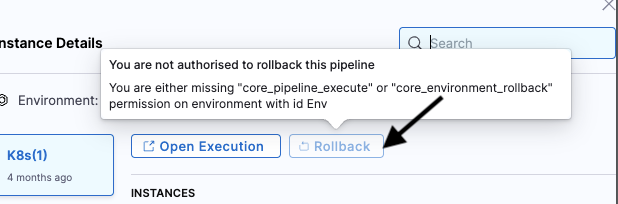
A user is allowed to execute rollbacks on any instance only if they possess these two permissions for the pipeline and environment through which the deployment occurred. Otherwise, they see the following message when attempting to click **Rollback**.
### Roll back multiple infrastructures in a single action
{% hint style="info" %}
This feature is behind the feature flag `CDS_BULK_POST_PROD_ROLLBACK`. The feature flag `CDC_SERVICE_DASHBOARD_REVAMP_NG` is also required as a prerequisite. Contact [Harness Support](mailto:support@harness.io) to enable the feature.
{% endhint %}
A single service is often deployed across multiple environments and infrastructure types simultaneously. When you need to revert that service across all of them, rolling back the infrastructure one by one is slow. Bulk rollback lets you select multiple infrastructures on the service dashboard and trigger a rollback for all of them in a single action.
Harness processes each selected infrastructure independently. If the rollback for one infrastructure fails, the remaining infrastructures still roll back, and Harness reports the outcome for each target separately.
### Roll back multiple infrastructures
To roll back a service across multiple infrastructures at once, do the following:
1. Open your [services dashboard](/continuous-delivery/use-continuous-delivery/monitor-deployments/monitor-cd-deployments.md#individual-service-dashboards) and select the service you want to roll back.
2. In **Summary**, select the **instances** link to open the **Bulk Rollback - Instance details** view. This view lists every environment and infrastructure where the service is deployed, along with the environment type, infrastructure, chart version, artifact, and instance count for each row.
3. Select the checkbox next to each infrastructure you want to roll back. You can use the search bar to filter the list when the service is deployed to many infrastructures.
4. To review the deployed instances for a row before you select it, select the view icon in the **Action** column. The **Instance Details** panel shows the pod, artifact, container list, namespace, release name, and deployment metadata for that infrastructure.
5. Select **Rollback selected**.
6. In the **Confirm Rollback** dialog, review each infrastructure and its current artifact. For every infrastructure, select the execution to use for the rollback under **Select Execution to Use for Rollback**. Each execution card shows the instances, artifact, infrastructure, and deployment details for that execution, so you can confirm the target state before you proceed.
7. Select **Confirm Rollback**.
Harness triggers a rollback execution for each selected infrastructure and reports how many rollbacks were triggered and how many failed. You can track the progress of each rollback from its pipeline execution view.
### Permissions required for bulk rollback
The permissions for bulk rollback are the same as for a single post-deployment rollback. For each infrastructure you select, you need Pipeline **Execute** permission on the pipeline that performed the deployment and Environment **Rollback** permission on the target environment. Harness skips any infrastructure for which you do not have both permissions and reports it as a failed target in the response.
### Pipeline-level service rollback
{% hint style="info" %}
This feature is behind the feature flag `CDS_ROLLBACK_OPTION`. Contact [Harness Support](mailto:support@harness.io) to enable the feature.
{% endhint %}
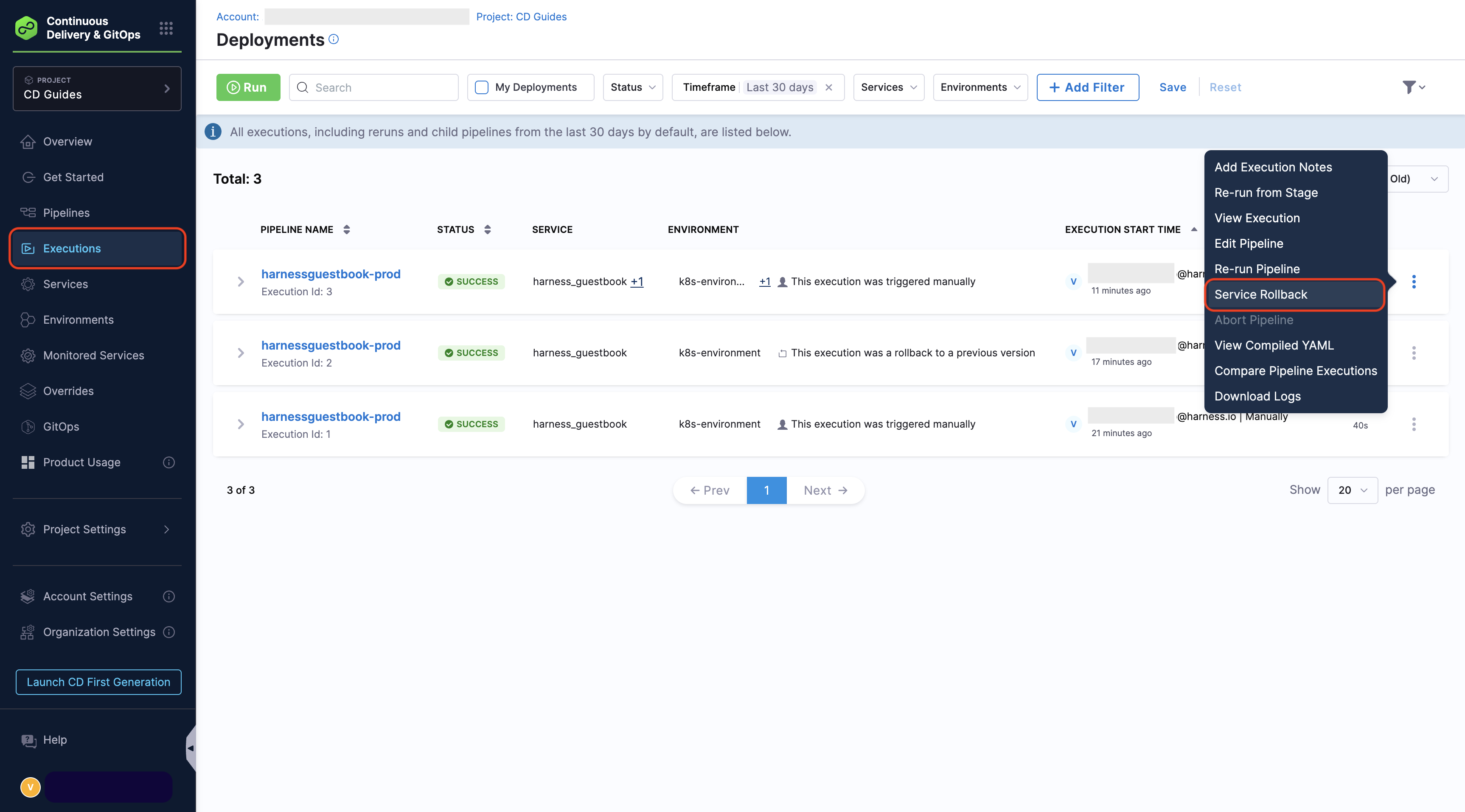
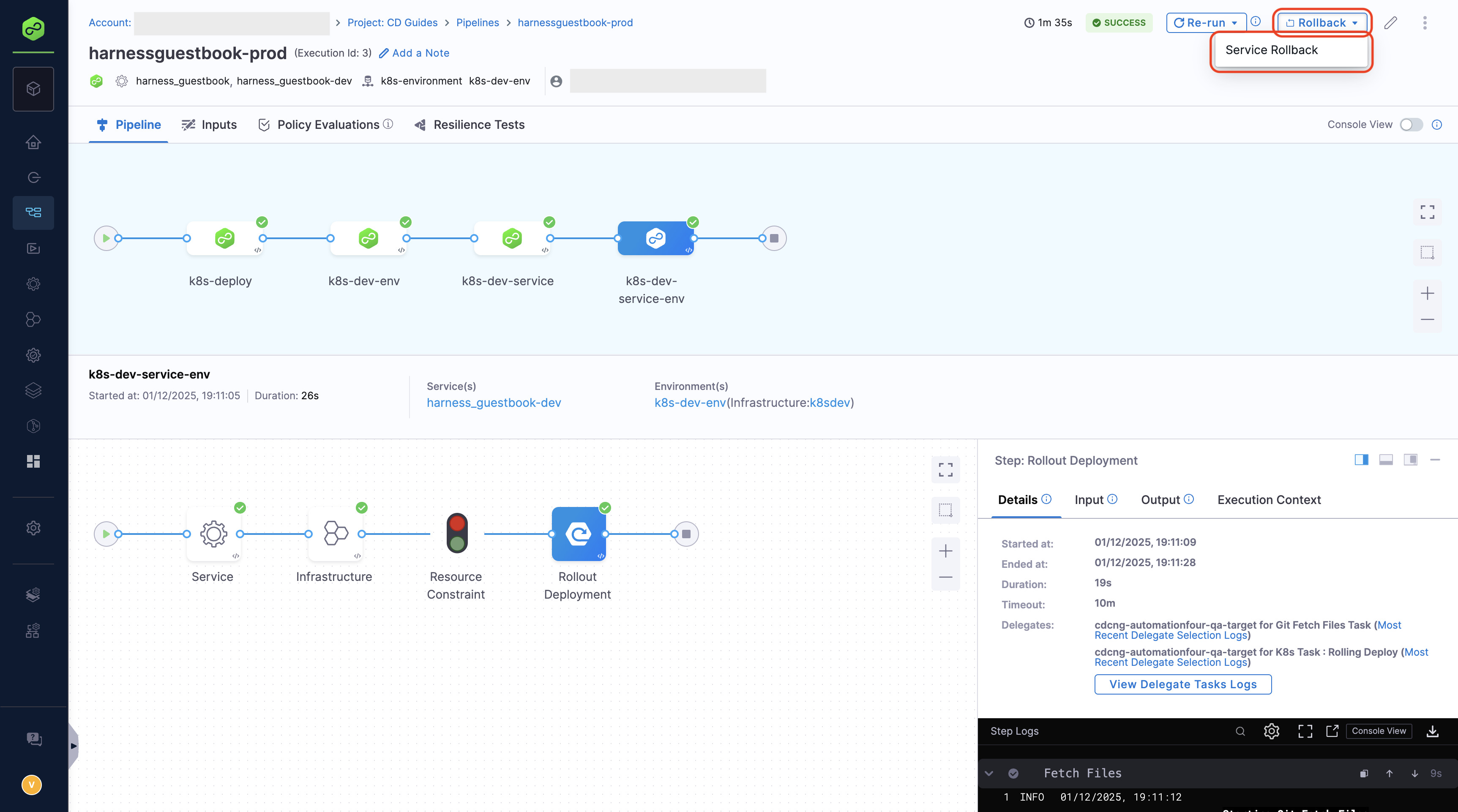
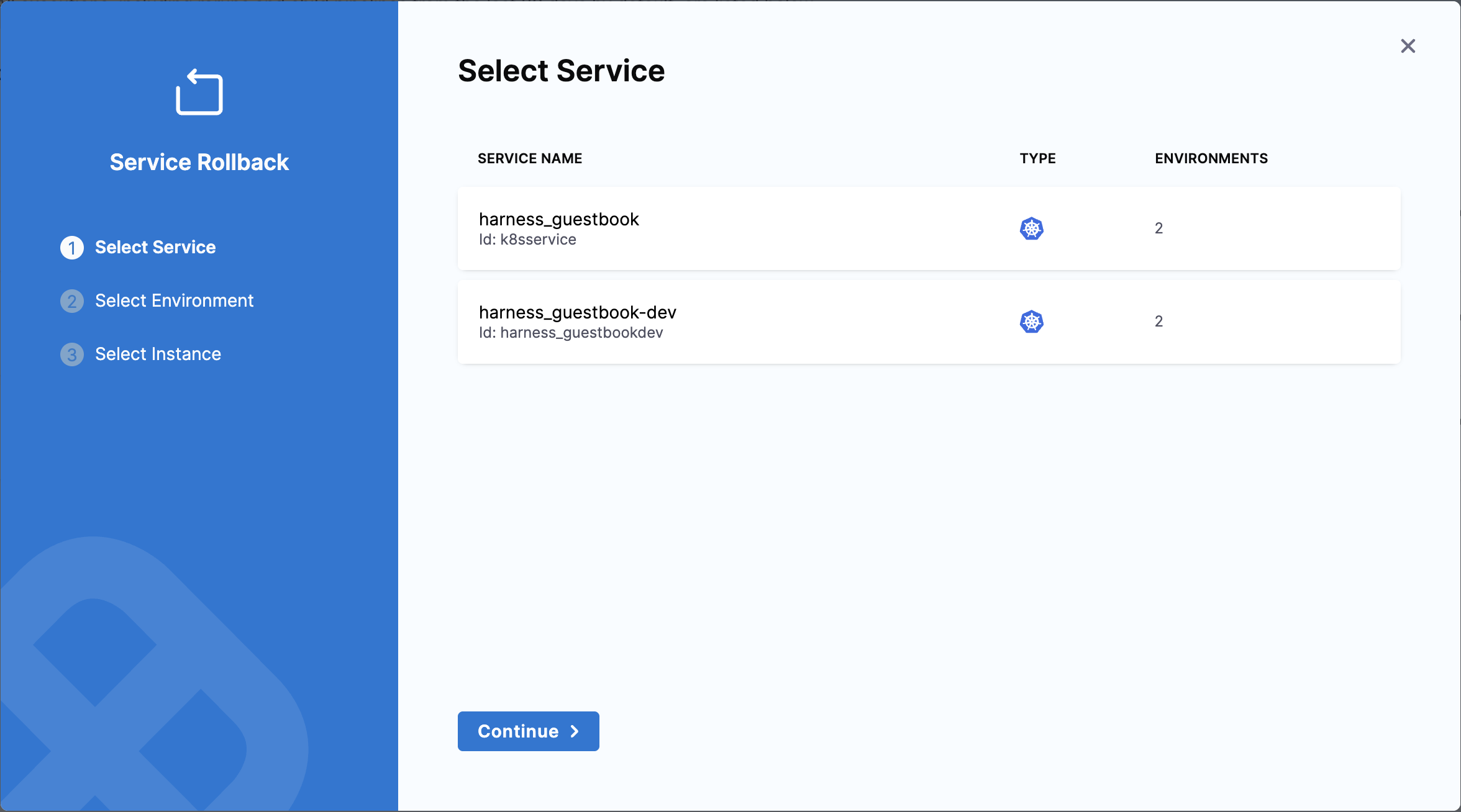
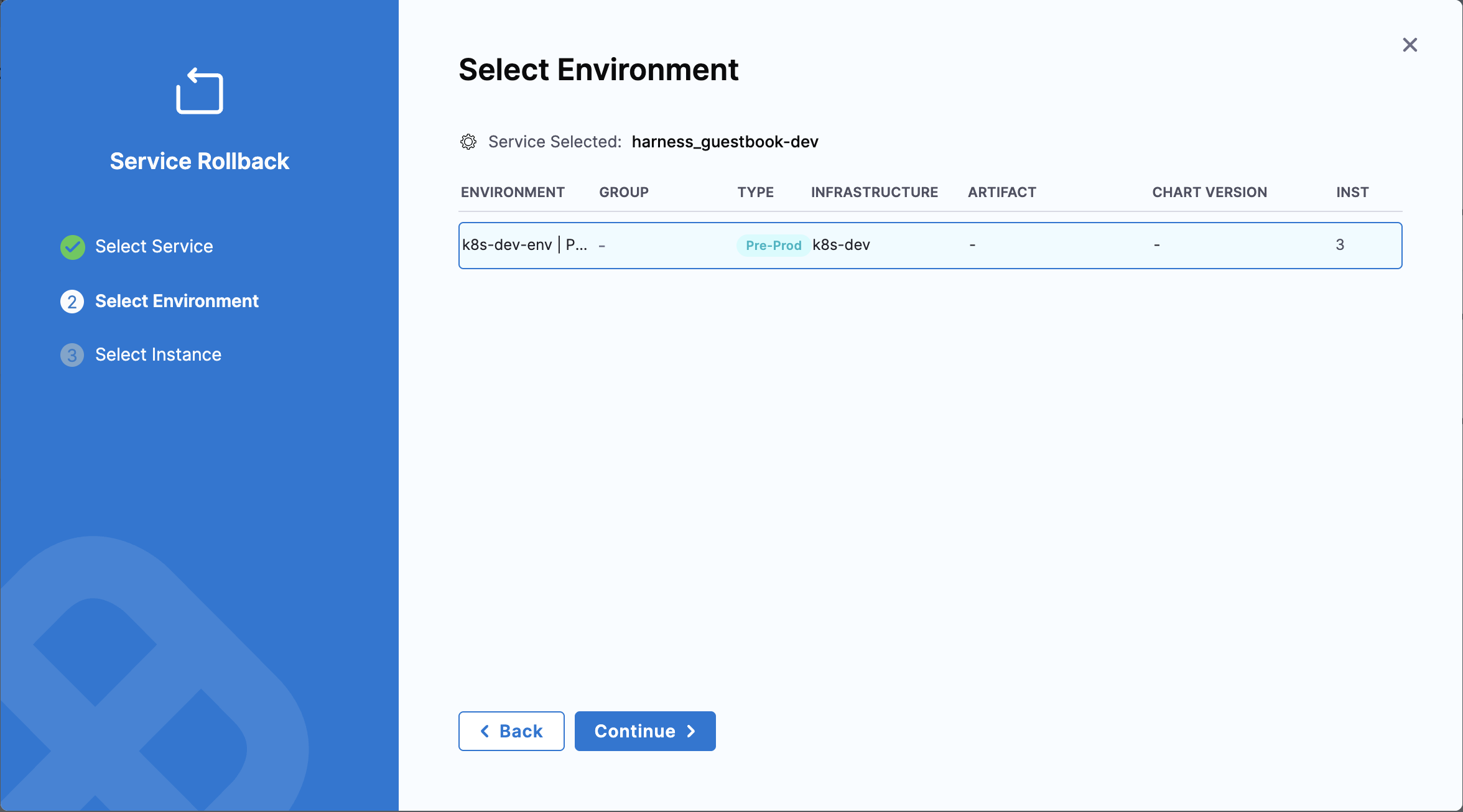
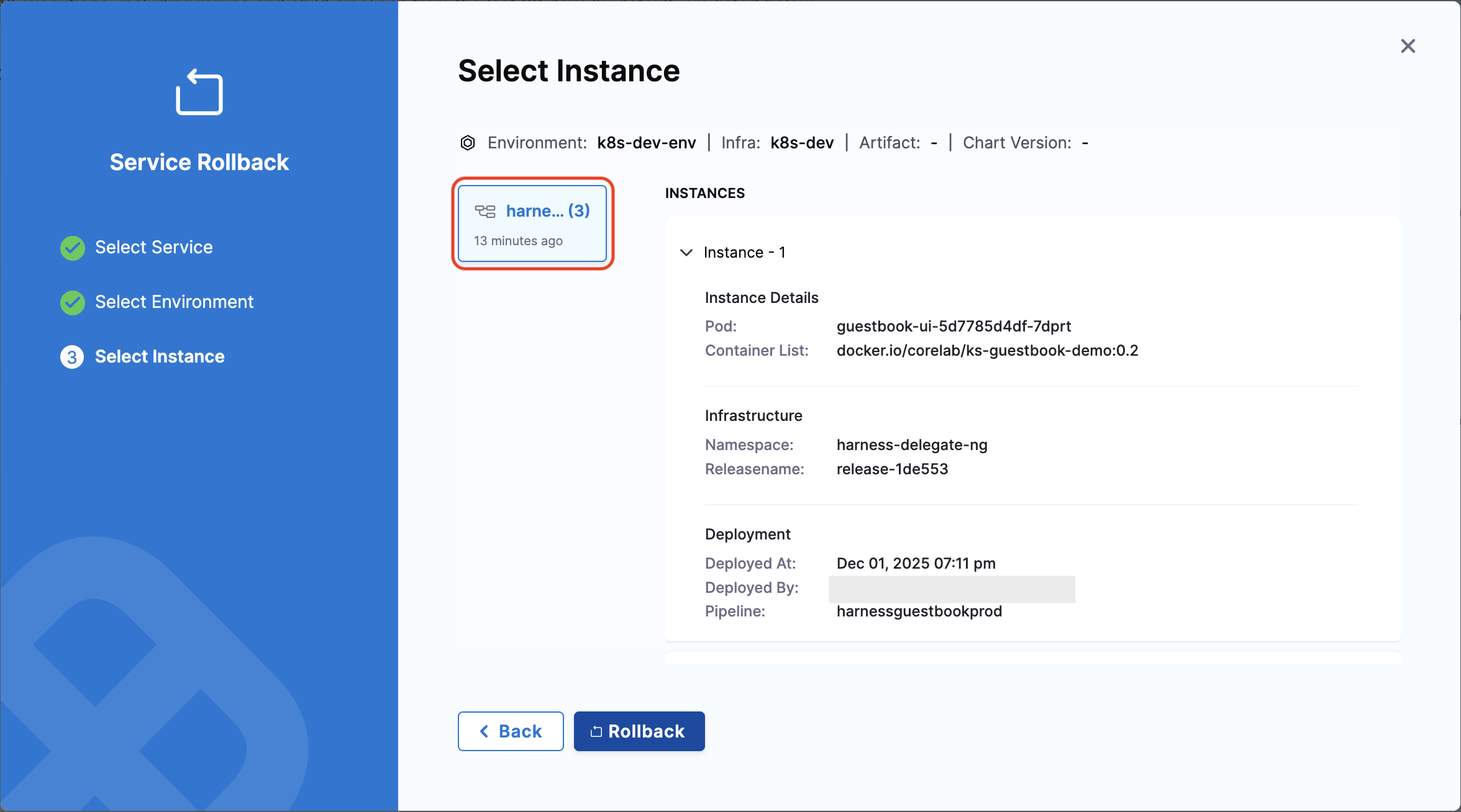
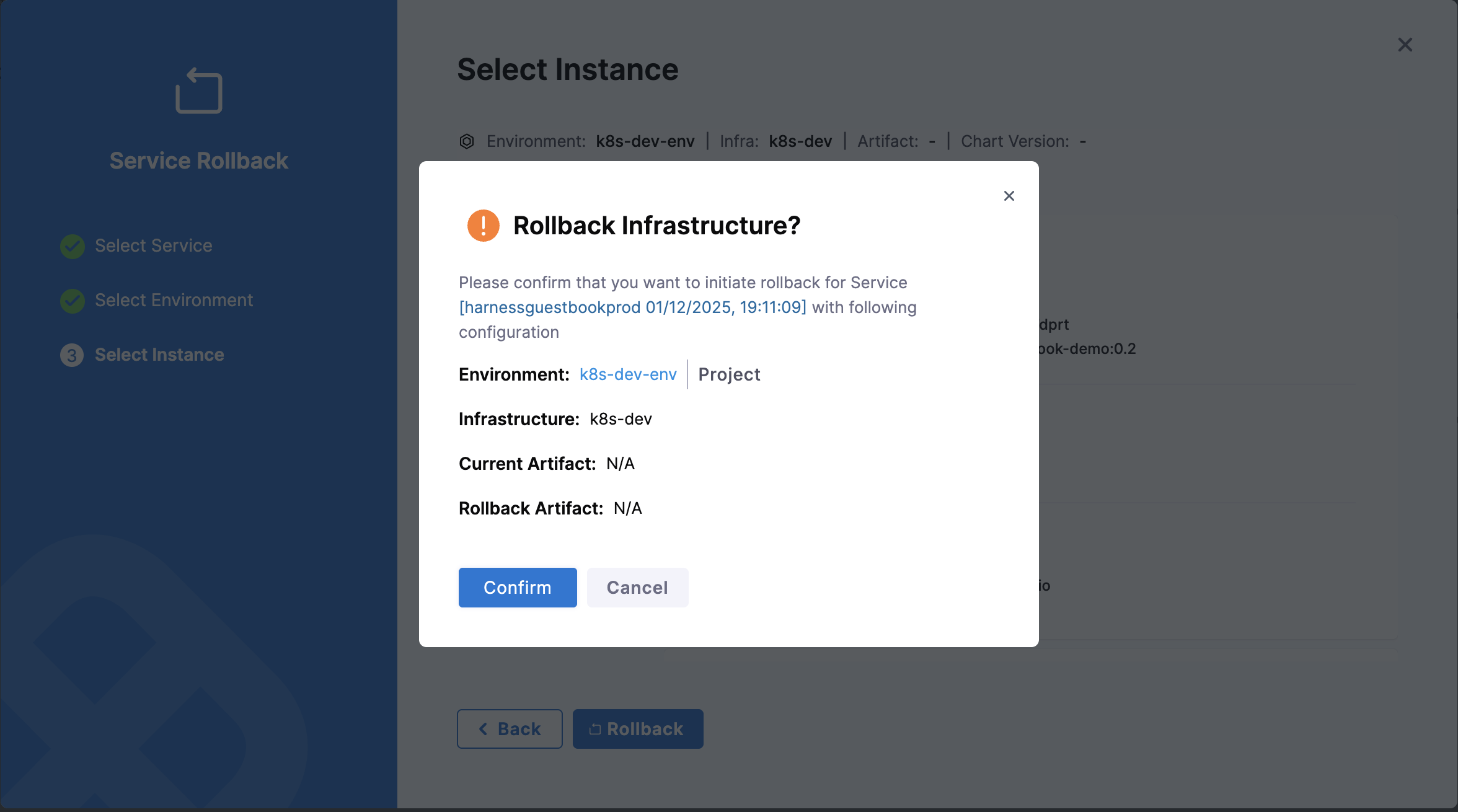
The Service Rollback feature initiates rollbacks directly from pipeline execution pages. Instead of navigating through instance details to find the rollback option, you can start the rollback process with a dedicated **Rollback** button.
This streamlined experience is available across multiple execution views:
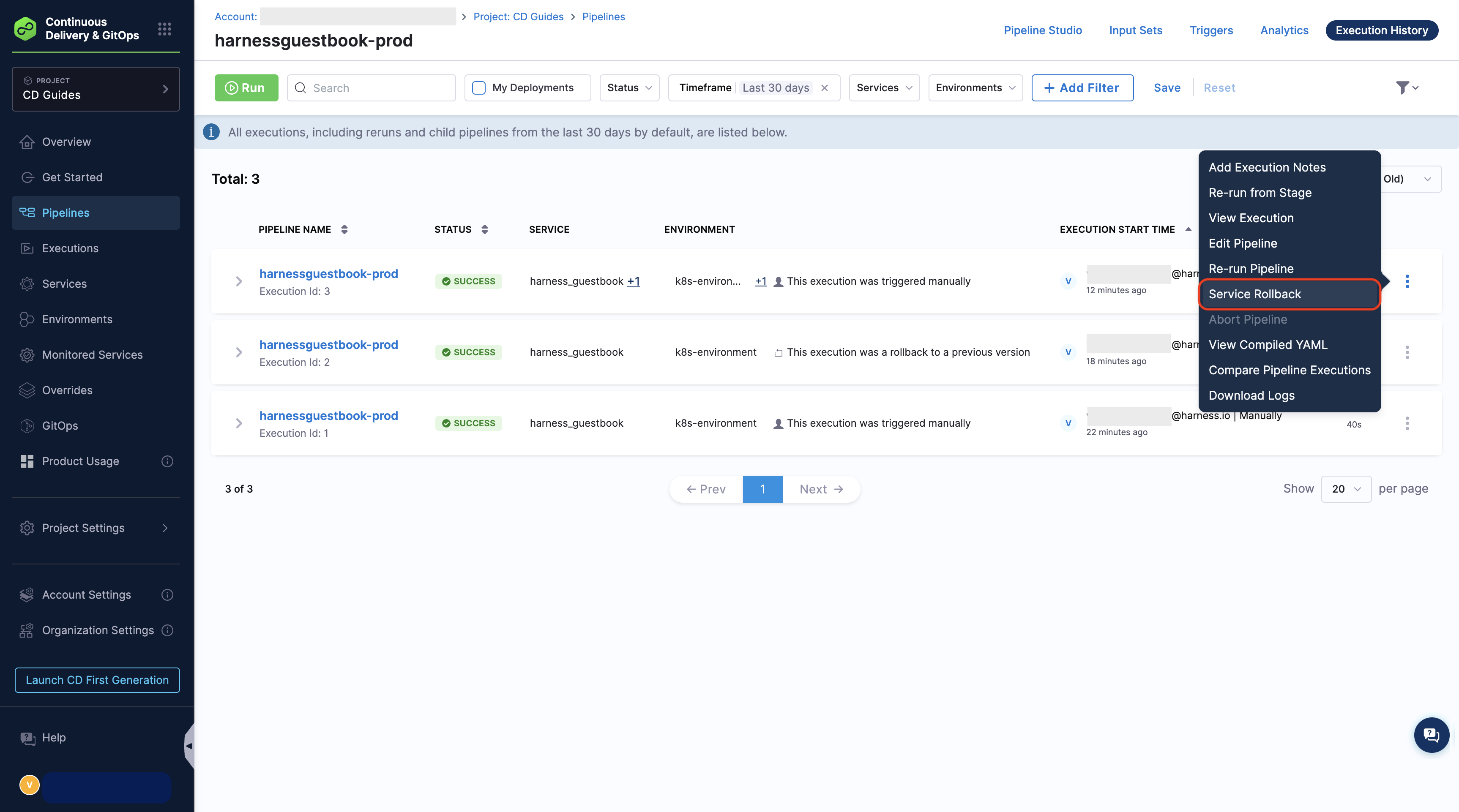
**Pipeline Execution Listing Page**
View all pipeline executions in a consolidated list format. The Rollback option is available for each successful deployment execution. Click the three dots menu to the left of the execution to access the rollback option.
{% endhint %}
### Roll back deployments at the account level and organization level
Users can perform service rollbacks at both the account and organization levels using **Service Dashboards**.
1. For an account-level overview, go to **Account Settings** -> **Services**. For an organization-level overview, go to **Organization Settings -> Services**.
2. Select the service for which you want to perform a rollback. You can also use the search bar to simplify your search.
3. In the Summary tab, you can view all the service deployments performed at the account or organization level.

4. To distinguish between environments, hover over the Organization/Project on the card to view the service deployment's org\_id and project\_id. You can view the deployments in the Environment, Artifacts, or Charts view.
5. Click **View Instance and Rollback**. All executions are displayed along with their environment details. You can only perform a rollback in the Environment view.
6. Select the deployment for which the rollback is to be performed, and click **Confirm** to initiate the rollback. 
You will be directed to the pipeline execution page, and the Rollback Rollout Step will be executed.

Similarly, users can perform service rollbacks at both the account and organization levels in **Environment Dashboards** by following the same procedures.
1. For an account-level overview, go to **Account Settings** -> **Environments**. For an organization-level overview, go to **Organization Settings -> Environments**.
The remaining steps are the same as those outlined for the Service Dashboards.
### Permissions required for the account and organization-level rollback
To perform a post-deployment rollback, the user must have the following permissions:
1. Pipeline **Execute** permission for the specific pipeline.
2. Environment **Rollback** permission.
A user is allowed to execute rollbacks on any instance only if they possess these two permissions for the pipeline and environment through which the deployment occurred. Otherwise, they see the following message when attempting to click **Rollback**.
### Roll back multiple infrastructures in a single action
{% hint style="info" %}
This feature is behind the feature flag `CDS_BULK_POST_PROD_ROLLBACK`. The feature flag `CDC_SERVICE_DASHBOARD_REVAMP_NG` is also required as a prerequisite. Contact [Harness Support](mailto:support@harness.io) to enable the feature.
{% endhint %}
A single service is often deployed across multiple environments and infrastructure types simultaneously. When you need to revert that service across all of them, rolling back the infrastructure one by one is slow. Bulk rollback lets you select multiple infrastructures on the service dashboard and trigger a rollback for all of them in a single action.
Harness processes each selected infrastructure independently. If the rollback for one infrastructure fails, the remaining infrastructures still roll back, and Harness reports the outcome for each target separately.
### Roll back multiple infrastructures
To roll back a service across multiple infrastructures at once, do the following:
1. Open your [services dashboard](/continuous-delivery/use-continuous-delivery/monitor-deployments/monitor-cd-deployments.md#individual-service-dashboards) and select the service you want to roll back.
2. In **Summary**, select the **instances** link to open the **Bulk Rollback - Instance details** view. This view lists every environment and infrastructure where the service is deployed, along with the environment type, infrastructure, chart version, artifact, and instance count for each row.
3. Select the checkbox next to each infrastructure you want to roll back. You can use the search bar to filter the list when the service is deployed to many infrastructures.
4. To review the deployed instances for a row before you select it, select the view icon in the **Action** column. The **Instance Details** panel shows the pod, artifact, container list, namespace, release name, and deployment metadata for that infrastructure.
5. Select **Rollback selected**.
6. In the **Confirm Rollback** dialog, review each infrastructure and its current artifact. For every infrastructure, select the execution to use for the rollback under **Select Execution to Use for Rollback**. Each execution card shows the instances, artifact, infrastructure, and deployment details for that execution, so you can confirm the target state before you proceed.
7. Select **Confirm Rollback**.
Harness triggers a rollback execution for each selected infrastructure and reports how many rollbacks were triggered and how many failed. You can track the progress of each rollback from its pipeline execution view.
### Permissions required for bulk rollback
The permissions for bulk rollback are the same as for a single post-deployment rollback. For each infrastructure you select, you need Pipeline **Execute** permission on the pipeline that performed the deployment and Environment **Rollback** permission on the target environment. Harness skips any infrastructure for which you do not have both permissions and reports it as a failed target in the response.
### Pipeline-level service rollback
{% hint style="info" %}
This feature is behind the feature flag `CDS_ROLLBACK_OPTION`. Contact [Harness Support](mailto:support@harness.io) to enable the feature.
{% endhint %}
The Service Rollback feature initiates rollbacks directly from pipeline execution pages. Instead of navigating through instance details to find the rollback option, you can start the rollback process with a dedicated **Rollback** button.
This streamlined experience is available across multiple execution views:
**Pipeline Execution Listing Page**
View all pipeline executions in a consolidated list format. The Rollback option is available for each successful deployment execution. Click the three dots menu to the left of the execution to access the rollback option.
Click to view full size image
Click to view full size image
Click to view full size image
Click to view full size image
Click to view full size image
Click to view full size image
Click to view full size image
Click to view full size image