> For the complete documentation index, see [llms.txt](https://developer.harness.io/llms.txt). Markdown versions of documentation pages are available by appending `.md` to page URLs; this page is available as [Markdown](https://developer.harness.io/continuous-delivery/use-continuous-delivery/verify-deployments/cv-results/interpret-log-results.md).
# Interpret Log Verification Results
Interpret Continuous Verification log results, including Radar Chart clusters, event health, and sensitivity
Harness Continuous Verification (CV) analyzes service logs after a deployment to surface new errors and changes in error frequency. Logging tools such as Google Cloud Operations and Splunk capture those logs; Harness CV clusters similar errors and compares them with clusters from previous service versions.
Go to [What is supported in Continuous Verification](/continuous-delivery/use-continuous-delivery/verify-deployments/cv-whats-supported.md) to review supported logging tools. Go to [Machine Learning Usage](/continuous-delivery/use-continuous-delivery/verify-deployments/cv-concepts/machine-learning.md) to review how Harness CV applies Machine Learning (ML) to clustering and comparison.
***
## What you will learn from this topic
* How to [configure a logging health source](#log-verification-in-harness-cv) and interpret Known, Unknown, and Unexpected Frequency clusters
* How to [open log verification results](#view-log-verification-results) from a pipeline execution
* How to read the [Radar Chart](#radar-chart) and [Event list](#event-list), including event type and event health
* How [sensitivity](#sensitivity-and-event-health) maps event health to pass or fail outcomes
* How to open the [Event Details page](#event-details-page) for a cluster
***
## Before you begin
Complete the following prerequisites before you interpret log verification results:
* **Logging health source:** Add a supported logging tool as a health source on the AI Verify (v1) step. Go to [Configure verification](/continuous-delivery/use-continuous-delivery/verify-deployments/configure-cv.md) to add a health source and run the pipeline.
* **Completed Verify execution:** Run a pipeline that includes an AI Verify (v1) step so log verification results are available in the execution console.
* **Pipeline permissions:** View or Execute permissions on the pipeline. Go to [RBAC in Harness](https://developer.harness.io/docs/platform/role-based-access-control/rbac-in-harness) to configure roles.
{% hint style="info" %}
**Contact Harness Support**
If Continuous Verification does not appear in your account, contact your account administrator or [Harness Support](mailto:support@harness.io).
{% endhint %}
***
## Log verification in Harness CV
You can configure your logging tool (health source) in Harness CV. Harness CV uses those logs to analyze errors. Log analysis groups similar errors into clusters and compares them with clusters from previous service versions. Harness CV uses Machine Learning for clustering and comparison because fixed user-defined rules alone cannot cover every error pattern.
Harness CV classifies error clusters from log analysis into the following categories:
* **Known:** Errors that were also present in the previous version.
* **Unknown:** New errors that have not been observed before.
* **Unexpected Frequency:** Errors with an increased occurrence frequency.
***
## View log verification results
Harness CV visualizes log verification results on the pipeline execution console.
**Prerequisite:** You have added a health source to the AI Verify (v1) step and run the pipeline. Go to [Configure verification](/continuous-delivery/use-continuous-delivery/verify-deployments/configure-cv.md) to configure the health source.
Perform the following steps to open log verification results:
1. In your Harness project, go to **Deployments** -> **Pipelines**, then select the pipeline whose verification results you want to review.
2. Select **Execution History**, then select the execution to inspect.
3. Turn on the **Console View** toggle.
4. In the stages list, expand the stage that ran verification, then select **Verify**. Verification details appear on the right.
5. Select the **Logs** tab to open the log verification details.
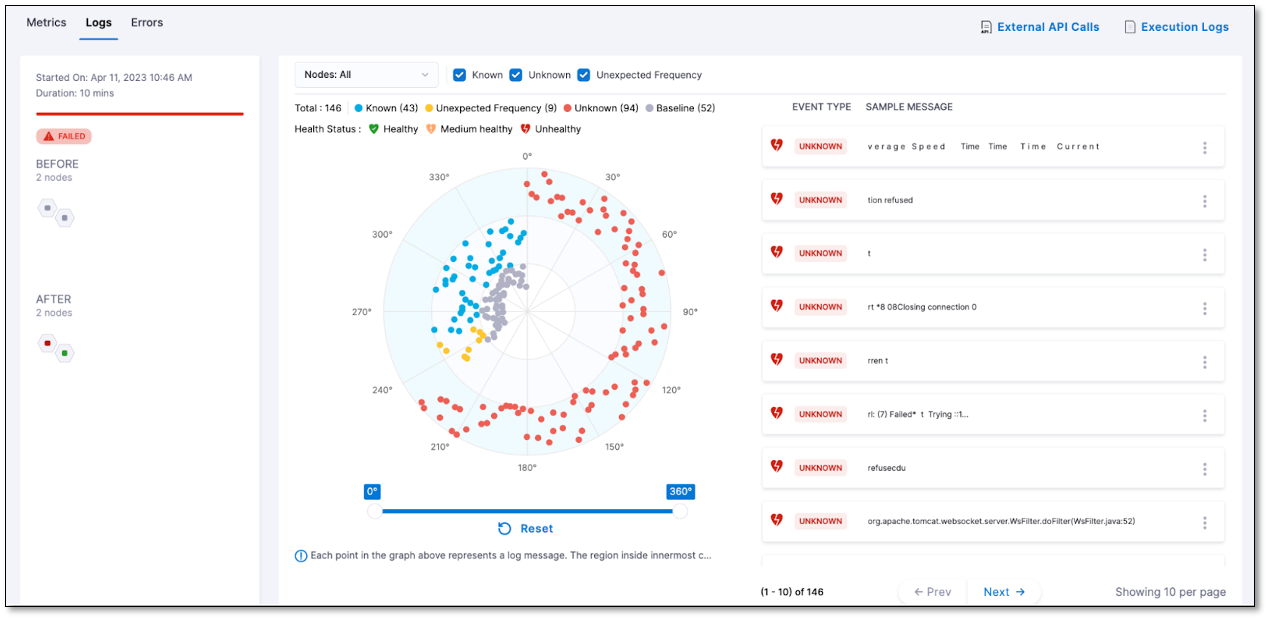
The Logs tab displays a Radar Chart and an Event list.
***
## Radar Chart
The Radar Chart gives an overview of all log clusters detected during log verification so you can compare distribution and magnitude by cluster type.
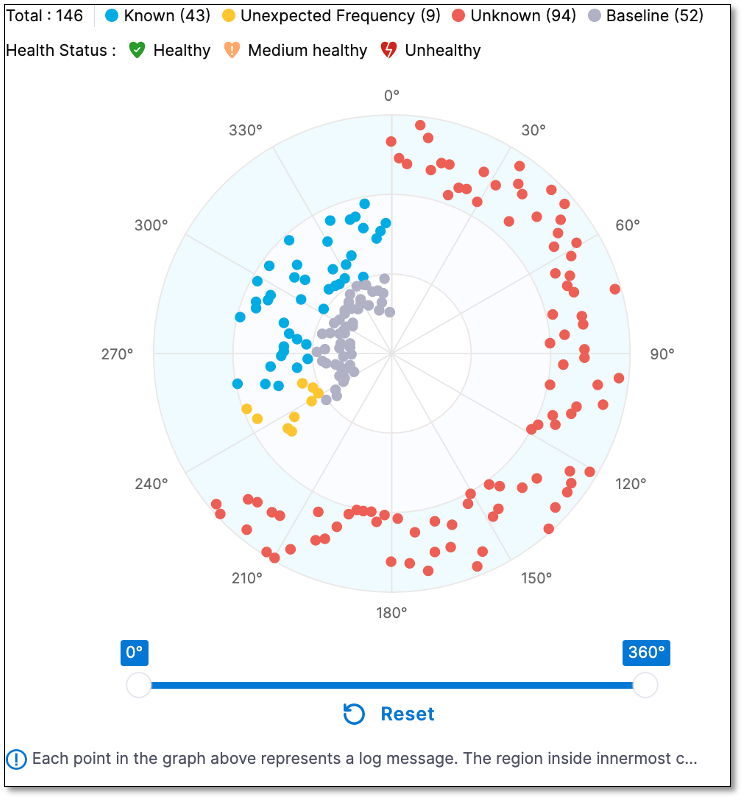
The chart organizes clusters into three concentric regions:
* The outermost region represents **Unknown** event clusters.
* The middle region contains **Known** and **Unexpected Frequency** clusters.
* The innermost region represents logs from baseline or control nodes (Primary or Before nodes).
Each point on the chart is a log message. Related clusters (logs observed on both Canary and baseline nodes) appear on the same radii. The chart is divided into sectors; each sector can contain several log messages.
You can use the Radar Chart as follows:
* **Sample message:** Hover over a cluster to view a sample message. When you hover over Known and Unexpected Frequency clusters, the innermost circle highlights the matching cluster on Primary or Before nodes.
* **Cluster details:** Select a cluster to open the Event Details page. That page shows event health, type, and the total number of events in the cluster.
* **Sector focus:** Use the slider below the chart to zoom into a sector. When you select a sector, the Event list shows only events in that sector.
The count of each cluster type appears at the top of the Radar Chart.
***
## Event list
The Event list lists the clusters shown in the Radar Chart. It includes event health, type, and a sample message. When you use the slider to select a sector on the Radar Chart, the list updates to show only clusters in that sector.
### Event type
The event type is a cluster of similar logs. During log verification, log clusters found on Canary or After nodes fall into three categories:
* **Known:** Log clusters seen on at least one Primary or Before node.
* **Unknown:** New log clusters observed only on Canary or After nodes.
* **Unexpected frequency:** Log clusters seen on both Canary or After nodes and Primary or Before nodes, but with increased frequency.
Baseline clusters include all log clusters seen on Primary or Before nodes. Every Known and Unexpected frequency cluster matches one of the Baseline clusters.
{% hint style="info" %}
**Configure error-focused queries**
Configure queries as part of the health source so they filter error logs from the service. Unknown and Unexpected frequency clusters are strong signals of potential deployment issues.
{% endhint %}
### Event health
Event health has three values: **Healthy**, **Medium Healthy**, and **Unhealthy**. By default, these map to Known, Unexpected frequency, and Unknown event types when you have not set event preferences. You can change that mapping by setting preferences for a log cluster. For example, marking an Unknown cluster as non-risky changes its classification to Healthy. Go to [Event preference or log feedback](/continuous-delivery/use-continuous-delivery/verify-deployments/cv-results/log-feedback.md) to set event preferences.
### Sensitivity and event health
Event health drives the verification outcome based on the sensitivity configured on the AI Verify (v1) step. The rules are:
* **High sensitivity:** Verification fails if there is any Unhealthy or Medium Healthy cluster that the user did not set. If a user [sets an event preference](/continuous-delivery/use-continuous-delivery/verify-deployments/cv-results/log-feedback.md#set-event-preference) to **medium risk**, the cluster becomes Medium Healthy but does not fail High sensitivity verification.
* **Medium sensitivity:** Verification fails if there is any Unhealthy cluster.
* **Low sensitivity:** Verification fails if there is any Unhealthy cluster.
***
## Event Details page
The Event Details page shows event health, type, and the total number of events in the cluster.
Open Event Details in either of the following ways:
* Select a cluster on the Radar Chart.
* Select a cluster in the Event list.
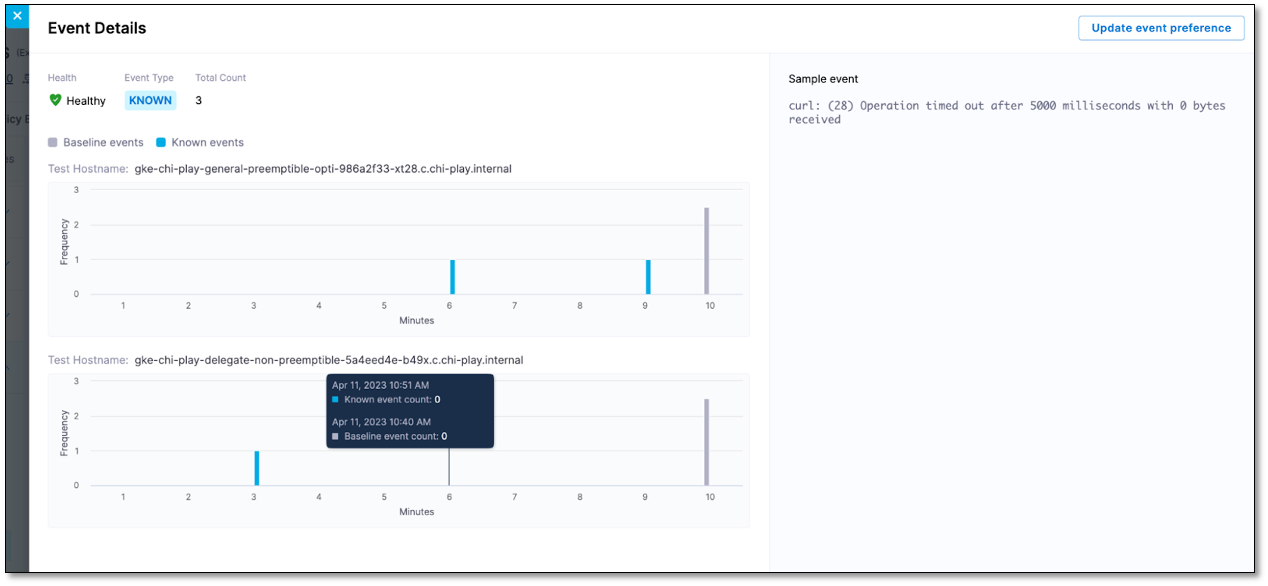
The Event Details page includes the following information:
* **Total count:** How many times the log cluster occurred across Canary or After nodes.
* **Cluster occurrence graph:** For each Canary or After node where the cluster appears, a graph shows occurrence over time. For example, if the cluster appears on two nodes and verification ran for 10 minutes, each graph can show one point per minute with timestamp and occurrence count.
* **Baseline cluster occurrence count:** For Known and Unexpected frequency clusters, the baseline count is the sum of occurrences across all Primary or Before nodes.
The page also shows a sample event for the cluster.
***
## Troubleshooting
The Logs tab is empty or shows no clusters
Confirm the AI Verify (v1) step includes a logging health source, the query returns error logs for the service, and the selected execution completed the AI Verify (v1) step. Go to [Configure verification](/continuous-delivery/use-continuous-delivery/verify-deployments/configure-cv.md) to review health source setup.
Verification failed but every cluster looks familiar
Check sensitivity on the AI Verify (v1) step and whether any cluster is Unhealthy or Medium Healthy. Review event preferences that change Unknown clusters to Healthy. Go to [Event preference or log feedback](/continuous-delivery/use-continuous-delivery/verify-deployments/cv-results/log-feedback.md) to adjust preferences.
Unexpected Frequency appears for a Known error
Unexpected Frequency means the cluster existed on Primary or Before nodes and also on Canary or After nodes, but occurred more often. Compare occurrence counts on the Event Details page and baseline count.
***
## Next steps
* [Event preference or log feedback](/continuous-delivery/use-continuous-delivery/verify-deployments/cv-results/log-feedback.md): Improve log verification accuracy with cluster feedback.
* [Configure verification](/continuous-delivery/use-continuous-delivery/verify-deployments/configure-cv.md): Add or update health sources on the AI Verify (v1) step.
* [Machine Learning Usage](/continuous-delivery/use-continuous-delivery/verify-deployments/cv-concepts/machine-learning.md): Review how Harness CV applies ML to log and metric analysis.
{% @harness-feedback/feedback %}