> For the complete documentation index, see [llms.txt](https://developer.harness.io/llms.txt). Markdown versions of documentation pages are available by appending `.md` to page URLs; this page is available as [Markdown](https://developer.harness.io/continuous-delivery/use-gitops/gitops-entities/agents/gitops-disaster-recovery.md).
# GitOps Agent disaster recovery
Set up and manage disaster recovery for GitOps agents.
This topic outlines the disaster recovery (DR) strategy for GitOps agents. Disaster recovery for GitOps agents ensures your GitOps operations can continue even if your primary agent cluster becomes unavailable. The DR strategy involves setting up primary and secondary GitOps agents across different Kubernetes clusters and coordinating between them. This topic provides instructions for setting up DR agents, creating backups, and performing failover operations between primary and secondary agent clusters.
## What you will learn from this topic
* Understand [GitOps agent architecture](#gitops-agent-architecture) and its behaviors to plan disaster recovery.
* How to set up [primary and secondary DR agents](#setting-up-dr-agents).
* How to [switch between agents](#switching-between-agents) during a failover.
* How to [back up and restore](#backup-and-restore) GitOps agent data.
* How to use [sync windows](#sync-windows) to coordinate syncs between primary and secondary agents.
## Before you begin
Verify the following prerequisites before you set up DR agents.
* Two separate Kubernetes clusters (primary and secondary).
* The same namespace on both clusters.
* Primary and secondary agents of the same type (HA or non-HA, BYOA or non-BYOA).
***
## GitOps agent architecture
GitOps agents store all information on the Kubernetes cluster, which serves as the source of truth at all times.
### Important agent behaviors
The following agent behaviors affect how you plan and configure disaster recovery.
* **Multiple agents**: If two identical agents run in separate clusters, tasks go to either agent. Entities only exist on one agent, and the other agent's reconciler removes them if they do not exist in its state.
* **Same behavior in different namespaces**: The same behavior occurs if an agent is installed in a different namespace on the same cluster.
* **HA agent support**: Harness supports high availability (HA) agents. Multiple replicas of the agent in the same namespace work together, with one pod handling requests if another goes down.
## Set up DR agents
This section describes the behavior without DR configuration and how to create primary and secondary DR agents.
### Behavior without DR configuration
If your primary cluster loses connectivity and you switch to a secondary cluster by increasing the replica count for the same agent, all entities on Harness are deleted. This happens because:
1. The cluster is the source of truth at all times
2. The secondary cluster is new and does not have any CRDs or data from the primary cluster
3. The agent on the secondary cluster would clean up entities that do not exist in its state
### Create a primary DR agent
Perform the following steps to create a primary DR agent:
1. Navigate to your Harness project and select **GitOps** -> **Settings** -> **Agents**.
2. Click **New Agent**.
3. Provide the agent name, namespace, and cluster.
4. Under the **Advanced** section, toggle the **Disaster Recovery** button.
5. Select the **Primary** radio button and provide a primary identifier.
6. Complete the agent creation process.
### Create a secondary DR agent
Perform the following steps to create a secondary DR agent:
1. Navigate to your Harness project and select **GitOps** -> **Settings** -> **Agents**.
2. Click **New Agent**.
3. Scroll down to the **Advanced** section.
4. Toggle the **Disaster Recovery** button.
5. Select the **Secondary** radio button and provide a secondary identifier.
6. Select the primary agent from the list of agents.
7. Complete the agent creation process.
{% hint style="warning" %}
When the primary agent is selected, it overrides the name (identifier) for the current agent. This is because primary and secondary agents share the same agent identifier but differ in disaster recovery identifier.
{% endhint %}
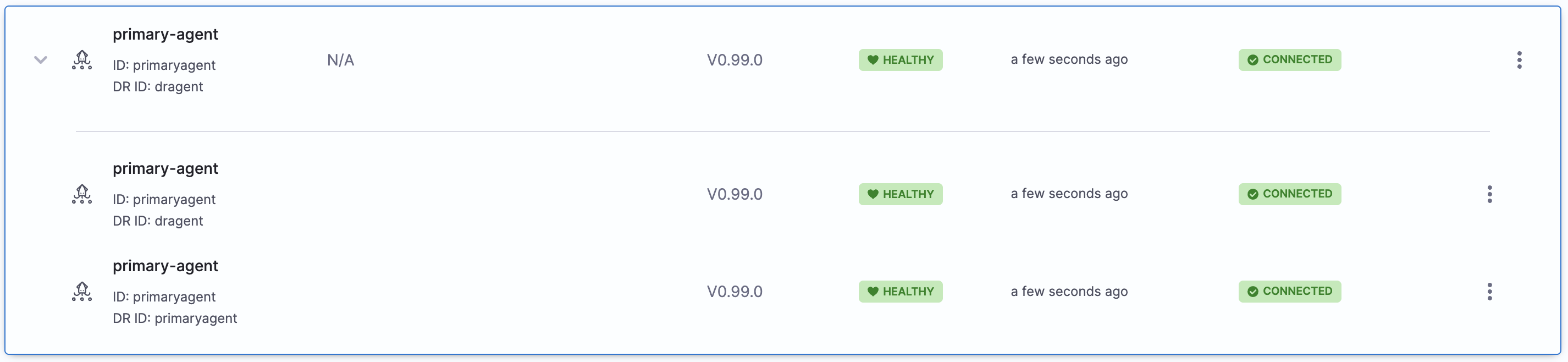
Make sure the secondary agent is set up in a different cluster. The two agents cannot be deployed to the same cluster.
To view your primary and secondary agents, expand the primary agent in the agents dashboard.
### Switch between agents
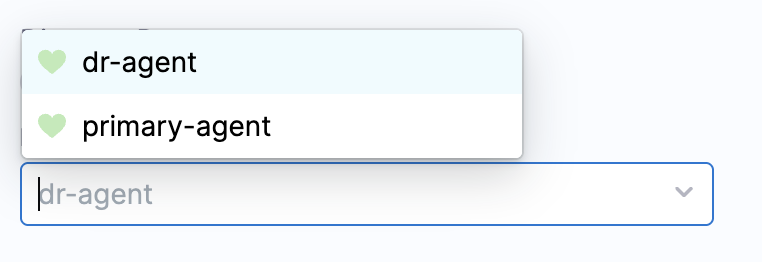
Perform the following steps to switch between primary and secondary agents:
1. Navigate to the primary agent details page.
2. Find the list box that displays disaster recovery IDs.
3. Note the selected ID, which indicates which agent is active.
4. Change the disaster recovery identifier and save to change the active agent.
## Backup and restore
Back up the GitOps agent namespace with the Argo CD binary, and restore it on another cluster when you need to fail over.
### Create a backup
To back up entities from the GitOps agent namespace (including applications, applicationsets, repositories, clusters, configmaps, and secrets), use the Argo CD binary from containers like application-controller, applicationset controller, or gitops-agent.
Since the application-controller has higher memory resources assigned than the gitops-agent, use that container:
```bash
kubectl exec -it sts/argocd-application-controller -n -- argocd admin export > backup.yaml
```
This command exports all GitOps resources, including:
* Applications
* ApplicationSets
* Repositories
* Clusters
* ConfigMaps
* Secrets (including Argo CD CM but excluding gitops-agent and gitops-agent-upgrader CM)
The backup file contains a full export of your configuration in YAML format, including application definitions, repositories, clusters, and other Argo CD resources.
Sample YAML
```yaml
apiVersion: v1
data:
admin.enabled: "true"
application.instanceLabelKey: argocd.argoproj.io/instance
url: https://your-argocd-url.example.com
kind: ConfigMap
metadata:
annotations:
meta.helm.sh/release-name: argocd
meta.helm.sh/release-namespace: your-namespace
labels:
app.kubernetes.io/component: server
app.kubernetes.io/instance: argocd
app.kubernetes.io/name: argocd-cm
name: argocd-cm
---
apiVersion: v1
data:
policy.csv: ""
policy.default: ""
kind: ConfigMap
metadata:
labels:
app.kubernetes.io/name: argocd-rbac-cm
name: argocd-rbac-cm
---
apiVersion: v1
data:
ssh_known_hosts: |
# Standard SSH known hosts entries
github.com ssh-ed25519 EXAMPLE_SSH_KEY_CONTENT
kind: ConfigMap
metadata:
name: argocd-ssh-known-hosts-cm
---
apiVersion: v1
data:
admin.password: your_hashed_password
admin.passwordMtime: your_password_modified_time
server.secretkey: your_server_secret_key
kind: Secret
metadata:
labels:
app.kubernetes.io/component: server
app.kubernetes.io/name: argocd-secret
name: argocd-secret
type: Opaque
---
apiVersion: v1
data:
config: your_cluster_config
name: your_cluster_name
server: your_cluster_server_url
kind: Secret
metadata:
labels:
argocd.argoproj.io/secret-type: cluster
name: cluster-example-123456789
type: Opaque
---
apiVersion: v1
data:
name: your_repository_name
password: your_repository_password
project: your_project_id
type: git
url: https://github.com/your-org/your-repository
username: your_username
kind: Secret
metadata:
labels:
argocd.argoproj.io/secret-type: repository
name: repo-example
type: Opaque
---
apiVersion: argoproj.io/v1alpha1
kind: AppProject
metadata:
name: example-project
spec:
clusterResourceWhitelist:
- group: '*'
kind: '*'
destinations:
- namespace: '*'
server: '*'
sourceRepos:
- '*'
status: {}
---
apiVersion: argoproj.io/v1alpha1
kind: Application
metadata:
name: example-app
spec:
destination:
namespace: your-app-namespace
server: https://your-cluster-api-url
project: example-project
source:
path: your-app-path
repoURL: https://github.com/your-org/your-repository
targetRevision: main
syncPolicy:
automated: {}
syncOptions:
- CreateNamespace=true
```
### Restore a backup
Run the following command to import a backup:
```bash
kubectl exec -it sts/argocd-application-controller -n -- argocd admin import - < backup.yaml
```
The output shows all resources being created or configured in the namespace, such as:
```
/ConfigMap argocd-ssh-known-hosts-cm in namespace created
/Secret cluster-- in namespace created
/Secret repo- in namespace created
argoproj.io/Application app in namespace created
argoproj.io/Application app2 in namespace created
```
## Sync windows
Use sync windows to coordinate sync timing between multiple Argo CD instances (primary and secondary agents). Sync windows control which Argo CD instance is performing syncs at any given time.
Go to [Harness Support](mailto:support@harness.io) to request additional assistance with disaster recovery setup.
## Next steps
* [GitOps agents overview](/continuous-delivery/use-gitops/gitops-entities/agents.md): Review other GitOps agent entities and configuration options.
* [Harness CD GitOps tutorial](/continuous-delivery/use-gitops/get-started/harness-cd-git-ops-quickstart.md): Walk through a complete GitOps setup from start to finish.
* [CD best practices](/continuous-delivery/troubleshooting-and-resources/cd-best-practices.md): Review general Continuous Delivery best practices.
{% @harness-feedback/feedback %}