> For the complete documentation index, see [llms.txt](https://developer.harness.io/llms.txt). Markdown versions of documentation pages are available by appending `.md` to page URLs; this page is available as [Markdown](https://developer.harness.io/continuous-delivery/use-gitops/gitops-entities/clusters/use-secrets-for-cluster-credentials.md).
# Use Harness secrets for cluster credentials
Reference Harness secrets for GitOps cluster credentials when you register a cluster, instead of entering plaintext values.
When you register a Harness GitOps cluster using a cluster URL and credentials, you can reference Harness secrets for sensitive credential fields instead of entering plaintext values. This lets you store cluster credentials in a Harness Secret Manager and manage them centrally, rather than pasting them directly into the cluster configuration.
{% hint style="info" %}
This feature is behind the feature flag `CDS_GITOPS_SECRET_RESOLUTION_ENABLED`. Contact [Harness Support](mailto:support@harness.io) to enable it.
You need GitOps Service `1.61.0` or later and GitOps Agent `0.121.0` or later.
{% endhint %}
***
### Before you begin
* **Feature flag enabled:** Ask [Harness Support](mailto:support@harness.io) to enable `CDS_GITOPS_SECRET_RESOLUTION_ENABLED` for your account.
* **A Harness secret:** Create the credential as a secret in a Harness Secret Manager. Go to [Add and reference text secrets](/harness-ai/use-harness-platform/secrets/add-use-text-secrets.md) to create one.
* **Cluster permissions:** Permission to create GitOps clusters in the target project.
***
### Reference a secret for cluster credentials
1. In your Harness project, select **GitOps**, and then select **Settings**.
2. Select **Clusters**, and then select **New Cluster**.
3. Enter a name for the cluster.
4. Select the GitOps Agent, and then select **Continue**.
5. In **Details**, select **Specify Kubernetes Cluster URL and credentials**.
6. In **Master URL**, enter the HTTP endpoint of the Kubernetes API server.
7. In **Authentication**, select the authentication method, for example **Username and Password**, **Service Account**, or **Client Key Certificate**.
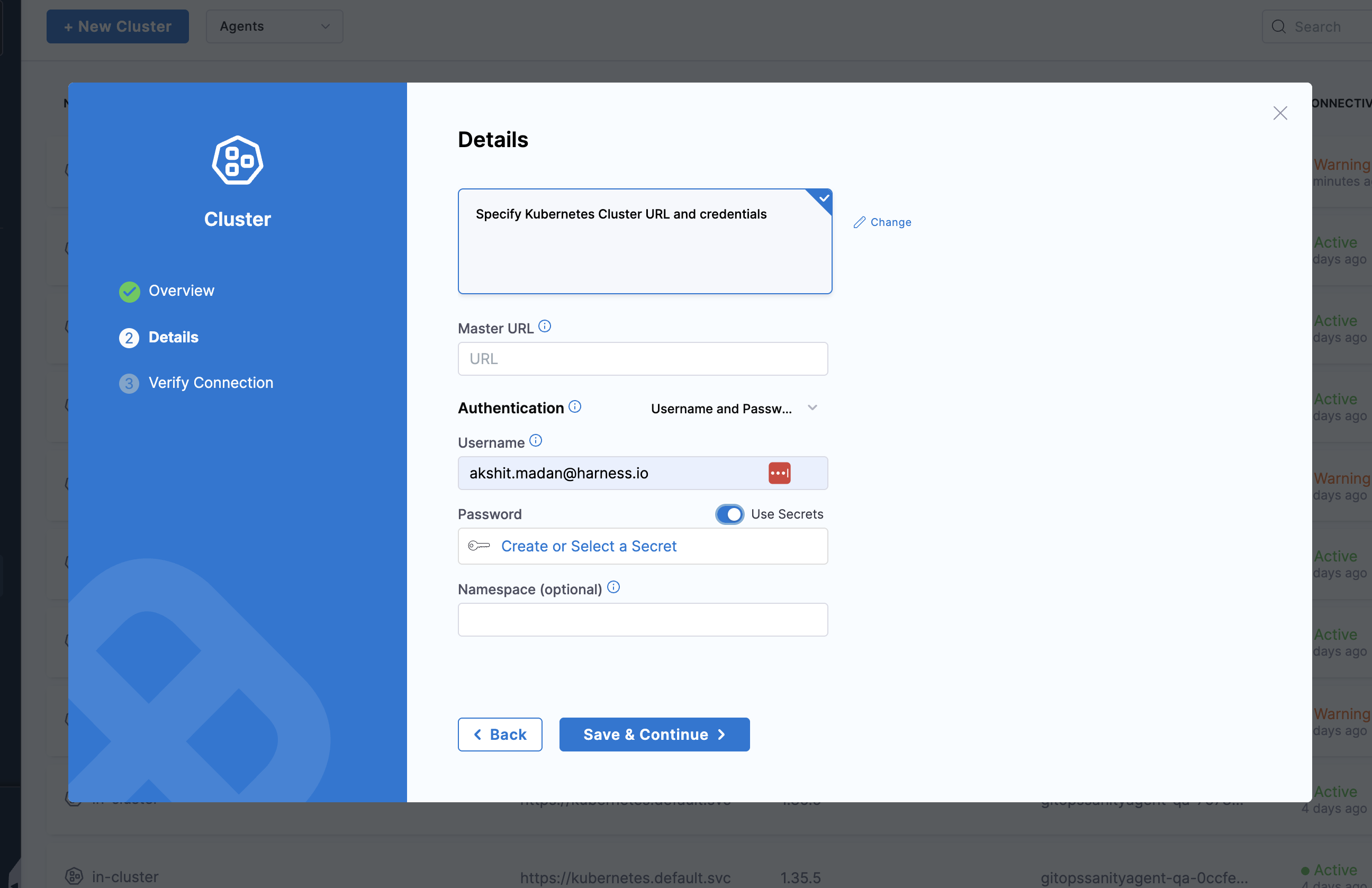
8. For a sensitive credential field, enable **Use Secrets**, and then select **Create or Select a Secret** to reference an existing Harness secret or create a new one.
For example, with **Username and Password** authentication, enable **Use Secrets** on the **Password** field and select the secret that holds the password.
Click to view full size image
You can reference secrets from the account, organization, or project scope. Select the scope in the secret picker when you create or select the secret.
9. (Optional) In **Namespace**, enter the target namespace.
10. Select **Save & Continue**, and then verify the connection.
The GitOps service resolves the referenced secret from the configured Harness Secret Manager when it connects to the cluster.
***
### Next steps
* Go to [Add a Harness GitOps application](/continuous-delivery/use-gitops/get-started/harness-cd-git-ops-quickstart.md#step-4-add-a-harness-gitops-application) to deploy applications to the cluster.
* Go to [Harness Secret Expressions in Application Manifests](/continuous-delivery/use-gitops/application/manage-gitops-applications.md#harness-secret-expressions-in-application-manifests) to reference Harness secrets inside your Kubernetes manifests.
{% @harness-feedback/feedback %}